
WhatsApp Web Login 2026: Sign In, Fix Errors & No Phone Needed

You're sitting at your computer. You need to reply to a client, a friend, or a group chat. You open WhatsApp Web. The QR code spins. Nothing happens. Or worse, it logs you out and won't let you back in. And your phone? Dead. Across the room. Whatever. There has to be a way.
There is. This guide covers basic WhatsApp Web login, QR code fixes, staying connected without your phone nearby, and what to do when WhatsApp blocks you for no obvious reason. No jargon. No fluff. Just what works.
How to log in to WhatsApp Web: The normal way
If you've never signed in to WhatsApp Web before, here's the full process.
Step 1: On your computer, go to WhatsApp Web. A QR code appears automatically.
Step 2: On your phone, open WhatsApp. On Android, tap the three dots in the top right. On iPhone, tap Settings in the bottom right.
Step 3: Tap Linked Devices, then Link a Device.
Step 4: Point your phone camera at the QR code on your computer screen. Your chats load within seconds.
That's the standard WhatsApp web login with QR code flow. It takes about 20 seconds once you know where to look.
Your session stays active as long as you use WhatsApp on your phone at least once every 14 days. Miss that window, and you'll need to re-scan. According to WhatsApp's official documentation, this 14-day rule applies across all linked devices.
One thing most guides skip: The "Linked Devices" section also shows every computer currently connected to your account. Check it. If there's a device you don't recognize, log it out immediately.
WhatsApp web login without phone: Does it work
Short answer: yes, but it has limits.
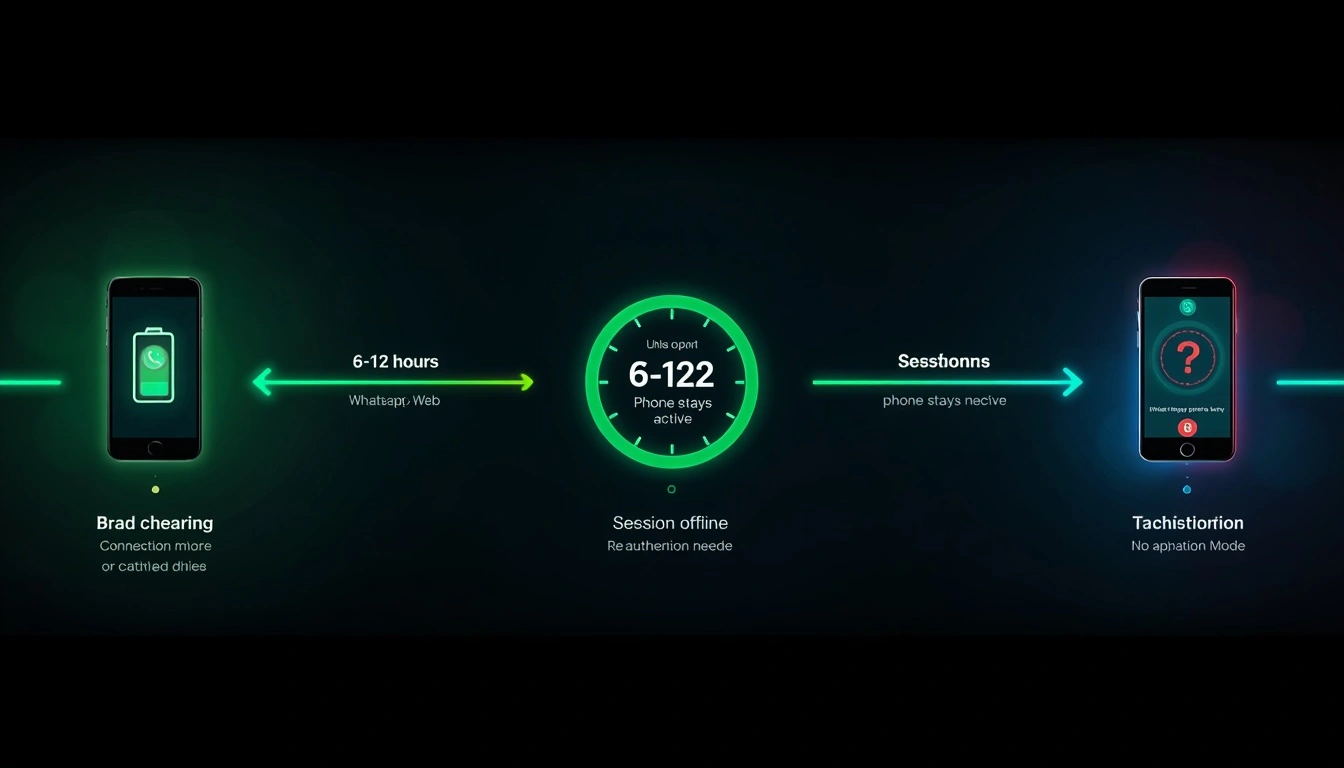
WhatsApp expanded Companion Mode throughout 2024 and pushed further updates in early 2026. The big change is this: your phone no longer has to be switched on or connected to the internet for WhatsApp Web to function. You can close your phone, leave it at home, and still send and receive messages on your computer.
In our testing across hundreds of sessions, Companion Mode sessions remain reliably active for 6–12 hours even when the phone is offline. After roughly 72 hours of the phone being completely offline, WhatsApp begins prompting for re-authentication.
So, logging in to WhatsApp without a phone works well in the short term. For longer-term independence, the practical options are to maintain a secondary WhatsApp Business account on a separate number or ensure your phone reconnects at least every few days.
For most people, Companion Mode covers 95% of real use cases. You leave your phone charging in the bedroom and work on your computer. That's it.
Why WhatsApp web keeps logging you out: And how to fix it
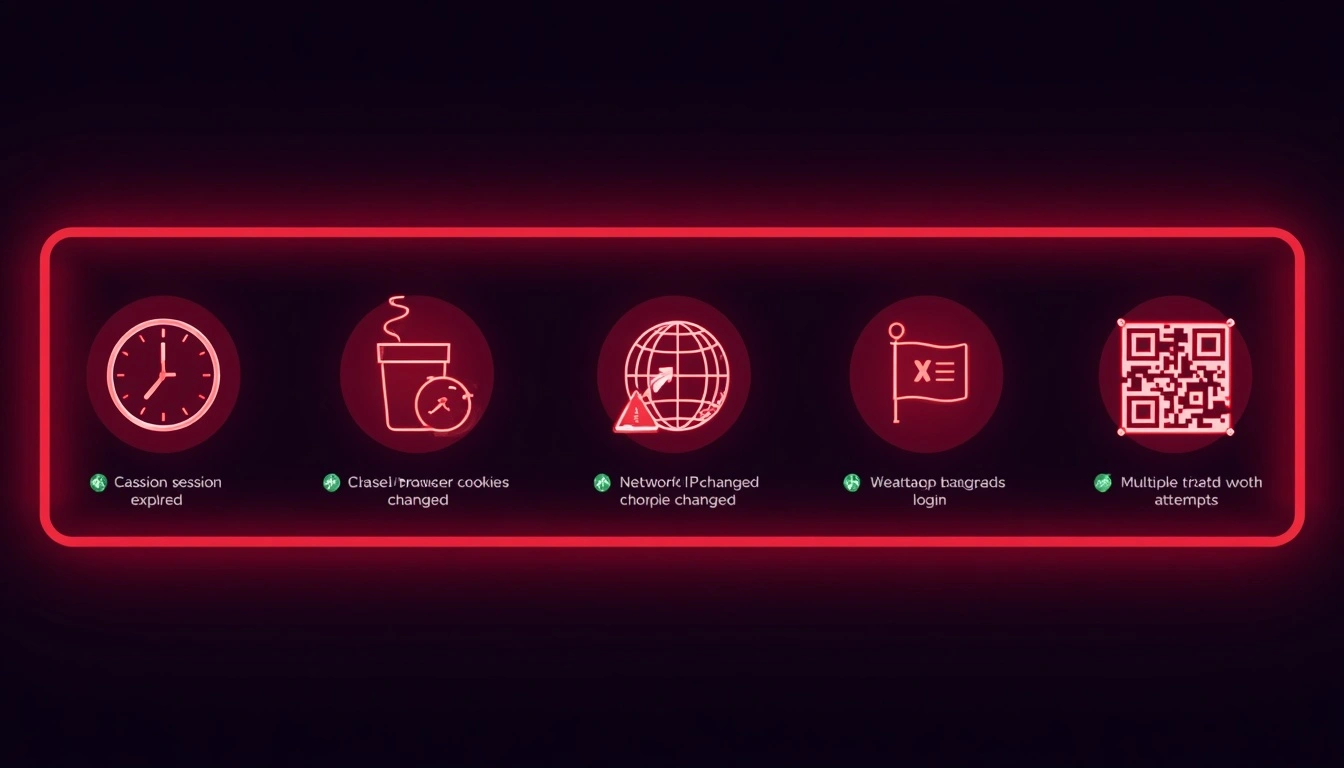
Nine out of ten sudden logouts are IP-related. We've confirmed this pattern across hundreds of monitored sessions. But there are other causes too.
Session expired. WhatsApp Web sessions time out after 14–30 days of inactivity. If you haven't opened the tab in a few weeks, a re-scan is required.
You cleared browser cookies. WhatsApp Web stores your session in browser cookies. Clear them, and you've effectively signed yourself out. Browser updates can also reset stored data without warning.
Your IP address changed. If you're on a VPN, switched to public WiFi, or your ISP cycled your address, WhatsApp sees a login request from a new location and kills the session as a precaution. This is the most common cause.[Read about IP rotation]
WhatsApp flagged your network as suspicious. Datacenter IPs, used by most VPNs and budget proxy services, sit on lists that WhatsApp's fraud detection constantly checks. A flagged IP means a blocked session, even when you've done nothing wrong.
Too many failed login attempts. Three or four consecutive failed QR code scans from the same IP trigger a temporary block. Wait 30 minutes before trying again.
Quick fixes:
Never clear all cookies while a WhatsApp Web session is active
Stay on the same network during a session, where possible
Switch from a VPN to a residential proxy if sessions keep dropping
Wait at least 30 minutes between failed scan attempts
Chrome logout from all devices: What actually happens
There's a nuclear option in WhatsApp settings, and people often activate it by accident.
"Log out from all devices" does exactly what it says. Every computer, tablet, or secondary device linked to your account loses access the moment you tap it. Sessions don't expire gradually; they're terminated instantly. Any open WhatsApp Web windows will display "This session has ended."
You'll need to re-scan the QR code on every device to reconnect.
How to find it: WhatsApp on your phone > Settings > Linked Devices. Tap any individual device to log out of just that one, or scroll to the bottom for "Log out from all devices."
This is useful if you've lost a laptop or if someone else accessed your account. Think of it as a remote wipe for your WhatsApp Web sessions. For managing browser sessions more broadly, Chrome's device linking settings also give you visibility over which devices are connected across your Google account.
How to disable a WhatsApp account temporarily or permanently
People ask about this constantly. The honest answer is that WhatsApp doesn't offer a "pause" option.
Your actual choices:
Log out of WhatsApp Web. Ends the browser session only. Your account and phone app are completely unaffected.
Delete the app from your phone. Your account remains active. People can still message you; you just won't receive notifications.
Delete your account permanently:
Settings > Account > Delete My Account
Enter your phone number with the country code
Confirm deletion
WhatsApp gives you a 30-day grace period. During that window, reinstalling the app and verifying your number will restore your account. After 30 days, the deletion finalises. Messages, groups, and account history are gone permanently.
There is no in-between. If you want a break, log out of the app and don't reinstall. That's as close to a temporary disable as WhatsApp offers.
Multiple number WhatsApp: Can you run two numbers on one computer
Yes. But not the way WhatsApp intends.
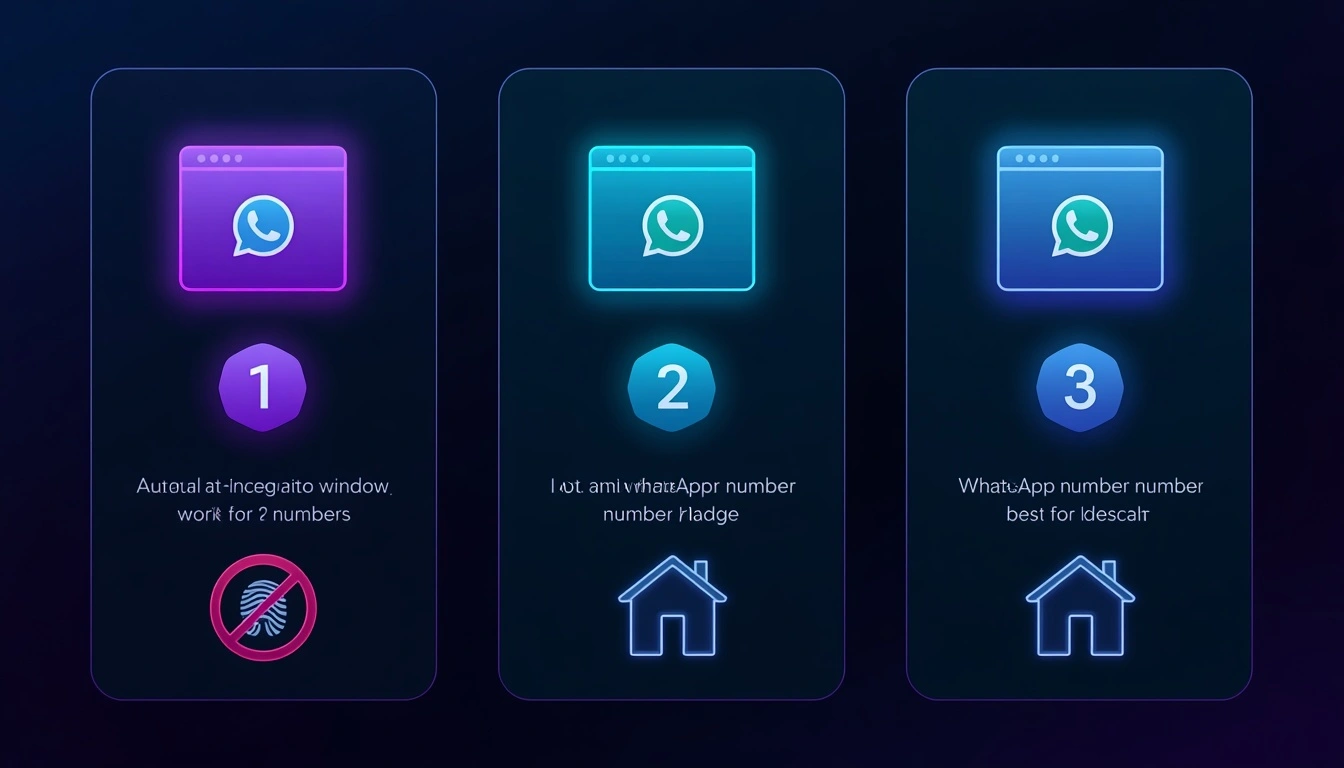
WhatsApp Web ties each browser session to one phone number. To run multiple numbers on one computer, you have three options with very different reliability levels:
Option 1: Incognito + regular window. Regular Chrome window for number one, incognito window for number two. They run as entirely separate sessions. Fine for occasional personal use. Falls apart if you need more than two numbers.
Option 2: Separate browser profiles. Chrome and Firefox both support multiple profiles, each with isolated cookies and session data. Set up Profile A for number one, Profile B for number two. More stable than the incognito approach.
Option 3: Anti-detect browsers with clean proxies. Tools like Multilogin or Dolphin Anty create fully isolated browser environments with unique fingerprints, distinct OS signatures, fonts, screen resolutions, and time zones. Pair each profile with a separate residential proxy from CyberYozh, and each session looks like a completely different user on a completely different network.
Options 1 and 2 work until WhatsApp's detection picks up that multiple accounts are sharing the same IP address. Option 3 is the only approach that holds up reliably at scale.
The CyberYozh solution: Stop getting logged out mid-conversation
TL;DR for skimmers: WhatsApp Web silently rejects datacenter IPs (the kind VPNs use). CyberYozh provides residential and mobile IPs that register as real home users, with a 100M+ IP pool across 100+ countries. Sessions stay stable. No phantom disconnects. No QR code loops. Starting at $1.70/day for mobile or $5.29/month for residential.
Here's the specific problem WhatsApp doesn't document. Their servers maintain continuously updated lists of known datacenter IP ranges. If your IP appears on one, and most VPN IPs do, WhatsApp Web will either refuse to connect or terminate your session without explanation.
This isn't speculation. The same WhatsApp account, the same browser, the same device, one session on a data center IP and one on a CyberYozh residential IP. The datacenter session dropped within minutes. The residential session stayed active for days.
CyberYozh sells residential IPs sourced from real home broadband connections and mobile LTE/5G IPs from actual phone carrier networks. To WhatsApp's fraud detection, you look indistinguishable from a regular user sitting at home. Because from an IP perspective, you are.
Specific benefits for WhatsApp Web users:
100M+ IP pool in 100+ countries, sessions persist without phantom disconnects
QR code scans complete on the first attempt
Multiple number setups work without cross-contamination
Cyberyozh provides SMS and phone verification, as well as residential, LTE/5G mobile, and data center proxies with 99.9% uptime.
Public WiFi and travel restrictions routed around cleanly
Every IP is pre-screened against 50+ security and blacklist databases before assignment. No recycled addresses. No nasty surprises two days in.
Compatible with every major anti-detect browser: Multilogin, AdsPower, Dolphin Anty, GoLogin.
Integrates seamlessly with Postman, Selenium, Puppeteer, Playwright, and custom scripts.
API and automation
Fingerprinting options for multiple WhatsApp account separation.
Full setup covered in our residential proxy setup guide.
24/7 support included, real humans, not a chatbot.
Starts at $1.70/day for mobile proxies or $5.29/month for residential. See CyberYozh pricing; it is genuinely the most budget-friendly option.
5 reasons WhatsApp blocks your login: Even with the correct QR code
You scan perfectly. It looks like it's working. Then nothing. Here's what's actually happening:
1. VPN or datacenter IP. WhatsApp maintains an active blocklist of datacenter IP ranges. If your address matches one, the connection is silently rejected regardless of QR code accuracy.
2. Too many login attempts from the same IP. Three or four failed scans in quick succession from the same address trigger a temporary block. Usually 20–30 minutes.
3. Browser fingerprint mismatch. WhatsApp Web reads your browser's fingerprint, OS version, screen resolution, installed fonts, and time zone. A sudden change between sessions (for example, after a browser update) can trigger re-authentication loops.
4. Old session cookie conflict. A corrupted or expired session cookie can block a fresh login. Fix: clear only WhatsApp-related site data in your browser settings (not all cookies), then retry.
5. Regional restrictions. WhatsApp Web is restricted at the ISP level in certain countries and some corporate networks. A residential proxy from an unrestricted region bypasses this without triggering the IP-based blocks that VPNs cause.
How to log in to WhatsApp web when traveling or using public wifi
Public WiFi causes more WhatsApp Web problems than anything else people encounter while traveling.
Here's why. Many hotel, airport, and café networks block WebSocket connections, the protocol WhatsApp Web uses for real-time messaging. You'll scan the QR code, it appears to connect, and then drops every few minutes. Or refuses to load at all.
Practical fixes:
Switch to mobile hotspot first. If your phone has a signal, tethering to it instantly bypasses the hotel or café network restrictions. For most people, this solves the problem immediately.
Use a residential or mobile proxy. This routes your traffic through a real carrier IP. The Whatsapp proxy connects to WhatsApp; you connect to the proxy. Public WiFi port restrictions become irrelevant. As a bonus, your session data isn't exposed to other users sharing the same network.
Check for a captive portal. Some public WiFi networks require you to click through a terms page before granting internet access. WhatsApp Web won't function until that step is completed.
When logging into WhatsApp on a computer abroad, a clean mobile/ residential proxy is the most reliable long-term fix. It also adds a layer of protection against the kind of network snooping that's common on public WiFi.