
ChatGPT desbloqueado: como acessar o ChatGPT
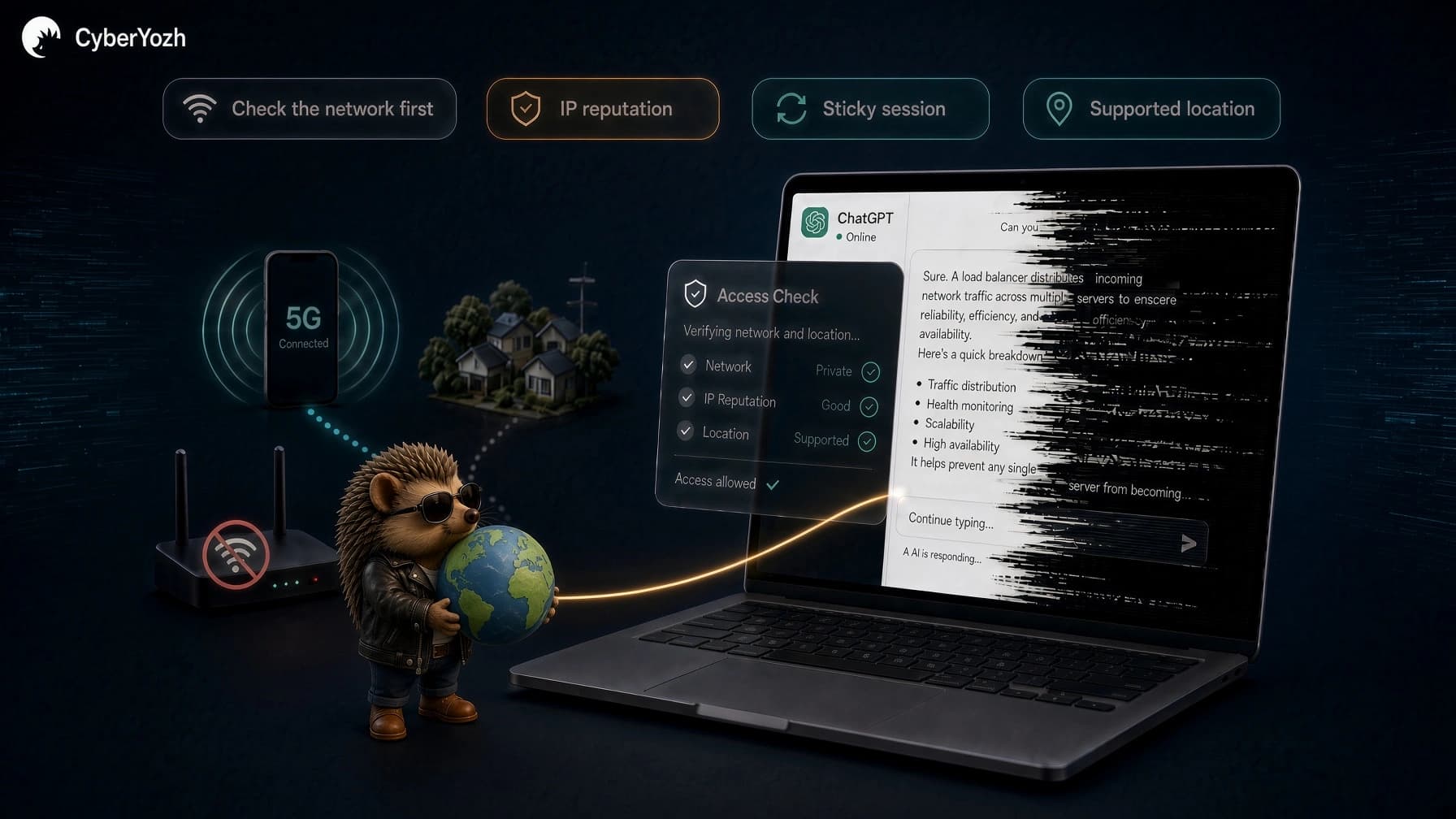
Quando o ChatGPT para de funcionar ou simplesmente deixa de responder, desbloquear o ChatGPT começa com descobrir o que causou o problema em primeiro lugar. Uma escola ou local de trabalho pode restringir o acesso na sua rede; o seu endereço IP atual pode ser o problema; um IP de VPN pode acionar verificações de segurança; ou o problema pode não ter nada a ver com a sua conexão!
É por isso que simplesmente mudar de navegador, alterar o seu IP ou experimentar outra VPN aleatoriamente pode fazer você andar em círculos. Primeiro, identifique de onde vem o bloqueio. Depois, pode escolher a solução que realmente corresponde ao problema.
Este guia explica as principais razões pelas quais o ChatGPT é bloqueado e como aceder ao ChatGPT novamente.
Dica profissional: quando o bloqueio está relacionado com a rede ou IP
Se o ChatGPT funciona numa conexão mas não noutra, a sua rede ou IP público pode ser o problema. Os proxies do CyberYozh App (residenciais, ISP estáticos e móveis) oferecem diferentes formas de alterar ou manter a sua conexão, dependendo do que está a causar o bloqueio.
Resumo
Desbloquear o ChatGPT começa com encontrar a causa. O problema pode ser a sua rede, IP público, VPN, navegador, configurações de DNS, limites de conta ou o próprio ChatGPT.
Teste primeiro outra conexão confiável. Se o ChatGPT funciona com dados móveis mas não com Wi-Fi, a sua rede Wi-Fi ou IP público é um forte suspeito.
Um proxy pode ajudar quando o problema está genuinamente relacionado com o IP. Os proxies residenciais, ISP estáticos e móveis fornecem diferentes formas de substituir ou manter a sua conexão.
Nem todo bloqueio precisa de um novo IP. Filtros de escola ou local de trabalho, limites de utilização, problemas de navegador, geolocalização incorreta e restrições corporativas de WebSocket exigem soluções diferentes.
Se usar um proxy, priorize a qualidade e estabilidade do IP. Escolha um IP localizado com precisão numa localização suportada pelo ChatGPT e evite rotação desnecessária durante uma sessão ativa.
Para sessões mais longas no ChatGPT, a consistência geralmente faz mais sentido. Um proxy ISP estático ou um proxy residencial com uma sessão fixa pode manter o mesmo IP em vez de o rodar constantemente.
Como desbloquear o ChatGPT quando o problema é a sua rede ou IP
Se os testes acima apontam para a sua rede ou IP público, o próximo passo é corrigir a conexão em vez de resolver problemas do próprio ChatGPT.
Às vezes, mudar de rede é suficiente. Noutros casos, pode precisar de um IP diferente, uma localização mais confiável ou um IP que permaneça consistente durante toda a sua sessão. Aqui estão as opções, começando pela mais simples.
1. Mudar para uma rede diferente
Antes de alterar IPs ou pagar por um proxy, experimente outra conexão confiável. Se estiver no Wi-Fi, desconecte-se e abra o ChatGPT usando dados móveis ou um hotspot celular.
Se o ChatGPT funciona com dados celulares mas para de funcionar quando regressa ao Wi-Fi, a rede original ou o seu IP público é provavelmente parte do problema. Pode ser uma firewall ou restrição de DNS, um problema de reputação de IP ou outro filtro ao nível da rede.
Se o ChatGPT continuar bloqueado em ambas as conexões, alterar o seu IP pode não ser a resposta. Avance para os outros passos de resolução de problemas antes de assumir que a rede é responsável.
2. Alterar o seu endereço IP
Sempre que se conecta ao ChatGPT, ele pode ver o endereço IP público que a sua rede usa para aceder à internet. Se esse IP específico foi restringido ou tem uma má reputação, alterá-lo pode restaurar o acesso.
Reiniciar o seu navegador normalmente não ajuda porque não altera o seu IP público. Mudar de rede pode ajudar, e alguns ISPs atribuem IPs dinâmicos que mudam periodicamente. Um IP estático, por outro lado, permanece o mesmo ao longo do tempo.
Um proxy oferece mais controle ao rotear sua conexão por meio de um endereço IP diferente. Mas simplesmente obter outro IP não é toda a história. Sua origem, reputação, localização e estabilidade podem ser importantes. Substituir um IP problemático ou muito compartilhado por outro pode deixá-lo exatamente onde começou.
É por isso que a próxima pergunta não é apenas Como faço para mudar meu IP?, mas Que tipo de IP devo usar?
3. Use um proxy residencial para ChatGPT
Se você precisa substituir um IP problemático, um proxy residencial roteia sua conexão por meio de um IP associado a uma rede residencial, em vez de infraestrutura convencional de datacenter. Isso pode dar à conexão um perfil de rede diferente, além de permitir que você escolha um IP da localização necessária.
A qualidade do proxy residencial ainda importa. O IP deve ter boa reputação e corresponder à localização que você realmente pretende usar. Um grande pool é útil quando você precisa de um novo IP, mas isso não significa que você deva rotacionar endereços constantemente enquanto estiver conectado ao ChatGPT.
Proxies residenciais rotativos alteram automaticamente o IP de saída de acordo com as regras de rotação configuradas. Isso é útil quando o IP atual é o problema ou quando seu caso de uso realmente requer IPs diferentes. Para uma sessão contínua do ChatGPT, no entanto, a rotação frequente geralmente é desnecessária. Uma sessão sticky é mais apropriada quando você deseja manter o mesmo IP residencial por mais tempo e evitar mudar sua conexão no meio de uma sessão.
Dica profissional: Obtenha o proxy residencial rotativo do CyberYozh App com acesso a 100 milhões de IPs residenciais em mais de 195 países, com segmentação por localização e sessões sticky de até 24 horas. Isso oferece a opção de alterar o IP quando necessário, sem ser forçado a rotacioná-lo continuamente durante sua sessão do ChatGPT.
4. Use um proxy ISP estático quando precisar do mesmo IP
Alterar um IP problemático pode ajudar, mas uma vez que você tenha uma conexão funcionando, geralmente há pouca razão para continuar mudando. Para sessões mais longas do ChatGPT, a consistência do IP pode ser mais útil do que a rotação constante.
Um proxy ISP estático fornece um IP de saída fixo que permanece o mesmo entre solicitações e sessões. Esses IPs são associados a redes ISP, mas hospedados em infraestrutura projetada para fornecer a estabilidade e disponibilidade de um proxy estático. Isso os torna um meio-termo prático quando você deseja características de rede de estilo residencial sem rotacionar por um pool residencial.
Dica profissional: Obtenha os proxies ISP estáticos residenciais do CyberYozh App a partir de US$ 5,29 por mês com tráfego ilimitado, tornando-os a opção mais direta quando sua prioridade é um IP estável, em vez de acesso a um pool rotativo.
Manter o mesmo IP também significa que sua conta do ChatGPT não aparece repetidamente de endereços diferentes durante o uso normal. Para navegação, conversas contínuas, pesquisa e outras sessões mais longas, isso torna um proxy ISP estático mais adequado do que um proxy residencial rotativo quando a rotação não serve a nenhum propósito específico.
Leia mais sobre o que é um proxy ISP.
5. Use um proxy móvel quando um IP celular for mais apropriado
Um proxy móvel roteia sua conexão através de um IP associado a uma rede de operadora móvel real, como LTE ou 5G. Isso lhe confere um perfil de rede diferente dos proxies residenciais, que usam conexões de banda larga domésticas, e dos proxies ISP estáticos, que priorizam manter o mesmo IP associado ao ISP.
Os proxies móveis podem ser dedicados ou compartilhados. Um proxy móvel dedicado oferece acesso exclusivo ao canal de proxy, o que proporciona mais controle e consistência para sessões mais longas no ChatGPT. Os proxies móveis compartilhados custam menos, mas a infraestrutura móvel subjacente é compartilhada com outros usuários.
Eles podem ser úteis quando você deseja especificamente uma conexão de rede celular, principalmente se você já descobriu que o ChatGPT funciona com dados móveis, mas sua rede habitual está causando problemas. No entanto, como com qualquer proxy, há pouco benefício em alterar o IP repetidamente durante uma sessão normal conectada quando uma conexão estável está fazendo o trabalho.
Dica profissional: Obtenha proxies móveis LTE/5G dedicados do CyberYozh App a partir de $3,50 por dia e proxies móveis compartilhados a partir de $1,70 por dia, ambos com tráfego ilimitado. Isso oferece a escolha entre uma conexão móvel privada e uma opção compartilhada de menor custo, dependendo de quanto controle você precisa.
6. Escolha a localização correta do proxy
Escolher uma localização de proxy não é tão simples quanto escolher os EUA porque parece ser a opção padrão mais segura. O IP deve vir de uma localização onde o ChatGPT seja oficialmente suportado e, idealmente, permanecer razoavelmente consistente com a forma como você normalmente usa sua conta.
A localização do IP é determinada por meio de bancos de dados de geolocalização, e esses bancos de dados nem sempre são perfeitamente precisos. Um IP anunciado para um país pode ocasionalmente ser classificado de forma diferente por outro serviço, razão pela qual vale a pena verificar a localização reportada antes de se conectar ao ChatGPT.
Evite saltos de localizaçãodesnecessários também. Há pouca razão para uma sessão normal alternar entre os EUA, Alemanha, Reino Unido e outro país simplesmente porque seu pool de proxies permite isso. Uma vez que você tenha uma localização funcional adequada, a consistência geralmente é a melhor abordagem.
Há também um limite importante aqui. A OpenAI afirma que acessar seus serviços de um país ou território não suportado pode resultar no bloqueio ou suspensão da conta. Portanto, um proxy não deve ser tratado como uma forma de contornar as regras de disponibilidade regional da OpenAI. Se você estiver em uma localização suportada, mas o ChatGPT estiver detectando incorretamente seu IP em outro lugar, mudar para um IP geolocalizados com precisão é um caso de solução de problemas diferente.
7. Evite rotação constante de IP durante uma sessão do ChatGPT
A rotação de IP é valiosa para tarefas como web scraping em larga escala e coleta de dados, onde distribuir solicitações por diferentes endereços faz parte do trabalho. Uma sessão autenticada do ChatGPT é um caso de uso diferente. O fato de um proxy poder rotacionar não significa que ele deva rotacionar constantemente.
Se seu objetivo é simplesmente substituir um IP problemático e usar o ChatGPT normalmente, alterar endereços a cada poucos minutos agrega pouco valor. Uma vez que você tenha um IP funcional, manter a conexão consistente geralmente é a configuração mais sensata.
Com um proxy residencial rotativo, use uma sessão sticky para manter o mesmo IP por um período definido, em vez de solicitar um novo a cada conexão. Para uma consistência ainda maior a longo prazo, um proxy ISP estático mantém o mesmo IP de saída em vez de extrair endereços de um pool rotativo.
Pense na rotação como algo a ser usado quando a tarefa exigir, não como um recurso que precisa ser ativado simplesmente porque está disponível.
Clique para ler como funcionam as sessões fixas.
8. Evite IPs de proxy de baixa qualidade ou superutilizados
Um IP diferente não é automaticamente um IP melhor. Se você substituir sua conexão atual por um endereço que já foi intensamente utilizado ou associado a tráfego abusivo, poderá enfrentar outra verificação de segurança.
Isso é particularmente relevante com infraestrutura de proxy intensamente compartilhada. Quando muitos usuários não relacionados enviam tráfego pelos mesmos endereços, você tem pouco controle sobre para que esses IPs foram usados antes de chegarem até você. Má reputação ou histórico de abuso podem fazer com que um IP atraia mais escrutínio.
Proxies web gratuitos são uma aposta ainda maior. Além da qualidade e disponibilidade imprevisíveis do IP, você está roteando seu tráfego por uma infraestrutura sobre a qual pode saber muito pouco. Procurar por um proxy gratuito para ChatGPT pode, portanto, resolver um problema de acesso apenas para introduzir preocupações próprias de confiabilidade, privacidade ou segurança.
Se você precisa de um proxy para um bloqueio do ChatGPT relacionado a IP, olhe além do número de IPs anunciados. Pontuação de qualidade do IP, incluindo origem, reputação, precisão de localização e nível de compartilhamento, tudo isso importa. O CyberYozh App é construído em torno de infraestrutura de proxy residencial e móvel mais limpa, com opções dedicadas disponíveis quando você deseja mais controle sobre a conexão em vez de depender de um IP compartilhado desconhecido.
Teste de conexão do ChatGPT em seis configurações de rede
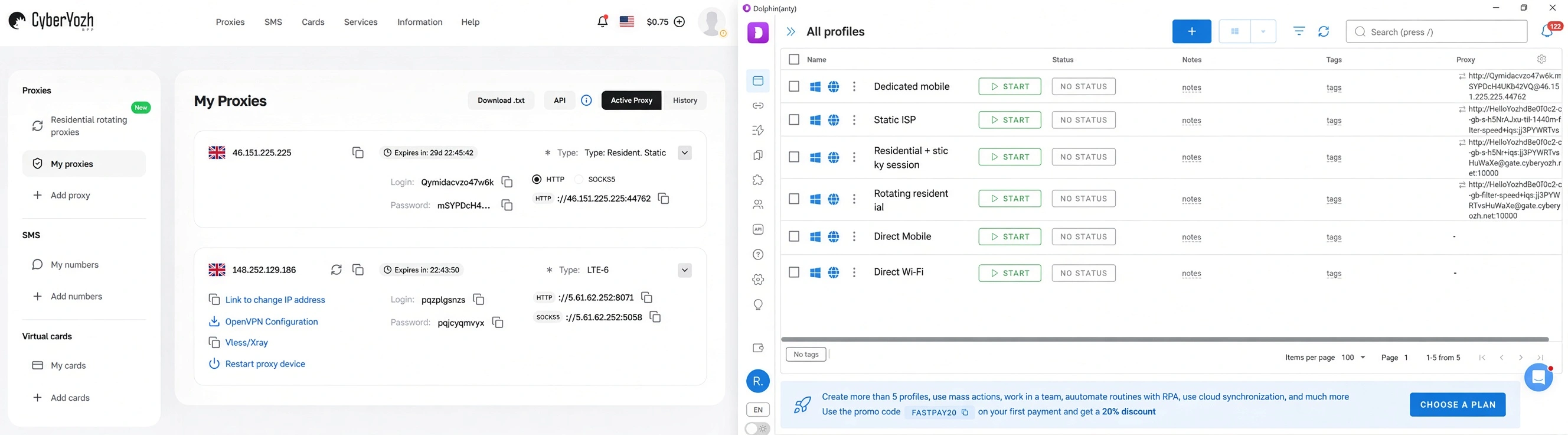
Para ver como o ChatGPT se comporta em diferentes tipos de conexões, o CyberYozh App executou o mesmo teste de acesso em seis configurações de rede: Wi-Fi direto, dados móveis diretos, residencial rotativo, residencial com sessão fixa, ISP estático e móvel dedicado. O objetivo era verificar se o acesso normal e a geração de respostas mudavam entre conexões diretas e baseadas em proxy.
Como o teste foi executado
O teste foi realizado em 2026, usando seis configurações de conexão separadas. Wi-Fi direto e dados móveis diretos serviram como as duas conexões de referência, enquanto os outros quatro perfis usaram os proxies do CyberYozh App: residencial rotativo, residencial com sessão fixa, ISP estático e móvel dedicado.
Cada conexão foi atribuída a um perfil de navegador separado para manter os ambientes de teste isolados. Antes de abrir o ChatGPT, o IP público, localização reportada, ISP e tipo de conexão foram verificados com o BrowserLeaks. O mesmo prompt foi então submetido ao ChatGPT em todas as conexões.
O que aconteceu em todas as seis conexões
O ChatGPT carregou com sucesso e retornou uma resposta completa em todas as seis configurações de conexão.
Conexão | IP Reportado | Localização | Classificação BrowserLeaks | Resultado ChatGPT |
Wi-Fi Direto | 49.228.150.208 | Tailândia | Cabo/DSL/Residencial | Resposta bem-sucedida |
Móvel Direto | 223.24.235.206 | Tailândia | Celular | Resposta bem-sucedida |
Residencial rotativo | 80.0.66.18 | Reino Unido | Cabo/DSL/Residencial | Resposta bem-sucedida |
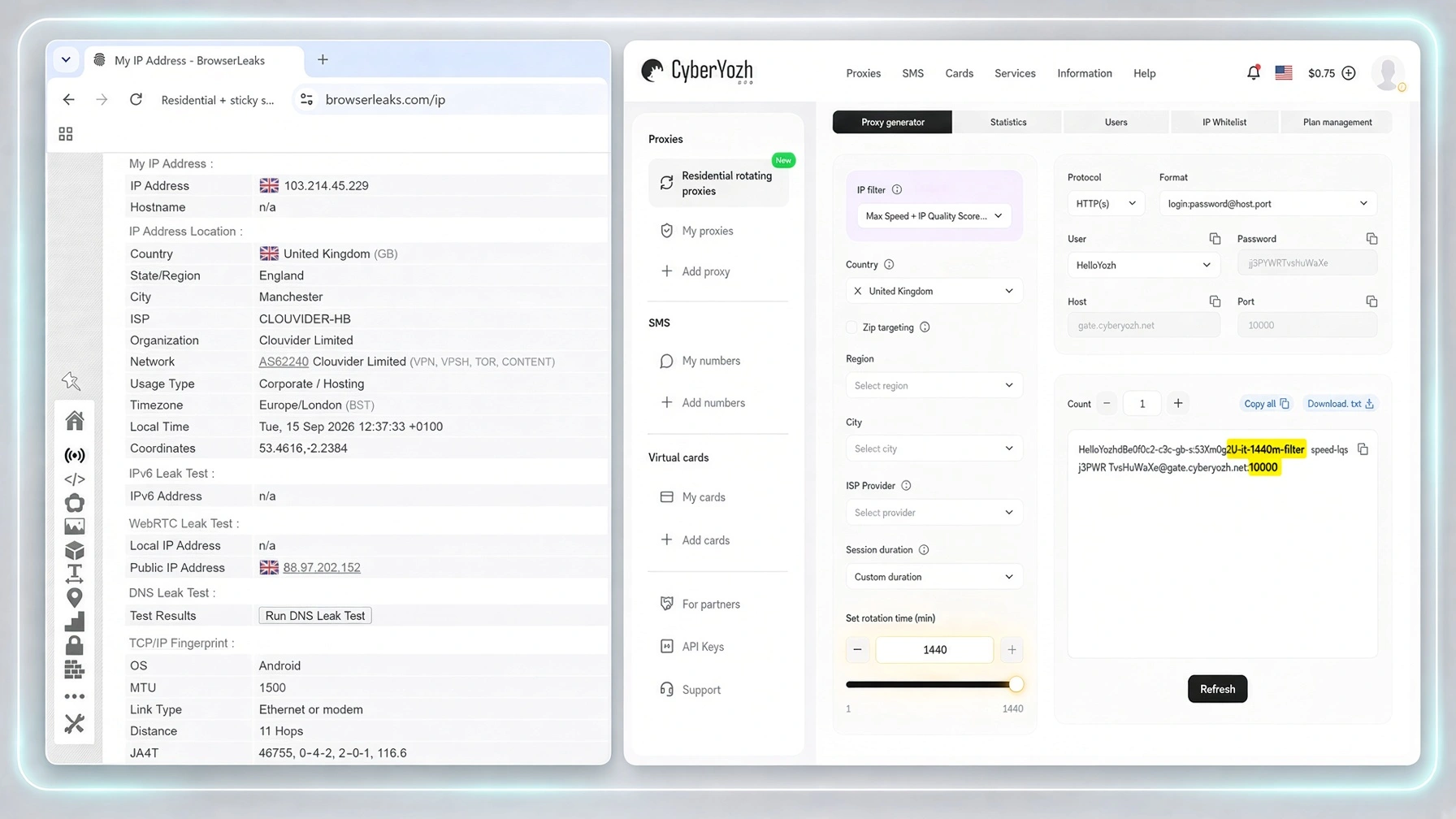
Residencial + sessão fixa | 103.214.45.229 | Reino Unido | Corporativo/Hospedagem | Resposta bem-sucedida |
ISP Estático | 46.151.225.225 | Reino Unido | Corporativo/Empresarial | Resposta bem-sucedida |
Móvel dedicado | 148.252.129.186 | Reino Unido | Celular | Resposta bem-sucedida |
O mais interessante: sessão fixa
O proxy residencial CyberYozh App foi configurado com uma sessão fixa de 1.440 minutos, ou 24 horas em vez de rotacionar a cada solicitação. A conexão retornou um endereço IP do Reino Unido, 103.214.45.229, e o ChatGPT carregou normalmente e gerou uma resposta completa.
Como os outros três proxies do CyberYozh App se comportaram
O proxy residencial rotativo retornou 80.0.66.18, que o BrowserLeaks localizou no Reino Unido e associou à Virgin Media.
O proxy ISP estático retornou 46.151.225.225 em Londres. O BrowserLeaks classificou a conexão como Corporate/Business, e o IP público principal correspondeu ao IP público WebRTC relatado durante o teste. O ChatGPT respondeu com sucesso, sem nenhum CAPTCHA encontrado durante o teste.
Por fim, o proxy móvel dedicado retornou 148.252.129.186, que o BrowserLeaks identificou como uma conexão celular da Vodafone Limited do Reino Unido. O ChatGPT carregou novamente e completou o mesmo prompt sem que nenhuma restrição de acesso aparecesse durante o teste.
Conclusão principal
O ChatGPT gerou uma resposta completa em todas as quatro configurações de proxy do CyberYozh App testadas: residencial rotativo, residencial com sessão fixa, ISP estático e móvel dedicado.
Por que o ChatGPT está bloqueado?
A rota mais rápida para desbloquear o ChatGPT é descobrir com que tipo de bloqueio você está lidando. Os cenários abaixo ajudarão a restringir as possibilidades.
O ChatGPT está bloqueado na rede da sua escola ou universidade
Escolas e universidades podem bloquear o ChatGPT no nível da rede, o que significa que a restrição acompanha o Wi-Fi do campus em vez do seu dispositivo ou conta do ChatGPT. Você pode conseguir abrir o ChatGPT normalmente usando dados móveis ou em casa, apenas para descobrir que ele está indisponível assim que você se conecta à rede da escola.
A restrição pode acontecer de várias maneiras. A filtragem de DNS pode impedir que os domínios do ChatGPT sejam resolvidos corretamente, enquanto regras de firewall podem bloquear completamente as conexões com os serviços da OpenAI. As escolas também podem usar filtragem de URL ou conteúdo web para restringir ferramentas de IA como uma categoria. Em redes gerenciadas e dispositivos de propriedade da escola, os administradores podem aplicar políticas de segurança adicionais que controlam quais sites e serviços os usuários têm permissão para acessar.
Um teste rápido é desconectar-se do Wi-Fi da escola e tentar o ChatGPT através de uma conexão alternativa autorizada, como seus dados móveis. Se funcionar lá, mas falhar consistentemente na rede do campus, a própria rede é uma forte suspeita.
Se sua escola restringe intencionalmente o ChatGPT, verifique sua política de uso aceitável ou pergunte ao departamento de TI sobre acesso aprovado. Um proxy pode alterar a rota da rede e o IP público em alguns cenários relacionados à rede, mas não deve ser usado para contornar controles de acesso que você não está autorizado a burlar.
O ChatGPT está bloqueado no Wi-Fi do seu trabalho
Se o ChatGPT funciona em casa ou com dados móveis, mas para de carregar quando você se conecta ao Wi-Fi da sua empresa, a rede do escritório pode ser a responsável. As empresas frequentemente roteiam o tráfego através de firewalls corporativos, gateways web seguros, filtros de DNS ou outras ferramentas de segurança que decidem quais sites e serviços online os funcionários podem acessar.
O bloqueio pode ser intencional. Algumas organizações restringem ferramentas de IA generativa por causa de políticas de segurança de dados, conformidade ou uso aceitável. Mas também pode ser um problema de configuração: o ChatGPT pode ser permitido em princípio, enquanto um ou mais domínios dos quais ele depende ainda estão sendo filtrados.
A OpenAI recomenda que organizações que enfrentam erros do ChatGPT relacionados à rede incluam na lista de permissões os domínios necessários do ChatGPT e da OpenAI e verifiquem se o software de segurança ou a filtragem web está interferindo na conexão.
Assim como com uma rede escolar, comparar conexões é útil. Se o ChatGPT falha no Wi-Fi do trabalho, mas carrega normalmente em uma rede alternativa autorizada, isso aponta para uma restrição no nível da rede em vez de um problema com seu navegador ou conta. Se a restrição faz parte da política da empresa, no entanto, a rota correta é através da sua equipe de TI em vez de tentar contorná-la.
O seu endereço IP atual foi bloqueado
Às vezes, o problema não é o ChatGPT, a sua conta ou o seu navegador. É o endereço IP público que a sua conexão está a usar.
Os serviços online usam a reputação do IP como um dos vários sinais ao avaliar o tráfego recebido. Um IP associado a atividade incomum, solicitações excessivas, abuso anterior ou uma rede fortemente partilhada pode atrair verificações de segurança adicionais ou restrições temporárias. Esta é uma das razões pelas quais o problema pode aparecer repentinamente, mesmo quando o ChatGPT funcionava normalmente no mesmo dispositivo antes.
Isto também explica por que mudar de navegador ou limpar o cache pode não levar a lado nenhum. Essas ações alteram o que acontece no seu dispositivo, mas a sua conexão ainda pode alcançar o ChatGPT através do mesmo endereço IP público.
Um teste útil é mudar temporariamente para outra rede confiável. Se o ChatGPT funcionar com dados móveis mas permanecer bloqueado no seu Wi-Fi, a rede original ou o seu IP público torna-se um suspeito muito mais forte. A partir daí, alterar o IP ou usar um proxy adequado pode ajudar quando a restrição está genuinamente relacionada ao IP.
O ChatGPT diz "Sorry, you have been blocked"
A mensagem "Sorry, you have been blocked" é mais específica do que o ChatGPT simplesmente recusar-se a carregar. Significa que a conexão acionou um bloqueio de segurança e o endereço IP que está a usar pode ser parte do problema.
A OpenAI observa que este erro pode ocorrer quando o Cloudflare bloqueia um endereço IP, quando uma VPN está ativa ou quando o tráfego parece vir de uma localização suspeita ou de alto risco. Isto pode ser particularmente relevante com VPNs e IPs fortemente partilhados, onde muitos utilizadores não relacionados podem estar a enviar tráfego através do mesmo endereço.
Se vir esta mensagem, comece por desativar a sua VPN, se estiver a usar uma, e recarregue o ChatGPT. Também pode alternar entre Wi-Fi e dados móveis para ver se o erro segue uma conexão específica. Se o ChatGPT abrir normalmente após a mudança de rede, isso é um sinal útil de que o IP ou rede original estava a contribuir para o bloqueio.
O ChatGPT diz "Unusual activity has been detected from your device"
O erro Unusual activity has been detected from your device. Try again later aparece na aplicação iOS do ChatGPT e requer um caminho de resolução de problemas diferente de um bloqueio de IP comum. Mudar de proxies ou alternar entre novos IPs não deve ser a sua primeira resposta.
A OpenAI recomenda começar pelo básico: terminar sessão e voltar a iniciar sessão na aplicação ChatGPT, desinstalar e reinstalar a aplicação, desativar qualquer VPN ativa e certificar-se de que está a executar a versão mais recente da App Store.
Se o erro persistir, a resolução de problemas torna-se mais específica. A OpenAI recomenda alterar as suas definições de DNS do iOS para 8.8.8.8 e 8.8.4.4, depois abrir o Safari e visitar register.appattest.apple.com. Isto verifica se o seu dispositivo pode alcançar o serviço App Attest da Apple, que é usado para verificações de integridade da aplicação e atestação do dispositivo.
Tire uma captura de ecrã do que o Safari exibir. Se o erro continuar e contactar o Suporte da OpenAI, a OpenAI solicita especificamente que inclua essa captura de ecrã juntamente com a confirmação de que tentou os passos de resolução de problemas anteriores.
A distinção importante aqui é que um erro de dispositivo de "atividade incomum" não deve ser automaticamente tratado como um problema de IP incorreto. Trabalhe através das verificações do iOS e do App Attest antes de recorrer a outro proxy.
Dica profissional: O que é o Cloudflare Ray ID numa página de bloqueio do ChatGPT?
Se a página Sorry, you have been blocked mostrar um Cloudflare Ray ID, não o confunda com a causa do bloqueio. Um Ray ID é um identificador único que o Cloudflare atribui a uma solicitação, que pode ajudar a rastrear o evento específico durante a resolução de problemas.
Normalmente, encontrá-lo-á perto da parte inferior da página de erro do Cloudflare, juntamente com outras informações sobre a solicitação. Se precisar de contactar o Suporte da OpenAI, tire uma captura de ecrã de toda a página de erro e mantenha o Ray ID visível. Isto dá à equipa de suporte uma referência mais precisa para investigar o que aconteceu.
A pista útil para você não é o Ray ID em si, mas se o erro acompanha a conexão. Se o bloqueio desaparecer quando você desativar uma VPN ou mudar do Wi-Fi para outra rede confiável, isso aponta mais fortemente para a rede ou IP original.
Se você precisar de uma conexão diferente, a origem, reputação, localização e estabilidade do novo IP também importam. Vamos analisar essas diferenças ao comparar proxies residenciais, ISP e móveis abaixo.
Sua VPN está fazendo o ChatGPT bloquear sua conexão
Existe um cenário ligeiramente frustrante em que você ativa uma VPN para acessar o ChatGPT, apenas para a própria VPN se tornar o motivo pelo qual você não consegue entrar.
Serviços de VPN normalmente roteiam muitos usuários através de um pool limitado de endereços IP. Se um desses IPs acumulou uma reputação ruim, gerou tráfego incomum ou está simplesmente sendo usado por muitas pessoas ao mesmo tempo, ele pode atrair verificações de segurança adicionais. A OpenAI também recomenda desativar VPNs ao solucionar determinados erros de acesso e bloqueio.
É aqui que a origem e a qualidade do IP importam tanto quanto alterá-lo. Mudar da sua conexão normal para outro IP de VPN amplamente compartilhado pode simplesmente trocar um problema por outro.
Se o ChatGPT funcionar quando a VPN estiver desligada, você tem uma pista bastante boa. Se você ainda precisar de um IP alternativo por um motivo legítimo relacionado à rede, um proxy residencial, ISP estático ou móvel oferece mais controle sobre o tipo de conexão e, dependendo do serviço, sua localização e comportamento de sessão. Vamos detalhar essas opções mais adiante.
Saiba mais sobre proxy vs. VPN.
ChatGPT funciona em dados móveis, mas não no Wi-Fi
Se o ChatGPT se recusa a funcionar no Wi-Fi, mas abre assim que você muda para dados móveis, você já aprendeu algo útil: o próprio ChatGPT provavelmente não é o problema.
Ambas as conexões usam o mesmo dispositivo, navegador e conta do ChatGPT, mas seguem caminhos de rede diferentes e usam endereços IP públicos diferentes. O problema pode, portanto, estar na sua rede Wi-Fi, nas configurações de firewall ou DNS, no seu ISP ou no IP público atribuído a essa conexão. A OpenAI recomenda comparar Wi-Fi com um hotspot celular ao diagnosticar problemas do ChatGPT relacionados à rede exatamente por esse motivo.
Experimente o teste em ambas as direções. Abra o ChatGPT no Wi-Fi, desligue o Wi-Fi e tente novamente usando dados celulares, depois reconecte ao Wi-Fi. Se o problema retornar consistentemente com a mesma rede, não há muito sentido em limpar cookies repetidamente ou mudar de navegador antes de investigar a própria conexão.
Isso não significa automaticamente que você precisa de um proxy. Mas se o problema for eventualmente rastreado até a rota de rede ou IP público, mudar a conexão ou usar um proxy apropriado se torna um próximo passo relevante.
ChatGPT acha que você está no local errado
Às vezes você está fisicamente em um país onde o ChatGPT é suportado, mas o serviço parece pensar o contrário. Um motivo possível é geolocalização de IP incorreta: a localização associada ao seu IP público nem sempre corresponde ao local de onde você está realmente se conectando.
Isso pode acontecer depois que um ISP realoca uma faixa de IP, quando bancos de dados de geolocalização contêm informações desatualizadas ou quando uma VPN ou proxy sai por um país diferente do esperado. O resultado pode ser uma mensagem de localização não suportada, mesmo que sua localização real não deva impedi-lo de usar o ChatGPT.
Primeiro, verifique a localização relatada para o seu IP público atual e desative qualquer VPN ou proxy que possa estar alterando-a. Tentar outra conexão confiável, como dados móveis, também pode ajudar a isolar o problema. Se o ChatGPT funcionar lá, seu IP original ou rota de rede pode estar relatando a localização errada.
Se você precisar de uma conexão alternativa, um proxy com segmentação confiável em nível de país ou cidade pode dar a você mais controle sobre onde o IP está realmente localizado. Isso é diferente de usar um proxy para acessar o ChatGPT de um país que a OpenAI não suporta. Vamos abordar países não suportados separadamente, pois as políticas de disponibilidade da OpenAI ainda se aplicam independentemente da conexão que você usa.
Proxies residenciais vs ISP vs móveis para ChatGPT
Não existe um único «melhor proxy para ChatGPT» para todas as situações. A escolha certa depende de você precisar substituir um IP ocasionalmente, manter um endereço para sessões mais longas ou usar especificamente uma conexão de rede móvel.
Tipo de proxy | Mais adequado para | Comportamento do IP | Consideração principal |
Residencial rotativo | Alterar IPs residenciais quando necessário | Rotativo ou sticky | Use sessões sticky quando não precisar de rotação frequente |
ISP estático | Sessões consistentes e mais longas no ChatGPT | Mesmo IP | Melhor opção quando a estabilidade do IP é a prioridade |
Móvel dedicado | Uma conexão privada de rede celular | Dedicado com rotação controlada | Mais controle sobre a conexão móvel |
Móvel compartilhado | Acesso de menor custo à infraestrutura móvel | Canal móvel compartilhado | Menos controle do que uma opção dedicada |
Qual proxy você deve escolher?
A decisão é bastante direta:
Precisa de um novo IP residencial e flexibilidade para alterá-lo? Escolha um proxy residencial rotativo e use uma sessão sticky quando quiser manter o mesmo IP.
Precisa de um IP consistente para sessões regulares ou mais longas no ChatGPT? Um proxy ISP estático é a opção mais simples.
Precisa de um IP de rede celular com maior controle sobre a conexão? Escolha um proxy móvel dedicado.
Quer infraestrutura móvel a um custo menor? Um proxy móvel compartilhado pode ser suficiente.
O CyberYozh App oferece todas as quatro opções em um único lugar: proxies residenciais rotativos em mais de 195 países, proxies ISP estáticos com tráfego ilimitado e proxies móveis LTE/5G dedicados ou compartilhados. Isso significa que você pode escolher a conexão com base na causa real do problema de acesso, em vez de tentar fazer um tipo de proxy servir para todas as situações.
Como configurar um proxy para acessar o ChatGPT
Depois de escolher o tipo de proxy correto, você normalmente receberá um host ou endereço IP, porta, nome de usuário e senha do seu provedor. Como você insere esses detalhes depende do dispositivo e do navegador que você usa.
Configurar um proxy no seu navegador
Alguns navegadores podem usar extensões de proxy ou gerenciadores de proxy de terceiros, enquanto outros dependem das configurações de rede do seu sistema operacional. Isso é útil quando você quer que o proxy afete o tráfego do navegador sem alterar como cada aplicativo no dispositivo se conecta.
Insira as credenciais do proxy fornecidas pelo seu provedor, selecione o protocolo correto e salve o perfil. Se a autenticação for necessária, você pode ser solicitado a fornecer seu nome de usuário e senha quando a conexão for iniciada.
Leia mais sobre como configurar um proxy no seu sistema operacional.
Configurar um proxy no Windows
O Windows possui configurações de proxy integradas:
Abra Configurações.
Vá para Rede e Internet > Proxy.
Em Configuração manual de proxy, selecione Configurar ao lado de Usar um servidor proxy.
Ative Usar um servidor proxy.
Insira o endereço IP e a porta do proxy.
Salve as configurações.
O Windows também suporta detecção automática de proxy e scripts de configuração quando esses são fornecidos.
Configurar um proxy no macOS
Em um Mac:
Abra Ajustes do Sistema > Rede.
Selecione sua conexão de rede ativa e clique em Detalhes.
Abra Proxies.
Selecione o protocolo de proxy apropriado, como HTTP, HTTPS ou SOCKS.
Insira o endereço do servidor e a porta.
Se necessário, ative a autenticação e insira seu nome de usuário e senha.
Salve a configuração.
O macOS suporta configurações de proxy HTTP, HTTPS e SOCKS diretamente nas configurações de rede.
Configurar um proxy no Android
No Android, a configuração manual de proxy geralmente está disponível nas configurações da rede Wi-Fi à qual você está conectado. Abra as configurações avançadas da rede, encontre Proxy, mude de Nenhum para Manuale insira o hostname e a porta fornecidos pelo seu serviço de proxy.
Os nomes exatos dos menus podem variar entre versões do Android e fabricantes de dispositivos. Verifique também se o seu proxy requer autenticação de nome de usuário/senha e se a sua configuração específica do Android oferece suporte direto a isso.
Configurar um proxy no iPhone
No iPhone, as configurações de proxy são vinculadas à rede Wi-Fi individual:
Abra Ajustes > Wi-Fi.
Toque no botão de informações ao lado da sua rede conectada.
Encontre as configurações de proxy HTTP.
Escolha Manual.
Insira o servidor proxy e a porta.
Adicione as credenciais de autenticação, se necessário.
Salve a configuração.
Isso significa que a configuração se aplica a essa conexão Wi-Fi em vez de segui-lo automaticamente em todas as redes. A Apple também oferece suporte a configurações globais de proxy HTTP gerenciadas para dispositivos gerenciados por organizações.
Teste seu IP antes de abrir o ChatGPT
Não presuma que o proxy está funcionando simplesmente porque você inseriu as credenciais sem erro.
Abra um serviço de verificação de IP e confirme três coisas: seu IP público mudou, o país ou região informado está correto e a conexão está estável. Se o seu IP original ainda aparecer, solucione o problema da configuração do proxy antes de abrir o ChatGPT.
Este também é um bom momento para identificar um IP com geolocalização incorreta em vez de descobrir o problema depois de fazer login.
Verifique a pontuação de fraude e a localização informada do seu IP.
Conecte-se ao ChatGPT e verifique se tudo funciona
Depois que o novo IP for confirmado, abra o ChatGPT e faça login normalmente. Teste uma conversa e certifique-se de que as respostas carregam sem erros de conexão ou interrupções inesperadas.
Se o ChatGPT agora funcionar, evite alterar uma conexão que já está fazendo seu trabalho. Mantenha o mesmo IP estático ou sessão sticky quando apropriado, em vez de alternar desnecessariamente por novos endereços.
Se o bloqueio persistir, não continue alternando entre proxies às cegas. O problema pode não estar relacionado ao IP. As etapas de solução de problemas na próxima seção cobrem navegador, DNS, VPN, status do serviço e outras causas que alterar seu IP não necessariamente resolverá.
ChatGPT ainda bloqueado? Tente estas correções antes de alterar seu IP novamente
Nem todo bloqueio do ChatGPT é um problema de IP. Se alternar redes ou usar um IP diferente e funcional não restaurar o acesso, pare de alterar a conexão por um momento. A causa pode estar no seu navegador, configurações de DNS, VPN, conta ou no próprio ChatGPT.
Realize as verificações abaixo antes de presumir que você precisa de outro IP.
Verifique se o ChatGPT está fora do ar
Antes de alterar qualquer outra coisa, verifique a página oficial de status da OpenAI. Se o ChatGPT estiver passando por uma interrupção generalizada, alterar seu IP, navegador, DNS ou proxy não resolverá o problema. Nesse caso, a única solução real é aguardar até que o serviço seja recuperado.
Limpe os cookies e o cache do ChatGPT
Dados antigos ou corrompidos do navegador podem interferir na autenticação ou impedir que o ChatGPT carregue corretamente. Limpe os cookies e os dados em cache associados ao ChatGPT, feche o navegador, reabra-o e tente fazer login novamente.
Você não precisa necessariamente apagar todo o seu histórico de navegação. Comece com os dados do site relacionados ao ChatGPT e à OpenAI.
Experimente o modo anônimo ou outro navegador
Abrir o ChatGPT em uma janela anônima ou privada oferece uma maneira rápida de testar o navegador sem depender de seus cookies existentes e de grande parte dos dados armazenados do site.
Se o ChatGPT funcionar no modo privado, mas não na janela normal do seu navegador, o problema provavelmente está localizado no navegador e não no seu IP. Tentar outro navegador atualizado pode ajudar a confirmar isso.
Desative temporariamente as extensões do navegador
Bloqueadores de anúncios, extensões de privacidade, bloqueadores de scripts, ferramentas de segurança e outros complementos do navegador podem interferir nas páginas ou nos fluxos de autenticação.
Desative temporariamente suas extensões e recarregue o ChatGPT. Se isso resolver o problema, ative-as novamente uma de cada vez até identificar a que está causando o conflito.
Desative sua VPN
Se você já estiver conectado por meio de uma VPN, desative-a e tente o ChatGPT usando sua conexão normal. A OpenAI recomenda especificamente desativar VPNs ao solucionar o erro Desculpe, você foi bloqueado.
Se o ChatGPT começar a funcionar imediatamente, a conexão VPN ou seu IP de saída provavelmente estava contribuindo para o problema. Em vez de alternar repetidamente entre servidores VPN aleatórios, decida se você realmente precisa de um IP alternativo e, em caso afirmativo, use um apropriado para sua situação.
Verifique suas configurações de DNS
O DNS é responsável por traduzir nomes de domínio, como o do ChatGPT, nos endereços que seu dispositivo precisa para alcançá-los. Configurações de DNS incorretas, filtragem ou um problema com seu provedor de DNS podem, portanto, tornar o ChatGPT inacessível mesmo quando sua conexão com a internet parece normal.
Tente voltar às configurações de DNS padrão da sua rede se você as alterou manualmente. Em uma rede gerenciada de escola ou trabalho, no entanto, a filtragem de DNS pode ser intencional, portanto, consulte o administrador em vez de alterar as configurações gerenciadas por conta própria.
Peça à sua escola ou local de trabalho para adicionar o ChatGPT à lista de permissões
Se você deveria ter acesso ao ChatGPT, mas ele está sendo bloqueado por um filtro de rede escolar ou corporativo, peça ao administrador de TI para verificar a configuração da rede.
A OpenAI publica uma lista de domínios que as organizações podem precisar adicionar à lista de permissões para que o ChatGPT funcione corretamente, incluindo *.chatgpt.com e *.openai.com, juntamente com domínios de autenticação e suporte. Esta é uma solução melhor do que tentar contornar a rede quando o ChatGPT é legitimamente necessário para o trabalho ou estudo.
A OpenAI publica a lista de domínios que as organizações podem precisar adicionar à lista de permissões.
Entre em contato com o suporte da OpenAI
Se o ChatGPT permanecer inacessível depois que você testou outra rede, navegador, janela privada, configurações de VPN e outras causas prováveis, pode ser hora de entrar em contato com o Suporte da OpenAI.
Inclua a mensagem de erro exata, quando o problema começou, as etapas de solução de problemas que você já tentou e se o problema ocorre em diferentes dispositivos ou redes. Capturas de tela também podem ajudar. Quanto mais claramente você isolar o problema de antemão, menos tempo provavelmente gastará repetindo etapas básicas de solução de problemas.
Opinião do especialista: verifique se você atingiu um limite de uso
Nem toda parada é um bloqueio. Se você estiver enviando muitas mensagens, gerando imagens ou usando intensamente um modelo ou recurso específico, pode simplesmente ter atingido um limite de uso do seu plano. O ChatGPT pode informar qual modelo ou recurso está afetado e, quando aplicável, quando o acesso ficará disponível novamente.
A distinção é importante porque os sintomas podem parecer semelhantes, mas as soluções são completamente diferentes. Um limite de uso está vinculado à sua conta ou plano, não ao seu endereço IP. Alternar redes, limpar cookies ou usar um proxy não o removerá.
Dependendo do limite, suas opções podem ser aguardar a redefinição, usar outro modelo ou recurso que permaneça disponível para você ou mudar para um plano com limites de uso diferentes.