Error Code 520: What It Means, Why It Happens, and How to Fix It Fast

You're trying to load a website. Maybe it's your own. Maybe it's something you urgently need for a client deadline. The browser spins. Then stops. And you're left staring at this completely unhelpful message:
"Web server is returning an unknown error (error code 520)."
Here's what actually happens, and this is the part nobody tells you upfront. Despite that vague, frustrating label, a 520 error code isn't actually mysterious. It has specific causes, a clear paper trail, and real fixes that work. We've been through this debugging process more times than we'd like to admit.
In this guide, you'll find everything you need:
What does error code 520 really mean.
Every common cause.
Step-by-step fixes for visitors, site owners, and developers
Why SEO tools and scrapers get hit with this error disproportionately
How it quietly damages your search rankings
How to stop it coming back
What is error code 520

The 520 error code is not a standard Internet error code. It belongs exclusively to Cloudflare, the content delivery network and security layer that sits between millions of websites and the people trying to visit them.
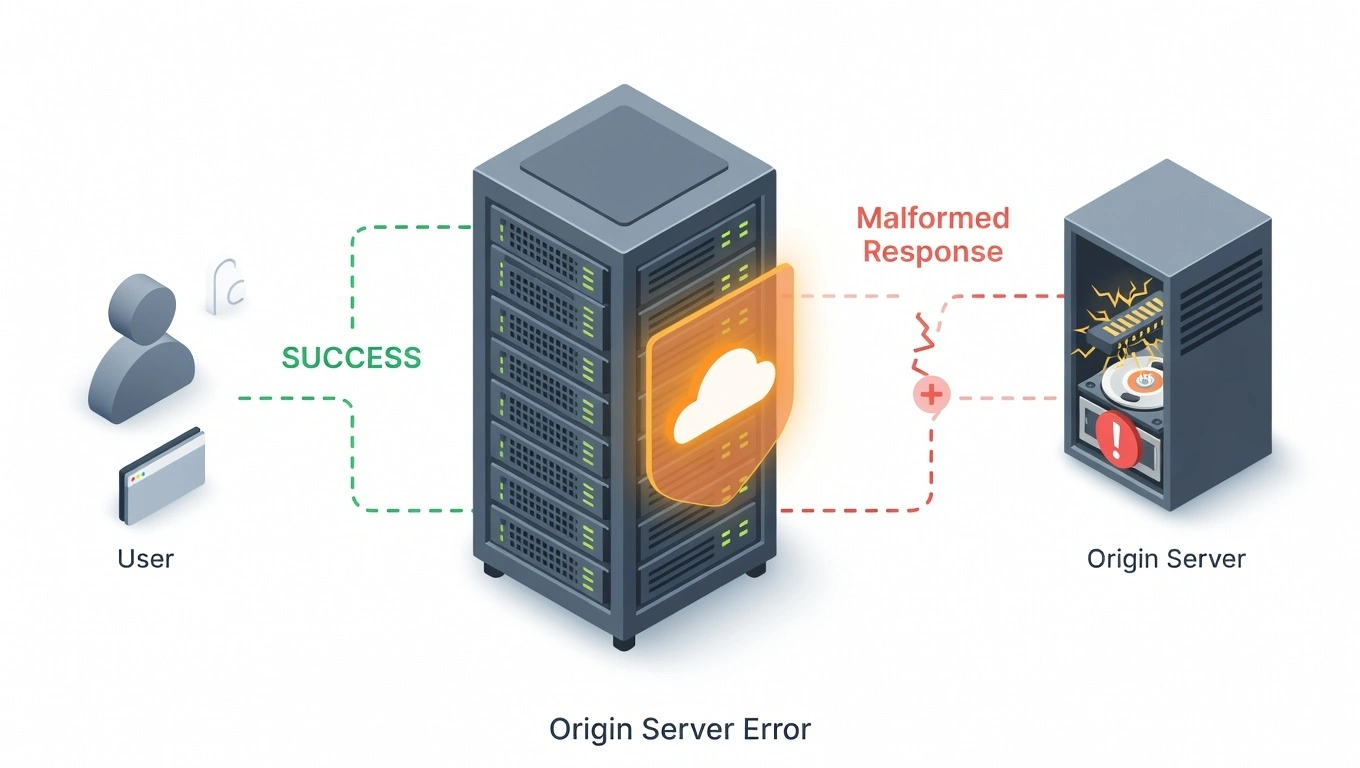
When you request a page, your browser doesn't always go directly to the website's server. If the site uses Cloudflare (and a huge percentage of the web does), your request goes to Cloudflare first, which then forwards it to the origin server and relays the response back to you. Usually, this process is invisible. You don't notice it's happening.
But when the origin server sends back something Cloudflare can't interpret, a response that's empty, incomplete, or structured so badly it can't be understood, Cloudflare can't pass anything useful to you. So instead, it returns error code 520: its own way of saying "I asked the server for the page, and what I got back made no sense."
“The key takeaway: the server received the request. It just couldn't respond to it properly. That distinction matters when you're trying to diagnose what went wrong.”[Cloudflare's error 520 documentation]
How error 520 differs from other Cloudflare errors
Cloudflare has a whole family of 5xx errors that can look similar at a glance. Understanding which one you're actually dealing with cuts your troubleshooting time in half.
Error Code | Plain-English Meaning | Typical Cause |
520 | Server responded, but the response was broken or empty | App crash, oversized headers, firewall misconfiguration |
521 | Server refused the connection entirely | Origin firewall is blocking Cloudflare |
522 | Connection timed out before any response | Server overloaded, network issue |
523 | Cloudflare couldn't reach the server at all | DNS misconfiguration, server offline |
524 | Server connected, but the response took too long | Heavy backend process, slow database |
The reason it matters that you have a 520 specifically is that it indicates the server is reachable and technically responding, just not responding coherently. That eliminates a whole category of problems (DNS failures, total outages, network routing issues) and points you toward application-level causes instead.
What are the causes of Error 520
There's no single reason this error appears. It's more of a symptom than a diagnosis, which is why finding the root cause requires a bit of detective work. Here are the main culprits.
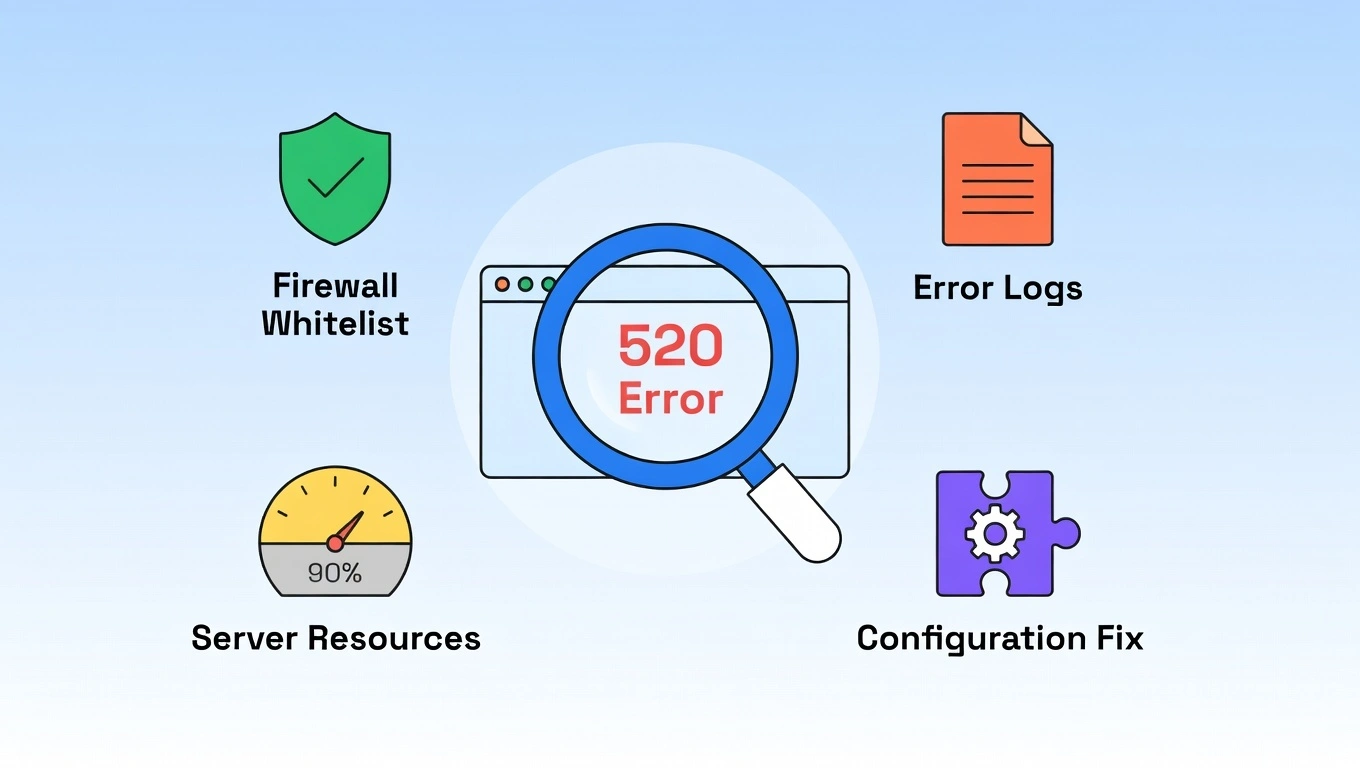
Empty or Malformed Responses
The most common cause is by a wide margin. The server starts building a response, begins sending headers, and begins generating the page, then something interrupts it. The application throws an unhandled exception. A process runs out of memory. A script crashes halfway through execution. Cloudflare receives a partial or empty response and has no choice but to reject it.
“This is frustrating because the server isn't technically 'down." It's responding. Just not properly.”
Headers that exceed Cloudflare's 16KB limit
Every HTTP response comes with headers, metadata that travels alongside the actual page content. Cookies, session tokens, security headers, cache instructions, and third-party tracking tags all contribute to header size. Cloudflare enforces a 16KB limit on HTTP response headers. When headers exceed that threshold, Cloudflare rejects the entire response.
Firewall rules blocking Cloudflare's own IPs
This one is particularly annoying because it's self-inflicted. Your server's firewall, installed to protect you, sometimes blocks Cloudflare's IP addresses. Since all legitimate traffic to your site routes through Cloudflare's network before reaching your server, a firewall that doesn't recognize Cloudflare IPs as trusted will either reject those requests or return broken responses.
Security plugins on WordPress (Wordfence, Sucuri) are frequent contributors to this. They run their own independent IP blocking that can conflict with Cloudflare, even when your server-level firewall is configured correctly.
Server crashes and resource exhaustion
A server running at or near capacity doesn't always fail cleanly. When CPU usage spikes, RAM runs dry, or disk space fills up, the server doesn't necessarily stop responding; it starts responding badly. Partial responses. Corrupted output. Connections that open and then die. All of these land as 520s on the visitor's end.
Traffic spikes, application memory leaks, runaway background processes, and poorly optimised database queries can all push a server into this degraded state without triggering a full outage.
Configuration problems
A broad category, but worth naming. DNS mismatches after a server migration, SSL/TLS certificate issues, HTTP/2 protocol conflicts between your origin server and Cloudflare, any of these can produce malformed responses without anything being dramatically "wrong." These are often the trickiest to diagnose because the server appears to be functioning normally by every surface-level measure.
How to fix these issues quickly for visitors
If you landed here because you encountered this error on a site you don't own, your toolkit is limited, but there are a few things worth trying before you give up.
Hard refresh the page. Press Ctrl + Shift + R on Windows or Cmd + Shift + R on Mac. This forces a full reload, bypassing your local cache. A surprising number of transient 520s resolve on their own within seconds.
Clear your cookies and browser cache. This won't fix a broken server, but if oversized cookie data is part of the server's problem, clearing it on your end removes one variable. In Chrome: Settings → Privacy and Security → Clear browsing data. Tick cookies and cached images.
Open an incognito window and try the URL again. Incognito mode turns off extensions and uses a new cookie session. If the site loads in incognito but not in your regular window, you've got a local browser environment issue, probably an extension or a cached session causing the problem.
Check if it's a wider outage. Go to downforeveryoneorjustme.com and paste the URL. If the site is down for everyone, the problem is entirely server-side, and all you can do is wait. If it's only you, work through the browser fixes above.
Wait it out. If the site experienced a sudden traffic spike or a brief application crash, it'll likely recover within 10–15 minutes without any intervention. Sometimes the most efficient fix really is patience.
How website owners should fix error 520 (Step by Step)
This is the section that actually solves the problem. Work through these in order; each step narrows down the cause and brings you closer to a fix.
Step 1: Read your server error logs
Don't skip this. Everything else you try is guesswork without the logs. Your server was recording what happened when the 520 occurred; you just need to look.
For Apache servers, check /var/log/apache2/error.log. For Nginx, it's typically /var/log/nginx/error.log. Filter for entries matching the timestamp of the error. You're looking for application crashes, out-of-memory messages, incomplete response errors, or any exception that would explain why the server's output was broken.
If you're on managed hosting without direct log access, your control panel (cPanel, Plesk, etc.) will have an error log viewer somewhere in the dashboard.
Step 2: Whitelist Cloudflare's IP ranges
This step is so commonly overlooked that it deserves to be second on the list. Cloudflare publishes its full list of active IP ranges at cloudflare.com/ips and keeps it updated. Every address on that list needs to be explicitly allowed in your firewall.
If you're running a security plugin on WordPress, log in to each plugin's settings and check for IP-blocking rules separately. Wordfence, in particular, has its own firewall that operates independently of your server firewall and can block Cloudflare traffic even after you've updated your server rules.
Step 3: Check your DNS records in Cloudflare
Log in to your Cloudflare dashboard and verify that your DNS A records are pointing to the correct origin server IP address. After a server migration or hosting change, it's easy to end up with a configuration where Cloudflare routes requests to an old server that no longer hosts your site, or to an IP address that returns broken responses for another reason.
This takes two minutes to check and is responsible for more 520s than people realise.
Step 4: Investigate your header sizes
Run a cURL request with verbose headers to see what your server is actually returning:
curl -I -v https://yourwebsite.com
Look at the total volume of headers in the response. If you're seeing dozens of Set-Cookie headers, large security policy strings, or extensive cache control directives, you may be approaching or exceeding Cloudflare's 16KB limit. The fix is to reduce cookie size, consolidate headers, or remove redundant header additions from plugins or middleware.
Step 5: Check application logs and server resources
Your web server logs tell you what the server sent. Your application logs tell you why it might have gone wrong. PHP error logs, Python application logs, Node.js output, wherever your application records its own errors, look there for exceptions, fatal errors, or crashes that coincide with the 520 timestamps.
Simultaneously, check your server's resource usage. A server with 90%+ memory utilisation can't reliably complete responses. If resources are maxed out, stabilising them is a prerequisite for fixing the 520s.
Step 6: Bypass Cloudflare and test the origin server directly
This is your clearest diagnosis. In your Cloudflare dashboard, go to Overview → Advanced Actions → Pause Cloudflare on Site. This routes traffic directly to your origin server, removing Cloudflare from the equation entirely.
If your site loads normally when Cloudflare is paused, the problem is in how your server communicates with Cloudflare, most likely a header issue, an SSL mismatch, or a firewall rule. If it still fails, the problem is server-side regardless of Cloudflare.
You can also test directly with cURL:
curl -H "Host: yourdomain.com" http://YOUR_ORIGIN_IP_ADDRESS/
Replace YOUR_ORIGIN_IP_ADDRESS with your actual server IP. This bypasses DNS and hits the server directly.
Step 7: Contact your host with the right information
If you've worked through everything above and you're still stuck, bring your hosting provider into the conversation. When you contact them, include:
The exact timestamps when 520 errors occurred
The Cloudflare Ray ID from the error page (bottom of the page — looks like Ray ID: 7a8b9c0d1e2f3a4b)
Your server error logs from the relevant time window
What you've already tried, this stops them wasting your time with fixes you've already done
That Ray ID is genuinely valuable. It lets Cloudflare (and your host, if they're experienced with Cloudflare) pull the exact request from their logs and see precisely what the server returned.
Developer guide: Handle 520s without breaking your app
If you're building applications that make requests through Cloudflare-protected services, 520s will occasionally appear. The professional approach is to handle them gracefully rather than letting them propagate as unhandled errors.
Basic retry logic
The simplest version, catch the 520 and retry after a short pause:
import requests
import time
def fetch_with_retry(url, retries=3):
for attempt in range(retries):
response = requests.get(url)
if response.status_code != 520:
return response
print(f"Got 520, retrying in 2 seconds... (attempt {attempt + 1})")
time.sleep(2)
return None
This handles transient 520s cleanly. If the error clears up on the server's end within a few seconds, your second or third retry succeeds without any visible failure.
Exponential backoff: The better version
Fixed 2-second waits can actually worsen things for a server that's already struggling. If the server is overwhelmed, 50 clients all retrying every 2 seconds makes the situation worse, not better. Exponential backoff increases the wait time between each attempt:
import time
import requests
def fetch_with_backoff(url, max_retries=4):
for attempt in range(max_retries):
response = requests.get(url)
if response.status_code != 520:
return response
wait_time = 2 ** attempt # Waits: 1s, 2s, 4s, 8s
print(f"520 received. Waiting {wait_time}s before retry...")
time.sleep(wait_time)
return None
This is industry-standard practice for handling server errors. It's gentler on struggling servers and reduces the risk of your retry logic triggering rate limiting.
Log the right information.
When your application hits a 520, capture at minimum: the CF-RAY header value (Cloudflare's request ID, available in response headers), the full URL that failed, and a precise timestamp. If you ever need to escalate an issue to a site owner or Cloudflare support, that Ray ID is what lets them trace the specific request immediately.
Why scrapers and SEO tools get hit with 520s more than anyone
If you're running rank tracking tools, web scrapers, competitor monitoring, or any kind of automated data collection, you're almost certainly seeing 520 errors more frequently than regular users. And the reason isn't just that you're sending more requests. It's something more specific.
Automated tools often have recognisable characteristics that Cloudflare and its origin servers learn to treat differently. Request cadence that's too regular. Headers that don't match what a real browser sends. Browser fingerprints that are identical across hundreds of requests. Session behaviour that no human would produce.
When a server is configured to handle suspicious traffic differently, by rate-limiting it, routing it through additional verification layers, or outright rejecting it, those "different" handling paths sometimes produce malformed or empty responses that cause 520s.
It's not always a deliberate block. Sometimes it's just that the server's response to bot-like behaviour is poorly coded and produces broken output instead of a clean rejection. This is why proxy quality matters more than most people realise for anyone doing automated SEO or data work.
Can a proxy solve error 520
A flagged or blocked IP doesn't always get a clean 403 or 429 response. Sometimes it gets a chaotic, malformed response that Cloudflare can't interpret, an error 520. The solution isn't just switching to different IPs. It's about ensuring that your IP, connection type, and browser fingerprint all tell a consistent, believable story.
An IP that appears residential but includes desktop automation headers and no cookie history will still raise flags. The three elements have to align.
CyberYozh addresses this at the infrastructure level:
Every IP in CyberYozh's 50-million-address, across 100+countries.
The residential and mobile proxy network is pre-screened against 50+ security databases before entering rotation, which means you're not starting a session with an IP that's already flagged.
CyberYozh's real 4G/5G mobile carrier proxies (actual SIM cards, not emulated connections) and your automated requests look like a real mobile user to Cloudflare: completely unremarkable.
Highly affordable pricing.
“For SEO professionals managing rank tracking, SERP monitoring, or competitive intelligence at scale, a blocked or 520-throwing IP isn't just an annoyance; it's a gap in your data. Starting from clean, pre-vetted infrastructure means fewer 520s, more complete datasets, and less time spent debugging crawl sessions.”
How error 520 can destroy your SEO rankings
The server-side problem has real, measurable consequences for your search visibility, and they compound over time if you don't address them.
Crawl budget gets wasted.
Googlebot has a crawl budget for every site, a finite number of pages it'll attempt to crawl within a given timeframe. When the bot hits a 520, it moves on. That page doesn't get crawled. That crawl budget is spent on a failed request. For large sites or newer sites trying to establish crawl frequency, repeated 520s mean Google is seeing less of your content per crawl cycle. Pages that should be indexed aren't. Updates that should be discovered are delayed.[Google's crawl budget guidelines]
Bounce rate signals compound
Users who land on a 520-page page leave immediately. They came from somewhere, potentially from a Google search result. Google's systems correlate the experience of users arriving from search results with the quality of those results. A page that consistently sends users back to the search results page within seconds generates exactly the kind of negative signal you don't want attached to a ranking URL.
New content gets stuck in indexing limbo.
If the pages Googlebot is trying to crawl keep returning 520s, your content updates don't make it into the index on schedule. For time-sensitive content, news, product launches, and event pages, an indexing delay caused by server errors isn't just a technical problem. It's revenue.
How to fix SEO rankings before it gets serious
Google Search Console is your first line of defence here, and it's free. The Coverage report shows server errors that Googlebot encountered. If you're seeing 520s appear there, they're already affecting your crawl. Set up email alerts for coverage issues so you're finding out the same day, not during your next monthly audit.
For more proactive monitoring, tools like UptimeRobot (free tier available) can alert you within minutes when your site returns an error so that you can fix the problem before Google's next crawl attempt rather than after.
How to prevent error 520
Fixing the immediate 520 is step one. Making sure it doesn't become a recurring issue is step two, and it's genuinely not that complicated if you build a few habits.
Keep Cloudflare's IP ranges allowed and up to date. Cloudflare occasionally updates its IP list. Reviewing and updating your firewall allowlist is a quarterly task rather than a one-time fix.
Monitor server resource usage with alerts. Set thresholds at 75–80% for CPU and memory usage, and get notified before resources reach critical levels. Proactive scaling or process management is infinitely better than emergency intervention during a spike.
Audit header sizes after major site changes. Adding new plugins, authentication systems, or third-party integrations can grow header sizes without you noticing. Run a periodic cURL check after significant changes to your stack.
Implement proper error handling in your application. When your application encounters an error, it should return a clean, valid HTTP response, even if that response is a 500 or a custom error page. An application that crashes silently and returns nothing is what turns application errors into 520s.
Review your logs on a schedule. Monthly log reviews, even when nothing is obviously wrong, surface patterns before they become incidents. A PHP warning that appears once is easy to miss. The same warning appearing 10,000 times a day tells you something is about to break.
Test origin responses after infrastructure changes. Any time you change hosting providers, update server software, or modify your SSL configuration, run a direct cURL test to verify your server is returning clean, complete responses before re-enabling Cloudflare.
Conclusion about error 520
Here's the honest summary: error code 520 looks scarier than it is. "Web server returning unknown error" sounds catastrophic. Still, it's almost always traceable to one of a handful of fixable causes: an application crash, an oversized header, a firewall rule that's blocking Cloudflare, or a server running out of resources at the wrong moment.
If you're a visitor, the quick fixes usually get you back in within a few minutes. If you're a site owner, the seven-step troubleshooting process above will get you to the root cause faster than anything else. If you're a developer, add retry logic and log those Ray IDs.
If you're doing automated SEO or web scraping work, the quality of your proxy infrastructure matters more than most people realise. Clean, pre-vetted IPs reduce the frequency of malformed server responses that would otherwise become 520s.
Wherever you're at with this error, you now have the complete picture. Start with the section that applies to your situation, work through it methodically, and you'll be back up and running faster than the error message would have you believe is possible.
Frequently asked questions about error code 520
What is error code 520, and why am I seeing it?
Error code 520 is a Cloudflare error that appears when a website's origin server returns an empty, broken, or completely invalid response. Cloudflare can't pass that response to you, so it shows the 520 message instead. It almost always indicates a server-side problem, not something wrong with your device or connection.
Is error code 520 a problem with my computer or the website?
It's the website's server, not your computer. The error originates on the hosting side, either an application crash, a malformed server response, or a firewall misconfiguration. That said, it's always worth trying a hard refresh, clearing your browser cache, or testing in incognito mode as a first step, just to rule out any local factors before concluding the problem is entirely server-side.
How do I fix error code 520 in Chrome or other browsers?
As a visitor, try these in order: hard refresh (Ctrl+Shift+R or Cmd+Shift+R), clear cache and cookies (Chrome: Settings → Privacy → Clear Browsing Data), then try incognito mode. If the site loads in incognito but not your regular window, a browser extension or cached session is likely involved. If it fails everywhere, the problem is the server and is outside your control.
What's the difference between error 520 and error 521?
A 520 means the server connected and started to respond, but the response was empty, malformed, or couldn't be interpreted. A 521 means the server refused the connection completely; it actively rejected Cloudflare's request before any response was attempted. In troubleshooting terms: 520 points toward application-level issues, while 521 almost always points to a firewall that's blocking Cloudflare's IP addresses.
Can error code 520 affect my website's Google ranking?
Yes, and more significantly than most people expect. Frequent 520 errors waste crawl budget, push up bounce rates from error pages, and delay the indexing of new content. Google's systems are looking for consistent, reliable access to your pages. A site that regularly returns server errors is a site that Google crawls less aggressively and ranks with less confidence.
How long does error code 520 usually last?
It depends entirely on the cause. A transient spike-related crash can resolve in under a minute. A misconfigured firewall, a persistent application bug, or a resource exhaustion issue won't resolve on its own; they need active diagnosis and fixes. As a visitor: give it 10–15 minutes before concluding it's persistent. As a site owner, anything beyond a few minutes of consistent 520 responses warrants immediate investigation.