
Telegram Web: How to Use It in 2026 And What to Do If It's Not Working

If you're trying to use Telegram on your work computer, a school laptop, or just don't want to download the app, Telegram Web is exactly what you need. It lives right in your browser, no installation required, and works just like the app.
But here's the thing: for some people, Telegram Web just won't load. It sits there spinning. Or the login code never arrives. Or it works at home but not at the office. I've seen all these problems, and this guide covers them all.
TLDR
Telegram Web is a fully functional browser-based client available at web.telegram.org, with two versions: Web K and Web Z.
Some users can't access it due to corporate firewalls blocking WebSocket connections or regional ISP restrictions.
SMS verification can fail during login, especially on shared or datacenter IPs that Telegram flags.
Proxies (mobile, residential, or datacenter) solve most access issues by routing traffic through clean IPs.
CyberYozh provides mobile LTE/5G, residential, and datacenter proxies plus IP fraud score checks, so you can verify an IP before using it with Telegram Web.
One platform instead of patching together proxies, SMS activation, and IP checks from different vendors.
What is Telegram web
Telegram Web is the browser version of Telegram. You open it on Telegram Web, log in with your phone number or a QR code, and you have full access to your messages, groups, files, and bots—no app needed.
There are actually two versions:
Telegram Web K — older, lighter, faster on slow connections
Telegram Web Z — newer, looks more like the mobile app
Both do the same core job. If you're unsure which to pick, Web K is the safer option for first-timers and is compatible with all browsers, including Firefox and Chrome.
Does Telegram have a Web version
Yes, it does, and it's completely free. You don't need to download anything, create a new account, or pay for anything. Just go to web.telegram.org, log in, and use it like you would on your phone. It works on Chrome, Firefox, Safari, Edge, and pretty much any modern browser.
How to log in to Telegram Web: Step-by-step
There are two ways to log in. Here are both of them:
Option 1: Log in with QR code
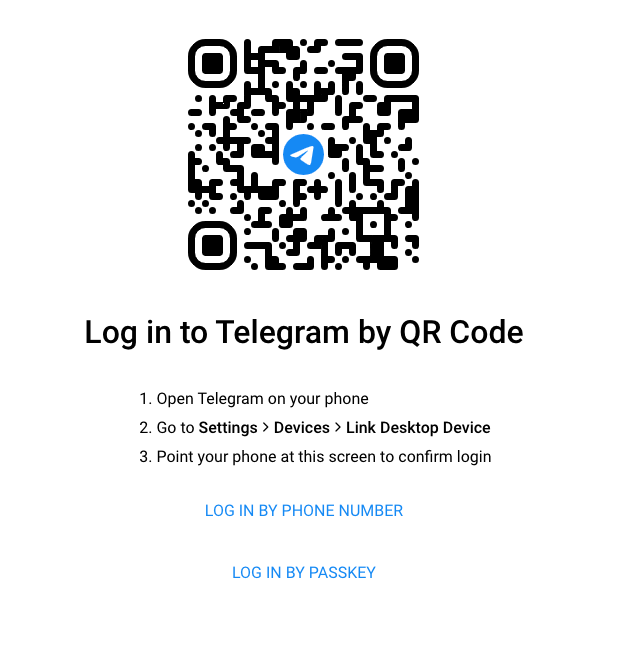
Open web.telegram.org in your browser
Open the Telegram app on your phone
Go to Settings → Devices → Link Desktop Device
Point your phone camera at the QR code on the screen
Done, you're logged in instantly
This is the fastest method. No typing, no waiting for a code.
Option 2: Log in with your phone number
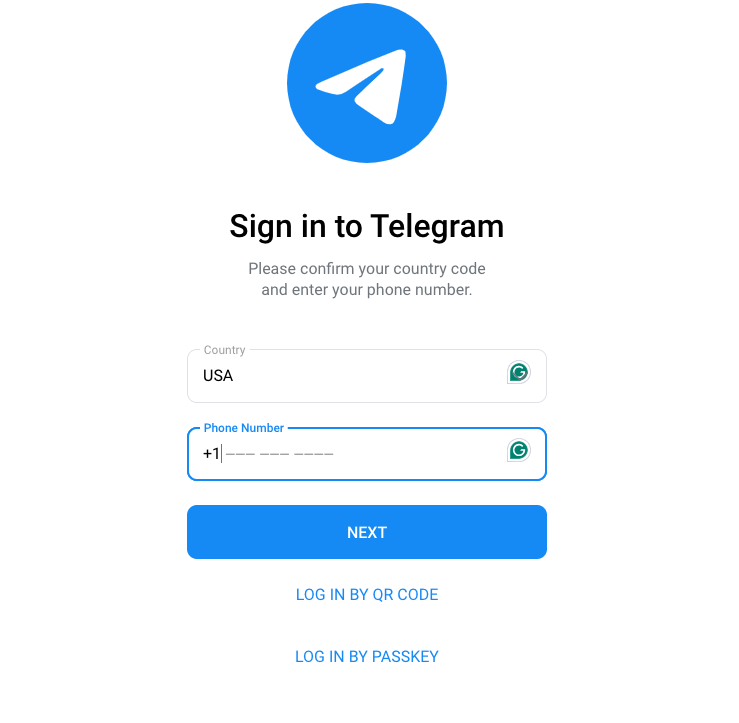
Open web.telegram.org
Type in your phone number (include your country code)
Telegram sends you a 5-digit code, either by SMS or through the app itself
Enter the code, and you're in
If the code never arrives, scroll down, I'll explain exactly why that happens and how to fix it.
Why is Telegram Web not loading: Common problems explained simply
This is the most important part. Telegram Web works perfectly for most people. But for a specific group of users, it either won't load at all or keeps saying "Connecting…" forever. Here's why:
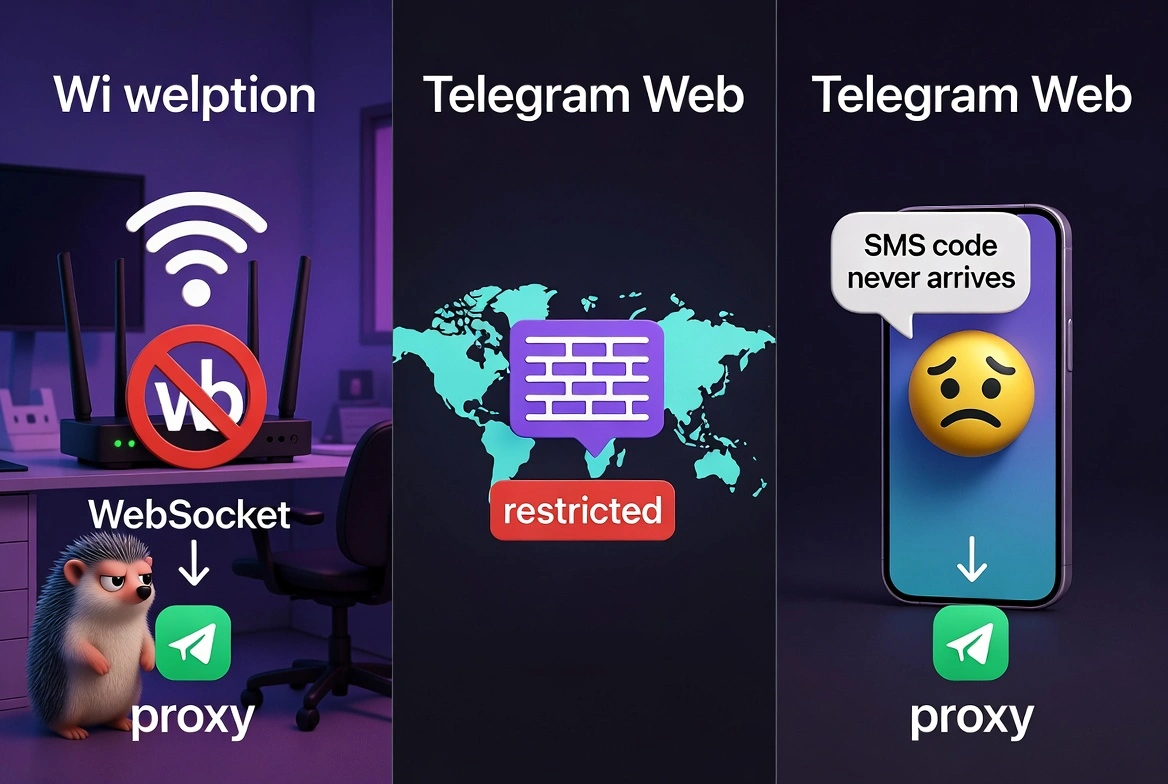
Problem 1: Your work or school Wi-Fi is blocking it
Some office and school networks block certain types of internet connections to control what employees or students can access.
Telegram Web uses a connection type called a "live link" that keeps the chat updating in real time, and many corporate networks block this connection type specifically.
What it looks like: The page loads, you can see the Telegram Web interface, but it just keeps spinning and never connects to your account.
The solution: Use a Telegram proxy or connect from a different network (like your phone's hotspot).
Problem 2: Telegram is restricted in your country
In some countries, internet providers are required by law to block Telegram.
This means web.telegram.org either won't open or opens but never connects.
The solution: A proxy routes your connection through a country where Telegram isn't blocked. Your request goes from your device → proxy server in an unrestricted country → Telegram. Works cleanly.
Problem 3: Your login code never arrived
If you tried to log in with your phone number and the SMS never came, the most common reason is that Telegram flagged your IP address.
Telegram watches for unusual login patterns, and certain internet connections (like shared office IPs, VPNs, or public Wi-Fi) get treated as suspicious.
Result: Telegram quietly doesn't send the code.
The solution: Try the QR code login instead; it doesn't need an SMS. Or use a clean IP address to log in.
Can I use Telegram on the web at work or school
Yes, if your network allows it. But many office and school networks don't.
Here's the simple test: try opening web.telegram.org and see if it gets past "Connecting…". If it hangs there for more than 10 seconds, your network is blocking it.
The solution most professionals use is a proxy; it makes your connection appear to originate elsewhere, bypassing the block without affecting your company's network settings.
How to use Telegram Web for multiple accounts
If you manage more than one Telegram account, for work and personal use, or multiple business accounts, Telegram Web doesn't support switching between them in the same browser window. Here's what actually works:
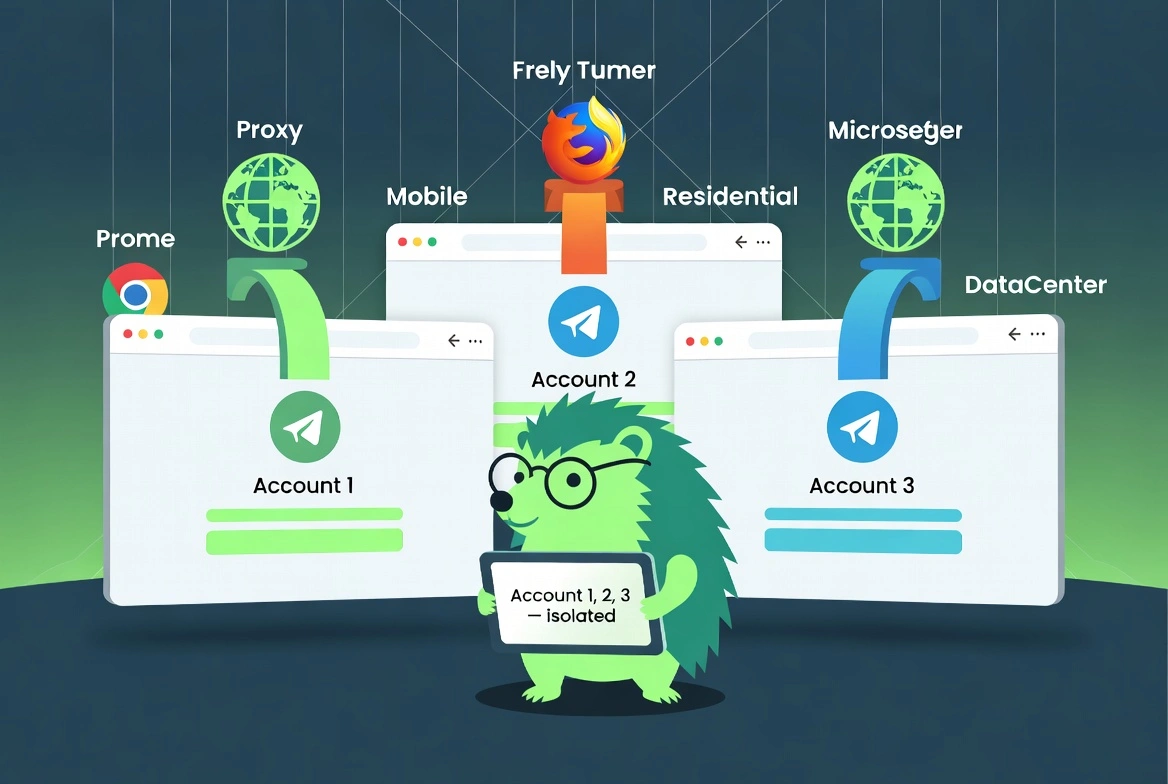
Method 1: Use different browsers
to log in to Account 1 in Chrome.
Log in to Account 2 in Firefox. Simple.
Method 2: Browser profiles
Most modern browsers let you create separate profiles (Chrome, Edge, Firefox all support this).
Each profile keeps its own login session.
You can have Account 1 in Profile A and Account 2 in Profile B, open at the same time.
Method 3: Proxies & anti-detect browsers
If you're managing many accounts professionally, using separate browser profiles and IP addresses (proxies) keeps each account fully isolated.
This is the method agencies and account managers use to prevent accounts from being linked to each other.
How CyberYozh helps with Telegram Web access
If Telegram Web keeps failing for you, especially on restricted networks or while managing multiple accounts, here's how CyberYozh's infrastructure solves it practically:
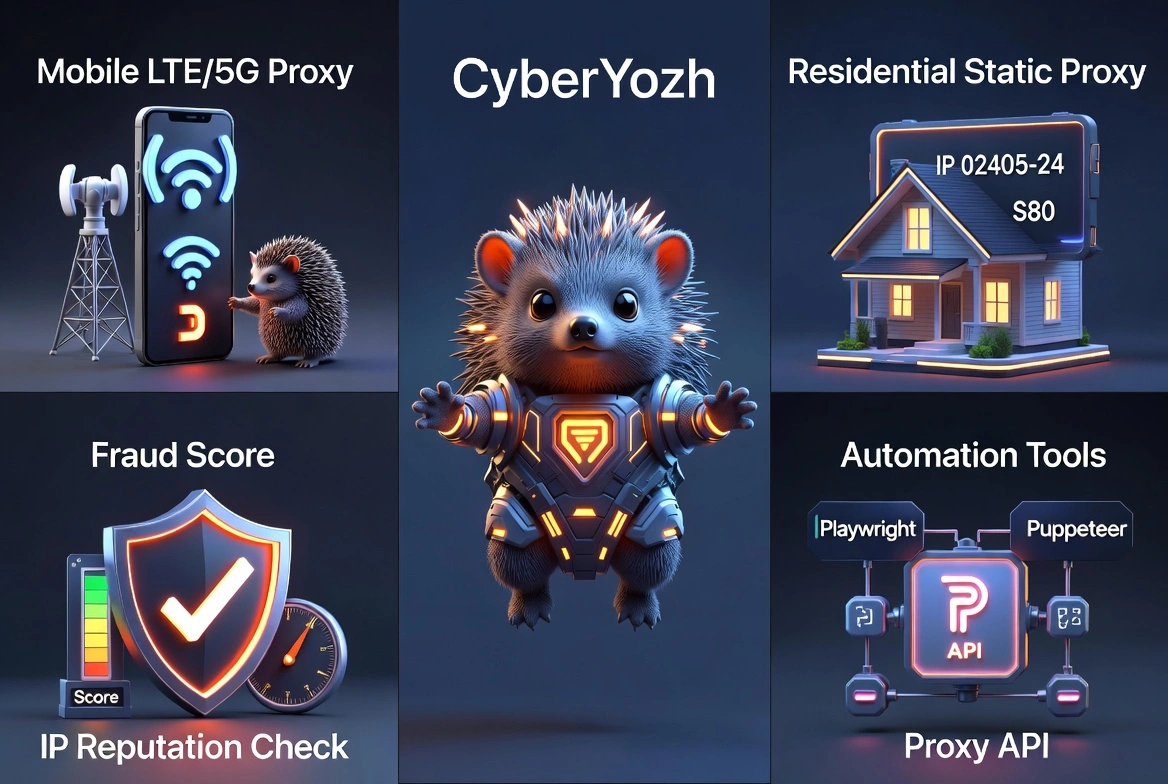
Mobile LTE/5G proxies:
These use real phone carrier connections.
Telegram sees them the same way it sees a regular mobile user.
SMS verification works, login works, and sessions stay stable.
Buy Mobile proxies start from $1.7/day with unlimited traffic.
Residential ISP proxies (static)
A fixed IP address from a real home internet connection.
Clean IP pool of 100M+ in 100+ countries with a 99.9%uptime.
Once you log in to Telegram Web on this IP, the session remains active.
No repeated verification.
Great for accounts that need to stay logged in for weeks.
Buy Residential static proxies from $5.29/month.
Datacenter proxies
Fast, affordable, and good for testing or monitoring Telegram bots and channels.
Not the best for account logins, but solid for read-only or automated tasks.
Buy Datacenter proxies from $1.9/month.
IP Reputation Check
Before you use any IP with Telegram Web, CyberYozh lets you check whether it's already flagged.
This one step saves a lot of "why isn't the login code arriving" frustration.
Works With Automation Tools
If you're running Telegram Web with Playwright, Puppeteer, or Selenium for any automated task, CyberYozh's API connects directly to those tools.
One platform for proxy access, IP checks, and SMS verification, not three separate vendors.
Protocol support
UDP support
HPPT support
HPPTH support
Telegram Web doesn't use the standard WebSocket protocol (wss://). Instead, it uses HTTP-based long polling and WebTransport. This design choice improves firewall compatibility, but some networks still block it.
Conclusion
Telegram Web works at web.telegram.org in any browser, no download needed. Log in with a QR code or phone number. If it won't load, your network is likely blocking it. Proxies fix this by routing your connection through a clean IP. CyberYozh provides mobile, residential, and data center proxies with IP reputation checks and automation support, all in one place at an affordable price. Mobile proxies from $1.7/day with unlimited traffic and residential from $5.29/month.