Configuração do proxy no Telegram
O Telegram — não é apenas um mensageiro, mas uma plataforma poderosa para comunicação, notícias e trabalho. No entanto, os usuários podem enfrentar dificuldades de conexão: desde instabilidades na rede em certas regiões até restrições em redes Wi-Fi corporativas ou públicas.
Para resolver este problema, o Telegram possui uma função integrada poderosa e flexível de «Proxy». Ela permite rotear o tráfego do aplicativo através de um servidor intermediário (upstream proxy), garantindo uma conexão estável e maior privacidade.
Neste guia, vamos analisar passo a passo como configurar um proxy no Telegram em qualquer dispositivo e qual tipo de proxy escolher para obter o máximo de velocidade e segurança de dados.
Por que você precisa de um proxy para o Telegram?
O uso de um proxy — é uma ferramenta fundamental para garantir a estabilidade da conexão e a proteção de dados, especialmente no uso profissional do mensageiro.
Acesso ininterrupto à plataforma: Esta é a razão principal. Se o seu provedor de internet tiver problemas de roteamento ou se houver configurações rigorosas de firewall na rede, o proxy atua como um gateway confiável, garantindo acesso estável aos servidores do Telegram.
Gerenciamento profissional de perfis (para negócios): Se você gerencia várias contas de trabalho no Telegram (por exemplo, para uma agência de SMM, serviço de suporte ou diferentes projetos), operar a partir de um único endereço IP pode causar conflitos de sessão. O uso de um proxy individual para cada perfil de trabalho (seguindo o princípio de «1 perfil = 1 proxy») — é um padrão de higiene digital, permitindo isolar o tráfego de diferentes clientes e garantir o funcionamento estável e independente de cada conta.
Aumento da privacidade: O proxy mascara o seu endereço IP direto, adicionando uma camada extra de proteção à privacidade. O provedor vê apenas a conexão com o servidor proxy, o que ajuda a proteger os metadados da sua atividade.
Melhoria na qualidade da conexão (em alguns casos): Um proxy pode otimizar a rota do tráfego. Se o seu provedor tiver uma latência alta (ping) para os servidores do Telegram, escolher um servidor proxy de qualidade localizado mais perto dos centros de dados do mensageiro pode acelerar o carregamento de arquivos de mídia.
Qual tipo de proxy escolher: SOCKS5 vs. MTProto
Nas configurações do Telegram, você verá dois protocolos principais. É importante entender a diferença entre eles:
SOCKS5: Este é um protocolo universal e confiável. Ele garante alta velocidade de transferência de dados. O proxy SOCKS5 pode ser usado não apenas para o Telegram, mas também no navegador ou em outros aplicativos de escritório. É o «padrão ouro» para a maioria das tarefas.
MTProto: Este é um protocolo nativo, desenvolvido pela equipe do Telegram especificamente para o mensageiro. Sua principal vantagem — é a otimização para operar em redes com configurações complexas e regras rígidas de filtragem de tráfego.
Veredito: Ambas as opções funcionam muito bem. Se o seu objetivo — é versatilidade, escolha SOCKS5. Se você estiver em uma rede com restrições severas de firewall, o MTProto pode ser uma solução mais resiliente para manter a conexão.
Configuração passo a passo do proxy no Telegram
O processo de configuração não leva mais do que dois minutos. Você precisará dos dados do seu servidor proxy: host (endereço IP ou domínio), porta, login e senha.
Configuração no PC (Windows, macOS, Linux)
Inicie a versão desktop do Telegram.
No canto superior esquerdo, clique no ícone do «menu hambúrguer» (três linhas) e selecione «Configurações» (Settings).
Vá para a aba «Configurações Avançadas» (Advanced).
Encontre a seção «Dados e Armazenamento» e clique em «Tipo de conexão» (Connection type).
Ative a opção «Usar proxy personalizado» (Use custom proxy).
Escolha o tipo do seu proxy: SOCKS5 ou MTProto.
Preencha os campos:
Host (Hostname): Digite o endereço IP ou nome de domínio do proxy.
Porta (Port): Indique a porta do servidor.
Login e Senha (Username/Password): Insira os dados para autorização, se forem necessários.
Clique no botão «Salvar» (Save).
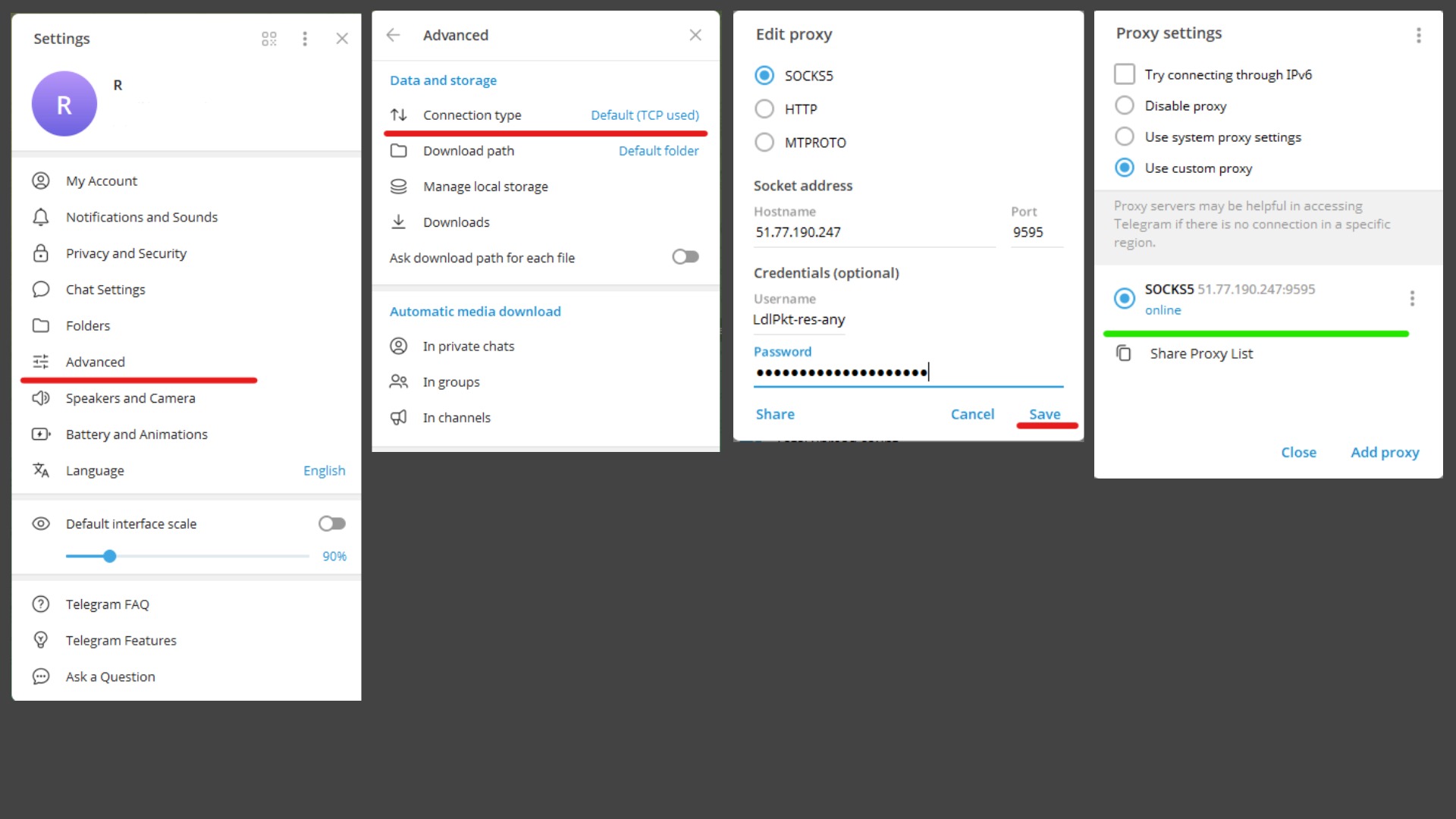
Fig.1. Configuração passo a passo de proxy no Telegram para PC
Configuração em dispositivos móveis (Android/iOS)
Abra o aplicativo Telegram e vá em «Configurações» (Settings).
Selecione a seção «Dados e Armazenamento» (Data and Storage).
Role até o final e toque no item «Configurações de Proxy» (Proxy Settings).
Ative a chave «Usar Proxy» (Use Proxy).
Toque em «Adicionar Proxy» (Add Proxy).
Escolha o tipo: SOCKS5 ou MTProto.
Insira os dados do servidor: Servidor (Host), Porta, Usuário e Senha.
Toque no «Check» para salvar.
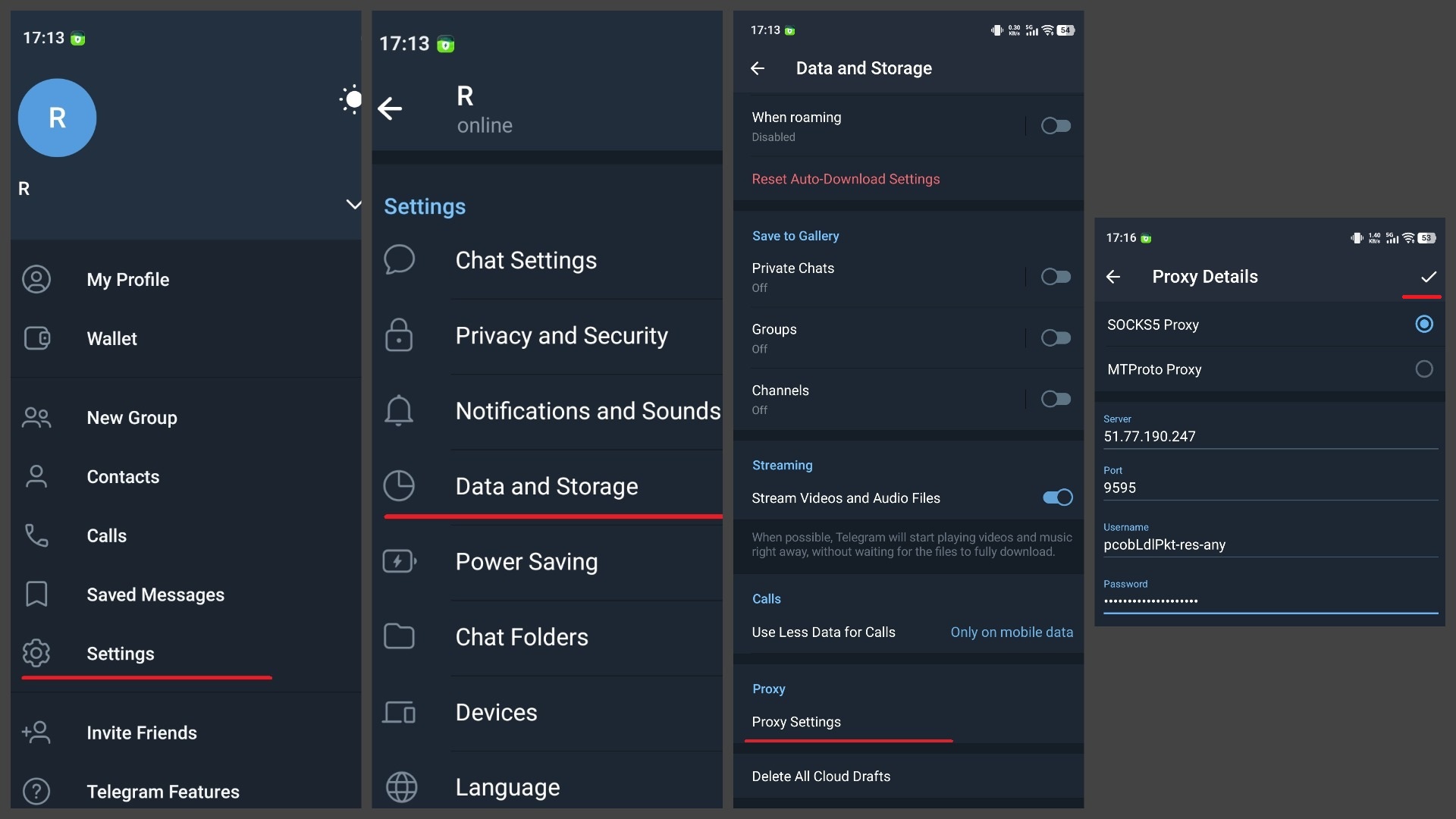
Fig.2. Configuração passo a passo de proxy no Telegram em dispositivos móveis
Após a configuração, o Telegram verificará automaticamente a conexão. Se tudo for inserido corretamente e o servidor estiver disponível, você verá o status «conectado» e um ícone de escudo na parte superior da interface.
Onde conseguir proxies de qualidade: Pagos vs. Gratuitos
Proxies gratuitos: Não recomendamos o seu uso para tarefas importantes. Servidores públicos costumam estar sobrecarregados, possuem baixa velocidade e não podem garantir a segurança dos dados transmitidos.
Proxies pagos: Esta é a opção confiável para trabalho profissional. Provedores pagos garantem alto uptime, velocidade e endereços IP «limpos». Para o Telegram, uma excelente escolha são os proxies móveis. Redes sociais e mensageiros — são plataformas «mobile-first», portanto, o tráfego de IPs de operadoras de celular é percebido pelo sistema como atividade padrão de usuário, o que garante estabilidade máxima de funcionamento.
Conclusão
Configurar um proxy no Telegram — não é um truque técnico complexo, mas uma habilidade básica para qualquer usuário que valoriza a qualidade da comunicação e a confidencialidade. Isso transforma o mensageiro em uma ferramenta robusta que funcionará independentemente de falhas locais na rede.
Escolher um proxy de qualidade — é um passo importante para proteger sua privacidade e garantir um acesso confortável à informação.
👉 Procurando proxies estáveis para o Telegram? Para esta tarefa, os proxies móveis SOCKS5 de alta velocidade são ideais. Eles garantem alta confiabilidade de conexão. No catálogo do CyberYozh App, você encontrará proxies verificados que proporcionarão um acesso confortável ao Telegram.
Útil?
Compartilhar artigo