Proxy Helper: The Complete Setup Guide, Best Tips & Top Alternatives (2026)

If you've ever tried to set up a proxy helper in Chrome, you've probably hit the same wall everyone hits. You dig through Chrome's settings looking for proxy controls, and you find a button that opens your operating system's network settings. That's it. Chrome doesn't manage proxies itself; it just borrows whatever your entire computer is using.
Which means if you set a proxy there, every app on your machine goes through it. Your browser, your email client, your Slack, your Spotify. All of it. That's rarely what you actually want.
Proxy Helper is the Chrome extension that solves this. It gives your browser its own independent proxy controls, completely separate from your system settings, so you can route Chrome's traffic through a proxy without touching anything else on your computer.
In this guide, you're getting the complete picture:
What Proxy Helper does and how it actually works
How it compares to the main alternatives (FoxyProxy, SwitchyOmega)
Step-by-step setup with a quick checklist
The SOCKS authentication limitation that catches everyone off guard
Advanced features, real-world use cases, and troubleshooting fixes
The best types of proxies to pair with it, and why proxy quality matters as much as the extension
Let's get into it.
What is Proxy Helper
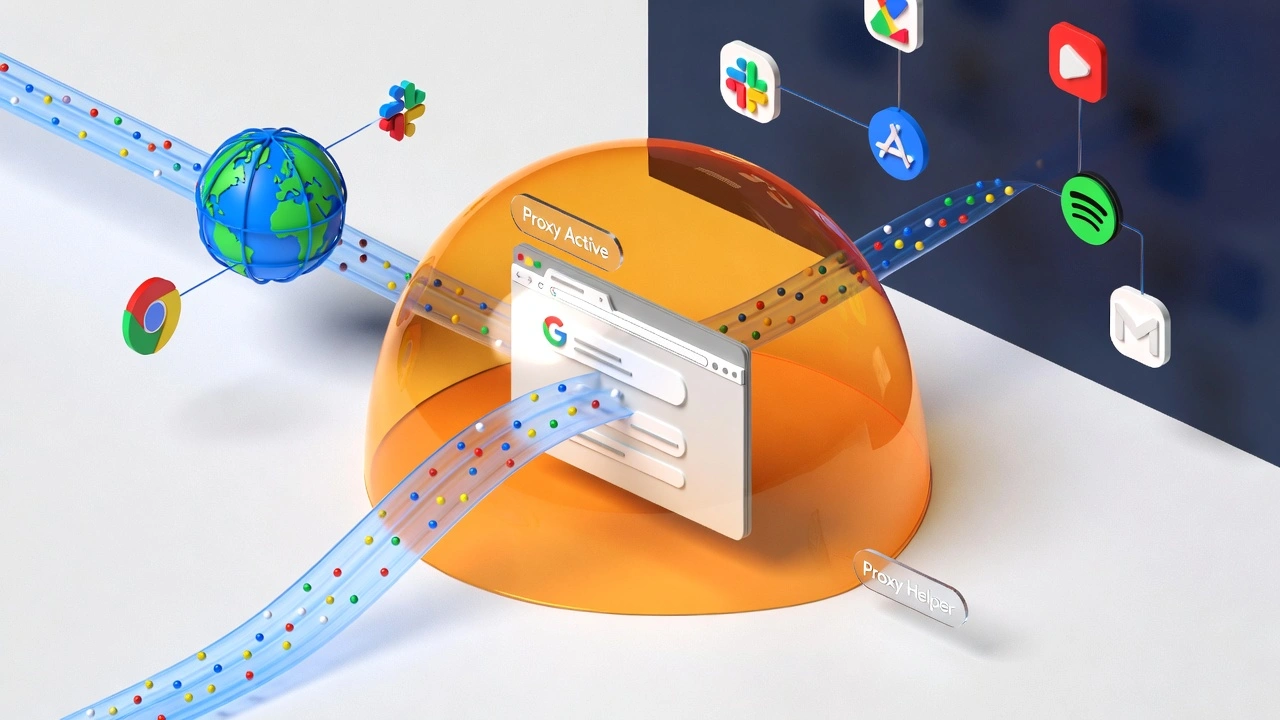
Proxy Helper is a free, open-source Chrome extension that lets you configure proxy settings directly inside your browser, independently of your computer's system-wide network configuration.
The core idea is simple. You install it, enter your proxy server details, activate a profile, and Chrome starts routing its traffic through that proxy. Everything outside Chrome stays on your normal connection. No system settings touched. No other apps were affected.
It supports all the major proxy protocols you'll encounter: HTTP, HTTPS, SOCKS4, SOCKS5, and QUIC. It also supports PAC script configurations for automated routing rules, more on that later.
“The fact that it's open source matters more than it might seem. The code is publicly available on GitHub, which means anyone can inspect exactly what the extension does. No hidden data collection, no undisclosed behaviour. That transparency is a genuine trust signal that many browser extensions simply can't offer.”
Comparison: Proxy Helper vs. FoxyProxy vs. SwitchyOmega
Before you commit to any proxy extension, it's worth knowing what your options actually are. Three names come up most often for Chrome proxy management. Here's the honest comparison.
Feature | Proxy Helper | FoxyProxy | SwitchyOmega |
Price | Free | Free / Premium | Free |
Open source | Yes | Yes | Yes |
PAC script support | Yes | Yes | Yes |
Multiple profiles | Yes | Yes | Yes |
Protocol support | HTTP, HTTPS, SOCKS4/5, QUIC | HTTP, HTTPS, SOCKS4/5 | HTTP, HTTPS, SOCKS4/5 |
SOCKS authentication | Chrome limitation | Chrome limitation | Chrome limitation |
Interface complexity | Simple | Simple | Moderate |
Pattern-based switching | Basic | Advanced | Advanced |
Best for | Quick setup, straightforward use | Pattern-based switching | Power users, complex routing |
Use Proxy Helper if you want something lightweight and fast to set up. It's the least complicated of the three and ideal for users who don't need elaborate URL-pattern switching rules.
Use FoxyProxy if you need detailed control over which URLs go through which proxy; its pattern-matching system is more mature and flexible than Proxy Helper's bypass lists.
Use SwitchyOmega if you're a power user managing complex proxy configurations across multiple projects and need fine-grained control over how traffic is routed. Steeper learning curve, but more capable for advanced workflows.
“For most people reading this guide, especially those just getting started with proxies, Proxy Helper is the right place to start. It does the job cleanly without overcomplicating things.”
Why use Proxy Helper instead of changing system settings
System-level proxy settings are blunt instruments. Change the proxy there, and everything on your machine goes through it, browser, apps, background services, all of it. That causes two problems:
First, it often breaks apps that weren't designed to work with proxies.
Second, it's overkill for any situation where you only want Chrome to use a different connection.
Proxy Helper keeps changes contained to Chrome. Here's why that matters practically:
Browser-only control: every other app on your computer stays on your regular connection, completely unaffected.
Quick switching: toggle between proxy profiles in two clicks instead of digging through system menus
No admin rights required: works on work computers and managed devices where you can't change system-wide network settings
PAC script support: automate which sites use the proxy and which ones connect directly
Settings travel with Chrome: your proxy configuration is tied to the browser, not the operating system.
“For SEO professionals, researchers, developers, or anyone doing privacy-conscious work, that isolation is the whole point.”
How to install Proxy Helper in Chrome
Getting set up takes only under two minutes:
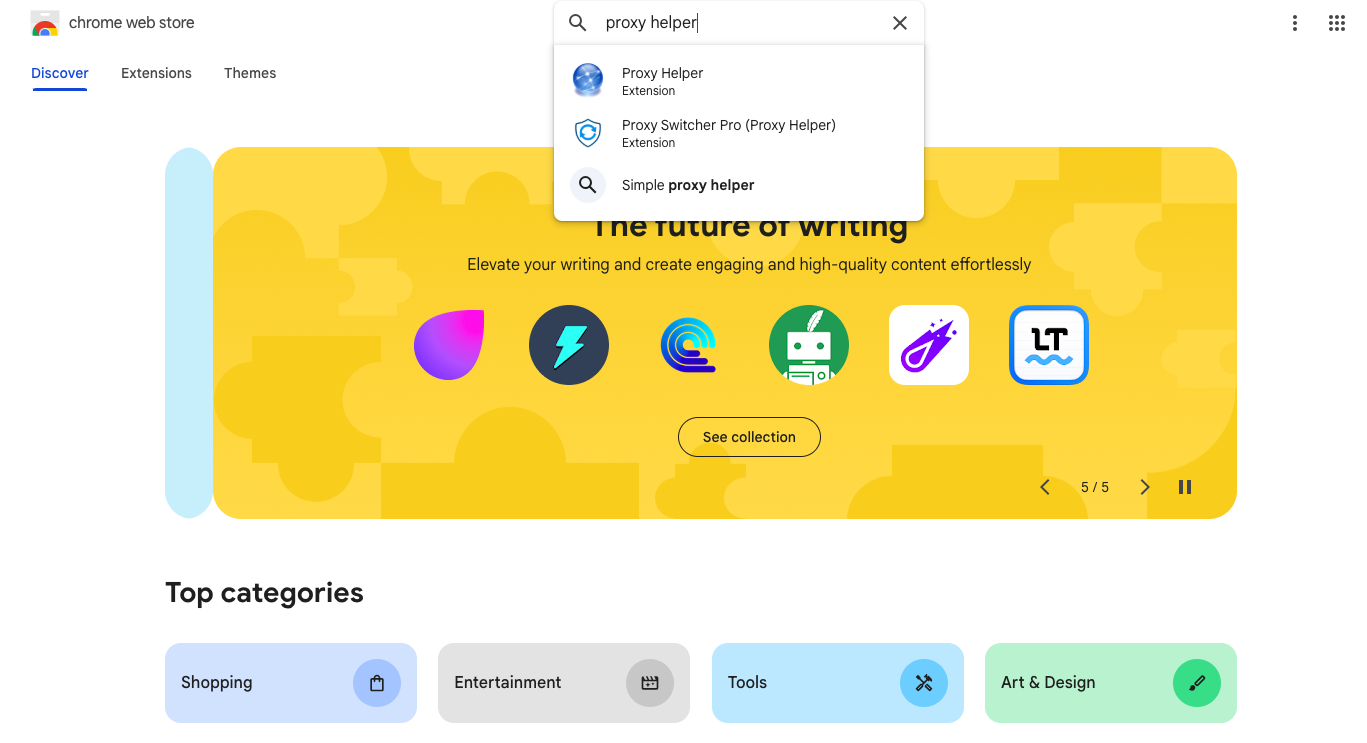
Step 1: Open the Chrome Web Store
Open Google Chrome and go to the Chrome Web Store. Search for "Proxy Helper" in the search bar. You're looking for the extension with the blue icon; it's been around for years and has a strong track record.
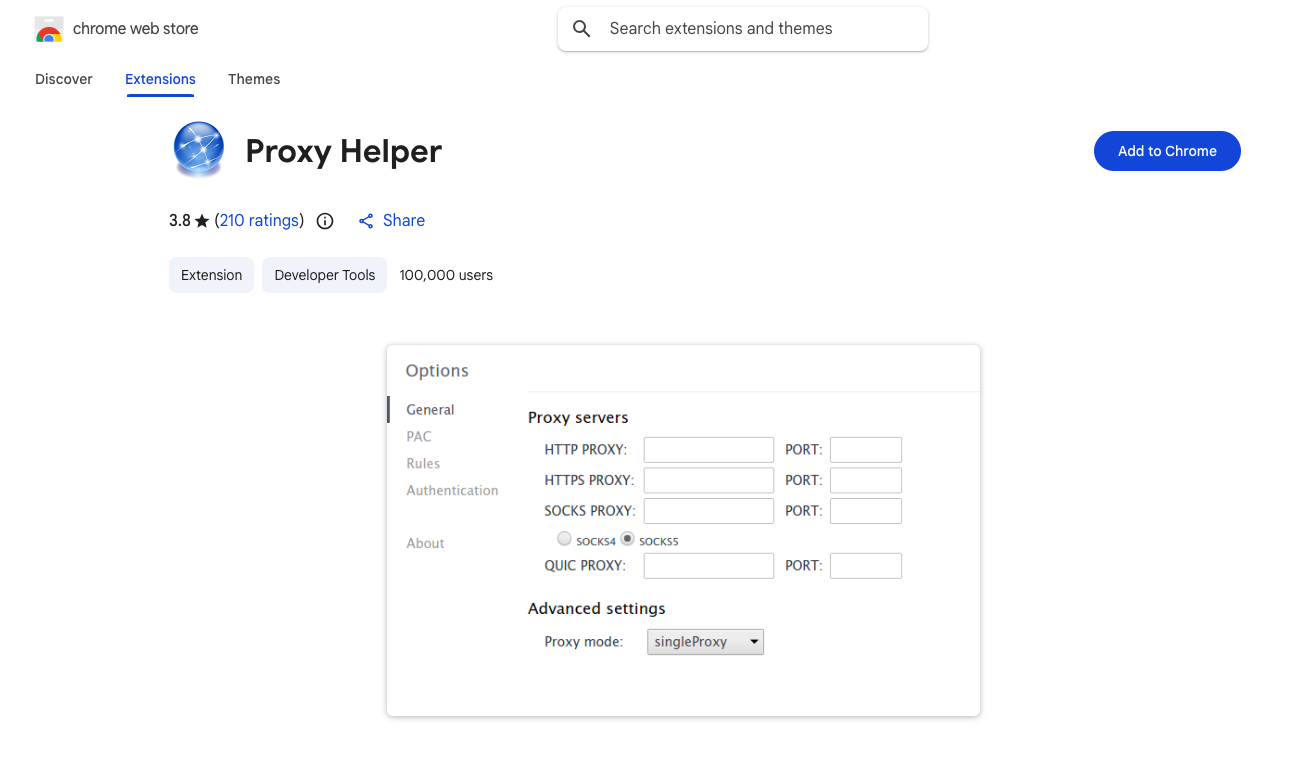
Step 2: Add to Chrome
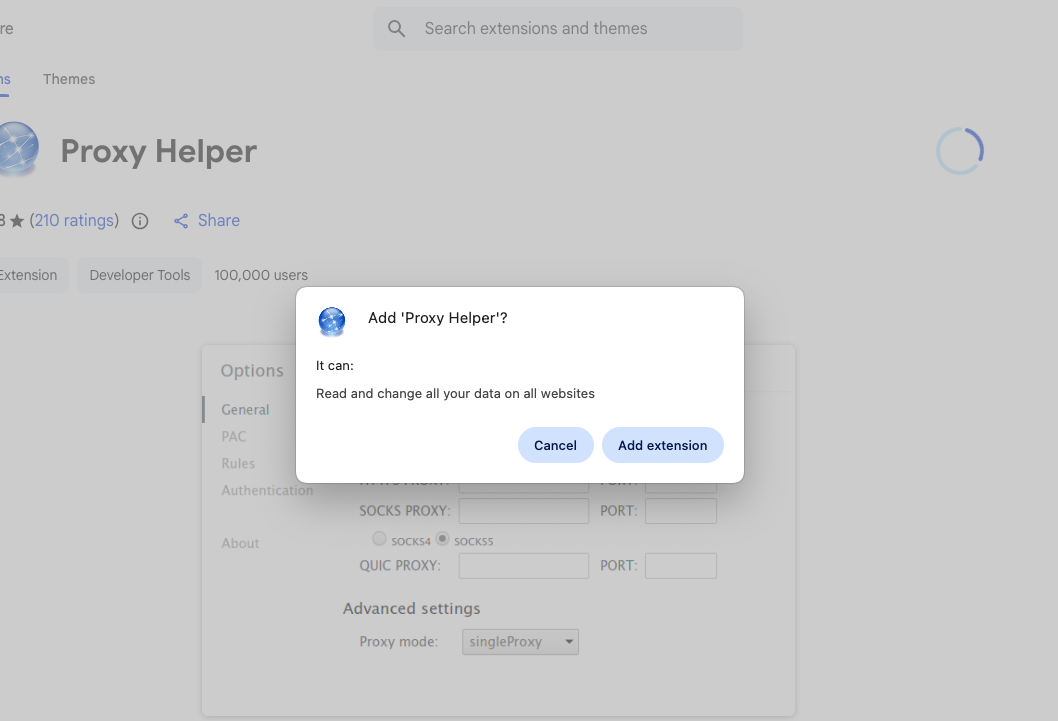
Click the "Add to Chrome" button on the extension listing page. A confirmation pop-up appears; click "Add extension" to complete the installation. Takes about ten seconds.
Step 3: Pin the icon to your toolbar
Click the puzzle piece icon in your Chrome toolbar to open the extensions menu. Find Proxy Helper in the list and click the pin icon next to it. This keeps the proxy helper icon permanently visible so you can switch proxy profiles with a single click rather than opening menus every time.
How to set up a proxy in Proxy Helper
This is the section that matters most. Let's walk through a complete setup.
Step 1: Gather your proxy details
Before opening the extension, get your proxy information ready. You need:
Server address — either a domain (e.g., proxy.yourprovider.com) or a direct IP address
Port number — commonly 8080, 3128, 1080, or whatever your provider specifies
Protocol — HTTP, HTTPS, SOCKS4, or SOCKS5
Username and password — if your proxy requires authentication
Your proxy provider gives you all of this at signup. Have it open and ready before you start entering details.
Step 2: Open Proxy Helper options
Right-click the proxy helper icon in your Chrome toolbar and select "Options." This opens the main settings panel, where all configuration happens.
Step 3: Enter your server details
In the proxy server section:
Enter the server address in the host field
Enter the port number in the port field
Select your protocol type from the dropdown menu
Triple-check the server address and port. A single wrong character here is the most common reason setups fail, and it's completely invisible until you try to connect.
Step 4: Configure authentication
If your proxy requires a login, click the "Authentication" tab and enter your username and password exactly as provided. Copy-paste rather than typing, credentials are case-sensitive, and one wrong character breaks the connection silently.
“Important: If you're using SOCKS5 proxies, read the next section before assuming authentication will work. There's a Chrome-level limitation you need to know about.”
Step 5: Save and activate
Save your configuration, then click the Proxy Helper icon in your toolbar and select your new proxy profile. Chrome immediately starts routing its traffic through the proxy server.
Step 6: Verify it's working
Open a new tab and visit whatismyip.com or BrowserScan to confirm your IP address has changed to your proxy's location. If your real IP is still showing, there's a configuration error; usually, the server address, port, or protocol selection needs to be corrected.
Here’s a quick setup checklist
Before you activate your proxy, run through this list. It prevents 90% of setup failures.
Server address copied correctly, no extra spaces
Port number matches exactly what your provider specified
Protocol selected matches your proxy type (HTTP/HTTPS/SOCKS4/SOCKS5)
Username and password entered in the Authentication tab (if required)
No other proxy extensions or VPNs are running simultaneously
The Proxy Helper icon is pinned to the toolbar for easy access
IP verified at whatismyip.com after activation
“If activation fails, start at the top of this list. The answer is almost always in the first three items.”
What is the SOCKS authentication problem nobody warns you about
This is the issue that generates more confused support tickets than anything else related to Proxy Helper, and most guides either bury it or don't mention it at all.
Chrome's extension API does not support authentication for SOCKS proxies
Which means that if you're connecting to a SOCKS4 or SOCKS5 proxy that requires a username and password, entering those credentials in Proxy Helper will not work. Chrome's underlying architecture simply doesn't allow extensions to pass login credentials for SOCKS connections. It's a platform-level limitation that affects every Chrome proxy extension equally, not a bug in Proxy Helper specifically.
Your two solutions for this:
1. Use IP-based authentication instead. Many proxy providers allow you to allow your IP address, so the proxy accepts connections from your IP without requiring a password. If your provider offers this, it's the cleanest workaround for SOCKS connections.
2. Switch to HTTP or HTTPS proxies if you specifically need password authentication. HTTP and HTTPS proxy authentication works perfectly with Proxy Helper, with no limitations.
Proxy Helper’s advanced features
Once the basic setup is working, these features make Proxy Helper significantly more useful.
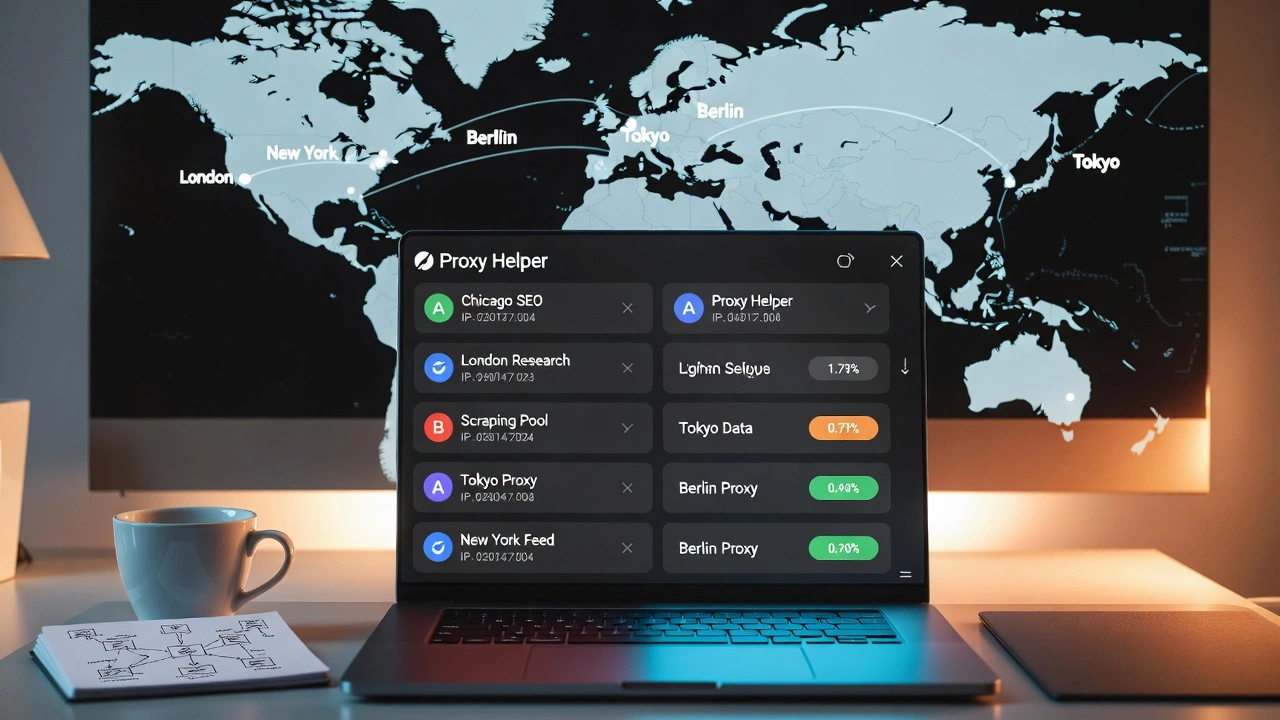
PAC script support
A PAC (Proxy Auto-Configuration) script is a small file that tells your browser exactly which websites should be routed through the proxy and which should connect directly. Instead of sending all traffic through a proxy, you can automate intelligent routing so that specific domains go through the proxy, and everything else connects normally.
Proxy Helper supports PAC scripts either via a direct URL or by uploading a local file. If your company or proxy provider supplies a PAC script URL, enter it in the PAC script field. For most casual users, this isn't necessary, but for anyone managing complex traffic routing across multiple projects, it's a powerful time-saver.
Bypass lists
Simpler than PAC scripts, bypass lists let you specify domains that should always connect directly regardless of which proxy profile is active. Enter a domain in the bypass list, and it routes normally even when a proxy is running.
This is particularly useful for internal company tools, local network addresses (localhost, 192.168.*), or any site where the proxy causes access problems you can't control.
Multiple proxy profiles
You're not limited to one configuration. Create as many proxy profiles as you need, different servers, different protocols, different purposes. Switching between them is as simple as a single click on the proxy helper icon.
In practice, professionals often run several profiles: a residential proxy for scraping and research, a datacenter proxy for speed-sensitive tasks, and a direct connection for regular browsing. Switching takes two seconds.
Export and import configurations
Configured everything and want to save it or replicate it on another machine? Proxy Helper lets you export your full configuration to a file and import it elsewhere. Useful for teams that need identical proxy setups for multiple people, or just for keeping a reliable backup.
5 real-world use cases of Proxy Helper that can save you time
Understanding the features is one thing. Knowing when actually to reach for the tool is another. Here are the situations where Proxy Helper genuinely earns its place.
1. Checking local SEO rankings from a specific city
If you're an SEO professional tracking how a client ranks in Chicago, you can't get accurate data from your office in London. The SERP Google shows you reflects your location, not your client's. Proxy Helper with a residential IP from Chicago gives you exactly what a local user in that city sees, without setting up a separate physical machine or changing any system settings.
2. Testing geo-restricted content and features
Developers building location-aware applications need to test what users in different regions actually experience. Proxy Helper makes it trivial to switch your apparent location between tests, activate a French proxy, check the French version, switch to a Japanese proxy, check the Japanese version, then switch back to a direct connection. The whole workflow stays inside Chrome without touching anything else.
3. Web research and competitive intelligence
Some websites show different prices, content, or features based on where you appear to be connecting from. Researchers and analysts use Proxy Helper to see what competitors are showing in different markets, product pricing, promotional offers, and localised content strategies. A two-minute proxy setup gives you visibility into regional variations that would otherwise require physical presence.
4. Avoiding IP blocks during scraping and crawling
Automated data collection gets your IP flagged fast on most websites. Proxy Helper makes it straightforward to route your scraping tools through a proxy server, distributing requests across different IP addresses. Combined with quality residential proxies, this is the standard professional approach to avoiding blocks during data collection.
5. Using work and personal accounts simultaneously
If you need to stay logged into a work account and a personal account on the same platform simultaneously, routing one Chrome profile through a proxy while another connects directly gives you two distinct sessions that don't interfere with each other. Quick to set up, easy to manage.
Troubleshooting common Proxy Helper problems
When things go wrong, here are the fixes for the most common issues.
The proxy won't connect.
Start with the basics: verify the server address and port character by character. Check that the protocol selected in the extension matches what your proxy actually uses. An HTTP proxy configured as SOCKS5 won't connect, and the error message won't clearly explain why.
Then test the proxy independently. Try the same credentials in another tool to confirm that the proxy itself is functional before assuming Proxy Helper is the problem.
Authentication keeps failing
For HTTP/HTTPS proxies: check for invisible extra spaces in your username and password fields, which often appear when copying and pasting from emails. Verify your credentials are still valid with your provider; some rotate them on a schedule.
For SOCKS proxies: refer back to the authentication limitation section. No amount of re-entering credentials will fix a Chrome API restriction. Switch to IP authentication or use HTTP/HTTPS instead.
Conflict with other extensions or VPNs
If you have another proxy extension, a VPN client, or any network-modifying tool running simultaneously, turn off everything else before testing Proxy Helper. These tools fight over the same Chrome proxy settings. Two extensions trying to control the same configuration simultaneously produce unpredictable results, not a clean error, just broken connectivity.
Chrome updates are breaking the extension
Occasionally, a Chrome update changes something in the extensions API, temporarily breaking Proxy Helper's behaviour. If the extension stops working after a Chrome update, check the GitHub repository for reported issues. If it's a known problem, a fix is usually pushed within days.
In the meantime, the FoxyProxy or SwitchyOmega alternatives mentioned earlier can serve as a backup.
The extension is slowing down your browser.
If Chrome feels slower after activating a proxy, the bottleneck is almost certainly the proxy server itself, not the extension. Proxy Helper adds negligible overhead; it's just redirecting connections. A slow proxy is a proxy quality issue. Upgrading to faster, less congested proxy infrastructure resolves this immediately.
Fresh install as a last resort
Remove the extension entirely (right-click the icon → Remove from Chrome), close Chrome completely, reopen it, and reinstall fresh from the Chrome Web Store. Settings occasionally get corrupted in ways that aren't fixable through the options panel. A clean reinstall takes 3 minutes and resolves most persistent, unexplained issues.
Best Proxies to Use With Proxy Helper
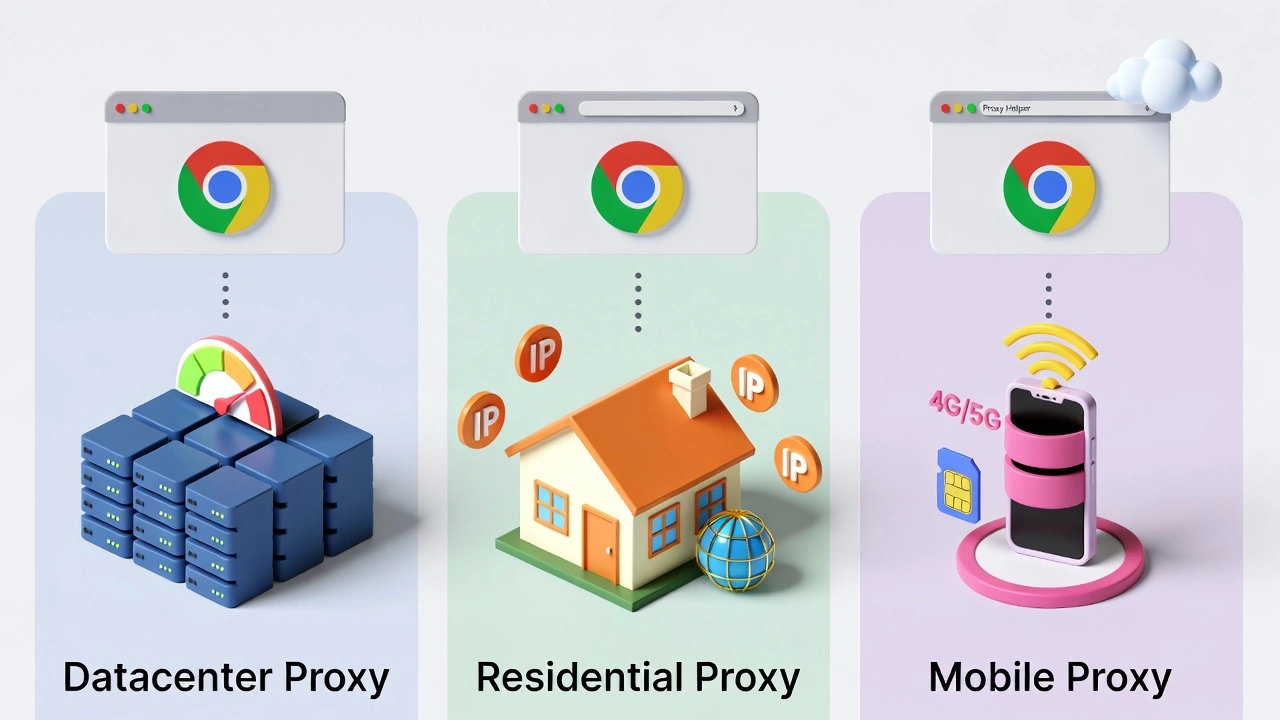
Proxy Helper is only as good as the proxies you connect to it. The extension manages your proxy settings cleanly. But if the proxy server on the other end is slow, blocked, or unreliable, the extension can't compensate. Proxy quality is the variable that actually determines how well your setup performs.
HTTP and HTTPS proxies are the simplest to set up and work seamlessly with username/password authentication through Proxy Helper. For general browsing, casual research, and testing, these are the path of least resistance.
SOCKS4 proxies offer more protocol flexibility than HTTP proxies and handle a wider range of traffic types. Works well when IP authentication is available, and pairs smoothly with Proxy Helper for most tasks.
SOCKS5 proxies are the most capable type, faster, more versatile, and supporting UDP traffic. The credential limitation applies here (use IP allowlisting), but SOCKS5 through Proxy Helper is a solid setup for experienced users.
Residential proxies are the strongest option for anything involving websites that actively block datacenter IPs, SEO research, scraping, and accessing geo-restricted content. They look like genuine home user traffic because they originate from real residential connections. Sites that would block a datacenter IP immediately often pass residential traffic without issue.
Mobile proxies are even harder for platforms to flag than residential proxies. They originate from real mobile carrier networks, actual cellular connections, which search engines and major platforms treat as among the most legitimate traffic sources they encounter. For high-detection-risk workflows, mobile proxies represent the highest quality option available.
Datacenter proxies are fast, cost-effective, and well-suited for tasks where detection resistance isn't a priority, such as speed tests, accessing unrestricted content, and general development work.
Why pre-screened proxies matter
Not all residential or mobile proxies are created equal, even within the same category. An IP with a history of abuse, previous spam campaigns, bot activity, and web scraping that got flagged carries that history into every new session you use it for.
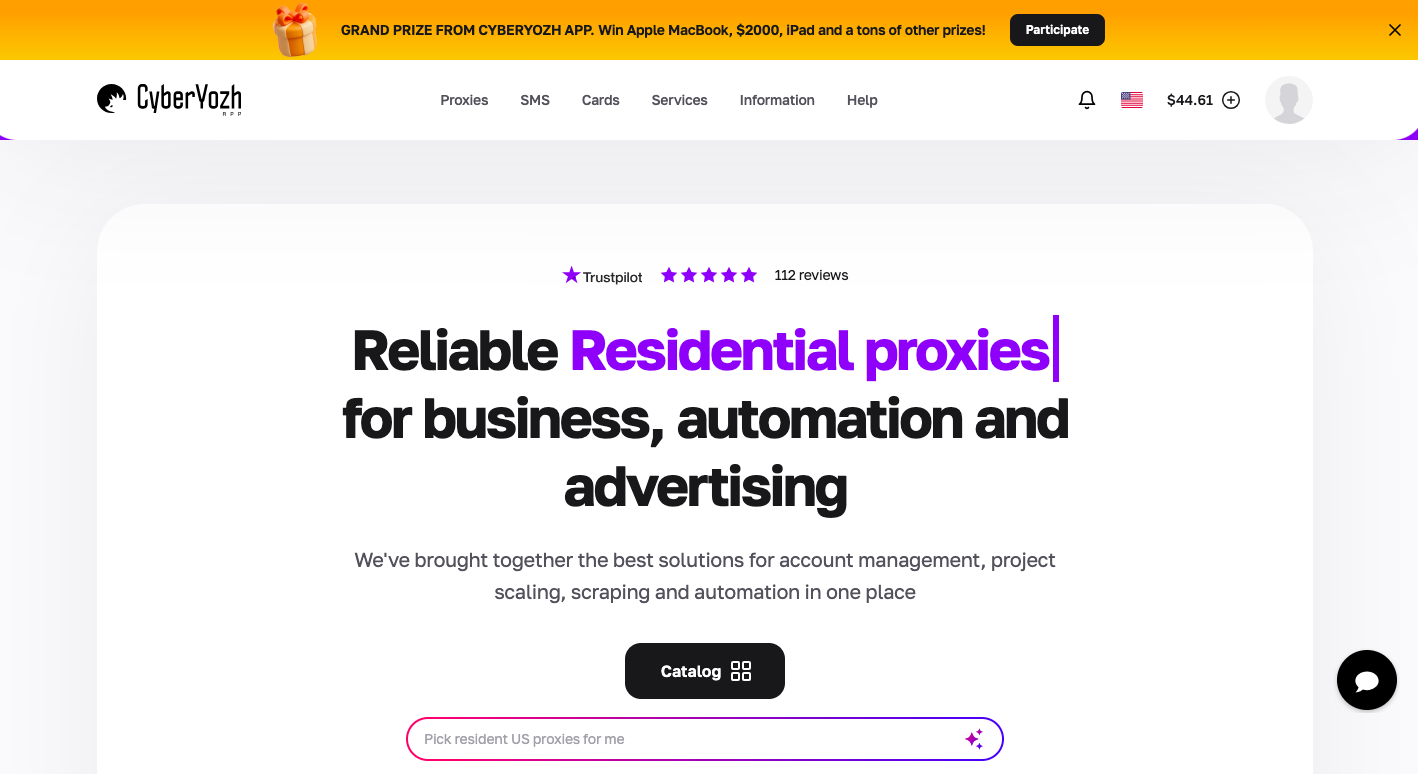
CyberYozh proxy provider addresses this directly. Every IP in their 50-million-address residential and mobile proxy network in 100+ countries
They are screened against 50+ security databases before entering rotation.
Their built-in Fraud Score tool proactively flags or blocks addresses before they're assigned to a user session.
99.9% uptime
SOCKS5, HTTP, HTTPS, and UDP protocol support
Their real 4G/5G mobile proxies run on actual carrier networks with real SIM cards, not emulated connections. Unlike most mobile proxy services that aggressively meter bandwidth,
CyberYozh's mobile proxies offer unlimited traffic for $1.70/day. For high-volume work where bandwidth consumption is unpredictable, that flat-rate model removes a significant cost variable.
Static residential proxies start from $5.29/month, making CyberYozh one of the most accessible quality proxy options currently available, particularly compared to enterprise providers that require custom quotes and procurement processes.
Multilingual support
Works natively with Multilogin, AdsPower, and Dolphin Anty
Full automation and scraping support.
24/7 support.
“For Proxy Helper users, the combination works cleanly: enter your CyberYozh proxy details into the extension, activate your profile, verify your IP at whatismyip.com, and you're running clean, pre-vetted residential or mobile traffic through a browser-isolated connection. That's the professional setup.”
Final thoughts: Is Proxy Helper the right tool for you
If Chrome's complete lack of built-in proxy controls has ever frustrated you, Proxy Helper is genuinely one of the cleanest solutions available. It's lightweight, free, open-source, and does exactly what it promises: gives you browser-level proxy control without touching anything system-wide.
The one thing to carry from this guide into practice: the extension is only as good as the proxies behind it. Proxy Helper manages your connections cleanly and reliably. But clean, fast, unblacklisted proxy infrastructure is what actually determines whether your setup performs or frustrates.
Start with high-quality proxies, pre-vetted residential or mobile IPs with no abuse history, and Proxy Helper delivers exactly what it's built to. Pair it with the right proxy infrastructure, follow the setup checklist above, and you'll have browser-level proxy control that your system settings could never have provided.
Frequently Asked Questions About Proxy Helper
What is Proxy Helper and how does it work?
Proxy Helper is a free Chrome extension that lets you configure proxy settings directly inside your browser without changing your computer's system-wide network settings. You enter your proxy server address, port, and protocol into the extension, activate a profile, and Chrome starts routing its traffic through that proxy. Every other application on your computer remains on your normal connection, completely unaffected.
Is Proxy Helper free and safe to use?
Yes on both counts. The extension is completely free and has been available in the Chrome Web Store for several years. It's open source; the full code is publicly available on GitHub, so anyone can inspect exactly what it does. There's no hidden data collection and no undisclosed behaviour.
Why won't my SOCKS5 proxy with a password work in Proxy Helper?
This is a Chrome platform limitation, not a Proxy Helper bug. Chrome's extension API doesn't support SOCKS proxy authentication; it cannot pass a username and password for SOCKS connections regardless of what's entered in the extension settings. Your options are: use IP-based authentication with your provider (where your IP is allowed and no password is needed), or switch to an HTTP or HTTPS proxy if password authentication is specifically required.
Can I use Proxy Helper in Firefox?
The original Proxy Helper extension is built exclusively for Google Chrome and won't install in Firefox. Firefox has its own proxy management add-ons available through the Mozilla Add-ons store — search for "proxy helper" there to find functional alternatives. The setup process is broadly similar, although the interface differs.
What's the difference between Proxy Helper and a VPN?
Proxy Helper works only inside Chrome, routing browser traffic through a proxy server while leaving all other applications unaffected. A VPN works system-wide; it encrypts and reroutes all traffic from your entire device simultaneously. VPNs also add encryption by default; proxies configured through Proxy Helper don't.
How do I remove Proxy Helper from Chrome?
Right-click the proxy helper icon in your toolbar and select "Remove from Chrome," then confirm when prompted. Alternatively, type chrome://extensions in your address bar, find Proxy Helper in the list, and click "Remove." Either method takes under ten seconds.
Does Proxy Helper work with all websites?
The extension works with any website; it routes all Chrome traffic through your configured proxy without site-specific restrictions. Whether specific websites accept or block that proxy traffic depends entirely on the quality and history of the proxy IP you're using, not on the extension itself.