
Externally Managed Environment Error: What It Means and How to Fix It

You ran pip install in 2026, and Python Said No. Here's Why!
One command. You've run it a hundred times. And suddenly:
Error: externally-managed-environment
× This environment is externally managed
╰─> To install Python packages system-wide, try apt install
python3-xyz...
If this appeared after upgrading to Ubuntu 23.04, installing Debian 12, moving to Fedora 38, or running a fresh Homebrew Python install on macOS, you didn't do anything wrong. This error is intentional and occurred because your system is now doing the right thing.
That probably isn't the reassurance you were looking for. But understanding why this exists is the difference between picking the right fix and creating a problem that surfaces three months later at the worst possible moment.
TL;DR
The error "externally-managed-environment" appears when pip tries to install packages into a Python environment that your operating system manages.
It's enforced by PEP 668, adopted by Ubuntu 23.04+, Debian 12+, Fedora 38+, and Homebrew on macOS.
The cleanest fix is a virtual environment.
For CLI tools, use pipx.
For disposable containers, --break-system-packages is fine.
This guide covers every scenario honestly.
Quick answer: What is the externally managed environment error
It's pip's way of telling you the Python installation belongs to your OS, not to you. The operating system uses Python internally, your package manager (apt, dnf, brew) manages that environment, and pip isn't allowed to modify it to prevent you from accidentally breaking system tools.
How do you fix it
Create a virtual environment with python3 -m venv myenv, activate it, then run pip normally inside it. That's the correct fix for almost every situation. [Read more about error 520 and error 499]
Why do externally managed environment errors exist
Your operating system uses Python. Not as a curiosity, as infrastructure. On Ubuntu or Debian, tools like apt, ubuntu-release-upgrader, and various system utilities are written in Python. They depend on specific package versions. If pip installs something that overwrites one of those dependencies, you might find your package manager broken the next time you try to update the system.
That's not a hypothetical. Before PEP 668 existed, developers occasionally did exactly this: they installed something with pip, broke a system tool, and spent hours debugging an issue that had nothing to do with their original task.
PEP 668, ratified in 2022 and widely adopted by Linux distributions starting in 2023, standardized a solution:
Operating systems can mark their Python environment as "externally managed" by placing a file called EXTERNALLY-MANAGED in the Python lib directory.
When that file exists, pip raises this error instead of proceeding silently.
It's the OS telling pip, "this one's mine." Work somewhere else.
The "somewhere else" is a virtual environment, and that's exactly where your work should be happening anyway.
Which systems trigger this error
Operating System | Version Where It Appears |
Ubuntu | 23.04 (Lunar) and later |
Debian | 12 (Bookworm) and later |
Fedora | 38 and later |
Linux Mint | 22 and later |
Raspberry Pi OS | Bookworm-based (late 2023+) |
Kali Linux | 2023.4 and later |
macOS + Homebrew | Python 3.12+ via Homebrew |
If you recently installed any of these or upgraded from an older version, this is why the behavior changed.
Every fix: Honestly ranked by situation
Here are the 6 most honest solutions by their rank in 2026:
Fix 1: Virtual Environments: The right answer for almost everything
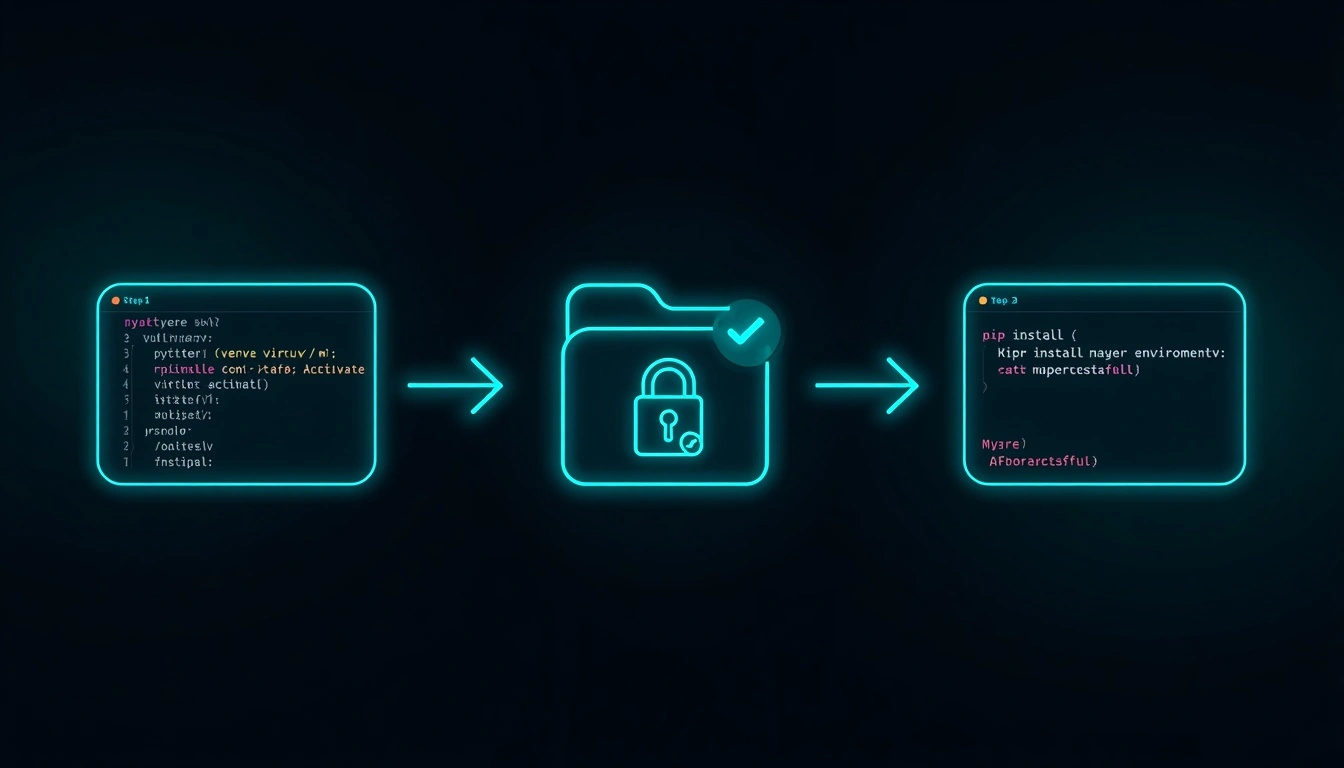
A virtual environment is an isolated Python installation that lives in a folder of your choosing. It has its own pip, packages, and site-packages directory. Your system Python never knows it exists. You can install anything you want in it without touching anything the OS cares about.
# Create the environment

python3 -m venv myenv


# Activate it

source myenv/bin/activate    # Linux/macOS

# or on Windows:

myenv\Scripts\activate


# Now pip works normally

pip install requests


# When done

deactivate
Your terminal prompt will show the environment name in parentheses while it's active, (myenv), which is how you confirm you're working inside it.
One thing beginners miss: you need to activate the environment every time you open a new terminal session. This trips people up constantly. If you're getting the same error after creating a virtual environment, you almost certainly forgot to activate it.
Best for: Every development project. Full stop. Projects with their own virtual environments avoid dependency conflicts, reproduce identically on other machines, and don't accumulate system-level technical debt.
Fix 2: pipx: The right answer for command-line tools
Installing a Python-based command-line tool, yt-dlp, black, httpie, awscli, and poetry is different from installing a library for your project. These are applications you want to run as commands, not modules you're importing in your code.
pipx is built exactly for this. It automatically creates a dedicated virtual environment for each tool, keeps them isolated from one another, and makes the command globally available on your PATH. You get the convenience of a system-wide install without the risk.
# Install pipx itself

sudo apt install pipx    # Debian/Ubuntu

pip install pipx --user  # Other systems


# Make sure PATH is set

pipx ensurepath


# Install a tool

pipx install yt-dlp

pipx install black
The key distinction is that pipx manages the virtualenv invisibly. You don't activate anything. You just run the command.
Best for: Python-based CLI applications you want available everywhere on your system.
Fix 3: Your system package manager.
Before reaching for pip, check whether your distribution already packages what you need. Many popular Python libraries are available through apt, dnf, or brew:
# Debian/Ubuntu

sudo apt install python3-requests python3-flask python3-numpy


# Fedora/RHEL

sudo dnf install python3-requests


# macOS

brew install python-requests
System-packaged versions are typically slightly behind the latest pip release. If you need a specific version or an unpackaged library, this won't help. But for common libraries, it's the cleanest integration with your OS and requires no environment management.
Best for: Packages widely available through your OS that don't require a specific version.
Fix 4: The --user flag
The --user flag installs packages into your home directory (~/.local/lib/python3.x/site-packages) rather than the system Python. This sidesteps the externally managed restriction without touching system paths.
pip install requests --userMake sure ~/.local/bin is on your PATH to access any scripts the package installs. On most modern systems, it already is, if not, add it to your shell config.
Limitation: Packages installed this way aren't available inside virtual environments, and they accumulate in your home directory regardless of the project. Not ideal for project-specific dependencies, but useful for personal utilities.
Fix 5: --break-system-packages
This flag gets more fear than it deserves in the right contexts. In a Docker container, a CI/CD pipeline, a temporary VM, or any environment you'll rebuild rather than repair, it's completely reasonable.
pip install requests --break-system-packages

To set it permanently in a disposable environment, create ~/.config/pip/pip.conf:

ini

[global]

break-system-packages = true
Use it freely in: Docker builds, GitHub Actions, throwaway VMs, automated test environments, anywhere the system is treated as disposable infrastructure.
Don't use it on: Your actual development machine, any server you maintain, or anything you expect to upgrade rather than rebuild. The flag bypasses a protection that exists for good reason, and the issues it prevents are genuinely unpleasant to debug.
Fix 6: conda and mamba: For data science workflows
If you work in data science, machine learning, or scientific computing, virtual environments via venv are only part of the story. conda (and its faster equivalent mamba) manage both Python packages and non-Python dependencies, compiled libraries, CUDA versions, and system-level math libraries.
# Create a conda environment

conda create -n myenv python=3.11

conda activate myenv

pip install anything-you-want    # Works freely inside conda envs
Conda environments completely sidestep the externally managed restriction because they're fully independent Python installations. If you're doing any numerical or ML work, this is worth knowing.
The Quick Reference
Your Situation | Best Fix |
Working on a specific project | Virtual environment (venv) |
Installing a CLI tool (yt-dlp, black, etc.) | pipx |
Common library for your OS packages | apt / dnf / brew |
Personal utility, no project context | --user flag |
Docker container or CI pipeline | --break-system-packages |
Data science / ML workflows | conda or mamba |
Production server | Virtual environment (always) |
The one mistake that catches everyone
Creating the virtual environment and forgetting to activate it. Every time.
python3 -m venv myenv        # ✓ Created

pip install requests          # ✗ Still system pip — not activated
python3 -m venv myenv

source myenv/bin/activate     # ✓ Now activated

pip install requests          # ✓ Works
Check your prompt. If you don't see (myenv) in parentheses, you're not inside the environment.
A note for developers running automated workflows
If you're building Python-based automation, scrapers, API integrations, and scheduled data collection scripts, virtual environments aren't just good practice. They're what separates a workflow that runs reliably for two years from one that breaks mysteriously every time a system update touches a dependency.
Scripts running in their own virtual environments are dependency-pinned, reproducible, and isolated from the host system.
For production automation work, pair this with a requirements.txt or pyproject. toml that locks your dependency versions (e.g., pip freeze > requirements.txt) so the environment is fully reproducible on any machine.
For teams running scraping pipelines that depend on proxy infrastructure, clean Python environments are table stakes. The rest of the stack, rotating proxies, request management, and error handling, needs the same level of operational discipline.
CyberYozh's proxy API is designed to integrate cleanly into Python HTTP workflows, with straightforward authentication that works with standard requests and the httpx library in any properly configured virtual environment. When your development environment is clean, integrating a reliable proxy infrastructure takes minutes rather than hours of troubleshooting.