
How to find mac address on iPhone (iOS 18 Updated)
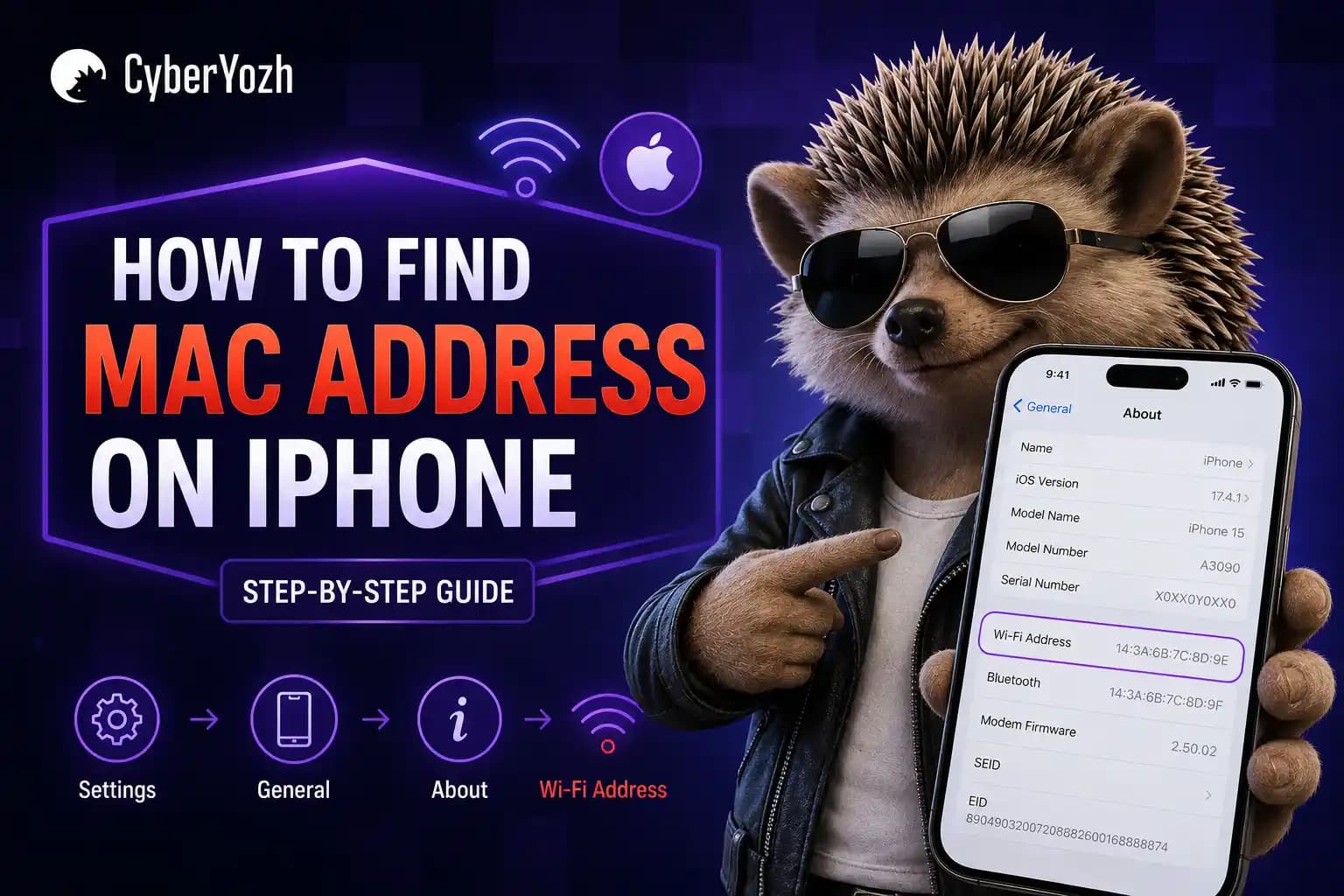
Wondering how to find the MAC address on an iPhone, or how to find the MAC address on an iPhone without confusing it with your IP address? You're not alone.
A MAC address is a network identifier Wi-Fi networks use to recognize your device. Unlike an IP address which can change between networks or be routed through a proxy server, a MAC address helps identify your iPhone within a local network.
Knowing your MAC address is useful for network whitelisting, Wi-Fi setup, device registration, and troubleshooting connectivity issues. In this guide, you'll learn how to find your iPhone's MAC address, what Apple's Private Wi-Fi Address feature does, and how a MAC address differs from an IP address.
What is a MAC address
A MAC address (Media Access Control) is a unique hardware identifier built into your iPhone’s network chip. Wi-Fi networks use it to recognize and communicate with your device. On iPhones, Apple displays it as the Wi-Fi Address in Settings.
In practice, iOS may also use a Private Wi-Fi Address feature, meaning the identifier shown to networks can vary by network.
How to find the MAC address on iPhone
There are two ways to find your iPhone’s MAC address, depending on whether you need the device identifier or the value shown for a specific Wi-Fi connection.
Method 1: Through General settings (device MAC address)
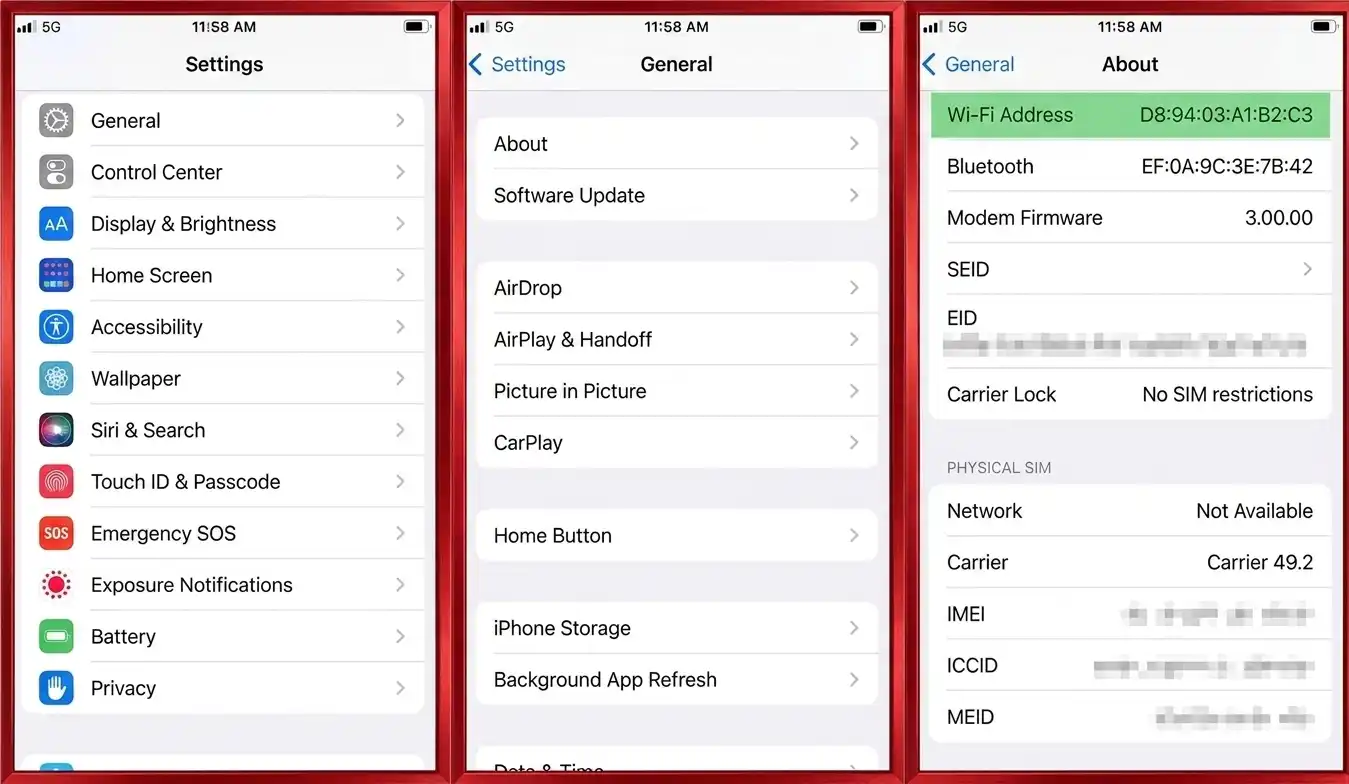
This method shows your iPhone’s primary Wi-Fi hardware identifier.
Open Settings
Tap General
Tap About
Scroll to Wi-Fi Address
This is your iPhone’s MAC address.
In most cases, this is the value used when networks ask for your device identifier, such as for Wi-Fi access setup, MAC-based filtering, or network whitelisting.
Method 2: Through Wi-Fi settings (current network MAC address)
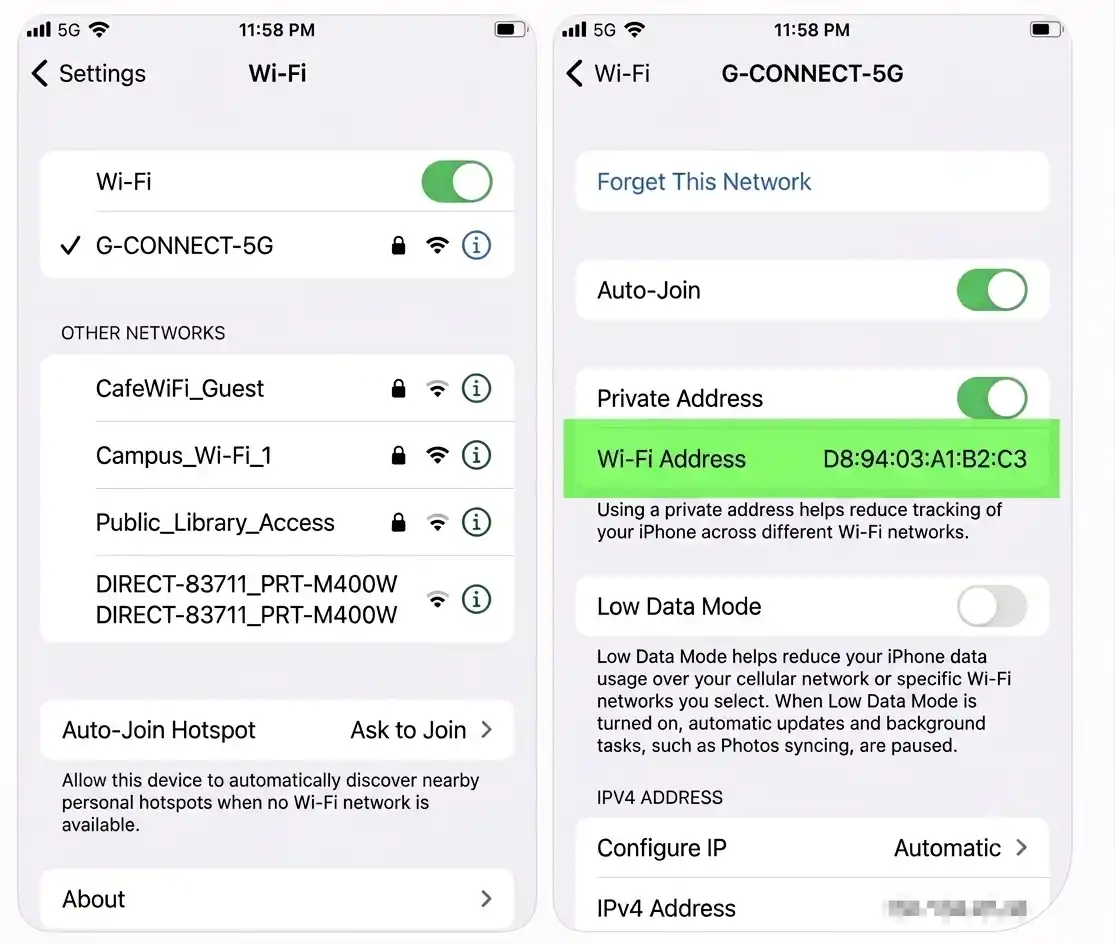
This method shows the MAC address your iPhone is using on the Wi-Fi network.
Open Settings
Tap Wi-Fi
Tap the (i) icon next to your connected network
Find Wi-Fi Address.
This value is tied to your current network connection and is often checked during network or connection troubleshooting.
Operator tip: On managed networks, this is usually the value IT teams will ask for when something stops connecting properly. It’s one of the first things they check when a device “looks new” to the network but shouldn’t.
Why knowing MAC address matters for network access and troubleshooting
Knowing your MAC address is useful when:
Connecting to restricted or enterprise Wi-Fi networks
Completing MAC-based network whitelisting
Troubleshooting Wi-Fi connection issues
Resolving device recognition problems on routers
Understanding how devices are identified on local networks.
If you want to understand how IP-based identification works alongside network identifiers, see our IP Address Lookup guide.
Why your MAC address changes: Private Wi-Fi address explained
Introduced in iOS 14, Apple's Private Wi-Fi Address feature randomizes your iPhone's MAC address on each Wi-Fi network you join. This feature helps reduce device recognition across Wi-Fi networks.
Why does this matter? Without it, coffee shops, hotels, and airports could track your device across visits. With Private Address enabled, each network sees a different "masked" identifier.
iOS 18 update: fixed vs. rotating private addresses
iOS 18 introduces precise control over MAC address privacy. You can set it to three options:
Off: Uses your real hardware MAC address (not recommended for privacy).
Fixed: Creates a unique private address that remains the same for that specific network – useful for networks with MAC filtering.
Rotating: Generates a new private address every 14 days, offering maximum privacy.
iOS 18 automatically selects between Fixed and Rotating based on network security. For a safe home or office Wi-Fi, it chooses Fixed to avoid repeated authentication. For public or unsecured networks, it switches to Rotating.
How to turn off private Wi‑Fi address (and when you need it)
Disabling the Private Wi-Fi Address option is sometimes necessary, but do so cautiously. Here’s when it’s reasonable:
Corporate or enterprise Wi-Fi that authenticates by hardware MAC
MAC filtering on home or office routers
Parental controls tied to a specific device
Troubleshooting connection issues
Steps to disable: Settings → Wi-Fi → tap (i) next to the network → toggle off Private Wi-Fi Address.
Security warning: Turning this off exposes your real, permanent MAC address. On public networks, this makes your device identifiable within the Wi-Fi network and allows the network provider to recognize it during future connections.
Why proxy users need to understand MAC addresses
IP vs. MAC: A simple analogy
Think of your IP address as a rental mailbox – it changes when you move (or connect through a proxy), and the outside world sees only that box. Your MAC address is a device’s built-in network identifier — it stays the same for the hardware, but is only visible to the local Wi-Fi network you connect to, not to websites or the internet.
Why it matters for proxy users
Even with a high‑quality proxy masking your IP address, every local network you join – coffee shop Wi-Fi, airport lounge, office network – can still see and log your iPhone's MAC address.
Network administrators, Wi-Fi providers, or malicious actors can log your MAC address alongside timestamps, location data, and proxy‑masked traffic patterns. Over time, they can build a movement profile of your device – even if your IP address appears to be in another country.
Example: You use a proxy to appear in London, but the coffee shop's Wi-Fi logs your real MAC every morning at 8 AM. If that log is shared or compromised, your identity is tied to both your device and your routine.
How Cyberyozh proxies take your privacy further
Apple’s Private Wi-Fi Address protects your device’s local identifier (MAC) on each Wi-Fi network by limiting how consistently it can be recognized across different connections.
To reduce exposure at the IP level, you can use external network tools such as proxy or VPN infrastructure. This is where CyberYozh fits. The platform provides high-trust proxy infrastructure designed for controlled IP-level separation and professional workflows across automation, data collection, advertising operations, and multi-account environments.
Mobile LTE/5G proxies – real carrier IPs with unlimited bandwidth and high trust
Residential ISP proxies – static or rotating IPs from real ISP networks across 100+ countries
Datacenter proxies – dedicated, high-speed infrastructure for performance-focused tasks
IP rotation control – manual or API-based session and IP management
IP risk evaluation tool - check your IP across 50 databases; our tool detects VPNs, proxies, and fraud scores.
Platform with API integrations, fingerprint options, and SMS activation for accounts.
Proxy use cases aligned with network behavior
Web scraping and data collection – maintain stable access while distributing requests across different IPs
Geo-specific access and multi-account management – validate how services behave across different regions and isolate accounts by IP environment
Automation workflows – integrate proxies into Scrapy, Selenium, Playwright, Puppeteer, and custom scripts.
In these cases, proxies manage IP-level identity at the network layer, while device-level identifiers (such as MAC addresses) are controlled by the local network environment.
Conclusion about iPhone MAC address lookup
Finding your iPhone’s MAC address is simple, but understanding how it works gives you a clearer view of how networks recognize and manage devices. MAC and IP addresses operate at different layers but often work together in real-world environments.
If you want to go further, explore our IP Address Lookup guide, or use CyberYozh proxies to manage IP-level control for more stable and scalable network workflows.