Multi-accounting with AI: how to manage the Incogniton anti-detect browser via MCP

Just a year ago, working with dozens of accounts followed the exact same routine: create a profile, paste a proxy, verify the fingerprint, repeat a hundred times. In 2026, AI agents handle most of that grunt work. Claude, Cursor, and other coding assistants now operate external desktop software, including browser profile managers, rather than sticking strictly to text and code. The open protocol making this possible is called MCP.
This guide breaks down what MCP is in plain terms, which multi-account management tasks you can hand off to AI, where human oversight still matters, and which proxy setup keeps automated workflows from triggering account restrictions. All examples use Incogniton, which ships with its own MCP server, paired with CyberYozh App residential proxies.
Multi-account workflows in 2026: why accounts still get linked
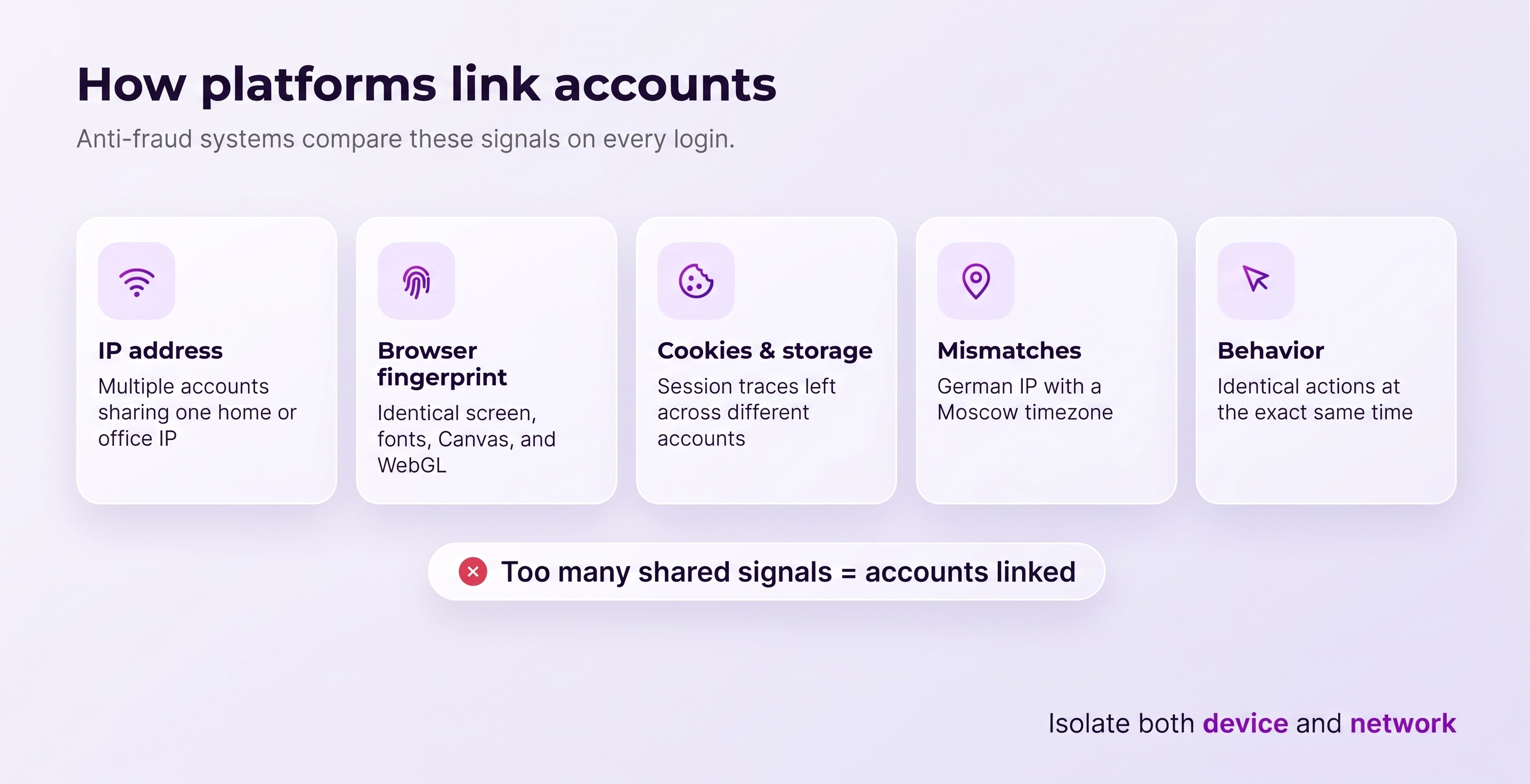
Media buyers, SMM agencies, marketplace sellers, and web scraping teams run dozens or hundreds of accounts side by side. Target platforms watch closely for overlap. Anti-fraud systems collect dozens of signals to spot connections between accounts:
IP address. Ten accounts connecting from the same home or office IP get linked in seconds.
Browser fingerprint. Canvas, WebGL, installed fonts, screen resolution, time zone, and hardware signals combine into a distinct browser fingerprint.
Cookies and local storage. Logging into separate accounts inside a standard browser leaves shared session traces behind.
Parameter mismatches. A German IP paired with a Moscow time zone and an English system locale raises flags on its own.
Behavioral patterns. Triggering identical actions across multiple accounts at the exact same timestamp points straight to a single operator.
The baseline rule for stable multi-account management stays the same: one account, one isolated browser profile, one IP. The browser handles the fingerprint, cookies, and storage, while the proxy handles the network layer. What changed is execution: instead of clicking through menus by hand, you can now configure everything with plain text commands through AI.
What is MCP and how does it work with a browser manager
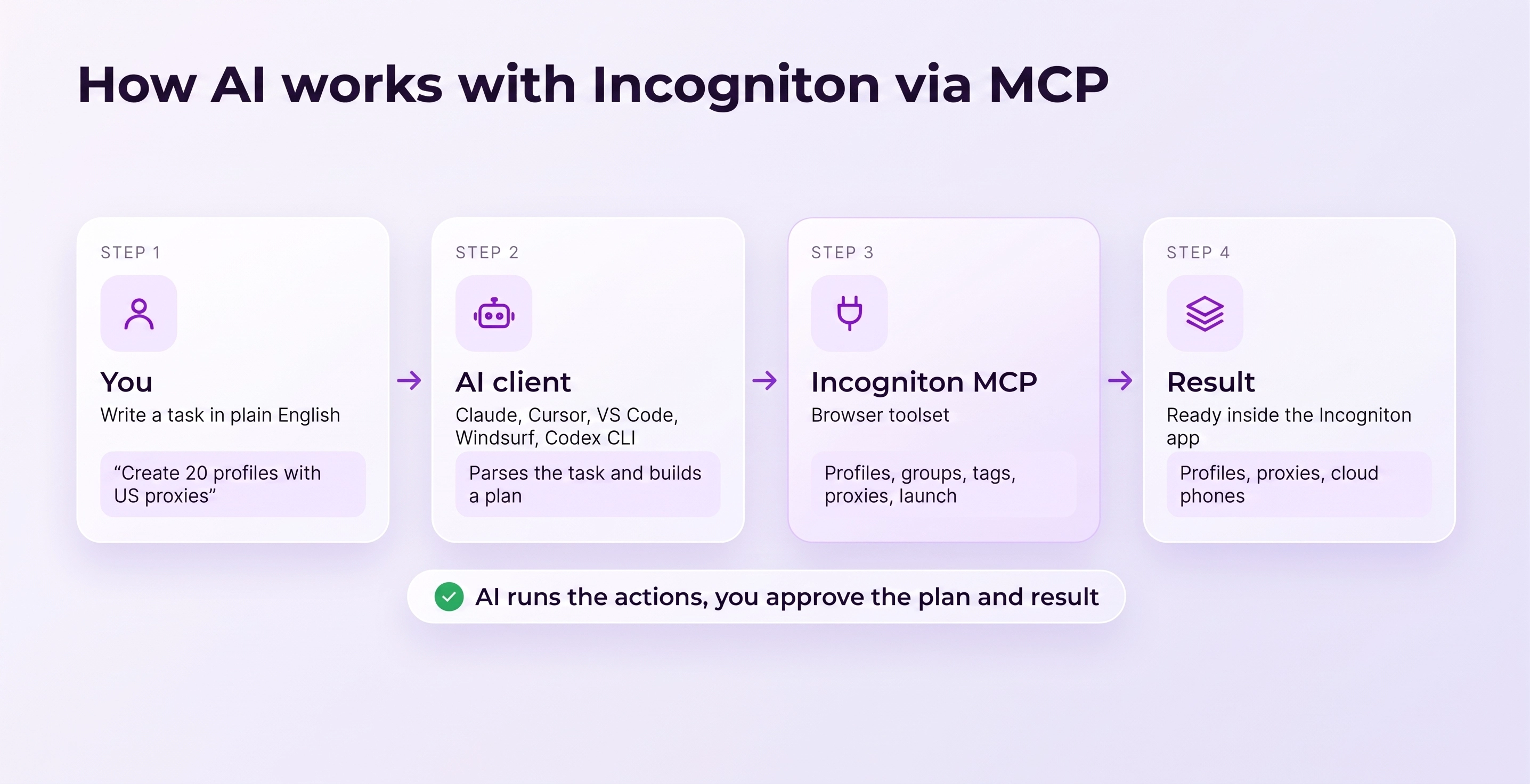
MCP (Model Context Protocol) is an open standard that lets AI assistants connect to external apps and run real actions inside them. Without MCP, a language model can only tell you what steps to click. With MCP, it gets direct access to the application's built-in tools and can create profiles, assign proxies, or launch browser sessions on its own.
Think of MCP as a translator sitting between the AI and the desktop app. You write a normal request: “Create 20 profiles for Instagram, group them by client, and bind US proxies.” The agent parses your intent, calls the browser's internal functions, and reports back once the profiles are ready.
Before MCP, that level of automation required a developer writing Selenium or Puppeteer scripts against an API. MCP removes that bottleneck: anyone on the team can type plain-English commands while the agent and browser handle the technical calls under the hood.
What is Incogniton
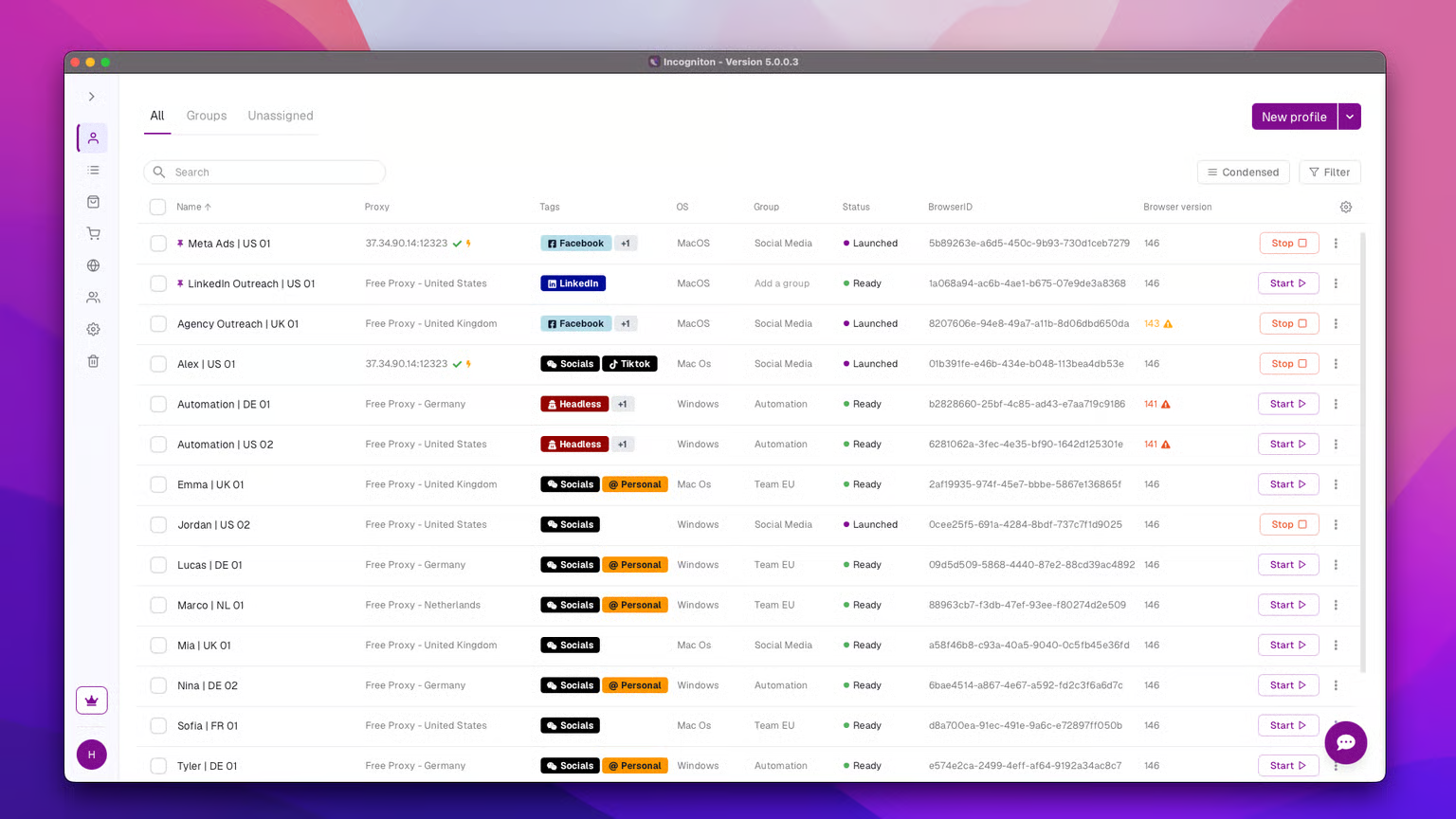
Incogniton is an antidetect browser built for multi-account management, combining isolated browser profiles, cloud Android phones, a built-in proxy shop, and AI tools in one app. Developed by the Dutch company WorkingGreen, it is used by over 1 million media buyers, SMM specialists, e-commerce sellers, and agencies.
Each profile in Incogniton runs as a separate device environment with its own browser fingerprint, cookies, local storage, and proxy. To target websites, ten profiles look like ten different people on ten separate machines. The app runs on a current Chrome 157 core, and version 5 introduced a redesigned interface, an integrated Proxy Shop, a public REST API, team roles, and native AI capabilities.
How Incogniton works with AI agents
Incogniton gives you two ways to automate workflows with AI: an MCP server for external clients like Claude and Cursor, and a built-in assistant called Cas. Here is how each works.
Incogniton MCP: managing profiles from Claude, Cursor, and VS Code
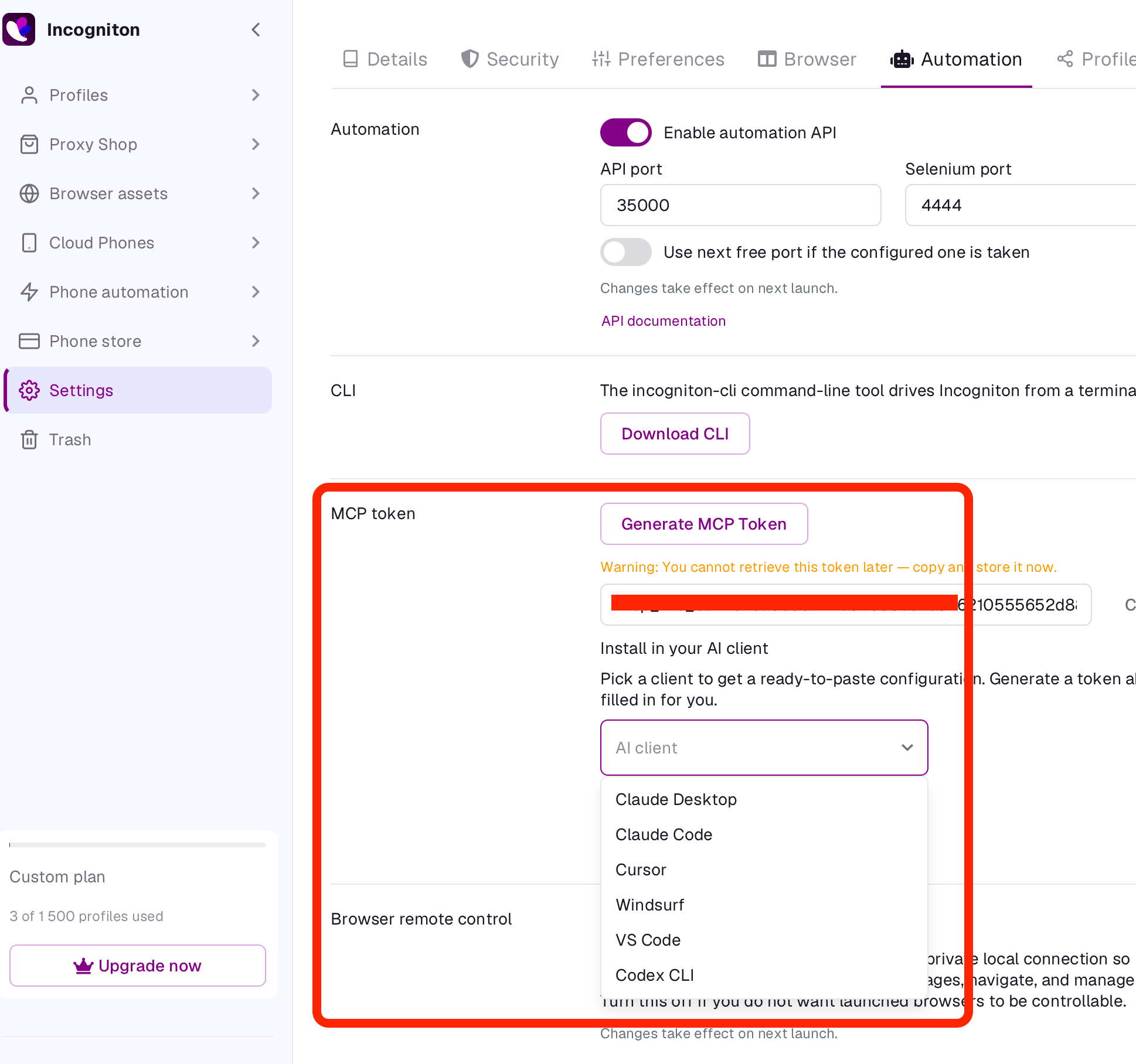
The Incogniton MCP server plugs into Claude Desktop, Claude Code, Cursor, Windsurf, VS Code, and Codex CLI. Once connected, your AI agent can:
search, create, edit, and clone browser profiles;
create groups and tags to organize profiles by client or project;
add proxies and proxy groups, then assign them to profiles;
start and stop profiles, including picking a specific workstation when your team uses multiple machines;
view team members;
create, start, and stop cloud Android phones with attached proxies.
In practice, an hour of manual clicking turns into a single prompt. Two minutes later, you have 30 ready-to-use profiles with matched proxies, tags, and naming conventions. You can find practical command examples in 10 Claude prompts every Incogniton team admin should know.
Cas: built-in AI assistant inside the browser
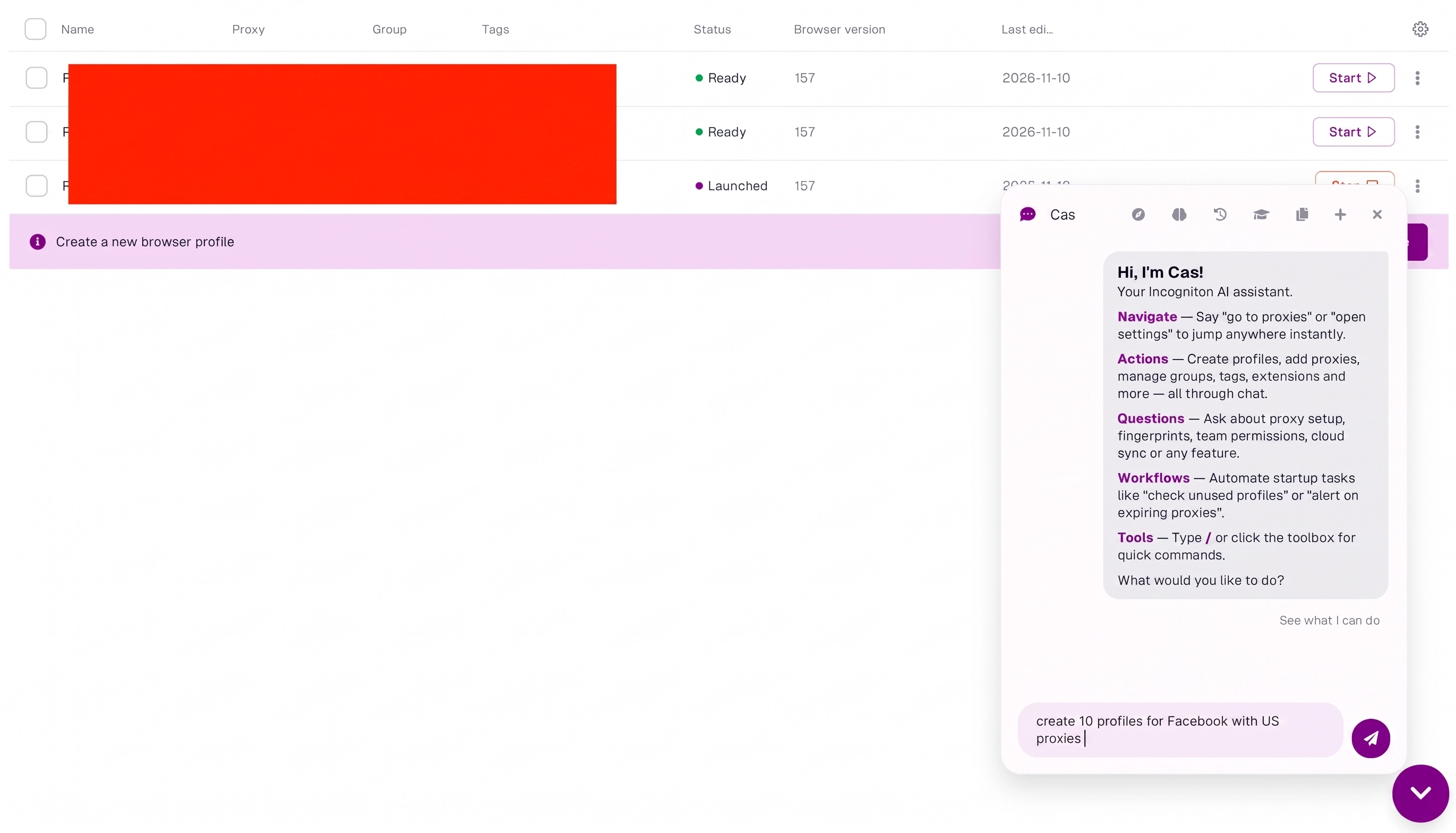
Even if you do not use Claude or Cursor, AI controls sit right inside the app. Cas is Incogniton's native assistant, located in the bottom-right corner of the workspace. It creates and edits profiles, adds and checks proxies, generates profiles in bulk, launches browser windows, opens target pages, and switches tabs.
Profile recovery stands out as a practical safeguard: if a profile gets corrupted or starts crashing, Cas can roll it back from a cloud restore point or local backup. Before running destructive or recovery actions, the assistant previews the exact change and waits for your approval. Cas also supports memory, adapting to your usual habits across sessions (you can switch memory off in settings).
Both Cas and the MCP server are included on every Incogniton plan, including the free tier. You can test the AI workflow upfront with 10 free profiles for the first 2 months, no card required.
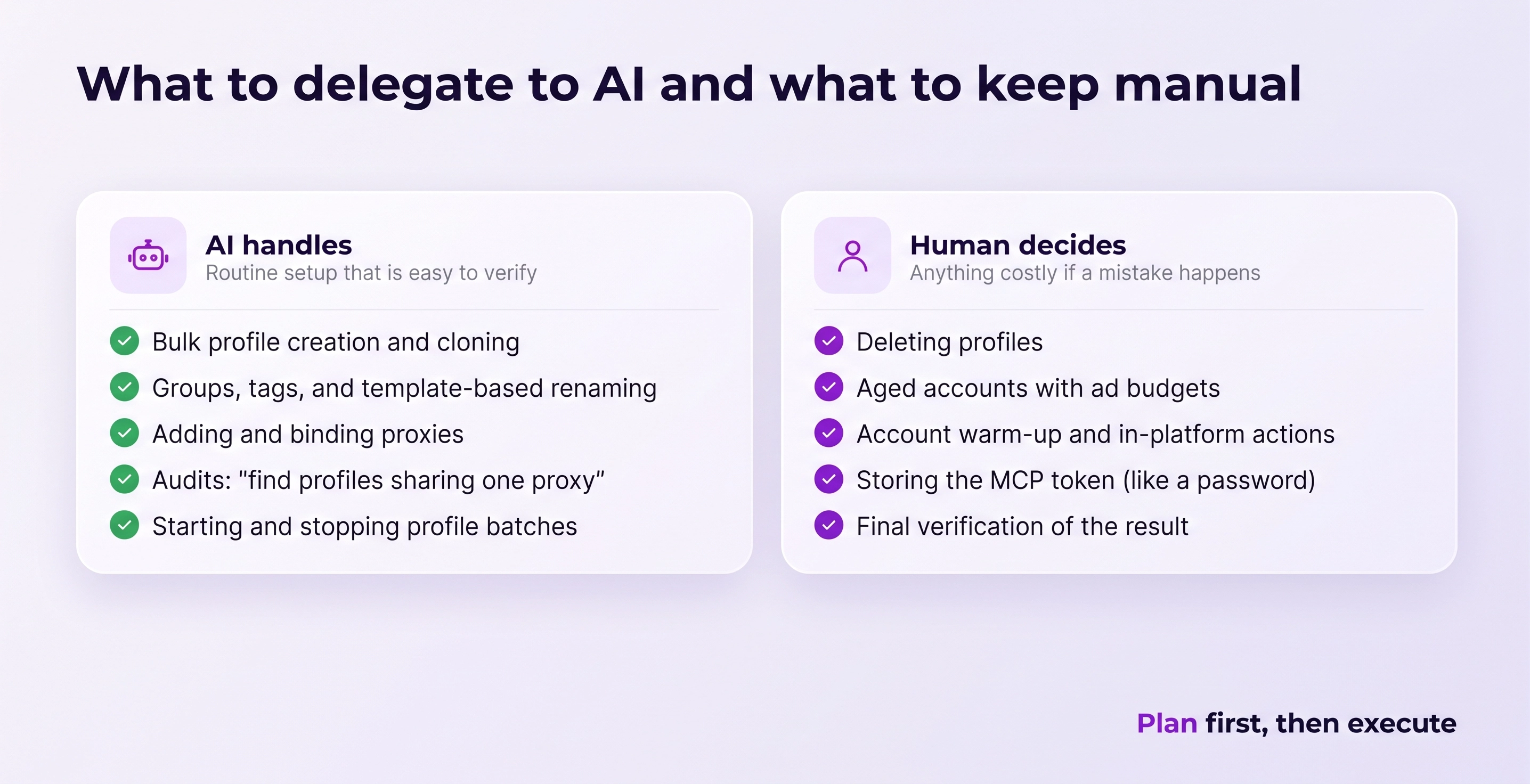
What to delegate to AI and what to keep manual
AI handles repetitive setup work fast, but multi-account management leaves little room for careless mistakes. One bad command can affect dozens of profiles, so drawing a clear boundary pays off.
Hand off to AI: bulk profile creation and cloning, sorting into groups and tags, proxy binding, pattern-based renaming, workspace audits (for example, “find profiles sharing the same proxy”), launching or stopping profile batches, and pulling team activity reports.
Keep human-controlled: deleting profiles, decisions affecting aged accounts with active ad budgets, account warm-up, and actions inside target platforms. By design, Incogniton's MCP server blocks profile deletion, website navigation, and page reading. Those actions stay restricted to the built-in Cas assistant and require manual confirmation.
Follow four practical guardrails from day one:
Treat your MCP token like a password. Anyone holding it can control profiles inside your workspace. If a token leaks, revoke it immediately in settings.
Ask the agent for a plan before execution. Adding “show me what you plan to change and wait for my OK” prevents most bulk errors.
Work in small batches. Auditing 20 to 30 profiles takes minutes; auditing 300 invites mistakes.
Spot-check the output. Open two or three freshly created profiles to confirm that the proxy IP, geo, and time zone align.
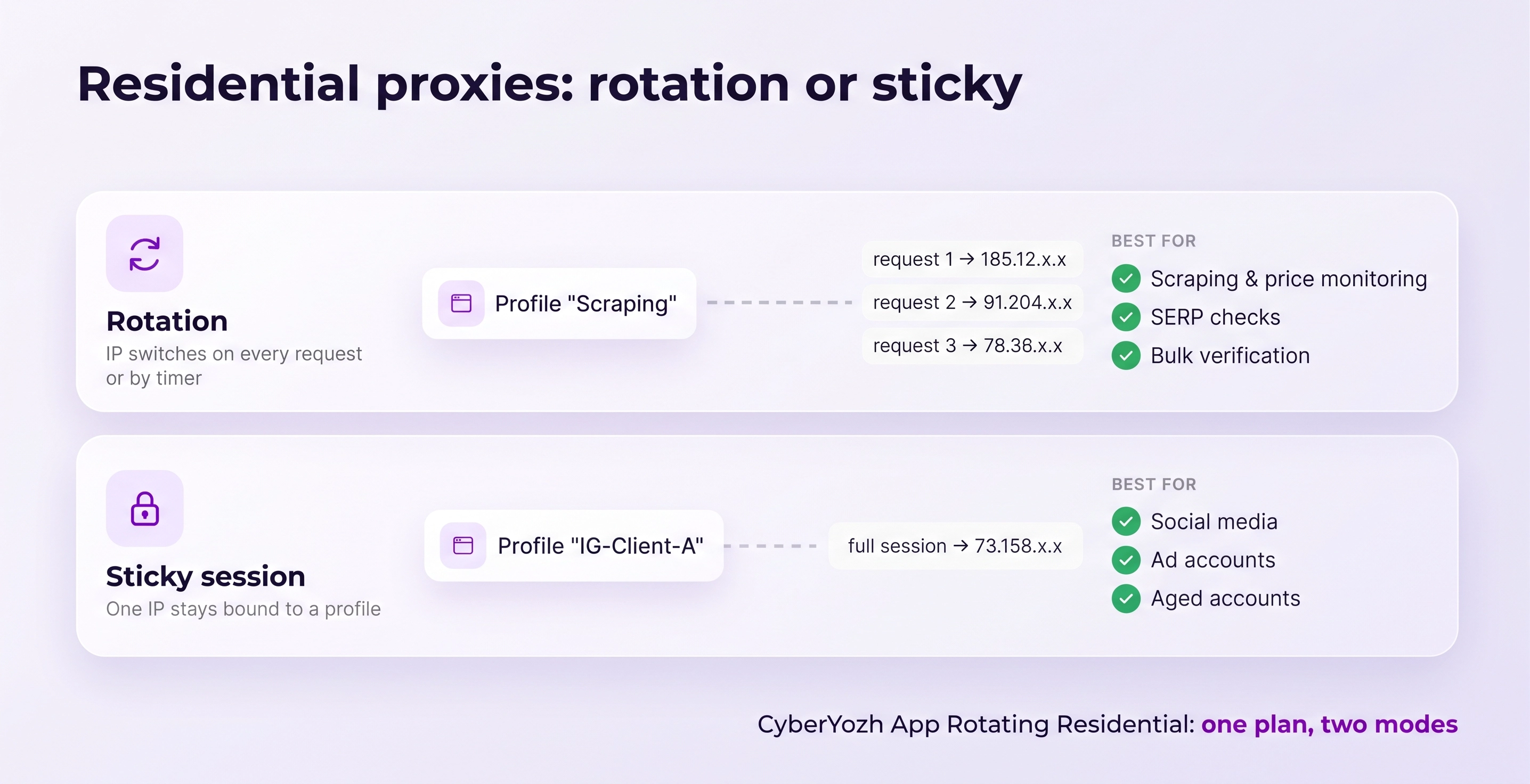
Proxies for AI multi-account workflows: rotation vs. sticky sessions
AI speeds up profile creation dramatically, which means your proxy infrastructure has to keep pace. An agent will bind whatever list you feed it across 50 profiles. If you give it duplicate IPs or low-trust datacenter subnets, target platforms will link those accounts just as fast as the AI created them.
For multi-account workflows, teams typically rely on residential proxies. These are IP addresses from real home internet providers that websites treat as regular residential traffic. Inside residential pools, you need to choose between two session modes:
Per-request rotation. The IP switches on every request or at short intervals. This mode fits web scraping, price monitoring, SERP checks, and bulk verification where every query should come from a fresh address.
Sticky session. One IP stays bound to a profile for an extended window. Account workflows depend on this stability, because social networks and ad platforms flag accounts that appear to jump between cities every five minutes.
You can handle both scenarios under a single rotating residential plan. CyberYozh App Rotating Residential Proxies offer over 100 million residential IPs across 195+ countries, HTTP/HTTPS and SOCKS5 support, built-in IP quality and speed filtering, and flexible session control: rotate per request or hold sticky sessions for up to 24 hours. Unused traffic rolls over automatically to the next billing month.
Readers can apply promo code “ROTATING50” for 50% off the 25 GB Rotating Residential package. Activate the discount here.
READ ALSO: Mobile proxies vs residential proxies: which one should you use
Incogniton + CyberYozh App: set up AI automation in 15 minutes
If you prefer adding proxies manually, follow the full CyberYozh App guide. Here is the fast path using AI:
Order Rotating Residential proxies in CyberYozh App and generate the required credentials: use sticky sessions for persistent account workflows and per-request rotation for web scraping tasks.
Install Incogniton and sign into your account. Keep the desktop app open, because that machine will execute the browser sessions triggered by AI.
Open Settings → Automation, click “Generate MCP Token”, choose your AI client, and click “Copy configuration”. Save the token right away, as it is only shown once. Step-by-step instructions are available in the Incogniton documentation.
Paste the configuration into Claude Desktop, Cursor, or your preferred client and restart it. Make sure Node.js 18 or newer is installed on your machine.
Run your first prompt, for example: “Add these 20 CyberYozh App proxies into a new group, create 20 Windows profiles for Instagram, assign a unique proxy to each one, and add the tag 'Client A'. Show me the plan first.”
If you do not want to connect an external AI client, send that exact same request to Cas inside the Incogniton app.
Example AI prompts for Incogniton workflows
Here are five prompts that work reliably with Incogniton through MCP or Cas:
“Clone the 'Shop DE 01' profile five times, number the copies sequentially, and assign a fresh proxy from the CyberYozh App DE group to each one.”
“Find any profiles that share a duplicate proxy and list them.”
“Create a 'Scraping' group with 10 profiles and bind rotating residential proxies to them.”
“Launch all profiles tagged 'Client B' on the office workstation.”
“Create a cloud Android phone with a US proxy for TikTok.”
For more team automation examples, read how to set up 50 client profiles in minutes with AI.
Extra Incogniton features for managing accounts at scale
AI speeds up the initial setup, while several built-in Incogniton tools streamline daily operations:
Team collaboration. Owner, Manager, and VA roles let staff open assigned profiles without sharing raw passwords, paired with the Team Activity log tracking logins and active hours.
Cloud phones. Real cloud-hosted Android phones with dedicated proxies for mobile-only apps, managed right inside Incogniton or via MCP.
Cookie Collector and Synchronizer. Automated cookie warm-up and synchronized actions mirrored across multiple profiles at once.
Combining AI, Incogniton, and residential proxies
MCP turns a multi-profile browser from a manual setup tool into an environment you can control with plain text. Routine tasks like profile creation, group sorting, and proxy assignment drop from hours to minutes, freeing your team to focus on campaign execution.
The core operational rules still apply: one account, one isolated profile, one clean IP. AI delivers speed, the browser isolates device parameters, and residential proxies keep network identities separate. Pairing Incogniton with CyberYozh App covers all three layers.