
Tại sao máy chủ proxy lại "chậm chạp"? Chẩn đoán nâng cao: theo dõi kết nối, MTR và phân tích tiêu đề.
Bạn mua một proxy tĩnh cao cấp, cấu hình nó trong trình duyệt anti-detect, mở trang web cần thiết... và trang web tải chậm một cách mệt mỏi. Suy nghĩ đầu tiên thật logic: "Họ đã bán cho mình một proxy đểu".
Tuy nhiên, Internet không phải là một đường ống thẳng tắp giữa máy tính của bạn và trang web mục tiêu. Đó là một mạng lưới hậu cần cực kỳ phức tạp, bao gồm hàng chục nút trung chuyển, cáp trục và các giao thức bảo mật. Tốc độ có thể giảm ở bất kỳ giai đoạn nào trong số này.
Trong bài viết này, chúng ta sẽ phân tích các phương pháp nâng cao để chẩn đoán kết nối mạng. Bạn sẽ học cách tìm ra nguyên nhân thực sự của sự chậm trễ và nói chuyện với bộ phận hỗ trợ của nhà cung cấp bằng cùng một ngôn ngữ kỹ thuật.
🌍 Nguyên nhân 1: Vật lý và Định tuyến
Nguyên nhân phổ biến nhất của việc hoạt động chậm là phớt lờ các quy luật vật lý. Tốc độ ánh sáng là hữu hạn, và dữ liệu được truyền qua cáp quang.
Nếu bạn đang ở Berlin, mua proxy tại Los Angeles, sau đó thông qua nó để mở một trang web có máy chủ đặt tại Paris, dữ liệu của bạn sẽ thực hiện một chuyến hành trình xuyên Đại Tây Dương hai lần.
Lộ trình: Berlin ➡️ Los Angeles ➡️ Paris ➡️ Los Angeles ➡️ Berlin.
Ping (thời gian phản hồi) trong sơ đồ như vậy chắc chắn sẽ lên tới 200–300 ms. Đối với việc tải một trang web nặng với nhiều mã script, điều này sẽ dẫn đến việc phải chờ đợi hàng giây.
Cách khắc phục: Luôn cố gắng chọn GEO (vị trí địa lý) của proxy sao cho nó nằm gần nhất có thể với vị trí thực tế của bạn hoặc với máy chủ của tài nguyên mục tiêu.
🕵️♂️ Nguyên nhân 2: Sự cố trên đường trục (Sử dụng MTR)
Ngay cả khi máy chủ proxy mạnh và trang web mục tiêu hoạt động hoàn hảo, vấn đề vẫn có thể phát sinh ở giữa chặng đường. Các nhà cung cấp trao đổi lưu lượng thông qua các nút liên lạc (nhà khai thác Tier-1). Nếu tại một trong những nút này ở Frankfurt hoặc Amsterdam xảy ra sự cố hoặc quá tải, dữ liệu của bạn sẽ bị thất thoát.
Để tìm ra nút "bị hỏng" này, các chuyên gia sử dụng MTR (My Traceroute). Đây là một tiện ích kết hợp các chức năng của ping và traceroute. Nó gửi các gói dữ liệu qua toàn bộ chuỗi và hiển thị số liệu thống kê cho từng mắt xích.
Cách thực hiện chẩn đoán:
Đối với Windows, hãy tải chương trình miễn phí WinMTR. Đối với macOS/Linux, MTR được cài đặt qua terminal (ví dụ:
brew install mtr).Trong trường Host, nhập địa chỉ IP máy chủ proxy của bạn (ví dụ:
[IP_PROXY_CỦA_BẠN]) và nhấn Start.Lưu ý kỹ thuật quan trọng: Nhiều người cố gắng bật proxy trong hệ thống, nhập địa chỉ trang web cuối (ví dụ:
google.com) vào WinMTR và đợi lưu lượng đi qua proxy. Điều này sẽ không hoạt động. Proxy (HTTP/SOCKS5) không thể truyền lưu lượng ICMP cấp thấp mà ping và WinMTR sử dụng. Nếu bạn làm vậy, chương trình sẽ chỉ hiển thị lộ trình trực tiếp từ nhà bạn mà không qua proxy.Đó là lý do tại sao trong trường Host chỉ cần nhập duy nhất địa chỉ IP của máy chủ proxy. Như vậy chúng ta sẽ kiểm tra chất lượng kết nối trên đoạn "Bạn ➡️ Proxy".
Để chương trình chạy trong 1–2 phút để nó gửi ít nhất 100 gói tin.
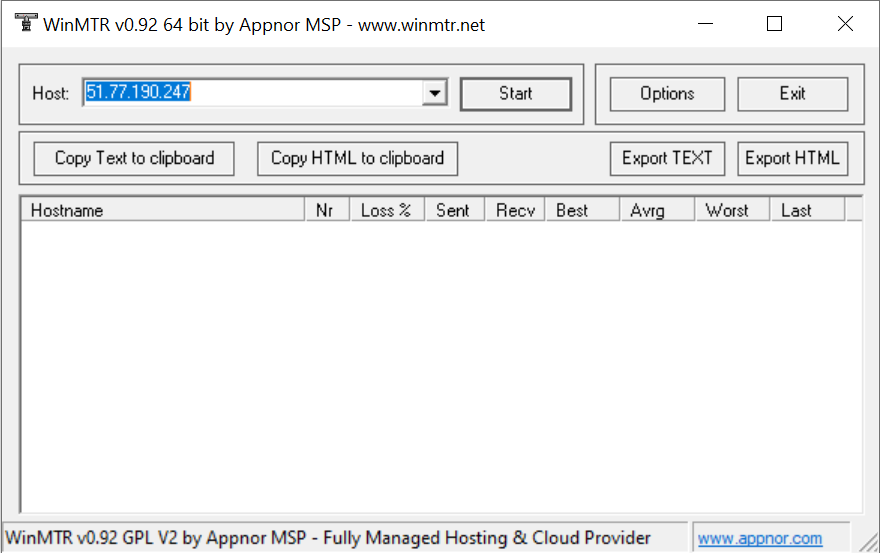
Khi bạn đã thực hiện bài kiểm tra (gửi ít nhất 100–200 gói tin), kết quả cần được ghi lại. Trong WinMTR có bốn nút ở phía trên cửa sổ để làm việc này:
Copy Text/HTML to clipboard: Sao chép nhanh dữ liệu để dán trực tiếp vào email hoặc chat với hỗ trợ.
Export TEXT/HTML: Lưu thành tệp đầy đủ. Bản HTML dễ nhìn hơn vì nó giữ nguyên cấu trúc bảng.
Ví dụ kết quả kiểm tra:
Host | Loss % | Sent | Recv | Best | Avrg | Wrst | Last |
Home-Router | 0 | 1272 | 1272 | 2 | 3 | 326 | 2 |
ISP-Gateway | 1 | 1269 | 1268 | 5 | 7 | 74 | 7 |
Local-ISP-Node-A | 3 | 1145 | 1112 | 5 | 6 | 31 | 6 |
Local-ISP-Node-B | 1 | 1268 | 1267 | 5 | 8 | 171 | 6 |
Transit-Gateway-X | 100 | 258 | 2 | 0 | 6 | 7 | 7 |
Regional-Hub-1 | 0 | 1273 | 1273 | 6 | 9 | 86 | 7 |
Regional-Hub-2 | 85 | 293 | 46 | 0 | 7 | 23 | 9 |
Regional-Hub-3 | 4 | 1136 | 1100 | 6 | 7 | 27 | 7 |
Regional-Hub-4 | 53 | 413 | 196 | 0 | 7 | 19 | 7 |
Regional-Hub-5 | 19 | 733 | 595 | 7 | 8 | 25 | 8 |
Global-Transit-A | 0 | 1273 | 1273 | 7 | 9 | 74 | 8 |
Global-Transit-B | 18 | 764 | 634 | 31 | 33 | 46 | 46 |
No response from host | 100 | 257 | 0 | 0 | 0 | 0 | 0 |
Backbone-EU-AMS | 1 | 1246 | 1240 | 196 | 197 | 278 | 197 |
Backbone-EU-LIL | 1 | 1257 | 1253 | 191 | 192 | 207 | 193 |
Backbone-EU-PAR | 1 | 1269 | 1268 | 198 | 199 | 227 | 201 |
Backbone-EU-SBG | 0 | 1272 | 1272 | 208 | 212 | 313 | 249 |
ns3261405.ip-51-77-190.eu | 1 | 1268 | 1267 | 205 | 206 | 229 | 206 |
Cách đọc kết quả WinMTR: Hãy chú ý đến cột Loss % (phần trăm gói tin bị mất).
Nếu mất gói bắt đầu từ 1-2 bước đầu tiên — vấn đề nằm ở bộ định tuyến tại nhà hoặc nhà cung cấp dịch vụ Internet của bạn.
Nếu mất gói ở giữa danh sách (tại các nút có tên khó hiểu như
ae1.level3.net) — vấn đề nằm ở kênh truyền trục. Đây là trách nhiệm của các mạng lưới toàn cầu.
Hostname | Loss % | Sent | Recv | Best | Avrg | Wrst | Last |
192.168.1.1 | 0 | 1304 | 1304 | 2 | 3 | 326 | 3 |
...intermediate-node... | 100 | 301 | 47 | 0 | 7 | 23 | 7 |
be102.ams-gsa1-sbb2-nc5.nl.eu | 1 | 1277 | 1270 | 196 | 197 | 278 | 197 |
ns3261405.ip-51-77-190.eu | 1 | 1300 | 1299 | 205 | 206 | 229 | 206 |
Nếu bạn thấy 100% mất gói (No response from host) tại một trong các nút trung gian, nhưng tại địa chỉ cuối cùng không có mất gói — đừng hoảng sợ. Nút đó chỉ được cấu hình để lờ đi các lệnh ping, nhưng lưu lượng chính của bạn vẫn đi qua mà không gặp vấn đề gì.
Nếu mất gói chỉ xảy ra ở bước cuối cùng (địa chỉ proxy của bạn) — nghĩa là máy chủ thực sự bị quá tải và bạn nên nhắn tin cho bộ phận hỗ trợ của nhà cung cấp.
Ảnh chụp màn hình MTR với tình trạng mất gói trên nút mạng trục là bằng chứng tốt nhất cho bộ phận kỹ thuật, giúp bạn tiết kiệm hàng giờ tranh luận.
Làm thế nào để kiểm tra lộ trình từ proxy đến trang web mục tiêu? WinMTR cho thấy các gói tin đến proxy một cách hoàn hảo, nhưng trang web vẫn chậm? Có thể vấn đề nằm ở đường trục giữa bản thân proxy và máy chủ trang web. Để kiểm tra đoạn này, hãy sử dụng các dịch vụ Looking Glass công cộng. Chỉ cần tìm kiếm trên Google "Looking Glass [quốc gia của proxy]" — trên các trang web này, bạn có thể chạy lệnh ping và traceroute trực tiếp từ vị trí mong muốn đến tài nguyên mục tiêu.
⏱️ Nguyên nhân 3: Bắt tay TLS và kiểm tra ẩn (cURL)
Đôi khi MTR cho thấy một bức tranh lý tưởng: không mất gói, ping thấp. Nhưng trang web vẫn tải chậm. Lúc này, các giao thức mã hóa và hệ thống bảo vệ (ví dụ: Cloudflare) bắt đầu can thiệp.
Để hiểu chính xác thời gian bị tiêu tốn vào việc gì khi tải trang, các quản trị viên hệ thống sử dụng tiện ích bảng điều khiển cURL. Hãy mở terminal và thực hiện một yêu cầu mở rộng đến trang web thông qua proxy của bạn:
curl -x socks5://user:pass@IP:PORT -w "DNS: %{time_namelookup}s \nConnect: %{time_connect}s \nTLS: %{time_appconnect}s \nTTFB: %{time_starttransfer}s \nTotal: %{time_total}s \n" -o /dev/null -s https://google.comKết quả đầu ra của yêu cầu:
DNS: 0.000616s
Connect: 0.209187s
TLS: 3.170403s
TTFB: 3.947665s
Total: 3.948056s
Các số liệu này có nghĩa là gì:
DNS: Thời gian tìm kiếm địa chỉ IP của trang web. Nếu nó lâu, có thể proxy đang sử dụng các máy chủ DNS chậm.
Connect: Thời gian thiết lập kết nối TCP.
TLS: Thời gian thực hiện "bắt tay" mã hóa (thiết lập HTTPS).
TTFB (Time To First Byte): Thời gian chờ đợi byte đầu tiên từ máy chủ.
Nếu Connect nhanh, nhưng TTFB mất 5 giây — điều đó có nghĩa là proxy hoạt động rất tốt, nhưng trang web mục tiêu đang cố tình trì hoãn phản hồi. Thông thường, các hệ thống chống gian lận (anti-fraud) ẩn hoạt động như vậy: chúng thấy lưu lượng đáng ngờ, thực hiện các kiểm tra ẩn ở chế độ nền (js-challenges) và chỉ sau đó mới trả về nội dung.
📝 Nguyên nhân 4: Các tiêu đề "Bẩn" (Header Analysis)
Việc tải chậm có thể là hậu quả của việc bạn đang sử dụng một proxy HTTP miễn phí không đảm bảo tính ẩn danh cần thiết. Một số proxy thêm vào lưu lượng của bạn các tiêu đề HTTP đặc thù:
X-Forwarded-For: [IP thực của bạn]Via: 1.1 proxy.server
Khi các hệ thống bảo vệ của trang web nhìn thấy các tiêu đề này, họ ngay lập tức hiểu rằng: có một người đang truy cập thông qua máy chủ trung gian (proxy). Trong trường hợp tốt nhất, họ sẽ đưa ra captcha (nhìn trực quan giống như mạng bị "lag"), trong trường hợp xấu nhất — họ sẽ chặn kết nối.
Giải pháp: Sử dụng giao thức SOCKS5. Khác với HTTP, nó hoạt động ở cấp độ mạng thấp hơn và hoàn toàn không tương tác với các tiêu đề HTTP, truyền tải lưu lượng của bạn ở dạng nguyên bản. Hoặc hãy chọn các proxy HTTP loại Elite từ các nhà cung cấp uy tín, những đơn vị đảm bảo cắt bỏ bất kỳ tiêu đề gây lộ thông tin nào.
Tổng kết: Danh sách kiểm tra cứu vãn tốc độ
Nếu proxy của bạn đột nhiên hoạt động chậm, đừng vội vứt bỏ nó. Hãy đi qua 4 bước sau:
Kiểm tra logic GEO: Bạn có đang chạy lưu lượng sang bên kia thế giới rồi vòng ngược lại không?
Đổi giao thức: Nếu đang dùng HTTP, hãy chuyển sang SOCKS5 (hoặc ngược lại). Đôi khi vấn đề nằm ở sự quá tải của một cổng cụ thể.
Thực hiện traceroute: Chạy WinMTR đến địa chỉ IP của proxy. Nếu mất gói trên đường trục — chỉ cần đợi, thông thường các sự cố như vậy được khắc phục trong vài giờ.
Thu thập dữ liệu cho hỗ trợ: Nếu WinMTR cho thấy mất gói ở nút cuối cùng, hãy chụp ảnh màn hình hoặc xuất báo cáo (txt, html) và gửi cho nhà cung cấp. Với lập luận như vậy, yêu cầu của bạn sẽ ngay lập tức nhận được mức ưu tiên cao nhất.