大奖

来自 cyberyozh 应用的大奖。

赢取苹果MacBook,$2000,iPad 和 大量其他奖品!

参与


Setting up a proxy in MuLogin

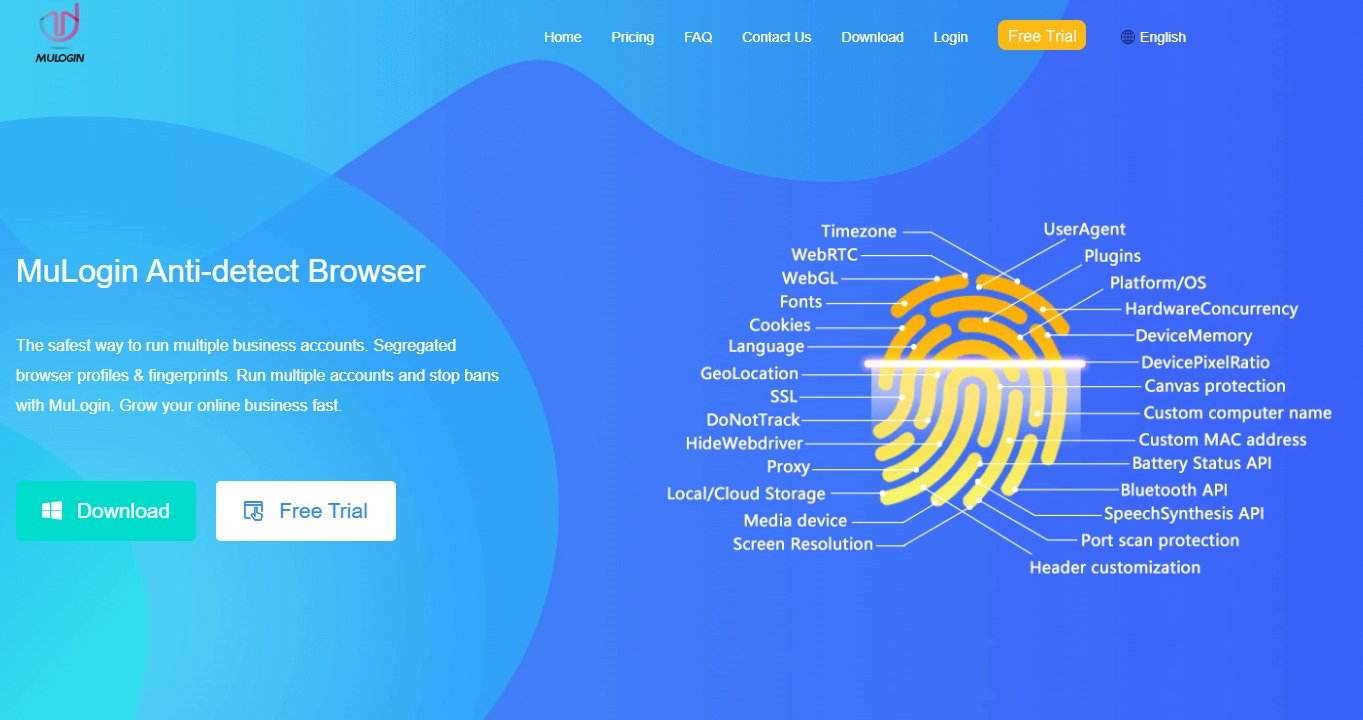
MuLogin is an antidetect browser designed to let users manage multiple accounts (e-commerce, social media, advertising, etc.) on the same device while minimizing the risk of fingerprint-based detection and account association. 

Here, let’s explore how one can add CyberYozh’s proxy to MuLogin accounts.

How to Choose the Best Proxy for Antidetection

Not all proxy types suit every task equally. Choosing the right one for your purpose is essential for your MuLogin browser proxies configuration.

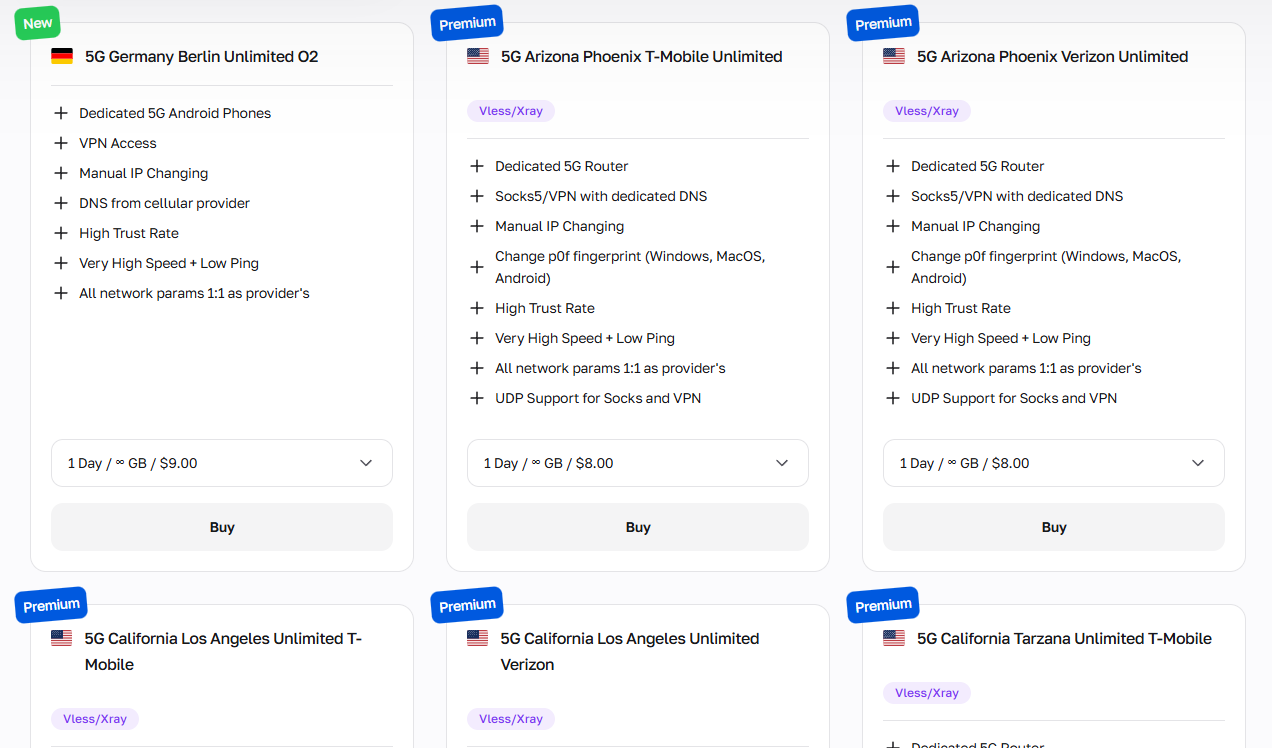
Mobile proxies: Social media and social data

Mobile proxiesroute your traffic through real mobile carrier IP addresses, making them the most trusted proxy type in the eyes of social platforms. They are the first choice for:

  • Instagram, TikTok, Facebook, and Twitter account management

  • Social feed data extraction

  • Bulk account creation and management

CyberYozh offers both dedicated (private) mobile proxies with on-demand IP rotation and shared mobile proxies with fixed IP rotation. Dedicated options give you full control and exclusivity, while shared ones reduce cost for lighter workflows

Both support HTTP and SOCKS5 protocols. 

If your workflow involves account registration at scale, consider using CyberYozh's SMS activation service to receive verification codes without exposing your real number.

Residential proxies: Account Management and Bulk Online Activities

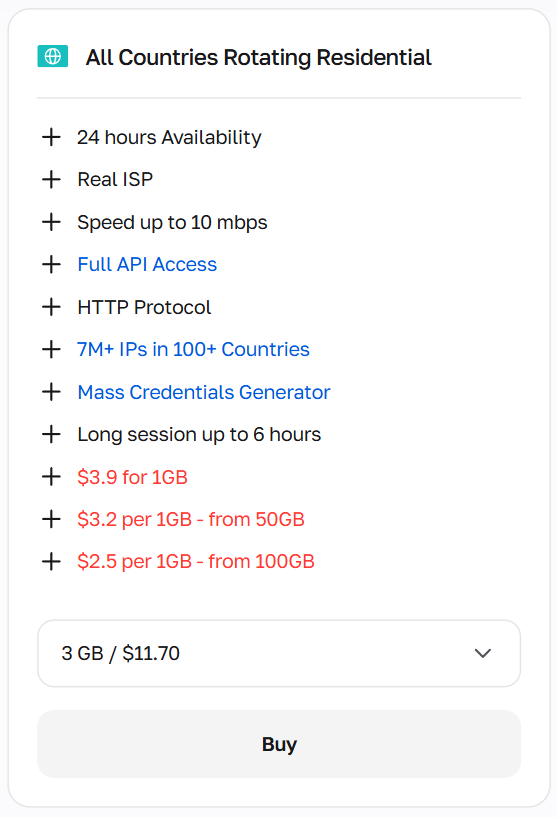
Residential proxies are assigned by real ISPs to real home devices, which gives them a high trust score among anti-fraud systems. They come in two forms: 

  • Rotating residential proxiesthat dynamically change IPs from a pool of 7M+ addresses across 100+ countries and are useful for bulk automation, price aggregation, and account warm-ups

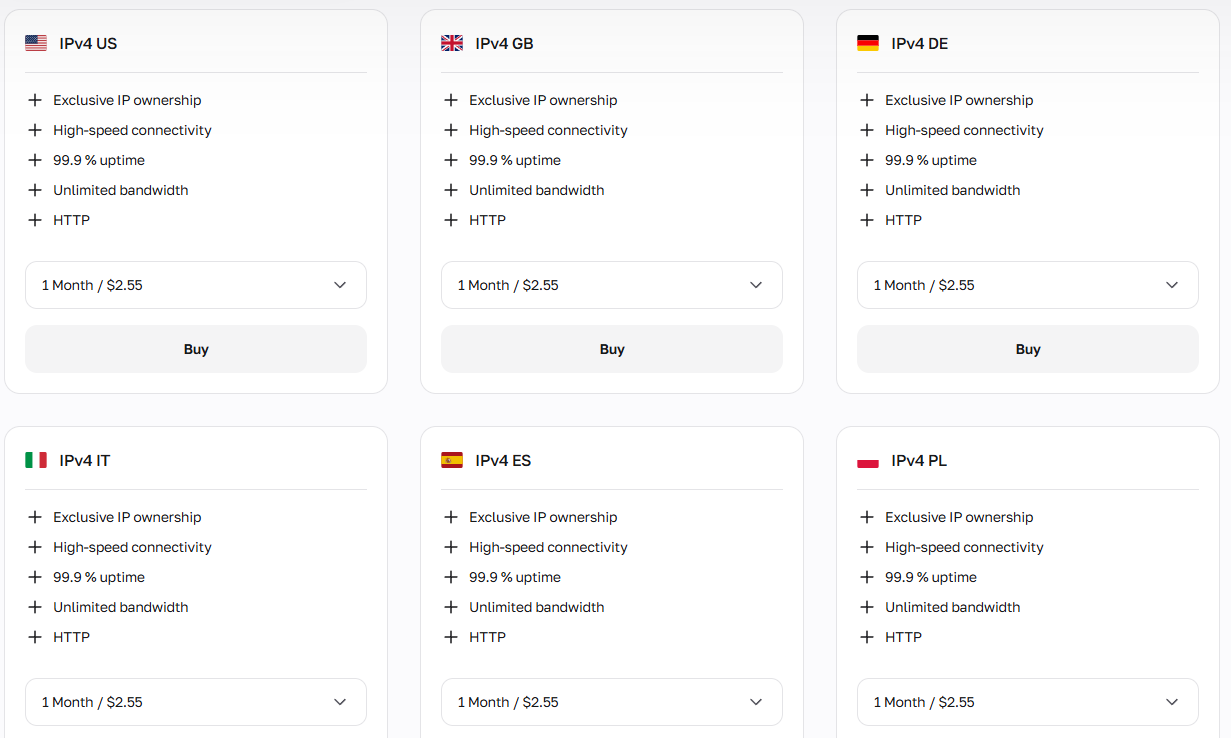
  • Static residential (ISP) proxies that keep the same IP across sessions are better suited for stable account management on e-commerce platforms

Similarly, both types support HTTP and SOCKS5. Rotating proxy costs depend on traffic volume, so using traffic-saving tools like API workflow automation and headless browsing is preferred here.

Before launching your session in the MuLogin browser, you can verify that your assigned IP is clean and carries a low fraud score using the IP Checker.

Datacenter Proxies: Fastest, and the lowest trust

Datacenter proxiesare hosted on corporate servers rather than tied to real ISPs or devices, which makes them the fastest and cheapest option, but also the most suspicious to anti-bot systems. 

CyberYozh datacenter proxies start from $0.9/month with unlimited traffic, 99.99% uptime, and dedicated (non-shared) IPv4/IPv6 addresses. They work well for:

  • public database scraping

  • brand monitoring

  • ad verification

  • retail price comparison

  • self-testing scenarios 

For high-scrutiny platforms like social networks or payment systems, mobile or residential proxies are a safer fit.

Starting with MuLogin: Summary

Antidetect browsers like MuLogin are used to isolate online identities at the level of fingerprints. Each profile gets its own browser environment (user agent, language, canvas, WebGL, fonts, time zone, and more), so that websites cannot correlate multiple accounts back to a single device. 

Proxies complete this picture by assigning a unique IP to each profile, since even a perfect fingerprint becomes useless if all your sessions originate from the same address. The combination of MuLogin's isolated profiles and CyberYozh's proxy infrastructure provides a consistent, credible digital identity for each account. 

The MuLogin API also supports Selenium- and Puppeteer-based automation via the Local API, so the same proxy-per-profile setup works for scripted workflows as well.

Setting MuLogin with CyberYozh’s proxy

Before we start, visit its official website and download the desktop version. Remember that:

  • MuLogin only supports the Windows platform, including legacy versions

  • MuLogin doesn’t have a free version, and its free trial lasts only 3 days after registration

Now, let’s create our first MuLogin profile. 

1. Add a browser profile to MuLogin

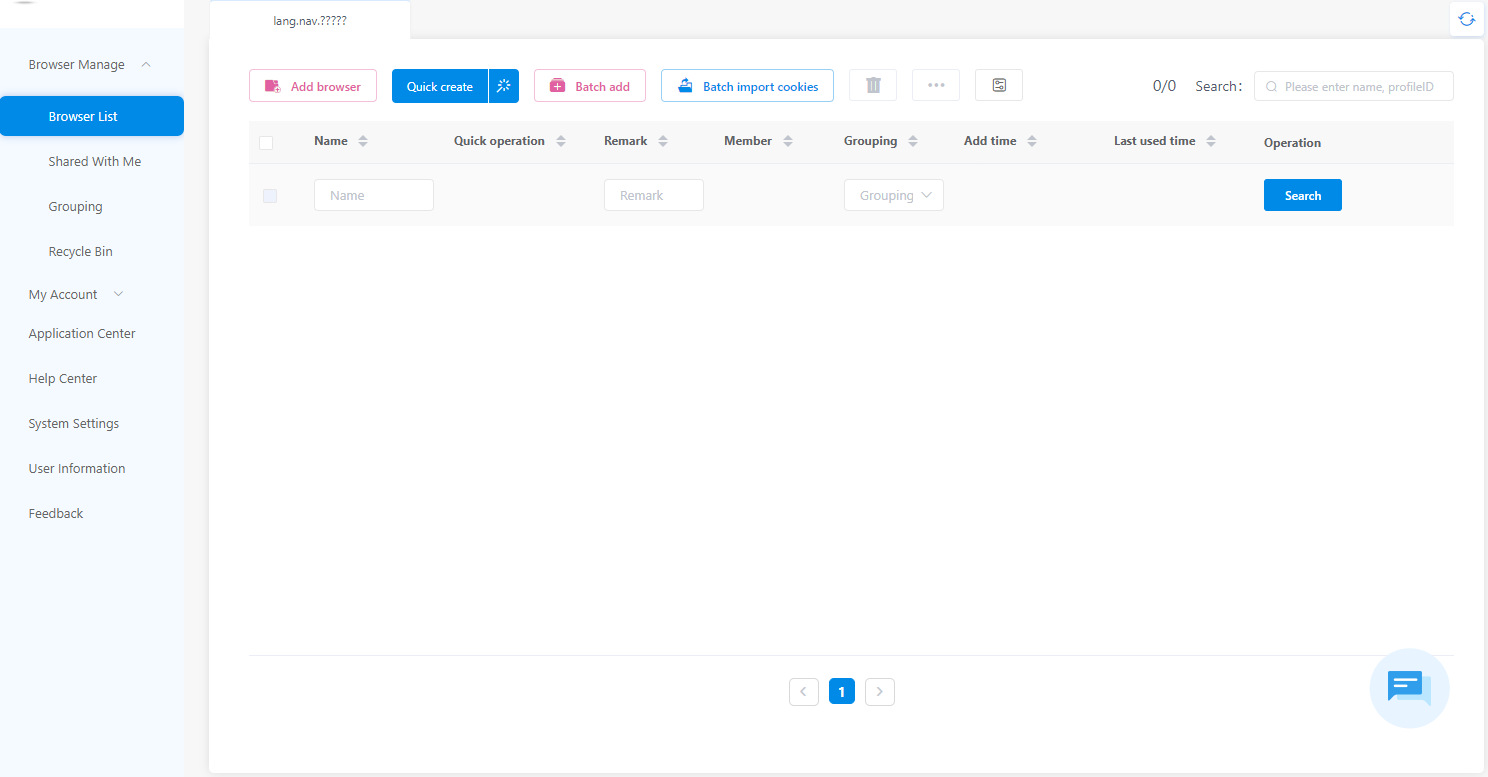
Open the MuLogin desktop application and sign in to your account. You’ll see the browser dashboard.

In the left-hand menu, click Browser List, then hit the Add browser button in the upper area to open the profile creation interface.

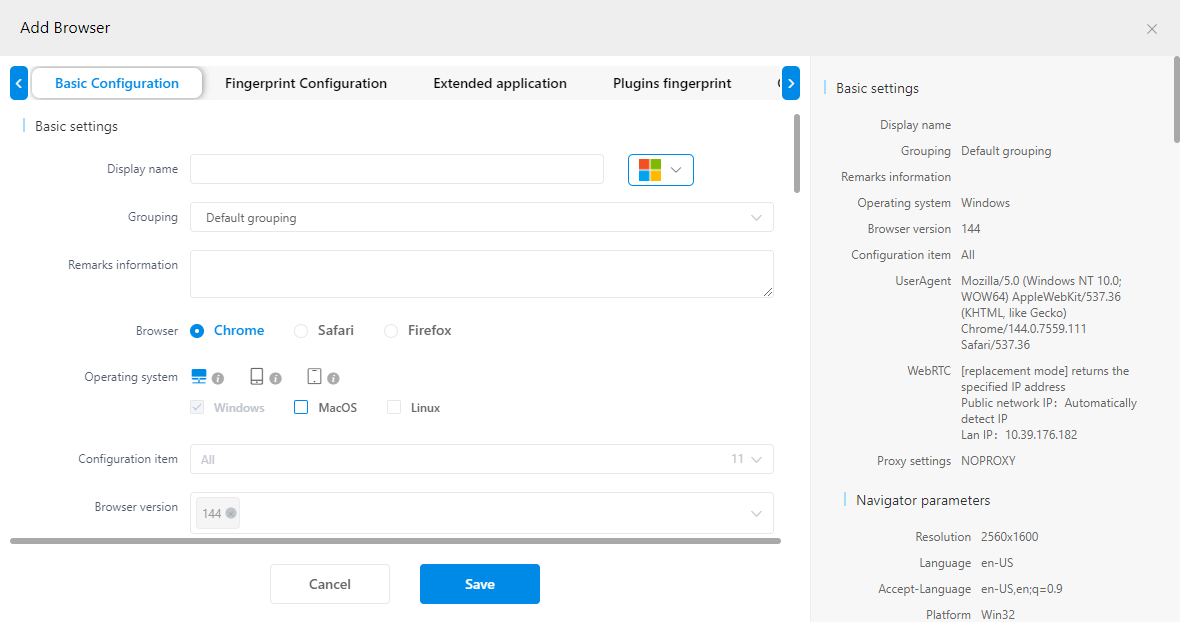
Here, in the Basic Configuration section, you can set:

  • Browser type (Chromium-based Mimic or Firefox-based Stealthfox)

  • Operating system for desktop, mobile, and tablet simulated devices

  • Language, screen resolution, timezone, and other basic device settings

  • WebRTC behavior, Canvas, WebGL, fonts, and other fingerprint parameters. 

You do not need to fill in every field manually: MuLogin auto-generates a consistent fingerprint set by default. The proxy will be added to the same menu, but first, you need to obtain your credentials from CyberYozh.

2. Get the CyberYozh Proxy

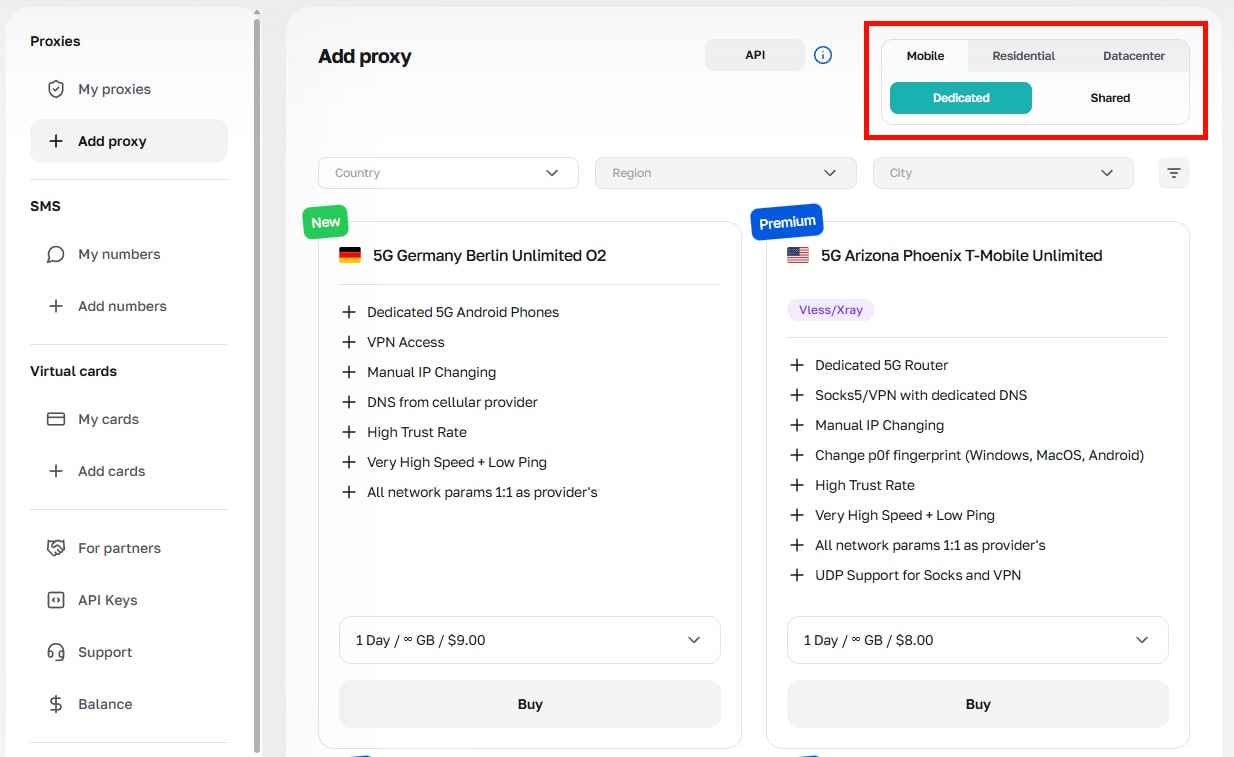
Log in to your CyberYozh account and navigate to the Proxies section. Here, click Add proxy.

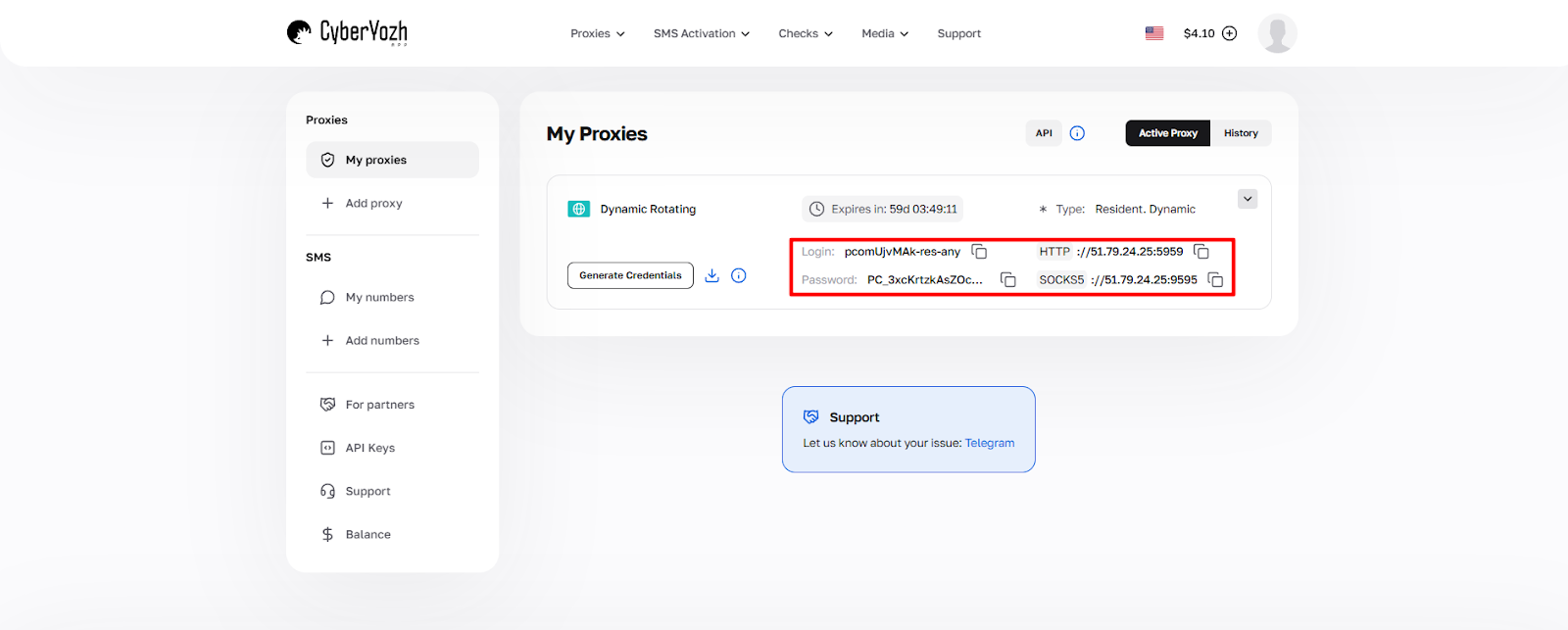
Select the proxy type that fits your task (mobile, rotating residential, static residential, or datacenter), choose a location, and get the proxy. Once provisioned, go to My Proxy to find your access credentials: 

  • IP address (or hostname), 

  • HTTP and SOCKS5 ports

  • Username (login)

  • Password. 

It is strongly recommended to copy these values directly from the dashboard rather than typing them manually, to avoid credential entry errors.

3. Specify the proxy settings in MuLogin browser

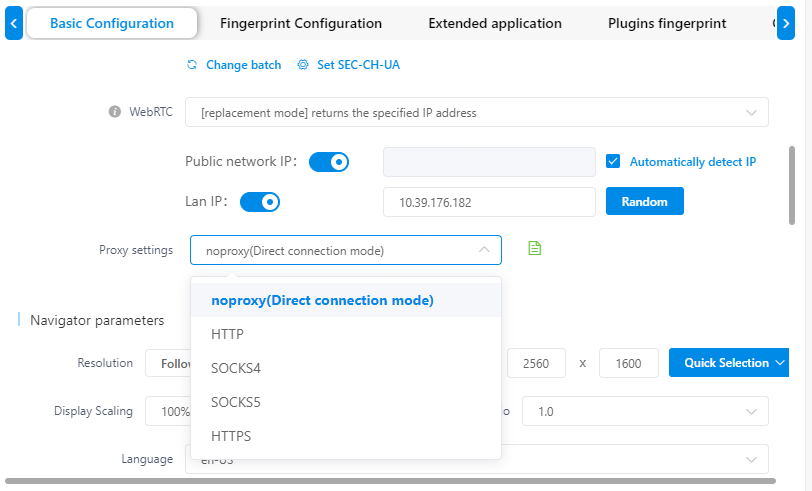
Back in the MuLogin profile creation window, scroll down within the Basic Configuration tab to reach the Proxy Settings menu. By default, the proxy type is set to noproxy. 

Click the dropdown and select either HTTP or SOCKS5, depending on your needs:

  • HTTPis generally sufficient for standard browsing and account management

  • SOCKS5handles a broader range of traffic types and is preferable for automation scripts. 

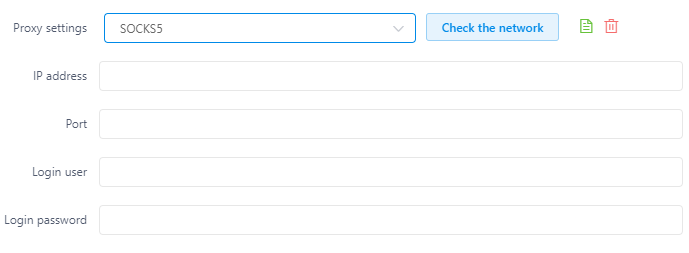
Once you select the protocol, four fields will appear, similar to those you’ve seen in your CyberYozh dashboard:

  • IP Address

  • Port (the corresponding HTTP or SOCKS5 port)

  • Login User

  • Login Password

Paste each value from your CyberYozh dashboard into the respective field. After entering the credentials, click the Check the network button to verify that the connection is active before saving.​

4. Save the MuLogin Browser Profile

Once the proxy test passes, click Save. Your new browser profile will appear in the Browser List with its assigned fingerprint and proxy. 

Click the Start button next to the profile to launch an isolated browsing session: your traffic will now route through the CyberYozh proxy, and the session's fingerprint will be decoupled from your host device.​​

MuLogin proxy management and troubleshooting: Best practices

Effective MuLogin browser proxy management goes beyond the initial setup. A few key habits will keep your accounts safe and reduce the risk of bans.

  • Use one proxy per profile, consistently. Assign a unique IP to each browser profile and avoid reusing the same proxy across multiple profiles. Shared IPs can re-create the account associations you are trying to prevent.​

  • Match proxy type to platform sensitivity. Use mobile or residential proxies for high-scrutiny platforms (social networks, ad accounts, payment systems) and reserve datacenter proxies for lower-risk tasks like price monitoring or ad verification.​

  • Always verify the proxy before launching. Use MuLogin's built-in proxy check and the CyberYozh IP Checker to confirm the IP is live and carries an acceptable fraud score before starting a session.​

  • Stick to the same geo for each profile. The proxy's country and city should match the profile's language, time zone, and other location-based fingerprint parameters.  Inconsistencies across these signals are a common trigger for detection.​

  • Copy credentials, never retype them. Paste proxy IP, port, username, and password directly from the CyberYozh dashboard to the MuLogin fields to eliminate typo-related connection failures.​

  • Use the MuLogin API for automation. For large-scale operations, MuLogin's Local REST API lets you programmatically create and launch profiles using Selenium or Puppeteer. Proxy parameters can be passed through the API payload, making it easy to rotate proxies across sessions without manual edits.​

  • Keep sessions warm.Avoid switching proxies mid-session on established accounts. If you need a new IP, rotate it at the start of a fresh session rather than interrupting an active one, especially on platforms that track session-level IP consistency.​

FAQ about the MuLogin antidetect browser

What is an antidetect browser and how does it work?

An antidetect browser replaces your real fingerprint — OS, fonts, screen size, WebGL, canvas — with a unique spoofed identity per profile, keeping sessions fully isolated with separate cookies, cache, and proxy-assigned IPs.

What is MuLogin and what makes it different?

MuLogin is an antidetect browser for Windows and macOS built around virtual browser technology. It replaces over 20 fingerprint parameters per profile and supports team collaboration, cloud sync, and REST API automation.

What is browser fingerprinting and why does it matter for multi-accounting?

Browser fingerprinting collects device signals — fonts, resolution, GPU, timezone, plugins — to create a persistent identifier that survives cookie deletion, which is why fingerprint isolation per profile is essential.

Why do MuLogin browser proxies matter if fingerprints are already spoofed?

Fingerprint spoofing alone does not hide your IP. Without a dedicated proxy per profile, all sessions share one address, letting platforms correlate accounts regardless of how well fingerprints are isolated.

Which proxy type works best with MuLogin for social media accounts?

Mobile proxies are the safest choice for social platforms since they route traffic through real cellular IPs, matching the behavioral trust patterns platforms expect from genuine mobile users.

Is using MuLogin legal?

MuLogin is a legitimate tool used for e-commerce, advertising, testing, and social media management. Legality depends on your use case and whether it violates a specific platform's Terms of Service.

Can websites detect the MuLogin browser even with proxies enabled?

Detection risk rises when fingerprint presets are reused across profiles or proxies carry a poor reputation. Verify each IP with the CyberYozh IP Checker before launching any session.

How do I add a proxy to a MuLogin browser profile?

Open the Add Browser window, scroll to Proxy Settings in Basic Configuration, select HTTP or SOCKS5, and paste your CyberYozh IP, port, login, and password into the respective fields.

What is the MuLogin API and how can it help with proxy management?

The MuLogin API is a local REST interface that lets you create, launch, and configure profiles via Selenium or Puppeteer, passing proxy credentials programmatically for large-scale automated workflows.

What is the difference between rotating and static residential proxies in MuLogin?

Rotating residential proxies swap IPs dynamically from a large pool — ideal for bulk automation — while static residential proxies keep one fixed ISP-assigned IP, better for stable long-term account sessions.

聊天