
How To Create A Google Account Without A Phone Number In 2026?
Creating a Google account without a phone number is harder than ever in 2026.
With over 1.8 billion active users worldwide, Gmail is the largest free email provider, which has pushed Google to make its account creation system highly automated and increasingly strict.
Today, many users encounter phone verification, QR code checks, and errors like "This phone number cannot be used for verification" or "Verify some info before creating an account" on most sign-up attempts.
Sometimes you can skip the number. Usually, you can't. It depends on your device, IP, location, and account history—factors you can't control. That’s why one user may see a “Skip” option, while another is forced to verify immediately.
The good news is that creating a Google account without using your personal phone number is still possible in 2026. In practice, the most reliable way to finish registration without using your personal number is through a virtual phone number and SMS activation services.
In this guide, you will find:
The working method for creating a Google account without a phone number in 2026 using virtual numbers for Gmail
Step-by-step solutions when you can't create a Gmail account without a phone number, including fixes for "this phone number cannot be used for verification" and "google account phone verification failed"
How to create multiple Gmail accounts (including create bulk Gmail accounts) safely using proxies and session isolation tools.
Why Google wants to verify your phone number in 2026
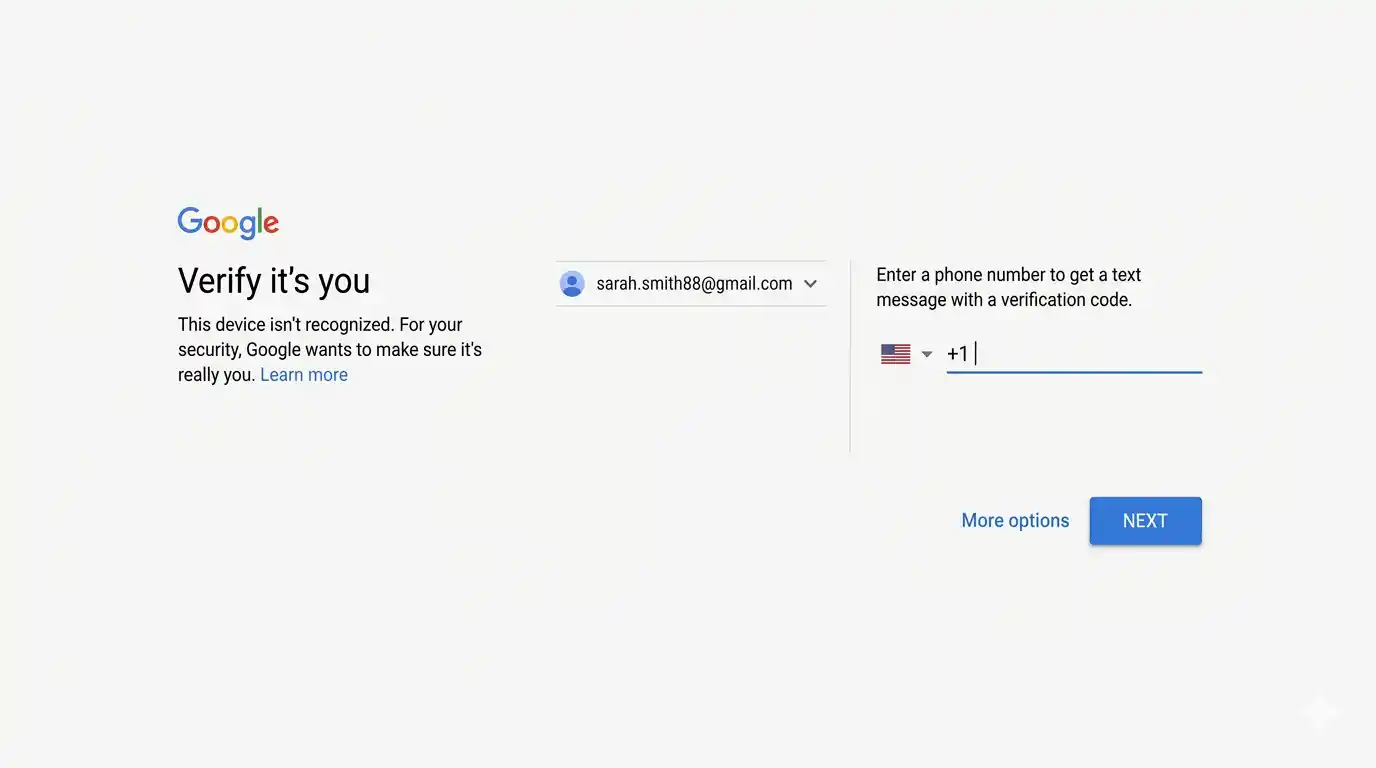
Google asks for phone verification to reduce spam, fake accounts, and automated signups. In 2026, most Gmail signups are processed through automated systems that evaluate your IP, device, browser fingerprint, and other factors. If something doesn’t match, QR code or phone verifications follow.
Here’s what increases the chance of phone verification:
New device or clean browser profile — A fresh laptop, new browser, or emulator has no trust history, so Google often triggers phone verification.
Bad IP reputation — Public Wi-Fi, datacenter proxies, or VPN ranges are shared and frequently abused. Google flags them.
Too many accounts too fast — Creating multiple Gmail accounts from the same device or IP in a short time looks like bulk abuse.
Weird signup behavior — Restarting the process over and over or trying every variation of a username makes Google think you're a bot.
Browser fingerprint mismatches — Screen resolution, fonts, timezone, and WebGL data leave a traceable signature that persists even after clearing cookies. If these signals change too much between sessions, additional verifications follow.
Geo inconsistencies — Your IP says one country, but your browser timezone or language says another. That mismatch is a red flag.
What this looks like in practice:
One attempt goes through without a phone number.
The next attempt on the same setup immediately asks for verification.
Switching the browser or network changes the result completely.
Mobile signup may behave differently than desktop.
In reality, phone verification is not a fixed step. It’s what shows up when Google decides the session doesn’t look like a normal user signup. Once that threshold is crossed, the system stops offering optional flow and forces verification through phone or other identity checks.
Can you still create a Google account without a phone number?
Yes, but not always.
Google still allows account creation without a phone number in 2026, but it depends on how “trustworthy” your signup attempt looks to its automated system. There is no fixed option or guaranteed Skip button - the outcome changes based on risk signals like device, IP address, and signup behavior.
When it often works without a phone number:
You are signing up from a regular smartphone device with no unusual activity history.
You use a stable residential connection that hasn’t been associated with abuse or bulk registrations.
You create an account without repeating the process multiple times in a short session.
You complete the signup in a normal flow without switching networks or restarting midway.
Methods that no longer work in 2026
Methods like using incognito mode, switching browsers, or repeatedly clearing cookies no longer work because Google now evaluates signup attempts using persistent device, network, and behavioral signals instead of short-term browser data.
Here’s a breakdown of less reliable methods to avoid phone verification:
Method | Why it no longer works |
|---|---|
Incognito / private browsing | This only hides local browsing data like cookies, but Google still identifies the device through browser and system fingerprinting. The session is still recognizable even in private mode. |
Clearing cookies and cache | Even after clearing cookies, device identity and network reputation remain the same, so the system can still link signup attempts from the same environment. |
Switching browsers | Changing Chrome to Firefox or Safari does not change the system signals. Google sees the device hardware, operating system, and fingerprint patterns. |
Repeatedly using “Skip” button | The skip option appears only when the system risk score is low. If the environment is flagged, the option is removed regardless of user actions. |
Many VPN and proxy IP ranges are categorized as high-risk. Even if the IP changes, the network reputation remains poor, triggering verification anyway. | |
Multiple signups from the same device | The system treats multiple account creation from the same device as automated or bulk-related activity, raising the likelihood of phone verification on subsequent attempts. |
How to create a Google account without a phone number: Method that works in June 2026
In many cases, Google still requests phone verification before account creation – and it can’t be skipped. For users who prefer not to use a personal phone number, SMS activation service by CyberYozh provides a safe way to handle this. You get a local phone number to get a verification code and complete signup.
Step 1: Sign up for CyberYozh
Sign up for CyberYozh to create your account. Top up your balance - minimum deposit is $1-5 depending on payment method.
Step 2: Go to SMS activation service
Choose a country that matches your IP and browser timezone. Match it to your account country: if your IP and browser timezone are set to the US, get a US number. Mismatched signals between your number country and your traffic origin will trigger a red flag immediately.
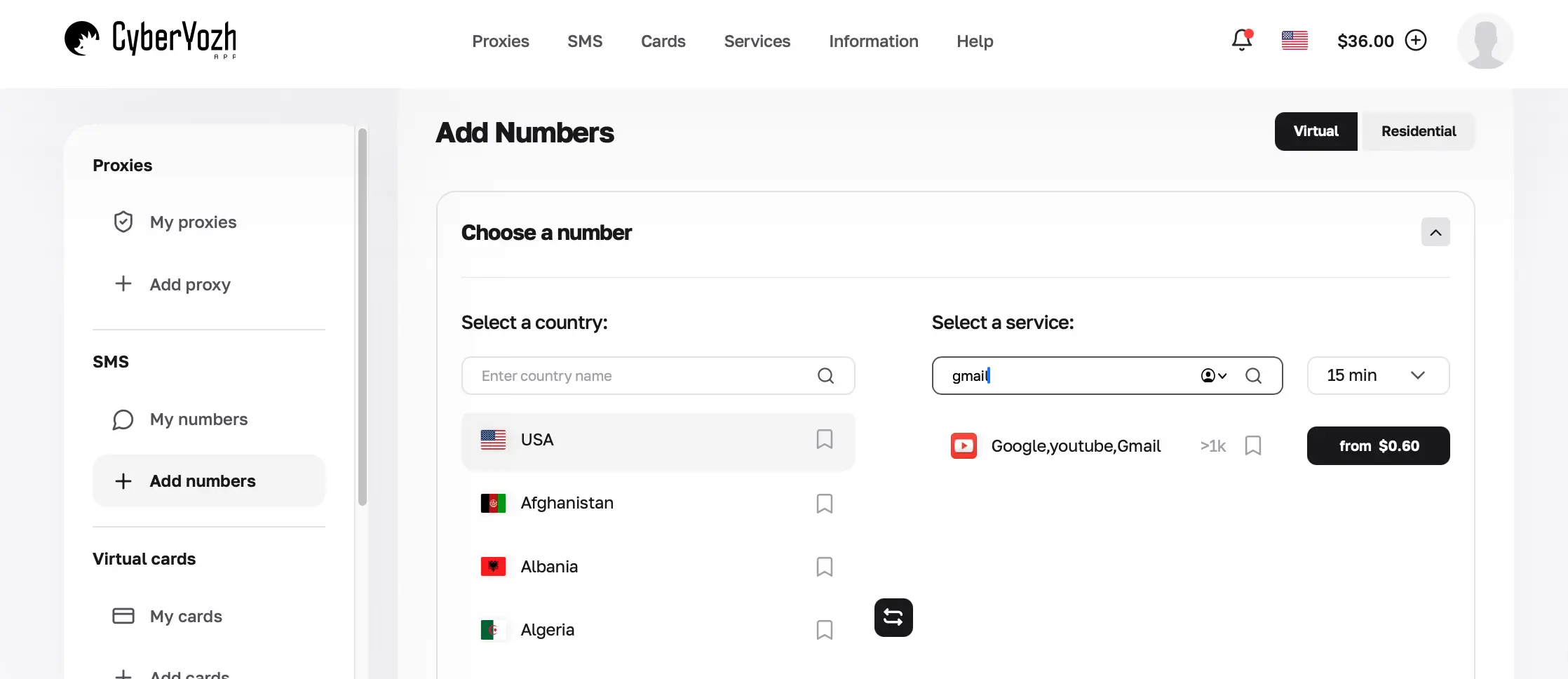
Step 3: Buy the number
Select Gmail from the list to get a number that hasn’t been used for Google requests for a successful verification.
Buy the number - it will appear in your dashboard. You have 15 minutes to verify.
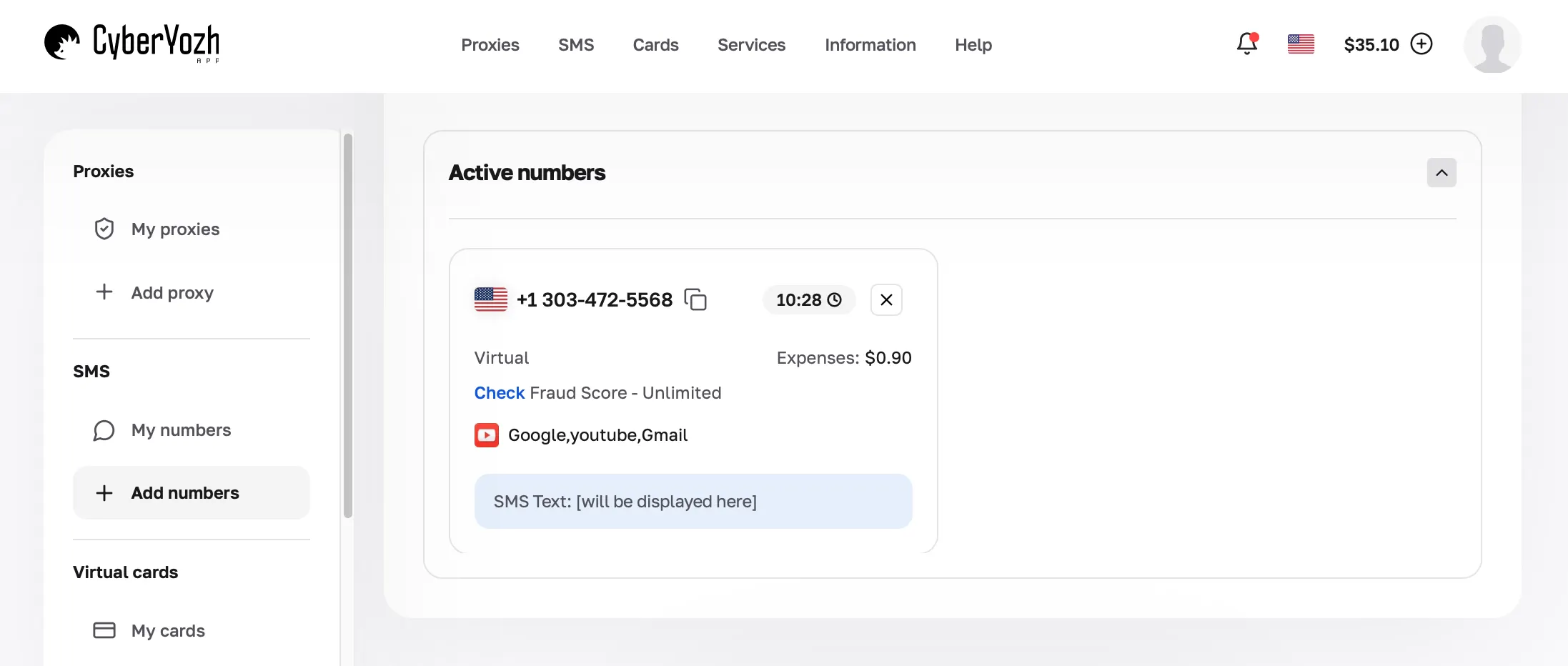
Step 4: Complete Gmail verification
Enter the number on Google's signup page. Wait for the SMS to arrive in your CyberYozh dashboard (usually 30-90 seconds).
Copy the code and paste it into Google to complete account creation.
If you see "This phone number cannot be used for verification": The number range is burned. Chat with our support on Telegram to get it replaced for free.
Get a virtual number for SMS activation
How to register a Google account without a phone number on a smartphone
In some cases, Google allows users to create a Google account on mobile without a phone number. Whether the phone field appears depends on the device, network, and overall risk level assigned to the signup session.
Mobile signup often has a higher success rate than desktop because it runs inside Google’s native apps (Gmail, YouTube, Google Play Services), which provide a more consistent device environment than a browser.
Steps to try on Android
Open the Gmail app or go to Settings → Accounts → Add account → Google
Tap Create account and choose personal or business use
Enter your basic details such as name, date of birth, and email preference
Continue the process in a single flow without restarting or switching networks
If a phone number field appears, check whether a “Skip” or “Not now” option is available (it only shows in some cases)
Complete the remaining setup, including recovery email and terms acceptance.
Steps to try on iPhone
Open a Google app such as Gmail, YouTube, or Google Drive
Tap Sign in → Create account
Enter your details and follow the on-screen steps
Avoid using browser-based signup, as it is more likely to trigger verification
Complete the setup if no phone verification is requested.
What to do if phone verification is required
If the signup process requires phone verification and no skip option is available, the account cannot be completed through the standard mobile flow.
In this case, users typically switch to SMS-based verification methods such as CyberYozh SMS activation for Gmail above. It works as a verification completion layer.
How to create multiple Gmail accounts without a phone number in 2026
Creating one Gmail account without a phone number is tricky. Creating five, ten, or fifty is a completely different game.
Google tracks everything: IP, browser fingerprint, device ID, behavior patterns. One account per day from the same setup works. Three accounts in an hour from the same Wi-Fi connection will trigger verification every single time.
To scale, you need three things: a clean IP per account, a fresh browser fingerprint per account, and a phone number (temporary or real) for each verification.
Here's the stack that works in June 2026.
Tool | Purpose |
Anti-detect browser (Octo Browser, Dolphin Anty, or GoLogin) | Creates isolated browser fingerprints per account |
Residential or mobile proxies | Gives each account a clean, trusted IP |
SMS activation service (CyberYozh) | Provides verification numbers when Google asks |
How to create multiple Gmail accounts step by step
Step 1: Set up your anti-detect browser
Sign up for Dolphin Anty or another anti-detect browser. Create a new browser profile for each account you plan to make.
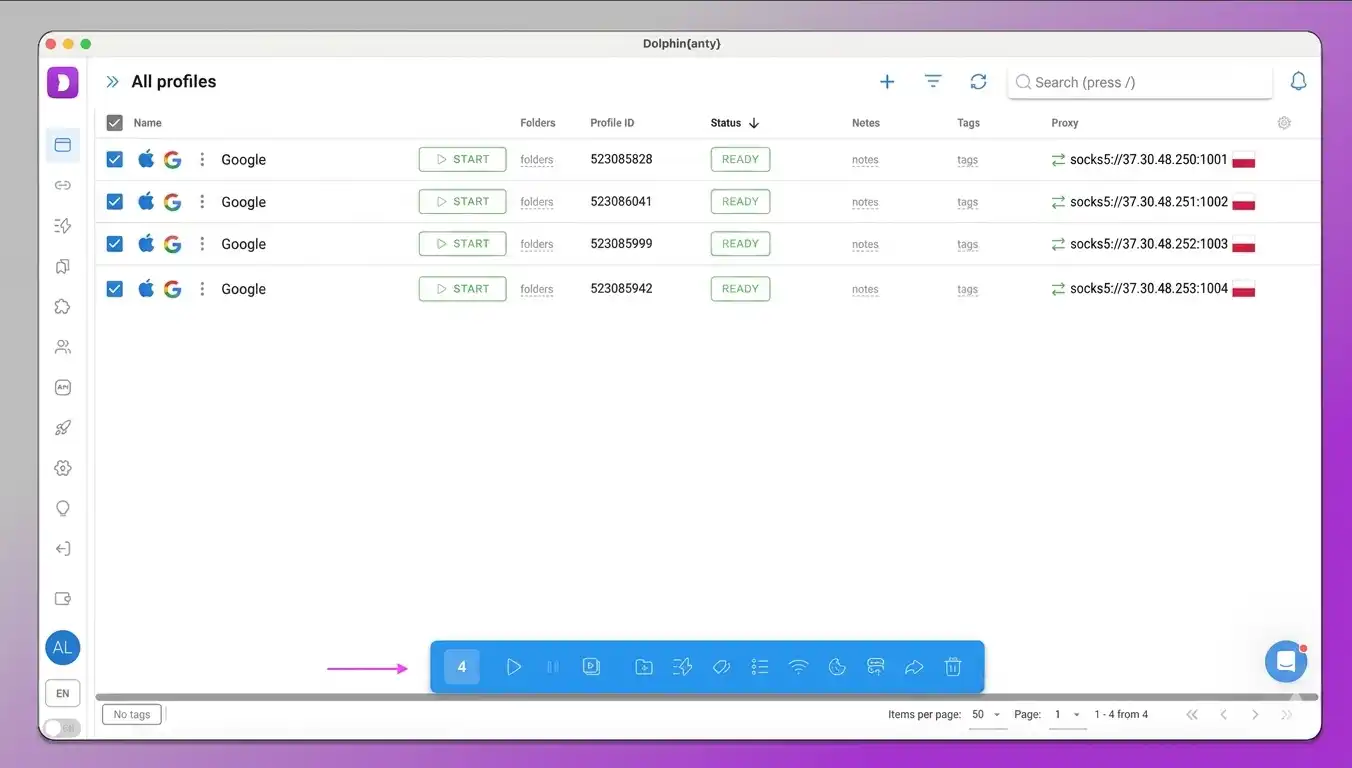
Each profile gets its own:
Browser fingerprint (canvas, WebGL, fonts, screen resolution, timezone)
Storage (cookies, cache, local storage)
Proxy connection.
Step 2: Attach a residential proxy to each profile
Using a proxy for Google is essential if you have more than 2 accounts - using the same IP for multiple accounts can get them burned. For Google accounts, mobile proxies work best. Google trusts mobile IPs more than residential IPs because most real users sign up from phones.
CyberYozh offers real 4G/5G mobile proxies compatible with Gmail and cloud phones. Match the proxy country, SMS number country, and your Google account country.
Create the browser profile first, then attach the proxy in Dolphin Anty before opening the profile. Attaching after opening leaves traces.
Buy mobile proxies for Google accounts from $1.7 (unlimited bandwidth)
Try residential proxies from $5.29/month
Step 3: Warm up the profile before signup
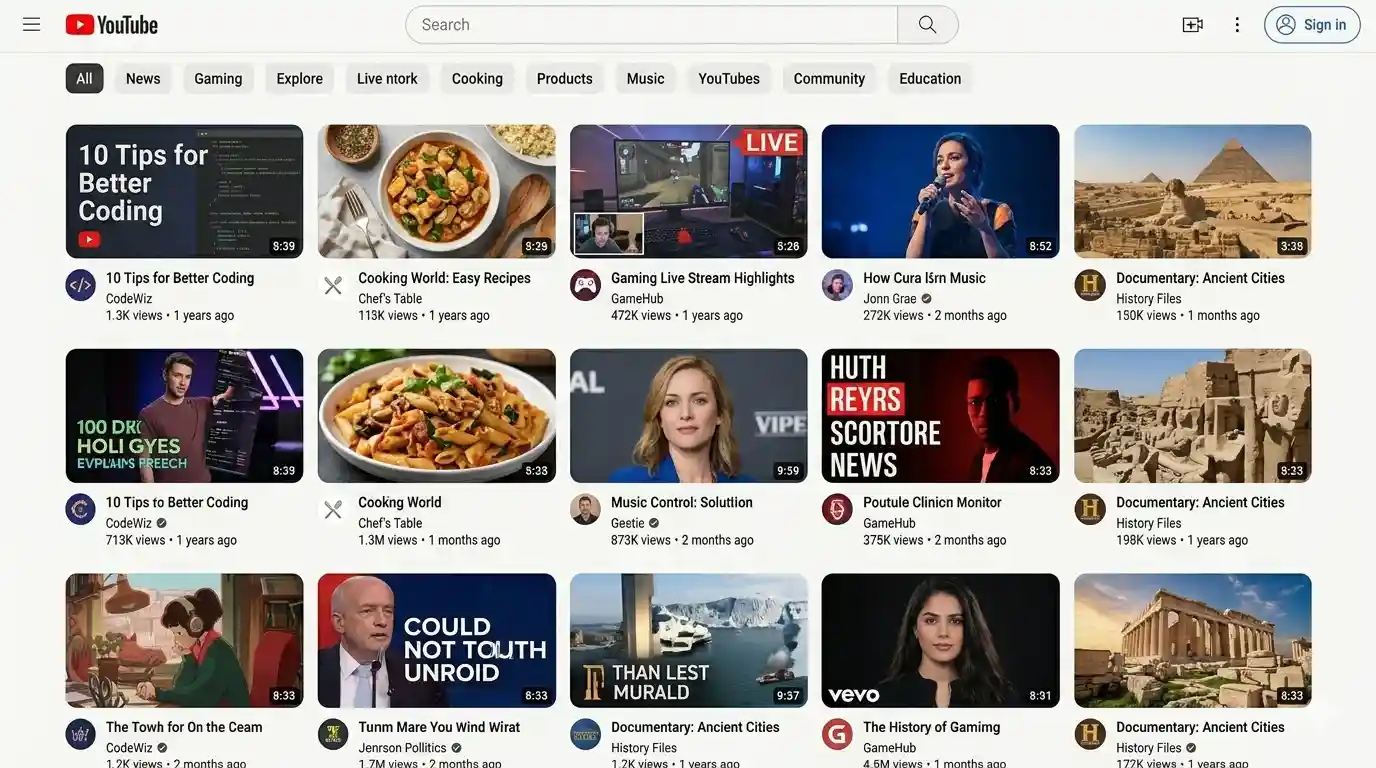
Do not open a fresh profile and immediately create a Gmail account. Google expects history.
Before creating an account, browse normally for 10-15 minutes. Search something on Google. Visit YouTube and watch a few videos to build cookies and cache. Visit Wikipedia or some news sites. This increases the chance of successful verification.
Step 4: Create the first account
Go to the Signup page. Use the same flow as a single account.
When phone verification appears, use CyberYozh SMS service to get a number. Match the number country to your proxy country exactly.
Add a recovery email immediately after account creation. Use a different Gmail or ProtonMail. Since your temporary phone number will expire or be reused, the recovery email is your only way back into the account if locked. Do not skip this.
Step 5: Log out and close the profile
Sign out of Google. Close the entire Dolphin Anty browser window — not just the tab. This seals the fingerprint, storage, and session data for that account.
Step 6: Wait before the next account
Do not create another account immediately from a different profile on the same machine.
Wait at least 15 minutes between accounts. Start from Step 1 with a fresh browser profile and a new proxy IP. Do not reuse IPs.
Do not reuse the same phone number. Each account needs its own number. Reusing a number links accounts permanently.
How many Gmail accounts can you create?
According to Google’s Terms of Service, there is no official limit on how many Gmail accounts you can have. The problem isn't the number of accounts - it’s the automated activity pattern. Five accounts from the same IP in one hour looks like a bot. But if you create five accounts in five days with clean proxies, it will look like a normal user to Google.
What if you don't see the "Skip phone number" option
In 2026, the Skip option during signup on Google is not guaranteed. It only appears when the system assigns a low risk score to the account creation attempt. Here's how to maximize your chances for a Skip button:
Complete signup in one continuous session. Do not refresh, hit back, or restart the flow.
Use the Gmail or YouTube app instead of a browser. Skip appears more often on mobile apps.
Switch to a stable mobile connection or a dedicated proxy. Avoid VPN, public Wi-Fi, or shared networks.
If skip still doesn't appear, stop. Do not keep retrying from the same session. Come back later with a fresh browser or app session.
When skip is absent, it means Google has already locked your signup flow to verification mode. Complete the SMS verification when prompted.
What to do if you see a Google QR verification instead of phone number
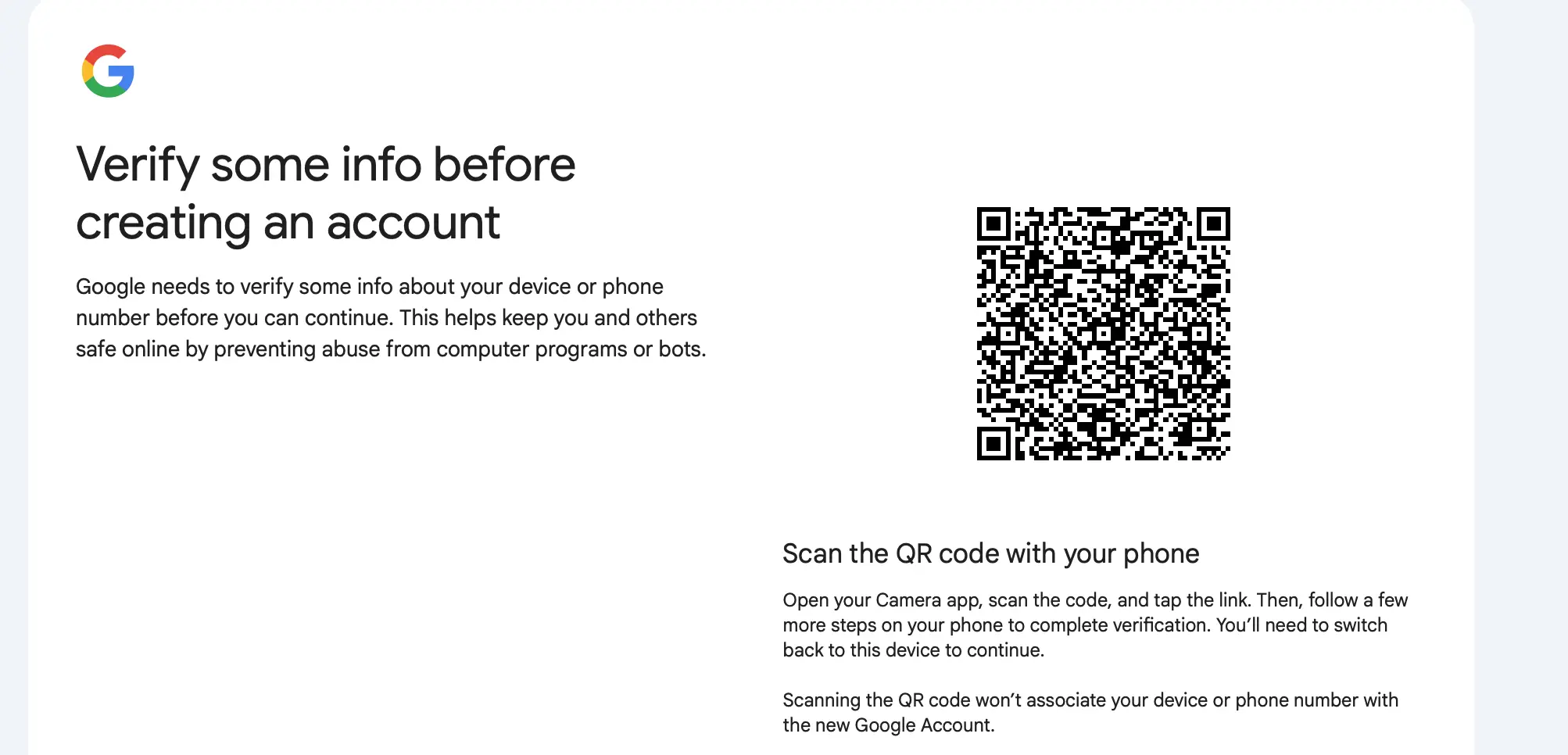
In 2026, users increasingly see QR codes instead of SMS verification. This is Google's alternative method. Here's how to handle it:
Follow the QR prompt and complete the device-based verification flow.
Use a second device (phone or tablet) to scan the QR code.
When prompted, tap Send SMS.
If the QR flow fails or loops, restart signup in the Google app instead of a browser.
Note that your phone must have a SIM card from the same country as the account. If it’s not possible (i.e. you are using a virtual number), QR code verification will fail. Restart the process from a new environment to get the phone verification path.
Common Google account phone verification errors (2026 fixes)
“This phone number cannot be used for verification”
This error appears when the number is already associated with too many Google accounts, has been used repeatedly for verification in a short period, or comes from a flagged range. It means the number has low verification trust and will not pass the current risk threshold.
Solution: use a different number that has not been used for recent account creation. If you’re using CyberYozh virtual number, write to us on Telegram to have it replaced for free.
“Google account phone verification failed”
This happens when the verification request is accepted but the session cannot complete the validation loop. Common causes include delayed or blocked SMS delivery, unstable network switching during verification, or mismatch between the signup session and the device receiving the code.
Solution: Wait 5-10 minutes before retrying. Use the same device to sign up and receive the code. If it fails twice, start over with a fresh session and a different number.
“Verify some information before creating account”
This message indicates that the account creation flow has been escalated from standard signup to enhanced verification. At this stage, Google no longer offers skipping a phone number.
Solution: The process can only continue by completing the verification step shown on-screen. If you can't complete it, abandon the session entirely and start from a new environment — different IP, different device, different browser profile.
Key takeaways about how to create a Google account without a phone number
Creating a Google account without a personal phone number in 2026 depends on real-time signals like your device, IP address, browser fingerprint, and signup behavior evaluated by Google. There is no fixed method — only environments that increase or decrease the chance of phone verification or a visible skip option.
When phone verification is required and no skip option appears, SMS verification is used to complete the signup. For users managing multiple accounts, stability matters most: each account needs an isolated browser profile, a proxy for consistent network environment, and a separate verification number to avoid login conflicts.