
How to make multiple Gmail accounts: Methods, limits and setup

Creating one Gmail account is straightforward. Creating ten, twenty, or more is where things get less predictable. Phone verification can appear, repeated sign-ups may trigger additional checks, and keeping every account organized and accessible becomes a job of its own.
If you're trying to figure out how to make multiple Gmail accounts, this guide covers the actual creation methods and Google's limitations, but it doesn't stop at the sign-up screen. We'll also look at what changes at scale, from phone verification and SMS numbers to IP quality, network consistency, and keeping account sessions stable over time.
TL;DR
If you're figuring out how to make multiple Gmail accounts, creating the accounts is the easy part. Managing them reliably becomes more complicated as the number grows.
Google allows you to have and sign in to multiple Gmail accounts, but account creation and phone verification are still subject to Google's own limits and security checks.
There is no guaranteed method for how to make multiple Gmail accounts without phone verification. If Google requires a number, you need an eligible number that can receive the verification code.
For recurring verification needs, personal SIMs aren't the only option. Virtual and residential SMS numbers can provide additional numbers when appropriate, but receiving an SMS doesn't guarantee that Google will accept the number.
Your network matters beyond simply having a proxy. IP location, network type, reputation, and consistency are all worth considering when accounts are accessed over time.
More IP rotation isn't automatically better. Static IPs suit long-term consistency, rotating residential proxies provide access to a larger pool, and sticky sessions sit between the two by keeping an IP stable for a defined period.
Mobile, residential, and ISP proxies solve different problems. Choose based on the actual tasks rather than assuming every Gmail account needs its own rotating IP.
Check unfamiliar IPs before relying on them. Geolocation, ISP/ASN information, connection classification, and risk signals can tell you more about the network you're about to use, although no checker can predict Google's decisions.
At scale, good account management matters just as much as infrastructure. Keep ownership, recovery information, devices, credentials, and access requirements organized from the start.
CyberYozh App brings several of these infrastructure pieces together, including SMS numbers, mobile and residential proxy options, geographic and session controls, and IP risk-checking tools. These give you more control over the environment around legitimate multi-account workflows, not a way around Google's account controls.
What Google allows you to do with multiple Gmail accounts
Google allows you to have and sign in to multiple Gmail accounts at the same time. There’s no need to log out every time you want to check another inbox. You can add another Google Account from your profile menu and switch between the accounts you’re signed into. Each account generally keeps its own settings, although Google notes that some settings from your default account can occasionally carry over.
You can also create accounts for different purposes. During Google's standard account setup, for example, you can choose between personal use, a child account, or work and business use. A Google Account doesn't even have to use a Gmail address: Google also supports creating one with an existing third-party email address.
There is an important difference, though, between Google supporting multiple accounts and allowing unlimited account creation without checks. Google may require phone verification before an account is created or signed into, specifically as an anti-spam measure. It also limits how many times a phone number can be used for verification.
So, if you're researching how to make multiple Gmail accounts, having several accounts isn't the problem in itself. The practical limitations tend to appear during repeated account creation and verification, which we'll get into below.
What changes when you need Gmail accounts at scale
Five Gmail accounts are mostly an organizational problem. Fifty accounts introduce an infrastructure problem too.
At that point, how to make multiple Gmail accounts is only the first question. You also need to think about how accounts will be verified, what network they'll be accessed through, how consistent that environment needs to remain, and how you'll keep credentials, recovery details, and sessions organized.
Most of that friction falls into three areas:
Phone verification. Google may request a phone number during account creation or later verification, and the same number can't necessarily be reused indefinitely. If verification becomes a recurring part of the tasks, access to a virtual number for SMS becomes something you need to plan for rather than deal with account by account.
The network environment. The IP address, its location and reputation, and the type of network behind it can all become relevant when accounts are being accessed across different markets or environments. Just as importantly, changing those things unnecessarily can introduce its own problems.
Session and account consistency. Creating an account takes a few minutes. Keeping dozens of accounts accessible, recoverable, and organized over months is the harder part. Devices, network changes, account ownership, recovery information, and session management all need some order behind them.
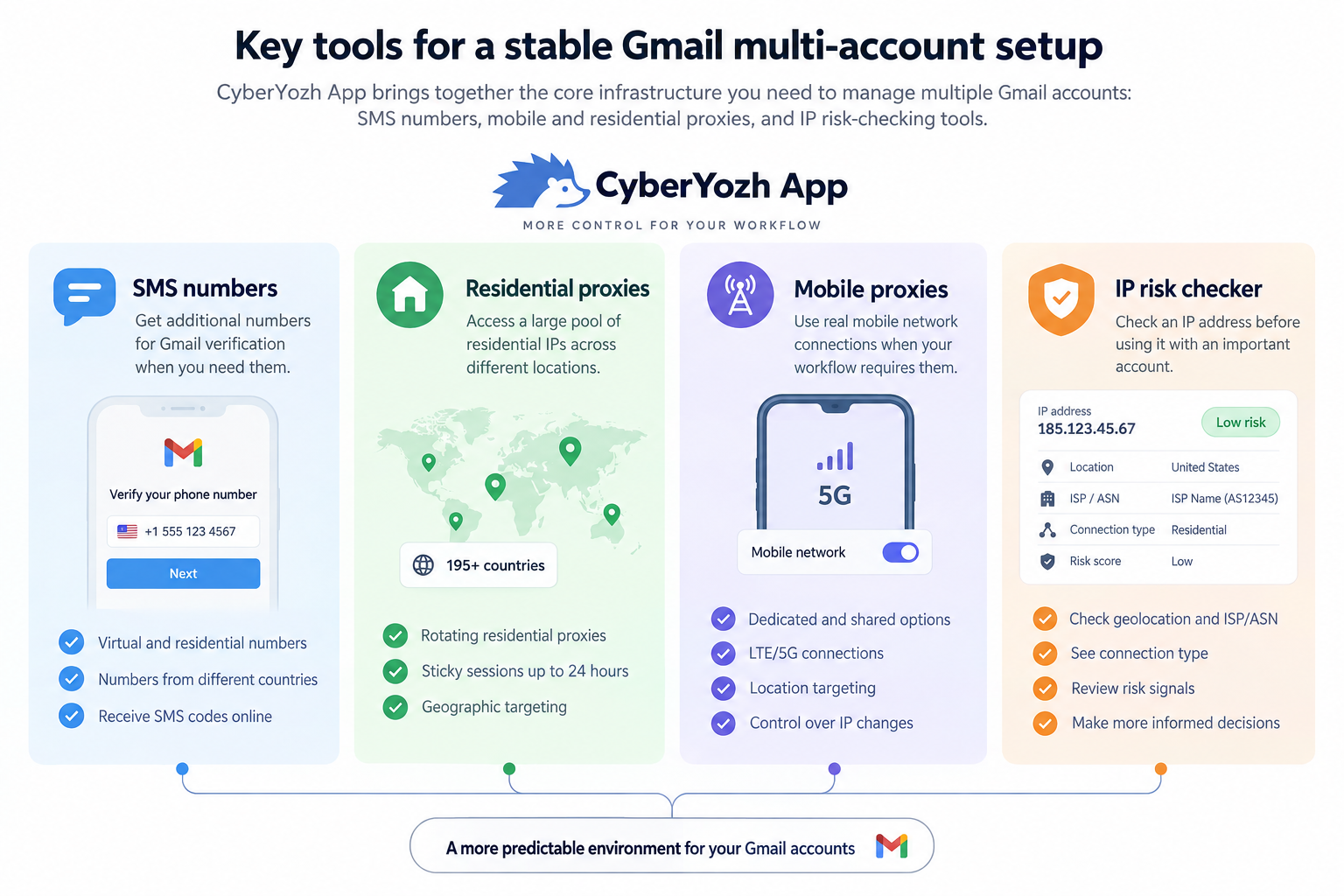
Pro-tip: This is where CyberYozh App fits into the wider setup. It brings several of those infrastructure layers into one platform, including virtual Numbers for SMS, mobile and residential proxy infrastructure, and tools for checking IP and phone-number risk before putting them into a workflow.
How to create multiple Gmail accounts manually
If you only need a handful of accounts, the simplest approach is to create them individually through Google’s standard sign-up process. You don’t need special software or a bulk account creator.
Here’s how to create multiple Gmail accounts manually:
Go to Google’s account creation page.
Enter the requested account information and choose a Gmail address.
Create a strong, unique password for the account.
Complete any verification steps Google requests. Depending on the sign-up, this may include phone verification.
Add recovery information where appropriate and finish the setup.
Once the account is ready, return to the account creation page and repeat the process for the next account.
If you’re wondering how to make multiple accounts on Gmail without constantly signing in and out, you can add the finished accounts to the same browser session afterward. Google lets you remain signed in to several accounts and switch between them from your profile menu.
Manual creation works well when the number is manageable. Once you’re repeating the process across dozens of accounts, however, verification, account organization, and the consistency of the environment you’re using start to matter considerably more.
Read more about how to create unlimited Google accounts and why you need it.
How to add and switch between multiple Gmail accounts
Once the accounts exist, you don't have to keep logging out of one to check another. Gmail supports multiple sign-ins, so you can keep several accounts available in the same browser and move between them as needed.
Open Gmail, click your profile picture in the top-right corner, select Add another account, and sign in with the second account. Repeat this for the other accounts you want to keep accessible. To switch inboxes, click your profile picture again and choose the account you want to open.
One detail worth knowing is that the account you sign into first usually becomes your default Google account. Some Google services may use its settings even while you're working with another account, so it's worth paying attention to which account is active before changing settings, sharing files, or using other Google services.
For a few multiple Gmail accounts, this built-in switching system is usually enough. Once you're dealing with a much larger collection, however, keeping sessions, recovery details, and account activity organized becomes a separate job.
Can you make multiple Gmail accounts with the same phone number?
Yes, the same phone number can be used with more than one Google account, but don't count on it working indefinitely. Google limits how many accounts a phone number can be used to create or verify as an anti-abuse measure.
The important part is that Google doesn't give you a simple public rule such as "one number equals four Gmail accounts." You may eventually see “This phone number cannot be used for verification” or “This phone number has been used too many times for verification.” When that happens, Google's guidance is to use a different number.
This matters if you're learning how to make multiple Gmail accounts for a team, different projects, testing, or another legitimate multi-account workflow. A single personal number shouldn't be treated as an unlimited verification resource. If Google requires verification after that number can no longer be used, you'll need another eligible number.
That raises a bigger question for larger setups: what should you use when phone verification becomes a recurring requirement? We'll compare personal SIMs, virtual numbers, and residential numbers below.
How to make multiple Gmail accounts without phone verification
If you're searching for how to make multiple Gmail accounts without phone verification, there isn't a reliable setting or official method that lets you switch Google's verification requirements off. Sometimes Google allows an account to be created without adding a phone number; other times, verification is required before you can continue.
If the phone field is optional during sign-up, you can simply leave it blank and continue. If Google requires verification, however, there isn't a legitimate “skip” button hiding somewhere in the process. Google uses phone verification as one of its measures to help prevent spam and automated abuse, and repeated account creation can result in additional checks.
Be wary of tutorials promising secret browser tricks, endless incognito sessions, or other guaranteed ways around verification. Even if a particular workaround appears to work once, it doesn't mean Google will treat the next registration the same way.
If you're creating accounts for a legitimate business workflow and Google requires verification, the more practical approach is to plan for that requirement rather than build the entire process around avoiding it. That means understanding which numbers can be used, what options exist beyond your personal SIM, and what a verification number can and cannot solve.
Can you make multiple Gmail accounts at once?
For regular personal Gmail accounts, Google doesn't provide a built-in button for creating a batch of new @gmail.com accounts simultaneously. If you're wondering how to make multiple Gmail accounts at once, the standard consumer sign-up process still means creating the accounts individually.
Businesses have a different option. With Google Workspace, administrators can create multiple user accounts under their organization's domain. Instead of adding every employee manually, Workspace supports adding multiple users from a CSV file, making it a much better fit when a company needs email accounts for a larger team.
That's an important distinction before looking for third-party bulk account creators or automation tools. If you need separate personal @gmail.com addresses, there isn't an official bulk-creation feature. If the real requirement is dozens or hundreds of business inboxes for employees, departments, or projects, Google Workspace is designed for that job.
Whichever route you use, creating the accounts is only the first layer. If individual accounts require verification, or if they will later be operated across different locations and network environments, you still need to plan the infrastructure around them. Phone verification is the first part of that setup we'll look at in detail.
Phone verification when creating multiple accounts
Once you're creating accounts regularly, phone verification stops being an occasional interruption and becomes something you need to account for in the workflow. Google may request a phone number during registration or later when it needs additional confirmation, but the requirement isn't identical for every account or every sign-up.
The important distinction is that the phone number is part of Google's verification process, not a guaranteed ticket through it. Having another number available doesn't guarantee account creation, and changing numbers doesn't remove Google's other security and anti-abuse checks.
Why relying on one personal number doesn't scale
For a couple of accounts, using your own mobile number may be perfectly practical. The problem appears when you keep creating accounts and assume the same number can be used indefinitely.
Google limits how many times a phone number can be used for account creation or verification. Once that limit is reached, you may be asked to provide another number. That makes a single personal SIM a poor foundation for any legitimate workflow that regularly requires separate phone verification.
It also creates an organizational problem. If several business accounts depend on one employee's personal number, recovery and ownership can become unnecessarily tangled when responsibilities change.
Personal SIM, virtual number or residential number?
If Google asks for verification, there are several ways a legitimate user may receive the SMS code.
A personal SIM is the simplest option when you're dealing with only a small number of accounts and don't mind associating your own number with them.
A virtual number gives you access to a number without maintaining another physical SIM. CyberYozh App provides virtual numbers for receiving SMS across supported services and countries, which can be useful when a workflow requires access to additional verification numbers.
A residential number is tied to a physical SIM rather than existing purely as a virtual number. CyberYozh App also provides residential SMS numbers for workflows where the type or origin of the number matters.
The right option depends on the service being verified, the country required, how long you need access to the number, and whether that particular number is accepted by the service. A virtual number shouldn't automatically be treated as interchangeable with a residential mobile number.
Country matters too
The number itself isn't the only variable. If accounts are being created or operated for a particular market, the country associated with the phone number may matter to the workflow as well.
CyberYozh App lets you select numbers based on available countries and services rather than sourcing numbers one at a time from unrelated providers. That becomes considerably more useful when verification is a recurring operational requirement rather than a one-off SMS.
Check the number before building a workflow around it
When numbers become part of a larger account operation, it also makes sense to know what you're using before relying on one since receiving the code doesn't guarantee verification.
CyberYozh App includes phone-number checking tools alongside its SMS services, allowing you to inspect relevant information about a number before incorporating it into your tasks. This becomes more useful at scale, where discovering a problem after you've already attached numbers to multiple accounts is considerably more inconvenient than checking first.
The same principle applies to the other side of the connection. Once verification is handled, the next piece of infrastructure worth examining is the network itself: which IP the account is connecting from, where that IP is located, what type of network it belongs to, and whether that connection should remain stable or rotate.
Why your IP and network environment can matter
Once the accounts exist and verification is taken care of, the next layer is the connection they use.
Every time you connect to Gmail, your traffic comes from an IP address associated with a network and an approximate location. Google can also use information about devices and sign-in activity when assessing account security. That's why a login from an unfamiliar device or environment may lead to an additional security check.
This doesn't mean you need a different IP for every Gmail account, or that changing an IP somehow makes an account safer. For legitimate multi-account management, the more useful question is whether the network environment actually makes sense for the way the account is supposed to be used.
IP location
An IP address can be associated with a particular country, region, and sometimes city. This becomes relevant when accounts are operated by teams in different markets or when a workflow genuinely needs a connection from a particular location.
Location consistency matters too. If an account is normally operated from one market, repeatedly moving its connection between distant countries without an operational reason introduces unnecessary changes to its environment.
CyberYozh App supports geographic targeting across its proxy infrastructure, including country-level and, for supported products and locations, more granular targeting. That lets the network location be chosen according to the actual requirements of the workflow rather than whatever IP happens to be available.
Network type
Two IPs located in the same country aren't necessarily equivalent.
A mobile proxy originates through a cellular carrier. A residential IP is associated with residential connectivity, while an ISP proxy provides a static address associated with an internet service provider. Datacenter IPs come from hosting or data-center infrastructure.
That distinction matters because the right connection depends on what you're doing. An account that needs a long-running, predictable environment has different requirements from a workflow that genuinely needs access to a pool of changing residential addresses.
IP reputation and history
The location and type of an IP only tell you part of the story. Its previous use matters too.
An address may have been used by other customers before reaching you, and some IPs can carry a history of suspicious or abusive activity. A proxy being residential, mobile, or located in the right country doesn't automatically tell you whether the individual address has a good reputation.
That's why checking an unfamiliar IP before using it can be worthwhile, particularly for an account you intend to keep and use over time. Later in this guide, we'll look at the signals you can inspect and how CyberYozh App's risk-checking tools fit into that process.
Static vs rotating IPs for Gmail accounts
Once a proxy is part of the setup, it's tempting to assume that more IP rotation means better account management. For Gmail, that's not necessarily the case. The better choice depends on what the account is doing and how long you need its network environment to remain consistent.
There are three setups worth understanding: static IPs, rotating IPs, and sticky sessions.
Static IPs
A static proxy keeps the same IP address rather than assigning a new one throughout normal use. For an established Gmail account that is regularly accessed from the same operational environment, that predictability can be useful.
Static ISP proxies are particularly relevant here because they combine a fixed IP with ISP-associated connectivity. If the account needs to be accessed repeatedly over days or weeks from a consistent network location, there may be little reason to introduce IP changes simply for the sake of rotation.
The trade-off is straightforward: you're relying on one address, so the quality and reputation of that IP matter. This is one reason we'll check IP risk separately later in the guide.
Rotating IPs
A rotating proxy gives you access to a pool of addresses and changes the IP according to the provider's rotation rules or your configuration.
That's useful for plenty of proxy applications, particularly tasks such as web scraping and large-scale data collection where requests need to be distributed across different addresses. Gmail account management is a different kind of workload.
If you're reading email, changing account settings, or working inside an ongoing authenticated session, switching IPs repeatedly may add a variable you simply don't need.
That doesn't make rotating residential proxies unsuitable for every multi-account workflow. It means rotation should solve a specific requirement, rather than being enabled because changing IPs sounds more sophisticated.
Sticky sessions sit somewhere in between
You don't always have to choose between one permanent IP and continuous rotation.
A sticky session keeps the same proxy IP assigned for a defined period before it changes. This can be useful when you need access to a larger residential or mobile IP pool but still want the connection to remain consistent throughout a particular session.
CyberYozh App's rotating residential proxies, for example, support sticky sessions for up to 24 hours. That gives you more control over when an IP changes instead of forcing every request through a different address.
Which approach makes sense?
Think about the account's actual lifecycle.
If an account is intended to operate from one predictable environment over the long term, a static connection may be the simpler choice. If the wider workflow genuinely requires access to different residential IPs, rotation may make sense. If you need rotation between sessions but consistency while a particular session is active, sticky sessions provide the middle ground.
And if you're working out how to make multiple Gmail accounts and assuming each one automatically needs a different rotating IP, reconsider the premise first. There is no universal formula such as “one Gmail account = one rotating proxy.” The network setup should follow the legitimate requirements of the workflow, not the number of accounts on your list.
Choosing between mobile, residential and ISP proxies
There isn't one proxy type that's automatically right for every Gmail setup. The better choice depends on whether you need a long-term static connection, access from a particular location, a mobile network, or a pool of residential IPs.
Here's the simplest way to think about the options:
If you need... | Consider | Why |
One stable IP for ongoing account use | Keeps the same ISP-associated IP over time | |
A connection through a real mobile network | Mobile proxy | Uses mobile carrier infrastructure |
Access to a large residential IP pool | Rotating residential proxy | Provides residential IPs across different locations |
The same residential IP for part of the day | Rotating residential with a sticky session | Keeps one IP during the session before rotation |
More control over a mobile IP | Dedicated mobile proxy | Gives you a private mobile connection with IP/session controls |
Static ISP proxies for long-term consistency
If an account is supposed to operate from a relatively predictable network environment, a static ISP proxy is often the most straightforward option to consider.
CyberYozh App's static ISP residential proxies provide a dedicated IP that remains yours throughout the rental period, with unlimited traffic. Rather than introducing regular IP changes into an established Gmail session, you can continue using the same address when the workflow calls for consistency.
That also makes the quality of the individual IP more important. If you're going to keep an address for an extended period, checking what you're starting with makes more sense than assuming “static” automatically means “clean.” We'll cover that separately in the IP-checking section.
Mobile proxies when the network itself needs to be mobile
A mobile proxy routes the connection through cellular infrastructure rather than a standard residential or data-center network.
CyberYozh App offers both shared and dedicated unlimited mobile proxy options, including LTE/4G/5G connections, geographic targeting, and control over IP changes. A dedicated mobile proxy is particularly relevant when you need the mobile connection to remain under your control rather than sharing the same proxy access with other customers.
Don't choose the proxy before defining the task
A common mistake is starting with “Which proxy should I buy?” instead of asking what the accounts actually require.
Start with four questions:
Does the IP need to remain the same long term?
Does the connection need to originate from a particular country or region?
Does the task specifically require residential or mobile connectivity?
Do you actually need multiple IPs, or would one stable address do the job better?
The answers narrow the choice considerably. A static ISP proxy fits a very different requirement from a rotating residential pool, while a mobile proxy only earns its place when mobile connectivity itself is relevant.
The aim isn't to build the most complicated setup possible. It's to use the fewest moving parts necessary for a predictable, manageable account environment.
Why keep Gmail account sessions stable
Creating the accounts is only half the job. Once they're being used regularly, keeping them accessible, recoverable, and organized becomes more important than the initial sign-up process.
This is particularly true with multiple Gmail accounts. The more accounts, devices, team members, and locations involved, the easier it becomes to lose track of which environment belongs to which account.
Keep the network environment predictable
If an account normally operates through one setup, avoid changing that setup without a reason. Jumping repeatedly between networks, countries, and connection types introduces variables that don't necessarily provide any benefit.
The objective isn't to manufacture an artificial identity for the account. It's much simpler: if something doesn't need to change, don't change it.
Pay attention to devices as well as IPs
The IP is only one part of an account's environment.
Google also lets users review devices with account access, including devices where the account is currently signed in or has been signed in recently. If you're troubleshooting unfamiliar activity, this is a better place to start than assuming every security prompt is caused by the IP address.
For a larger operation, keep track of which devices or working environments are supposed to access each account. If five people routinely sign into the same inbox from unrelated devices and locations, changing the proxy alone doesn't suddenly make that workflow organized.
Keep recovery information current
Recovery details are easy to ignore while an account is working normally. They become much more important the moment access is lost.
Make sure important accounts have appropriate recovery information and that those details remain accessible to the person or organization that actually owns the account. Avoid building business-critical accounts around a former employee's personal phone number or recovery email.
This matters even more when you're figuring out how to make multiple Gmail accounts for different projects or teams. Creating another inbox takes minutes; recovering an important account later can be considerably less convenient if nobody documented who owns it.
Give every account a clear owner and purpose
Once the number of accounts grows, keep a basic record of what each one is for.
That doesn't need to become an elaborate system. At minimum, document the account, its purpose, who is responsible for it, its recovery method, and any specific access requirements.
This also helps prevent account sharing from getting out of hand. If several people need access to the same business resources, consider whether Google's supported sharing, delegation, or Workspace features are more appropriate than distributing one username and password across an entire team.
Don't confuse infrastructure with account security
A dedicated proxy, SMS number, or stable session can solve a particular infrastructure problem. None of them replaces the basics.
Strong unique passwords, recovery information, appropriate access controls, and awareness of which devices are signed in still matter. Likewise, a stable IP doesn't guarantee that Google won't request additional verification, just as receiving an SMS code doesn't guarantee that a number will be accepted.
The most manageable setup is usually the one where every component has a reason to be there: the account has a clear owner, the verification method is documented, the network fits the workflow, and unnecessary changes are kept to a minimum.
How check an IP before using it
Think of it as a pre-flight check. You're not trying to predict exactly how Google will respond to an IP. You're checking whether the connection you're about to use matches what you expect.
Confirm the IP location
Start with the basics: where does the IP actually appear to be located?
If you selected a connection for a particular country or region, checking its geolocation confirms that the IP resolves where you expect it to. This is particularly useful when location is an actual requirement of the workflow rather than something you want to discover after signing in.
Look at the ISP and ASN
The ISP and autonomous system number (ASN) tell you more about the network behind an address.
This can help confirm whether an IP belongs to the type of infrastructure you expected. If you intended to use a particular kind of connection, it's useful to know what network information is actually visible rather than relying entirely on the product label attached to the proxy.
Check the IP's risk signals
An address can also carry history from previous use. That doesn't mean every previously used IP is problematic, but it does mean “new to you” isn't necessarily the same thing as “new.”
CyberYozh App's IP address risk checker lets you inspect an IP for signals associated with its risk profile before adding that address to your workflow.
This is particularly useful with a long-term static connection. If you're planning to keep the same IP attached to an account environment for weeks or months, checking it at the beginning makes more sense than discovering something unexpected later.
Check how the connection is classified
Another useful question is whether the IP is being identified as the type of connection you expected.
Proxy, VPN, hosting, residential, mobile, and other network classifications can provide additional context about an address. No single classification should be treated as a verdict, but together these signals give you a clearer picture of what you're connecting through.
This is also why simply buying a “residential proxy” and assuming the job is finished isn't enough. Proxy type, location, network ownership, reputation, and the way the connection is used are separate pieces of the picture.
A low-risk IP isn't a guarantee
An IP checker cannot tell you that a Gmail account will definitely be created successfully, that Google won't request verification, or that a login will never trigger a security check.
Google evaluates its own signals, and the IP is only one part of the environment. Account history, devices, activity, verification information, and other factors can also matter.
Use risk checking for what it's actually good at: understanding the connection before you rely on it. If something about the IP doesn't match what you expected, you can investigate before introducing it into an established account workflow rather than afterward.
Common mistakes when managing multiple Gmail accounts
Once you have multiple Gmail accounts in regular use, small operational mistakes can create unnecessary security checks, lost access, or simply a mess that becomes harder to manage as the number of accounts grows.
Reusing the same credentials. Giving several accounts the same password may be convenient, but one compromised password can then put every account at risk. Google recommends using a unique password for each account and provides a built-in Password Manager for storing and reviewing credentials.
Ignoring recovery information. An account you can access today isn't necessarily an account you'll be able to recover six months from now. Keep recovery details current, particularly for accounts that matter to the business.
Changing the environment too often. Constantly jumping between devices, countries, networks, and IP addresses introduces changes that aren't necessary for most everyday Gmail workflows. If an account has a reason to maintain a particular environment, consistency is usually the simpler approach.
Rotating IPs just because the option exists. Rotation is valuable for some proxy use cases, but it isn't automatically useful for Gmail. If you're actively working inside an account, repeatedly changing its IP can add complexity rather than solve a problem.
Losing track of who controls what. Once several people are involved, document account ownership, recovery methods, intended use, and who should have access. A spreadsheet full of usernames with no context is not much of an account-management system.
And perhaps the biggest mistake is treating how to make multiple Gmail accounts and how to manage them as the same problem. Account creation might take minutes. Keeping dozens of accounts secure, organized, recoverable, and usable over time is the part that needs an actual system.