How to configure a proxy in the Dolphin{anty} anti-detection browser

Dolphin{anty} – is one of the most popular tools for managing internet profiles. It is quite flexible in its settings, allowing for stable operation and digital hygiene. However, no specialized browser can guarantee security without high-quality proxies. In this article, we will look at the process of connecting a proxy using the CyberYozh App service.
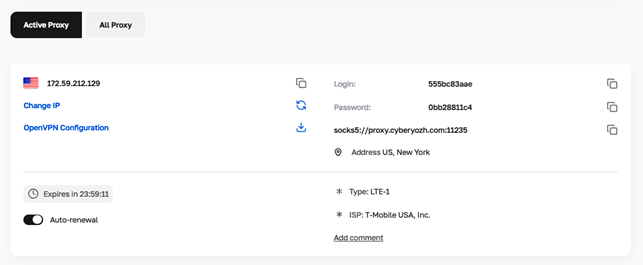
Obtain connection data for the proxy on CyberYozh App.
We have a separate guide explaining step-by-step how to do this.
Connect the proxy in Dolphin{anty}
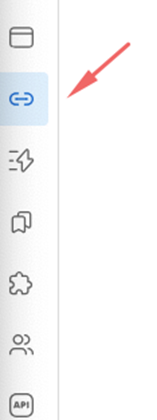
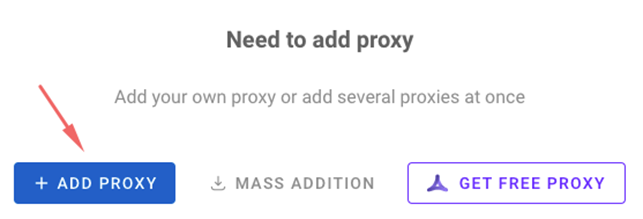
Step 1: Launch the Dolphin{anty} browser and click the “Add Proxy” button. By the way, you can purchase private proxies via this link.
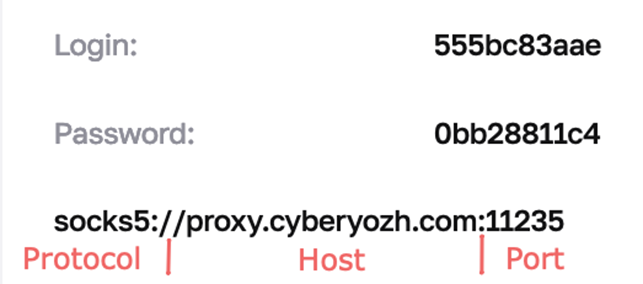
Step 2: Data Entry Fill in the connection data for your proxies, including the protocol, host address, port, login, and password.
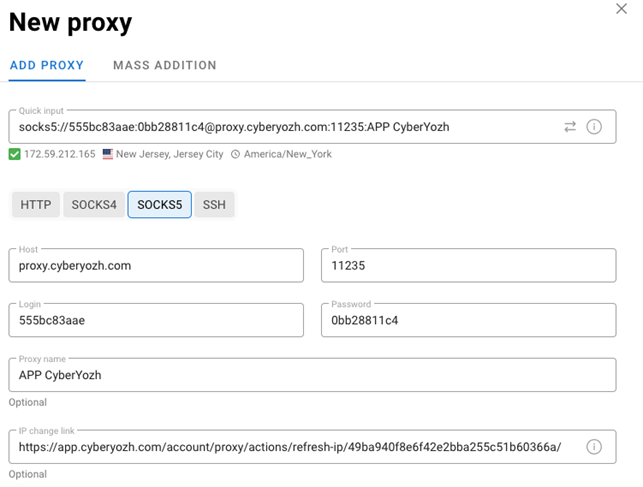
Step 3: IP Rotation Link Don't forget to specify the link for changing the IP if your proxy supports such a function.
Step 4: Quick Input Pay attention to the “quick input” string at the top. This universal proxy connection format can be useful if you need to connect the proxy in another browser. You just need to copy this string.
Step 5: Check Connection Status After entering all the data, check the proxy connection status. Ensure that all data is entered correctly and your connection is stable.

Browser Profile Configuration
Step 1: Profile Creation If necessary, create a new browser profile or add the proxy to an existing one.
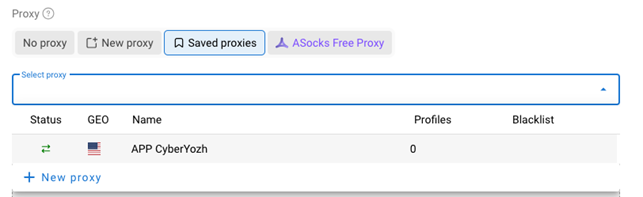
Step 2: Profile Settings Don't forget to configure other profile parameters according to your tasks and requirements. For example, you can set up custom user agents, geolocation, and other parameters to ensure maximum privacy for your connection.
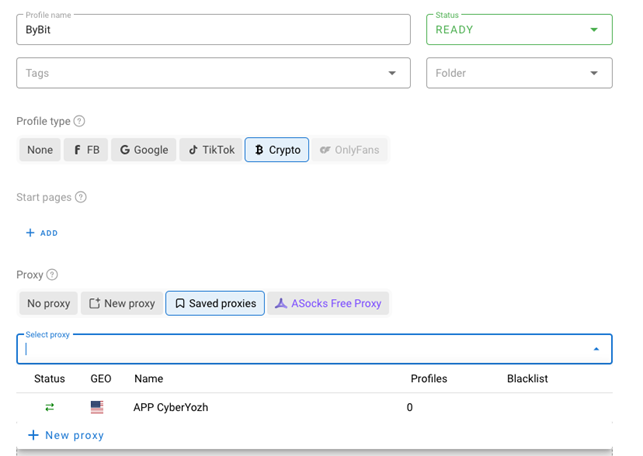
Step 3: Launch the Profile Launch the created or updated profile and check your IP address to ensure the proxy connection is working.
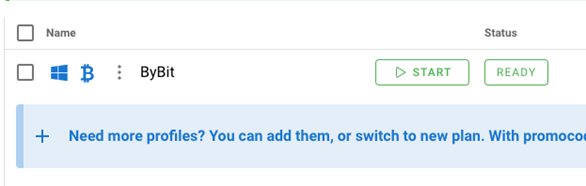
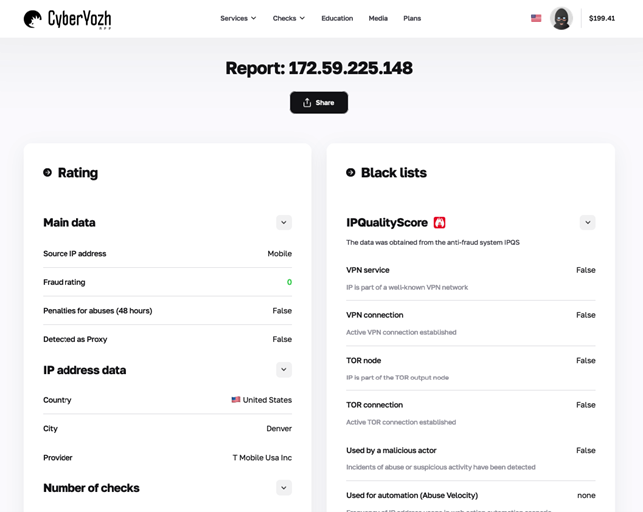
Step 4: Testing It is recommended to check the proxy quality with a special checker to get the most up-to-date information about your IP address.
Conclusion
Now you know how to connect a proxy in the Dolphin{anty} browser using proxies from CyberYozh App.
For additional information, you can contact the CyberYozh App support service via the contacts listed on the website. We also recommend using the “Virtual Numbers for Personal Data Protection” service — it is a convenient and secure way to work with services, allowing you to maintain complete confidentiality. Enjoy your use!