
Unblock proxy in 2026: how to fix a blocked or rejected proxy

You turn on your proxy, open the website you need, and nothing happens. Maybe the browser says the proxy server is not responding. Maybe you get a 403, 407, or 429 error. Or the proxy works perfectly on one website and fails completely on another.
The first thing to understand is that a blocked website and a blocked proxy are not the same problem.
We already cover DNS filtering, ISP restrictions, VPNs, hotspots, and device-level blocks in our guide on how to unblock websites. This guide focuses on the proxy itself: why it stops working, why websites reject proxy IPs, and what to fix before buying another connection.
Quick answer: First test the proxy on several ordinary websites. If nothing works, check the proxy status, credentials, protocol, and local settings. If the proxy works everywhere except one target, the connection is probably fine, and the problem is more likely the IP, location, request rate, or target-side rules.
Need a fresh connection after confirming your current proxy is the problem? Compare CyberYozh proxy types and locations and choose between residential, ISP, mobile and datacenter infrastructure based on the job you are actually doing.
TL;DR: how to unblock a proxy
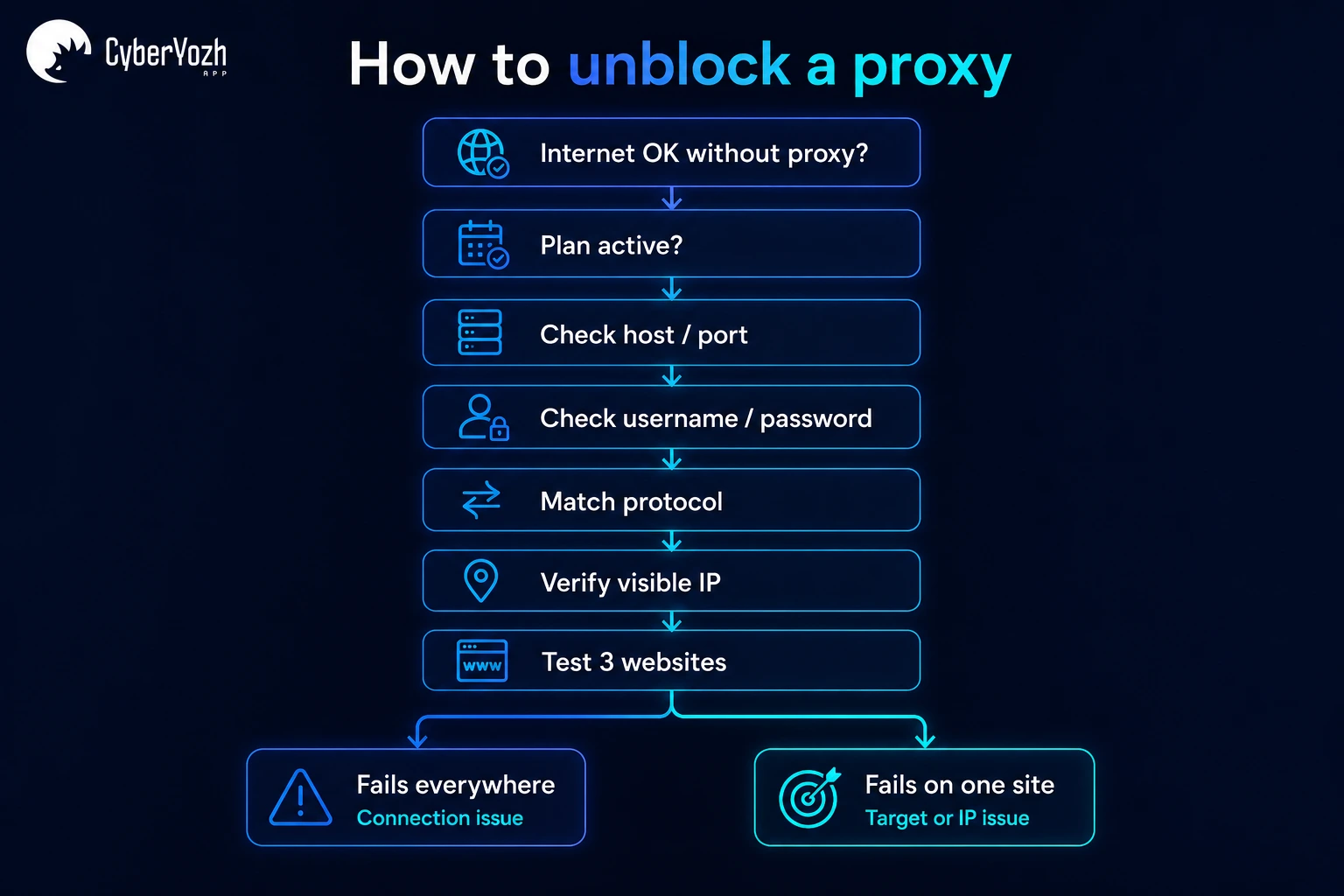
Most proxy problems are easier to solve when you troubleshoot them in the right order.
Turn the proxy off and confirm your normal internet works.
Check whether the proxy rental or plan is still active.
Re-copy the host, port, username, and password.
Confirm that the proxy protocol matches your browser or client.
Connect again and check whether your visible IP changes.
Test two or three unrelated websites.
If nothing works, keep troubleshooting the connection.
If only one website fails, investigate that site's response and the IP being used.
Slow down if you are getting rate-limited.
Replace or rotate the IP only when testing shows that the IP itself is the issue.
For a deeper connection-by-connection diagnosis, work through the CyberYozh proxy troubleshooting checklist from your device through the proxy server to the target website. CyberYozh's current troubleshooting flow treats a proxy as a chain, which is a much better way to find the failing layer than changing random settings.
Getting started with a CyberYozh proxy
If troubleshooting confirms that you genuinely need another proxy, setting up CyberYozh is straightforward. The important part is choosing the network around the workload instead of simply looking for an IP that happens to connect.
Step 1: Create your CyberYozh account
Create an account or sign in to your existing CyberYozh account. From the dashboard, you can purchase proxies, manage connections, and get the credentials required by your browser, app, or proxy client.
Step 2: Choose the right proxy type
Think about what you need the connection to do. ISP or static residential proxies make sense when you need the same IP for longer sessions.
Rotating residential proxies suit data-heavy workflows where controlled IP changes are useful. Current CyberYozh rotating residential pricing is $2/GB, and the current product supports HTTP/HTTPS/SOCKS5 plus rotating and sticky sessions.
LTE/5G mobile proxies make sense when you genuinely need a mobile-carrier connection. Datacenter proxies are useful for workloads where speed and cost matter more than residential or mobile network characteristics. You do not need the most complicated proxy. You need the one that matches the task.
Step 3: choose your location
Select the country your workflow actually requires. Location can matter for regional search results, localization testing, advertising QA, and other legitimate tasks where the target returns different content depending on where the user connects from.
Do not keep changing countries just because a page fails. If location matters, make the choice intentional.
Step 4: Copy your proxy credentials
Once you have the proxy, copy its:
host;
port;
username;
password.
Copy these values directly from the dashboard. One wrong port or a single missing character in the password can make a perfectly healthy proxy look broken.
Step 5: Connect and test
Add those credentials to the browser, application, or proxy client you are using. Then check the IP before moving the real workflow onto the connection. Open a couple of ordinary websites first. If they load through the new IP, you have already proved that the basic connection works.
Connect → verify the IP → test a normal website → open the actual target. That simple order makes troubleshooting much easier.
Why is my proxy blocked
A proxy can appear "blocked" for several different reasons. Sometimes the endpoint really is unavailable. Other times the proxy works normally, but one destination refuses the IP. A third possibility is that the proxy never connected properly in the first place.
What happens | What to check first |
Nothing loads | Proxy status, credentials and local configuration |
407 error | Authentication |
403 on one website | Target-side access rules or IP reputation |
429 error | Request frequency |
One app works and another does not | App-specific proxy configuration |
Website works without proxy but not with it | Target may reject the IP/network |
Proxy stopped suddenly | Plan, traffic allowance or endpoint status |
Do not call all of these an IP ban. The fix depends on which row you are actually in.
How do I unblock a proxy
Start by proving that the proxy can connect at all. If the connection itself is broken, there is no point worrying about IP reputation, website blocking, or rotation yet.
Check whether your normal internet works
Turn the proxy off.
Open several websites normally.
If your internet does not work without the proxy either, fix the underlying connection before troubleshooting the proxy.
Check whether the proxy is active
Open your provider dashboard.
Confirm that the rental has not expired and that a traffic-limited plan still has data available.
A dead subscription cannot be repaired from Chrome.
Re-enter the credentials
Copy the host, port, username and password again.
Do not assume the saved credentials are correct simply because they worked last week.
Check the protocol
Make sure the client is configured for a protocol the endpoint supports.
HTTP, HTTPS, and SOCKS5 behave differently, and configuring the wrong one can stop the connection entirely.
If this is the part you are unsure about, our comparison of SOCKS5 and HTTPS proxies explains which protocol makes more sense for different types of traffic.
Check the visible IP
Once connected, check whether the internet sees the proxy IP or your normal address.
If your original IP is still visible, the proxy is not routing traffic correctly.
Fix that first.
How to fix a proxy problem
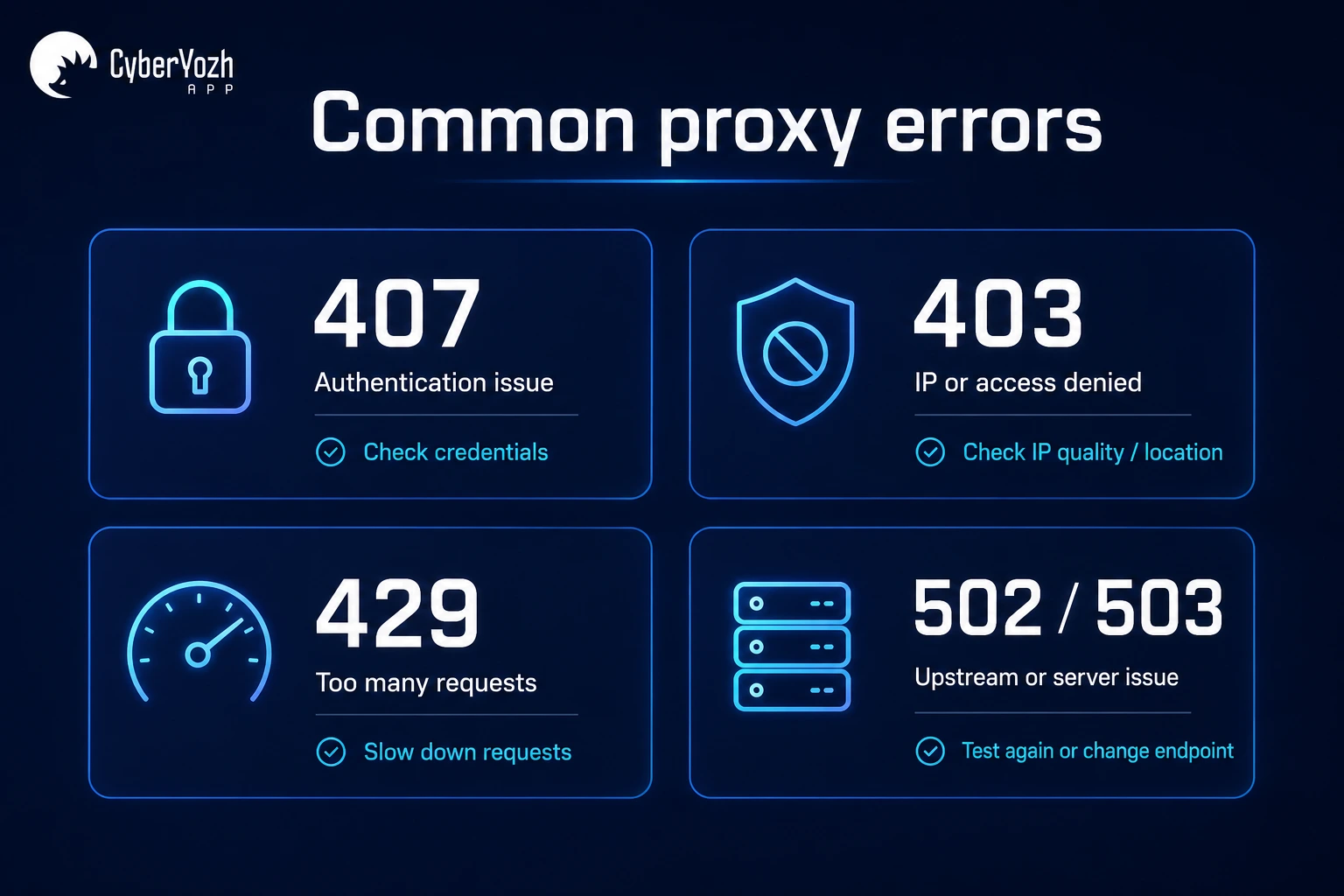
Once you know where the connection fails, the error itself can help narrow down the problem. A 407 points somewhere very different from a 429.
The configured proxy server is not responding
If your device says "the configured proxy server is not responding," test the endpoint somewhere else before replacing it.
Check that:
the endpoint is still active;
the host is correct;
the port is correct;
the protocol is correct;
authentication has not changed;
your firewall or security software is not blocking the client.
If the same proxy fails in several unrelated clients, the endpoint itself becomes a stronger suspect. If it works elsewhere, look at the configuration of the client that is failing.
How to fix a 407 proxy error
A 407 Proxy Authentication Required response means the proxy expects valid authentication from the client. The HTTP specification defines 407 as the response used when authentication with the proxy is required. See the RFC 9110 specification for proxy authentication.
Check the username and password first. If the provider uses IP allowlisting instead of username/password authentication, confirm that the correct source IP is allowed. Do not start rotating endpoints because of a 407. Authentication is the problem to solve first.
What if you get a 403
If the proxy works elsewhere but one target returns 403, the website received the request and refused it. That may be related to access permissions, the IP, its network, its location or another target-side rule.
This is where checking the IP quality score becomes useful. An address with poor reputation signals may be a poor choice for a sensitive workflow even if the proxy is technically online.
A healthy proxy can still have an unsuitable IP. "Connected" and "accepted by this target" are separate tests.
What if you get a 429
A 429 Too Many Requests response usually means the server is rate-limiting the client because too many requests arrived within a certain period. Servers may also include a Retry-After value telling the client when to try again.
Slow down before changing IPs. Reduce concurrency, introduce delays, and respect the website's limits.
If the workflow legitimately requires multiple IPs, use planned rotation rather than changing addresses every time you see an error. Our guide to rotating IP addresses without breaking the workflow goes deeper into when rotation actually helps.
What about 502, 503 and other proxy server errors
Do not assume every server error means your IP was blocked. A gateway, upstream service, or target server can fail even when your proxy is working normally.
The breakdown of common proxy errors covers the major 4xx and 5xx responses and what each one usually tells you about the failing part of the connection. CyberYozh's current error guide specifically separates authentication, rate limiting, geolocation, and upstream/server problems.
When should you replace the proxy IP
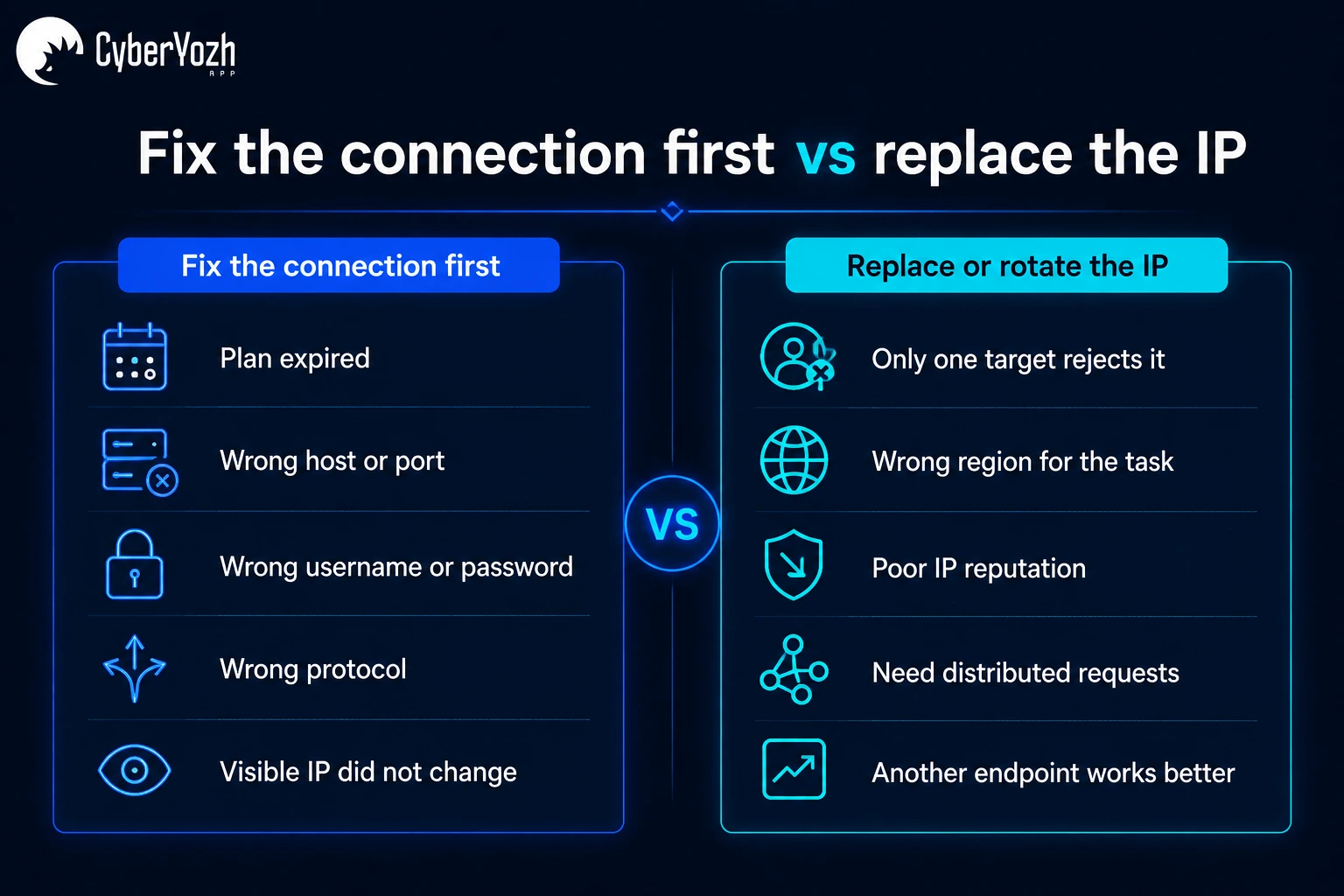
Replace the address when your tests actually point to the IP. For example:
the proxy works on most websites;
the target repeatedly rejects this particular IP;
another suitable endpoint works;
the IP has poor reputation signals;
the address is in the wrong region for the legitimate task.
A new IP will not fix an expired subscription, wrong password, or broken browser setting.
Decision rule: Rotation is a network strategy, not a universal repair button.
What if the proxy location is wrong
Sometimes the endpoint is healthy, but its location simply does not fit the workflow. For regional search testing, local pricing, advertising checks, and other location-sensitive work, verify that you selected the correct geography before replacing the entire setup.
Need to test or operate from a specific supported region? Use CyberYozh geo-targeting proxies when the task genuinely depends on country, city, or other supported location targeting. CyberYozh's current geo-targeting product is designed around localized business workflows rather than random country switching.
Geotargeting changes the network location a website sees. It does not change a person's legal residence, account eligibility, or permission to use a service.
How do I unblock proxy sites in Google Chrome
There are two different Chrome problems that often get grouped together. The first is Chrome cannot use the proxy at all. The second is Chrome connects through the proxy, but one website refuses to load. For the first problem, check:
which extension or system setting controls the proxy;
the host and port;
authentication;
the proxy protocol;
whether an old proxy configuration is still active.
If you need to rebuild the connection from scratch, follow the steps for setting up a proxy server in Chrome. CyberYozh's current Chrome guide covers both system-level setup and browser-based proxy use.
If Chrome connects through the proxy and other websites work, stop changing Chrome settings. Investigate the target instead.
How do I turn off the proxy blocker
If you simply want to stop using a proxy on your own device, disconnect the proxy extension or client and remove the manual proxy configuration you added.
Then check your IP again. Your normal connection should be visible.
If the proxy setting is controlled by an employer, school, or another network administrator, do not try to override locked policies. Ask the administrator to change the setting if you have a legitimate business or access requirement.
What is the best unblocked proxy
There is no proxy that can truthfully promise to remain unblocked on every website. Websites can restrict individual IPs, IP ranges, hosting networks, locations, or certain traffic patterns.
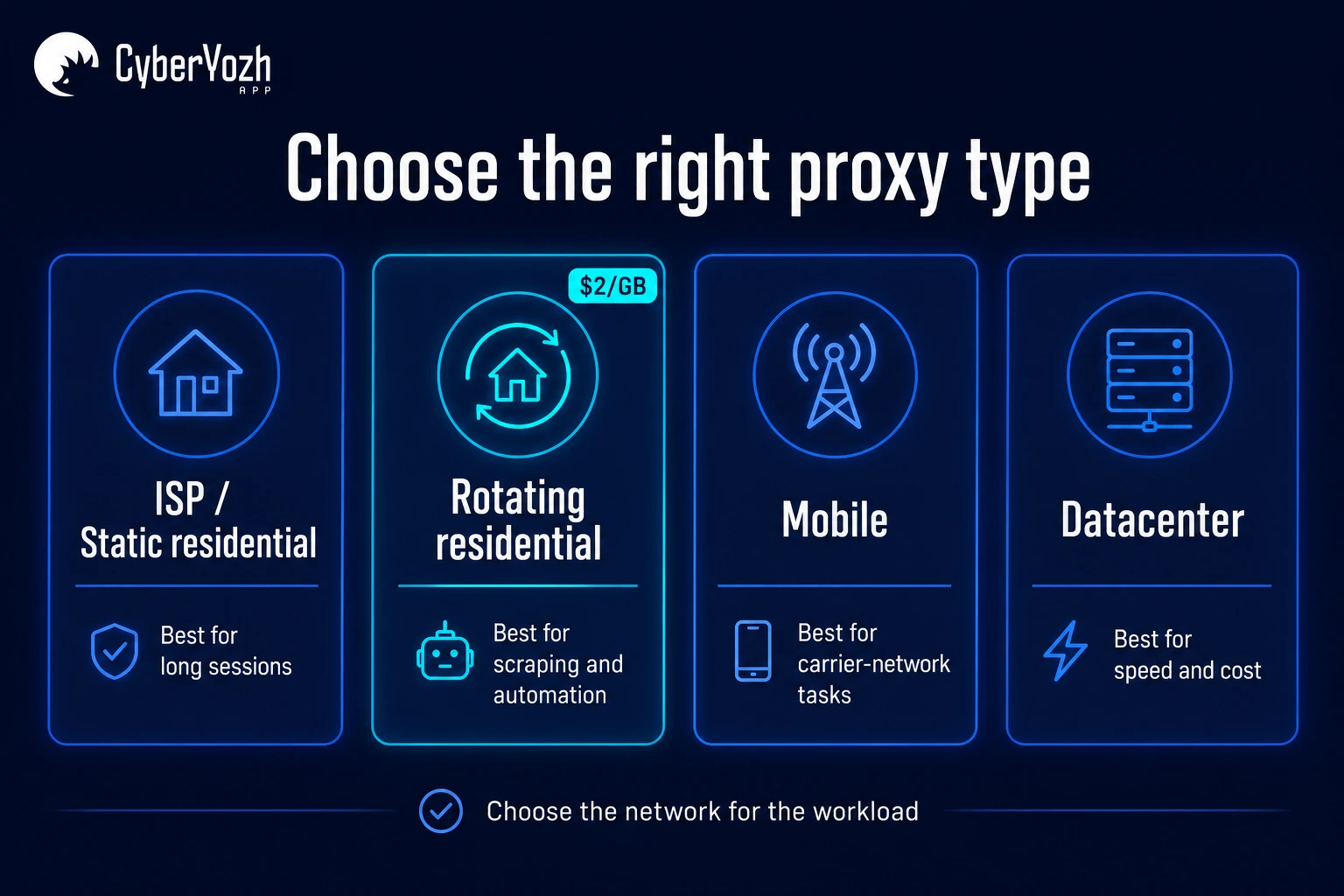
So the better question is: what proxy is appropriate for this task? For example:
stable ISP/residential IP for longer sessions;
rotating residential infrastructure for distributed data collection;
mobile proxy when a real carrier-network connection is required;
datacenter proxy when speed and efficiency are the main requirements.
Do not pay for a more complicated network simply because it sounds harder to block. Choose based on what the workload needs.
Where can I find free and working proxies
Free proxies exist, but "working" only means the server responded during the test. It does not tell you:
who operates it;
whether other people share the IP;
how long it will stay online;
whether traffic is logged;
whether the address already has a poor reputation.
For opening a low-risk public page, that may be acceptable. For logins, business data, or professional workflows, the risk is very different. Before routing sensitive traffic through an unknown endpoint, understand whether proxies are safe and what can go wrong.
Never judge a proxy only by whether it opens a webpage. Reliability, reputation, ownership, and data handling matter too.
Are unblocked proxies legal
Proxies themselves are legitimate networking tools. Businesses use them for testing, data collection, localization, ad verification, privacy, automation, and many other normal tasks. What matters is what you do with the proxy.
Using one does not give you permission to access an account, system, dataset or service you are not allowed to access. It also does not override laws or contractual restrictions that apply to you. When a service or country has specific rules, check those rules independently of whether a proxy can technically reach the destination.
Final thoughts
When a proxy stops working, changing IPs immediately is usually the wrong first move. Start with the simple question: does the proxy itself work? If it does not, check the subscription, credentials, protocol, and configuration.
If it works everywhere except one website, focus on the target, response code, IP quality, and traffic pattern. And if testing confirms that the address really is the problem, replace it with a network that makes sense for the task instead of searching for a mythical proxy that is "unblocked everywhere."
Still unsure which connection fits your workload? Start with CyberYozh's explanation of proxy server types and how they differ before choosing your next endpoint.