
Why Does Facebook Session Expires: Causes, Fixes & Prevention Tips for 2026
You're in the middle of something, checking your messages, managing an ad campaign, or catching up on a group thread, and suddenly Facebook stops you cold:
"Your session has expired. Please log in again."
It's frustrating every single time. And if it's happening repeatedly, it starts to feel like something is genuinely wrong. Here's the good news: in the vast majority of cases, this error is completely fixable in under five minutes.
In this guide, we'll explain what a "session" actually is, walk you through every real cause of this error (including the ones most articles skip), give you device-specific fixes for iPhone, Android, and every major desktop browser, and show you how to make sure this stops happening for good.
TL;DR: Facebook session expired: Quick summary
The "Facebook session expired" error means your login token has been invalidated. Here's everything you need to know at a glance:
Why it happens: Inactivity timeout, corrupted cache or cookies, an outdated app or browser, unstable internet or IP changes, conflicting browser extensions, suspicious account activity, or a Facebook server outage.
How to fix it fast:
All devices: Log out fully, then log back in
Desktop: Clear your browser's cache and cookies
iPhone: Delete and reinstall the Facebook app (iOS has no direct cache-clear option)
Android: Clear app cache and disable battery optimization for Facebook
Browser users: Test in incognito mode to rule out a rogue extension
Everyone: Check Downdetector first, if Facebook is down, no fix will help
How to prevent it from recurring: Enable two-factor authentication, keep the app and browser up to date, avoid switching networks frequently, and clear your browser cache monthly.
For marketers and multi-account users: Repeated session drops at scale are almost always caused by IP instability. A dedicated static residential proxy per account is the standard solution.
What does "Facebook session expired" mean
When you log into Facebook, the platform doesn't keep asking you to prove your identity every five seconds. Instead, it creates something called a session token.
“Think of it as a temporary digital pass that says, 'Yes, this person has already logged in; let them through."
That pass has an expiry date. Facebook sets one for security reasons: if your device is stolen, you stop using it, or something suspicious is detected, the token becomes invalid, and you're asked to verify your identity again. When that happens, you see the "your session has expired" message.
Most of the time, it's routine. But when it keeps happening, something specific is triggering it, a nd that's what the rest of this guide is designed to help you identify and fix.
Why does my Facebook keep saying session expired
Here are 8 valid reasons why Facebook might keep saying “session expired.”
1. Your Facebook session token timed out due to inactivity
Facebook's sessions don't last forever. If you leave a browser tab open and walk away from it for a long stretch without interacting, your token quietly expires in the background. The next click you make triggers the error. This is one of the most common causes, and the least alarming.
2. Logging in across multiple devices or locations
Every new login creates a new session. When Facebook's systems detect sign-ins from multiple devices or locations within a short window, it can interpret this as suspicious behavior and terminate older sessions as a precaution. If you're regularly switching between a phone, laptop, and work computer, this pattern can trigger the error more frequently than you'd expect.
3. Corrupted cache or outdated cookies
Your browser and app store temporary files, called cache, to make Facebook load faster. Your login state is stored in cookies. Over time, these files become outdated, corrupted, or bloated with old data. When Facebook checks your session token against its records and gets a mismatch, it logs you out. This is the single most common fixable cause.
4. An outdated app or browser version
Facebook continuously updates its security systems. If your app or browser is running an older version, it may no longer communicate cleanly with Facebook's servers, causing unpredictable session drops. An update takes two minutes and solves this permanently.
5. Unstable internet or frequent IP address changes
Facebook links your active session to your IP address, the identifier that tells it where you're connecting from. When you switch between Wi-Fi and mobile data, change networks, or use a connection where your IP changes frequently (public hotspots are especially bad for this), Facebook interprets the shift as a potential security risk and terminates your session.
6. A browser extension interfering with your login
Ad blockers, VPN browser extensions, cookie managers, and certain privacy tools can block or alter the very cookies Facebook uses to maintain your session. Some do this intentionally (to prevent tracking), and some do it as an unintended side effect. Either way, the result is the same: Facebook can't verify your session, so it logs you out.
7. Suspicious or unauthorized account activity
If someone else is attempting to access your Facebook accounts, or has already done so, Facebook's automated security systems may force-expire your session as a protective measure. This is less common than the technical causes above, but it's the one worth ruling out first if nothing else explains the pattern.
8. A Facebook server outage or platform disruption
Sometimes the issue has nothing to do with your device or account whatsoever. Platform outages, rolling updates, and partial server disruptions can trigger mass session expirations that affect thousands of users simultaneously. This is the cause that almost everyone troubleshoots around, when the actual fix is simply to wait.
Do this first: Check whether Facebook is actually down.
Before touching a single setting on your device, spend 30 seconds here: Visit Downdetector's Facebook page or Meta's Platform Status page. If there's a spike in reported issues or a confirmed service disruption, the problem is entirely on Facebook's side, and no amount of cache clearing will fix a server outage. Wait it out, check back in an hour. If both pages show normal operation, the problem is on your end, and the fixes below will sort it.
Quick-reference: Which fix matches your cause
Here’s a simple overview of the issues you’re facing and how to solve each one. Each solution has a number. Check the next section for step-by-step instructions.
What You're Experiencing | Most Likely Cause | Go To |
Error after leaving Facebook open for hours | Inactivity timeout | Fix 1 |
Error after switching between devices | Multiple active sessions | Fix 1 |
An error is happening on one specific browser | Corrupted cache/cookies | Fix 2 |
Error on iPhone only | iOS cache issue | Fix 3 |
Error on Android only | App or battery settings | Fix 4 |
Error after installing a new extension | Browser extension conflict | Fix 5 |
Error on shaky or public Wi-Fi | Unstable connection | Fix 6 |
Error is happening repeatedly with no pattern | Possible account compromise | Fix 7 |
Error affecting everyone you know today | Facebook outage | Check server status above |
"Check the next section below for all the fixes along with their respective numbers."
How to fix the Facebook session expired error: Every device covered
Fix 1: Do a proper log-out and log back in
A clean log-out cycle completely invalidates the old, broken session token and issues you a fresh one. The keyword here is proper; closing the app tab isn't the same as logging out.
On the mobile app (iPhone or Android): Tap the three-line menu icon, then scroll to the bottom and tap Log Out. Reopen the app and sign in again.
On desktop: Click your profile icon in the top right and Log Out. Then log back in.
If you're seeing the error across multiple devices at once: Go to Settings & Privacy → Settings → Security and Login → Where You're Logged In → tap “Log Out of All Sessions”. This wipes every active session at once, forcing a clean re-authentication everywhere.
Fix 2: Clear your browser cache and cookies (Desktop)
This is the fix for most browser-based session errors.
Google Chrome: Click the three-dot menu (top right)→ Settings → Privacy and Security → Delete browsing data.
Under Advanced, tick “Cookies and other site data” and “Cached images and files”. Set the time range to “All time”. Click Delete data. Relaunch Chrome before signing back into Facebook.Mozilla Firefox: Click the three-line menu → Settings → Privacy & Security → scroll to Cookies and Site Data → Clear Data. Tick both options and confirm. Relaunch Firefox.
Microsoft Edge: Click the three-dot menu → Settings → Privacy, Search, and Services → Clear Browsing Data → Choose What to Clear. Select cookies and cached data, set to all time, clear, and relaunch.
Safari (Mac): In the menu bar, click Safari → Clear History. Select all history from the dropdown and confirm. Note: this clears cookies site-wide, so you'll need to log back into other websites, too.
Fix 3: The iPhone-specific fix
Here's something almost no guide tells you: on iPhone, you cannot clear the Facebook app's cache directly. iOS simply doesn't offer that option in Settings for most third-party apps, including Facebook.
The correct fix for iPhone is to delete the Facebook app and reinstall it fresh from the App Store. This sounds drastic, but it takes about two minutes and clears every corrupted file stored locally. Your account, photos, posts, messages, and everything else live on Facebook's servers; nothing is lost.
Here's exactly how:
Press and hold the Facebook app icon on your home screen
Tap Remove App → Delete App and confirm
Restart your iPhone (this step matters; it clears memory fully)
Open the App Store, search for Facebook, and reinstall
Log in fresh
Fix 4: Clear the cache on Android and check battery optimization
Clearing the app cache on Android: Go to Settings → Apps → See All Apps → Facebook → Storage & Cache → Clear Cache. Do not tap Clear Storage unless you want to be fully signed out and have your app data wiped. Cache only is the targeted fix. Relaunch the app and log in.
The Android-specific bonus fix is battery optimization: Android's battery saving features can forcibly kill background apps to preserve power. When Facebook gets force-stopped in the background, your session resets. This is why some Android users see this error repeatedly, even after clearing the cache.
Fix it here: Settings → Battery → Battery Optimization (or App Battery Usage) → Find Facebook → Set to "Unrestricted" or "Don't Optimize." The exact menu name varies slightly by Android manufacturer (Samsung, Pixel, OnePlus, etc.), but the path is similar across all of them.
Fix 5: Identify and turn off the rogue browser extension
Start with a quick test: open Facebook in an incognito or private browsing window (Ctrl+Shift+N on Chrome, Ctrl+Shift+P on Firefox). These modules offer all extensions by default.
If Facebook works fine in incognito, a browser extension is causing the issue. To find which one, turn off all your extensions, log into Facebook normally, then re-enable them one at a time, testing Facebook after each one. The extension that breaks your session when re-enabled is the culprit.
"Common offenders: uBlock Origin (when set to aggressive mode), Privacy Badger, cookie auto-delete tools, and certain VPN extensions. The fix is either to turn off the extension entirely or to allow facebook.com within that extension's settings."
Fix 6: Switch to a more stable network connection
If your connection is jumping between Wi-Fi and mobile data, reconnect to Wi-Fi only and keep it stable. On public or shared networks, try switching to your mobile data instead; the connection tends to be more consistent.
At home, if your router has been running for weeks without a restart, reboot it. This refreshes your IP address assignment and clears any network-level issues that may be affecting your session.
If you use a VPN, try temporarily turning it off and logging into Facebook. Many VPNs, especially free ones, rotate your IP address frequently, which Facebook reads as a suspicious connection shift and terminates your session in response. If a VPN is necessary for your workflow, switch to one that offers a dedicated (static) IP address to eliminate this variable.
Fix 7: Check your account for unauthorized access
If the error is happening repeatedly with no obvious technical explanation, treat it as a security signal worth investigating.
Step 1: Go to Settings & Privacy → Settings → Security and Login → Where You're Logged In. Scroll through every listed device and location. If anything looks unfamiliar, a device you don't own, a city you haven't been to, click the three dots next to it and select Log Out.
Step 2: Change your password immediately. Go to Settings → Security and Login → Change Password. Use something long, unique, and not used anywhere else. A password manager like Bitwarden (free) makes this painless.
Step 3: Enable two-factor authentication if you haven't already. Go to Settings → Security and Login → Two-Factor Authentication. This means even if someone has your password, they can't get in without a second code from your phone. Find detailed setup instructions on Facebook's official 2FA help page.
Fix 8: Update the Facebook app and your browser.
Go to the App Store or Google Play Store, search for Facebook, and tap Update if one is available. For your browser, in Chrome: three-dot menu → Help → About Google Chrome, it will auto-install any available update. Enable automatic updates for both, so this is never the cause again.
Fix 9: Reinstall the app (Android and iPhone)
If you've worked through every fix above and the error persists on mobile, a fresh installation is the nuclear option, and it almost always works. Delete the app, restart your phone, and reinstall from the App Store or Google Play. Log in fresh with updated credentials.
For marketers & power users: Session errors at scale
If you're managing Facebook professionally, running ad campaigns, operating multiple pages, or handling client accounts, the session expired error doesn't just interrupt your day; it costs money.

The root issue for multi-account users is almost always IP-based detection. When multiple accounts log in from the same IP address, or when a single account shows login patterns that don't match a normal human browsing session, Facebook's systems flag the activity and begin terminating sessions.
The industry-standard solution is residential proxies, IP addresses that route your traffic through real home internet connections.For professional use, the setup to aim for is:
One dedicated static residential proxy per account: this creates a consistent, account-specific login history that Facebook learns to trust over time
Mobile (4G/5G) proxies: for the highest trust levels, Facebook is a mobile-first platform, and mobile IPs are treated accordingly
This combination eliminates the IP-instability trigger entirely and dramatically reduces session expirations for users managing accounts at scale.
How have CyberYozh proxies prevented Facebook session expiry
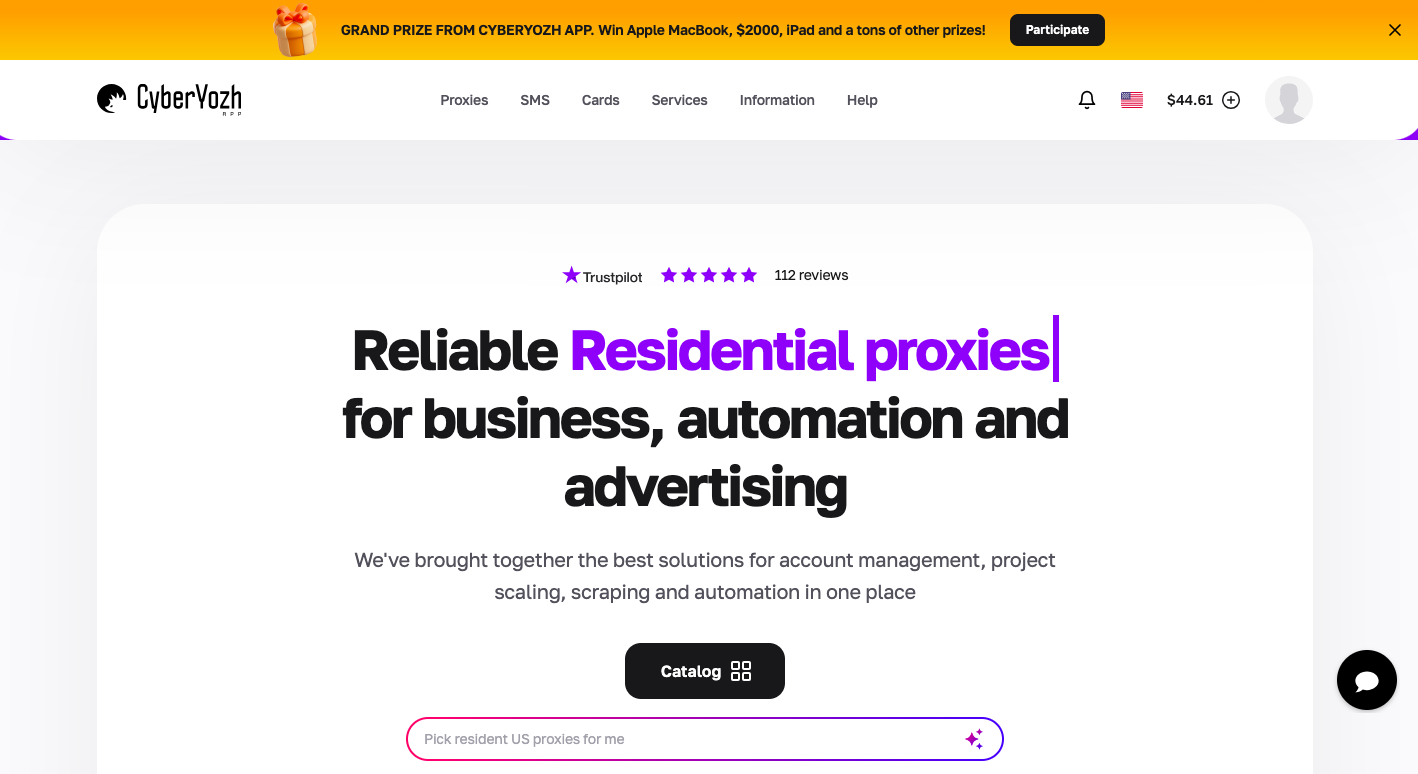
Unlike most proxy providers, CyberYozh emphasizes a unique view: its IP quality, a highly significant factor in Facebook session expiry. Here are some of Cyberyozh's best features:
Every IP is screened against 50+ security databases.
50M residential IPs across 100+ countries with city and country targeting
Real 4G/5G mobile proxies on actual carrier networks with unlimited traffic.
Built-in SMS and phone number verification, no third-party service needed
99.9% uptime
Provides residential, mobile, and datacenter proxies, all in one dashboard
SOCKS5, HTTP, HTTPS, and UDP protocol support
Works seamlessly with anti-detectors such as Multilogin, AdsPower, and Dolphin Anty
Full automation and web scraping support.
24/7 customer support in 7 languages
Known to be the most affordable in the market with mobile proxies with unlimited traffic from $1.70/day, and Static residential proxies start from $5.29/month.
CyberYozh is known for its all-in-one toolkit. Users have no reason to buy all necessary services from 3 different proxy providers, which is costly and time-consuming; instead, CyberYozh offers an all-in-one infrastructure for beginners to larger enterprises, all at an affordable price.
How to prevent the Facebook session expiration loop

1. Keep the app and browser updated automatically. Turn on auto-updates for Facebook on iOS and Android. This permanently removes version incompatibility as a recurring cause.
2. Clear your browser cache once a month. Set a calendar reminder. Old cached data accumulates silently and is one of the most consistent drivers of session issues over time.
3. Don't leave Facebook idle in a browser tab for hours. Session tokens expire during extended inactivity. Log out properly when you're done, rather than leaving it open.
4. Consolidate your active sessions. Go to Where You're Logged In and log out of devices you no longer actively use. Fewer active sessions mean a lower risk of being terminated without warning.
5. Use a consistent network connection for Facebook. Avoid frequent network-switching. If you must use public Wi-Fi regularly, use a paid VPN with a static IP to maintain session consistency.
6. Turn on two-factor authentication. Beyond account security, 2FA ensures that even if Facebook's systems force you out, re-authentication is frictionless. It's the single most valuable account setting you're not using if you haven't enabled it yet.
7. Audit your browser extensions every few months. Remove anything you don't recognize or don't actively use. Fewer extensions = fewer potential session conflicts. Keep only what you genuinely need.
Conclusion about the Facebook session expired error
The "Facebook session expired" error is genuinely one of the most fixable problems on the platform; it just rarely comes with a clear explanation of why it's happening to you in particular.
For most people, the fix takes under five minutes: a proper log-out and log-in cycle, a cache clear, or an app update. iPhone users need the reinstall fix that almost no guides mention. Android users often need the battery optimization tweak in addition to clearing the cache. Browser users need to check their extensions before assuming the problem is something deeper.
Frequently asked questions about the Facebook session expiry
Q1: Why does Facebook keep saying session expired even right after I log back in?
You're in what's called a Facebook session-expired loop, which usually means the underlying cause hasn't been resolved, so every new session gets terminated before it can stabilize.
Q2: Does "Facebook session expired" mean my Facebook account has been hacked?
Not automatically, but it's a scenario worth checking. Inactivity, cache issues, network instability, or outdated software cause the overwhelming majority of session expiration errors. They have nothing to do with unauthorized access.
Q3: How do I fix the Facebook session expired error on iPhone?
To fix the error on your iPhone, delete the app and reinstall it from the App Store. This clears all locally-stored session data and corrupted files.
Q4: Can a VPN cause the Facebook session expired error?
Yes, very commonly. VPNs change your IP address, and if that IP changes between sessions or mid-session, Facebook detects a connection shift that resembles suspicious activity and terminates your login.
Q5: How long does a Facebook session last before it expires automatically?
Facebook doesn't publish an exact duration, and the answer varies based on activity level, platform, and device.
Q6: Why is the session expired error happening on Android but not on my other devices?
Android-specific session drops usually come down to three things. First, battery optimization. Second, it is due to an outdated app version that isn't fully compatible with Facebook's current authentication system. Third, a network issue specific to your Android device's connection.
Helpful?
Share article