Cómo encontrar mi dirección MAC en cualquier dispositivo: Windows, macOS, iPhone y Android
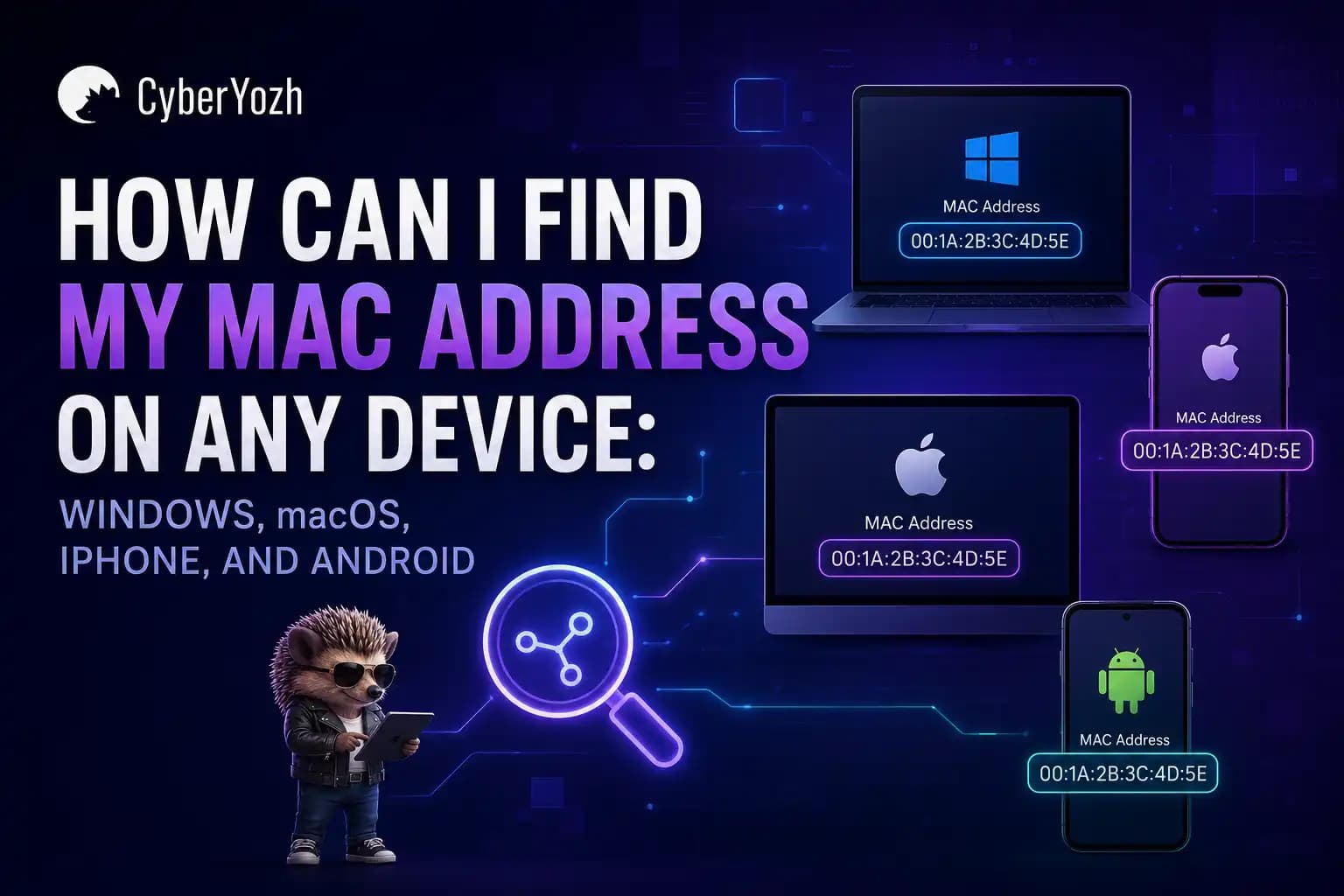
¿Alguna vez necesitaste encontrar la dirección MAC de tu dispositivo para solucionar problemas de red o ajustar la configuración de seguridad, pero no sabías dónde buscar? Encontrar tu dirección MAC requiere solo unos pasos rápidos, ya sea que uses Windows, macOS, iPhone o Android.
Una dirección MAC es un identificador único asignado al adaptador de red de tu dispositivo. Muchos usuarios la confunden con la dirección IP, que identifica tu dispositivo en una red o en internet. En esta guía aprenderás dónde encontrar tu dirección MAC en cualquier dispositivo y para qué podrías necesitarla.
Si buscas la IP en su lugar, lee nuestra guía de búsqueda de direcciones IP.
Resumen
Una dirección MAC es un identificador único del adaptador de red de tu dispositivo. Puedes encontrarla en la configuración de red o mediante la línea de comandos en Windows, macOS, iPhone y Android.
No confundas la MAC con la dirección IP. Las MAC identifican dispositivos en redes locales; las IP identifican tu conexión en línea.
Para tareas profesionales como segmentación geográfica o gestión de múltiples cuentas, un proxy dedicado puede ajustar tu IP para que tu tráfico aparezca desde una ubicación diferente o identidad — tu dirección MAC permanece local.
¿Qué es una dirección MAC?
Una dirección MAC (Media Access Control) es un identificador de hardware único asignado a tu adaptador Wi-Fi o Ethernet. Permite que los dispositivos se identifiquen y comuniquen entre sí en una red local.
Cada adaptador de red tiene su propia dirección MAC, por lo que las conexiones Wi-Fi y Ethernet de tu portátil pueden tener direcciones MAC diferentes.
Cómo encontrar mi dirección MAC en Windows
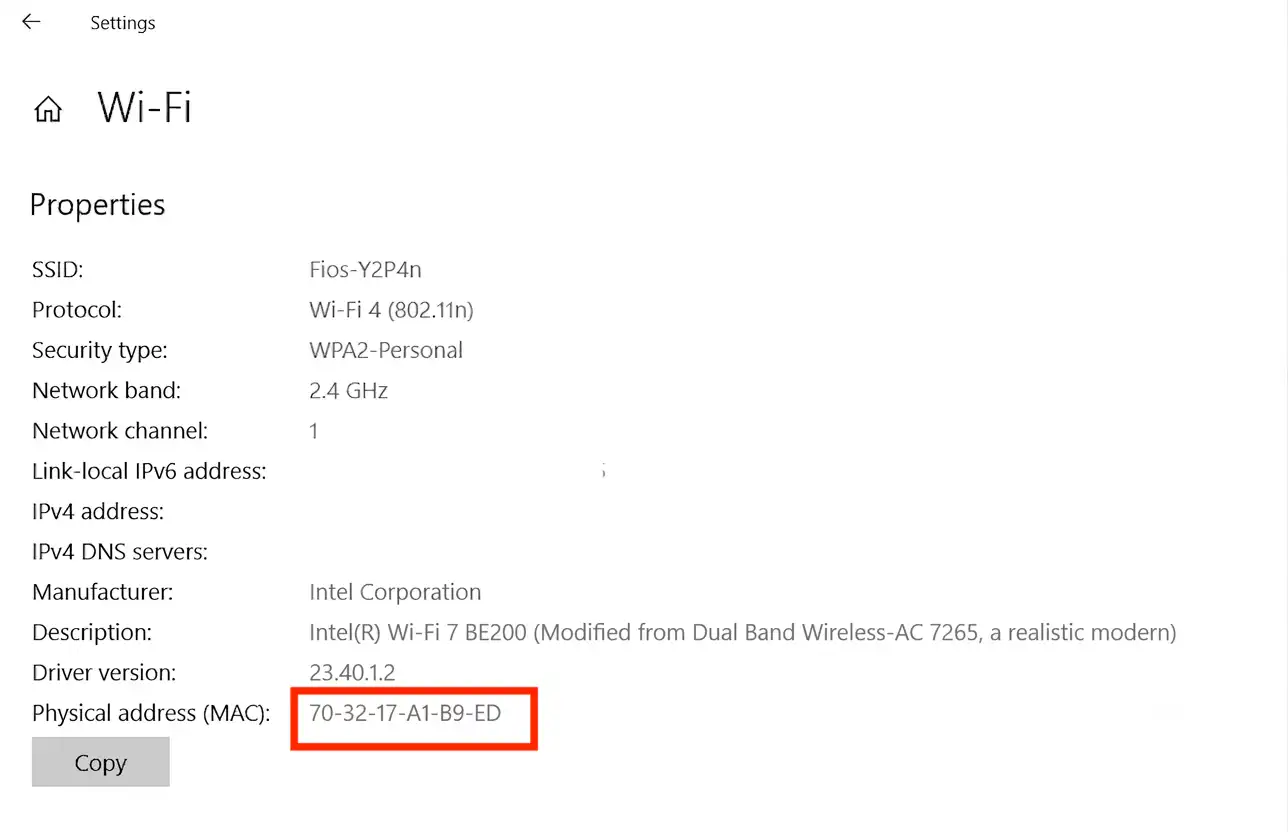
Hay dos formas de encontrar tu dirección MAC en Windows: una con interfaz visual y otra más rápida mediante la línea de comandos.
Método 1: Usando la configuración
Abre Configuración → Red e Internet.
Selecciona Wi-Fi o Ethernet, según tu conexión.
Haz clic en Hardware properties.
Busca Physical address (MAC).
Método 2: A través del símbolo del sistema
Presiona Win + R, escribe cmdy presiona Enter.
Ejecuta:
ipconfig /allBusca tu adaptador de red activo y observa la Physical Address, que es tu dirección MAC.
A diferencia de tu dirección MAC, tu dirección IP pública es visible para los sitios web que visitas. Puedes verificar tu IP usando Whoer.net o herramientas similares para ver tu IP actual. Esto también es útil cuando usas un proxy residencial: para verificar que los sitios web vean la ubicación del proxy y no tu IP original.
Cómo encontrar mi dirección MAC en una Mac
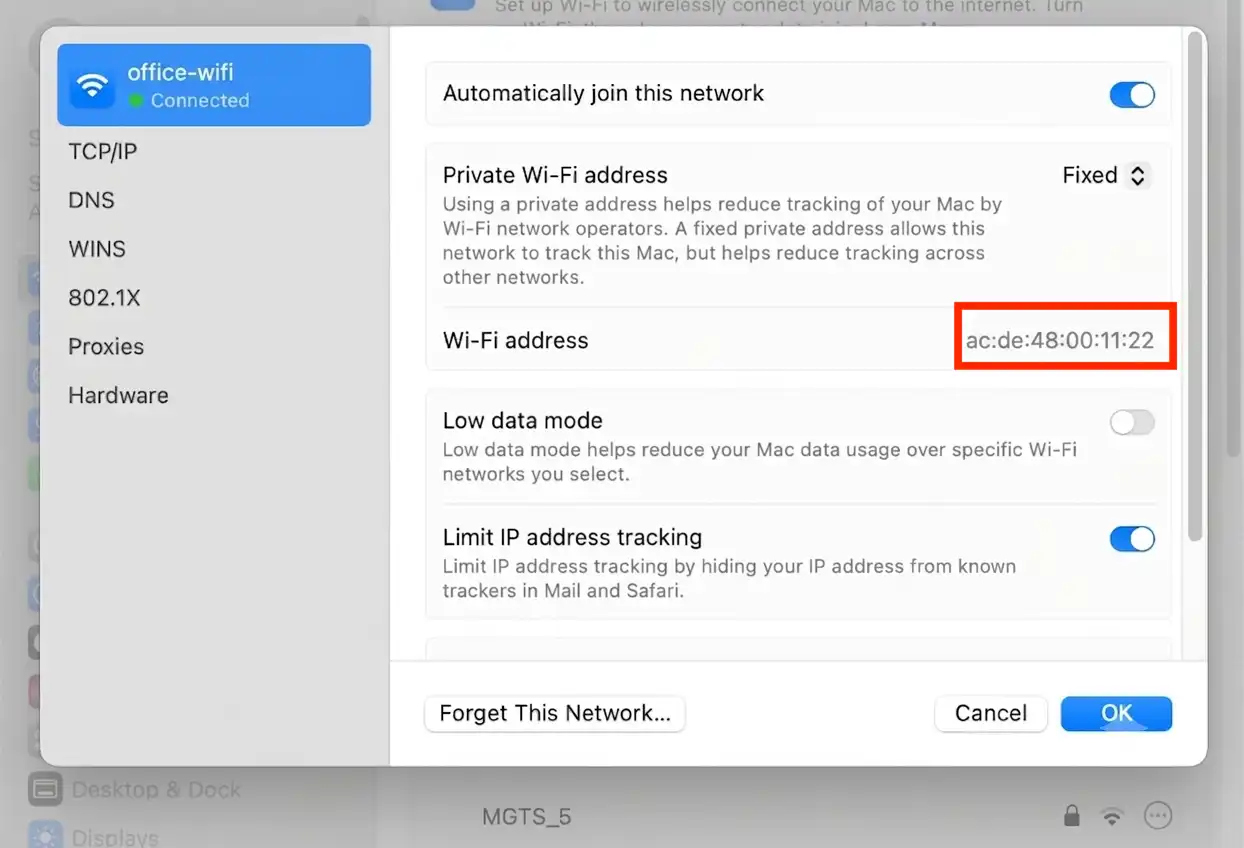
Puedes encontrar tu dirección MAC en Ajustes del Sistema o usando Terminal. Si estás intentando encontrar tu dirección IP en una Mac, ten en cuenta que la dirección MAC aparece por separado de la dirección IP de tu red.
Método 1: En la configuración del sistema
Abre Ajustes del Sistema → Red.
Selecciona Wi-Fi (o Ethernet).
Haz clic en Detalles.
Busca Dirección MAC (o Dirección Wi-Fi, dependiendo de tu versión de macOS).
Método 2: A través de la terminal
Abre Terminal.
Ejecuta:
ifconfigLocaliza tu interfaz de red activa (como en0 para Wi-Fi, aunque en algunos Macs podría ser en1) y busca el valor ether. Esta es tu dirección MAC.
¿Buscas tu dirección IP en su lugar? Si te preguntas cómo encontrar tu dirección IP en tu Mac, lee nuestro artículo sobre búsqueda de direcciones IP.
Cómo encontrar la dirección MAC en un iPhone
Para encontrar la dirección MAC de tu iPhone:
Abre Ajustes.
Toca General → Acerca de.
Desplázate hacia abajo hasta Dirección Wi-Fi. Esta es la dirección MAC de tu iPhone.
Importante: Si estás conectado a una red Wi-Fi, tu iPhone puede usar una dirección Wi-Fi privada (aleatorización de MAC) por privacidad. La dirección que se muestra en Ajustes → Acerca de es tu MAC de hardware real. La aleatorizada aparece por red en los ajustes de Wi-Fi.
Para capturas de pantalla y una explicación más detallada de la dirección Wi-Fi privada (aleatorización de MAC), consulta nuestra guía completa sobre cómo encontrar la dirección MAC en un iPhone.
Cómo encontrar mi dirección MAC en Android
Los pasos exactos varían según el fabricante y la versión de Android, pero normalmente puedes encontrar tu dirección MAC en los ajustes del dispositivo.
Método 1: Usando los ajustes
Abre Ajustes.
Toca Acerca del teléfono o Acerca del dispositivo.
Selecciona Estado, Información del hardware, o Wi-Fi.
Busca Dirección MAC Wi-Fi.
Método 2: A través de la configuración de Wi-Fi
Abre Ajustes → Red e Internet → Wi-Fi.
Toca tu red conectada o Preferencias de Wi-Fi.
Busca Dirección MAC, MAC del dispositivoo Dirección MAC de Wi-Fi.
Consejo profesional: Si no puedes encontrarla, usa la barra de búsqueda de Ajustes y busca «Dirección MAC» o «Dirección MAC de Wi-Fi».
En Android 10 y versiones posteriores, puedes ver una MAC aleatoria, que se utiliza por privacidad al conectarse a redes Wi-Fi. Para ver tu MAC de hardware real, haz clic en «MAC del dispositivo» o «MAC del teléfono» (generalmente aparece por separado de la aleatoria).
Dirección MAC vs. dirección IP: La diferencia
Una dirección MAC y una dirección IP a menudo se confunden. Sin embargo, en realidad tienen propósitos diferentes. Una dirección MAC identifica tu dispositivo en una red local, mientras que una dirección IP identifica tu dispositivo en una red o en Internet. Por ejemplo, si usas un proxy de EE. UU., los sitios web verán que tu conexión proviene de Estados Unidos.
La tabla a continuación destaca las diferencias clave.
Dirección MAC | Dirección IP |
|---|---|
Identificador de hardware | Identificador de red |
Se usa en redes locales | Se usa en internet y redes locales |
No cambia cuando usas un proxy | Se puede ocultar con proxy/VPN |
Asignada a un adaptador de red | Asignada por un router o ISP |
Permanece con el adaptador de red | Puede cambiar con el tiempo |
No se enruta por internet | Se enruta por internet |
Verifica los riesgos de fraude de tu IP antes de ejecutar flujos de trabajo profesionales.
Revisa la reputación de tu IP, ubicación y detalles de conexión antes de lanzar tareas de gestión de cuentas, automatización o scraping.
¿Cuándo necesitas una dirección MAC?
Podrías pensar que una dirección MAC es algo que solo necesitan los profesionales de TI, pero hay varios escenarios cotidianos en los que te la pedirán:
Configurar la seguridad de red — Agregar tu dispositivo a la lista de filtrado de direcciones MAC del router para permitir o bloquear dispositivos específicos de conectarse a tu Wi-Fi.
Solucionar problemas de conexión — Tu ISP o administrador de red puede solicitar tu dirección MAC para diagnosticar problemas o aprovisionar tu conexión a internet.
Conectarse a una red restringida — Las redes de dormitorios, Wi-Fi de oficina o internet de hotel a menudo requieren que registres la dirección MAC de tu dispositivo antes de poder conectarte.
Identificar dispositivos en tu red — Cuando miras la lista de dispositivos conectados de tu router, verás direcciones MAC. Conocer la tuya te ayuda a detectar dispositivos desconocidos que no deberían estar ahí.
Controles parentales — Muchos routers te permiten establecer horarios de acceso a internet para dispositivos específicos usando sus direcciones MAC.
Usa el proxy adecuado para tu flujo de trabajo
Una dirección MAC identifica tu dispositivo en una red local, pero los sitios web y servicios en línea identifican principalmente tu conexión por su dirección IP pública. Si necesitas acceder a contenido específico de una región, gestionar múltiples cuentas, automatizar tareas del navegador o recopilar datos, elegir el proxy adecuado es tan importante como configurar tu dispositivo.
CyberYozh proporciona infraestructura para una amplia gama de flujos de trabajo en línea:
proxies móviles LTE/5G → Tráfico de operador de alta confianza con ancho de banda ilimitado para flujos de trabajo basados en cuentas y plataformas sociales.
Proxies ISP residenciales → IPs residenciales estáticas para sesiones largas, pruebas e identidades estables.
Proxies residenciales rotativos → Más de 100M de IPs con sesiones sticky de 24 horas, filtrado avanzado de IP y geo-targeting gratuito para automatización y recopilación de datos.
Proxies de datacenter → IPs dedicadas para tareas de alto volumen críticas en velocidad.
Acceso API → Conéctate a través de Playwright, Puppeteer, Selenium, Scrapy, Postman o scripts personalizados.
Verificación por SMS, verificadores de riesgo de fraude y tarjetas de pago virtuales → todo en una plataforma, sin proveedores externos necesarios.
Confiado por usuarios de Trustpilot con una calificación de 4.7