How to Manage Multiple Online Accounts: Without Mix-Ups, Lockouts, or Bans

Quick answer: Here’s how to manage multiple online accounts without chaos:
List every account and who owns it.
Protect each one with a password manager and two-factor authentication.
Use each platform’s built-in account switcher.
Plan posts from one shared calendar.
Keep work and client accounts separated by browser profile, device, and IP address.
A personal Instagram, a business page, two client X accounts, and a side project. Somewhere along the way, logging in and out became a part-time job, and posting from the wrong account became a real risk.
This guide shows how to manage multiple online accounts the way agencies and power users do: secure, organized, and within each platform’s rules. It also covers the 2026 changes most guides haven’t caught up with yet, including Facebook removing additional profiles.
Why juggling multiple accounts goes wrong

Most problems fall into three buckets:
Security gaps. Reused passwords and one shared recovery email mean one breach can take down every account.
Human mistakes. A brand reply sent from your personal profile, or a client post on the wrong page.
Platforms linking accounts. This is the core problem of multi-account management. When many accounts log in from the same browser, device, and IP address, platforms can treat them as connected. If one gets restricted, the others can be affected too.
Fix all three, and you’ve solved most of what makes managing many accounts stressful.
Step 1: Map every account before you change anything
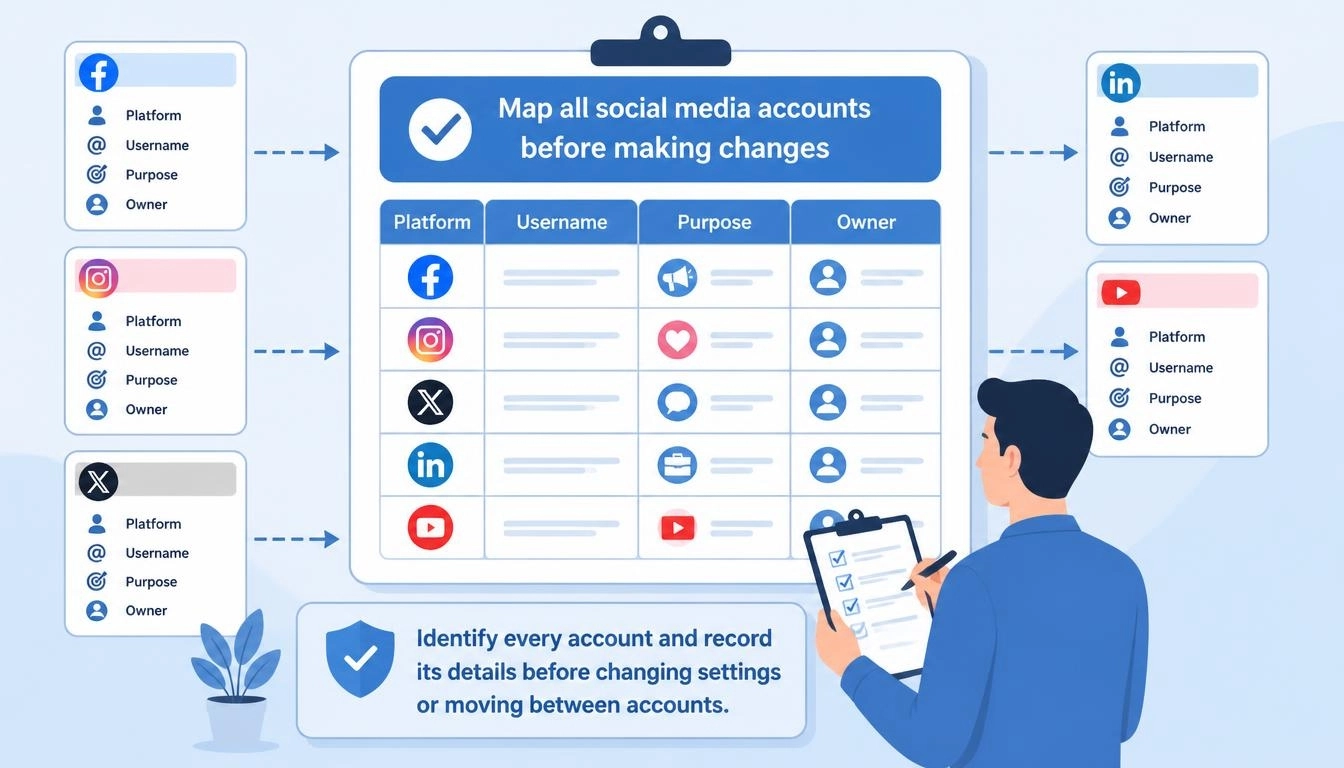
The first rule for managing multiple online accounts is to start with a simple inventory. It sounds boring, but it’s the step that saves you when someone leaves the team or a login stops working.
Account | Owner | Login email | 2FA method | Recovery option | Who has access |
Brand Instagram | Client A | social@clienta.com | Authenticator app | Backup codes saved | You + client |
Personal X | You | you@gmail.com | Passkey | Recovery email | You |
Pro tip: Never use your personal email as the login for a client or business account. When the work ends, ownership becomes a mess.
Step 2: Lock down your logins
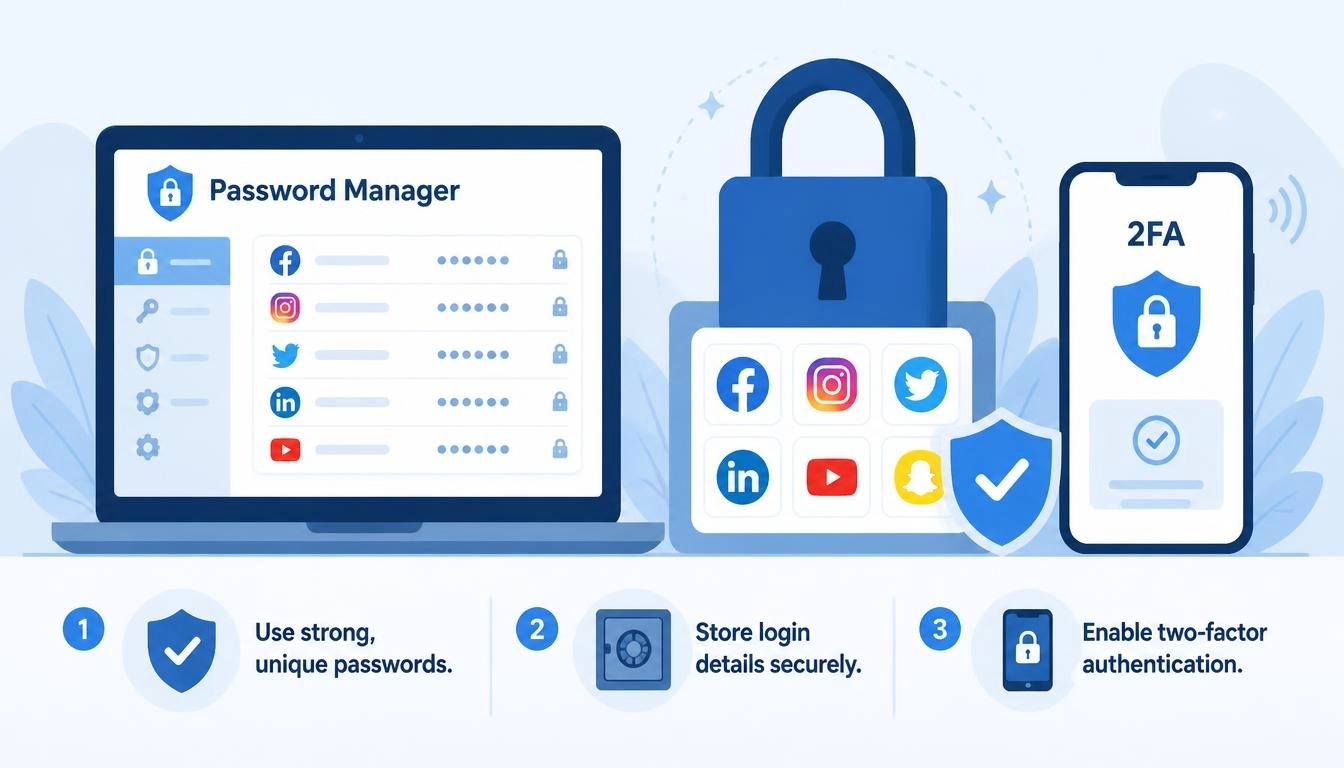
Security is the foundation of any plan for how to manage multiple online accounts. Three habits do most of the work:
Use a password manager. Give every account a unique, long password, and remember only one.
Turn on two-factor authentication everywhere. Use an authenticator app or passkeys rather than SMS where possible, and save backup codes.
Separate recovery details. Business accounts should recover to a business email or phone number, not your personal one.
Common mistake: Sharing one password in a group chat so the whole team can post. Use platform roles and permissions instead, so you can remove someone’s access without changing everything.
Step 3: Use each platform’s built-in account switching
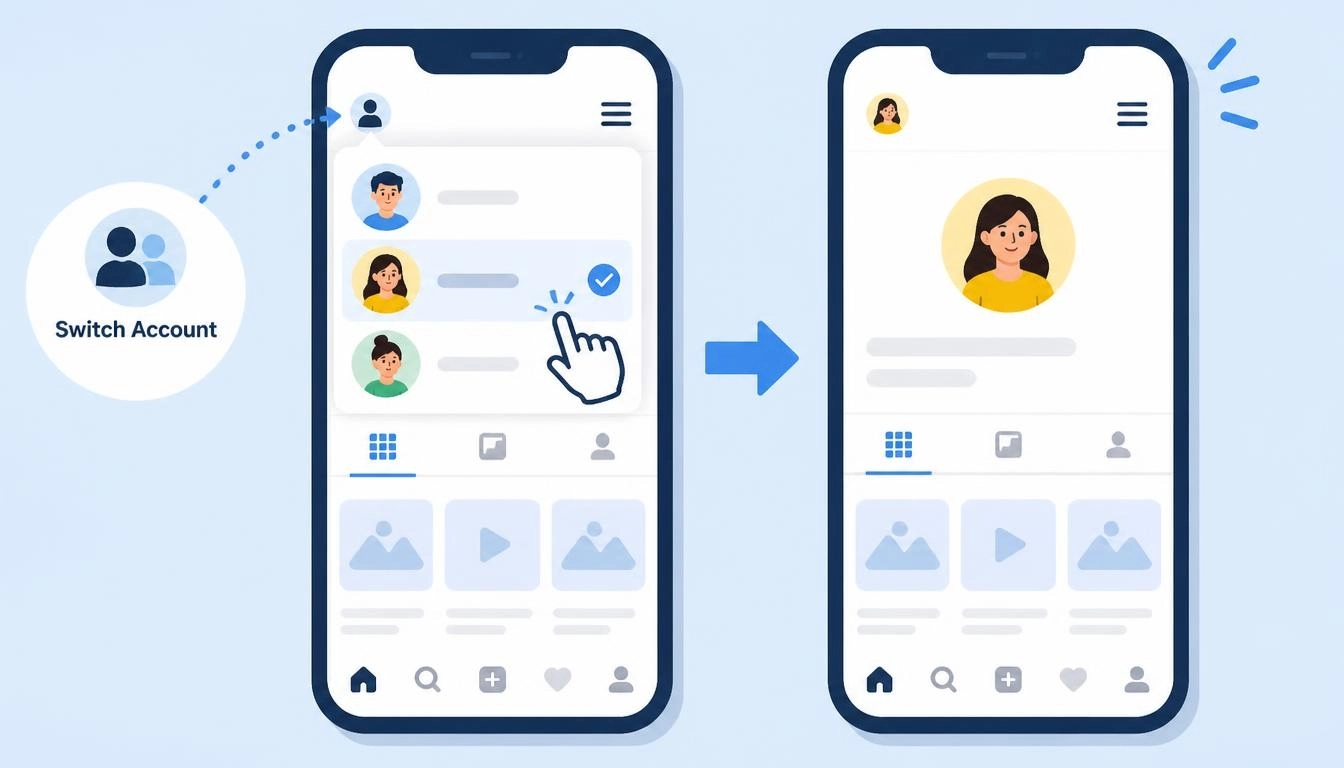
Built-in tools are the cheapest answer to how to manage multiple online accounts on social media. Every major platform now lets you switch accounts without logging out, but the limits differ. Here’s where things stand in 2026:
Platform | What’s allowed | How switching works |
Add up to 5 accounts in the app | Tap your username on your profile and pick an account | |
X (Twitter) | Up to 10 accounts for different, non-duplicative purposes | Add accounts from the profile menu, then tap to switch |
One personal account per person; Pages for brands | Additional personal profiles are being deleted after December 14, 2026 |
Instagram:
If you’re figuring out how to manage multiple Instagram accounts, start here.
Instagram’s Help Center confirms you can add up to 5 accounts and switch between them without logging out.
If you’re wondering how to switch between Instagram accounts on desktop, click “Switch” next to your profile picture on the web.
Need more than five? You’ll have to log in from a second device or browser profile.
X (Twitter):
X allows up to 10 accounts per person, as long as each has a different purpose, such as a personal account plus a brand or hobby account.
Here’s how to switch accounts on X: open the profile menu and tap the account you want.
One catch: X doesn’t offer a way to merge accounts, so choose carefully which account keeps your followers.
If you run several X accounts for clients, our guide to proxies for managing multiple X accounts covers the setup.
Facebook:
Facebook allows one personal account per person.
Meta’s additional profiles feature, which lets you add up to four extra profiles, is being permanently removed after December 14, 2026.
So if you’re searching for how to make a second Facebook account, the safer answer is a Facebook Page for your business, managed through Business Manager.
Agencies handling many client Pages and ad accounts can compare the best Facebook proxies for multi-accounting to keep each client’s sessions stable.
Step 4: How to manage multiple social media accounts for business

Once logins are sorted, the next challenge is the daily workflow. The best way to manage multiple social media accounts for business is to stop working platform by platform and start working from one system:
One content calendar. Plan every account’s posts in a single view, color-coded by brand or client.
A scheduling tool. Hootsuite, Buffer, and similar tools let you publish to many accounts from one dashboard.
Approval steps. Clients or managers approve posts before they go live, so nothing goes out from the wrong account.
Roles, not passwords. Give teammates the access level they need through each platform’s business tools.
A weekly review. Check messages, comments, and results for every account in one sitting.
If you’re managing social media accounts for clients, add one more rule: each client’s accounts should live in their own workspace, with their own login and their own access, from day one.
Expert insight: Scheduling tools solve the content side of managing multiple social media accounts. They don’t solve the login side. That’s where Step 5 comes in.
Step 5: Keep accounts properly separated
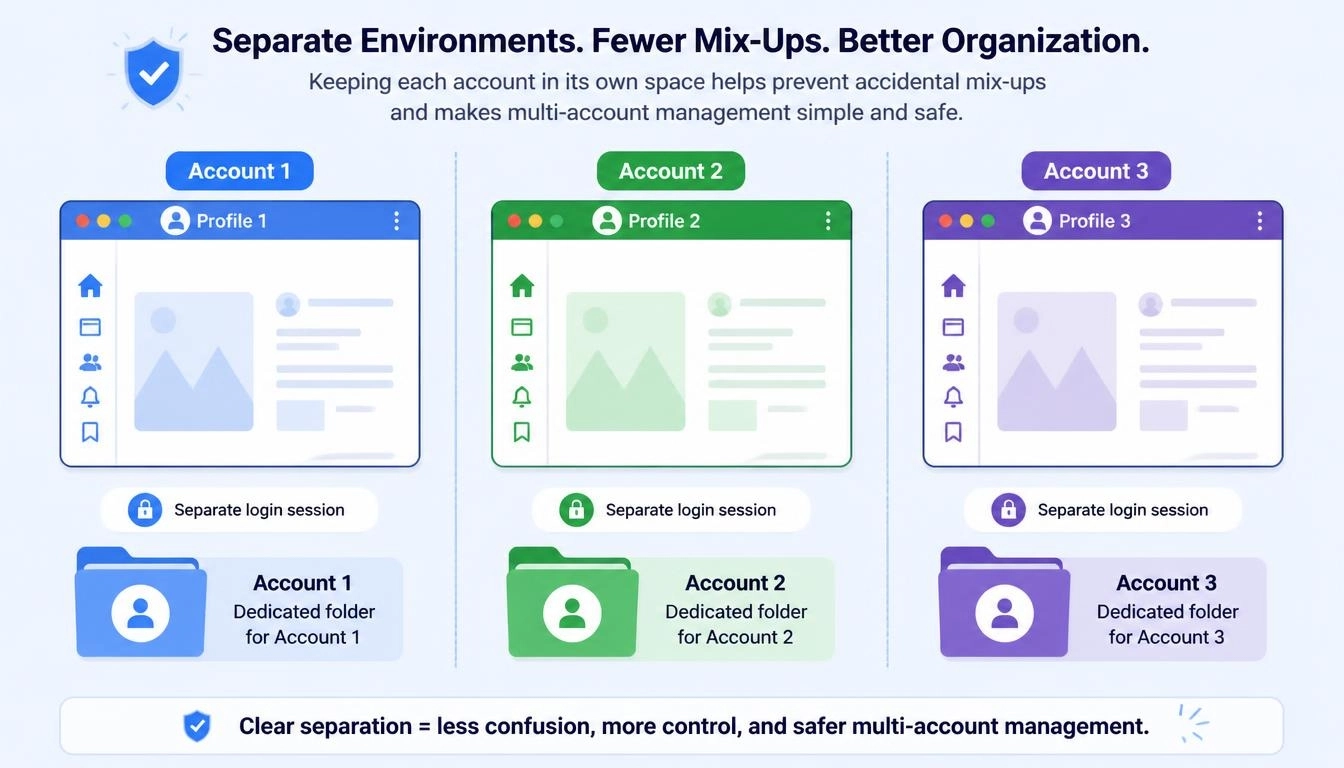
This is the step most guides skip. Platforms don’t just look at your password. They also notice the browser, device, and internet connection each login comes from. When ten unrelated client accounts all log in from the same laptop and IP address, security systems see a pattern.
This is the part of how to manage multiple online accounts that professionals take most seriously:
Separate browser profiles: Use a different browser profile for each client or brand, so cookies and saved logins never mix. For larger teams, antidetect browsers for multiple accounts give every profile its own isolated environment.
A stable IP address for each workspace: If every login jumps between countries, platforms trigger security checks.
CyberYozh static ISP proxies give each workspace a fixed residential IP from $5.29 a month.
Dedicated mobile proxies use real carrier IPs for mobile-first platforms.
Cloud phones for app-only accounts: Some platforms work best, or only, in their mobile app. CyberYozh Android cloud phones let you run each account on its own phone in the cloud, each with its own proxy, starting at $0.52 per phone profile per month plus usage.
Play by the rules: Use separation tools to organize legitimate work, such as client accounts, brands, and regional pages. X’s authenticity policy bans fake accounts, duplicate posting across accounts, coordinated manipulation, and other similar practices on other platforms. Clean setups protect real accounts. They don’t make fake ones acceptable.
Which setup do you need
Your situation | What to use |
Personal + one work account | Built-in switcher, password manager, 2FA |
Creator with 3–5 brand accounts | Scheduling tool + separate browser profiles |
Agency managing 10+ client accounts | Scheduling tool, roles, browser profiles, a static proxy per client |
Team running app-only accounts | Cloud phones with a proxy each |
Conclusion
Learning how to manage multiple online accounts comes down to five habits:
know what you have;
lock down every login;
use each platform’s built-in switcher;
plan from one calendar;
keep accounts separated.
The first four keep you organized. The fifth keeps your accounts safe as you grow.