Cách quản lý nhiều tài khoản OnlyFans năm 2026
Quản lý nhiều hơn một tài khoản OnlyFans trở nên rối rắm vì một lý do đơn giản: mỗi tài khoản đi kèm với thông tin đăng nhập, chi tiết khôi phục, phiên trình duyệt, kết nối mạng và đôi khi là xác minh qua điện thoại.
Nếu những thành phần này không được tổ chức ngay từ đầu, cuối cùng ai đó sẽ mở nhầm tài khoản, cookies bị chồng chéo, email khôi phục thuộc về người sai, hoặc thành viên nhóm từ xa đăng nhập qua một môi trường hoàn toàn khác.
Cách thiết lập sạch sẽ nhất là cung cấp cho mỗi tài khoản creator hợp pháp một môi trường làm việc riêng và giữ môi trường đó nhất quán.
Câu trả lời nhanh: Hãy nghĩ tài khoản creator → email/đăng nhập được kiểm soát → profile trình duyệt → proxy ổn định → khu vực hợp pháp nhất quán. Một creator độc lập có thể sử dụng các profile Chrome riêng biệt. Các agency có thể sử dụng trình duyệt đa tài khoản thay thế và kết nối proxy CyberYozh trực tiếp với từng profile.
Đang thiết lập các profile creator được ủy quyền? Sử dụng thiết lập CyberYozh cho nhiều tài khoản OnlyFans để so sánh các tùy chọn proxy cho quy trình làm việc này trước khi gán kết nối cho từng profile trình duyệt.
Nội dung trợ giúp của OnlyFans hiện nay cho biết tối đa ba tài khoản Creator có thể được liên kết với một Creator profile. Sử dụng các tùy chọn liên kết tài khoản mà OnlyFans cung cấp và giữ mỗi tài khoản gắn với creator thực sự chịu trách nhiệm về nó.
Quan trọng: Proxy không làm tăng số lượng tài khoản Creator mà OnlyFans cho phép. Nó giúp giữ môi trường mạng xung quanh các tài khoản hợp pháp được tổ chức; nó không thay thế xác minh danh tính hoặc quy tắc nền tảng.
TL;DR: thiết lập sạch sẽ cho nhiều tài khoản OnlyFans
Việc thiết lập dễ dàng hơn khi mỗi tài khoản có chủ sở hữu rõ ràng và một lộ trình có thể dự đoán từ đăng nhập đến trình duyệt đến mạng.
Xác nhận ai sở hữu mỗi tài khoản Creator.
Sử dụng quy trình liên kết tài khoản của OnlyFans khi có sẵn.
Giữ một hộp thư chuyên dụng ở bất cứ nơi nào đăng nhập riêng biệt cần một hộp thư.
Đặt mỗi tài khoản trong profile trình duyệt riêng của nó.
Đối với các nhóm, hãy sử dụng trình duyệt đa tài khoản thay vì tạo nhiều profile Chrome thủ công.
Đăng nhập vào CyberYozh và chọn một proxy ổn định cho quy trình làm việc.
Lưu proxy đó bên trong profile trình duyệt tương ứng.
Giữ khu vực proxy nhất quán với khu vực hoạt động hợp pháp của creator.
Hoàn thành xác minh email, SMS hoặc xác thực hai yếu tố chỉ khi dịch vụ yêu cầu.
Giữ một phương thức khôi phục mà bạn vẫn sẽ kiểm soát được sau này.
Muốn lập sơ đồ toàn bộ quy trình làm việc trước khi bắt đầu? Xây dựng các lớp tài khoản, trình duyệt và mạng cùng nhau với quy trình quản lý tài khoản của CyberYozh để nhóm của bạn biết profile, proxy và lộ trình khôi phục nào thuộc về từng tài khoản.
Quy tắc cần nhớ: Creator A sử dụng Profile A và kết nối đã lưu của nó. Creator B sử dụng Profile B và kết nối đã lưu của nó. Nhóm của bạn không bao giờ phải đoán môi trường nào thuộc về tài khoản nào.
Bạn có thể có nhiều tài khoản OnlyFans không
Có, nhưng có sự khác biệt giữa các tài khoản Creator được liên kết hợp pháp và việc chỉ đơn giản tạo thêm các đăng nhập không liên quan.
Nội dung trợ giúp OnlyFans được lập chỉ mục công khai hiện nay cho biết tối đa ba tài khoản Creator có thể được liên kết với một Creator profile. Nếu một agency giúp đỡ công việc hàng ngày, creator vẫn chịu trách nhiệm về tài khoản. Điều khoản của OnlyFans nêu rõ rằng trách nhiệm pháp lý của creator không được loại bỏ khi người khác hỗ trợ vận hành tài khoản.
Kiểm tra Điều khoản Dịch vụ OnlyFans hiện tại và khu vực Trợ giúp & Hỗ trợ bên trong tài khoản của bạn trước khi thêm tài khoản Creator khác vì quy tắc nền tảng có thể thay đổi.
Đối với các agency quản lý nhiều creator, mỗi creator nên hoàn thành quy trình giới thiệu và kiểm tra danh tính bắt buộc của nền tảng cho tài khoản riêng của họ. Các profile trình duyệt và proxy giúp tổ chức công việc được ủy quyền; chúng không thay thế xác minh creator.
Những gì thực sự cần tách biệt
Bạn không cần một công cụ khác nhau cho mọi thứ, nhưng bạn cần một bản ghi rõ ràng về những gì thuộc về mỗi tài khoản.
Lớp | Cần tổ chức gì | Tại sao quan trọng |
Tài khoản creator | Chủ sở hữu và mục đích đã xác minh | Giữ trách nhiệm rõ ràng |
Email/đăng nhập | Hộp thư được kiểm soát và quyền truy cập khôi phục | Đặt lại mật khẩu và thông báo bảo mật phải đến đúng người |
Browser profile | Cookie và phiên riêng biệt | Giảm nhầm lẫn tài khoản vô tình |
Proxy | Kết nối ổn định phù hợp với quy trình làm việc | Làm cho truy cập từ xa có thể dự đoán được |
SMS/2FA | Phương thức xác minh có thể khôi phục | Tránh các vấn đề bị khóa trong tương lai |
Đó là mục tiêu thực sự của quản lý nhiều tài khoản: không phải làm cho các tài khoản trông giả mạo hoặc không liên quan, mà là giữ cho các profile creator hợp pháp, phiên và đường dẫn khôi phục không bị rối loạn về mặt vận hành.
Cách thiết lập nhiều tài khoản OnlyFans từng bước
Quy trình chính xác thay đổi tùy thuộc vào việc một creator đang thêm một trang khác hay một agency đang onboard một creator khác, nhưng thiết lập dưới đây hoạt động cho cả hai.
Bước 1: Tạo sơ đồ tài khoản
Trước khi mua proxy, hãy ghi lại các tài khoản mà nhóm của bạn thực sự chịu trách nhiệm.
Tài khoản | Chủ sở hữu | Hộp thư đăng nhập | Hồ sơ trình duyệt | Vùng proxy |
Trang chính | Creator A | Inbox A | Creator A – Main | UK |
Trang phụ | Creator A | Inbox B nếu cần | Creator A – Second | UK |
Trang chính | Creator B | Inbox C | Creator B – Main | US |
Lưu mật khẩu trong trình quản lý mật khẩu, không phải trong bảng này. Bảng chỉ để mọi người biết thông tin đăng nhập, hồ sơ trình duyệt và thiết lập mạng nào thuộc về nhau.
Bước 2: Sắp xếp các tài khoản email
Tài khoản OnlyFans thứ hai có thể tạo ra vấn đề quản lý email trước khi nó tạo ra vấn đề proxy.
Nếu OnlyFans cho phép creator thêm tài khoản liên kết khác, hãy sử dụng quy trình đó. Nếu đăng nhập riêng cần hộp thư riêng, hãy sử dụng địa chỉ email mà creator hoặc doanh nghiệp được ủy quyền thực sự có thể khôi phục. Có thể là Gmail, nhưng không nhất thiết phải vậy.
Google cho biết số điện thoại là tùy chọn trong quy trình tạo tài khoản tiêu chuẩn và cũng cho phép Google Account sử dụng địa chỉ email hiện có không phải Gmail. Xem hướng dẫn tạo tài khoản chính thứccủa Google.
Google vẫn có thể yêu cầu xác minh trong một số quy trình đăng ký. Nếu bạn không muốn gắn số cá nhân, tạo tài khoản Google mà không cần số điện thoại cá nhân trở thành câu hỏi về phương thức xác minh Google đưa ra và cách bạn dự định khôi phục hộp thư sau này.
Đừng xây dựng tài khoản creator có giá trị xung quanh địa chỉ email dùng một lần. Hộp thư đó có thể là cách dễ nhất để quay lại sau nhiều tháng.
Bước 3: Coi xác minh SMS cũng là vấn đề khôi phục
Sai lầm với xác minh điện thoại là chỉ nghĩ về mã ngày hôm nay.
Nếu Google, OnlyFans hoặc dịch vụ khác yêu cầu mã SMS, hãy sử dụng phương thức xác minh được dịch vụ đó cho phép. CyberYozh hỗ trợ các tùy chọn kích hoạt SMS ảo và residential cho các dịch vụ được hỗ trợ.
Cần số xác minh được hỗ trợ cho dịch vụ yêu cầu SMS? Kiểm tra các tùy chọn kích hoạt SMS của CyberYozh và chọn loại số và thời gian thuê vẫn để lại cho bạn kế hoạch khôi phục hợp lý.
Số tồn tại ngắn có thể hợp lý cho bước xác minh một lần, nhưng chúng không tự động là phương thức khôi phục dài hạn tốt. Giữ email khôi phục, mã dự phòng hoặc số do creator kiểm soát lâu dài ở bất cứ nơi nào dịch vụ hỗ trợ chúng.
Quy tắc thực tế: Số xác minh tạm thời có thể giải quyết bước xác minh tạm thời. Nó không nên trở thành chìa khóa duy nhất cho một tài khoản quan trọng.
Bước 4: Chọn hồ sơ Chrome hoặc trình duyệt đa tài khoản
Đối với một creator có hai tài khoản, các hồ sơ Chrome riêng biệt thường là đủ.
Đối với agency, việc chuyển đổi thủ công qua nhiều hồ sơ Chrome trở nên rườm rà. Các trình duyệt đa tài khoản như AdsPower, Multilogin, và Octo giữ các hồ sơ riêng biệt trong một không gian làm việc, để mỗi creator có thể có cookie, bộ nhớ và cài đặt proxy được lưu riêng của họ.
Proxy CyberYozh kết nối trực tiếp vào các hồ sơ đó. Trong thiết lập CyberYozh và AdsPower, bạn sao chép host, port, username và password của proxy từ CyberYozh, lưu chúng vào hồ sơ trình duyệt và kiểm tra kết nối trước khi khởi chạy.
Đang sử dụng trình duyệt dựa trên hồ sơ khác? Duyệt qua tích hợp CyberYozh để tìmthiết lập phù hợp với công cụ của bạn trước khi lưu thông tin đăng nhập tài khoản hoặc cài đặt proxy.
Vì vậy, thay vì mở một đống hồ sơ Chrome, agency có thể mở «Creator A – UK», «Creator B – US» hoặc bất kỳ không gian làm việc có tên nào mà họ cần.
Bước 5: Đăng nhập vào CyberYozh và chọn proxy phù hợp
Tạo tài khoản CyberYozh của bạn hoặc đăng nhập. Bạn có thể đăng nhập bằng Google, MetaMask hoặc email.
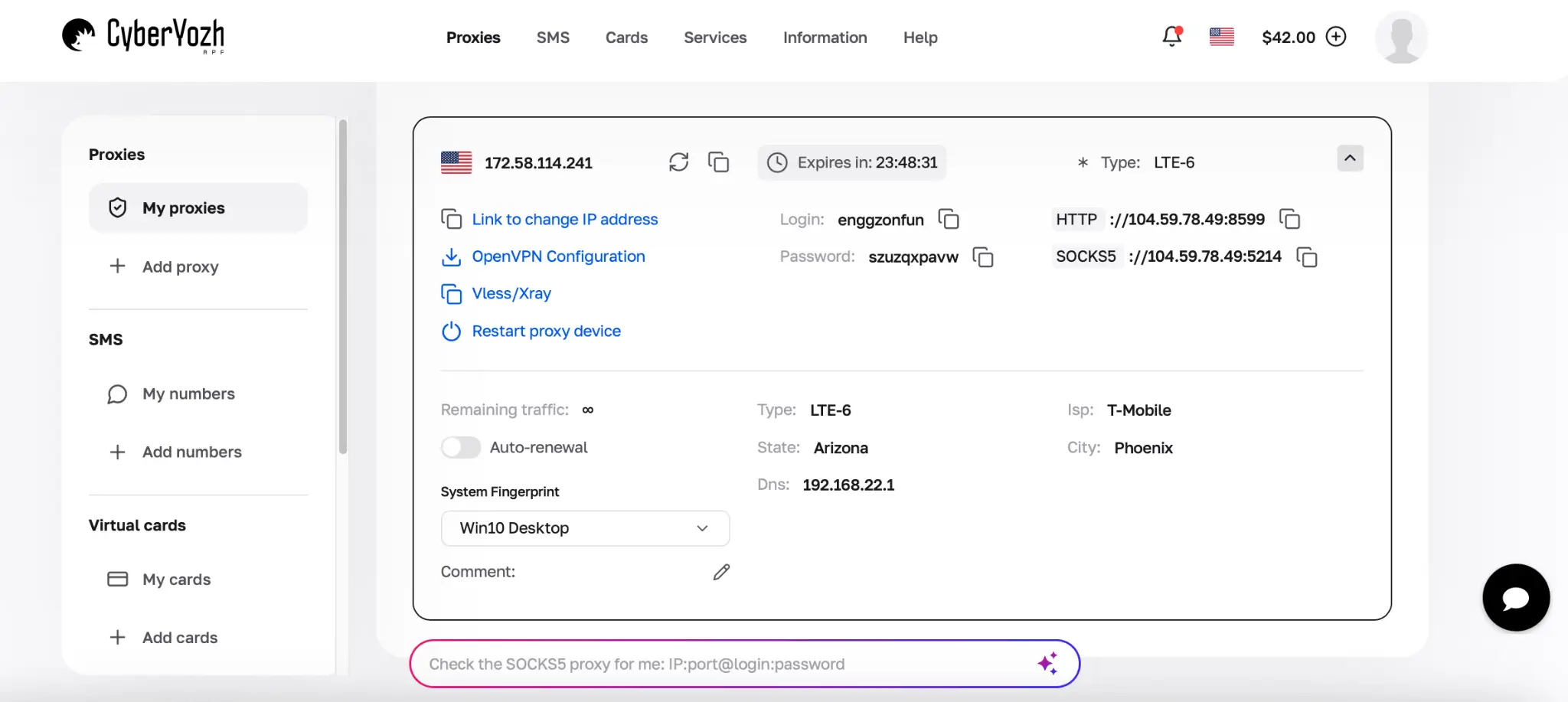
Đối với công việc creator thường xuyên, tính ổn định thường quan trọng hơn việc thay đổi IP thường xuyên. Proxy residential tĩnh hoặc proxy ISP là điểm khởi đầu hợp lý cho các phiên dài hơn, trong khi phiên sticky có thể giúp giữ cùng một địa chỉ trong suốt cửa sổ làm việc xác định. Proxy di động LTE/5G chuyên dụng có ý nghĩa khi quy trình được ủy quyền thực sự cần kết nối mạng di động.
Cần kết nối mạng nhà mạng thực cho quy trình làm việc? Chọn proxy di động 5G chuyên dụng khi tác vụ thực sự yêu cầu định tuyến mạng di động.
Các tùy chọn proxy quản lý tài khoản OnlyFans mang residential, mobile và các sản phẩm CyberYozh khác có sẵn vào một nơi. Các sản phẩm CyberYozh hiện tại bao gồm tùy chọn di động chuyên dụng với thay đổi IP thủ công, tùy chọn residential tĩnh và phiên residential xoay vòng.
Bước 6: Chọn vị trí phù hợp với ngữ cảnh tài khoản thực
CyberYozh hỗ trợ định vị cấp quốc gia và, trên các sản phẩm được hỗ trợ, định vị địa lý chính xác hơn. Sử dụng nó để giữ môi trường làm việc từ xa được ủy quyền nhất quán với thiết lập thực của creator.
Ví dụ, nếu một creator UK thường hoạt động tại UK và một agency được ủy quyền quản lý tài khoản từ xa, kết nối UK ổn định sẽ mạch lạc hơn việc thay đổi quốc gia giữa các phiên.
Trước khi chọn khu vực, hãy kiểm tra xem OnlyFans có thực sự khả dụng ở đó không. Danh sách các quốc gia được phép sử dụng OnlyFans phân biệt giữa khả năng truy cập bình thường và các khu vực mà quyền truy cập, hoạt động của creator hoặc thanh toán có thể gặp hạn chế.
Cần một khu vực được hỗ trợ nhất quán cho quy trình làm việc của creator đủ điều kiện? Sử dụng proxy geo-targeting của CyberYozh để chọn vị trí một cách có chủ đích thay vì thay đổi quốc gia giữa các phiên làm việc.
Bước 7: Thêm proxy vào browser profile
Sau khi mua proxy, sao chép host, port, username và password từ CyberYozh. Mở browser profile tương ứng, thêm các thông tin đăng nhập đó vào cài đặt proxy và chạy kiểm tra kết nối của trình duyệt trước khi khởi chạy profile.
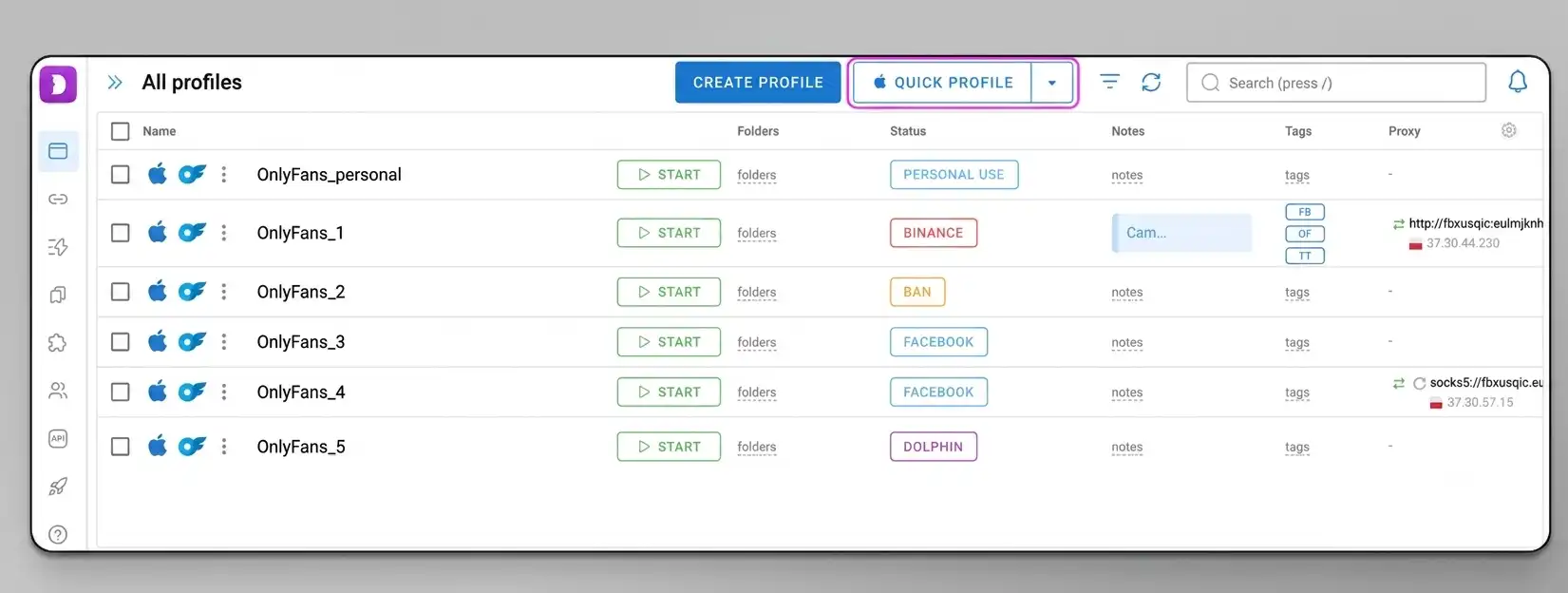
Đối với thiết lập nhỏ dựa trên Chrome, tiện ích mở rộng CyberYozh là lựa chọn đơn giản hơn. Đối với agency, việc lưu kết nối bên trong trình duyệt đa tài khoản có nghĩa là proxy chính xác sẽ tải cùng với profile creator chính xác.
Bước 8: Kiểm tra kết nối, sau đó đăng nhập
Trước khi mở OnlyFans, xác nhận proxy đang hoạt động và khu vực hiển thị là khu vực bạn định sử dụng.
Nếu bạn vẫn đang quyết định mạng nào phù hợp với quy trình làm việc, bài phân tích của chúng tôi về proxy residential, ISP và mobile cho OnlyFans giải thích khi nào mỗi lựa chọn có ý nghĩa hơn. Tuy nhiên, lưu ý rằng bạn có thể cần các phiên residential ổn định cho công việc tài khoản thường xuyên và mạng mobile khi môi trường mạng di động thực sự được yêu cầu.
Khi kết nối đã chính xác, mở OnlyFans trong profile đó và đăng nhập. Nếu creator đang thêm một tài khoản khác, hãy sử dụng quy trình liên kết tài khoản hoặc onboarding mà OnlyFans hiện cung cấp và hoàn thành bất kỳ xác minh danh tính, email hoặc điện thoại nào mà nền tảng yêu cầu.
Không sử dụng email, proxy hoặc số SMS khác để mạo danh một creator khác hoặc để tránh hạn chế trên tài khoản hiện có. Các công cụ đó tổ chức quyền truy cập hợp pháp; chúng không thay thế các quy tắc nhận dạng của OnlyFans.
Bước 9: Giữ quy trình làm việc hàng ngày đơn điệu
Một thiết lập tốt nên lặp đi lặp lại sau khi được cấu hình. Khi nhóm cần Creator A, mở profile của Creator A. Khi cần Creator B, mở profile của Creator B. Dữ liệu trình duyệt và cài đặt proxy đã được lưu sẵn.
Bạn không nên xóa cookie, tạo profile mới hoặc chọn một quốc gia mới mỗi sáng. Tính nhất quán giúp quy trình làm việc dễ vận hành hơn và dễ khắc phục sự cố hơn.
Mẹo quy trình làm việc: Thiết lập sơ đồ tài khoản trước. Sau đó chọn trình duyệt và mạng xung quanh tài khoản, thay vì tạo tài khoản xung quanh bất kỳ proxy nào có sẵn.
Nếu OnlyFans bị chặn ở nơi bạn đang ở thì sao
Đây là lúc bạn cần phân biệt vấn đề mạng với hạn chế pháp lý hoặc nền tảng.
Một khách sạn, nơi làm việc, trường đại học hoặc ISP có thể chặn một trang web ngay cả khi chủ tài khoản được phép sử dụng nó. Trong tình huống đó, tìm hiểu lý do tại sao OnlyFans bị chặn giúp phân biệt việc lọc mạng cục bộ với hạn chế cấp quốc gia rộng hơn.
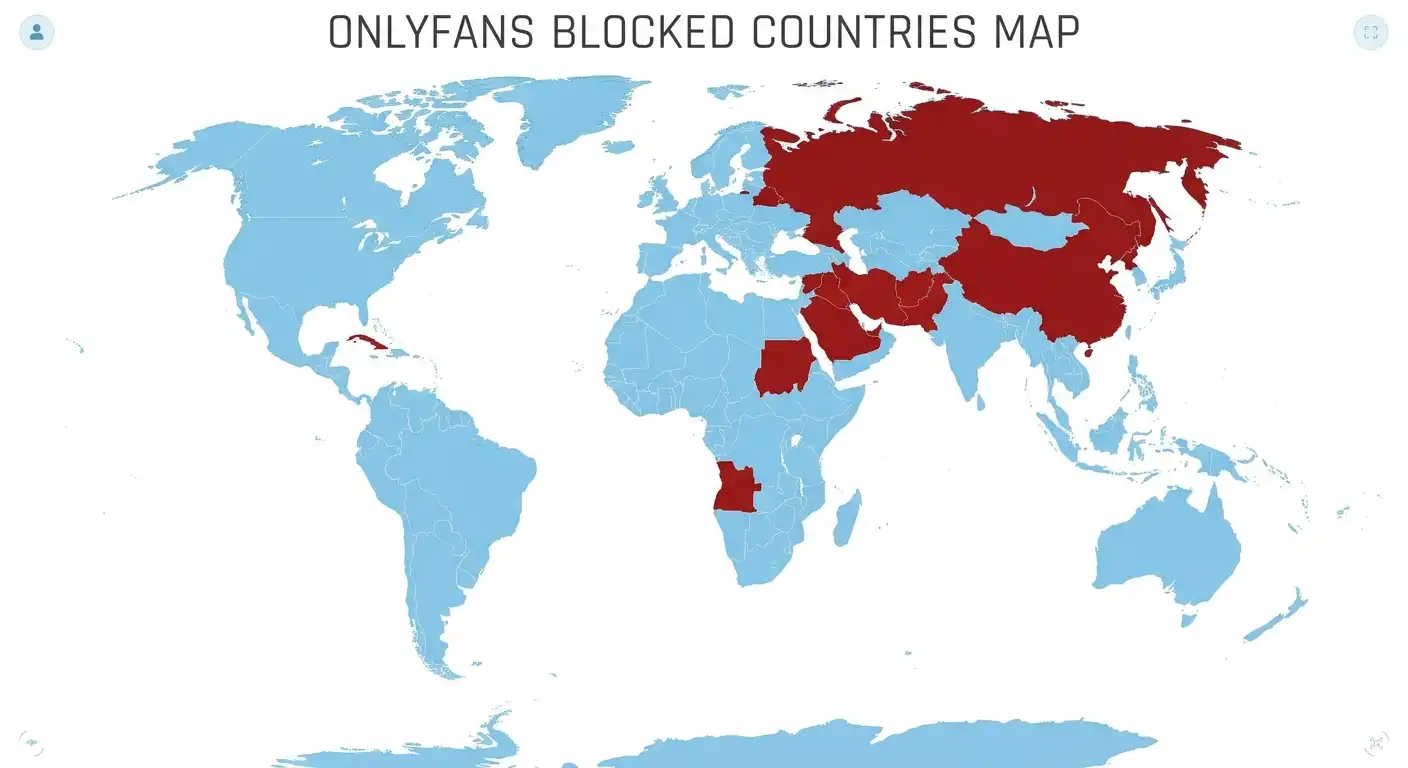
Hạn chế cấp quốc gia thì khác. Nếu vị trí của creator xuất hiện trong danh sách các quốc gia mà OnlyFans bị hạn chế, hãy kiểm tra bản chất của hạn chế trước khi thay đổi thiết lập mạng. Một proxy nước ngoài không khiến creator có trụ sở hợp pháp ở nơi khác hoặc thay đổi tư cách đủ điều kiện của nền tảng.
Đối với một agency được ủy quyền làm việc từ xa với một creator đủ điều kiện, geotargeting hữu ích để giữ môi trường làm việc nhất quán. Nó không nên được sử dụng để làm giả nơi cư trú hoặc tư cách đủ điều kiện.
Quy tắc địa lý: Sử dụng kiểm soát vị trí để hỗ trợ quy trình làm việc tài khoản hợp pháp, không phải để viết lại sự thật về creator là ai hoặc nơi họ có trụ sở hợp pháp.
Các vấn đề thường gặp khi quản lý nhiều tài khoản OnlyFans
Hầu hết các vấn đề đến từ quyền sở hữu không rõ ràng và thiết lập không nhất quán hơn là từ số lượng tài khoản.
Tài khoản thứ hai không có đường khôi phục
Một nhóm tạo một hộp thư khác, vượt qua xác minh và không bao giờ ghi lại ai sở hữu nó. Hãy khắc phục điều đó ngay lập tức bằng cách thêm thông tin khôi phục phù hợp và ghi lại chủ sở hữu tài khoản.
Nhiều creator chia sẻ một phiên trình duyệt
Đó là cách mật khẩu đã lưu, cookie và các phiên hoạt động bị lẫn lộn. Sử dụng các Chrome profile riêng biệt cho thiết lập nhỏ hoặc chuyển sang trình duyệt đa tài khoản khi danh sách phát triển.
Mỗi lần đăng nhập đến từ một khu vực khác nhau
Đừng chọn proxy khả dụng ngẫu nhiên mỗi lần. Giữ khu vực nhất quán với quy trình làm việc hợp pháp của tài khoản.
Số tạm thời trở thành phương thức khôi phục duy nhất
Một số hoạt động cho một mã xác minh có thể không khả dụng sau này. Giữ một phương thức khôi phục bền vững cho chính tài khoản.
Ai đó cho rằng proxy làm cho quốc gia bị hạn chế trở nên được phép
Không phải vậy. Proxy thay đổi tuyến đường mạng, không phải luật pháp địa phương, nơi cư trú của creator hoặc tư cách sử dụng nền tảng.
Suy nghĩ cuối cùng
Quản lý nhiều tài khoản OnlyFans chủ yếu là vấn đề tổ chức.
Với mỗi tài khoản, bạn nên biết ai sở hữu nó, hộp thư nào kiểm soát nó, hồ sơ trình duyệt nào mở nó, kết nối mạng nào thuộc về hồ sơ đó và creator lấy lại quyền truy cập như thế nào nếu xác minh được yêu cầu sau này.
Đối với creator độc lập, các hồ sơ Chrome riêng biệt có thể là đủ. Đối với agency, trình duyệt đa tài khoản gọn gàng hơn vì các hồ sơ, cookie và cài đặt proxy tồn tại trong một không gian làm việc được quản lý. Phần quan trọng không phải là thêm càng nhiều công cụ càng tốt. Mà là làm cho mỗi lớp có chủ đích.
Sẵn sàng chọn kết nối? Khi sơ đồ tài khoản đã sẵn sàng, so sánh các tùy chọn proxy CyberYozh và chọn kết nối residential, ISP hoặc mobile phù hợp với từng quy trình làm việc creator được ủy quyền.