Proxy Server in Chrome: Installation and Usage

Business and personal tasks often require increased privacy and the ability to use multiple high-trust IPs for different tasks. The easiest way to use a proxy is to deploy it right in your web browser, usually with a specialized browser extension. Here, we’ll see how to set proxy server in Chrome and when it can help your business greatly.
Why you may need a proxy in the Chrome browser
A proxy in Chrome acts as an intermediary layer between the browser and the internet. It routes all the traffic sent via the browser to a separate, dedicated server with its own IP address and customized settings. It has the following implications:
The original device’s IP and visit history are hidden
IPs can be changed using the available IP address pool
Activities can be safely automated to optimize processes
A proxy server can be integrated with various instruments for further optimization
Along with Virtual Private Networks (VPNs), proxies are basic instruments for ensuring web privacy - but, as we’ll see, they aren’t limited by that.
Comparing Chrome proxy vs. VPN
For most users who only need to hide their IP and access geo-restricted content, Virtual Private Networks (VPNs) offer a more familiar solution. It provides a variety of IP addresses with different geolocations, depending on the service, and users can select the ones they need at any time. Unlike a proxy, which can be heavily customized to process every web request differently, a VPN filters all traffic from a device or a browser with little or no customization. Therefore, these seemingly similar tools actually have different aims.
Proxy | VPN |
Highly customizable, can be integrated with various other services via API | Customization and integration capacities are usually limited |
Offers a pool of high-quality IPs for different tasks that can be easily changed | Offers a single IP or several IPs from different geolocations |
Filters the traffic with high customization, resulting in higher speed | Filters all incoming and outgoing traffic, resulting in lower speed |
Used for various tasks requiring different IPs and high-scale privacy | Used for privacy implications only and is easily detectable |
Best to use for professional and business tasks requiring privacy and multiple IPs | Best for personal usage and geo-restriction bypass |
In general, a VPN is enough for light tasks or individual usage, but a proxy is a professional tool that is required for tasks like account management, data scraping, and enterprise-level cybersecurity.
How to use a proxy server in Google Chrome
There are several ways to set a proxy in Chrome. In browser settings, you can add a custom proxy server by specifying its configurations, such as IP address, port, and credentials. However, most dedicated proxy services offer their own Chrome extensions that are much easier and more efficient to use. Here, we’ll explore this method.
Use CyberYozh’s Chrome proxy extension
The best way to add a proxy in Chrome is to use a ready-to-go proxy service extension provided by CyberYozh.
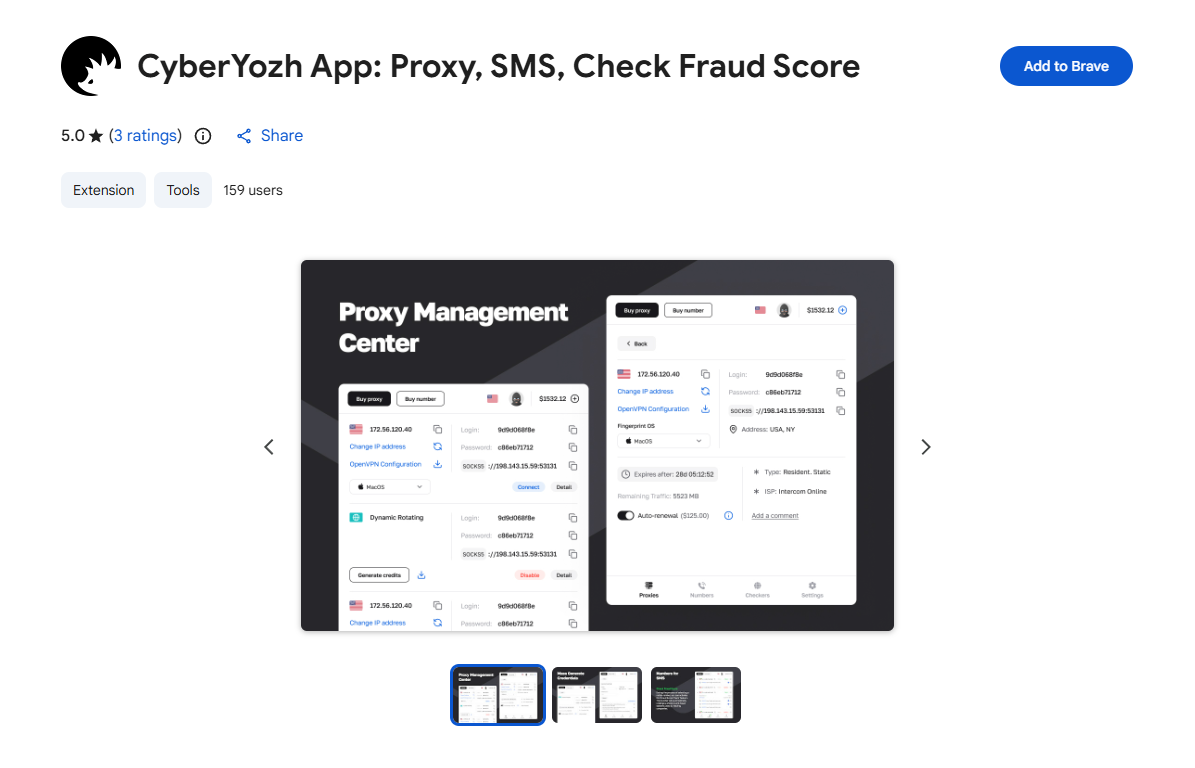
It can be downloaded from the Chrome Web Store and installed in a few clicks. After that, the usage algorithm is as follows:
Authorize, either manually with your CyberYozh credentials, or automatically if you’re already logged in on the website
In the Proxies list, you’ll see the list of proxies available based on your plan, with IPs and geolocations
If you need additional services, such as a virtual number or a virtual card, access them via the extension
Access CyberYozh checkers right inside the extension to check the Fraud Score of your IPs, numbers, and cards
CyberYozh’s Chrome extension makes proxy management easy, ideal if you don’t need to secure the whole device.
Maintaining the connection and troubleshooting
After the extension is installed and everything is set up, it’ll run smoothly. However, there can be problems with specific proxy addresses or specific services, such as when your account is nevertheless banned or access is restricted. If it happens, here is the basic algorithm of what to do.
Disconnect the proxy immediately.
Check the IP using the IP Checker tool
Contact CyberYozh support and report the situation
After several hours, connect to another IP from the pool that has a low Fraud Score
We’re here to offer the best proxy service for Chrome browser. Contact us if you have any more questions or would like to share your feedback.
What are the use cases of Chrome’s proxy services?
Now, it’s time to explore the most common proxy usage cases.
Multi-account management
Platforms like Facebook Ads, Google Ads, TikTok, Amazon, and eBay link accounts through IP fingerprinting. Managing multiple accounts from the same IP triggers automated detection and results in bans to prevent spam and bot-connected fraud. For correct workflow, one should use one unique proxy IP per Chrome profile, completely isolating account identities at the network level. That’s where rotating residential and mobile proxies help by provisioning a pool of high-trust IP addresses.
Key rules for safe multi-accounting:
One static residential or mobile proxy per account
Rotate IP addresses based on how many accounts you manage
Never reuse an IP across separate accounts
Match proxy geolocation to the account's registration region
Combine proxy isolation with browser fingerprint separation
Combined with an antidetect browser (like Octo or AdsPower, both integrated with CyberYozh), each Chrome session appears as a completely independent user from a different device and location.
Web scraping and data collection
Read more about the best web scraping proxies on CyberYozh.
Without a proxy, all scraping requests originate from a single IP, which is easy to detect and block. A rotating residential proxy pool makes each request appear to come from a different organic visitor, so the scraping traffic becomes indistinguishable from real human browsing. This is critical for:
Price monitoring across e-commerce platforms
Collecting public data from job boards, real-estate portals, or aggregators
Crawling competitor websites at scale
Extracting SERP data from Google without triggering CAPTCHAs
CyberYozh offers rotating residential pool covers 50M+ IPs across 100+ countries, with HTTPS and SOCKS5 support and per-GB billing from $0.9, with a variety of automation and integration features designed specifically for web scraping workflows.
Geo-targeting and SEO
Google personalizes search results based on location, device, and browsing history. When performing SEO optimization, a specialist checks keyword rankings from their own IP, and the results are skewed. A proxy lets Chrome simulate queries from various target cities and countries, returning clean, unpersonalized SERPs that reflect what actual local users see. It includes:
Track keyword positions across dozens of regions simultaneously
Audit local pack results for clients in different markets
Verify that no manual penalties are applied in specific geos
Research competitor ad copies on localized Google interfaces
Using the CyberYozh Chrome proxy app, SEO specialists can optimize their activities with several clicks.
Ad verification and marketing
Marketers spend significant budgets on advertising campaigns that may not render correctly across all target markets. A proxy in Chrome enables advertising teams to view landing pages, ad creatives, and redirect chains exactly as a user in that region would see them. It helps with:
Catching geo-targeting errors
Locating broken redirects
Detecting fraudulent ad substitutions
Affiliate marketers use the same approach to verify that their tracking links work correctly across different geos before scaling spend.
Better security and privacy
Market researchers, journalists, legal investigators, and competitive intelligence teams conduct cybersecurity-sensitive searches that must leave as few digital fingerprints as possible. If attributed to their real IP, their search data would reveal their identity or intent to the subject being investigated. A proxy ensures that research activities, including pricing studies, brand monitoring, and due diligence, leave no traceable footprint.
Wrapping up: Optimizing your work with Chrome
From multi-account management and web scraping to geo-targeted SEO and ad verification, a proxy server in Chrome is an essential tool for any professional working with the internet at scale. It delivers what a VPN cannot: multiple high-trust IPs, granular customization, and seamless integration with business workflows.
The easiest way to get started is the CyberYozh Chrome extension, which brings your full proxy pool, fraud score checkers, virtual numbers, and cards into a single interface, with no technical setup required. For businesses, this means stronger privacy, fewer bans, and faster, more reliable operations from day one.
Sign up for CyberYozh and enhance your business processes and privacy now!
F.A.Q. about proxy server in Chrome
How do I set up a proxy in Chrome?
Go to Chrome Settings → System → Open your computer's proxy settings. Enter the proxy server's IP, port, and credentials. However, a much easier method is installing CyberYozh's Chrome extension: log in, select a proxy from your pool, and activate it in one click. No manual configuration required, while additional services and precise IP management are available.
What is the difference between HTTP and SOCKS5 proxies in Chrome?
HTTP proxies handle only web traffic and can cache requests for speed. SOCKS5 operates at a lower network level, supports all traffic types, including UDP, and does not modify data packets, offering higher anonymity and faster performance for scraping, automation, and non-browser tasks.
How do I install and configure a proxy extension in Chrome step by step?
Find CyberYozh in the Chrome Web Store and click Add to Chrome. After installation, click the toolbar icon and log in with your CyberYozh credentials. Your available proxy pool appears instantly — select any IP, check its Fraud Score, and activate it. Your browser traffic now routes through that proxy.
How do I switch between multiple proxy servers using a Chrome extension?
With the CyberYozh extension, your full proxy pool is listed in a single panel. Click any proxy to activate it immediately, with no manual IP entry required. You can switch geolocations, proxy types, and ports within seconds, making it ideal for managing multiple tasks or accounts simultaneously.
Is a proxy or VPN better for anonymous browsing in Chrome?
For hiding your IP from websites, a residential proxy is more effective: its IPs belong to real ISPs and are far less likely to be flagged than VPN datacenter IPs. For encrypting traffic on public Wi-Fi, a VPN is more than enough. For professional multi-identity work, however, always choose a proxy.
How do I assign a different proxy to each Chrome browser profile?
Create separate Chrome profiles via chrome://settings/people. For each profile, use an antidetect browser like AdsPower or Multilogin, both integrated with CyberYozh, which allows assigning a unique proxy IP directly to each profile session, completely isolating identities at both the network and fingerprint level.
How do proxies prevent account bans when managing multiple advertising accounts?
Platforms like Facebook Ads and TikTok detect multiple accounts by matching IP addresses. Assigning a unique residential or mobile proxy per account makes each session appear to originate from a separate real user in a different location, bypassing IP fingerprinting. Combine with browser profile isolation to eliminate any detectable cross-account connection.
How do I use a rotating proxy with Chrome for web scraping?
Configure CyberYozh's rotating residential proxy in your scraping tool or Chrome automation framework. Each request is automatically assigned a fresh IP from the pool: every page load appears to come from a different visitor, preventing rate-limiting and bans. CyberYozh's pool covers 50M+ IPs across 100+ countries, billed from $0.9/GB.
What type of proxy works best in Chrome for competitive SERP analysis?
Geo-targeted residential proxies are the best choice. They carry real ISP-registered IPs from specific cities or countries, so Google returns localized results that reflect what local users actually see. Datacenter IPs are routinely blocked by Google, making residential proxies essential for accurate, unbiased rank tracking across multiple regions.