
How to Use a Proxy Server on Android: Configuration Guide
Effective digital marketing requires strict network control. Understanding how to set up proxy on Android reliably protects your network footprint. However, OS limitations complicate this task. The native infrastructure applies manual configurations only to local wireless networks. Disconnect from Wi-Fi. Switch to mobile data. The system instantly resets the parameters and returns the device to your default cellular IP.
TL;DR:
Network engineers solve connection drops using specialized clients. These apps force traffic through secure servers system-wide. Tunneling protocols remain stable across all networks (Wi-Fi, LTE, 5G).
Below, we break down the entire process. First, you will learn how to set up proxy on Android natively via the Wi-Fi menu. Next, we will deploy third-party clients to secure cellular traffic. Finally, we will configure the SOCKS5 protocol for full TCP and UDP packet routing.
How to set up proxy on Android: choosing a proxy type
Before learning how to set up proxy on Android, select the correct server type. The architecture must perfectly match your target platform requirements. CyberYozh App operates as a unified ecosystem for isolated workspace management. The platform combines residential, mobile, and datacenter IPs with integrated SMS and virtual-number services. The service enforces a strict zero-logs policy across all nodes.
1. Private mobile proxies (4G/5G)
Use these for TikTok, Instagram, and Facebook workspace management. You gain IP rotation via API and precise OS fingerprint matching. This configuration achieves the highest trust rates in strict filtering systems. You can also rotate the address manually via a simple HTTP link. Prices start at $1.70 per day. Traffic is unmetered.
👉 Connect private mobile proxies | Read the technology guide
2. Static residential proxies (ISP)
Amazon, Nike, and PayPal infrastructure instantly flags datacenter IPs. Residential proxies (ISP) solve this issue. The digital signatures match actual home fiber connections. You secure a dedicated IP for a single user. The nodes support both HTTP and SOCKS5 protocols. This server type ensures 99.9% stable uptime. Prices start at $5.29 per month.
👉 Connect static residential proxies
3. Dynamic residential proxies (rotating)
Mass data parsing depletes available addresses quickly. This pool provides automatic rotation on every new request. You can also adjust the session persistence duration. The system delivers country-level targeting at no additional cost. The backend automatically removes unstable nodes from the queue. You pay $2 per gigabyte of traffic.
👉 Connect dynamic residential proxies | Read the technology guide
4. Datacenter proxies (server-based)
Use these for market data aggregation or high-load indexing. You connect directly to commercial data centers. This reduces your latency to a minimum. Data transfer remains unmetered. The network continuously evaluates server health against current trust indexes. Private datacenter allocations start at $1.77 per month.
Authorization credentials
The CyberYozh App control panel generates network credentials immediately after purchase. Deployment requires exact parameters.
IP (Host): 172.98.60.180
Port: 58763
Login details: Your assigned username and password.
A single incorrect character causes a connection failure. The target server will instantly return a 407 Authentication Required status.

How to set up proxy on Android via Wi-Fi settings
Native Android configuration applies only to local Wi-Fi networks. This setup processes standard HTTP traffic. It does not support the SOCKS5 protocol.
Step 1. Network settings
Open Settings and go to Wi-Fi.
Tap the gear icon next to your active network.
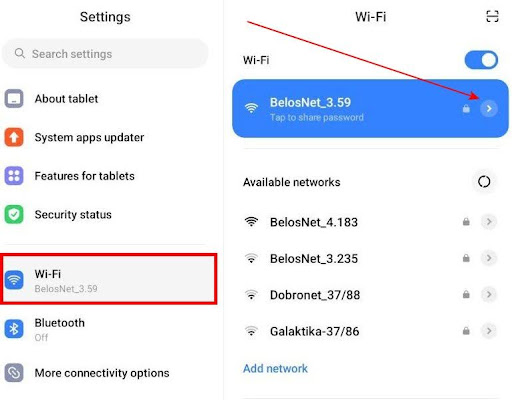
Fig. 2. Wi-Fi settings on Android. 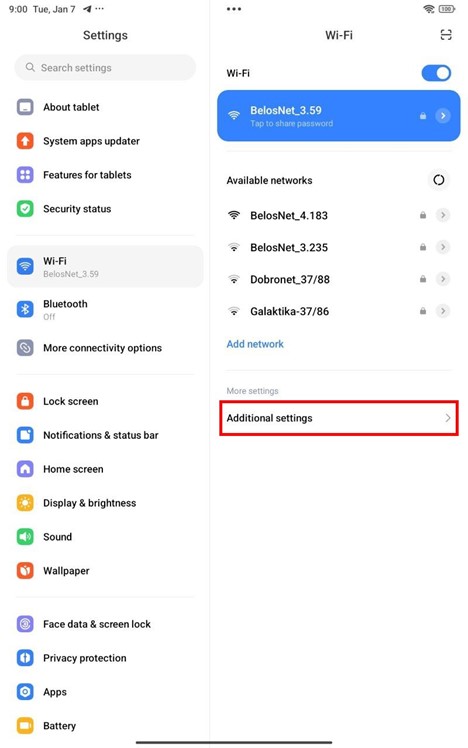
Fig. 3. Select Additional settings.
Step 2. Data entry
Find the Proxy setting. It defaults to "None."
Select Manual.
Enter your rented IP in the Hostname field.
Type in your HTTP port.
Leave the exception fields empty.
Tap Save.
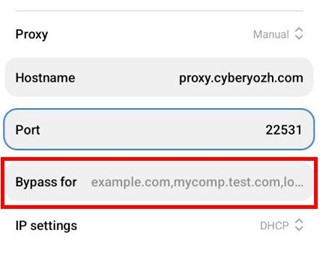
Fig. 4. You can add exceptions for certain sites. Specified websites will connect directly without using the proxy. 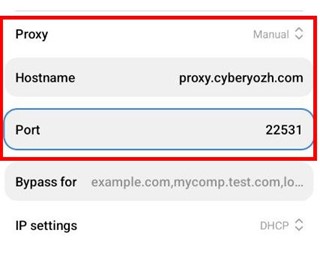
Fig. 5. Proxy data entry window. 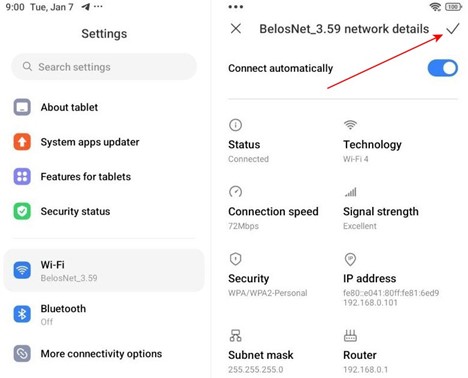
Fig. 6. Save the data.
Step 3. Authorization
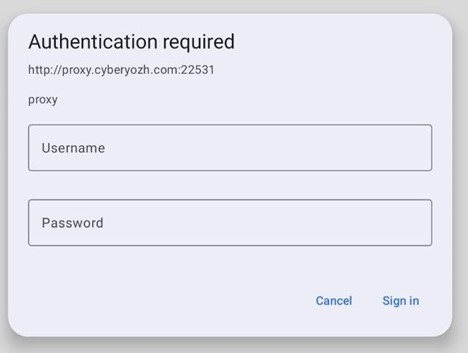
Open the Chrome browser. Try visiting any website. An authorization prompt will appear.
Enter the proxy Login and Password.
Tap Sign In.
Outbound Wi-Fi data packets now route through the selected server. Disconnecting from the wireless access point instantly breaks the secure chain. The operating system switches to mobile networks. You immediately expose your original cellular IP. System settings via APN access points operate unreliably due to authorization limitations.
How to set up proxy on Android: SOCKS5 and v2rayNG
Third-party clients direct packet data across all network interfaces. This configuration reliably passes both HTTP and SOCKS5 traffic. The system operates flawlessly on both Wi-Fi and LTE connections.
Step 1. Installation
Download the v2rayNG app from Google Play or GitHub. It is a reliable open-source client. You can also use SocksDroid for simpler tunneling tasks.
Step 2. Adding a profile
Open the app. Tap the plus icon in the top corner.
Select Type manually [SOCKS] or [HTTP] depending on your port.
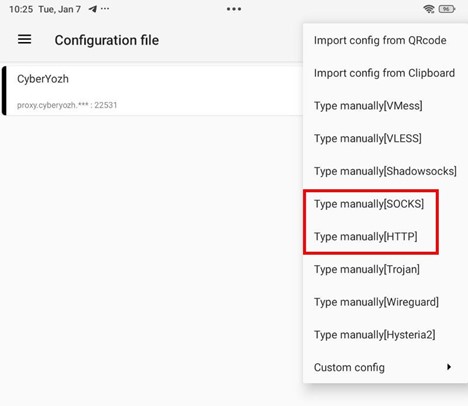
Fig. 8. Profile addition menu in v2rayNG.
Step 3. Inputting parameters
Enter the exact parameters from your dashboard.
Remarks: Name your profile.
Address (IP): Your rented IP.
Port: The connection port.
User / Password: Your login credentials.
Tap the checkmark to save.
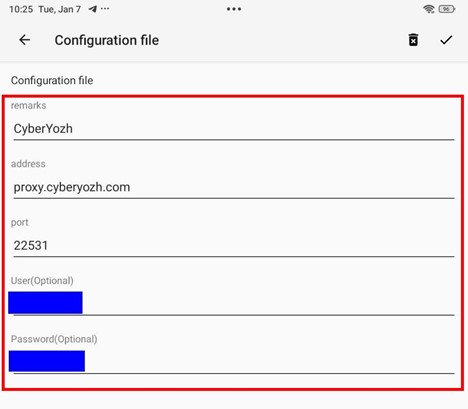
Fig. 9. Profile parameter input screen.
Step 4. Launching the tunnel
Select the created profile from the list.
Tap the round Connect button at the bottom.
Android will ask for permission to create a VPN upon first launch. Tap OK.
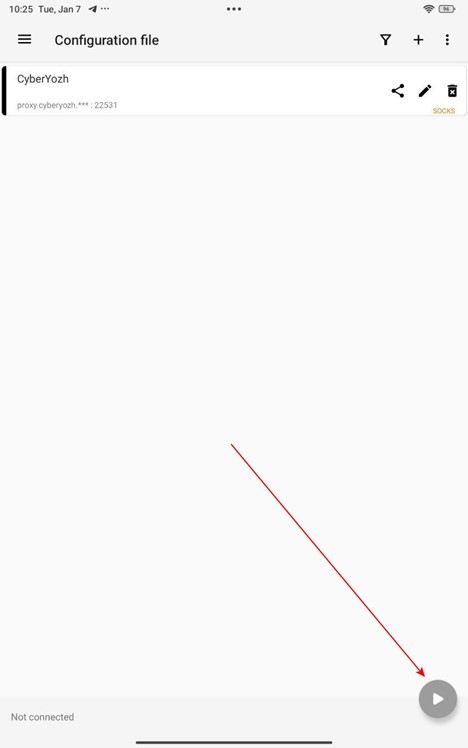
Fig. 10. Starting the proxy. All your phone's traffic now passes through the proxy. The connection remains active regardless of your current network type.
Checking your IP for leaks
Always confirm network isolation after configuration. Open your mobile browser. Go to browserleaks to test the external connection.
Check the following fields.
IP address: Must exactly match your rented server.
Country: Must correspond to your target region.
DNS leakage: The resolution fields should display only your proxy provider's servers.
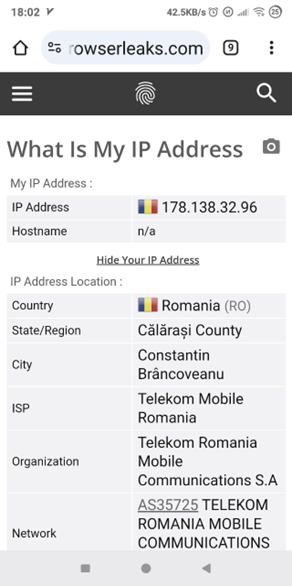
Target sites instantly see your real home IP during a DNS request leak. For precise evaluation, run the connection through the CyberYozh App network reputation checker. The tool analyzes your Trust Rate metric. It verifies the IP against corporate databases. A final risk score above 75 triggers automatic profile closure on strict platforms.
Summary: How to set up proxy on Android
The exact instructions on how to set up proxy on Android depend heavily on your network type. Native parameters manage only the Wi-Fi interface. Switching to cellular data instantly drops the secure connection. The device immediately reveals its true mobile IP. Installing the v2rayNG client fully resolves this task. The program creates a local VPN tunnel. It routes 100% of TCP and UDP packets regardless of the active network.
If you need reliable nodes for your tasks, explore the CyberYozh App catalog. Available options include private mobile proxies (from $1.70 per day), static residential IPs ($5.29 per month), and datacenter pools for data parsing (from $1.77 per month).
FAQ: How to set up proxy on Android
How to set up proxy on Android without third-party apps on mobile networks?
Native OS configurations route traffic exclusively over Wi-Fi. Disconnecting from the local router terminates the session. The device immediately reverts to the default cellular IP address. Settings via APN operate unreliably. To maintain continuous work on LTE and 5G networks, you must install a client like v2rayNG.
Can I set up SOCKS5 proxy on Android using default system settings?
The native Android Wi-Fi configuration menu processes only HTTP and HTTPS protocols. Entering SOCKS5 credentials into system fields causes authorization errors. You must deploy a dedicated application for UDP packet routing.
Why does my connection drop when the screen locks?
Modern Android versions kill background processes to save battery life. This feature is called Doze Mode. When the screen goes dark, the OS kills the client app. Navigate to the system settings. Find v2rayNG. Enable the "Unrestricted" battery profile. This forces the tunnel to stay active.
Which IP type works best for social media?
Use mobile proxies. They pass traffic through physical cell towers. Millions of subscribers share these addresses via NAT. Filtering systems perceive this activity as natural. You receive the maximum level of network trust.
How do I verify my network footprint is isolated?
Turn on your client profile. Go to browserleaks.com. The displayed IP and geographic region must match the rented server. Always check the DNS section for leaks.
Does the CyberYozh App ecosystem protect against corporate tracking systems?
The platform operates under a strict zero-logs policy. The built-in checker evaluates your IP before the session begins. Platforms restrict access when the trust level drops. Maintain a high Trust Rate. This prevents profile closures on strict resources.