
How to integrate CyberYozh App proxy with OpenVPN
Basic HTTP and SOCKS5 protocols work perfectly for standard tasks. Sometimes you need to route all system traffic through a single encrypted tunnel. Below, we detail how to configure proxy with OpenVPN for Windows. We will use the official client for this task.
The CyberYozh App platform issues ready-made .ovpn configuration files alongside mobile LTE/5G IPs. You connect through real cellular operators. Thanks to Carrier-Grade NAT technology, the service sees you as a regular smartphone user. This keeps the risk of network blocks to an absolute minimum.
👉 Configure mobile proxy with OpenVPN
Architectural Advantages of OpenVPN Connect
The OpenVPN protocol creates a 256-bit channel based on SSL/TLS cryptography. The OpenVPN Connect client forces the virtual TUN/TAP adapter to pass absolutely all device traffic through the specified server.
WebRTC or DNS leaks are completely ruled out. Standard browser extensions simply do not offer this level of isolation.
However, classic protocols often fall short when working with networks that use Deep Packet Inspection (DPI). That is why our premium IPs natively support VLESS and Xray. The VLESS protocol paired with the REALITY mechanism masks the connection as a legitimate TLS 1.3 session with a popular website. Your traffic looks exactly like regular web browsing.
👉 Get premium mobile proxies with VLESS
Installing and Configuring the OpenVPN Connect Client
Before you configure mobile proxy with OpenVPN, you must prepare the software. Proper parameters will prevent micro-disconnects when operating over cellular networks.
Download the latest version of the program from the official website.
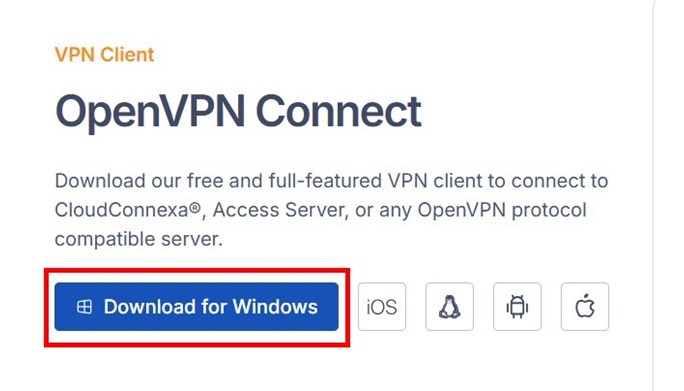
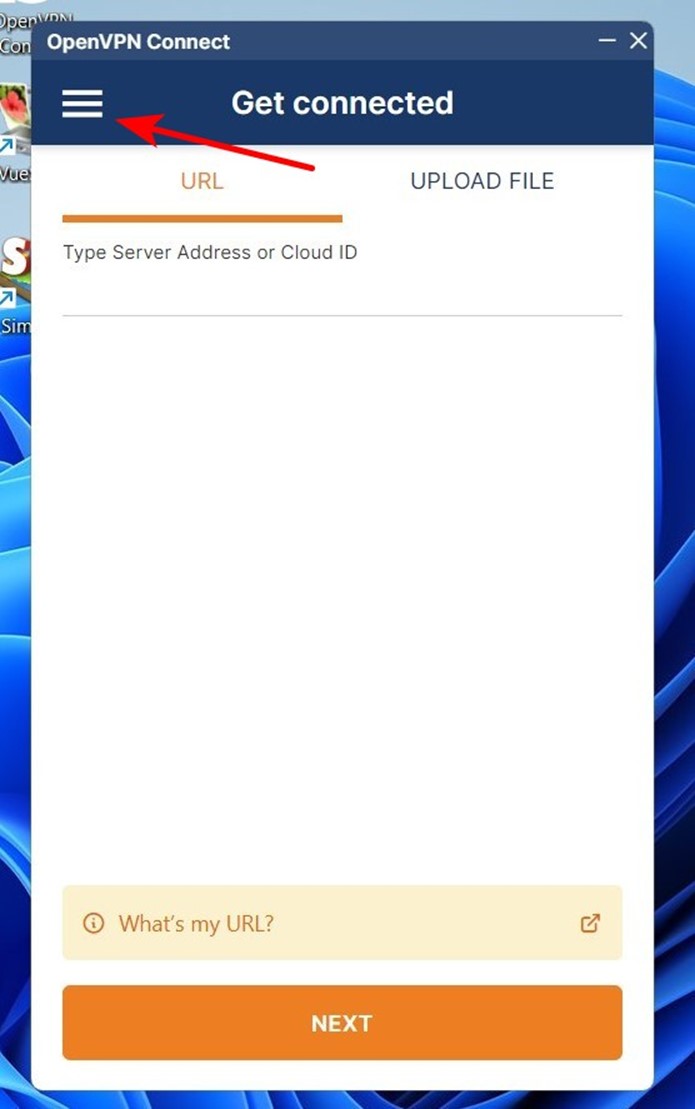
Run the installer. Skip the initial import screen. Click on the three horizontal lines in the top left corner of the interface.
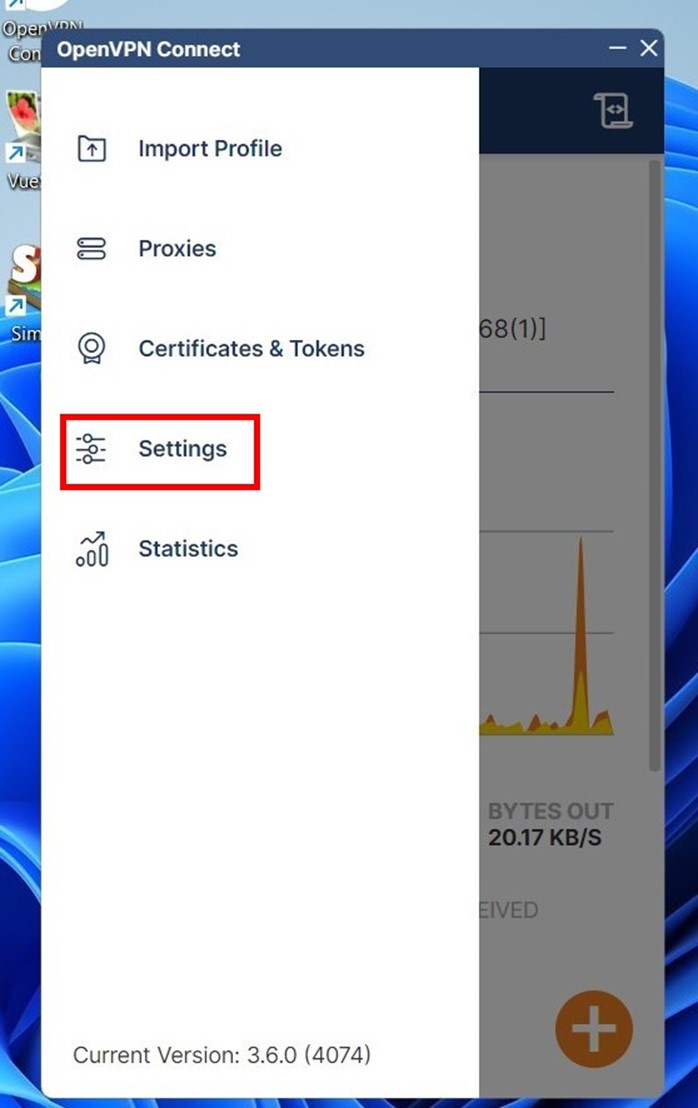
Go to the Settings menu.
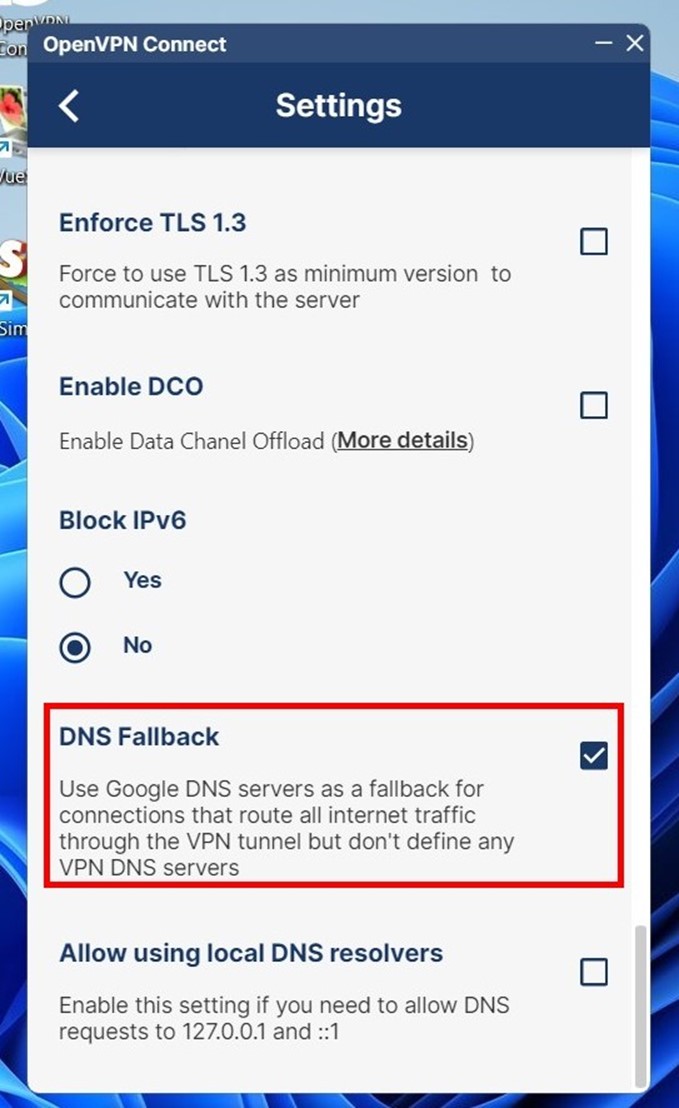
To ensure stable routing, adjust the following parameters:
VPN Protocol. Set it to Adaptive or strictly force UDP. If you encapsulate TCP traffic inside another TCP tunnel, packet loss triggers an algorithm conflict. Speed drops drastically (the TCP meltdown effect). The UDP protocol solves this problem on a structural level.
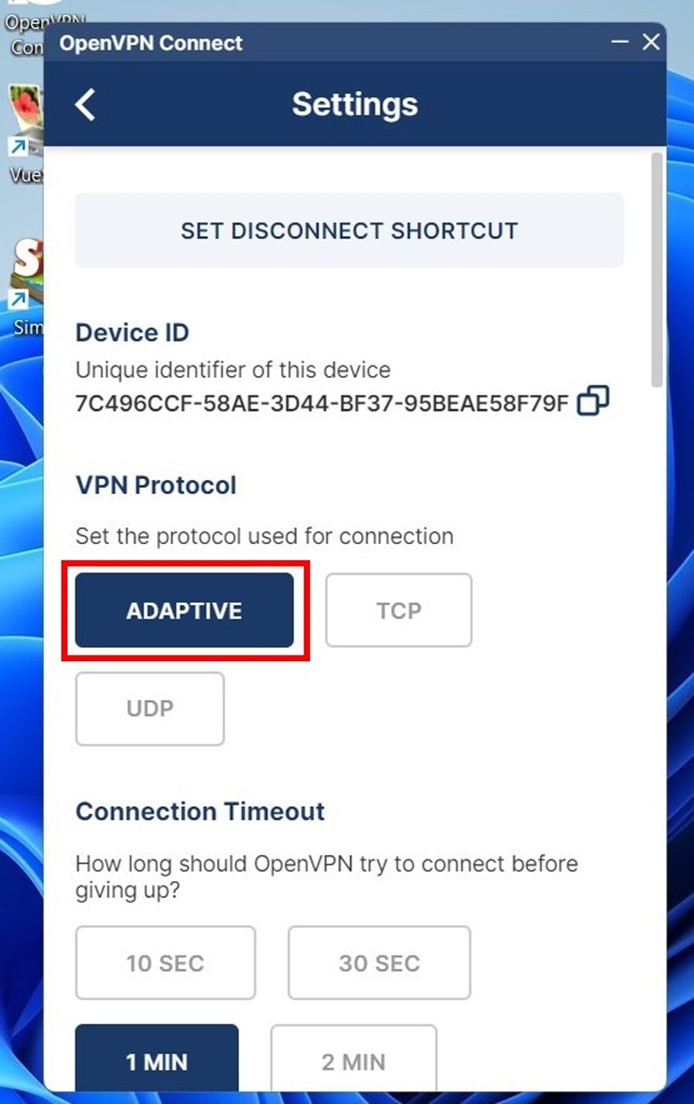
Connection Timeout. Activate Continuously retry. Since IP addresses in the pool rotate dynamically, this parameter forces the client to reconnect autonomously after rotation.
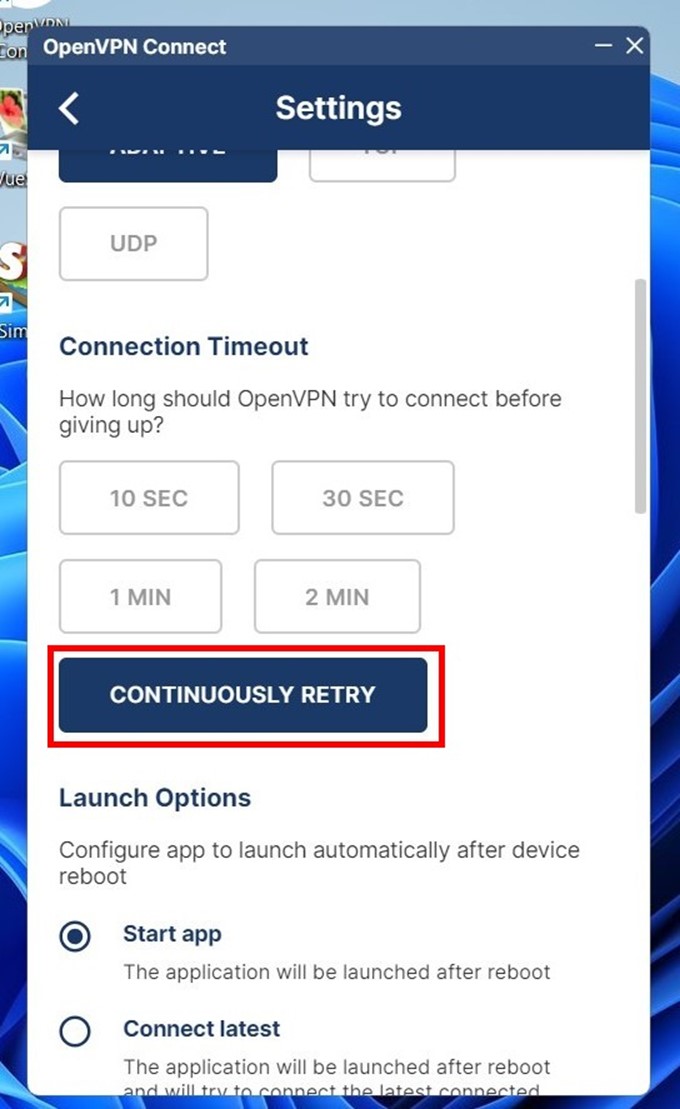
Seamless Tunnel. Turn this on without fail. The feature acts as a hardware kill switch. If the connection to the server drops, data transfer blocks immediately. Your real IP remains isolated.
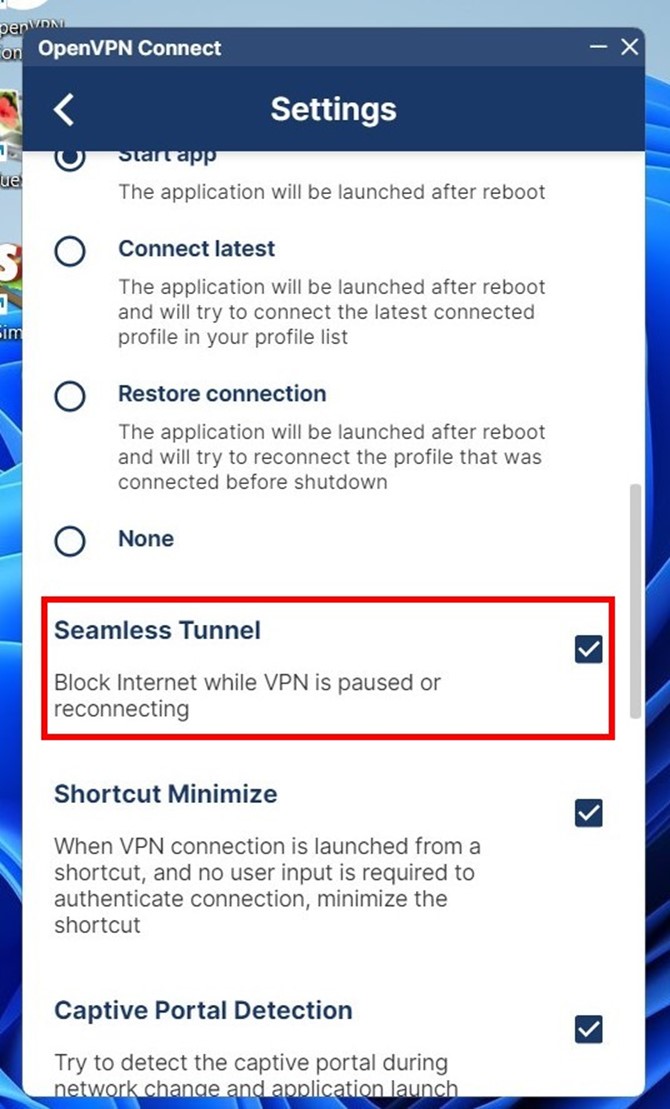
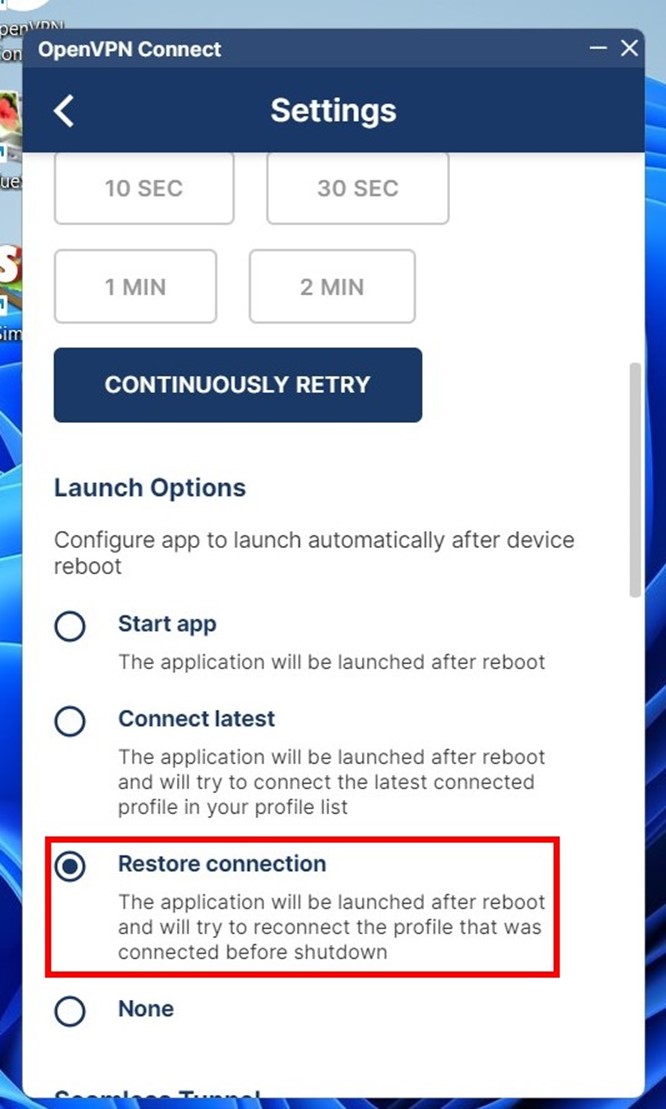
Launch Options. Select Restore connection. The tunnel will come up automatically after a PC reboot.
DNS Fallback. A highly important option. Windows sometimes sends DNS requests to the local ISP bypassing the adapter. Enabling DNS Fallback forces all resolves strictly through the encrypted channel.
Importing Configuration to OpenVPN Connect
You need to configure proxy with OpenVPN. This requires an .ovpn file containing certificates. You can download it directly from the CyberYozh dashboard.
Log into the website and go to the rental management section. Select a port marked VPN access or UDP support.
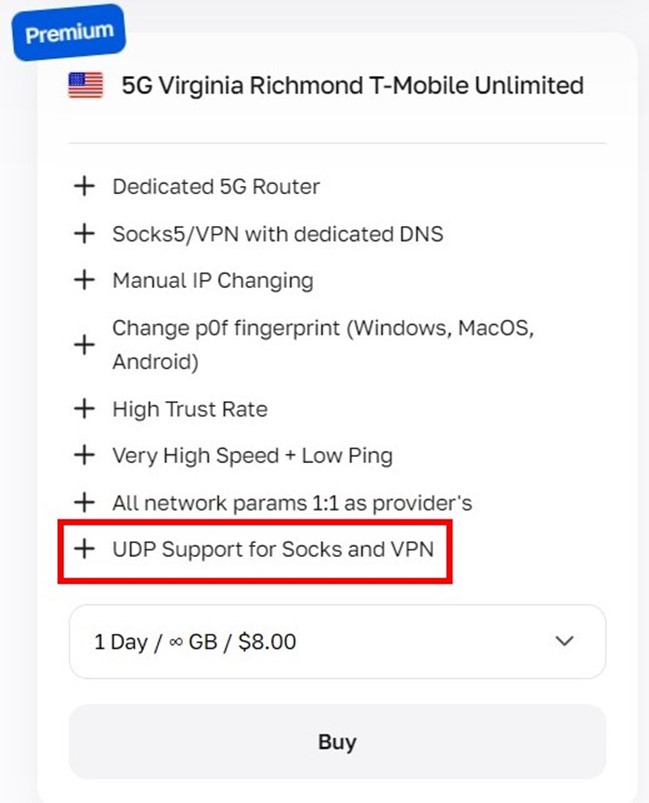
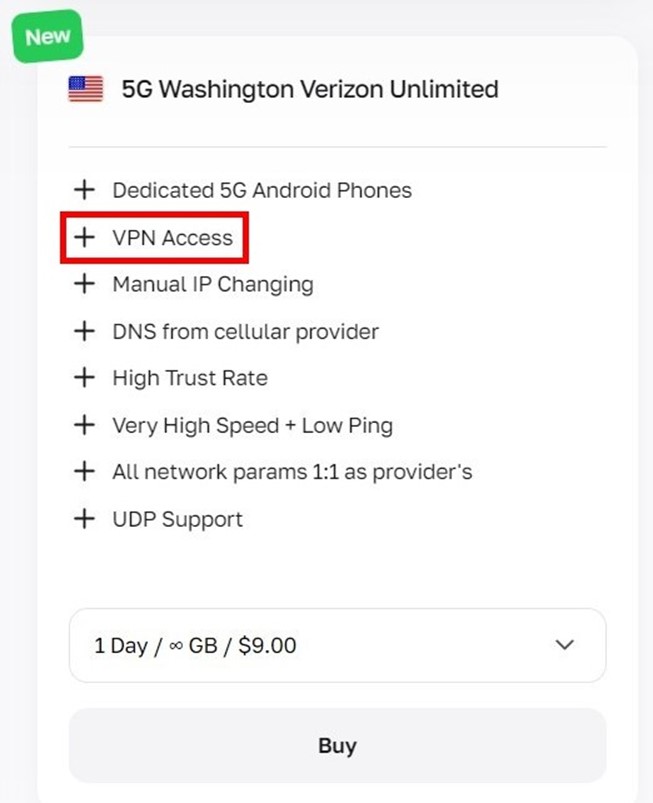
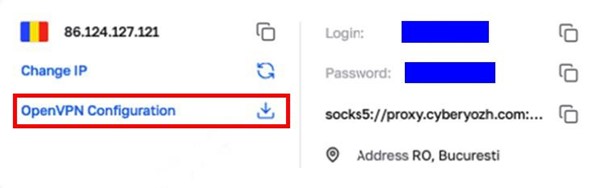
Find your active port in your personal account. Click on OpenVPN Configuration. Download the generated file to your local drive.
Open the OpenVPN Connect client. Go to the UPLOAD FILE tab.
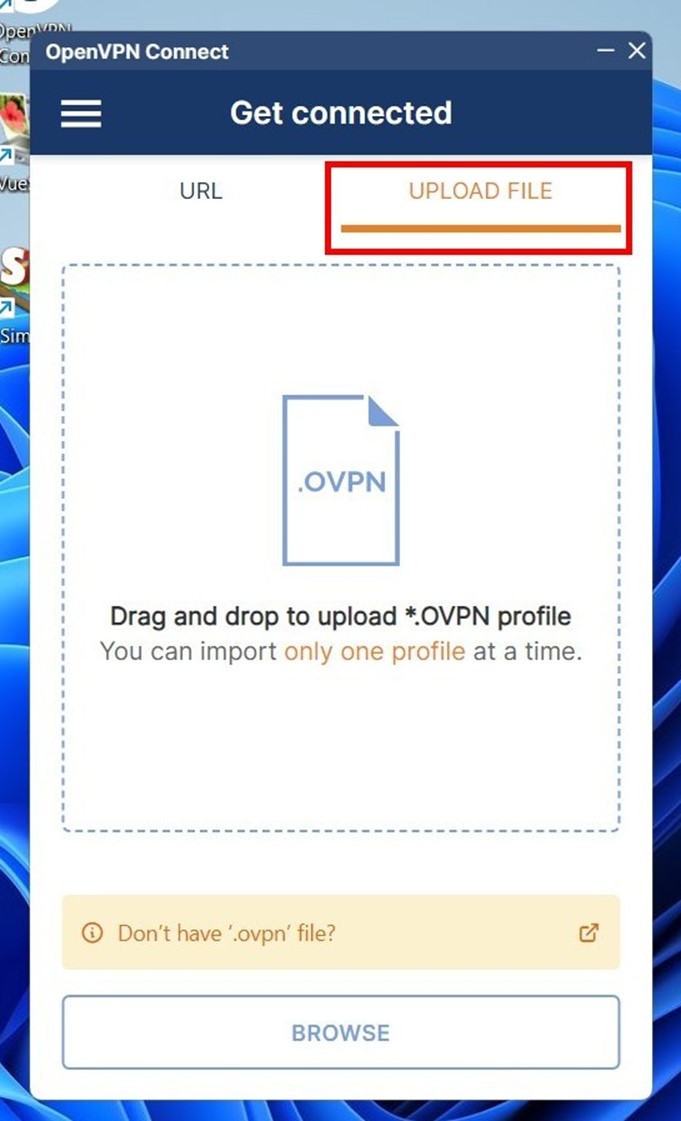
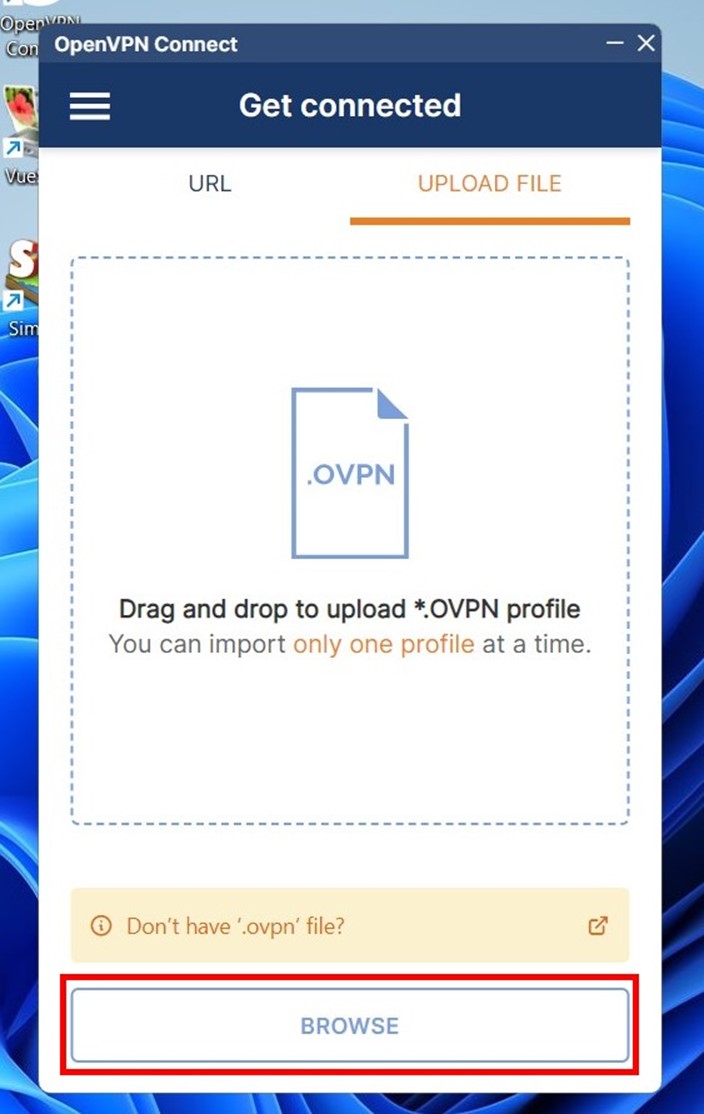
Click BROWSE. Select the downloaded .ovpn file.
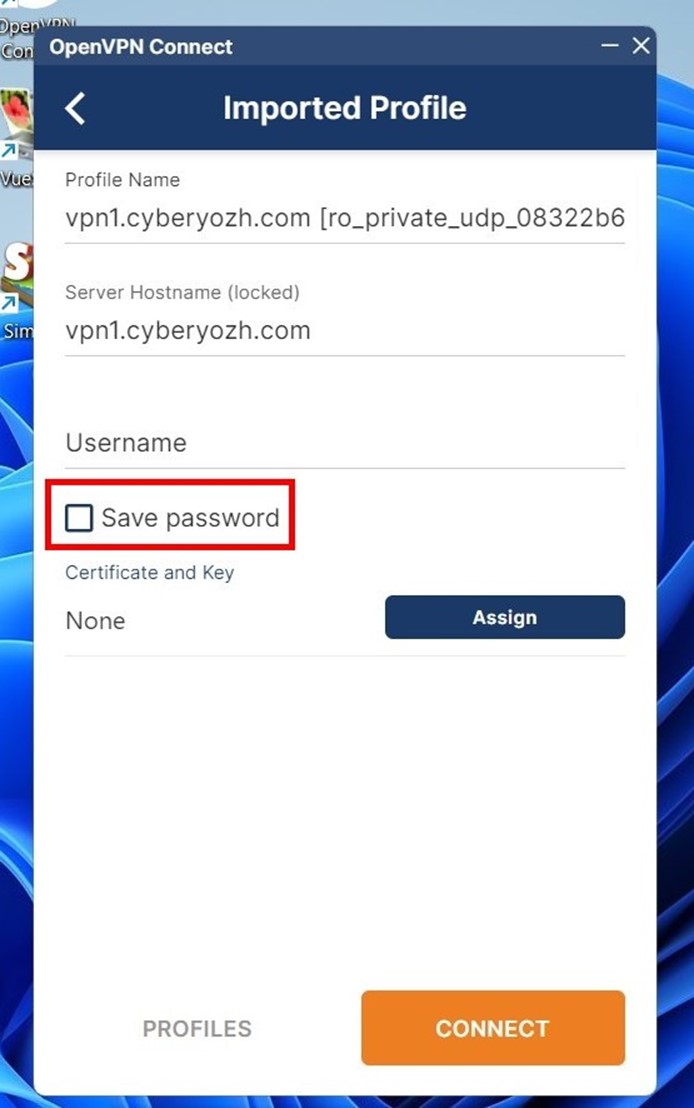
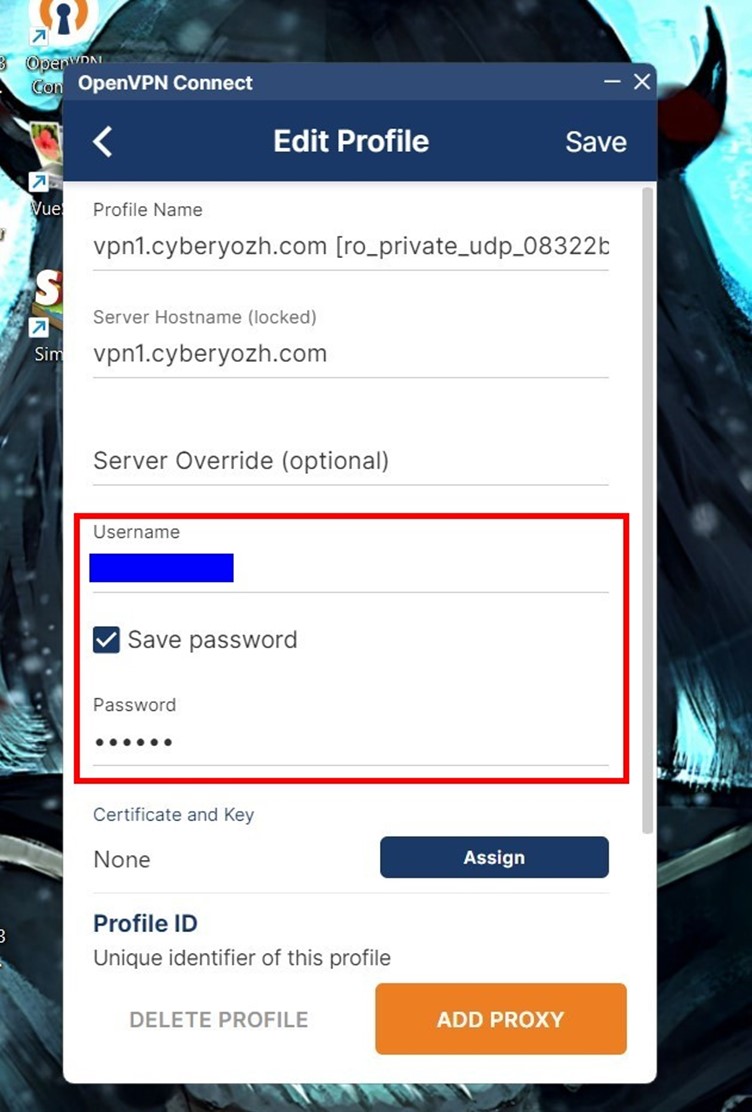
In the new window, check the Save password box. The program will save your credentials locally. This allows instant reconnection after IP rotation.
You can rename the Profile Name field to avoid confusion.
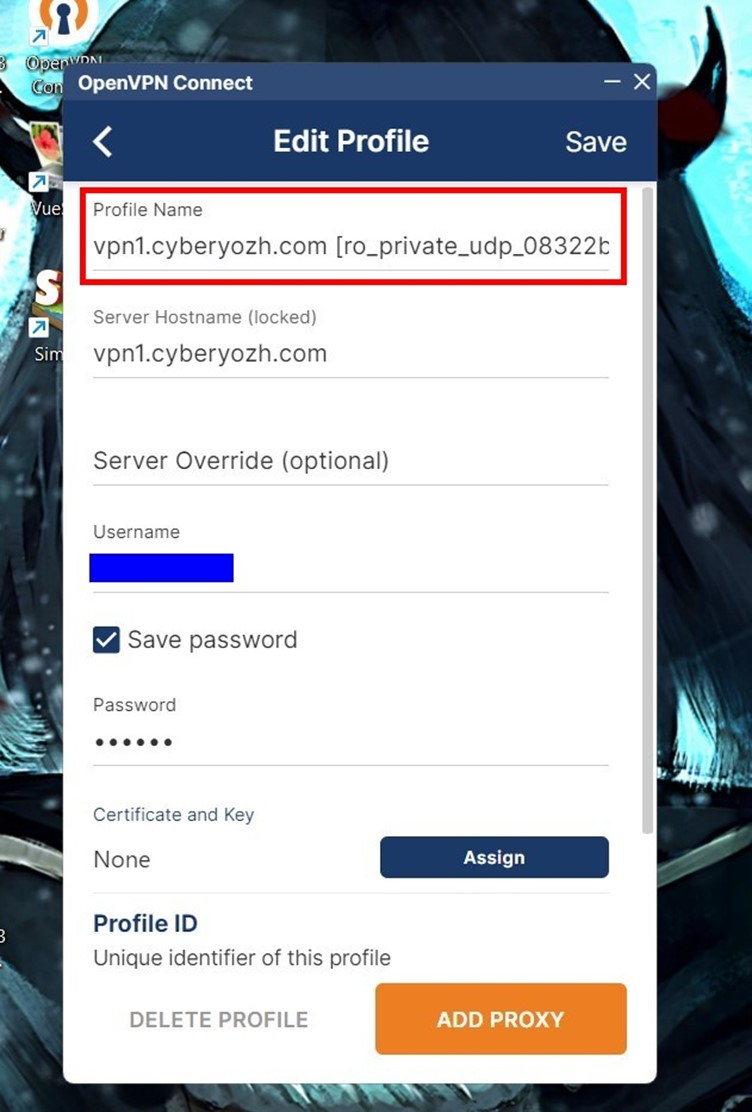
The system hardcodes the Server Hostname field. You cannot change the data inside it, otherwise the routing breaks.
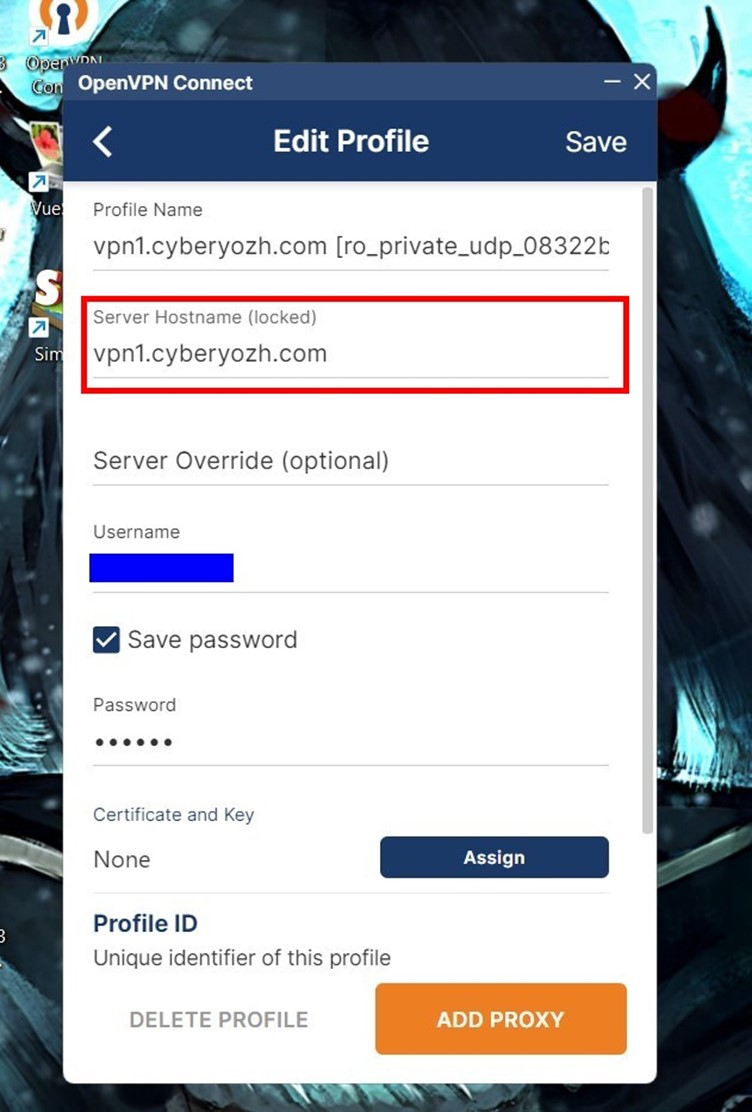
Enter the login and password from the CyberYozh platform into the Username and Password fields.
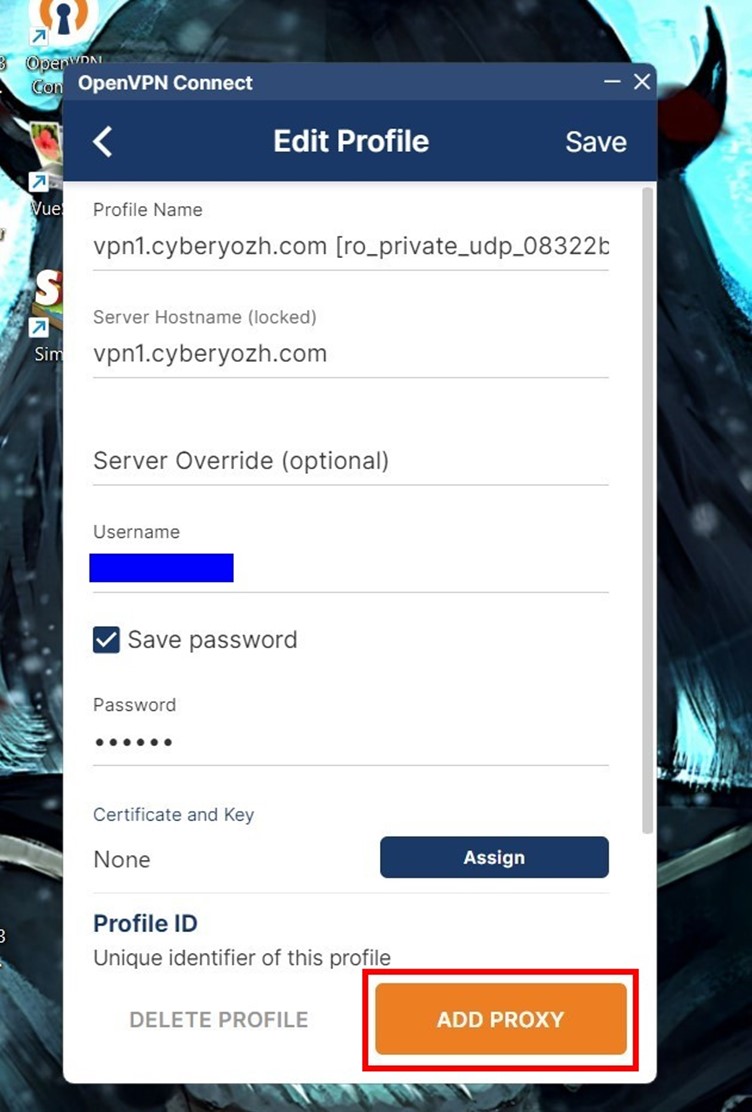
Click the ADD PROXY (or ADD) button.
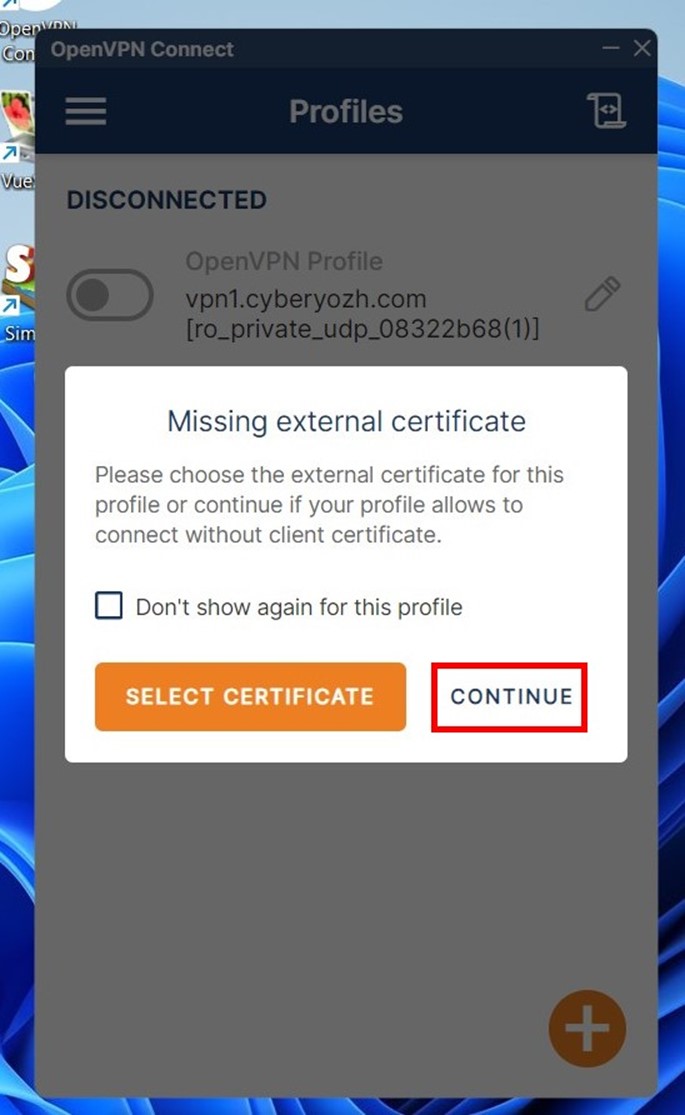
The program might show a warning about a missing client certificate. Go ahead and click Continue. Password authentication already protects the connection.
Click the toggle switch. The color will turn green. A packet transmission graph will appear below.
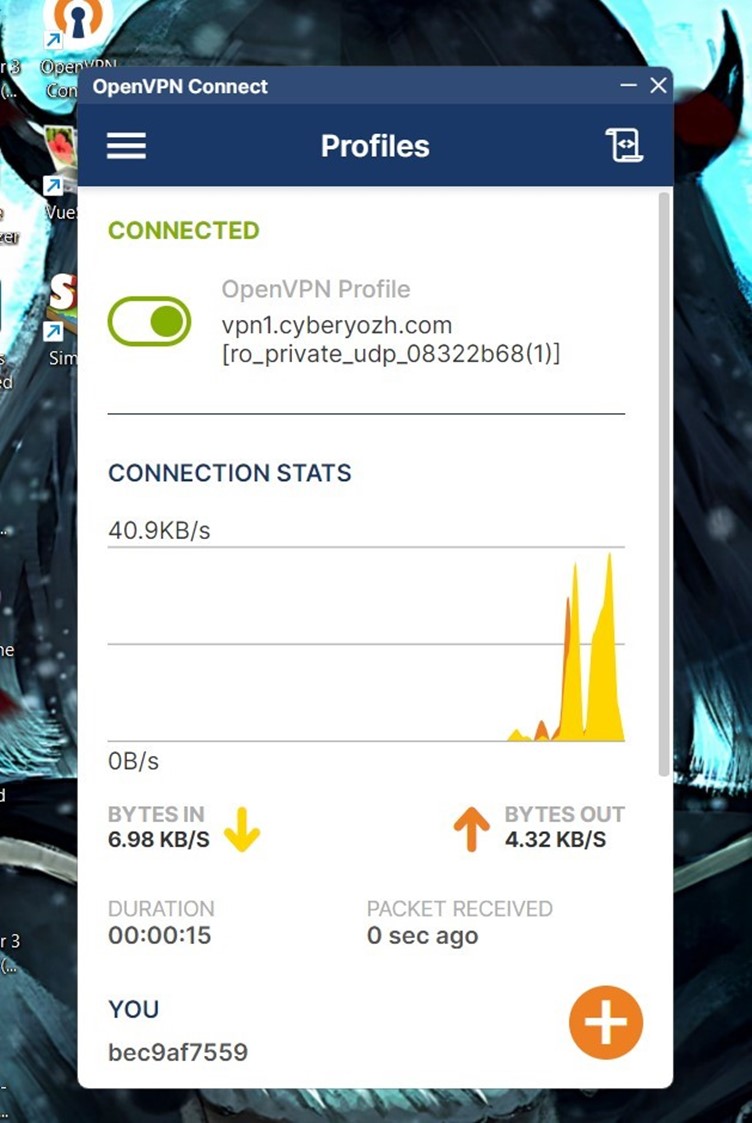
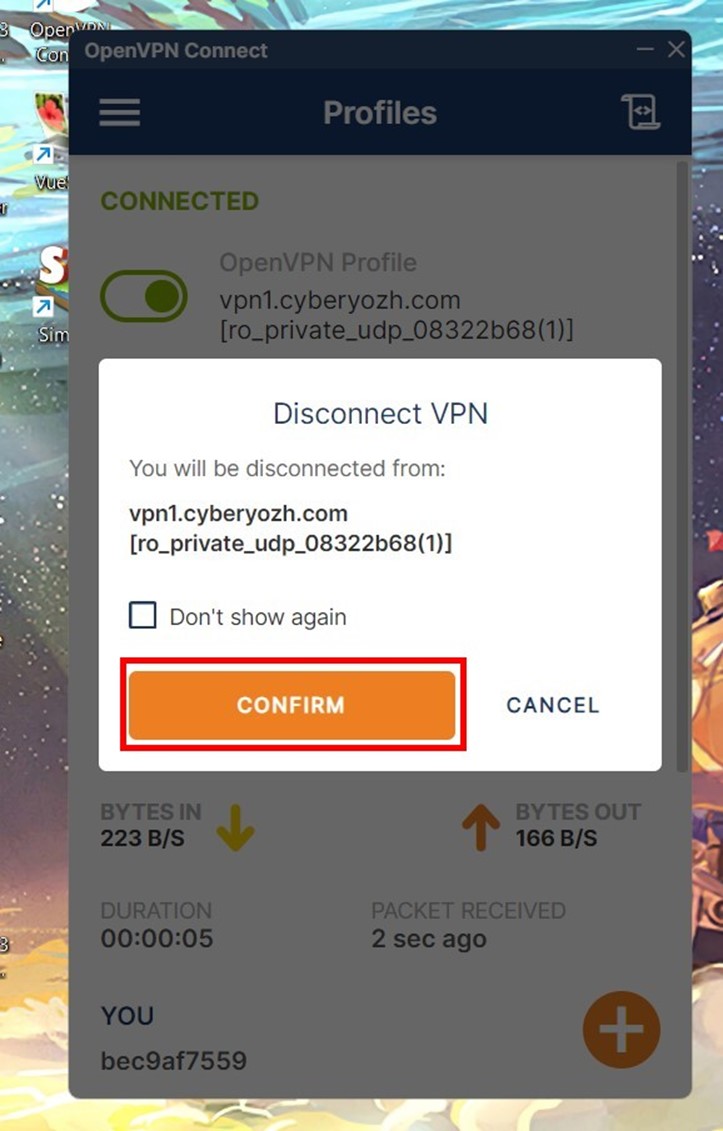
To disconnect, click the toggle again and select CONFIRM.
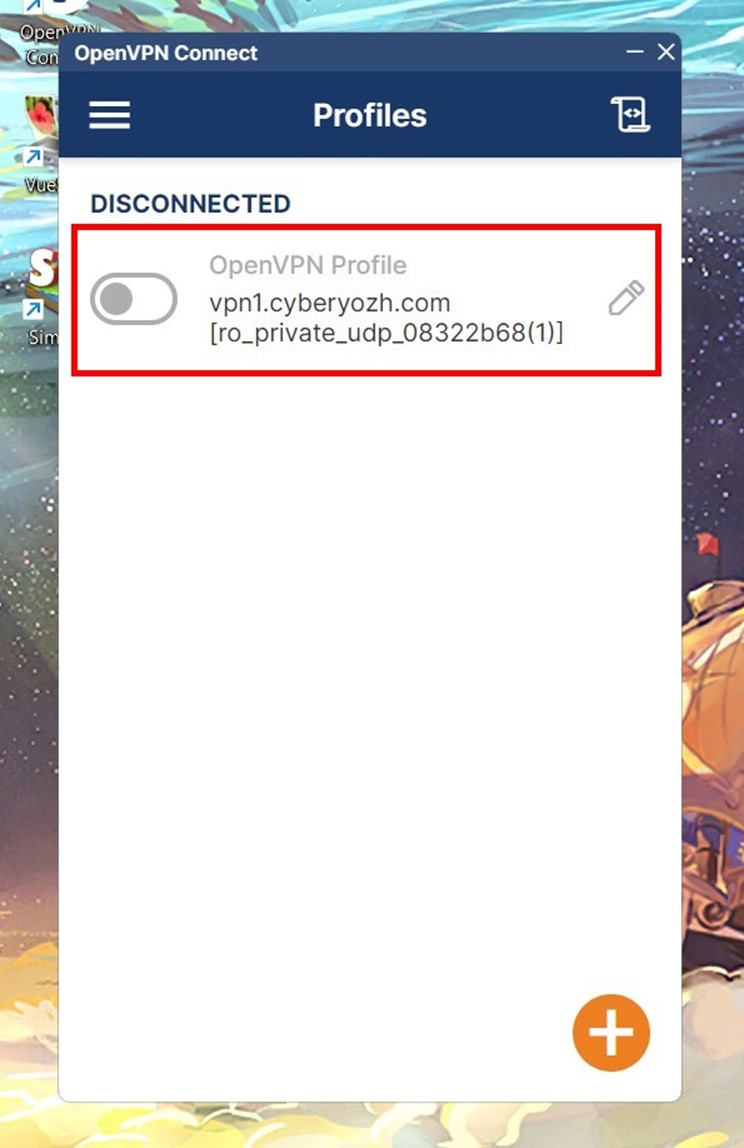
The button turns gray. The graphs disappear.
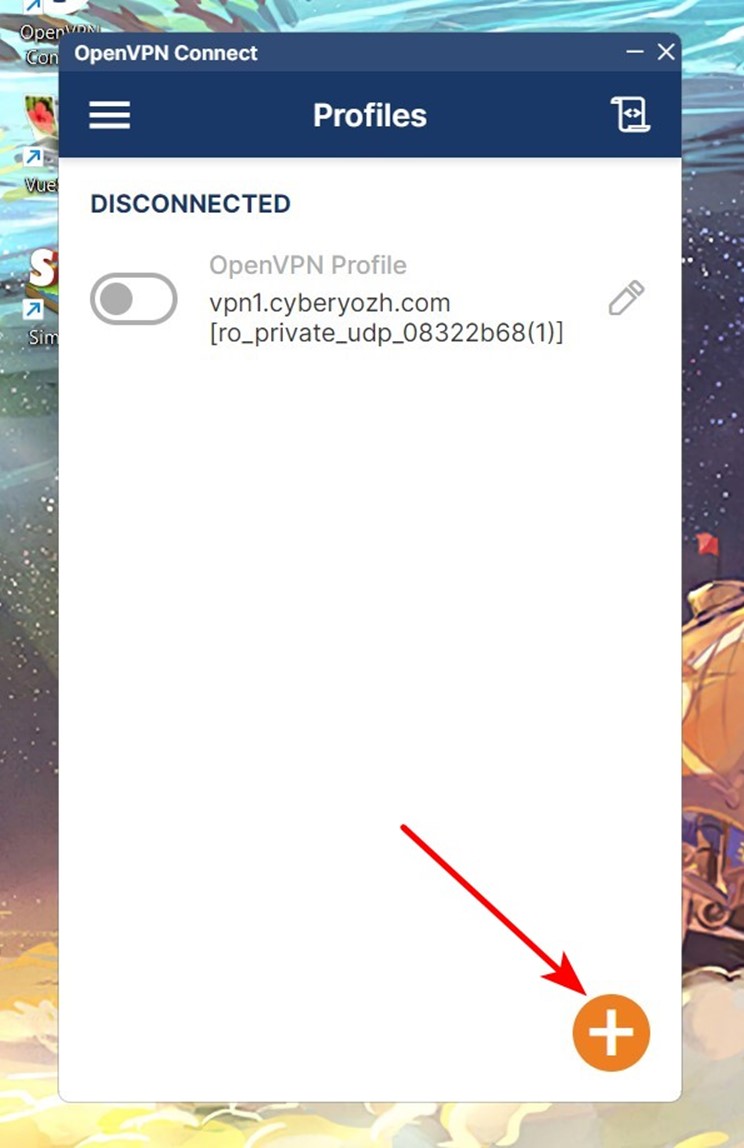
Use the "+" icon to add a new profile. To properly configure proxy with OpenVPN for isolated environments, load exactly one profile per virtual machine.
Fraud Score Check
Do not run your automated software immediately after connecting. Test the masking quality first.
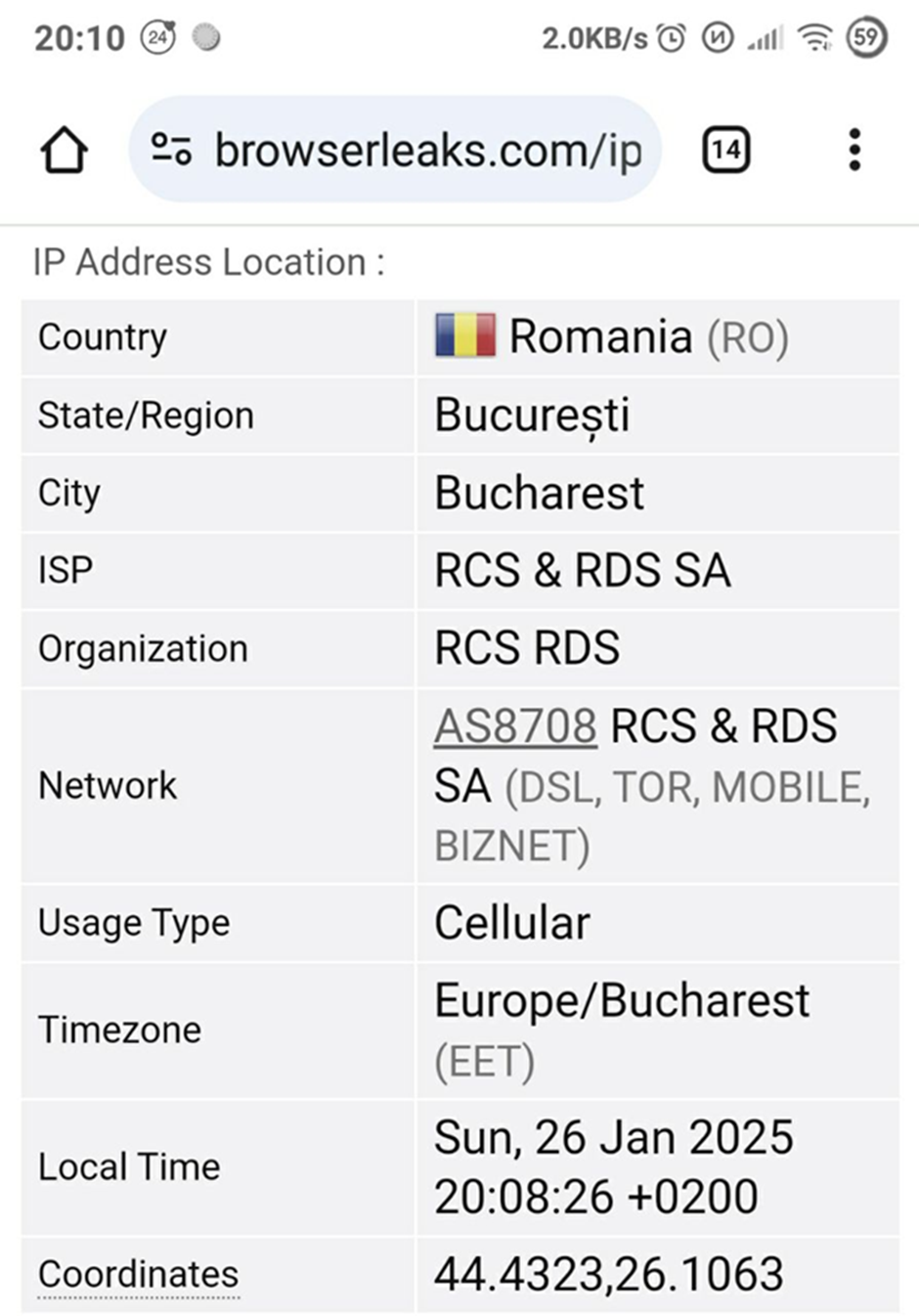
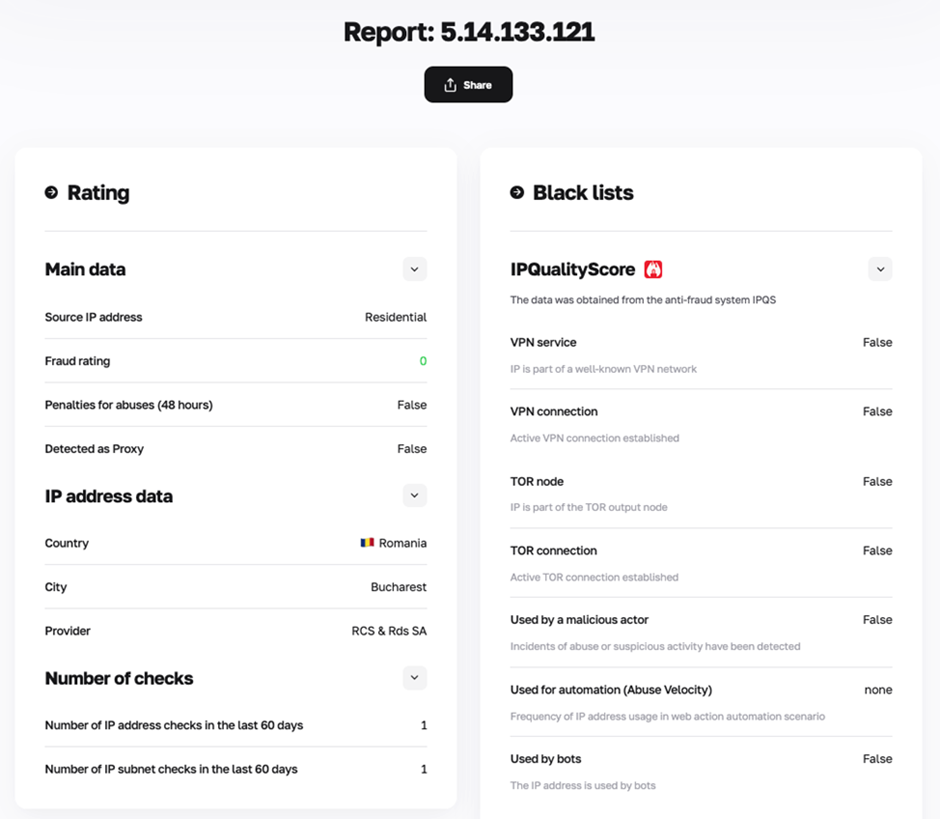
Go to the CyberYozh Fraud Score Checker. A properly established tunnel hides your real location and displays the IP association with a cellular carrier. A low Fraud Score confirms the profile is ready for work.
Conclusion
Now you know how to configure mobile proxy with OpenVPN. Follow the guidelines, use the UDP protocol, and do not forget to enable the Seamless Tunnel. Have a productive workflow!
Frequently Asked Questions (FAQ)
Can I configure proxy with OpenVPN using the TCP protocol?
Technically, yes. But for LTE/5G networks, we strongly advise using UDP. Routing TCP traffic inside another TCP tunnel causes congestion control algorithms to clash upon the slightest packet loss. Both protocols simultaneously request retransmission of the exact same data. Bandwidth drops critically due to the TCP meltdown effect.
Why do heavy websites or videos freeze when working through the protocol?
This is usually a classic Maximum Transmission Unit (MTU) conflict. Encryption increases the final weight of transmitted data. The network simply drops oversized packets. Add the mssfix 1300 directive to the .ovpn file to optimize the payload.
How do I guarantee no DNS leaks in Windows 11?
Windows system services often route DNS queries past the virtual adapter. Turn on the DNS Fallback and Seamless Tunnel options in the settings. The platform will forcefully route all queries through the encrypted channel.
Does the .ovpn file work for CyberYozh server IPs?
No. We issue OpenVPN configurations exclusively for mobile networks. This ensures that all traffic routes through Carrier-Grade NAT mechanisms.
What are the real advantages of VLESS over OpenVPN?
Deep Packet Inspection (DPI) systems easily identify classic packets. VLESS works alongside the REALITY algorithm and completely disguises the connection as standard HTTPS traffic. Blocking it requires blocking the regular internet altogether.
Will the tunnel drop when the operator changes the IP address?
Yes, during rotation, the connection will drop temporarily. Make sure to activate the Continuously retry parameter. The program itself will intercept the connection loss and restore the tunnel in a couple of seconds.