
CyberYozh App extension for Chrome and Firefox: 1-click proxies, SMS, and IP checks
Managing proxies, switching IP addresses, and receiving SMS verification codes no longer requires digging through operating system network settings or switching between dozens of tabs. The updated CyberYozh App extension for Google Chrome and Mozilla Firefox brings the entire all-in-one infrastructure platform into a compact browser sidebar.
In this guide, we break down how to install, authorize, and configure the CyberYozh App extension in a couple of minutes to control your proxy connections, rotating residential sessions, virtual numbers, and risk checkers from a single window.
Step 1. Installing and pinning the CyberYozh App extension in Chrome and Firefox
The extension is officially available for both Chromium-based browsers and Mozilla Firefox:
For Google Chrome (and Chromium browsers): Open the CyberYozh App page in the Chrome Web Store and click "Add to Chrome".
For Mozilla Firefox: Open the CyberYozh App page on Firefox Add-ons and click "Add to Firefox".
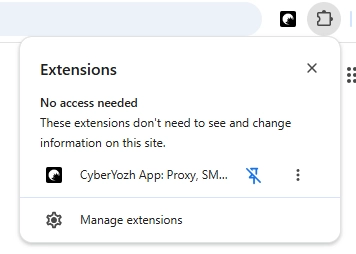
Pinning the icon for quick access: Immediately after installation, click the extensions "puzzle" icon in the upper-right corner of your browser toolbar and click the "Pin" icon next to CyberYozh App. This keeps the control panel visible on your toolbar at all times.
Step 2. Signing in and navigating the Home dashboard
You can connect your account to the CyberYozh App extension in two clicks:
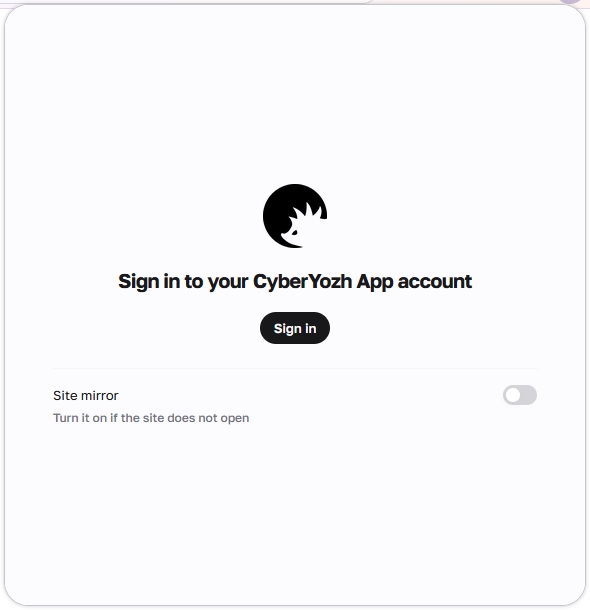
Starting authorization: Click the pinned extension icon on your toolbar and click the "Sign in" button. If the main web domain is unreachable from your current local network, flip the "Site mirror" toggle at the bottom of the login window before signing in.
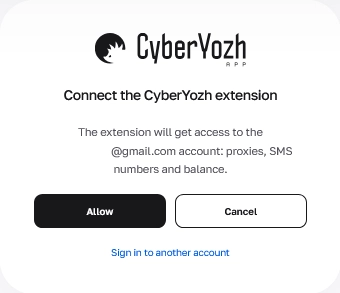
Confirming access: If you are already logged into your personal account on app.cyberyozh.com, a confirmation window will ask you to grant the extension access to your proxies, SMS numbers, and balance. Click "Allow" (or select "Sign in to another account" if you want to switch workspaces).
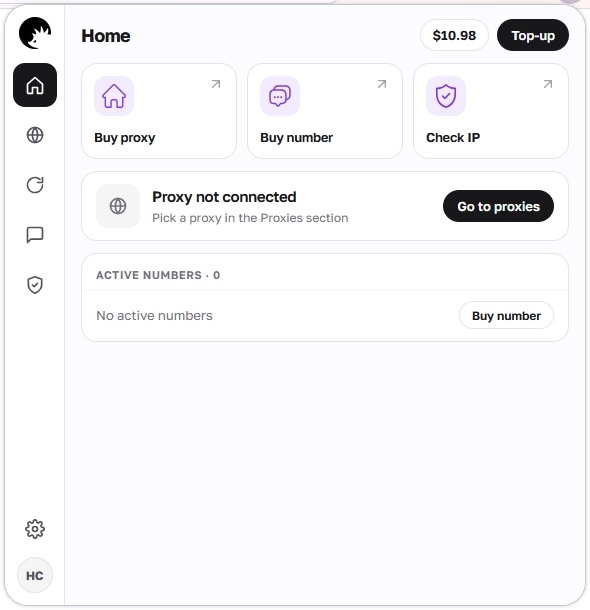
Once authorized, the extension opens on the Home dashboard. Here you can view your current balance and "Top-up" button in the top-right corner, use quick-action cards ("Buy proxy", "Buy number", "Check IP"), check whether a proxy tunnel is currently connected, and monitor your active SMS numbers. The left navigation bar lets you switch between five core modules: Home, Proxies, Rotation, Numbers, and Checkers.
Step 3. Managing mobile, static ISP, and datacenter proxies
You can route your browser traffic through purchased proxies directly inside the CyberYozh App extension without opening system network dialogs.
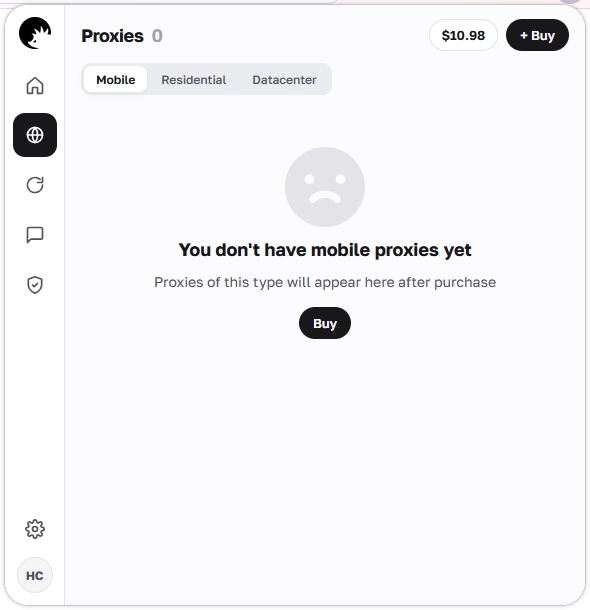
Selecting a category and purchasing: Click the globe icon in the left sidebar to open the Proxies section. Proxies are organized into three dedicated tabs:
Mobile: High-trust LTE/4G/5G carrier proxies starting from $1.7/day with unlimited traffic. Because mobile operators use CGNAT technology (where hundreds of real smartphone subscribers share one external IP), social platforms and Google anti-fraud filters treat these connections with high trust, making them suitable for account workflows and multi-threaded Google SERP scraping.
Residential: Dedicated static ISP residential proxies starting from $5.29/month with unlimited traffic and 99.9% uptime, built for long-running e-commerce, payment, and brand sessions where a permanent home IP is required.
Datacenter: High-speed dedicated and shared server IPs starting from $1.77/month for open data scraping, API testing, and technical monitoring.
If you do not have an active proxy in the selected category yet, click "Buy" (or "+ Buy" in the top-right corner) to order a channel. Purchased proxies appear in the list immediately.
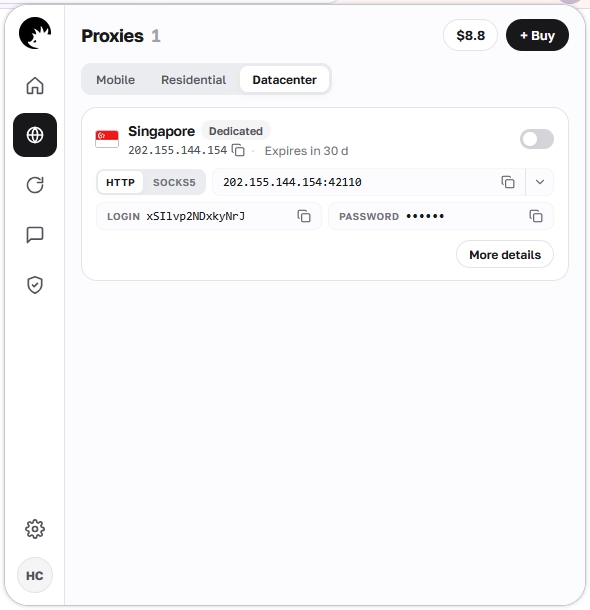
Connecting in one click: Each proxy card displays the location flag, channel type (such as Dedicated), external IP address, expiration timer, protocol selector (HTTP or SOCKS5), and one-click copy buttons for host:port, LOGIN, and PASSWORD. You can also click "More details" to view extended node parameters.
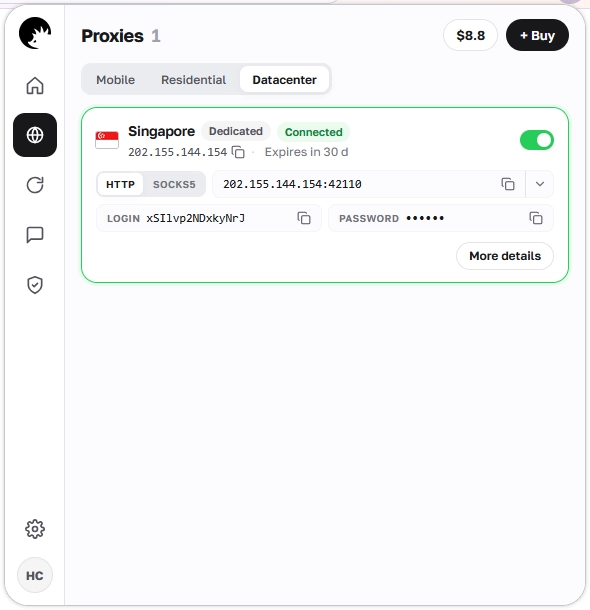
To route your browser through the proxy, flip the toggle switch in the upper-right corner of the proxy card. The card border turns green and displays a "Connected" badge, confirming that browser traffic is now routed through the selected IP.
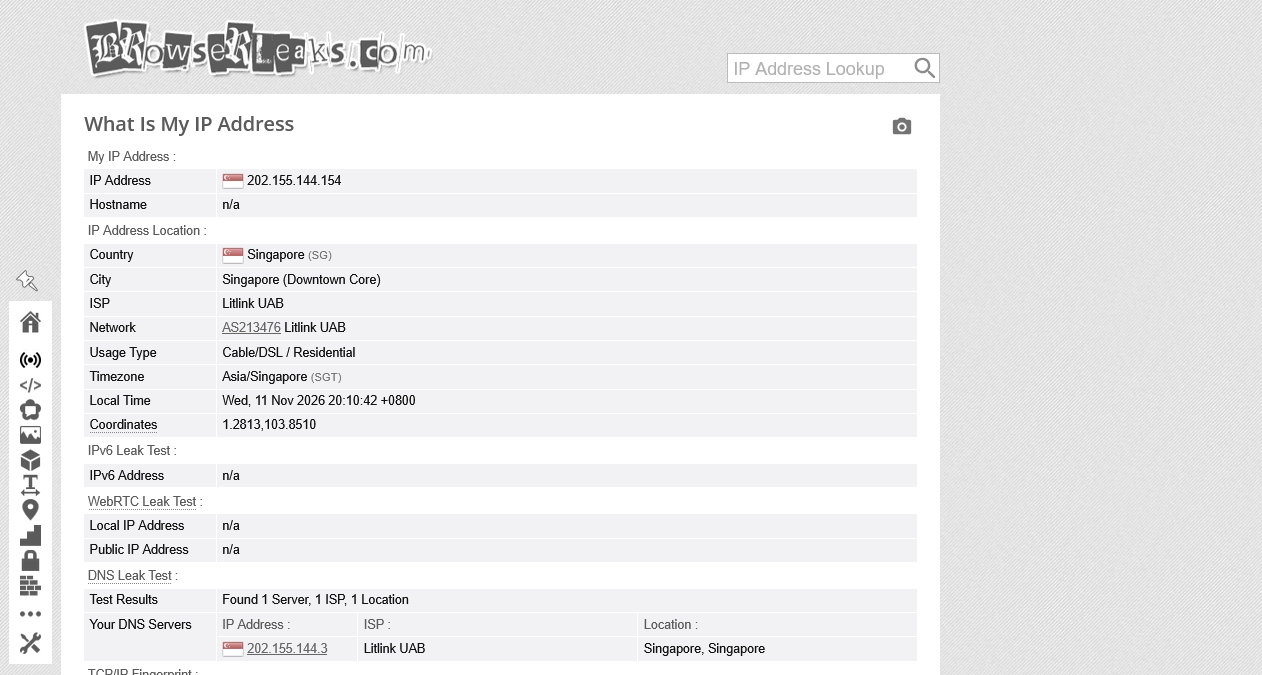
Verifying the tunnel: Open a diagnostic page such as browserleaks.com/ip in a new tab to verify that your outbound IP address, timezone, and DNS resolver match the connected proxy region without leaking your local network address.
Tip: On mobile proxy plans that support passive OS fingerprint switching (TCP/IP fingerprint), you can align the network-level OS signature with your workflow. Contact CyberYozh App technical support if you need assistance configuring OS parameters for your tasks.
Step 4. Configuring rotating residential proxies in the CyberYozh App extension
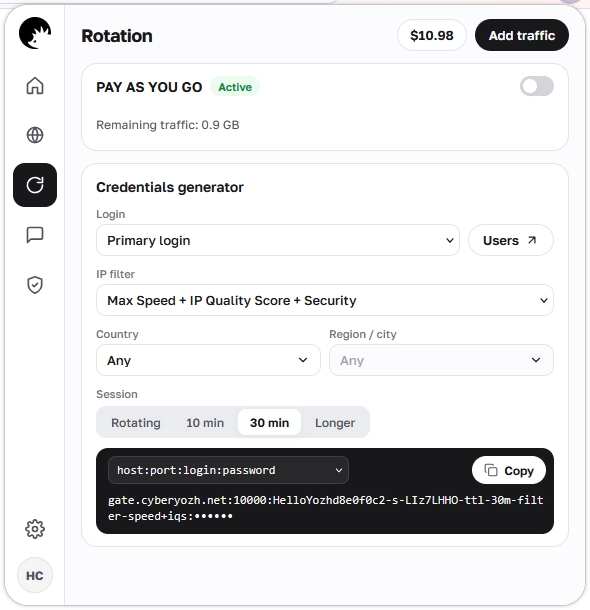
The updated interface includes a dedicated Rotation tab (the circular arrow icon in the left sidebar) for managing rotating residential proxies. This connects your browser to an expanding pool of over 100 million (100M+) residential IPs across 195+ countries.
Usage-based Pay-as-you-go pricing starts at $4/GB (with a 3 GB minimum package, scaling down to $2.5/GB at 100 GB), and unused bandwidth automatically carries over to the next billing month (Traffic Rollover).
Inside the Rotation tab, you can connect your browser directly or generate custom proxy strings using the built-in Credentials generator:
PAY AS YOU GO status and toggle: View your active status, check your remaining gigabyte balance, top up bandwidth via "Add traffic", or flip the toggle switch to route browser traffic through the rotating pool immediately.
Login & Users: Select your sub-user login (such as
Primary login) or manage team sub-accounts via the "Users" button.IP filter: Enable intelligent pre-filtering (such as
Max Speed + IP Quality Score + Security) so the system assigns pre-vetted residential nodes with high connection speeds and clean reputation scores.Country and Region / city: Apply free geo-targeting down to a specific country, state, or city, or leave it set to
Anyfor global rotation.Session control: Choose "Rotating" to assign a fresh IP on every request, or lock a sticky session for "10 min", "30 min", or "Longer" (supporting sticky sessions for up to 24 hours to maintain consistent session identity during multi-step checkouts and localized testing).
One-click export: Select your preferred credential format (such as
host:port:login:password) in the bottom output box and click "Copy" to use the generated string in external automation tools or multi-profile browsers.
Step 5. Managing virtual numbers and pre-flight risk checkers
The CyberYozh App extension also integrates SMS activation and pre-flight risk evaluation tools so you do not have to switch between separate vendor websites.
Receiving SMS verifications (Numbers tab):
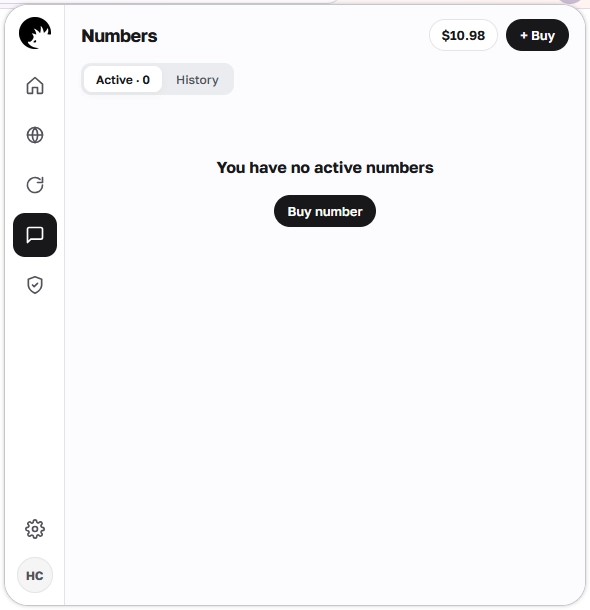
Click the chat bubble icon in the left sidebar to open the Numbers section.
Click "Buy number" (or "+ Buy" in the top-right corner) to select a target service and country from over 140+ supported regions.
Track incoming OTP codes in real time under the "Active" tab and review past activations at any time in the "History" tab.
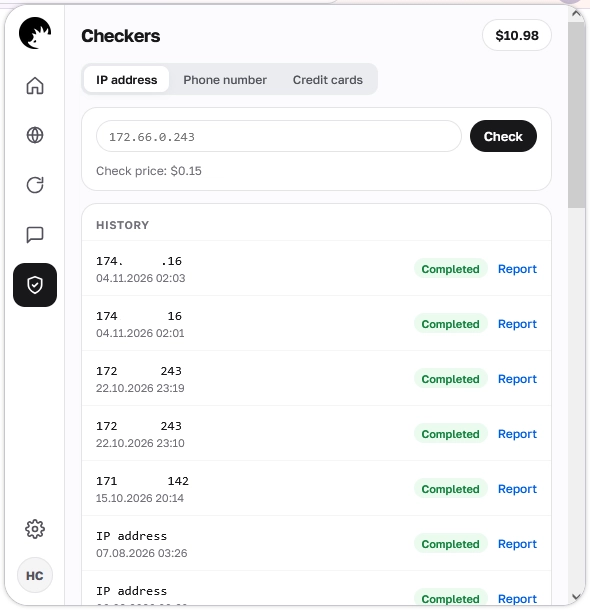
Pre-flight risk evaluation (Checkers tab): Click the shield icon in the sidebar to open the Checkers module. Adopting a Risk Evaluation Before Execution workflow lets you verify resources before launching traffic or binding credentials to sensitive accounts:
IP address: Run an instant Fraud Score and reputation audit against anti-fraud databases (check price: $0.15) to verify that an IP has no spam history.
Phone number: Evaluate phone number risk signals and carrier reliability before registration.
Credit cards: Check bank card BIN parameters for payment analytics and compliance testing.
All previous checks are saved in the HISTORY list below the input field, where you can click "Report" to inspect the full diagnostic breakdown for any verified IP, phone number, or card.
Building a complete browser workflow with the CyberYozh App extension
With the CyberYozh App extension installed in Chrome or Firefox, you can match the right network infrastructure to every task and control it from a single sidebar:
For social media management, ad verification, and Google SERP scraping, connect Mobile LTE/5G proxies (from $1.7/day with unlimited bandwidth and CGNAT carrier trust).
For long-term e-commerce seller accounts and payment workflows, use Static ISP residential proxies (from $5.29/month with unlimited traffic).
For localized market research, QA testing, and multi-step sessions, enable Rotating residential proxies in the Rotation tab (100M+ IPs across 195+ countries, $4/GB with a 3 GB minimum, automatic Traffic Rollover, and sticky sessions up to 24 hours).
For high-speed technical monitoring and open data collection, switch on Datacenter proxies (from $1.77/month).
Explore all available proxy plans, virtual numbers, and verification tools in the CyberYozh App catalog. If you have any questions about configuring the extension, reach out to our 24/7 support team via the online chat on the website or through the official CyberYozh App Telegram support bot.