
How to set up a proxy in Spotify
Spotify streams millions of tracks daily. But your local ISP routing can easily ruin the entire experience. Poor routing drops stream quality. Audio buffers endlessly. The app fails completely on public networks.
ISPs often deploy artificial traffic shaping. They detect streaming audio and immediately throttle your speed. This forces Spotify to lower the sound quality automatically.
A properly configured proxy server resolves this. It creates a direct, secure route for your audio data. A clean proxy connection stops this instantly by providing a direct route for your data.
Three main bottlenecks cause these issues:
Public Wi-Fi risks. Open networks in cafes or transport expose your traffic. Hackers can intercept your session data without protection.
ISP speed throttling (shaping): This is a common problem with streaming. Many ISPs artificially lower speeds when streaming audio or video is detected, causing sound quality to drop automatically and tracks to buffer for a long time.
Unstable routing and high ping: If the traffic path is suboptimal, the app simply won't be able to exchange data stably with the platform's servers and may display network errors, depriving you of the ability to listen to music without delays.
Fortunately, this can be solved. A proxy server is your key to ensuring a stable, secure connection and listening to music in the highest quality without network restrictions.
Warning: Use proxy servers legally and transparently. Deploy them to protect your network footprint, ensure privacy, and maintain connection stability. Make sure your network setup matches the music platform's Terms of Service.
🎧 Technical choice: Why Spotify needs SOCKS5 proxies, not HTTP
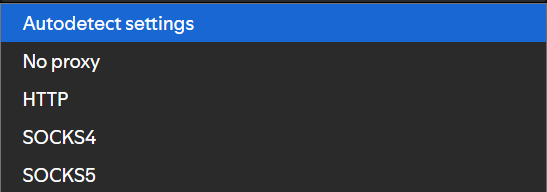
You need to pick the right one. In Spotify settings (as seen in Screenshot 5), there are several options: HTTP, SOCKS4, SOCKS5.
HTTP proxies fail here. They belong in web browsers for simple web traffic. Spotify uses complex, multi-layered streaming and P2P protocols. HTTP drops these connections.
SOCKS4 proxy: This ancient protocol completely lacks authentication features. High-quality private proxies require a login and password, so SOCKS4 won't work.
SOCKS5 proxy: This is the gold standard and your only right choice. SOCKS5 is a versatile, low-level protocol. It doesn't care what traffic you run through it web, streaming, P2P, or anything else. It will reliably "wrap" all Spotify app traffic and send it through a remote server. Additionally, SOCKS5 supports UDP traffic, which is critical for streaming and P2P in Spotify.
For stable and full Spotify operation, you need a SOCKS5 proxy. Choose proxies from trusted providers (for example, with a speed guarantee of at least 5 Mbps for high quality, over 10 Mbps for HiFi, and low ping). Free public proxies are dangerous: they can steal your data or provide extremely low speeds. Never use public proxies without authentication it's a data leak risk.
👉 You can read more about mobile proxies here
👉 You can read more about residential proxies here
Which proxy type fits Spotify
Protocol matters. But the server origin dictates your actual stream quality. CyberYozh provides several infrastructure options. You need the correct architecture for continuous audio playback.
Residential static (ISP) proxies: This is your primary choice for desktop streaming. These static IPs belong to real home internet providers. Platforms trust them completely. They fully support SOCKS5 and works right out of the box. Because the connection looks exactly like standard home Wi-Fi, Spotify won't flag your session. Your playlists just run. No random pauses.
Mobile proxies: These route traffic through real 5G or LTE cell towers. They also support SOCKS5. They carry the highest trust rate possible. They easily overcome strict network filters while delivering clean, uninterrupted audio.
Server / Datacenter proxies: Skip these for the native Spotify app. They offer massive bandwidth on premium corporate servers. But they only support the HTTP protocol. Spotify strictly requires SOCKS5 to function. Applying an HTTP datacenter proxy in the app settings will instantly break your connection.
Residential rotating proxies: Avoid these entirely. They constantly swap your IP address. Every rotation severs your active connection. Your music pauses abruptly. You also pay per gigabyte. Audio streaming burns through that data allowance rapidly.
Stick to static ISP residential or mobile IPs. They give you a dedicated, unchanging channel for your playlists.
Alternative: If you want to protect traffic for the entire device (including mobile), consider a VPN instead of a proxy it encrypts all traffic and is easier to set up. But encryption processing can sometimes lower raw streaming speeds.
🛠️ How to configure your Spotify proxy (desktop only)
The desktop client (Windows and macOS) allows native configuration. It takes less than a minute.
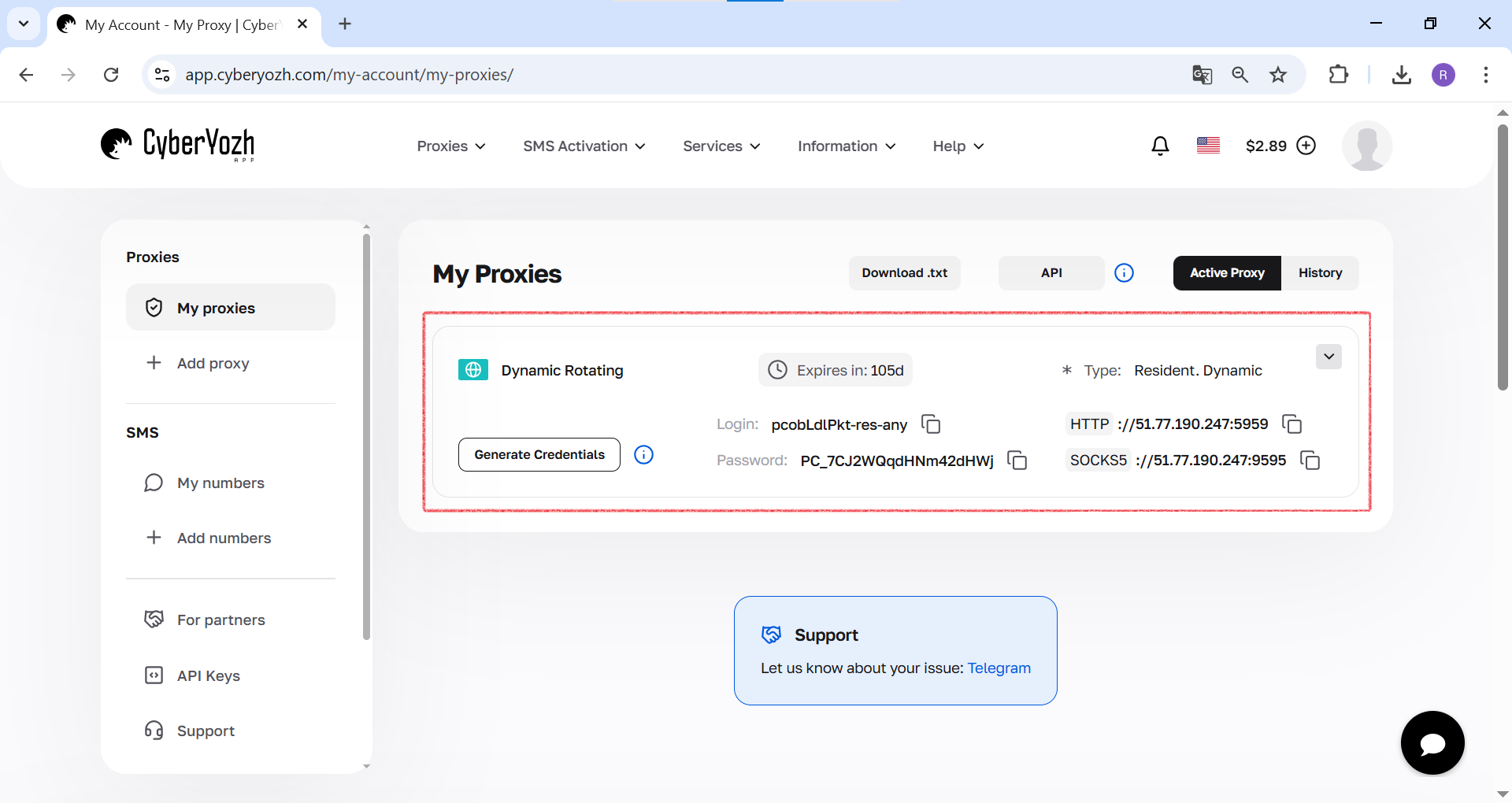
Step 1: Get your connection details
Grab your proxy credentials first. You need:
IP Address (host server)
Port for connection
Login and Password for authentication
Protocol Type (HTTP or SOCKS5)
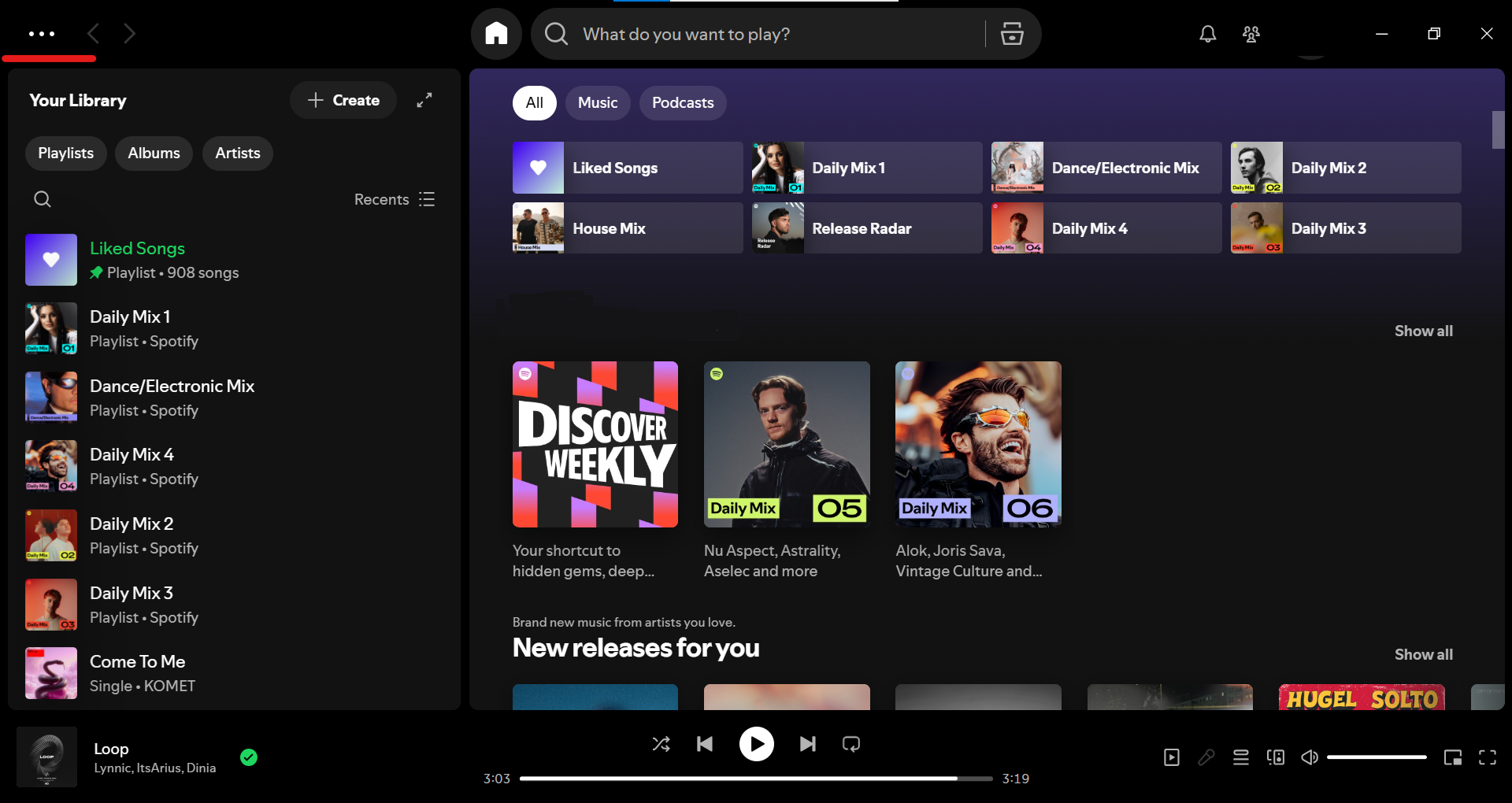
Step 2. Open the Spotify main menu
Click the three dots (...) in the top-left corner of the Spotify client. Select Edit, then click Preferences.
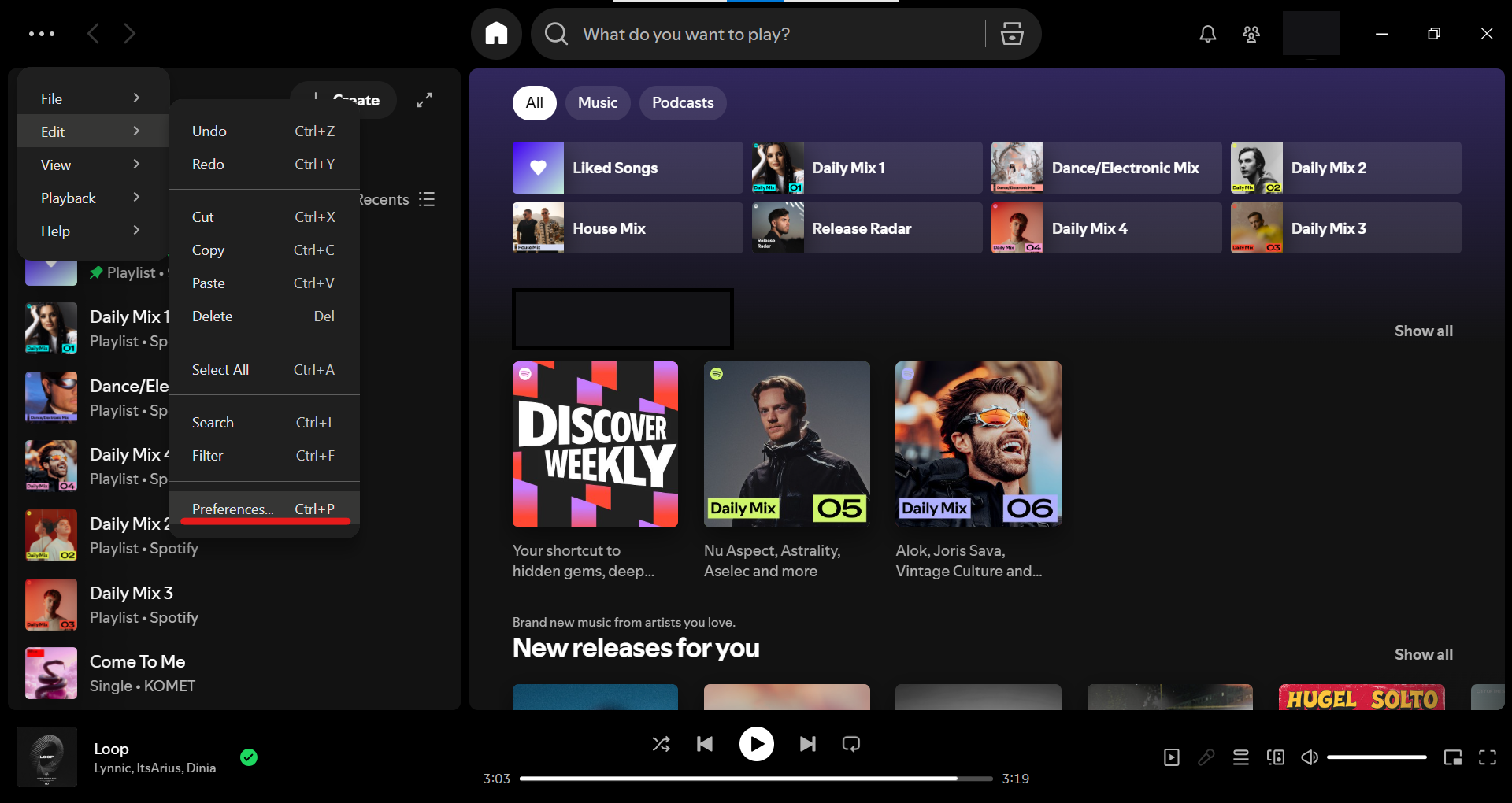
Step 3. Go to Spotify "Settings"
In the dropdown menu, select Edit, and then in the submenu click on Preferences... (Settings).
Step 4. Find the "Proxy" section
Scroll down the settings page. Stop at the Proxy Settings block.
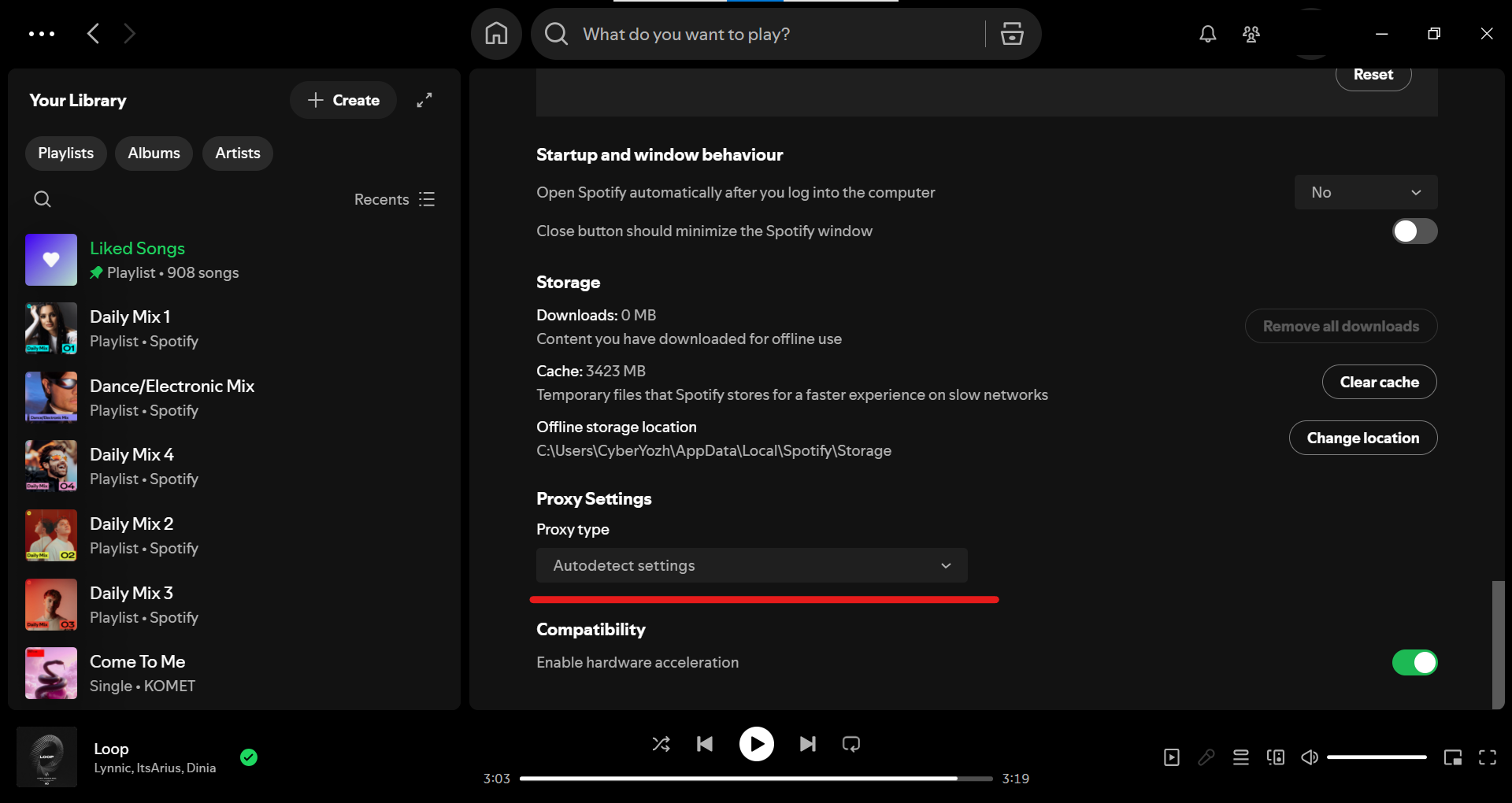
Step 5. Select the correct proxy type for Spotify
Click on the Proxy type dropdown list. By default, it is set to Autodetect settings. From all the suggested options, select SOCKS5.
Step 6. Enter your proxy data
Fill in the newly visible input fields with your server details:
Host: Your proxy IP address (e.g.,
51.77.190.247)Port: Your proxy port (e.g.,
9595)Username & Password: Type your private authorization keys
Step 7. Restart the Spotify App
Spotify needs a fresh launch to build the new route. Click the Restart App button that appears.
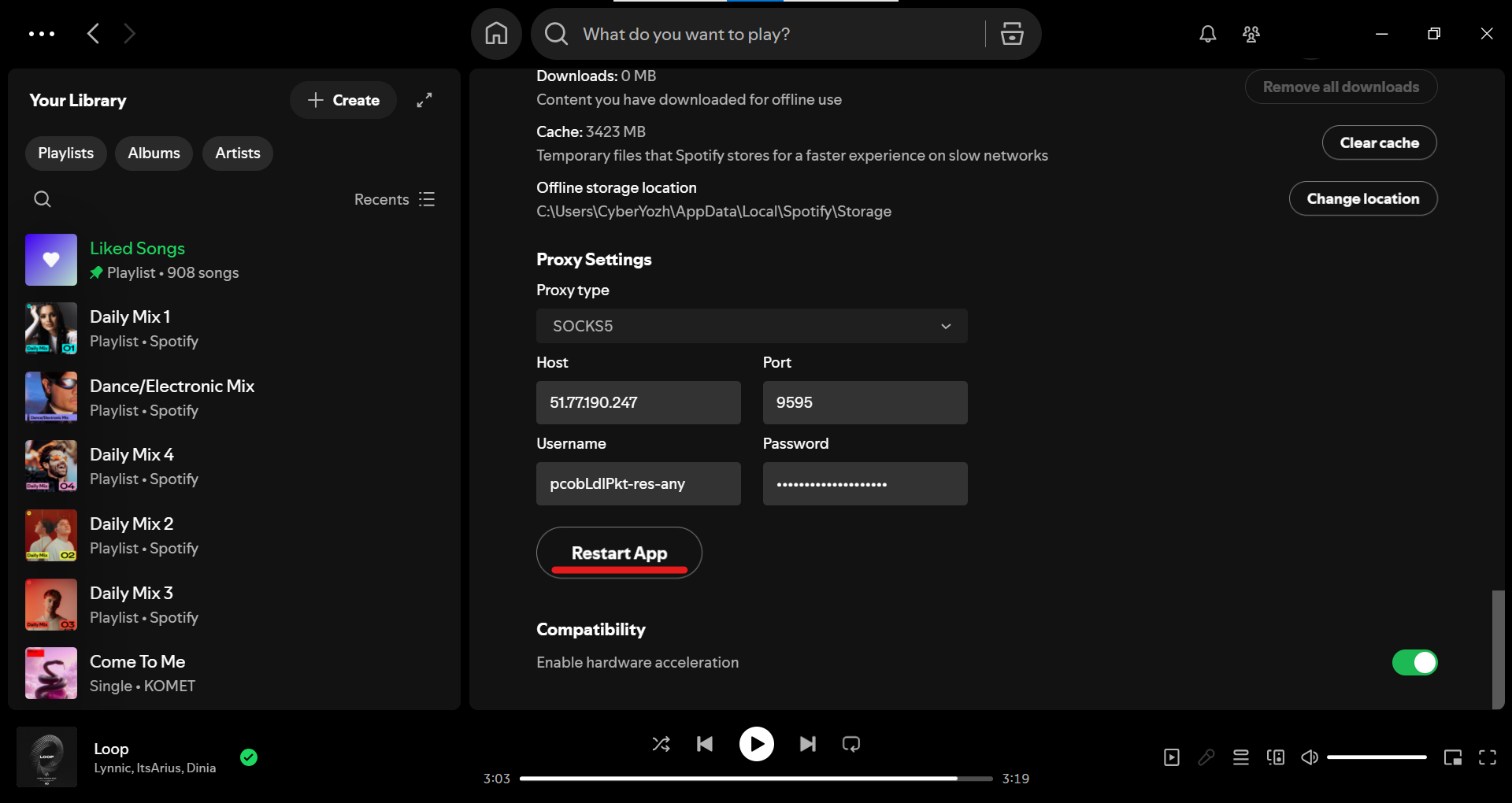
The proxy will not start working until you completely restart the application.
📱 Setting up a proxy in Spotify on a mobile device
The mobile apps for Android and iOS do not have built-in proxy menus. You must route traffic through the system level or use a proxy client/VPN.
On Android: Install a VPN/poxy app (e.g., apps like V2RayNG, OpenVPN Connect or official WireGuard) and connect to a secure server. Alternatively, configure the proxy in system settings: Go to Settings > Network & Internet > Proxy/VPN > Add a SOCKS5 configuration (if supported by your device).
On iOS: Use the built-in VPN settings on iPhone (Settings > General > VPN & Device Management). Add the configuration from your proxy/VPN provider.
Once connected, open Spotify. The app traffic will use the new secure path automatically.
🔧 What to do if proxy setup doesn't work
Run a speed test. High latency (above 200ms) or speeds below 2 Mbps cause audio stutters. Check your raw line speed at speedtest.net.
Verify every character. Typos kill authentication. Ensure your residential or mobile IP remains active in your provider dashboard.
Clear app cache. Go to Settings > Storage and hit Clear Cache to remove old routing conflicts.
Security note: Only use providers that guarantee high bandwidth and 99% uptime for audio streams.
✅ Conclusion: Music without delays
Restart the app. Spotify now routes traffic through your secure proxy node. Throttling disappears. Buffering stops. Choose proxy servers with high bandwidth and low latency.
This keeps streams fast. Sound quality stays at maximum levels, even on HiFi tracks.
👉 Looking for the best proxy for Spotify? For high-quality streaming, you need a fast and reliable channel. Get high-speed SOCKS5 proxies for uninterrupted streaming.
FAQs about Spotify proxy
Why set up a Spotify proxy if the music is already playing?
ISPs often throttle streaming speeds. Network engineers call this traffic shaping. It causes tracks to load forever. A proxy optimizes your traffic route. Music loads without delays.
Why is SOCKS5 better than HTTP for Spotify?
Developers created the HTTP protocol for basic websites. It lacks the power for a complex app. Spotify pushes audio streams, sync data, and P2P traffic through the network. SOCKS5 operates at a low system level. It packages absolutely any data without modification. And it supports the UDP format. You need this baseline requirement to listen to music smoothly without pauses.
Are free streaming proxies safe?
No. Using them carries a massive risk. Nobody takes responsibility for free servers. Node owners can intercept your passwords and account data. Speeds are usually terrible too. Your music will stutter constantly. High-quality sound requires a guaranteed 5 to 10 Mbps bandwidth. Free pools will never deliver that speed. Always pick private addresses that require authentication.
How fast can I set up SOCKS5 on the desktop app?
The setup takes exactly one minute. Open the desktop version on Windows or macOS. Click the three dots in the top left corner. Open the Edit menu and select Preferences. Scroll down to the network parameters section. Swap Autodetect to SOCKS5. Fill in your host, port, and credentials. Hit the restart button to apply the changes. Your new rules will fail to work without a reboot.
What should I do if Spotify shows a network error after setup?
Errors happen. Check your input characters first. One extra space completely breaks authentication. Test the server ping and speed via any online tool. Your audio stream will drop if the latency exceeds 200ms. Clear the app cache in the storage settings section. But if the problem persists, the node simply went offline. You will have to switch to a working IP address.
Can I add proxy settings directly inside mobile Spotify?
The mobile app for Android or iOS lacks this feature. Developers never added it. But you have a way out. Set up a secure connection at the smartphone operating system level. On Android, go to the wireless networks menu and add a SOCKS5 configuration. On an iPhone, it is much easier to use a secure VPN connection. All your mobile traffic will follow a stable path.
Does a proxy improve sound quality?
A proxy does not improve sound directly. It simply removes artificial speed limits imposed by your ISP. Standard high-quality audio needs 5 Mbps. Lossless or HiFi formats require over 10 Mbps. The app automatically compresses tracks if your provider lowers the speed. A proxy restores stable access to streams at maximum speed. Your sound stays crisp.