
Proxies for uTorrent
Peer-to-Peer (P2P) networks — are a brilliant invention for the decentralized exchange of giant datasets. Developers use torrents to distribute operating system images, while scientists use them to transfer terabytes of research databases.
However, P2P networks have two significant drawbacks. First, your real IP address is open and visible to absolutely all participants in the swarm (peers). Second, Internet Service Providers (ISPs) categorically dislike torrent traffic: they recognize it using deep packet inspection systems and artificially "throttle" your speed (this process is called shaping).
To reclaim your maximum download speed and hide your digital identity from prying eyes, professionals route their traffic. In this step-by-step guide, we will analyze which proxies are suitable for these tasks and how to correctly configure them in the µTorrent client.
The Main Technical Rule: Choosing a Protocol (HTTP or SOCKS5)
The first mistake users make is trying to plug a random free IP address from the internet into uTorrent. Torrents operate under specific rules, establishing direct connections between computers. You can use both HTTP and SOCKS5 proxies, but there is an important nuance between them:
HTTP Proxies: They handle torrents perfectly by transmitting data via reliable TCP connections. This is a fast option that is guaranteed to download your file. The only nuance is that HTTP does not work with the UDP protocol (for example, for finding peers via the DHT local network).
DHT (Distributed Hash Table) — is one of the most ingenious technologies that modern peer-to-peer (P2P) internet relies on.
In simple terms, DHT is a system that allows torrent users to find each other without the involvement of a main server (tracker).
SOCKS5 Proxies: This is an "omnivore" tunnel. It passes absolutely any traffic (both TCP and UDP) through itself, ensuring the maximum number of connections to the swarm.
Both options are fully functional; the main thing is to correctly instruct the client on exactly how to handle your traffic.
Which proxies to choose in the CyberYozh App ecosystem?
P2P networks consume colossal amounts of gigabytes. If you are downloading a 100 GB scientific dataset, using networks with pay-per-traffic models is irrational. In the CyberYozh App infrastructure, there are two uncompromising solutions:
Datacenter Proxies (Datacenter IP): The absolute top choice for high-speed downloading. Premium dedicated servers with the HTTP protocol are inexpensive, deliver phenomenal speeds, and feature unlimited traffic.
Residential Proxies ISP: If your local provider blocks P2P too aggressively, a static residential IP (with SOCKS5 support) will mask torrent traffic as regular home user activity. Traffic here is also unlimited.
👉 You can read more about residential proxies here
Step-by-Step Proxy Setup in µTorrent
Configuring the client will take you no more than two minutes. Follow these instructions (the interface is shown in English as the international standard, but the logic is identical for any localization).
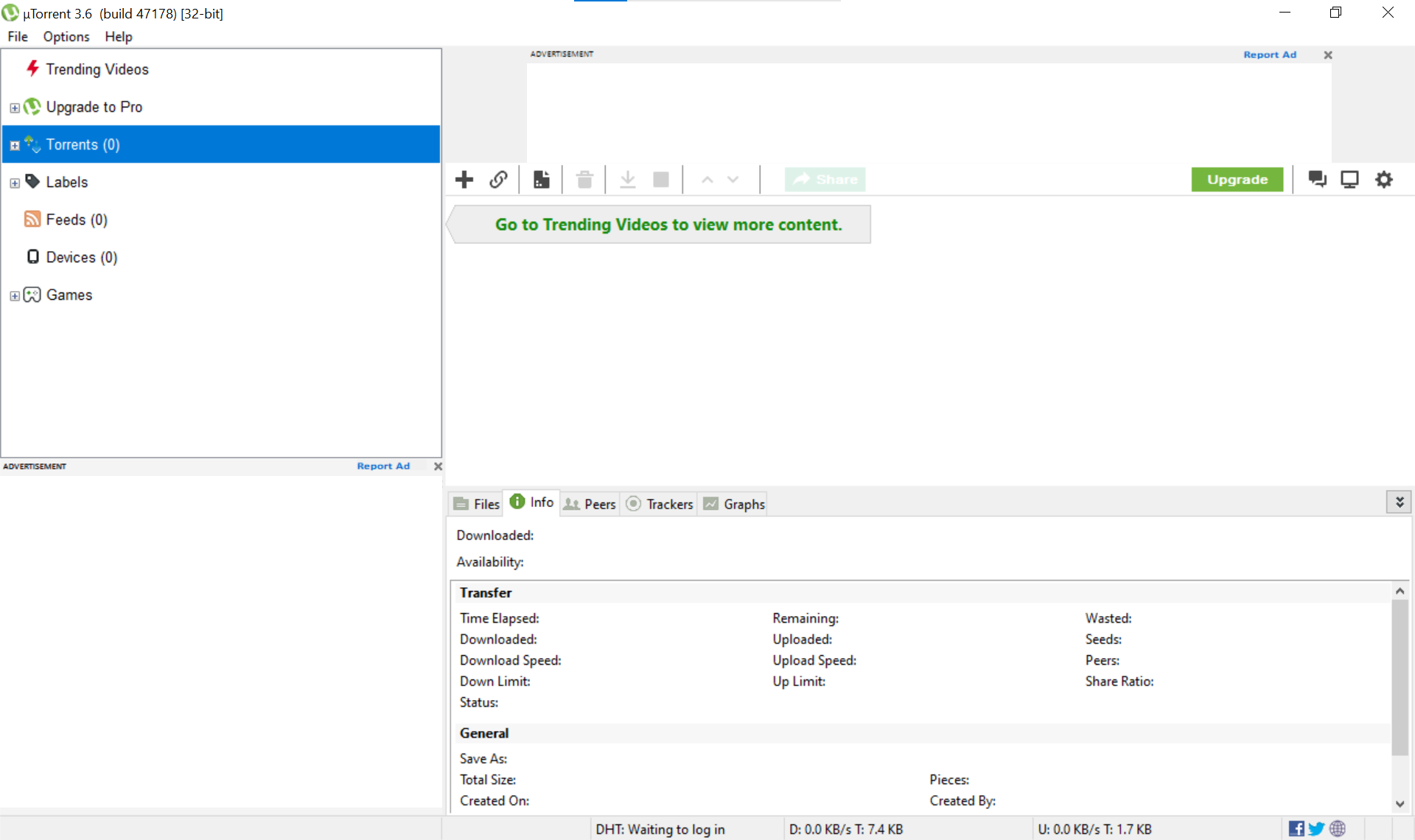
Step 1. Open your torrent client. You are on the main screen of the program.
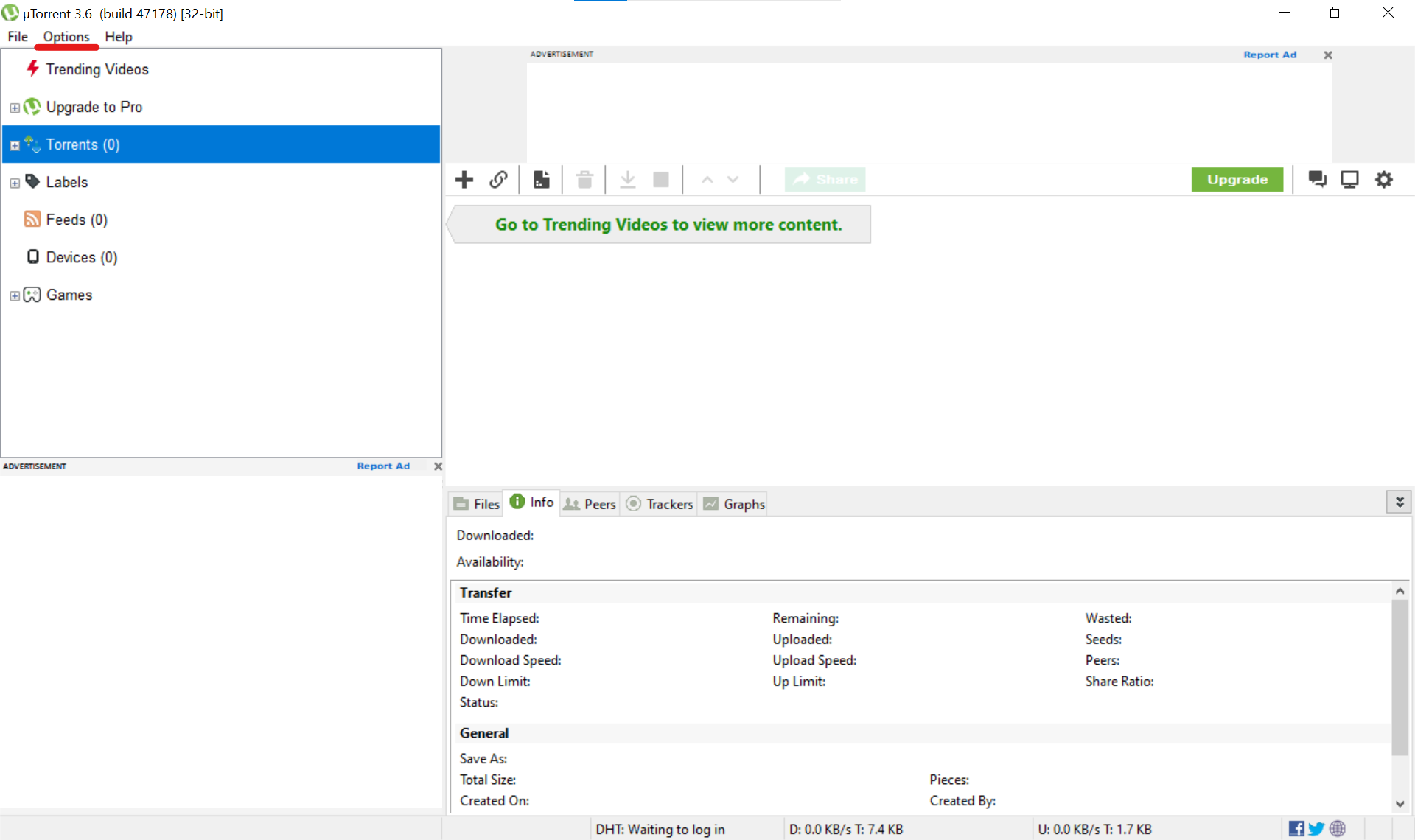
Step 2. On the top navigation panel, find and click on the "Options" tab.
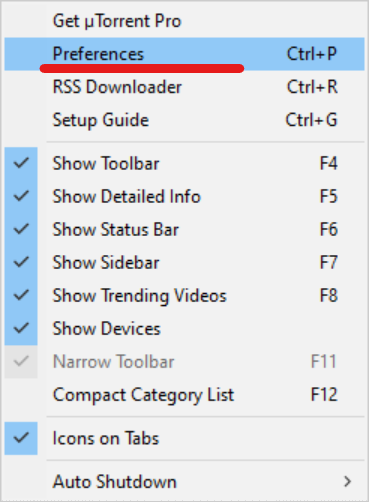
Step 3. In the drop-down menu, select the first item — "Preferences". You can also call up this window with the Ctrl+P shortcut.
Step 4. The general settings window will open (General section). Leave everything as is.
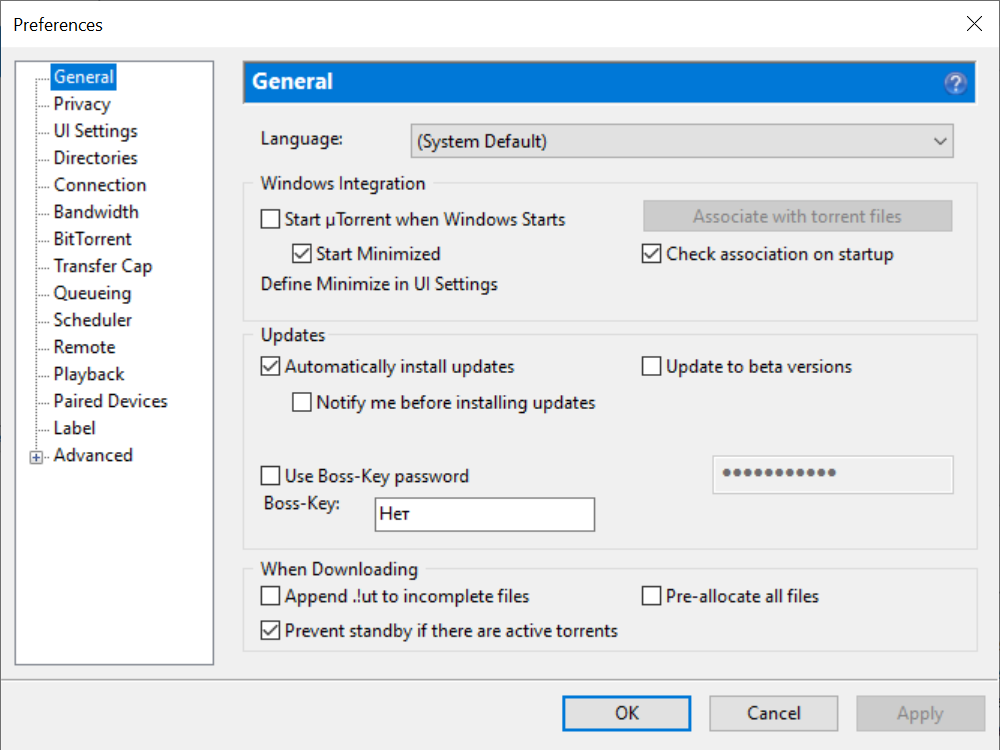
Step 5. In the left sidebar menu, click on the "Connection" section. This is where the network parameters we need are hidden.
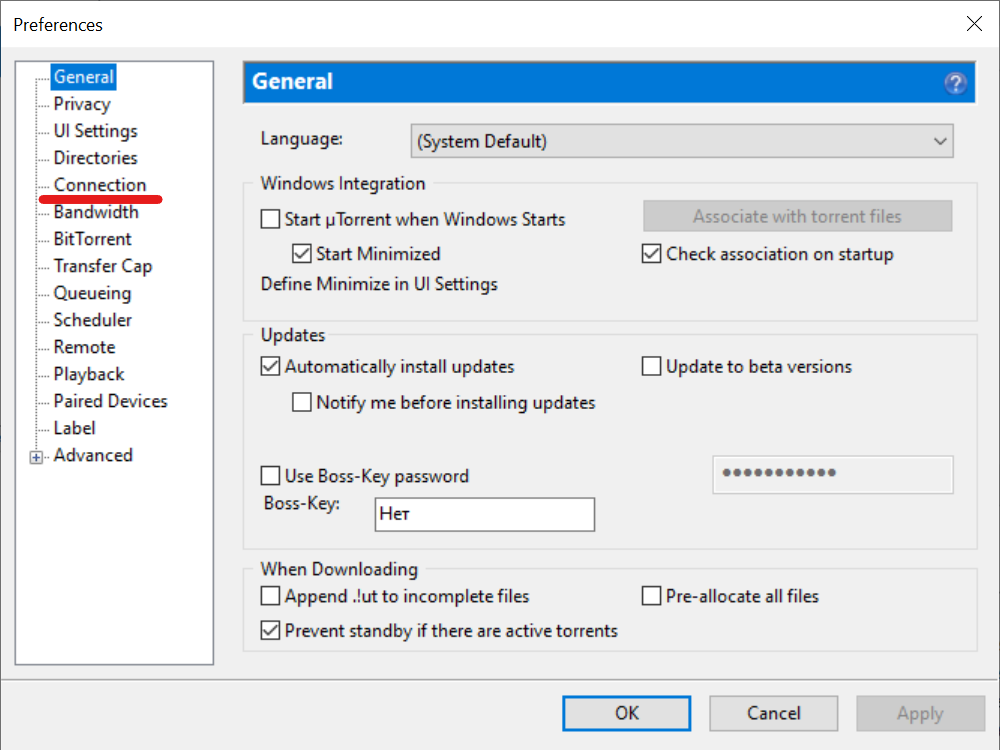
Step 6. Look at the "Proxy Server" block in the center of the screen. Click on the "Type" drop-down menu and select your CyberYozh App proxy protocol — HTTP or Socks5.
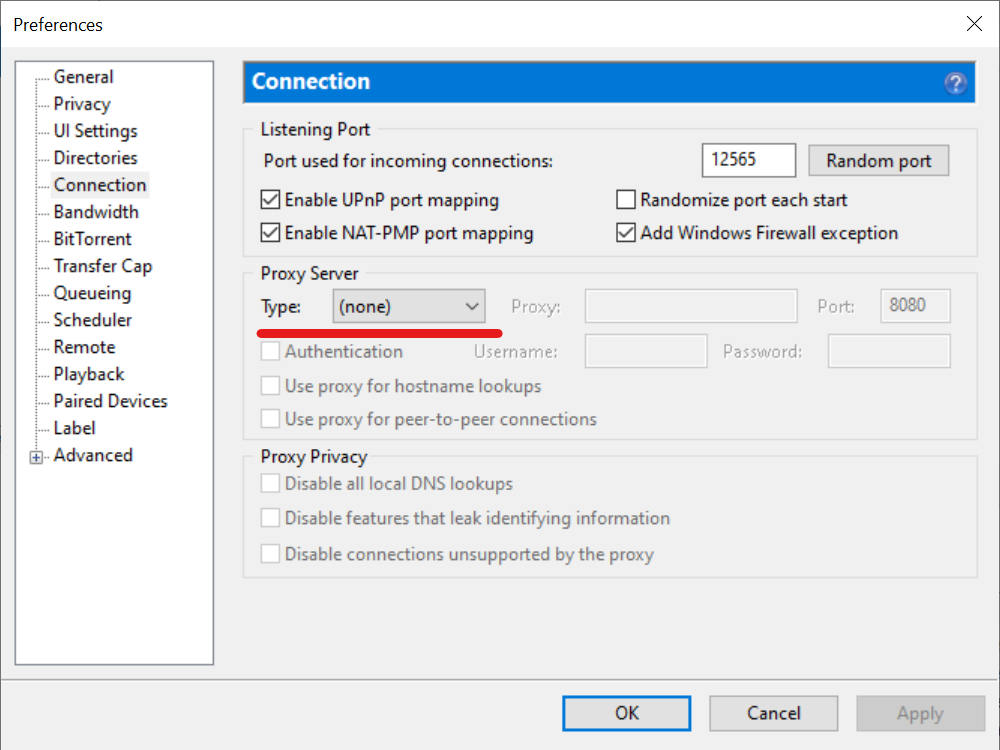
Step 7. Fill in the "Proxy" (your server's IP address) and "Port" fields. This data can be found in your personal account.
Step 8. High-quality private servers are protected from outsiders. Check the "Authentication" box to unlock the input fields.
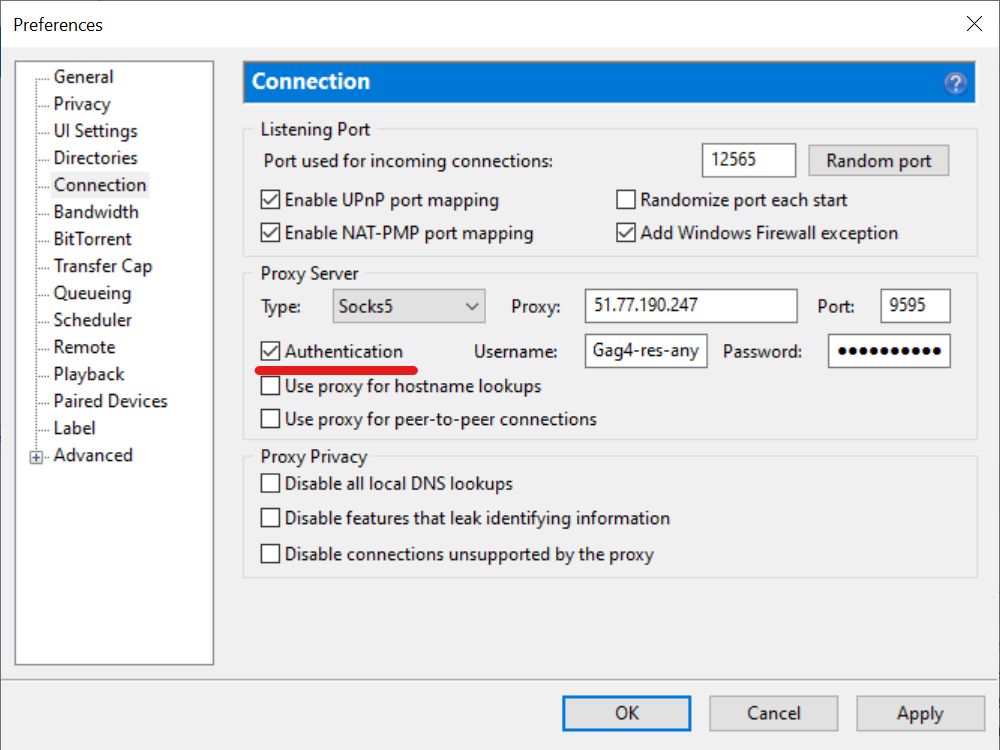
Step 9. Carefully enter your Username and Password.
Advanced Privacy Tip: In the Proxy Privacy block, be sure to check "Disable connections unsupported by the proxy". This is critically important if you chose an HTTP proxy! Also, check the boxes for "Use proxy for hostname lookups" and "Use proxy for peer-to-peer connections". In the Proxy Privacy block (below), mark all three items, including "Disable all local DNS lookups". This setting will prevent the client from downloading packets directly via UDP, bypassing your tunnel, and 100% protecting your real IP from leaks.
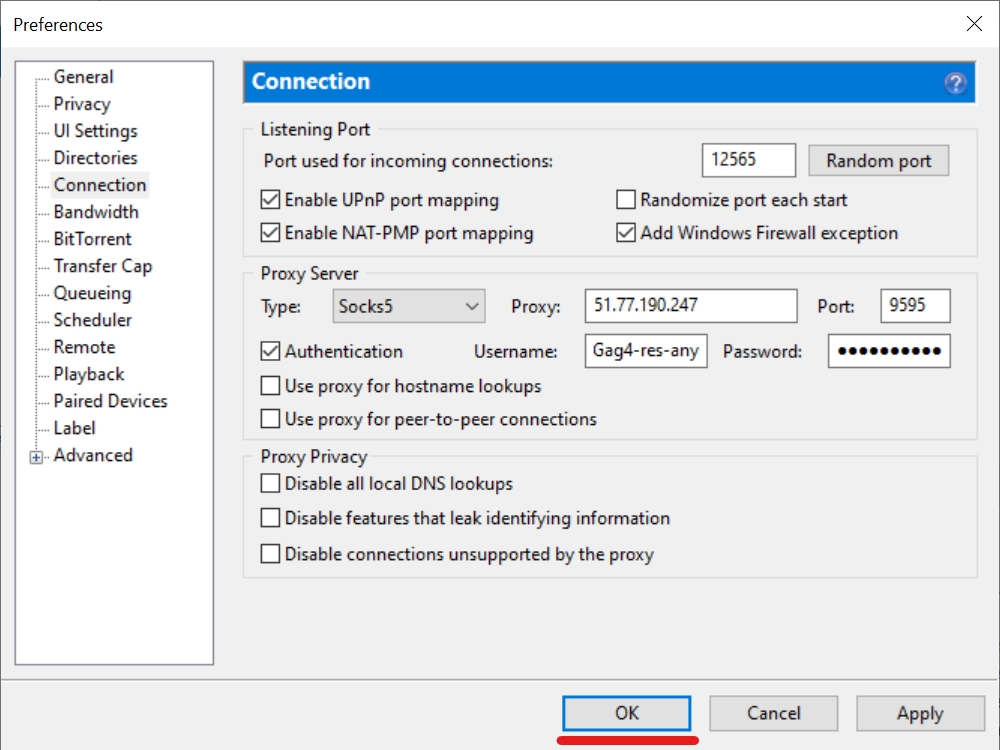
Step 10. Save the changes by clicking the "OK" button in the bottom right corner. Restart the client.
Summary: Your Network Under Your Protection
That's it! Now all uTorrent client P2P traffic is securely packed into a private tunnel.
What did you get as a result?
Absolute Anonymity: None of the thousands of people exchanging data with you will know your real IP. They will only see the corporate or residential IP from CyberYozh App.
Bypassing Throttling: Your home ISP will no longer be able to recognize torrent traffic and artificially lower your speed. Downloads will recover to the maximum values of your plan.
Use unlimited Datacenter (HTTP) or Residential (SOCKS5) proxies from CyberYozh App for legitimate, fast, and private file sharing. No leaks and no restrictions — just pure speed!