Connect your VMLOGIN browser profiles to CyberYozh App proxies for social media, advertising, and e-commerce workflows. Choose a fixed ISP IP for ongoing account access, real mobile carrier IPs for mobile-network connections, or rotating residential proxies for research across different regions.
• Unlimited traffic on mobile and static ISP plans for daily account work
• Real LTE/4G/5G carrier IPs with manual or API-based IP changes
• Fixed ISP addresses for profiles that need the same IP throughout the rental period
• 100M+ residential IPs across 195+ countries for regional research
• Sticky sessions up to 24 hours and unused traffic rollover on rotating residential plans
Sticky Sessions
Rotation
API Control
Dedicated mobile ports
Why choose CyberYozh App proxies for VMLOGIN
VMLOGIN separates browser profiles, while CyberYozh App provides control over the connection behind each one. Match the proxy location to your workflow, keep a fixed ISP address for ongoing account access, or configure IP changes for research tasks. Unlimited traffic on mobile and static ISP plans keeps bandwidth costs predictable as daily activity grows.
Clean Residential IPs
Advanced Session Control
Precise Geo Targeting
Automation Ready
High Success Rate
API Access
How to choose the right proxy for VMLOGIN
Choose your connection around the task: a fixed ISP IP for ongoing account access, mobile proxies for carrier connections, or rotating residential proxies for regional research. CyberYozh App supports your VMLOGIN workflow with additional services for verification, payments, and automation, bringing everyday operational tools into one platform.
• Mobile, static ISP, rotating residential, and datacenter proxies
• SMS activation and phone number rental
• Virtual cards for online payments
• IP reputation checks before connecting profiles
• Scraping tools and API access for automation
Use CyberYozh with your preferred antidetect browser
CyberYozh proxies integrate with all major antidetect browsers. Choose the browser you trust for fingerprint management, and power it with stable residential infrastructure built for scaling.
Antidetect browser
VMLOGIN
Integration with CyberYozh App
Fully supported
Browser Support
Chromium-based browser for Windows
Team Collaboration
Profile sharing and transfers, subaccounts, and access permissions
Security
Browser fingerprint control and isolated cookies, local storage, and cache
Starting Price
$99/month, billed monthly (SOLO: 200 profiles and 5 subaccounts)
Chromium-based browser profiles and cloud phones + Stealthfox
Team collaboration
Browser fingerprint isolation
Trial $2 for 3 days; $7.08/month
What is VMLOGIN
VMLOGIN is an antidetect browser that lets you manage multiple browser profiles on one computer. Each profile keeps its cookies, local storage, and cache separate, with configurable browser fingerprint settings. Teams can share profiles to coordinate social media management, advertising, e-commerce, and regional research.
VMLOGIN manages the browser environment, while CyberYozh App proxy connections provided are assigned to each profile. Together, they let you organize browser sessions and choose the network connection used for each task.
Why use proxies with VMLOGIN
Separate VMLOGIN profiles can still connect through the same public IP address. Fore-commerce teams andsocial media managers, a proxy provides control over the network connection and available IP location assigned to each profile.
For recurring account access, keeping a consistent IP helps avoid unnecessary network and location changes between visits. Connections in different regions also let you inspect localized content, compare offers, and verify ad placements.
Websites can evaluate browser fingerprints, account information, and activity alongside the IP address. Different proxy connections therefore do not guarantee that accounts remain unlinked or prevent every restriction. Keep browser settings consistent with the connection, manage sessions carefully, and follow each platform’s account requirements.
Choose the right proxy type for VMLOGIN
Choose around three requirements: how long the IP must stay consistent, which locations you need, and whether you pay for traffic or rental time.
Real carrier connections suit social and advertising workflows where testing favors mobile IPs. Unlimited-traffic plans currently start at $1.70/day shared or $3.50/day dedicated. Shared channels serve multiple users with scheduled rotation; dedicated channels to manually change your IP address via a link or an API.
🦔
Get private, fast, and reliable mobile proxies with clean IPs and no captchas.
From $5.29 per month, purchasing one ISP IP with unlimited bandwidth makes this a practical choice for recurring VMLOGIN account access without per-GB charges.
🦔
Rent quality static IP that stays fixed throughout the rental period.
Use these for regional research, data collection, and location checks. Standard pay-as-you-go pricing is $2/GB, with unused traffic rollover and sticky sessions up to 24 hours. A sticky session provides temporary IP persistence, rather than a fixed address for the entire rental period.
🦔
Access real residential IPs with traffic rollover and 100M+ IPs.
Datacenter proxies
💡
Best for:Web scraping, price monitoring, and browser testing on websites that accept datacenter traffic.
For cost-conscious research and automation, test datacenter IPs against the target first. Shared static options start at $1.77 per month with 1 GB; dedicated options start at $2.18 per month with unlimited traffic.
🦔
Get high-speed dedicated IPv4/IPv6 datacenter proxies with 99.99% uptime.
Why use CyberYozh App with VMLOGIN
CyberYozh App provides mobile, static ISP, rotating residential, and datacenter proxies for VMLOGIN users managing accounts, researching regional markets, and automating browser tasks. Assign connections according to each profile’s purpose, then checkIP reputation for reported abuse or other risk signals before starting account work.
Unlimited traffic for sustained browsing: Mobile and static residential proxies let you load pages and media without accumulating per-GB charges.
Fixed IPs for recurring account access: Keep the same static ISP address throughout the rental period to avoid unnecessary network changes between visits.
Real mobile carrier connections: Use LTE/4G/5G IPs when testing shows that a carrier connection fits your social media or advertising workflow.
Residential coverage for regional research: Access a pool of 100M+ residential IPs across 195+ countries to inspect localized content, compare offers, and verify ad placements.
Session settings matched to the task: Choose rotating connections for data collection or sticky sessions up to 24 hours when a research session needs temporary IP consistency.
Traffic rollover between projects: Unused rotating residential traffic carries over to the next billing month, leaving bandwidth available for later collection.
Supported browser protocols: VMLOGIN accepts UDP,SOCKS5 and HTTPS connections. Match the selected protocol and port to your CyberYozh App endpoint.
How to set up CyberYozh App proxies in VMLOGIN
Before configuring a profile, prepare:
The VMLOGIN client installed on Windows.
An active CyberYozh App proxy.
The endpoint’s connection details and authentication requirements.
The whole set up takes under five minutes.
Step 1: Download VMLOGIN and sign in
Download VMLOGIN from the official website and install the Windows client.
Launch the application and sign in to your account.
Step 2: Copy your CyberYozh proxy details
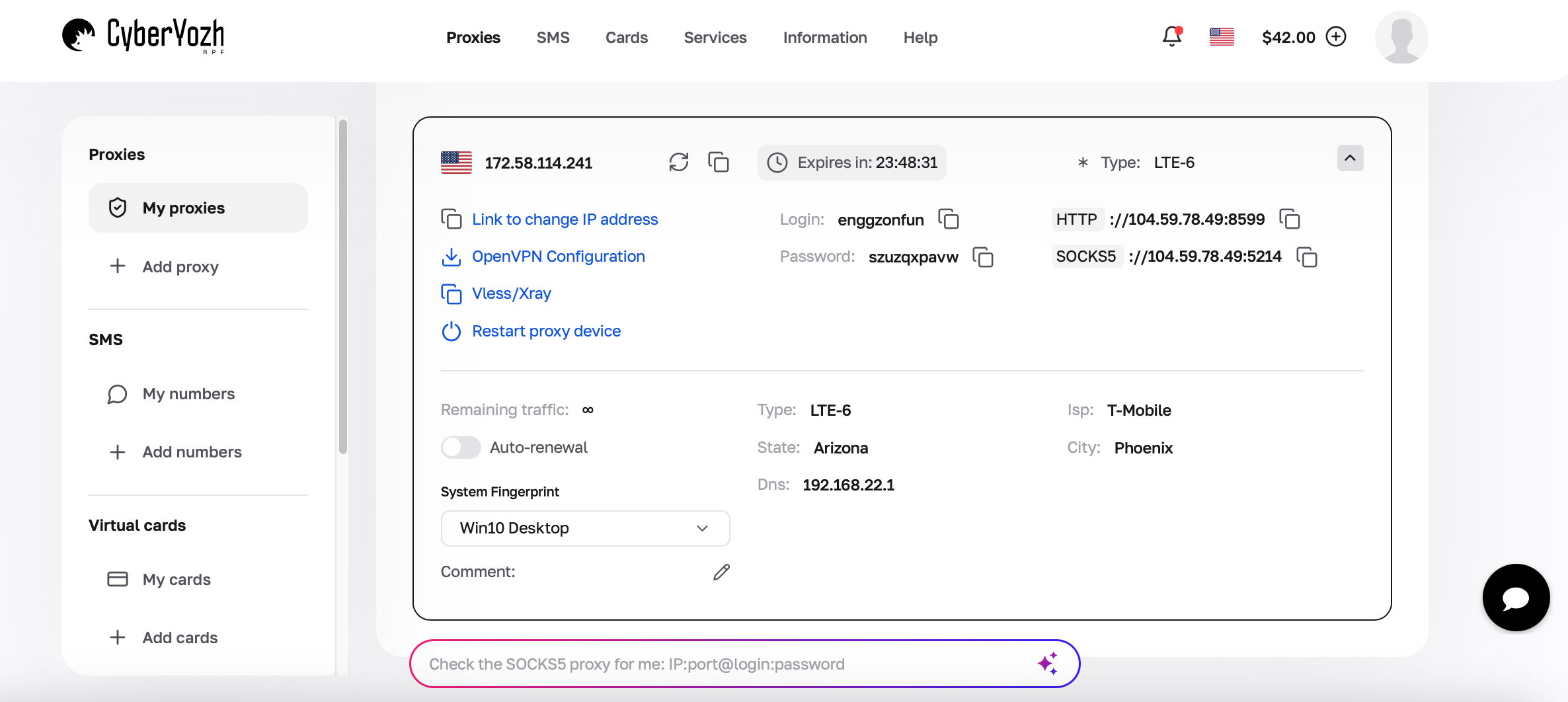
Open your purchased proxy in the CyberYozh App dashboard.
Copy the host or IP address, port, and authentication details. Note the supported protocol.
Keep the dashboard open so you can paste the details directly.
Step 3: Open the profile’s proxy settings
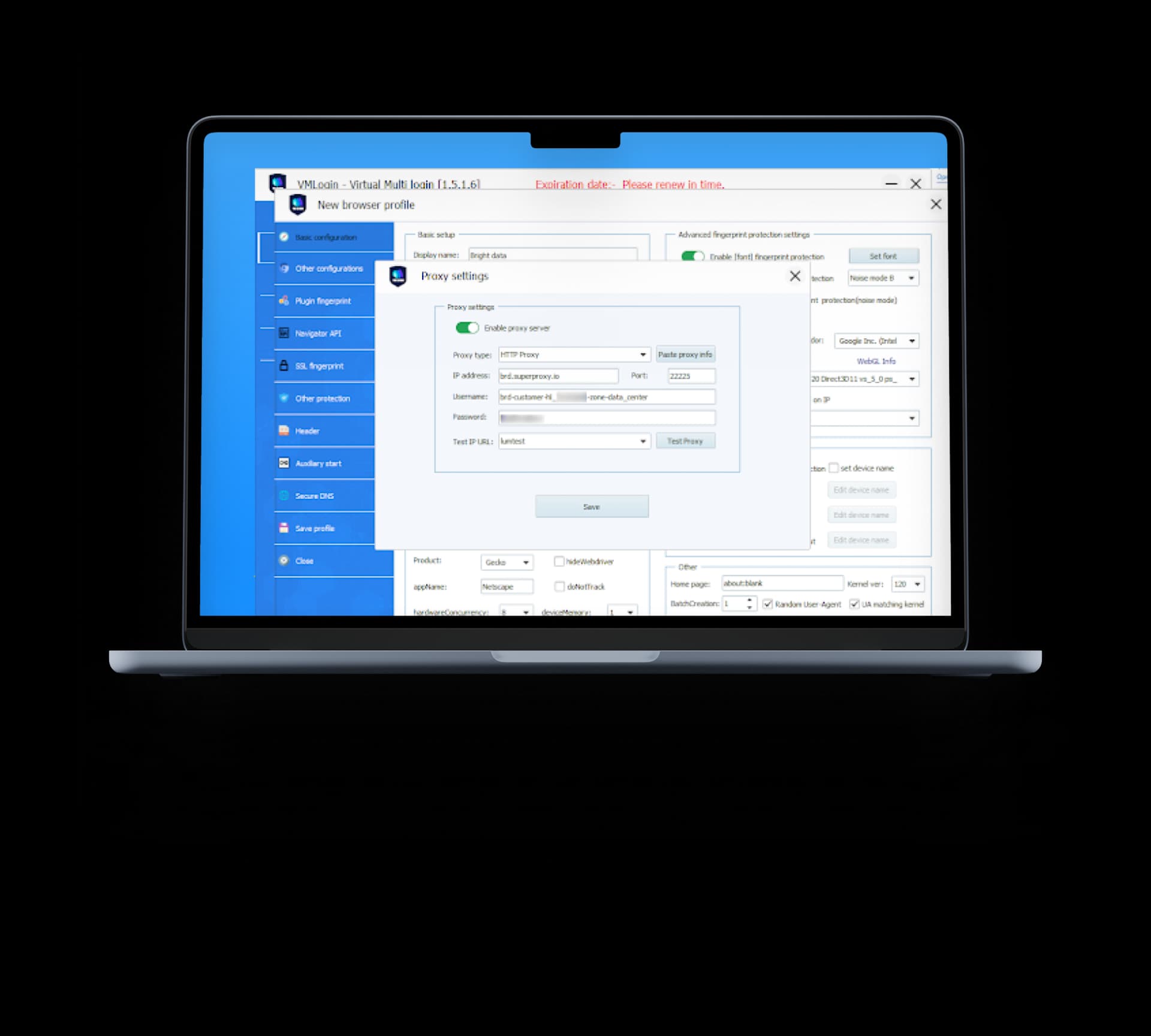
Select New browser, open Set proxy server, and turn on Enable proxy server.
For an existing profile, close it first, then right-click it and select Edit Proxy Configuration.
Step 4: Select the matching protocol
Choose HTTP, HTTPS, or SOCKS5 according to your purchased endpoint.
Use the corresponding port supplied by CyberYozh. Selecting SOCKS5 does not automatically route browser UDP traffic through the proxy.
Step 5: Enter your credentials
Fill in the address, port, username, and password, where required, or use the supported paste format.
Replace every value with your actual details and check for accidental spaces.
Step 6: Test the proxy and save
Click Test proxy, then save the proxy settings and profile after a successful check.
If testing fails, check the protocol, credentials, and plan status. Try another test endpoint if the checker is unavailable.
A successful check confirms connectivity to the checker, not access to every website.
Step 7: Launch the profile and verify
Launch the saved profile and check its public IP and reported location inside that browser.
Remember that the public exit IP may differ from the proxy gateway address.
Open your intended website and confirm the connection works before starting account activity.
Manage VMLOGIN profiles and proxy sessions
Name profiles and proxies by client, region, and task so you can identify the right connection quickly. Keep account locations consistent and avoid unnecessary IP changes during active sessions. Saved cookies do not preserve the proxy IP. If multiple profiles share a mobile channel, coordinate rotation because changing its IP can affect all connected profiles.
Review WebRTC settings separately. Real uses your device’s actual network environment and can expose its IP. Replacement substitutes configured IP information. Disable mode A is designed to limit IP discovery while retaining WebRTC functionality; Disable mode B disables WebRTC entirely. After changing modes, check the exposed addresses inside the profile and test any calling or other WebRTC-dependent features you need.
Fix common VMLOGIN proxy problems
A failed proxy test can come from the checker itself. VMLOGIN supports different test endpoints, so try another checker before concluding that the proxy needs replacing.
Problem
Possible causes
Checks
Proxy test fails
Wrong protocol or port, unreachable server, unavailable checker
Verify endpoint details, confirm the plan is active, and try another test endpoint.
Authentication fails
Incorrect credentials or an outdated IP allowlist
Recopy credentials, remove extra spaces, and confirm the plan’s authentication method.
Test passes, but the target does not load
Target outage, access restrictions, or routing problems
Open another website and inspect the target’s error message.
Detected IP differs from expectations
VPN or another proxy extension is active simultaneously.
Disable any active VPN or proxy tool before launching the profile.
Reported location is incorrect
Wrong targeting or geolocation database differences
Review the selected region and compare results across IP databases.
IP changes sooner than expected
Scheduled rotation, expired session, or residential peer disconnection
Check session identifiers, duration settings, and mobile-channel rotation rules.
Browsing slows down or times out
Network congestion, channel load, or excessive concurrency
Compare several websites, reduce simultaneous activity, and check connection speed limits.
Connect your first VMLOGIN profile
Choose a connection type, configure one VMLOGIN profile, and verify its public IP and session behavior. Once the setup works as expected, add more profiles with connection settings suited to each task.
🦔
Choose a proxy from the catalog for your VMLOGIN workflow.