
Chrome proxy for client accounts and regional research
Get unlimited traffic with mobile and static ISP proxies for client dashboards, regional storefront checks, and daily research. Select your connection through the Chrome proxy extension, see its active IP and country, and access IP reputation checks directly from your browser.
Choose your Chrome proxy type and traffic plan
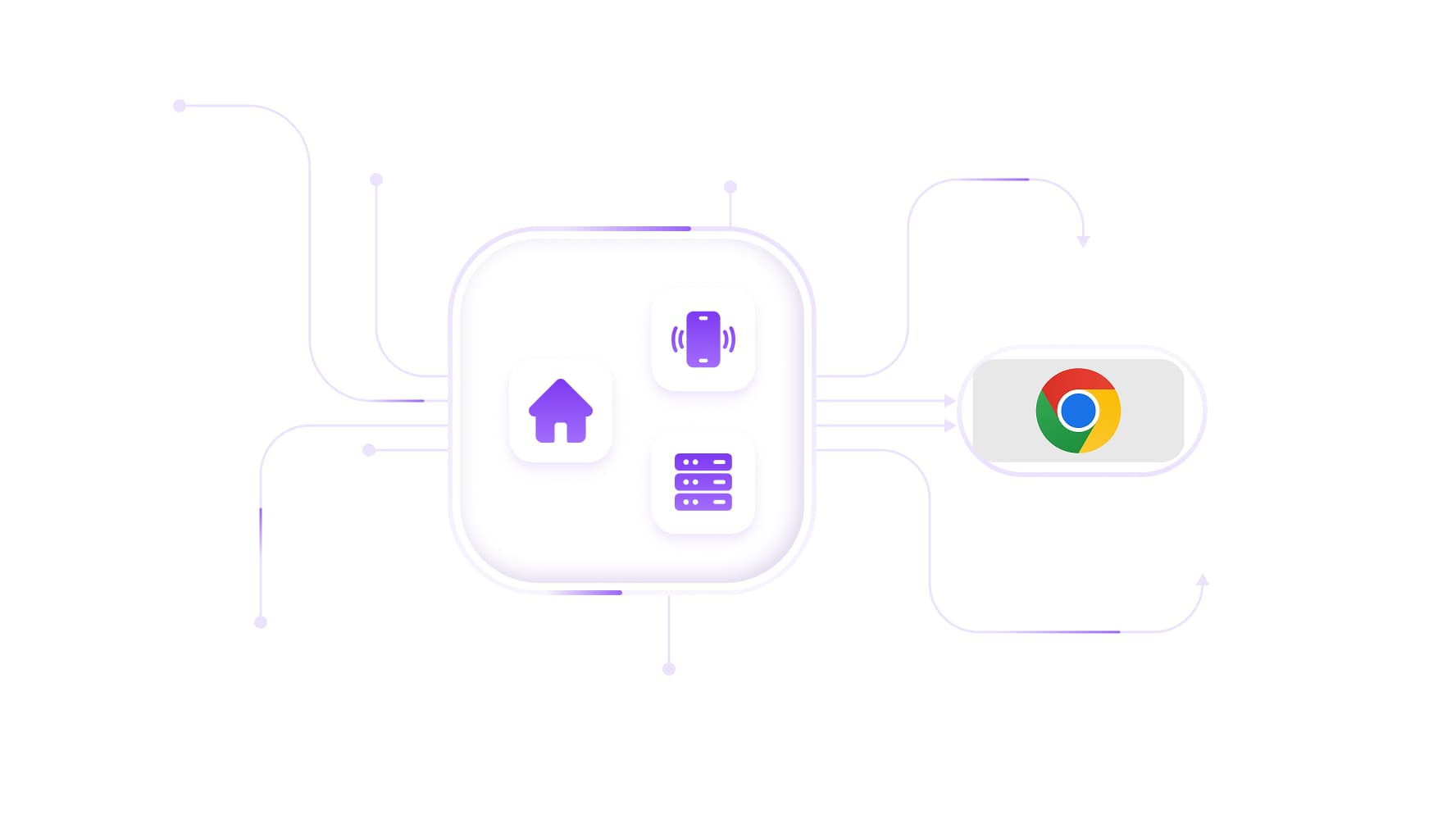
Get unlimited traffic on mobile and static ISP plans for daily browsing, client dashboards, and storefront checks. Choose a static IP for repeat account access or a mobile connection to test websites through carrier networks. For research across locations, rotating residential packages offer traffic-based billing with rollover, so unused data carries into the next billing month.
Check regional storefronts and offers in Chrome
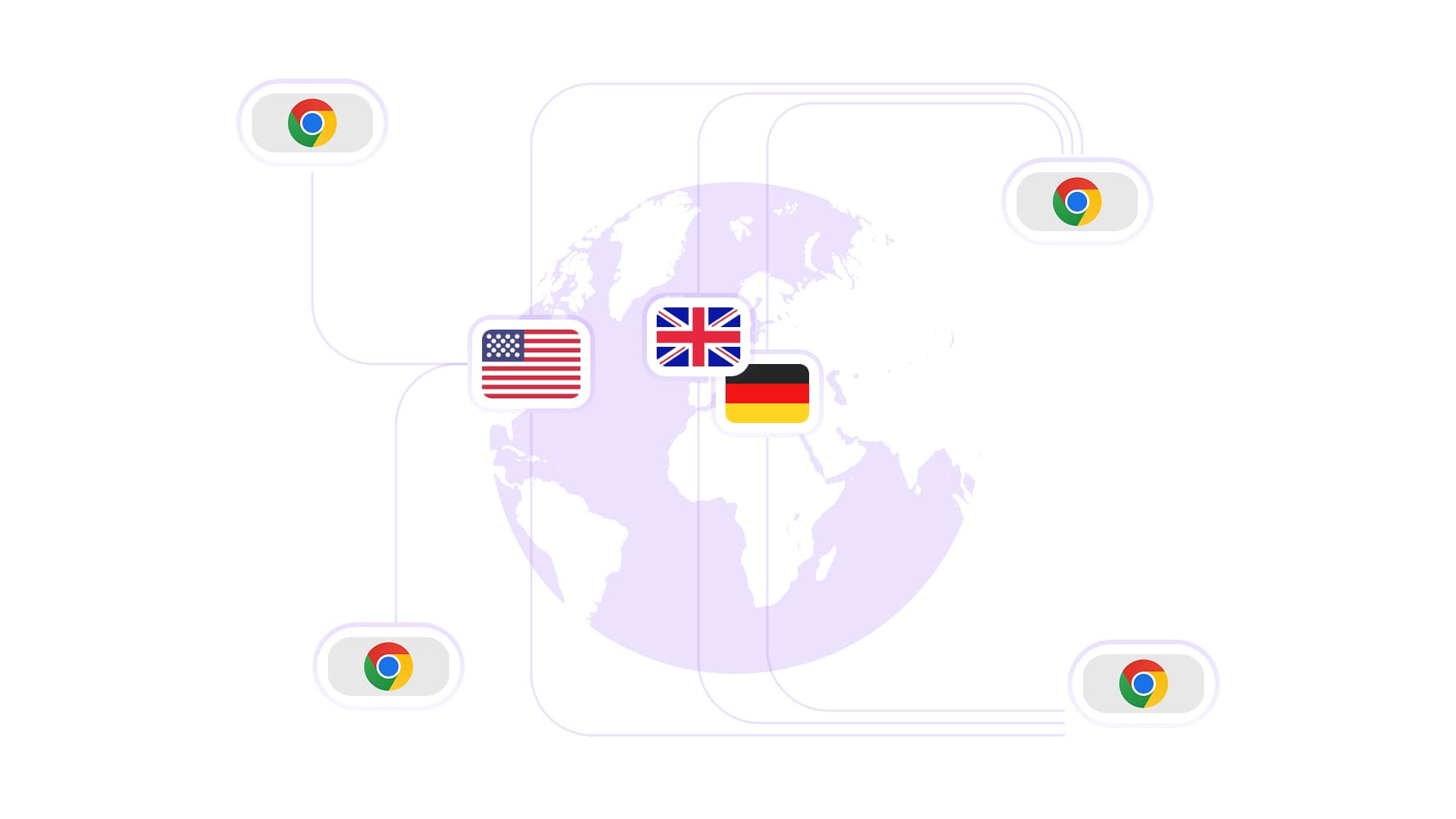
Choose from 100M residential IPs across 195+ countries to review regional storefronts with a Chrome proxy. Select a country, compare product availability and displayed prices, and check local promotions. Test campaign links to confirm they lead visitors to the intended regional page before increasing your advertising spend.
Automate Chrome tests and recurring research
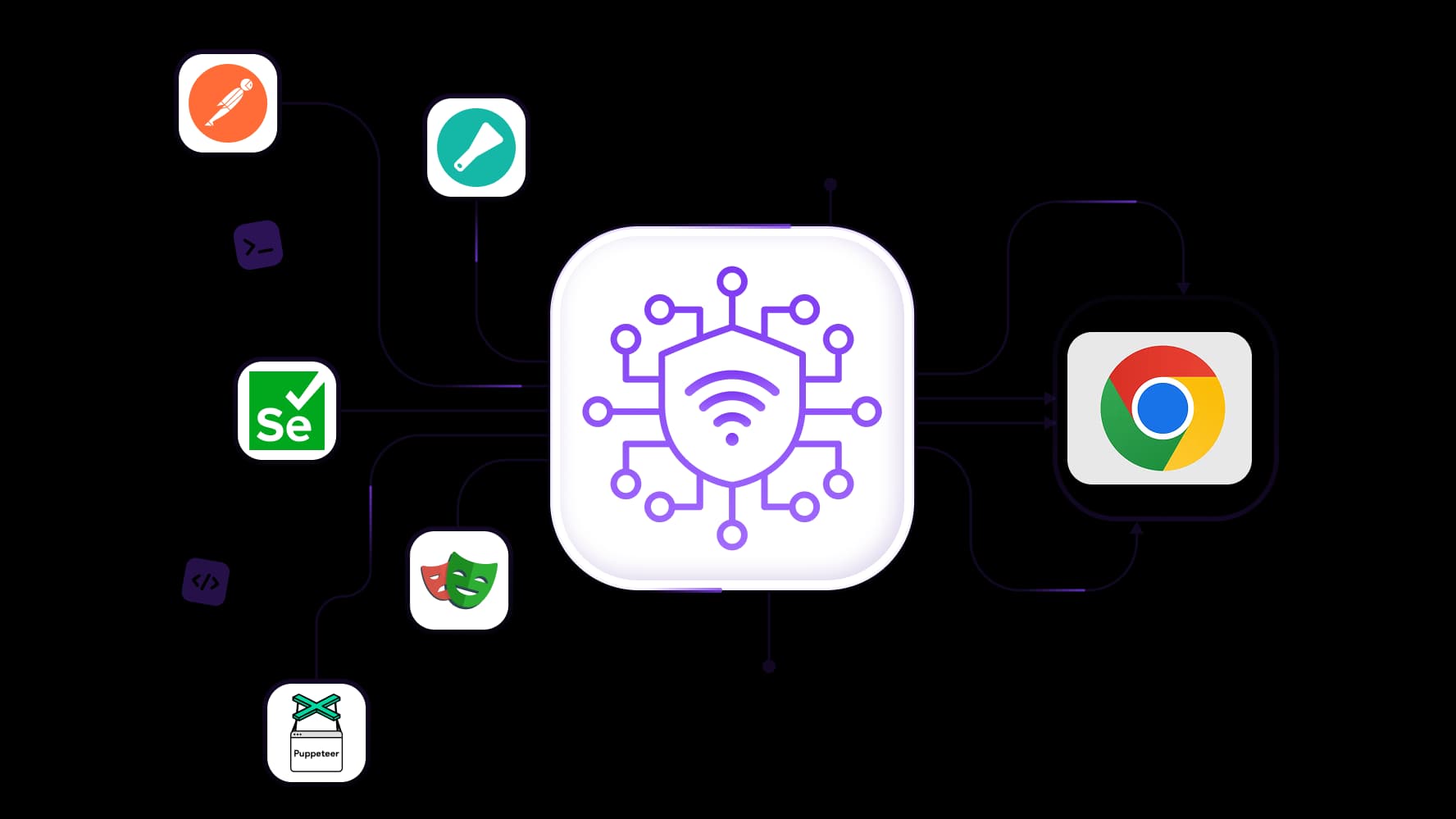
Use your Chrome proxy with Scrapy, Postman, Selenium, Playwright, or Puppeteer to schedule price checks, test redirects, and capture regional page screenshots. Full API access lets you manage proxy connections within your scripts, while integration support also covers Scrapy for public-data collection and Postman for API testing.
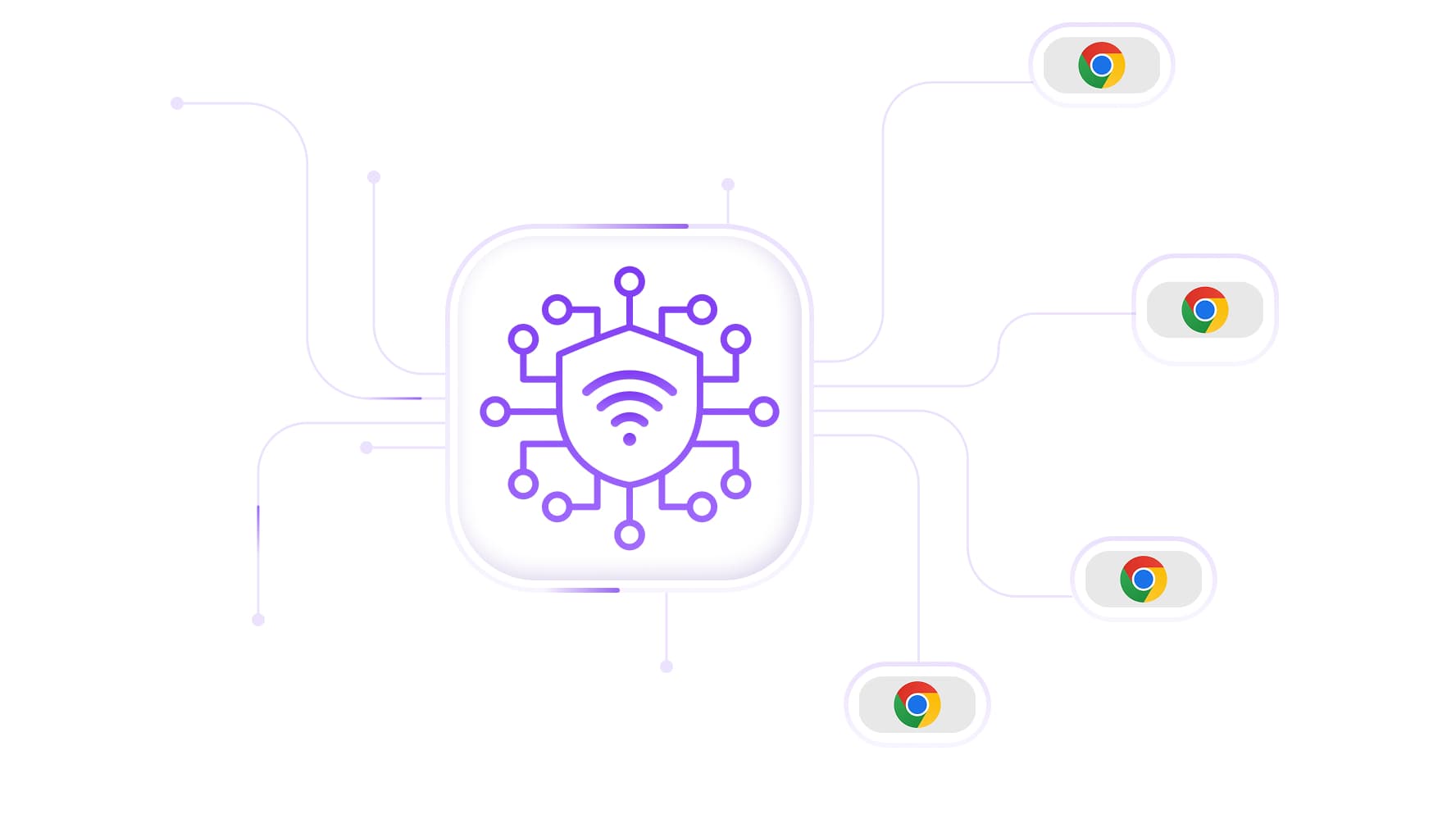
Control when your Chrome proxy IP changes
Keep the same IP through logins, campaign edits, and multistep browser tests with sticky sessions up to 24 hours on supported residential plans. When you need a different IP for your next check, supported mobile plans let you change it manually or through the API.
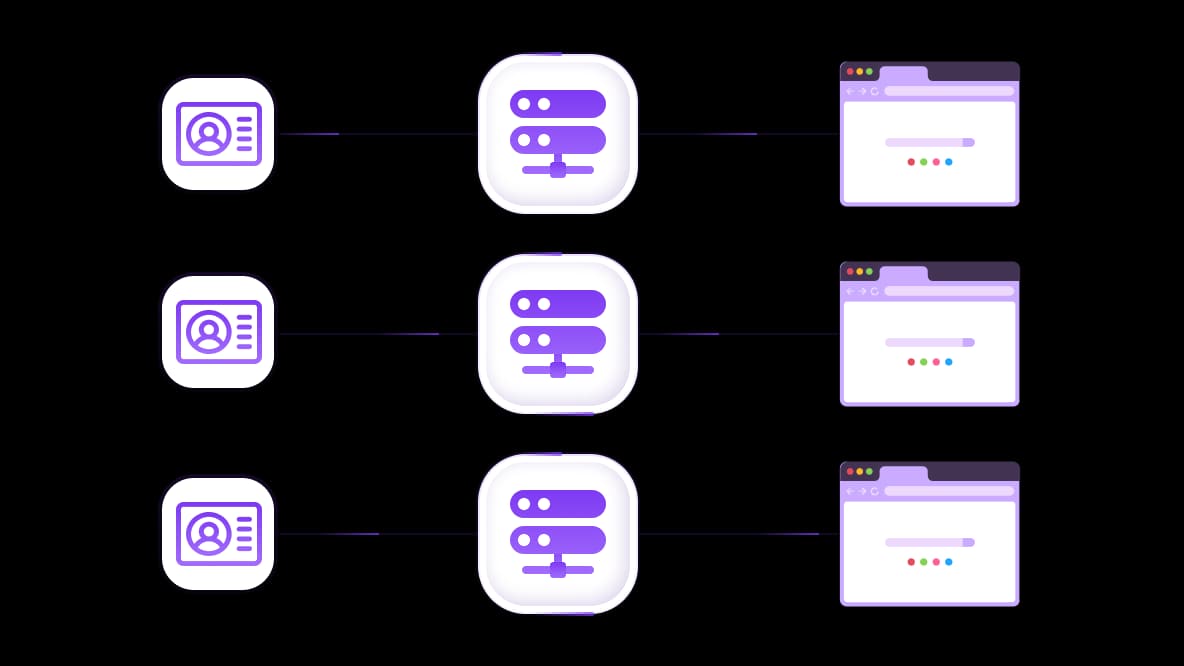
Give each client account a separate Chrome proxy connection
Manage advertising dashboards, online stores, and social accounts in separate Chrome profiles, each configured with its own proxy connection. Choose dedicated static ISP IPs or mobile channels for individual clients, keep their browser data organized, and verify the active IP in each profile before signing in.
Specially for you
Best proxies by countries

chrome - dedicated mobile unlimited
- Dedicated 5G Router
- Socks5/VPN with dedicated DNS
- Manual IP Changing
- Change p0f fingerprint (Windows, MacOS, Android)
- High Trust Rate
- Very High Speed + Low Ping
- All network params 1:1 as provider's
chrome - shared mobile
- Shared 5G Router
- Supports SOCKS5 with UDP
- Up to 5 users per port
- Socks5/HTTP
- IP Rotation: every 30 min
- Windows p0f fingerprint
- High Trust Rate
- Very High Speed + Low Ping
- All network params 1:1 as provider's
chrome - rotating residential
- 24 hours Availability
- Real ISP
- Speed up to 10 mbps
- Full API Access
- HTTP Protocol
- 100M+ IPs in 100+ Countries
- Mass Credentials Generator
- Long session up to 6 hours
chrome - private residential
- Unlimited Bandwith
- Real ISP
- Speed up to 150 mbps
- Low Ping
- Supports SOCKS5 with UDP
- 24 hours Availability
- 1 Dedicated IP
chrome - dedicated datacenter
- Unlimited bandwidth
- Exclusive IP ownership
- High-speed connectivity
- 99.9 % uptime
- HTTP
chrome - shared datacenter
- Lightning-fast speeds
- Global IP coverage
- 99.9 % uptime
- Cost-efficient plans
- 1 GB bandwidth
- HTTP
Why do they buy from us?
Advantages
Private card payment
It doesn't matter how you topped up your balance, linking the payment to the rental of a specific proxy is impossible.
We do not store data on servers
As a rule, services that rent out proxies retain all data about the traffic passing through their servers.
Dedicated device
We do NOT disguise Shared proxies as individual ones. A modem or router is transferred to ONLY one person.
Online technical support
We are always ready to solve your problems and questions. Even late at night and early in the morning.
Money-back guarantee
We have both returns and exchanges. The priority is quality service and satisfied customers.
API for Business
For business clients, our service is ready to provide a convenient API that allows you to purchase proxies, change IP addresses, and much more.
What is a Chrome proxy
A Chrome proxy routes configured browser requests through another server, so websites receive those requests from its exit IP. This gives you control over the address used for account access, regional storefront checks, and browser-based research.
A Chrome proxy extension provides the controls for selecting a proxy, connecting, and checking the active IP. Your selected plan determines the available locations, traffic billing, and whether the IP stays fixed or changes.
Get CyberYozh App private proxies to solve any tasks. Mobile proxies offer carrier-based connections with unlimited traffic, while static ISP proxies combine unlimited traffic with a fixed IP throughout the rental period. Rotating residential proxies provide location selection and geotargeting with traffic billed by usage and unused traffic rollover.
Choose the best proxy for Chrome based on your daily tasks
Before choosing a Chrome proxy, ask three questions: Do you need the same IP across visits? How much browsing traffic will you use? Which locations do you need? The best proxy for Chrome matches those requirements and works with the websites you use.
Static ISP proxies for repeat account access
Unlimited traffic and a dedicated IP make static ISP proxies suitable for returning to client dashboards, online stores, and advertising accounts across separate days. The address stays assigned throughout the rental period, giving a configured Chrome profile a consistent connection for reviewing orders, updating listings, or managing campaigns.
Rent your static ISP proxy and use one address throughout the entire rental period.
Mobile proxies for unlimited-traffic browsing and testing
Mobile proxies combine unlimited traffic with connections through LTE, 4G, or 5G carrier networks. Use them for recurring storefront checks, advertising research, and investigating how websites respond through a particular mobile network. Daily rentals let you test your actual Chrome tasks before choosing a longer rental. On top of that, manually change your IP address via a link or an API.
Get your mobile proxy with clean IPs and no patches.
Rotating residential proxies for regional research
Access 100M residential IPs across 195+ countries for comparing regional offers, product availability, and search results. Traffic is billed by usage, with unused traffic rolling over to the next billing month.
Use rotation for separate research tasks. When browsing involves connected steps, such as opening a product page and checking its delivery options, supported plans offer sticky sessions up to 24 hours to maintain the same IP.
Proxy type | Suitable Chrome tasks | IP behavior | Traffic billing |
Static ISP | Repeat account and dashboard access | Dedicated, fixed during rental | Unlimited, starting at $5.39 |
Mobile | Carrier-based browsing and website checks | Carrier-assigned; supported IP-change controls | Unlimited, starting at $1.70 |
Rotating residential | Regional comparisons and public-data research | Rotating or sticky sessions | Per GB, with rollover, starting at $2.5 |
Compatible website tests and recurring checks | Dedicated, static | Unlimited, starting at $2.18 | |
Light browsing and testing on compatible websites | Static IP shared with other users | Economical IPv4/IPv6 datacenter proxies, starting at $1.77 |
How to add a proxy extension in Chrome
Installing a Chrome proxy extension gives you browser controls; your selected proxy plan supplies the connection, location options, and traffic allowance.
Pro tip: Click to see how to set up your Google Chrome proxy extension now.
Install the official extension. Open the official Chrome Web Store listing, select Add to Chrome, and confirm the installation.
Pin it to the toolbar. Open Chrome’s Extensions menu using the puzzle-piece icon, then select the pin beside the extension.
Sign in. If you are already signed in to the website in the same Chrome profile, the extension can recognize that session. Otherwise, enter your account credentials.
Select a proxy and connect. Choose an available proxy from your account’s list and click Connect. The extension applies the browser connection settings.
Verify the connection. Check the displayed IP and country, then open a website you intend to use. Test a representative task, such as loading a client dashboard or reviewing a product listing.
If you searched for “download proxy for Chrome” or “proxy Chrome extension,” use the official store listing above. Installing the extension does not automatically include free proxy traffic; access follows the terms of your selected plan.
How to use a Chrome proxy for accounts and regional research
Whether you’re learning how to use a proxy in Chrome or searching for “how to use proxy extension Chrome,” follow the same routine: select the intended connection, check its IP and country, complete your task, and switch when needed.
Keep client accounts organized in separate Chrome profiles
Use separate Chrome profiles to organize each client’s cookies, saved logins, and bookmarks. Configure the proxy connection within each profile and verify its exit IP before signing in to advertising dashboards, stores, or social accounts.
Creating a profile alone does not assign a different IP. Browser-data separation and proxy routing are separate settings, so check both when preparing a client’s setup.
Compare storefronts, offers, and advertising destinations
Select a connection in the country you want to research, then review product availability, displayed prices, and regional landing pages. Follow campaign links to check their redirects and confirm that visitors reach the intended offer.
Keep browser language, account state, currency, and delivery settings consistent between comparisons. These can affect what a website displays alongside the proxy’s location.
Research regional Google results (SERP)
Use a Chrome proxy to compare keyword results, competitor listings, and advertising across selected locations. Keep the query, search language, and sign-in state consistent so the comparisons are useful.
For search-focused work, explore Google Search proxies with suitable location and session options.
Turn browser checks into recurring tests
After checking a page manually, use Scrapy, Postman, Selenium, Playwright, or Puppeteer to repeat the task through a configured proxy. Capture screenshots, inspect redirects, or schedule checks of regional pages. Scrapy supports recurring public-data collection, while Postman helps test API requests.
How to change Chrome proxy settings
The right place to change Chrome proxy settings depends on how the connection was configured. Whether you’re learning how to add a proxy on Chrome or updating an existing setup, first check whether an extension, system settings, or an organization’s policy controls the connection.
Change the selected connection through the extension
Open the extension, choose another available proxy, and click Connect. Check its connection status and displayed IP, then verify the exit IP from the Chrome profile you intend to use.
Selecting another proxy switches to another configured connection. Requesting an IP change on a supported mobile plan changes the exit address behind that mobile connection. Complete active account updates or browser tests before making either change.
Configure a proxy through desktop system settings
Copy the endpoint, port, protocol, and authentication details from your proxy dashboard. Match the protocol to the configuration method you use.
Windows: Open Settings → Network & internet → Proxy. Under Manual proxy setup, select Set up, enable Use a proxy server, enter the address and port for a compatible HTTP proxy, and save. If Chrome requests authentication, enter the supplied proxy username and password.
macOS: Open System Settings → Network, select the active network service, then choose Details → Proxies. Enable the appropriate proxy options and enter the server address and port. For supported HTTP or HTTPS authentication, enable Proxy server requires password and enter the credentials.
Authentication note: When using system proxy settings, Chrome supports username/password authentication for HTTP and HTTPS proxies, but not SOCKS5. To use a SOCKS5 proxy with a username and password, configure a separate proxy client on your computer to handle authentication and route Chrome’s traffic through it.
Check whether another setting controls the connection
After you configure a new proxy in Windows or macOS system settings, Chrome may continue using the previous connection and showing the old IP address. A proxy extension that controls Chrome’s connection can override your system settings, so saving a new address on your computer may not change the browser’s route.
Chrome prioritizes managed policies, followed by extension settings, command-line settings, and operating-system settings. Two proxy or VPN extensions enabled in the same Chrome profile can compete for control. On work computers, proxy policies enforced by an administrator take the highest priority.
If your new system proxy address is not taking effect, temporarily disable proxy and VPN extensions in the current Chrome profile, then check the exit IP again. Also check whether Chrome is managed by your organization and whether an administrator has enforced proxy settings. Confirm which configuration controls the connection before repeatedly changing the address, port, or credentials.
How to add a proxy in Chrome on Android
On Android, configure the proxy for your selected Wi-Fi network, then verify the connection in Chrome. The desktop extension instructions apply to computers; the Chrome Web Store’s Add to Desktop option on a phone installs the extension on your computer.
Open the Wi-Fi network settings. On Pixel devices, go to Settings → Network & internet → Internet, select the connected network, then open Edit → Advanced options. Menu names vary by device and Android version.
Enter the proxy details. Under Proxy, select Manual and enter the hostname and port supplied with your plan. Use an HTTP endpoint compatible with this setup, then save the settings.
Check authentication and protocol support. Android’s standard Wi-Fi proxy settings support HTTP proxies. If Chrome displays an authentication prompt, enter the proxy username and password. Confirm that your plan’s authentication method works with the device and browser. For SOCKS5 connections or proxy routing over mobile data, use a compatible third-party proxy client (proxifier) that supports the required protocol and authentication. If needed, ask support for a compatible configuration.
Verify the IP in Chrome. Open an IP-checking page and confirm the exit address and country. Then test a website you intend to use, such as a storefront or client dashboard.
Retest after changing networks. Check the exit IP again when joining another Wi-Fi network or switching to mobile data. The proxy settings belong to the configured Wi-Fi network.
Why is your Chrome proxy not working?
Start by checking whether your Chrome proxy isn’t working, in one Chrome profile, or on a particular destination. If you searched for “proxy extension Chrome” after a connection problem, check the existing configuration before installing another extension.
Symptom | What to check and do |
Proxy authentication fails | Recopy the proxy username and password from the dashboard. Confirm that the rental is active, any metered traffic remains available, and your setup supports the selected protocol and authentication method. |
ERR_PROXY_CONNECTION_FAILED appears | Check the endpoint, port, and protocol. Confirm that your internet connection works and the proxy endpoint is reachable. Chromium documents this error when the configured proxy cannot be reached. |
Your original IP still appears | Verify that the proxy is connected in the profile you are testing. Review bypass rules, exceptions, and any configuration that sends requests directly. Test the exit IP again from that profile. |
The country is unexpected | Confirm the selected location and check the actual exit IP, which can differ from the gateway address. If the IP location is correct but a website shows another region, review saved account, language, and delivery settings. |
One profile works while another does not | Compare the enabled extensions, selected proxy, credentials, and routing settings in both profiles. Configure and verify each profile separately. |
Another extension or organization controls the settings | Review competing proxy extensions. Managed policies can override extension settings; ask the administrator to confirm the permitted configuration on a managed browser. |
One website fails while others load | Record the exact error and compare direct and proxied access where appropriate. Check the website’s status and any account requirements before changing the entire proxy setup. |
Choose a Chrome proxy plan for your next browser session
The best proxy for Chrome fits your daily tasks, required locations, and session length. Before choosing a plan, check:
Purpose: Account access, regional browsing, or automated website testing.
IP consistency: A fixed address across separate visits or temporary continuity for connected browsing steps.
Location: Your required country, with any city targeting confirmed separately.
Traffic: Unlimited traffic for frequent browsing or a metered residential package sized for your research.
Compatibility: Supported protocols and authentication methods for your extension, device, or testing tool.
Connections: How many Chrome profiles or automated sessions need separately configured proxies.
Test results: Verify the exit IP and complete a representative task on your target website before increasing usage.
Explore the proxy catalog to choose a Chrome proxy with the right combination of location, traffic allowance, and IP control. Compare static ISP plans for repeat account access, mobile connections for unlimited-traffic browsing, and rotating residential packages for regional research.
Top up your balance in any convenient way!
Bank cards


Cryptocurrency


