
Manage multiple Instagram accounts with cloud phones
Give each client or brand account its own real Android cloud phone, with a ready-made configuration and an individually assigned proxy connection. Keep Instagram app data and saved sessions separate, then return to the right environment to publish content and answer messages without maintaining several physical phones.
Keep every client’s Instagram work in its own space
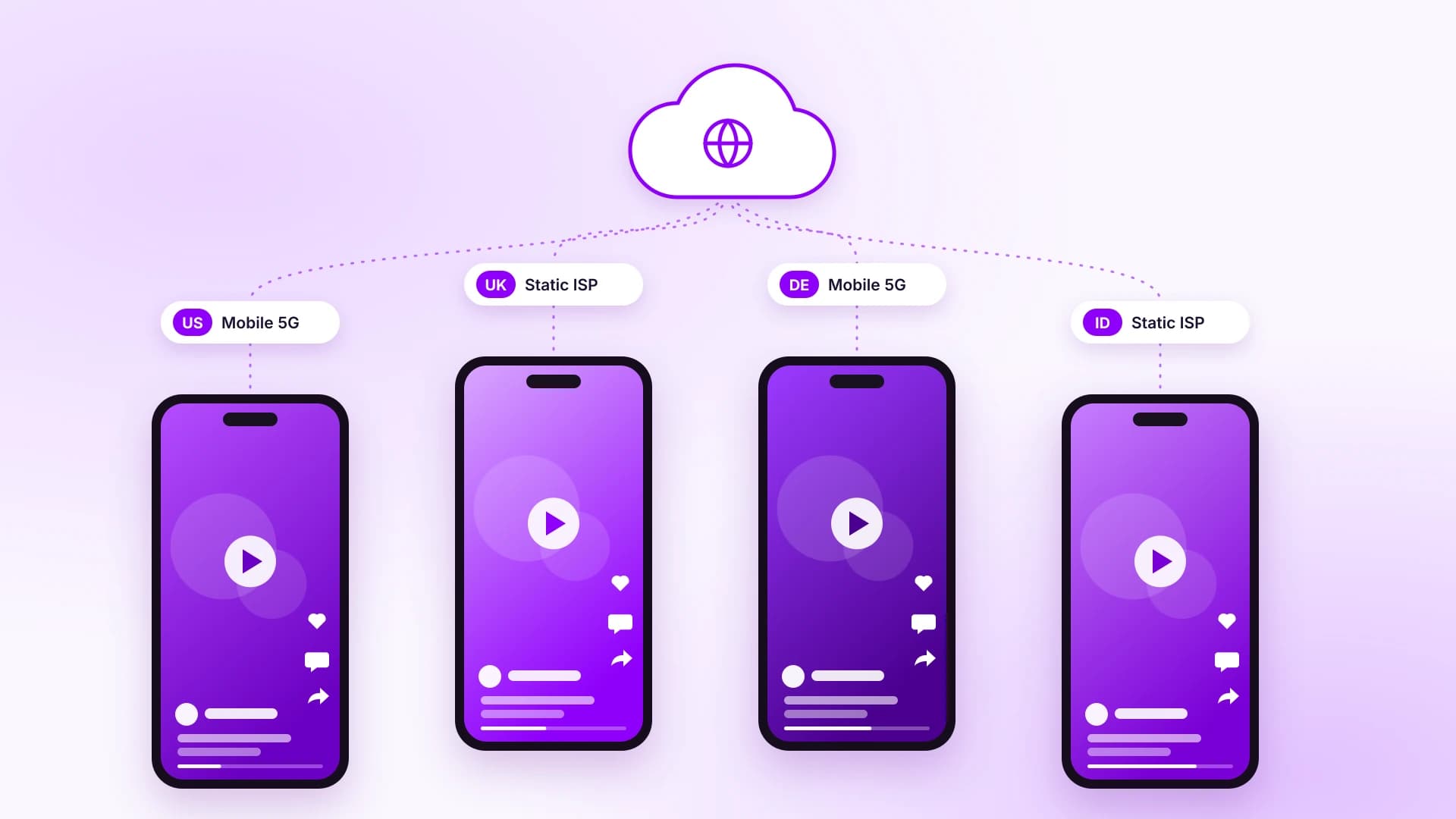
Simplify multiple Instagram account management with cloud phones, proxy assignment, and labeled profiles in one dashboard, so you can find the right setup before starting work.

Give each account its own connection
Assign a proxy to each cloud phone and choose session settings that suit your Instagram workflow. Mobile proxies with unlimited traffic support regular app use and media uploads without per-GB charges, while rotation controls depend on the plan you select.

Return to the same Android environment
Each cloud phone stores its installed apps, app data, and saved sessions separately. Reopen the phone assigned to a client to review messages, publish content, or check account activity without setting up a new Android environment for every visit.

Keep regional settings consistent
Choose a proxy location for the client’s market, then configure language and GPS settings for that regional workflow. The proxy determines the exit IP location, while the server region selects the data center hosting your cloud phone.

Find the right client account faster
Organize multiple IG accounts with profile names, groups, and notes that identify the client, brand, or market. Keep useful context beside each profile, such as its purpose and assigned region, so you can select the right cloud phone before opening Instagram.
Support your Instagram workflow from connection to verification
Build your setup for multiple Instagram accounts with proxy connections, session controls, IP checks, and optional SMS services. Cloud phone profiles, runtime minutes, and proxy plans are billed separately.
Unlimited mobile traffic
Use mobile LTE/5G proxies with unlimited traffic. Choose shared or dedicated channels to match your workload and control requirements.
Flexible IP and session control
Choose mobile, static ISP, rotating residential, or datacenter proxies. Use persistent IPs or configurable rotation, with sticky sessions of up to 24 hours on rotating residential proxies.
API access and tool compatibility
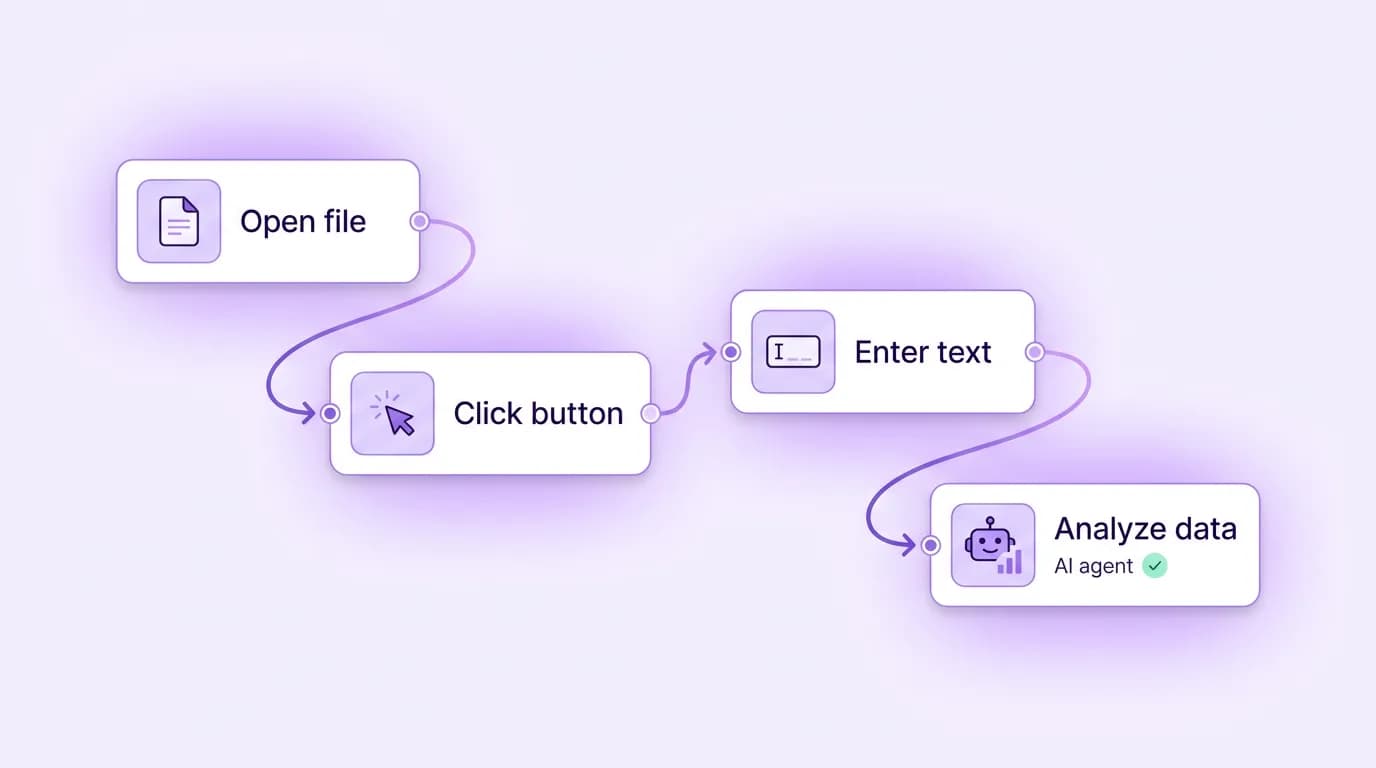
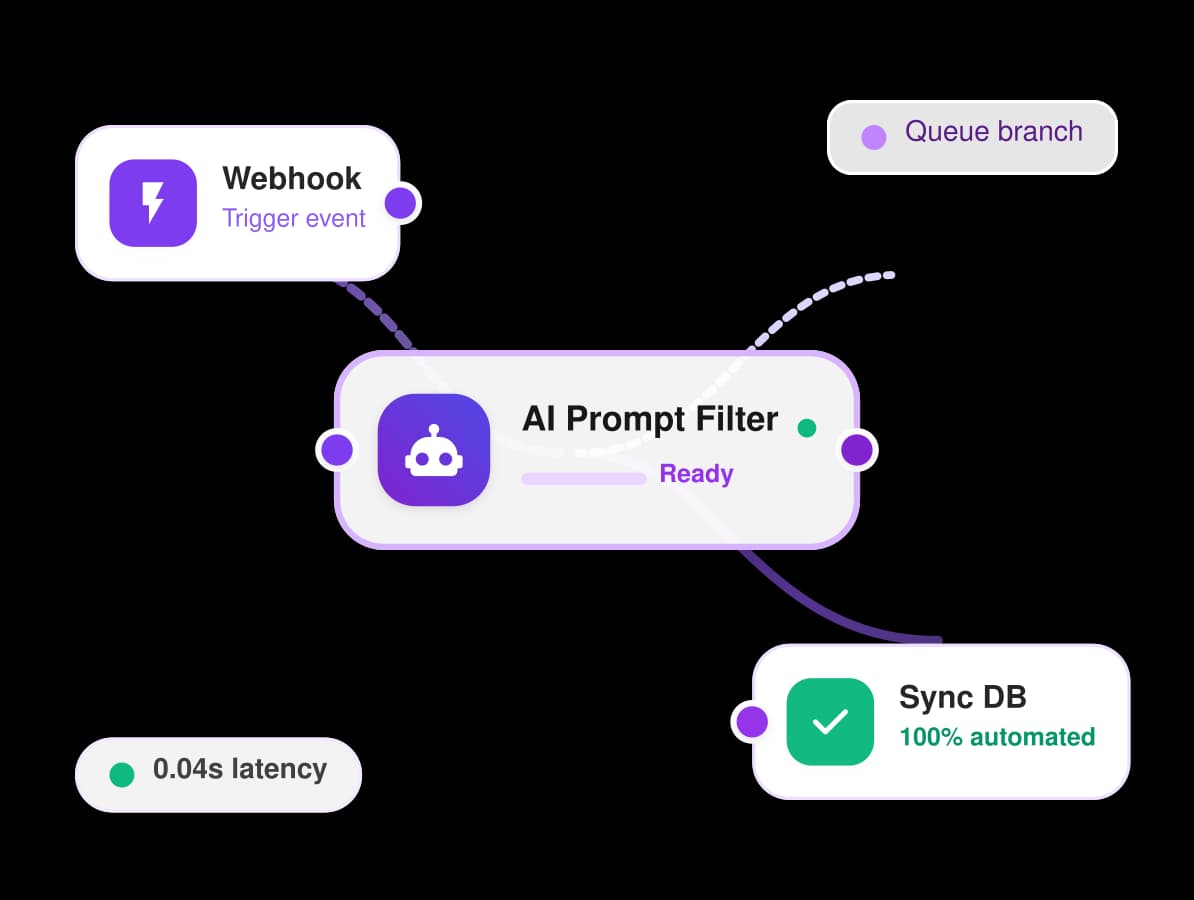
Connect CyberYozh App to your existing tools and scripts. Manage supported services through the API to reduce manual work as your operations grow.
Choose proxies for multiple Instagram accounts
Choose mobile proxies with unlimited traffic for daily Instagram work, or static ISP proxies for a fixed IP. Compare session duration, traffic needs, location, and total cost, then consider rotating residential proxies for regional research or datacenter proxies for testing workflows after confirming compatibility.
ISP Residential proxies
Built for workflows that require long session stability and consistent performance. Real static ISP IPs provide a reliable identity for web scraping, QA testing, automation, and region-specific access.
HTTP/SOCKS5 protocol support
One dedicated static IP
Speed up to 10 Mbps
Real ISP network
Unlimited traffic
99.9% uptime
Rotating Residential proxies
Built for web scraping, AI data collection, automation, SEO, and market research. Dynamic IP rotation and real residential IPs help distribute requests naturally at scale.
100M+ residential IPs across 195+ countries
Advanced IP quality filtering
24-hour sticky & rotating sessions
99.99% operational success rate
Traffic rolls over to the next billing month
Free geo-targeting
Rotating Residential proxies
Built for web scraping, AI data collection, automation, SEO, and market research. Dynamic IP rotation and real residential IPs help distribute requests naturally at scale.
100M+ residential IPs across 195+ countries
Advanced IP quality filtering
24-hour sticky & rotating sessions
99.99% operational success rate
Traffic rolls over to the next billing month
Free geo-targeting
LTE/5G mobile proxies
Built for social media, advertising, multi-account management, and other trust-sensitive platforms. Dedicated mobile channels provide greater control, stable sessions, and consistent performance.
Real LTE/5G carrier networks
Dedicated channel per connection
Manual & API-based IP change
VPN / VLESS configuration
Unlimited traffic
HTTP, SOCKS5 and UDP protocol support
LTE/5G mobile proxies
Built for web scraping, automation, SEO, and market research. Shared mobile channels provide access to real LTE/5G carrier networks with unlimited traffic at a lower cost.
Real LTE/5G carrier networks
Windows p0f fingerprint
High Trust Rate
Unlimited traffic
HTTP, SOCKS5 and UDP protocol support
Datacenter proxies
Built for high-speed automation, web scraping, monitoring, API integrations, and large-scale data collection. Dedicated IPs provide maximum performance, consistent connectivity, and exclusive resources.
Dedicated IPs
High-speed connections
SOCKS5 & HTTP protocol support
Track proxy status and details via API
Multiple locations available
Cost-effective for large-scale operations
Datacenter proxies
Built for high-speed automation, web scraping, monitoring, API integrations, and large-scale data collection. Shared IPs offer a cost-effective option for high-volume operations.
Shared IPs
High-speed connections
SOCKS5 & HTTP protocol support
Track proxy status and details via API
Multiple locations available
Cost-effective for large-scale operations
Manage Instagram alongside your other brand accounts
Organize cloud phones for the social networks, video platforms, and marketplaces your clients use. Keep each account’s apps, sessions, and proxy settings in its assigned environment as your work expands across platforms.
Choose the right location for your proxy
Access mobile and residential proxies across key markets worldwide. Select the country that matches your target region, check available options, and start with the proxy type that fits your task.
Explore more use cases
Discover how our modular intelligence engine powers scalable media creation, automated pipelines, and deep consumer intelligence.
Managing multiple Instagram accounts means checking which profile is active before every post, reply, or update. For a few personal or brand accounts, switching within Instagram may be enough. Managing several clients or regional teams can call for separate Android environments, with saved app data and assigned connections. This guide explains how to choose, configure, and maintain the right setup.
Choose your Instagram proxy.
Can you have multiple Instagram accounts?
Yes. You can have multiple Instagram accounts for personal use, business activity, different brands, or regional teams. Instagram’s account switcher lets you move between accounts added to the app. Its signed-in account limit concerns that feature, rather than establishing how many accounts one person can own.
Several accounts do not automatically require separate phones or proxies. Account switching changes the active profile within the same app and device. Separate cloud phones provide individual Android environments with their own installed apps, stored data, and configurable connections, which can help when different clients need separately organized workspaces.
How to create multiple Instagram accounts
Learning how to have multiple Instagram accounts starts with two different actions: creating another account or adding an existing login. Android menu labels and placement can vary by app version.
Open account options. Go to your Instagram profile and look for Add account or Add Instagram account in the account selector or menu.
Create a new account. Choose Create new account, enter the requested username, password, and contact details, then complete the registration and verification prompts. Use contact details that the account owner can continue to access.
Add an existing account instead. Choose Log into existing account, enter its credentials, and complete any two-factor authentication or login approval.
Switch accounts. Return to your profile, open the account selector, and choose the account you need.
Check before acting. Confirm the active username before publishing, commenting, or sending messages, especially when accounts use similar profile pictures.
If you’re planning how to make multiple Instagram accounts for clients, agree who controls each recovery email, authentication method, and backup codes before registration.
Can you create Instagram accounts without a phone number?
Yes, where Instagram offers email registration. If you’re asking “how can I create multiple Instagram accounts without number,” distinguish signing up with email from completing verification checks Instagram may request later.
Use an email address you can keep accessing, and retain control of any recovery number associated with the account. Additional checks may appear during registration, future logins, or account recovery.
A cloud phone’s simulated SIM information does not mean it can receive verification texts. SMS activation and number-rental services are separate purchases where available, and Instagram may reject some numbers. Choose recovery methods you can continue using: a number available for one verification may not remain accessible when you need another code.
When cloud phones help with multiple Instagram accounts
The right setup depends on how you work with each account, how much device separation you need, and who maintains the phones.
Setup | When it fits and what it involves |
Instagram’s account switcher | Switch between accounts in the same app when separate Android environments are unnecessary. |
Separate physical phones | Use individual devices, with hardware purchases, storage, charging, and ongoing maintenance. |
Android cloud phones | Access separate Android environments remotely, each with its own apps, stored data, and configurable proxy connection. |
Example: an agency managing several clients
An agency could name each cloud phone by client and Instagram handle, group profiles by client, and record the account’s market in its notes. This helps staff find the correct environment before posting or replying and return to the same app setup for later work.
Separate environments support organization; they do not guarantee that Instagram will treat accounts as unrelated or exempt them from restrictions.
Choose a proxy connection that fits your Instagram sessions
Choose the connection around your session length, traffic volume, and need for a consistent IP.
Mobile proxies: Carrier connections with unlimited traffic suit recurring app work and media uploads. Check whether the plan uses scheduled rotation or gives you manual control.
Static ISP proxies: Keep one IP for the rental period when client work needs the same address across days or weeks.
Rotating residential proxies: Get location flexibility and sticky sessions up to 24 hours. Traffic is billed per GB, so account for media uploads and downloads when budgeting.
Saved Instagram app data and IP persistence are separate. Your cloud phone can retain its apps and stored data when the connection changes, although Instagram may request a fresh login.
On mobile networks, carrier-grade NAT (CGNAT) can let several users share a public IP, so a dedicated mobile channel does not necessarily provide an exclusive public address.
How to set up Instagram accounts on cloud phones
Start with one cloud phone before building a setup for multiple Instagram accounts.
Arrange profile slots and runtime minutes. Open Cloud phones → My phones, use Manage profiles to purchase slots, then Add minutes. Monthly profile subscriptions, active runtime, and proxy rentals are charged separately.
Create and name the cloud phone. Select Create profile, choose a name such as ClientA_US_Instagram, and assign a client or brand group. Add the account’s purpose and market to its notes; follow the cloud phone setup guide for device options.
Attach a compatible proxy. Choose a connection under My proxies, or enter a custom SOCKS5 URL containing its host, port, username, and password. Check the credentials and rotation settings, then run Check IP before saving.
Configure regional settings. The proxy determines the exit IP location; Server region selects the hosting data center. Configure the language, then start the phone to adjust GPS through Change Proxy/GEO. Follow the proxy connection and geolocation guide for these settings.
Install Instagram and access the intended account. Install Instagram from Google Play on the running Android phone. Sign into the intended account or complete registration, using its recovery details and completing any verification Instagram requests.
Verify the working setup. Open an IP-check page inside the cloud phone and confirm the exit IP and country. In Instagram, check the active username and test a normal task, such as preparing a post, before adding more accounts.
How to manage multiple Instagram accounts day to day
Keep account records current so each work session starts with the correct setup.
IG multiple accounts checklist
Name profiles consistently. Include the client, Instagram handle, and market, such as ClientA_@brand_US.
Record each connection. Map every account to its cloud phone and assigned proxy, updating the record whenever either changes.
Check the active username. Confirm which Instagram account is open before publishing, commenting, or replying.
Maintain recovery access. Ensure the appropriate account owner can access the recovery email, authentication methods, and securely stored backup codes.
Avoid unnecessary connection changes. Keep proxy assignments and rotation settings consistent during active work.
Stop idle cloud phones. Stop devices you have finished using to prevent unnecessary runtime charges.
Fix common account and connection problems
First identify whether the problem concerns the proxy connection, the selected profile, or Instagram’s account controls.
Problem | What to check | Next action |
Another login or verification request | Credentials and access to recovery methods | Complete Instagram’s requested security check. |
Proxy connection fails | Credentials, rental status, and SOCKS5 configuration | Correct the settings and rerun Check IP. |
Exit IP changes unexpectedly | Rotation schedule, session duration, and assigned proxy | Adjust session settings; consider static ISP when a fixed IP is required. |
Unexpected language or regional content | Exit country, app language, and GPS settings | Correct mismatches, then retest. Location settings do not guarantee particular content. |
Wrong client account is open | Instagram username and cloud phone profile | Open the correct environment before publishing or replying. |
Instagram reports an account restriction | Instagram’s notice and Account Status | Follow the available review or appeal process; changing proxies does not resolve the restriction. |
Build a setup around your Instagram workload
Identify which Instagram accounts need separate environments, then choose connections that match their location, traffic, and session requirements. Start with a small setup, test account access and media uploads, and check runtime spending before adding more profiles.
Explore the proxy catalog to compare connections for your daily workload.