
Google Unusual Traffic: Why It Happens and How to Fix It

You run a search, select the traffic lights to prove you’re human, and finally reach the results. A few searches later, the same verification screen returns. The Google unusual traffic warning can interrupt an ordinary browsing session even when you haven’t knowingly done anything unusual.
The challenge is figuring out where the problem starts. Your browser might be running an extension that sends requests, a research tool could be querying Google in the background, or other users might be sharing your network’s public IP address. This guide walks you through checks that help narrow the cause to your browser, device, network, VPN, or automated tools, so you can address the source instead of repeatedly solving CAPTCHAs.
What does the Google unusual traffic warning mean? Google has detected activity from your connection that appears automated. Those requests may come from your device or from other people sharing the same public IP address, including through a VPN. Automated tools and malware can also contribute, but the warning alone does not mean your device or Google account has been hacked. Google Search Help explains the recognized causes.
TL;DR
Complete the CAPTCHA, pause automated searches, and compare browsers and connections one at a time. These checks help identify whether the problem follows your browser, device, or network.
On iPhone, compare Wi-Fi with cellular data, then test your VPN or iCloud Private Relay separately. If verification will not load or complete, check Safari settings and content blockers.
For recurring research jobs, reduce simultaneous requests, cache repeated work, and stop uncontrolled retries. Changing IPs will not correct excessive request volume.
CyberYozh App offers IP Fraud Score checks, static ISP proxies, mobile plans with unlimited traffic, and rotating residential options with sticky sessions and traffic rollover. Choose according to your diagnosed issue, target location, session length, and bandwidth needs.
If warnings persist, share your test results with the relevant network or proxy provider. Unfamiliar sign-ins or unauthorized account changes require Google’s account security process.
How to fix Google unusual traffic: start with these checks
Before clearing your browsing history or changing network settings, check where the warning appears. Change one thing at a time so you can see which adjustment makes a difference.
Complete the CAPTCHA if one appears. Follow the verification prompt, then try your search again. If the challenge does not load or keeps restarting, move to the browser checks below.
Pause tools that send searches automatically. Stop active scraping scripts, rank-checking tools, scheduled searches, and repeated retries. Leaving them running while you troubleshoot can make it harder to identify the source.
Compare the same search with your VPN or proxy temporarily disconnected. If the warning disappears, investigate that connection with your provider. Remember that disconnecting changes the IP address Google sees and may affect your privacy.
Try another browser on the same connection. If searches work there, check the original browser’s extensions and settings. A clean browser profile can help you test without your usual extensions.
Compare Wi-Fi with cellular data. On your phone, turn off Wi-Fi and try a search over cellular data. If the warning appears only on Wi-Fi, investigate that network; if it appears only on cellular data, investigate the carrier connection or any VPN still in use.
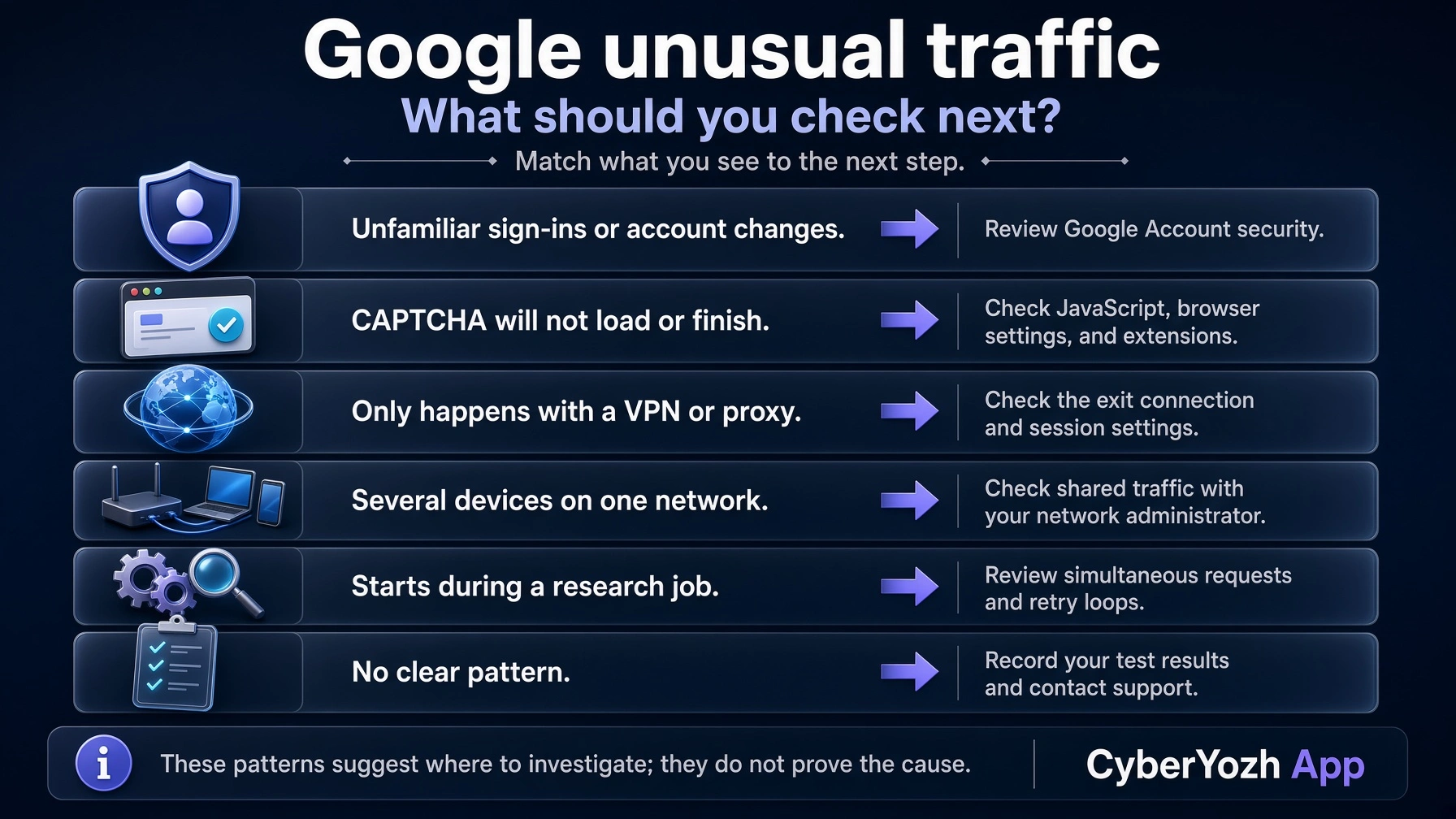
Use the table below if the problem continues. Match what you observed to the next check instead of changing several settings at once.
If the warning consistently follows a professional proxy connection, evaluate its IP reputation and session configuration before replacing it. CyberYozh App’s IP checks provide additional reputation indicators, while its session and rotation controls help you review how the connection is being used. These checks can inform your next step, though they do not reveal Google’s internal assessment or guarantee that another IP will resolve the warning.
These comparisons give you clues, not absolute proof. A warning can clear between tests, and switching connections changes more than one network characteristic.
What you observe | What to investigate first | Next step |
Several devices have the problem on one network | Shared connection or traffic from another device | Pause automated activity and contact the network administrator |
The warning appears only through a VPN or proxy | That service’s exit connection | Compare a direct connection and contact the provider |
Only one browser has trouble | Extensions, scripts, or browser settings | Test a clean browser profile |
CAPTCHA does not load | Browser support, JavaScript, or blocked resources | Follow the CAPTCHA troubleshooting section |
Warnings begin during a research job | Request volume, concurrency, or retry behavior | Pause the job and inspect its configuration |
Google reports unfamiliar sign-ins | Account security | Review Google Account security activity |
What “our systems have detected unusual traffic from your computer network” means
This warning means Google has detected search activity from your connection that appears automated. It describes what Google sees arriving from the network, so it does not necessarily identify your device as the source.
Why Google refers to your network instead of just your device
A public IP address is the address a website sees when your connection reaches it. Several devices can share that address, which means their requests can reach Google through the same network connection.
Imagine a small office where one person checks a delivery address while a colleague runs software that repeatedly checks Google rankings. Both may connect through the office’s public IP address, so the person making an ordinary search could encounter a warning associated with activity on that shared connection. A similar situation can happen at home or through a shared VPN.
Pro-tip: Unusual network traffic is a broader term that can describe many kinds of unexpected network activity. Here, we are specifically addressing the warning that interrupts Google searches.
Different wording, the same troubleshooting starting point
Google’s documented warning reads: “Our systems have detected unusual traffic from your computer network.” You may recognize shortened searches such as “our systems have detected unusual traffic from your computer” or “Google detected unusual traffic.” People also search for “we have detected unusual traffic from your network,” although that is not the exact wording quoted in Google’s help documentation.
These variations lead to the same starting point: check whether the problem follows your browser, your connection, or a tool sending searches in the background.
What is an automated query?
An automated query is a request submitted by software rather than someone manually entering a search. Examples include a script submitting a list of keywords, software checking where a website ranks, or a tool repeatedly requesting search results. Even a job you start manually can send subsequent queries automatically.
The distinction matters because the connection carrying requests and the software generating them are separate parts of the problem. CyberYozh App provides proxy connections and controls for long session behavior and IP changes, helping you choose and manage the network used for your research.
Why Google unusual traffic warnings keep coming back
CAPTCHA solvers may let you continue searching, but it does not necessarily stop the activity that triggered the warning. If the message returns, the pattern can help you narrow down what is happening.
Other people are searching through the same public IP
In an office, school, or public Wi-Fi network, many people may reach Google through one public IP address. Some internet providers also share public addresses across customers, so the activity associated with your connection may extend beyond devices you own or control.
If several devices encounter the warning on the same network, shared traffic is worth investigating. Your own search history may offer little explanation because the requests could be coming from someone else.
Your VPN or proxy shares an exit connection with other users
When you connect through a VPN or proxy, Google sees the service’s exit IP address. If other customers use that address to send automated searches, you may encounter verification after only one or two searches of your own.
A warning that consistently appears through one VPN or proxy connection points toward that connection as a possible factor. It does not establish that every address from the provider has the same problem.
Learn more about how to fix your IP that’s been temporarily blocked.
Research tools are sending repeated or simultaneous requests
Rank checkers, scraping jobs, and automated browser sessions can generate searches much faster than someone browsing manually. Several jobs running together may also create more traffic than their individual settings suggest.
Retry loops can compound the issue: a tool encounters a challenge, requests the page again, and continues retrying without resolving the interruption. If warnings begin when a research job starts or become more frequent as more tasks run, examine the workload or optimize request workflows.
An extension or unwanted program is generating requests
You do not have to be running a visible scraping tool for automated activity to occur. A browser extension may send requests in the background, while unwanted software or malware can generate traffic without your knowledge.
A problem limited to one browser makes its extensions and settings worth checking. If it follows a device across different connections, software on that device becomes another possibility. Neither pattern alone proves that malware is present.
The CAPTCHA itself cannot complete properly
Sometimes the traffic warning brings you to a verification challenge that your browser cannot load or complete. Disabled JavaScript, an unsupported browser, or an extension blocking required resources can prevent you from progressing.
This is a separate issue from the activity that triggered the warning. A blank, broken, or repeatedly restarting challenge calls for browser troubleshooting; a completed challenge followed by another warning calls for a closer look at ongoing traffic.
For professional workflows, choose tools according to the problem you identify. CyberYozh App’s IP evaluation tools provide reputation indicators, dedicated access gives you greater control over your proxy allocation, and sticky sessions up to 24 hours let you manage connection continuity and IP changes. Each addresses a different operational need, and none is a universal fix for recurring warnings.
Fix shared-network and VPN-related search warnings
If the warning appears across several devices or only while a VPN is connected, investigate the connection before resetting your browser. A few controlled comparisons can help you decide whether to contact your network administrator, internet provider, or proxy provider.
Compare connections before changing settings
Start with the same device on a different network. For example, try a search on your phone over Wi-Fi, then switch to cellular data and repeat it. Keep the browser and any VPN settings unchanged so the comparison is useful. If the warning appears only on Wi-Fi, that network deserves a closer look.
Next, try a different device on the same network. If both your phone and laptop encounter the warning over the same Wi-Fi connection, the problem may involve shared traffic rather than one browser.
Test a VPN or proxy separately by temporarily disconnecting it and repeating the search. This changes the public IP Google sees, so consider the privacy implications before testing. A warning that disappears provides a clue about the connection, although it does not establish exactly why Google challenged it.
Find the source of repeated traffic on a shared network
Pause known rank-checking tools, scraping jobs, scheduled searches, and scripts that retry failed requests. If you work with a team, check whether colleagues have similar jobs running; several modest workloads can add up when they use the same connection.
When multiple users are affected, involve the network administrator. They can investigate which devices or applications are generating requests and check for unwanted software. On school, hotel, or public Wi-Fi, reporting the issue is usually more practical than changing settings on your own device.
If the problem consistently follows your home connection across devices after known automated jobs have stopped, ask your internet provider whether the connection uses a shared public IP and what troubleshooting options are available.
Check IP reputation without treating the result as Google’s verdict
An IP reputation report can provide additional context, such as reported abuse, blacklist entries, or proxy-related indicators, depending on the service. CyberYozh App’s checkers assess the IP Fraud Score to support this investigation by giving you risk indicators to review alongside your connection tests.
Check the public IP used by the affected connection, since testing your home address while the warning occurs through a proxy would tell you little about that proxy.
Treat the report as one piece of evidence. A favorable fraud score does not reveal Google’s internal assessment or guarantee access, while an unfavorable result does not prove that IP reputation caused the warning. Request patterns and activity from other users may still matter.
When a dedicated connection is worth considering
For professionals running recurring research, a dedicated connection can make network use easier to manage. CyberYozh App’s dedicated static ISP proxies provide a consistent address, which can suit workflows that need continuity across related searches or sessions. Keeping that allocation separate from other proxy customers also gives you clearer control over the traffic you send through it.
Dedicated (Private) proxies offer another network option to evaluate, with carrier-based connections and controls for changing the IP.
Choose between these options based on session length, location, bandwidth, and the workload you identified. A different connection can help with a connection-specific problem.
Google unusual traffic on iPhone: Wi-Fi, cellular data, and Private Relay
Seeing this warning on your iPhone does not necessarily mean something is wrong with the phone. Start by checking the connection Safari uses, then investigate browser settings if the verification challenge itself is failing.
Check whether the warning follows Wi-Fi or cellular data
Use this short comparison before clearing browsing data or resetting network settings:
Try a search over Wi-Fi. Note whether the warning appears and whether you can complete the CAPTCHA.
Turn off Wi-Fi and repeat the search over cellular data. Keep the browser and other settings unchanged.
If only Wi-Fi is affected, test another device on that network. A similar result makes the shared connection worth investigating.
If both connections are affected, check what remains active across them. A VPN, browser setting, or other connection service may still be involved.
These results narrow the investigation, but they do not prove the cause. In particular, switching from Wi-Fi to cellular data may leave an active VPN routing your searches through the same service.
Test the effect of your VPN or iCloud Private Relay
A VPN changes the connection websites see. If one is active, temporarily disconnect it and repeat a search to check whether the warning follows that service.
For iCloud+ users, iCloud Private Relay also changes how Safari reaches websites. It routes browsing through two relays, with the second presenting a temporary IP address to the destination. Apple notes that some websites may require additional steps to access content when your original IP is unavailable. Apple Support explains how this works.
Temporarily turn off Private Relay and compare the result, testing it separately from your VPN. Disabling either service changes your privacy protection and the address websites may see, so use the comparison to identify a possible connection issue rather than assuming you must leave it disabled or choose a real iPhone proxy for a trusted connection.
Check Safari settings and content blockers
A warning that loads normally and a CAPTCHA that cannot complete need different attention. If you solve the challenge but receive another warning later, continue investigating the connection and any ongoing automated requests.
If the challenge is blank, fails to respond, or repeatedly restarts, check that Safari can run JavaScript and temporarily pause content blockers for the affected page. Test one change at a time, then restore settings that make no difference. Updating iOS also keeps Safari current.
Clearing relevant website data can be a later step if the problem appears limited to Safari, but it may sign you out. It should not be the first response to a warning that also appears on other devices using the same network.
Why “computer network” can appear on a phone
Google uses “computer network” to describe the connection sending requests; the wording is not limited to desktop computers. Your iPhone connects through a network too, and its searches may share a public IP address with other users through Wi-Fi, a mobile carrier, or a VPN.
The message alone therefore does not mean Google has mistaken your iPhone for a computer or that your phone has been compromised.
Fix browser problems when Google CAPTCHA keeps repeating
If Google searches work in one browser but get stuck at verification in another, focus on the affected browser before changing your network. The aim is to identify what prevents the challenge from completing without wiping useful settings or browsing data unnecessarily.
Try an updated browser or a clean browser profile
Update your browser, restart it, and try the search again. If the problem continues, create a temporary browser profile without importing extensions or syncing your existing settings.
Keep the network connection unchanged during this comparison. If verification works in the new profile, something in the original profile—such as an extension, stored site data, or a setting—may be contributing. If both profiles encounter the same warning, the browser becomes a less convincing explanation, especially when other devices are affected too.
Check JavaScript and extensions that block page resources
CAPTCHA challenges need required scripts and resources to load. Check that JavaScript is enabled, then review extensions that filter scripts, block content, or modify Google pages.
Temporarily pause one relevant extension for the affected page and retry. If nothing changes, restore it before testing another. This approach helps identify a specific conflict without disabling all your browser protections.
Also check whether the challenge reports that verification has expired. Google explains that reCAPTCHA verification can time out, which means restarting an expired challenge is different from receiving a fresh traffic warning.
Clear relevant site data only when the browser appears responsible
If a clean profile works but your usual profile still fails, clearing Google’s cookies and site data is a reasonable next test. Start with the affected site rather than deleting your entire browsing history.
Removing this data may sign you out of Google services and reset site preferences, so make sure you can sign back in. It also does not change your public IP or stop requests from other devices; if the warning affects the whole network, clearing browser data is unlikely to address its source.
Check for unwanted software if requests continue in the background
Review extensions and installed applications if searches or other unexplained activity continue after you pause your known tools. Unexpected redirects, recurring extensions, or a search engine that changes without permission are additional reasons to investigate unwanted software.
Follow Google’s unwanted-software removal guidance, which includes Windows and Mac instructions and links to guidance for other devices. On a managed work computer, ask IT to investigate before removing unfamiliar applications. A recurring CAPTCHA alone is not proof of malware.
“Your computer or network may be sending automated queries”: what to change
When Google unusual traffic warnings begin during a research job, investigate how the tool sends requests before replacing its connection. A script that keeps retrying a challenged page can sustain the problem even after you change IPs.
Identify the tool generating searches
Check scheduled jobs, SEO software, browser extensions, and custom scraping scripts that access Google. Include tasks running on other computers or servers through the same connection; closing a dashboard does not necessarily stop the job behind it.
Compare the warning’s timing with your task logs. Look for overlapping schedules, repeated searches for the same keywords, or automated browser sessions that continue after an error. Pause suspected jobs individually so you can identify which workload contributes to the problem.
Reduce concurrency and stop uncontrolled retries
Concurrency is the number of requests or tasks running at the same time. Several workers may each look modest in isolation while collectively sending a heavy stream of searches through one connection.
Reduce simultaneous tasks, remove duplicate searches, and cache results when previously collected data is still suitable for the job. Set retry limits so a failed request does not trigger an endless loop. When a challenge appears, pause the affected task and investigate instead of treating the CAPTCHA page as another result to request repeatedly.
There is no universally safe requests-per-minute setting to apply here. Manage the workload as a whole, including scheduled jobs and retries, rather than assuming a delay between individual requests guarantees access.
Use an authorized API or data source where one fits the task
Start with the information you actually need. For search performance on a site you manage, an authorized first-party reporting source may be more appropriate than repeatedly checking public results. For product prices, an available merchant feed or supplier API may provide the required data directly.
These sources do not replace every research workflow. Check their coverage, freshness, access requirements, and permitted use before changing your process. A source that reports your own website’s performance, for example, will not necessarily answer questions about competitors or reproduce a live search results page.
Choose session behavior around the job
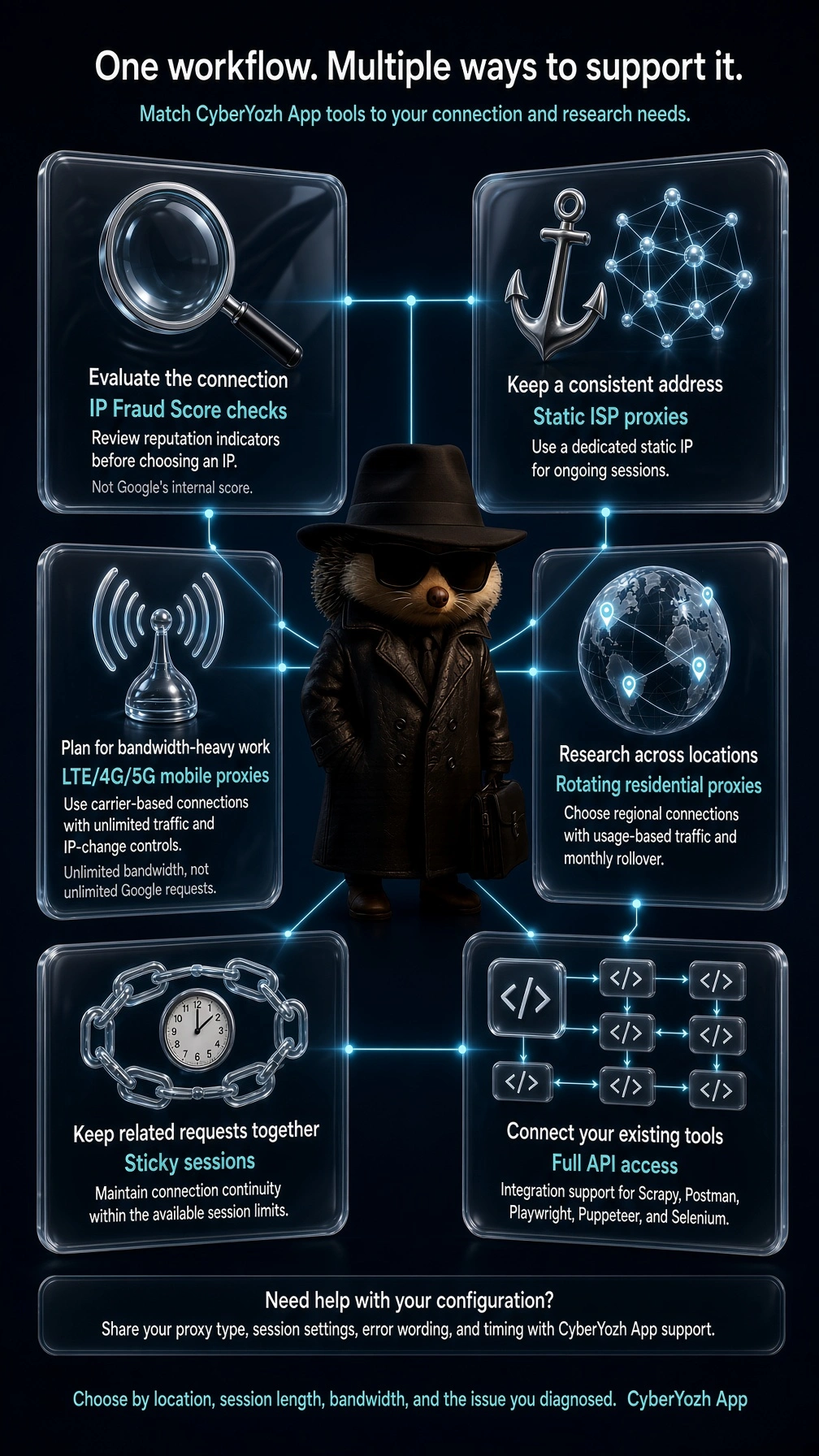
A stable connection is useful when related requests belong to one session or a task needs a consistent regional setup. CyberYozh App’s static ISP proxies provide a consistent address, while rotating residential proxies offer options for distributed workflows with 100M IPs.
For bandwidth-intensive research, mobile LTE/4G/5G proxies with unlimited traffic are another option to evaluate. Multiple mobile channels can support separate workers or projects, but request controls still need to cover their combined activity.
CyberYozh App provides full API access and integration support for Scrapy, Postman, Playwright, Puppeteer, and Selenium, allowing teams to configure proxy access within their existing tools. Request scheduling, caching, concurrency limits, and retry handling remain part of the application’s configuration.
Choose IP and session behavior to support the job’s requirements. Changing addresses alone will not correct excessive request volume, and neither mobile nor residential connections guarantee freedom from Google’s traffic checks.
How to choose proxy infrastructure for recurring Google unusual traffic problems
Once you have identified a connection-related issue, choose infrastructure around the work you need to complete. A task that requires one consistent address has different needs from regional research spread across separate sessions, and switching proxy types without considering those needs can introduce new interruptions.
What your workflow needs | CyberYozh App option | What to keep in mind |
A consistent address for ongoing sessions | Static ISP proxy | A static address can still encounter Google’s challenges |
A carrier-based connection with predictable bandwidth costs | Mobile proxy with unlimited traffic | Carrier traffic remains subject to Google’s checks |
Regional research across multiple sessions | Rotating residential proxy | Rotation does not correct excessive request volume or uncontrolled retries |
Continuity between related requests | Sticky session | Confirm the available session duration and behavior for your selected configuration |
More information about an IP before using it | IP Fraud Score check | The report does not reveal Google’s internal reputation score |
Bandwidth billing also matters when research workloads vary. CyberYozh App’s rotating residential plans are usage-based and include monthly traffic rollover, allowing unused traffic to carry into the following month. This can suit projects with quieter periods between collection jobs. The current product page also lists rotating and sticky sessions; confirm the session duration you need before configuring a long-running task.
For sustained, bandwidth-intensive work, an unlimited-traffic mobile plan may make costs easier to anticipate. You still need to manage request volume, and a dedicated mobile channel does not necessarily provide exclusive use of the carrier’s public IP.
Pro-tip: pick CyberYozh App’s proxy options with four requirements in mind: geotargeting, session length, expected bandwidth, and the issue your tests identified.
Does unusual traffic mean you were hacked?
A Google unusual traffic warning alone does not mean your device or account has been hacked. It can appear because of automated requests or activity from other people sharing your connection. However, unfamiliar sign-ins or changes to your account need a separate investigation.
A Search warning is different from an account security alert
Look at what the message describes before choosing your next step.
What you see | What it concerns | What to investigate |
Searches interrupted by an unusual traffic warning or CAPTCHA | Requests reaching Google through your connection | Shared traffic, VPNs, proxies, browser issues, or automated tools |
A security alert about an unfamiliar sign-in or device | Access to your Google Account | Recent security events and signed-in devices |
Password, recovery details, or account activity changed without your permission | Possible unauthorized account access | Account recovery and security settings |
The two problems can occur together, but one does not establish the other. Completing a CAPTCHA does not confirm that your account is secure, and a traffic warning is not evidence of a Gmail data breach.
What to do if Google signs you out after suspicious activity
Open your Google Account directly and review recent security events and devices signed in to your account. If you find activity you do not recognize, follow Google’s prompts to secure the account, change a compromised password, and remove unfamiliar access.
If you cannot sign back in, use the recovery process linked in Google’s compromised-account guidance. That process addresses account access separately from Search traffic warnings. Being signed out on Windows, a phone, or another device is a reason to check the security details, rather than assume that changing your connection will resolve it.
Why changing your IP does not secure a compromised account
Changing your IP affects the connection websites see. It does not change a stolen password, sign out an unauthorized user, or correct recovery details someone else has modified.
CyberYozh App’s IP checks, mobile number checks and bank card checks assess network-related reputation and risk indicators. They can inform connection choices, but they do not establish Google Account ownership, recover passwords, or remove unauthorized access. If account activity is the concern, complete Google’s security or recovery process before returning to proxy troubleshooting.
What to do when the warning still will not go away
If the Google unusual traffic warning continues after these checks, collect the results before making more changes. A clear account of when it appears gives support something specific to investigate and saves you from repeating the same tests.
Record what changes the outcome
Keep a short troubleshooting note with:
Browser: Its name and whether another browser or a clean profile behaved differently.
Connection: Wi-Fi, cellular data, or wired internet, including any active VPN or proxy.
Timing: Approximately when the warning appeared, with your time zone.
Automation: Whether scripts, rank checkers, or scheduled jobs were running.
Other devices: Whether another device on the same network encountered the warning.
Include the exact error wording and note which changes made a difference. “Search works over cellular data but fails on office Wi-Fi across two devices” gives support a more useful starting point than “Google keeps blocking me.”
Contact the right support team
Choose the support route that matches your observations:
What your tests suggest | Who to contact |
Several devices are affected on an office, school, or public network | The network administrator |
The problem follows your home connection across devices, without a VPN or proxy | Your internet provider |
The warning consistently appears through a particular VPN or proxy connection | The VPN or proxy provider |
You cannot access your account after unfamiliar security activity | Google Account recovery |
Avoid repeatedly refreshing or switching settings at random
Repeatedly refreshing the warning page adds requests without helping you identify the cause. Changing browsers, rotating IPs, and clearing cookies all at once also makes it difficult to tell which adjustment mattered.
Pause the affected job, make one change, and record the result before moving to the next test. If nothing improves, share those observations with the appropriate support team rather than continuing the same retry cycle.
Check CyberYozh App’s catalog for high-quality, real proxy solutions.