
How to Set Up a Proxy for Telegram & Stay Connected in 2026

You open Telegram, send a message, and nothing happens. No connection, no updates, no calls. Just a silent app that worked perfectly yesterday.
Maybe it’s a regional block. Maybe your network flagged Telegram traffic. Or maybe your connection just doesn’t look “clean” enough anymore. Whatever the reason, you’re locked out, and a simple restart won’t fix it.
This is where MTProto and SOCKS5 proxies with clean IP reputation come in. They are used for bypassing restrictions, managing accounts, and keeping Telegram stable under real-world conditions.
In this guide, you’ll find:
How to set up a Telegram proxy step by step (MTProto & SOCKS5)
Which Telegram proxy type works best in 2026
How to fix Telegram proxy not working issues quickly
How to use a proxy in Telegram to bypass blocks and regional restrictions safely.
TL;DR
Telegram supports MTProto and SOCKS5 proxies; MTProto is a common choice for users who want to bypass blocks and restrictions
Telegram proxy setup takes under 2 minutes in Telegram settings (mobile or desktop)
Most connection issues come from dead or low-quality proxies or incorrect proxy setup
For multi-account management in Telegram, use premium residential or mobile proxies with a clean reputation and consistent uptime.
What is a Telegram proxy
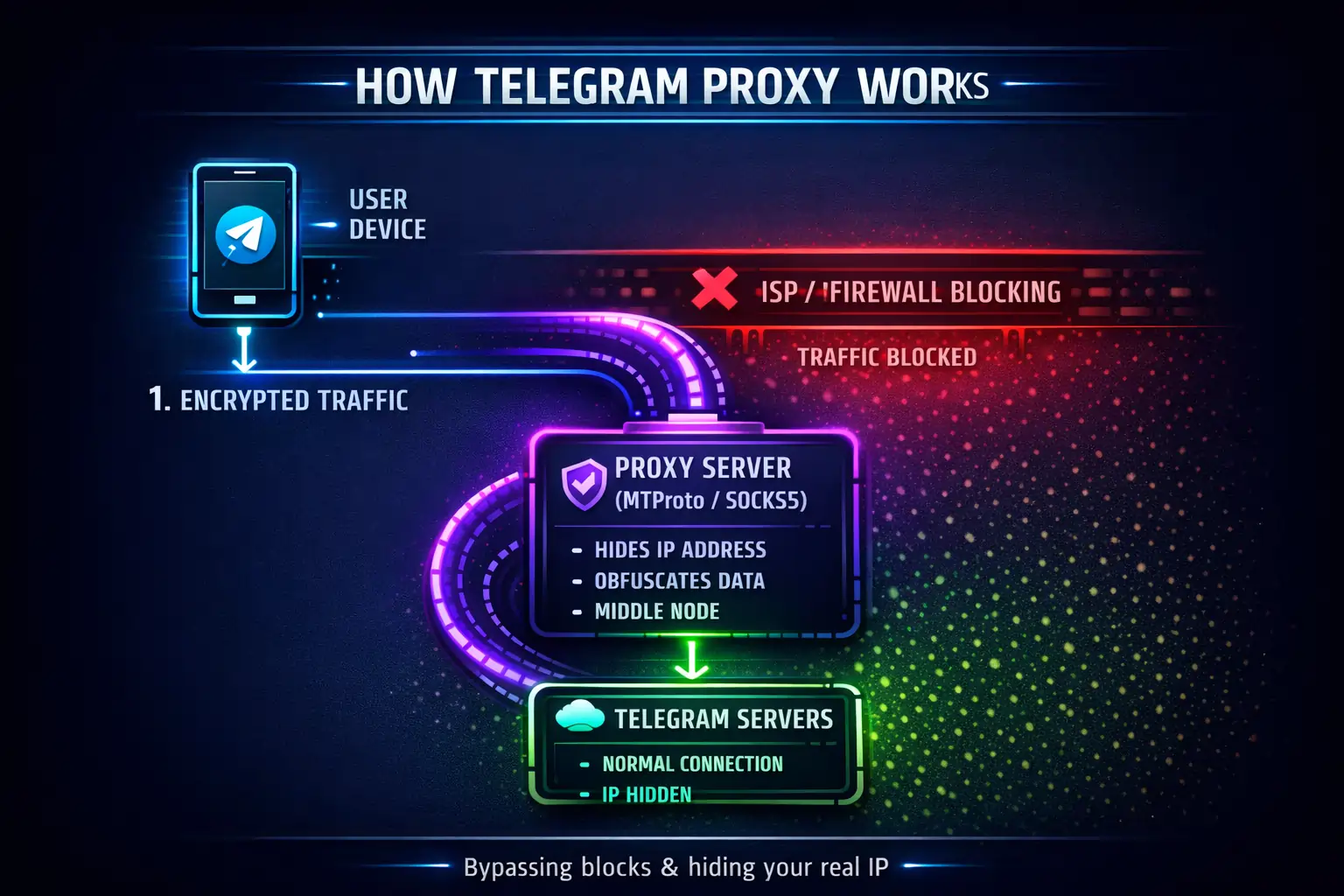
A Telegram proxy server sits between your device and Telegram’s servers, routing your connection through a different IP address. From Telegram’s perspective, your traffic no longer comes from your real device; it comes from the proxy. This allows you to bypass blocks, restore access on restricted networks, and keep connections stable even when your original IP is flagged or limited.
Why you need a Telegram proxy
You need a Telegram proxy for managing multiple Telegram accounts (more than 3) on a single device, using automation or bots, or conducting marketing and outreach. They are also helpful if you simply want to restore connection if it’s blocked, unstable, or restricted.
Typical scenarios:
Telegram is blocked or partially restricted in your country
Your network (work, school, ISP) filters or throttles Telegram traffic
You’re running multiple accounts, bots, or outreach workflows
Your connection gets randomly interrupted or flagged
You want to hide your real IP and location
In all of these cases, the issue is not Telegram itself; it’s how your IP is being evaluated. A proxy fixes that directly.
Telegram proxy vs. VPN: Which is better
Telegram proxy and VPN operate at different levels of the connection stack. The table below shows how they differ in scope, performance, setup, and typical use cases when accessing Telegram.
Feature | Telegram Proxy (MTProto / SOCKS5) | VPN |
|---|---|---|
Scope | Telegram traffic only | All device traffic |
Speed | Fast, low overhead | Slower due to full routing |
Setup | Inside Telegram settings | System-level app |
Block Resistance | High with clean IPs | Often detected or throttled |
Best Use Case | Unblocking Telegram, stable access | Full-device privacy |
Summary: Using the best Telegram proxies is faster and more efficient, while VPNs are better suited for encrypting all internet traffic.
Learn how to use Telegram web in 2026 and troubleshoot common issues.
Types of Telegram proxies: A quick overview
Telegram supports two proxy types: MTProto and SOCKS5. They are used to route traffic through external IPs and restore access when direct connections are blocked, throttled, or unstable. Both solve the same core problem (reconnecting Telegram), but they differ in how they handle traffic, level of Telegram integration, and deployment scenarios.
MTProto: Built for Telegram
MTProto is Telegram’s native proxy protocol, designed specifically for the app. It’s optimized for bypassing censorship and maintaining stable sessions. Telegram proxy MTProto is ideal when you need to restore access and ensure connectivity in restrictive networks. It operates at the application level and is tightly integrated with Telegram’s internal networking logic.
Key features:
Native Telegram protocol
Perfect for bypassing blocks, partial restrictions, or instabilities at the ISP or country level
Strong resistance to filtering and censorship.
Limitation: MTProto proxies don't support Telegram voice calls or voice chats. If you need to route calls through a proxy, use SOCKS5 instead.
SOCKS5: Flexible proxy for professional and personal use
SOCKS5 is a general-purpose proxy protocol that forwards traffic through an external IP without being tied to Telegram. This makes it a strong choice for professional workflows where multiple tools, services, or accounts need consistent routed access.
Key features:
Works across multiple applications and tools
Ideal for multi-application environments, automation workflows and account operations
Flexible for general traffic routing and infrastructure setups.
MTProto vs SOCKS5: Which one to choose
Feature | MTProto (Telegram-native) | SOCKS5 (General-purpose) |
|---|---|---|
Optimization | Built for Telegram traffic | Not Telegram-specific |
Stability | High under censorship conditions | Depends on proxy quality |
Use Case | Access, stability, restriction bypass | Multi-app routing, flexibility |
Compatibility | Telegram only | All applications |
Protocol Level | Application-level (integrated) | Transport-level routin |
How to set up a proxy in Telegram (Step-by-step)
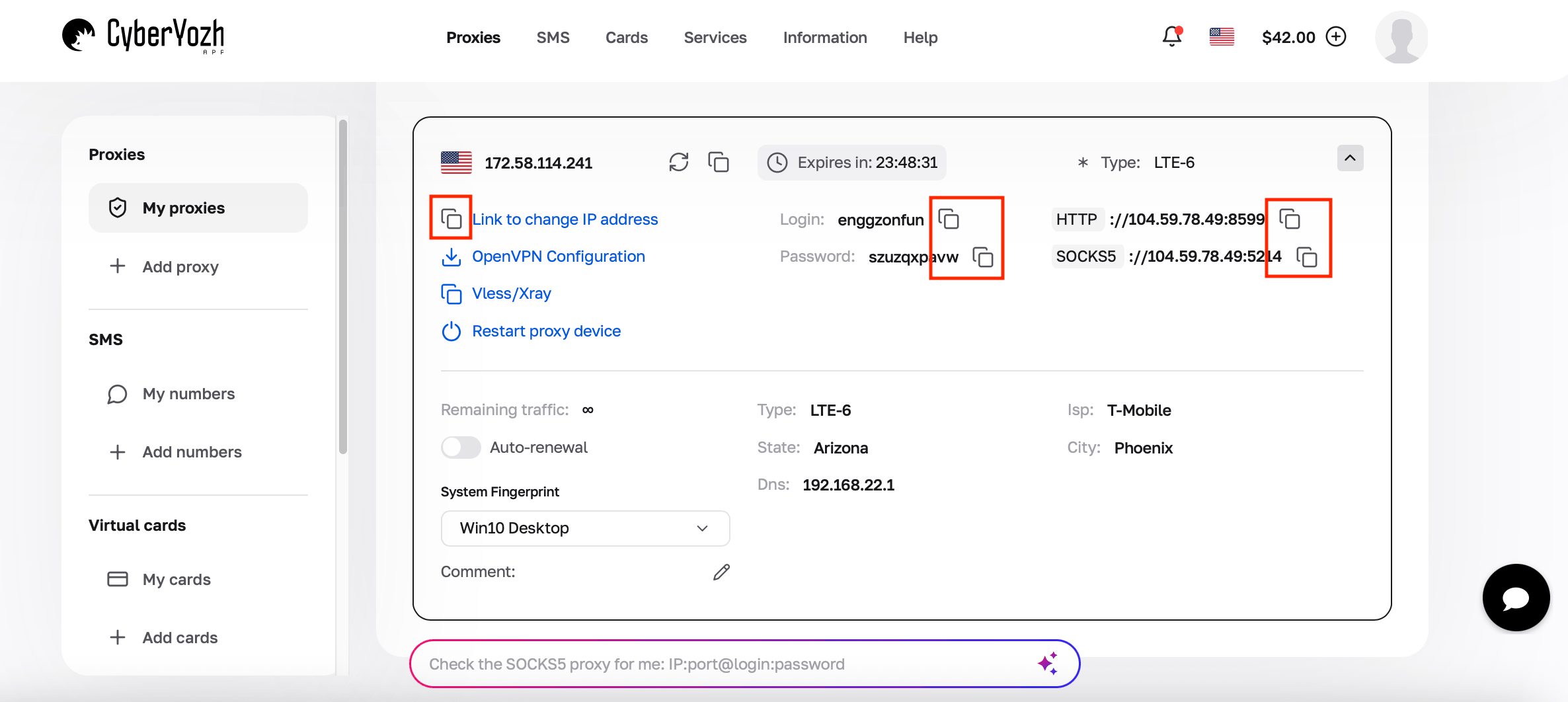
To set up a proxy in Telegram, you need proxy details: server (IP or domain), port, and optional login credentials. Here’s how to add a proxy in Telegram step by step.
Telegram proxy settings on PC (Windows, macOS, Linux)
Step 1. Launch the desktop version of Telegram.
Step 2. In the upper left corner, click on three lines and select Settings. Go to the Advanced tab.
Step 4. Find the Data and Storage section and click on Connection type. Enable Use custom proxy.
Step 5. Select your proxy type: SOCKS5 or MTProto. Fill in the fields:
Hostname: Enter the IP address or domain name of the proxy.
Port: Specify the server port.
Username/Password: Enter the authorization data if required.
Click Save.
Telegram proxy setup on mobile (Android/iOS)
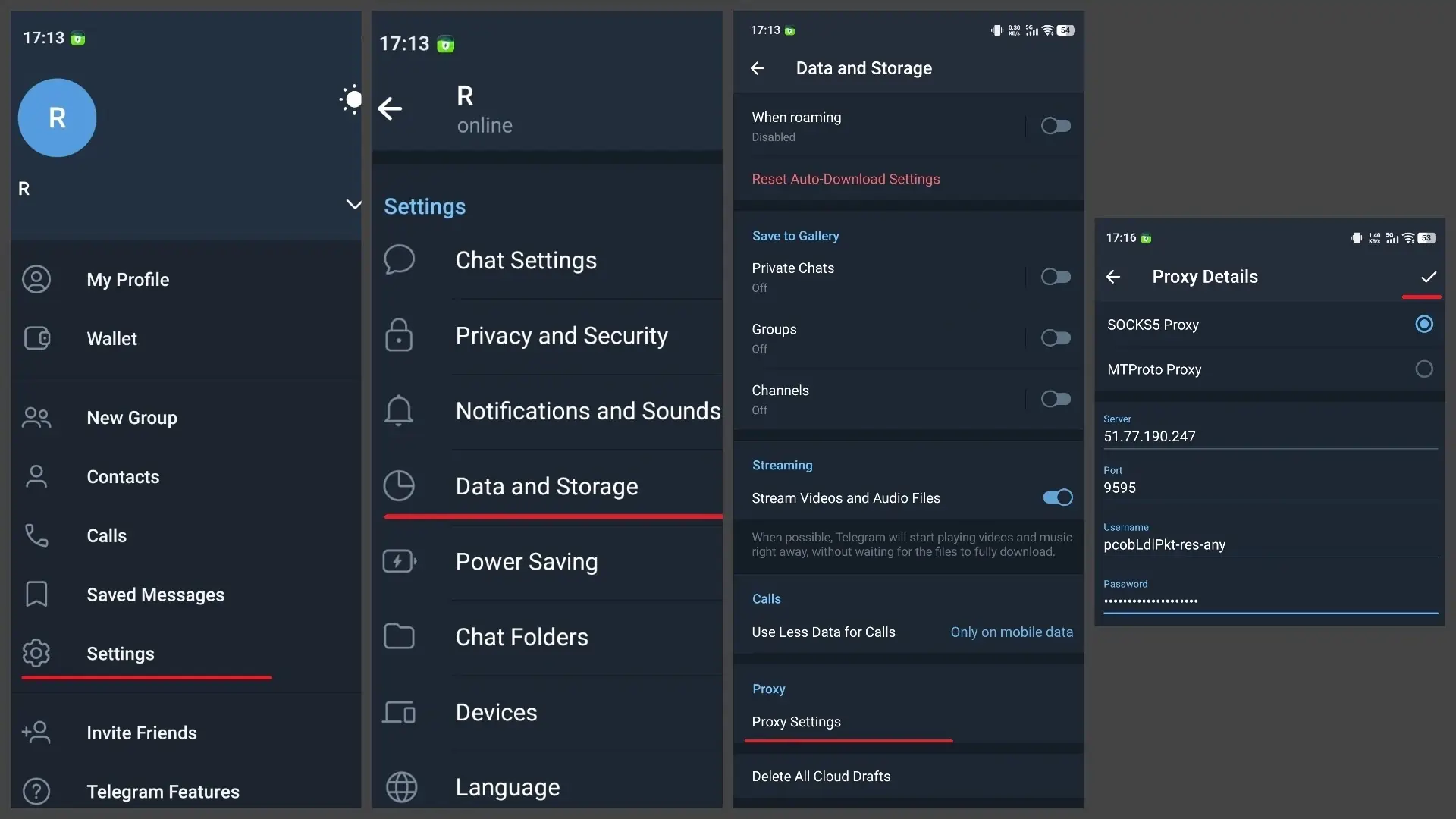
Step 1. Open Telegram and go to Settings.
Step 2. Select the Data and Storage section. Scroll to the very bottom and tap on Proxy Settings.
Step 3. Activate Use Proxy.
Step 4. Tap Add Proxy. Select the type: SOCKS5 or MTProto. Enter the server data: Server(Host), Port, Username, and Password.
Step 5. Tap Check mark to save.
After setup, Telegram will check the connection. If the proxy is working, the status will switch to online, and a proxy indicator icon will appear in the interface.
What is the best proxy type for Telegram in 2026
If you need stable Telegram access in restricted regions or want to manage multiple accounts, the right proxy depends on how the accounts are used. Residential proxies fit stable, long-running sessions, mobile proxies are suited to multi-account setups and workflows that need carrier IPs, while datacenter proxies cover speed-focused tasks.
For Telegram, SOCKS5 describes how the proxy connects to the app, while residential, mobile, and datacenter describe where the proxy IP comes from. You can therefore use SOCKS5 with different IP types
Residential proxies: for accounts you plan to keep
Residential proxies for Telegram use real ISP-issued IPs, so Telegram sees ordinary home traffic. They're the default for long-term account management, including messaging, groups, and channels.
Personal use: A good fit if you want one stable IP in the country you choose and you stay logged in for months.
Setup tip: Use one IP per account and keep it on a sticky session (up to 24 hours) so the account doesn't jump between locations mid-session.
Watch out for: Rotating pools on accounts you care about. A new IP on every reconnect looks like a login from somewhere new.
Mobile proxies: for scale and aggressive filtering
Mobile LTE/5G proxies use real carrier IPs. Many real users share each IP, so it's hard for Telegram to flag it without hitting legitimate people. They hold up best as a Telegram proxy for multiple accounts and also suit automation and outreach.
Setup tip: Rotate between sessions, not during one.
Watch out for: Shared IPs mean a neighbor's behavior can occasionally affect yours, and they typically cost more than residential.
Datacenter proxies: for testing, not for accounts
Datacenter proxies are fast and cheap, but they come from known server ranges that Telegram flags more often.
Best use: Checking that your host, port, and credentials work before you move a setup to residential or mobile.
Skip them for: Any account you can't afford to lose.
Use USA virtual numbers for SMS verification if you operate in that region, or get a virtual number for Telegram from any other country.
How all proxy types work in practice
Blocked or unstable Telegram? → MTProto
Need long-term stability and a clean reputation? → Residential IPs
Scaling aggressively with minimal detection risk? → Mobile IPs
Prioritizing speed or cost for non-sensitive tasks? → Datacenter IPs
How CyberYozh supports stable Telegram access and multi-account work
For stable Telegram access, the most important factor is not just the proxy type, but the quality and trust level of the IP behind it. In practice, consistent performance comes from using infrastructure designed specifically for reliable messaging, account stability, and long session retention in Telegram environments, such as CyberYozh proxy solutions built for high-trust routing and Telegram-focused workloads.
Stable Telegram connections without random disconnects and a 99.9% uptime
Real mobile 5G/LTE proxies from carriers like T-Mobile, Vodafone, and more with unlimited traffic
100M+ residential IPs in 195+ countries
All-in-one platform with SMS verifications, IP quality checks, and API integration
Reduced risk of IP-related blocks, verification loops, or unstable routing behavior
Better handling of multiple accounts and parallel sessions
Optimized connectivity for long-term Telegram usage at scale.
Common Telegram proxy issues (and fixes)
Common “Telegram proxy not working” issues usually appear due to misconfigured settings, unstable servers, or low-quality IPs that fail to maintain a consistent connection. The fixes below cover the most frequent problems you may encounter.
Telegram proxy is not connecting
A Telegram proxy does not connect when the server is unreachable, incorrectly configured, or offline. This usually happens due to wrong IP/port, invalid MTProto secret, or inactive proxy servers that fail to establish a session with Telegram.
Fix:
Verify server IP/domain and port
Check MTProto secret or SOCKS5 credentials
Ensure proxy is active and reachable
Switch to another proxy endpoint.
Proxy works in the browser but not in Telegram
A browser test only proves the proxy handles web traffic. Telegram doesn't use that path: it has its own proxy settings and speaks its own protocol, so a proxy that loads websites can still fail in the app. This is almost always a protocol or settings mismatch.
Fix:
Match the protocol: enter the SOCKS5 host and port, not the HTTP ones.
Set the proxy inside Telegram, not in your browser or system settings.
Re-check the login, password, or MTProto secret.
Confirm the proxy shows online in Telegram's own proxy list.
Proxy is connected but no internet
Telegram may show an active proxy connection, but fail to load messages or media when traffic routing is broken. This happens when the proxy connects successfully but fails to forward traffic due to misconfiguration or incompatible routing behavior.
Fix:
Re-check all proxy fields (server, port, credentials)
Switch between MTProto and SOCKS5
Disable VPN or conflicting network filters
Test on another network (mobile vs Wi-Fi).
Slow Telegram proxy
A Telegram proxy becomes slow when connection latency is high, server load is excessive, or IP quality is low. In most cases, performance drops because traffic is routed through distant, overloaded, or low-trust infrastructure that cannot sustain stable throughput.
Fix:
Switch to a closer geographic proxy location
Avoid shared or overloaded proxy pools
Use higher-quality IPs (residential or mobile)
Turn off VPN – it creates an additional routing layer.
Proxy blocked or banned
Telegram proxy not working and becomes blocked when you use a flagged or previously abused IP. This is common with datacenter ranges or free IPs you found online – they trust due to repeated detection or heavy usage.
Fix:
Replace with a clean residential or mobile IP
Avoid public or low-quality proxy sources
Rotate IPs in multi-account setups
Use stable, high-reputation proxy providers.
When a Telegram proxy won't help
A proxy changes where your connection comes from, but doesn’t change what Telegram knows about your account. Here’s why your account doesn’t work even with a proxy:
Your account is limited or banned. If Telegram shows a restriction notice, or you can't message people you haven't contacted before, check the status with @SpamBot and contact Telegram support. A new IP won't lift an account-level limit.
You're hitting flood limits. Mass messaging, rapid joins, and bulk invites trigger account limits. Slow down the activity.
Your phone number is the problem. Repeated verification failures on a number that's been flagged follow the number, not the network.
Telegram itself is down. If nothing loads on any network and other people report the same, wait it out. A proxy only reroutes your connection to a service that isn't responding.
The app or device is the problem. An outdated Telegram version, a wrong system clock, or a firewall or antivirus blocking the app can all produce "Connecting" with or without a proxy. Update the app and check the date and time before changing anything else.
Free vs paid Telegram proxies
Free and paid Telegram proxies differ mainly in IP quality, stability, and long-term reliability under Telegram's network filtering. Free options can work for quick testing, but they are rarely suitable for consistent or scalable use.
Free | Paid | |
Connection stability | Unstable, with frequent drops | Stable, long-duration sessions |
IP quality | Reused or overexposed IP ranges | Clean IP reputation |
Block risk | High risk of blocks, limits, or verification issues | Lower detection risk |
Usually none | Consistent regional access |
Conclusion about Telegram proxy setup
Telegram proxy performance depends on two factors: the protocol (MTProto or SOCKS5) and the quality of the underlying IP infrastructure. MTProto is typically used for restoring access in restricted environments, while SOCKS5 supports broader, multi-application workflows.
For stable access, account safety, and scalable workflows, CyberYozh premium proxies give you residential and mobile IPs with sticky sessions of up to 24 hours, so each account keeps one consistent connection.