
Browser web tanpa blokir di 2026: Cara mengakses situs yang diblokir
Jika sebuah situs web tidak dapat dibuka dari koneksi Anda saat ini, menginstal browser lain mungkin tidak akan memperbaiki masalahnya. Browser sering kali hanya layar yang Anda lihat. Bagian yang melakukan pekerjaan sebenarnya adalah rute di bawahnya, seperti layanan proxy, VPN, koneksi Tor, atau remote browser.
Itulah yang biasanya berada di balik unblocked web browser. Jika DNS, pengaturan perangkat, atau lapisan jaringan lainnya menyebabkan pemblokiran, mulailah dengan opsi yang lebih luas untuk membuka blokir situs web. Di sini, pertanyaannya lebih spesifik: bagaimana browser dapat mencapai situs melalui rute yang berbeda?
Jawaban singkat: Proxy browser mengirim koneksi Anda melalui forward proxy. Tujuan melihat IP proxy alih-alih IP langsung Anda, sementara browser normal Anda dapat tetap berada di tempatnya.
Itu tidak membuat koneksi secara otomatis menjadi privat atau aman. Sebelum menggunakan proxy apa pun untuk login atau pekerjaan sensitif, pahami keamanan proxy dan perbedaan antara HTTP proxy dan SOCKS5 proxy. Rute berubah. Identitas, izin, dan status akun Anda tidak.
TL;DR
Unblocked web browser biasanya adalah browser normal yang menggunakan rute jaringan berbeda, seperti proxy, VPN, Tor, atau remote browser. Hanya mengganti browser tidak akan memperbaiki setiap pemblokiran.
Proxy browser merutekan traffic browser melalui alamat IP lain, yang dapat membantu dengan akses regional, pengujian, riset, dan otomasi yang diizinkan.
Web proxy gratis nyaman untuk browsing publik cepat, tetapi biasanya menawarkan kontrol yang lebih sedikit atas kualitas IP, lokasi, sesi, privasi, dan penanganan traffic.
Untuk pekerjaan yang berulang, menggunakan browser normal Anda dengan private proxy yang dapat Anda verifikasi memberi Anda lebih banyak kontrol dan membuat troubleshooting lebih mudah.
Residential proxy cocok untuk sesi stabil yang didukung ISP, rotating residential proxy cocok untuk workflow yang memerlukan perubahan IP, dan mobile proxy masuk akal ketika routing LTE atau 5G benar-benar diperlukan.
Proxy hanya mengubah rute jaringan. Ini tidak menghapus cookie, browser fingerprint, pembatasan akun, persyaratan KYC, atau izin situs web.
Dengan CyberYozh App, Anda dapat memilih jenis proxy yang sesuai dengan sesi browser Anda, menambahkan kredensial ke browser atau automation tool yang ada, dan memverifikasi IP sebelum memulai.
Apa itu unblocked web browser
Unblocked web browser adalah browser atau layanan berbasis browser yang mencapai situs web melalui rute jaringan yang berbeda. Ini bukan kategori browser formal, jadi istilah ini dapat menggambarkan web proxy, configured browser, VPN, Tor Browser, atau remote browser.
Browser proxy lebih spesifik. Browser Anda terhubung melalui proxy hostname, port, dan protokol, terkadang dengan username dan password. Exit IP mungkin berupa dedicated proxy, ISP proxy, atau datacenter proxy, tergantung pada pekerjaannya.
VPN mengambil pendekatan yang lebih luas. Perbedaan praktis proxy vs VPN adalah bahwa proxy dapat dilampirkan ke satu browser atau aplikasi, sementara VPN biasanya mengubah lebih banyak traffic perangkat. Proxy berguna ketika hanya rute browser yang perlu diubah.
Rute dapat bersifat stabil atau dinamis. Sebuah rotating residential proxy mengubah IP keluar, sementara sticky session mempertahankan satu rute lebih lama. Untuk login atau sesi browsing yang panjang, perbedaan tersebut lebih penting daripada kata "unblocked." Setelah Anda melihat browser sebagai front end, proxy menjadi bagian yang layak dipahami.
Bagaimana cara kerja proxy browser
Proxy browser mengirim permintaan ke server perantara terlebih dahulu. Server tersebut terhubung ke tujuan dan mengirimkan respons kembali, sehingga tujuan melihat alamat jaringan proxy alih-alih IP langsung Anda.
Protokol memengaruhi bagaimana rute tersebut berperilaku. Pilihan SOCKS5 vs HTTP tergantung pada aplikasi dan traffic yang perlu Anda bawa. Beberapa setup juga menggunakan proxy rotation atau sesi panjang untuk mengontrol berapa lama satu IP keluar tetap di tempatnya. Jika klien menggunakan traffic lain, dukungan UDP bergantung pada proxy maupun klien.
Sebuah backconnect proxy menambahkan lapisan lain. Anda terhubung ke satu gateway, sementara provider menangani IP keluar di belakangnya. Ini berbeda dari web proxy publik, di mana Anda biasanya menempelkan URL ke halaman dan membiarkan layanan mengambilnya untuk Anda.
Web proxy browser
Web proxy browser adalah versi tercepat. Anda menempelkan URL tujuan ke situs web proxy dan browsing melalui servernya. Biasanya tidak ada yang perlu diinstal, tetapi Anda mendapat kontrol lebih sedikit atas IP, panjang sesi, protokol, dan riwayat rute.
Kurangnya kontrol tersebut menjadi jelas ketika halaman rusak. Web proxy mungkin menulis ulang link, skrip, cookie, atau redirect. Dengan rute yang dapat dikonfigurasi, Anda dapat memeriksa proxy dan menggunakan alat IP lookup sebelum menyalahkan situs web.
Browser proxy atau extension
Browser proxy mempertahankan Firefox, Safari, Chrome, atau browser lain sebagai antarmuka dan mengubah koneksi di bawahnya. Sebuah proxy extension dapat membuat perpindahan lebih mudah, tetapi izin extension tetap penting karena mungkin menangani traffic browser dan kredensial.
Untuk setup yang lebih transparan, gunakan kontrol proxy browser itu sendiri jika tersedia. CyberYozh App memiliki halaman Firefox proxy, sementara connection settings resmi Mozilla menunjukkan host, port, dan opsi konfigurasi yang didukung Firefox.
Profile-based browser
Beberapa profile-based browser memungkinkan Anda menetapkan proxy langsung ke profil browser. CyberYozh App mendukung setup dengan alat seperti AdsPower, Dolphin Anty, MoreLogin, Hidemium, dan lainnya. Prinsipnya sama di antara mereka: browser mengelola profil, sementara proxy mengelola rute jaringan.
Tor dan remote browser
Tor berbeda lagi. Manual Tor Browser resmi menjelaskan bagaimana traffic bergerak melalui jaringan Tor alih-alih satu endpoint proxy yang Anda pilih. Remote browser mengambil cara lain dengan menjalankan browser di tempat lain dan streaming hasilnya kembali kepada Anda.
Jika IP, negara, atau durasi sesi yang tepat penting, browser yang Anda kontrol ditambah proxy yang dapat Anda verifikasi lebih mudah didiagnosis daripada web proxy black-box.
Jadi keputusan berikutnya bukan "browser unblocked mana yang terdengar terbaik?" Melainkan "rute mana yang sesuai dengan apa yang sebenarnya saya coba lakukan?"
Rute mana yang harus Anda gunakan dengan unblocked web browser
Rute yang tepat bergantung pada apakah Anda memerlukan IP yang stabil, rotasi terkontrol, jaringan carrier, atau koneksi infrastruktur yang cepat. Tidak ada jenis proxy yang secara otomatis lebih baik untuk setiap sesi browser.
Untuk sesi panjang yang harus tetap pada satu alamat yang didukung ISP, residential proxy adalah tempat alami untuk memulai. Jika Anda memutuskan antara routing carrier dan residential, mobile vs residential comparison menjelaskan mengapa jenis jaringan harus sesuai dengan tugas.
Butuh satu rute yang stabil? Pilih static residential proxy di CyberYozh App ketika browser harus mempertahankan IP yang didukung ISP yang sama sepanjang sesi.
Jika pekerjaan melibatkan permintaan publik berulang daripada satu login berkelanjutan, rotasi IP mungkin lebih berguna. Rotating proxy dapat mengubah rute keluar tanpa memaksa Anda memelihara daftar IP manual.
Butuh rotasi terkontrol? Gunakan rotating residential di CyberYozh App ketika alur kerja mendapat manfaat dari mengubah IP residential daripada mempertahankan satu alamat sepanjang waktu.
Rute datacenter masuk akal ketika karakteristik jaringan residential tidak diperlukan. datacenter comparison menjelaskan trade-off, sementara datacenter proxy list berguna ketika kecepatan dan infrastruktur yang lugas lebih penting daripada koneksi yang didukung ISP.
Routing mobile harus menjadi pilihan yang disengaja, bukan upgrade default. Jika alur kerja benar-benar membutuhkan traffic jaringan carrier, mobile proxies dapat masuk akal. Jika tidak, routing residential atau datacenter mungkin lebih sederhana dan lebih mudah untuk tetap stabil.
Butuh rute carrier? Pilih mobile routing hanya ketika karakteristik LTE atau 5G relevan dengan tugas.
Untuk QA regional, geotargeting proxy memberi Anda cara yang lebih disengaja untuk menguji bagaimana halaman publik berperilaku dari lokasi lain. Pemeriksaan pencarian dan verifikasi iklan menggunakan ide yang sama: pilih rute untuk pekerjaan alih-alih memperlakukan setiap blokir sebagai masalah yang sama.
Apa opsi free unblocked web browser terbaik
Jika Anda mencari free unblocked web browser, tidak ada satu browser yang menghapus setiap jenis blokir. Pilihan yang lebih baik bergantung pada di mana pembatasan berada dan seberapa banyak kontrol yang Anda butuhkan atas koneksi.
Untuk halaman publik yang cepat, free unblocked web browser online biasanya berarti web proxy. Anda memasukkan tujuan di situs proxy dan menjelajah dari browser yang sudah Anda miliki, yang juga menjadikannya opsi tanpa unduhan yang paling jelas. free proxy nyaman, tetapi Anda biasanya mendapatkan kontrol yang lebih sedikit atas IP keluar, sesi, dan rute bersama.
Jika Anda ingin lebih banyak kontrol, pertahankan browser normal Anda dan konfigurasikan proxy sendiri. Firefox mendukung pengaturan proxy manual, sementara pengguna Chrome dapat bekerja melalui pengaturan browser atau sistem operasi. Chrome proxy setup menunjukkan di mana host, port, dan detail autentikasi sesuai.
Chromebook mengikuti konsep dasar yang sama, tetapi perangkat yang dikelola berbeda. Administrator sekolah atau tempat kerja dapat mengontrol situs web dan pengaturan jaringan, sehingga mengganti browser tidak selalu mengubah apa yang diizinkan untuk diakses oleh perangkat.
Oleh karena itu, browser unblocked terbaik bergantung pada kebutuhan:
Opsi | Terbaik untuk | Keterbatasan utama |
Web proxy online | Halaman publik cepat, tanpa unduhan | Kontrol rute terbatas |
Browser + proxy pribadi | Sesi stabil yang dapat diverifikasi | Memerlukan pengaturan |
Ekstensi proxy | Peralihan mudah dalam satu browser | Izin ekstensi penting |
Tor Browser | Penjelajahan dengan routing yang berfokus pada privasi | Kontrol lebih sedikit atas exit IP |
Gratis tidak otomatis berarti tidak aman, tetapi perubahan IP tidak menghapus cookie, header, browser fingerprinting, atau status akun.
Web proxy baik untuk halaman publik sekali pakai. Untuk sesi berulang, pengujian regional, atau pekerjaan di mana rute penting, gunakan browser ditambah proxy yang dapat Anda identifikasi dan verifikasi.
Mengapa browser unblocked gratis bisa berisiko
Web proxy gratis dapat memadai untuk halaman publik berisiko rendah. Masalahnya adalah Anda mungkin tahu sedikit tentang operator, logging, riwayat exit IP, pengguna bersama, atau apa yang terjadi pada traffic setelah meninggalkan perangkat Anda.
Mengubah IP juga tidak menghapus konteks browser lainnya. Browser fingerprinting, sinyal TLS, cookie, header, dan status browser yang tersimpan semuanya berada di luar pertanyaan sederhana tentang IP mana yang dilihat situs.
Itulah mengapa IP baru masih dapat menghasilkan masalah yang sama. Penjelasan tentang digital footprint menunjukkan bagaimana sinyal browser dan jaringan dapat bertentangan, sementara riwayat proxy dan perilaku browsing dapat menciptakan masalah mereka sendiri.
Anda juga harus peduli dari mana proxy berasal. Sumber proxy yang etis penting karena dua IP yang terlihat residential dapat berasal dari jaringan yang sangat berbeda, dengan riwayat dan praktik penanganan yang sangat berbeda.
Peringatan: Proxy mengubah routing jaringan. Ini tidak mengubah identitas, status KYC, usia, kepemilikan akun, hak berlangganan, kelayakan hukum, atau izin untuk menggunakan jaringan sekolah atau tempat kerja yang dikelola.
Jika masalahnya benar-benar proxy, diagnosa sebelum menggantinya. Error proxy umum memberi Anda titik awal yang lebih baik daripada mengasumsikan setiap halaman yang gagal memerlukan provider baru atau browser lain.
Seperti apa pengaturan proxy browser yang lebih aman
Pengaturan yang lebih aman itu sederhana: gunakan browser yang Anda percayai, proxy yang dapat Anda identifikasi, kredensial yang Anda kontrol, dan pemeriksaan yang mengonfirmasi rute sebelum Anda melakukan sesuatu yang penting. Prinsip yang sama berlaku di berbagai perangkat. Proxy Windows dapat berada di tingkat sistem, sementara Android dan iPhone juga dapat melewatkan traffic browser melalui pengaturan proxy tingkat perangkat.
Klien khusus dapat memberi Anda kontrol lebih besar atas aplikasi mana yang menggunakan rute tersebut. Pengaturan Proxifier dapat merutekan aplikasi tertentu, sementara pengaturan v2rayN masuk akal ketika klien tersebut sudah menjadi bagian dari alur kerja koneksi Anda.
Perhatian: Pisahkan browser dan proxy sebagai bagian terpisah dari pengaturan. Ketika terjadi kegagalan, uji proxy terlebih dahulu, kemudian browser, lalu tujuan. Urutan tersebut memberi Anda informasi jauh lebih banyak daripada mengganti semuanya sekaligus.
Bagaimana cara menghubungkan CyberYozh App ke browser
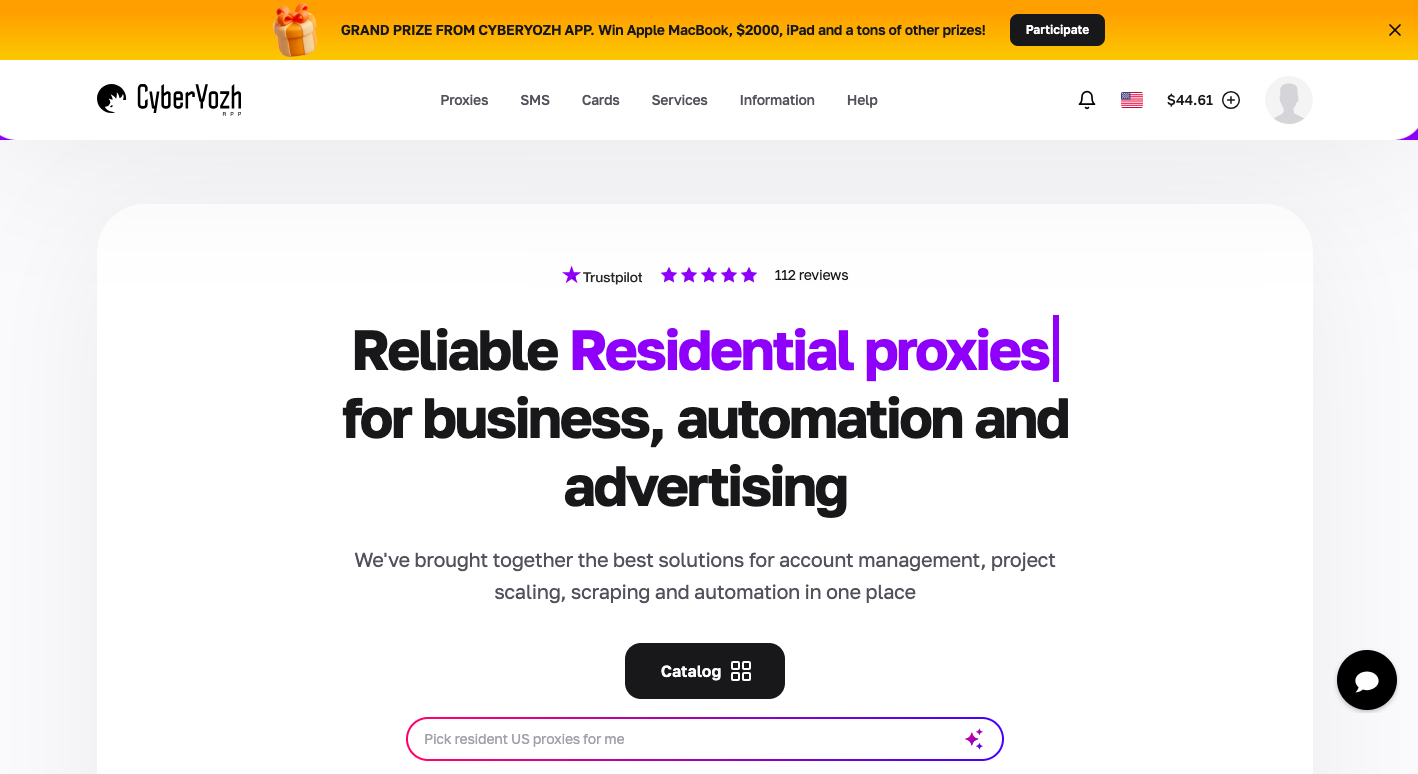
CyberYozh App menyediakan lapisan proxy. Anda tetap menggunakan browser atau klien yang sudah Anda pakai, pilih rute yang sesuai dengan tugas, salin kredensial, hubungkan, dan verifikasi IP yang terlihat dari luar sebelum Anda memulai sesi sebenarnya.
1. Pilih jenis proxy
Mulai dengan apa yang dibutuhkan sesi browser. Panduan proxy mobile berguna ketika routing operator seluler relevan, sementara panduan rotasi membantu ketika Anda memutuskan antara sesi tetap dan penggantian IP.
2. Salin detail koneksi
Browser atau klien Anda biasanya akan meminta host, port, protokol, username, dan password. Jika rotasi terlibat, putuskan apakah sesi harus tetap sebelum Anda terhubung. Jika sesi perlu mengganti IP, putuskan bagaimana Anda akan merotasi IP sebelum Anda terhubung.
3. Tambahkan proxy
Masukkan kredensial CyberYozh App di browser, ekstensi, browser berbasis profil, atau klien. Panduan browser BAS menunjukkan pola koneksi yang sama di dalam otomasi browser.
Untuk pekerjaan browser otomatis, kredensial yang sama dapat ditambahkan di dalam Playwright, Puppeteer, Selenium, atau klien lain yang didukung. Pengaturan Playwright menunjukkan seperti apa dalam praktik. Jika browser hanya satu langkah dalam proses yang lebih besar, halaman otomasi web memberikan konteks alur kerja yang lebih luas.
4. Verifikasi rute
Jangan berasumsi proxy aktif hanya karena browser menerima pengaturan. Periksa IP dan wilayah yang terlihat terlebih dahulu, kemudian muat halaman publik normal sebelum masuk atau memulai otomasi. Ini memberi Anda baseline yang bersih jika tujuan berperilaku berbeda nanti.
Mengapa proxy browser masih bisa gagal
Proxy yang berfungsi hanya mengonfirmasi satu lapisan. Halaman masih bisa gagal karena status browser, pembatasan akun, aturan perangkat terkelola, kesalahan aplikasi, atau cara browser otomatis menampilkan dirinya.
Untuk sesi otomatis, risiko keamanan browser penting karena browser itu sendiri dapat mengekspos serangkaian sinyal yang sangat berbeda dari sesi normal yang terlihat. Browser headless juga dapat gagal karena alasan yang tidak ada hubungannya dengan proxy. Jika proxy yang sama berfungsi dalam penjelajahan biasa tetapi gagal di dalam satu alat otomasi, periksa pengaturan proxy tingkat alat sebelum mengubah rute.
Bagaimana CyberYozh App dapat membantu akses browser
Setelah Anda mengetahui bahwa browser itu sendiri bukan masalahnya, bagian yang berguna adalah kemampuan untuk mengontrol rute di baliknya. CyberYozh App memungkinkan Anda memilih jenis proxy yang sesuai dengan sesi, lalu memeriksa IP dan reputasinya dengan IP checker sebelum Anda mengandalkannya. Hal ini membuat troubleshooting lebih sederhana karena Anda dapat mengubah rute tanpa mengubah browser, akun, dan setiap bagian lain dari pengaturan secara bersamaan.
Butuh rute yang benar-benar dapat Anda kontrol? Bandingkan opsi proxy di CyberYozh App, pilih jenis yang sesuai dengan sesi, lalu tambahkan kredensial ke browser yang sudah Anda gunakan.
Pengaturan browser yang lebih baik dimulai dengan mengetahui rutenya
Browser web yang tidak diblokir biasanya adalah browser normal yang menggunakan jalur jaringan lain. Setelah Anda mengetahui apakah jalur tersebut adalah web proxy, configured proxy, VPN, Tor, atau remote browser, akan jauh lebih mudah untuk menilai apa yang dapat dan tidak dapat diselesaikannya.
Untuk pekerjaan yang berulang, gunakan rute yang dapat Anda identifikasi, verifikasi, dan troubleshoot tanpa mengubah browser itu sendiri. Hal ini membuat kegagalan lebih mudah dipahami dan menjaga browser, rute jaringan, dan tujuan sebagai bagian terpisah dari pengaturan.