How to add proxy to your router
You can configure a proxy at the router level, so all your traffic from all your devices will be routed via the proxy automatically. It may be very convenient, especially if you use multiple devices connected to the same router and want them to avoid interfering with each other. In this guide, you’ll learn how to do that, but make sure to read the disclaimers below.
Each router brand has a different dashboard depending on the model (ASUS, Cisco, Keenetic, Huawei, etc.), and the proxy setup will differ in each case. Treat this guide as a universal roadmap to the settings menu, and consult your specific model's manual if the layout differs. Some budget or older routers have no proxy menu at all.
If this method isn’t suitable for you, or you haven’t found the router proxy setup menu, please use CyberYozh’s proxy client setup guides and configure proxy in your chosen client, with nearly identical results. You can also use specific firmware OS like OpenWrt, but it’s a much more advanced setup which isn’t covered here.
⚡ Selecting the router proxy
First, you have to select your proxy infrastructure. For personal use, select residential proxies, but mobile and datacenter proxies can be useful for many business-related tasks.
🏠 Residential proxy: Most web tasks
Residential proxies come from real home ISPs, offering high speed and strong platform trust. They work for nearly all everyday browsing and streaming and are the best default for personal use.
Rotating residential proxies can be used for bulk tasks and automation, with dynamic credentials managed via your dashboard.
📱 Mobile proxy: Authentication, mobile-first tasks
Mobile proxies route through mobile carrier networks and carry the highest trust score, making them ideal for bulk authentication, payments, and social-data tasks.
💽 Datacenter proxy: Speed-critical tasks
Datacenter proxies run on dedicated servers and are the fastest option, though their trust score is lower since the traffic isn't residential; best for bulk monitoring and corporate testing.
🛜 Get the router IP and proxy credentials
Second, configure the stage you’ll be working on. Router proxy setup varies widely depending on the model you’re using (ASUS, Cisco, etc.), but the process for accessing it is similar.
Getting the router IP gateway
Network settings → Wi-Fi adapter status → IPv4 Gateway (usually 192.168.x.x) → paste into the browser address bar to access the router settings.
Preparing proxy credentials
Sign up for CyberYozh → My Proxies → buy a plan → select the proxy you need → copy IP, port, and login details.
📶 Adding proxy to router: The algorithm
Third, you have to set up the proxy in your router. Make sure to log in to it and locate the proxy setup menu. As mentioned, it might be absent, in which case you will need to use a proxy client like v2rayN.
Open the router settings in the browser
Enter the IPv4 Gateway address (192.168.x.x) and log in with the credentials printed on your router or its box.
Search for the proxy setup menu
Look under WAN, Internet, Network, or Advanced Settings; the exact label varies by router model. For example, ASUS places it inside WAN settings, while Keenetic hides it under "Other Connections, like in the screenshot before.
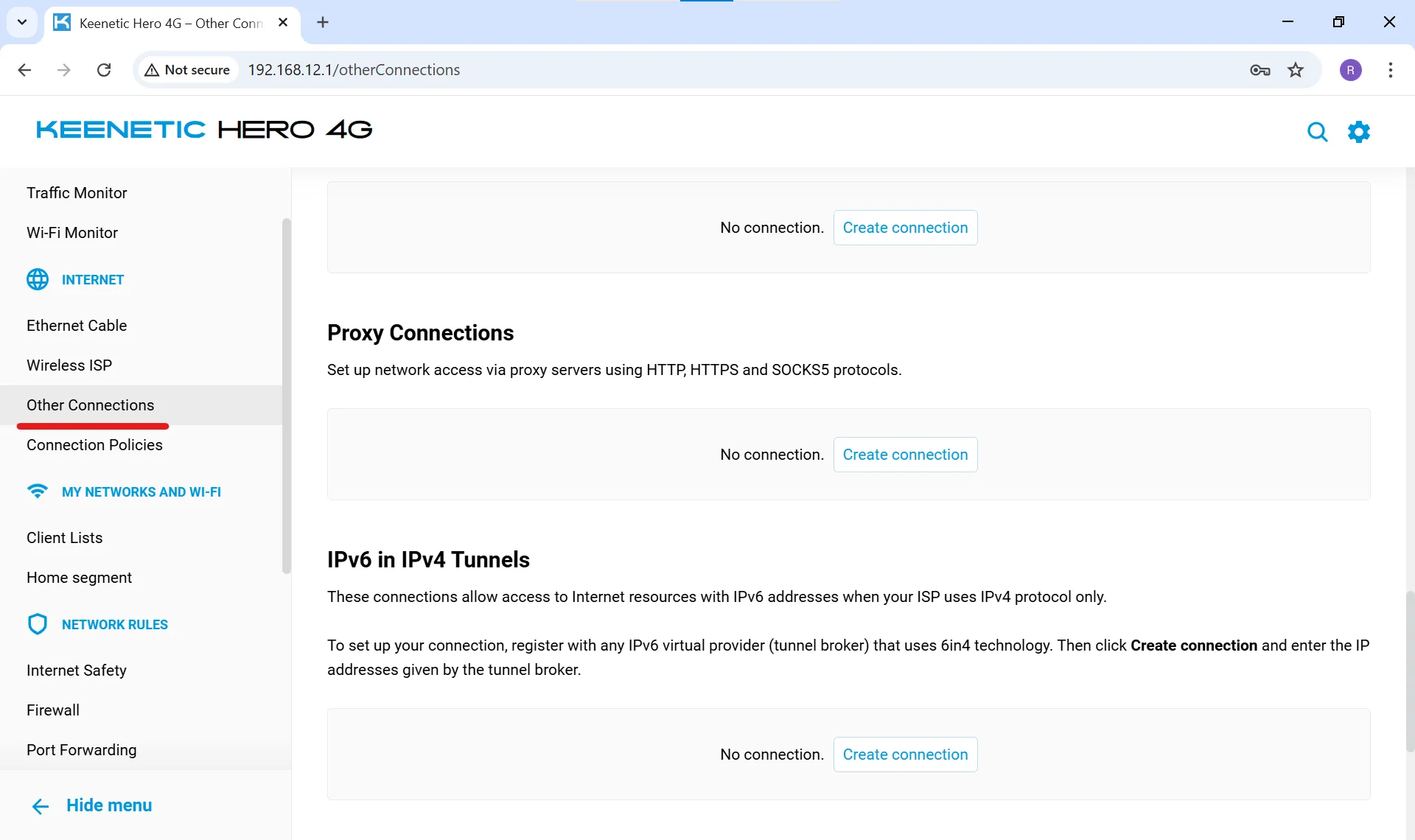
Use the router's built-in search bar if one exists. The table below summarizes the setups for the most popular brands.
Router brand | Native proxy support | Notes |
ASUS (RT series, ROG) | Yes, in WAN section | Intuitive fields for IP, port, auth; Merlin firmware adds more control |
Keenetic | Yes, SOCKS5/HTTP | Setup is very easy and typically takes 2-3 minutes |
Netgear | Limited | Native proxy menu often absent; DNS redirection possible instead |
TP-Link, D-Link | Model-dependent | Budget models rarely support it; higher-end lines sometimes do |
Cisco (enterprise) | Proxy ARP only | Proxy ARP lets the router answer ARP requests on behalf of remote-subnet hosts; it doesn’t support ordinary proxy setups |
If you're on Cisco hardware and want traffic-level proxying, a router-level setup won't work, as ARP proxying serves a different purpose. You'll need a client-based or firmware-based (OpenWrt-style) solution instead.
Add proxy credentials to the router
Create a new proxy connection → paste IP, port, and login/password from your CyberYozh dashboard → select the protocol (SOCKS5 is preferred for its broader app compatibility) → Save/Apply.
Test the connection and check DNS
Reboot the router → connect any device to the network → check your IP on an IP-checker site → run a DNS leak test → measure speed and compare against your pre-proxy baseline.
Conclusion: Proxy at the router level
Router-level proxy setup means logging in to your gateway's dashboard, locating the proxy menu (usually under WAN or Advanced Settings), and entering your provider's IP address, port, and credentials. It only works if your specific router model supports it natively. Otherwise, custom firmware or a client-side proxy is required. The main benefit is that it covers every connected device, including smart TVs and consoles, with a single configuration.
Check out CyberYozh’s catalog now and empower your router to support all your devices.
FAQ about the router proxy setup
Does every router support adding a proxy?
No. ASUS and Keenetic often support it natively; budget TP-Link, D-Link, and ISP-supplied routers usually don't, requiring custom firmware like OpenWrt or DD-WRT instead.
What's the difference between router proxy and Cisco proxy ARP?
Router proxy redirects browsing traffic through a proxy server; Cisco proxy ARP lets a router answer ARP requests for devices on another subnet, which is a routing function, not traffic anonymization.
Where is the proxy menu on an ASUS router?
Usually under WAN settings; models running Asuswrt-Merlin firmware expose more granular options for proxy and traffic routing.
Can I set a proxy on a Netgear router?
Native proxy fields are often missing on Netgear; many users instead configure custom DNS servers, which achieves partial results but isn't a true proxy.
Is SOCKS5 or HTTP better for router proxy?
SOCKS5 is preferred because it supports all traffic types (browsers, apps, games), whereas HTTP proxies only handle browser traffic.
Will router-level proxy work on Smart TVs and consoles?
Yes — that's the main advantage, since these devices can't run proxy clients themselves but automatically inherit the router's settings.
How much does a proxy slow down my connection?
Good paid proxies typically add 5-15% overhead; free or overloaded proxies can cut speed by 50% or more.
My router has no proxy menu: what now?
Flash custom firmware (OpenWrt, DD-WRT) if compatible, buy a router with native support, or configure the proxy directly in a client on each device.
Can different devices use different proxies on the same router?
Yes, on advanced firmware (OpenWrt, Asuswrt-Merlin) you can bind proxies to specific MAC addresses, letting one device use a proxy while others stay direct.
Is a router proxy safe for banking apps?
Not recommended — many banking and payment services flag or block proxy traffic as suspicious; use a direct connection or VPN for sensitive tasks instead.
How do I verify the proxy is actually active after setup?
Check your IP on an IP-checker site, run a DNS/WebRTC leak test, and compare speed before and after: all connected devices should show the proxy's IP.