
Choosing the Right CyberYozh App Proxy for WADE X Anti-Detect Browser Profiles
Most proxy setup problems start before anyone opens the proxy settings.
A user buys a proxy, opens an anti-detect browser, pastes the credentials, runs a check, and then wonders why the profile does not feel right for the task. Sometimes the proxy works technically, but it is the wrong type of proxy for the profile.
So before you connect CyberYozh App proxies to the WADE X anti-detect browser, ask one simple question:
What kind of WADE X profile are you building
A mobile-style profile does not need the same proxy logic as a desktop testing profile. A long-term account profile does not need the same network behavior as a workflow that expects IP changes. A team managing many profiles needs a different setup process than a person testing one browser profile.
This guide starts with that choice. Once the proxy type is clear, the WADE X anti-detect browser setup becomes much easier.
WADE X is an anti-detect browser for isolated browser profiles, proxy-ready setup, mobile profiles, and multi-account workflows. CyberYozh App provides several proxy types that can be used as the network route for those profiles. The practical question is not only “How do I paste the proxy?” It is also “Which proxy type makes sense for this profile?”
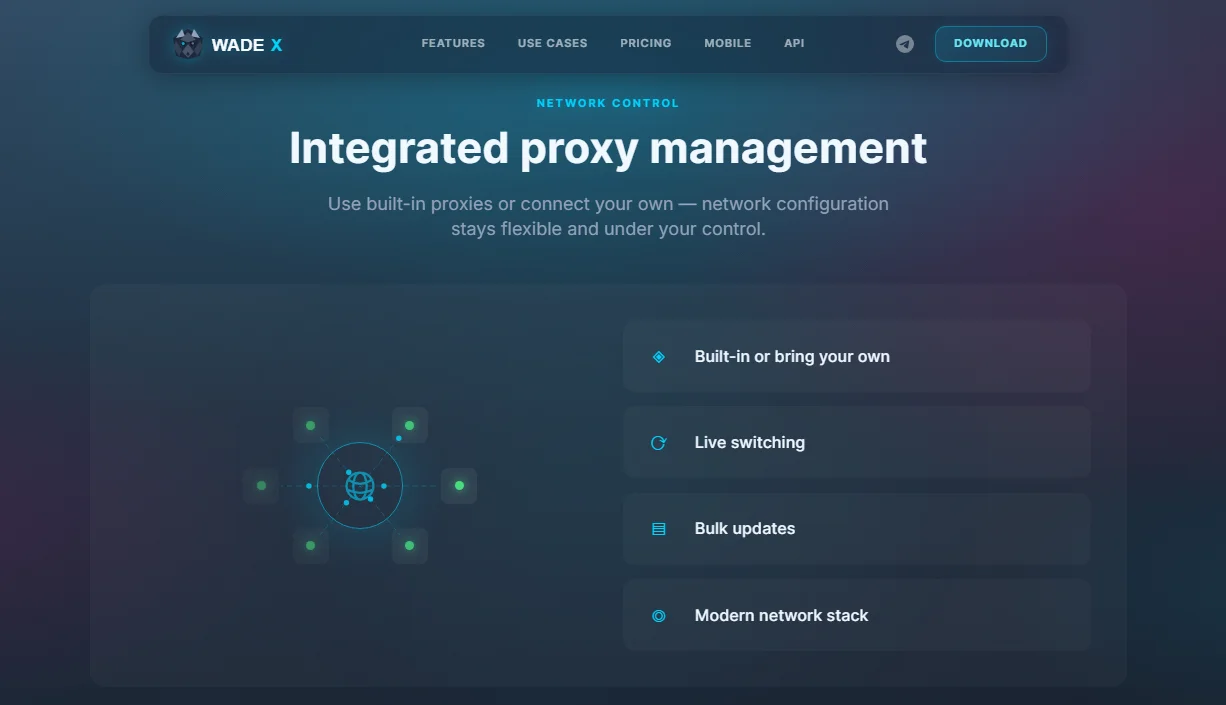
CyberYozh App proxy types
CyberYozh App offers several proxy categories that can be used with anti-detect browser workflows:
ISP residential proxies;
rotating residential proxies;
Each type has a different job. The right choice depends on what the WADE X profile is supposed to do.
Check out the Cyberyozh proxy catalogue
Mobile proxies
Mobile proxies use mobile network infrastructure such as LTE, 4G, or 5G. They are usually the first option to consider when your WADE X workflow uses mobile profiles or when the profile is intended to behave more like a mobile environment.
Use mobile proxies when:
you are testing WADE X mobile profiles;
the workflow depends on mobile-style network behavior;
you need a proxy type that better matches a mobile browser identity;
you want the network layer and profile type to stay logically aligned.
Do not choose mobile proxies only because they sound stronger. They should match the profile.
For multi-account workflows that include mobile profiles, this match matters. If the browser profile is mobile-oriented, the proxy route should not obviously belong to a completely different environment unless there is a clear reason.
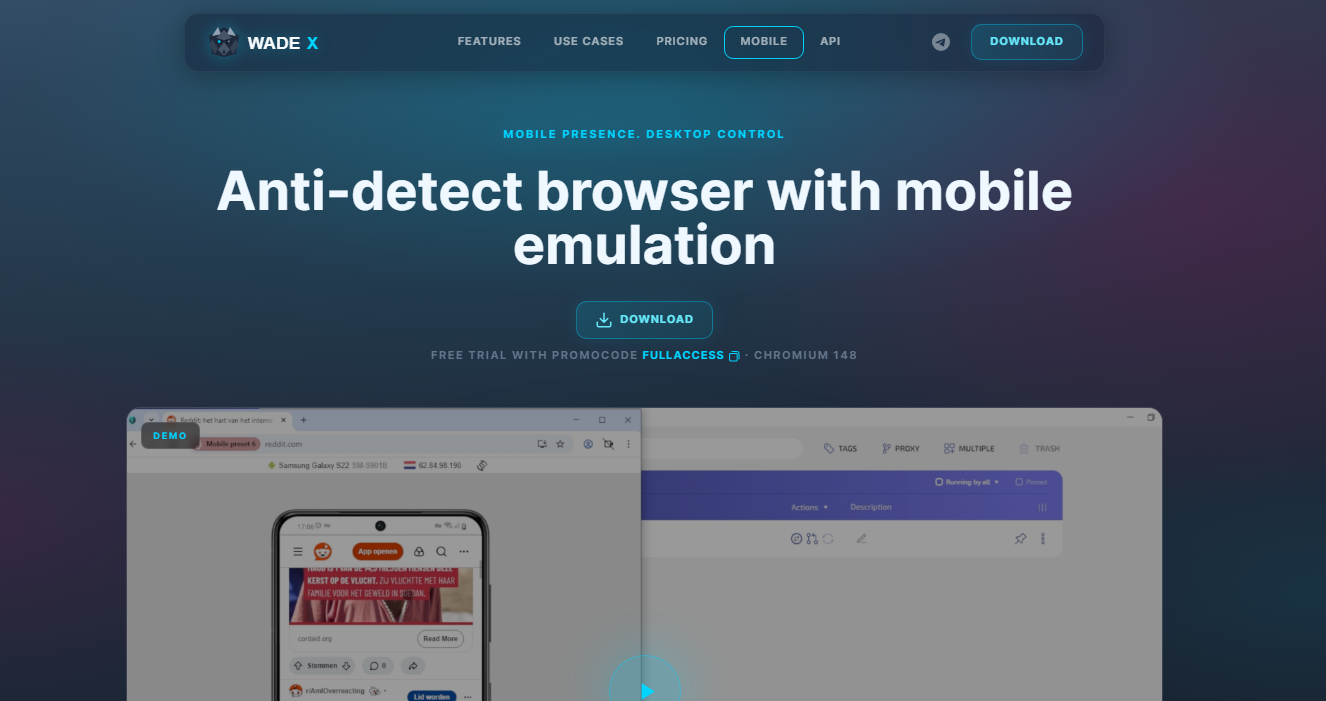
ISP residential proxies
ISP residential proxies offer the stability of a home or business internet connection. They are useful when a WADE X profile needs a more consistent network route.
Use ISP residential or static residential proxies when:
the profile should keep the same IP for a longer period;
the profile is used repeatedly;
you do not want the IP to rotate unexpectedly;
you need a calmer setup for an account-style workflow.
This is often the easiest option for users who want fewer surprises. If you are building a profile that should keep continuity over time, a stable proxy strategy is usually easier to manage than random rotation.
Rotating residential proxies
Rotating residential proxies are useful when the workflow expects IP changes. CyberYozh App’s rotating residential setup can work with large IP pools, geo options, and generated credentials.
Use rotating residential proxies when:
your task expects a changing IP;
you are doing research, collection, checking, or operational work where rotation is part of the plan;
you understand how often the IP may change;
The WADE X profile does not require a single stable IP for the entire session.
For many standard-profile workflows, rotation is not inherently better. If a profile needs continuity, random IP changes can make the setup harder to manage.
Rotation should be a deliberate choice, not something that happens by accident.
Datacenter proxies
Datacenter proxies are usually the simplest speed-focused option. They can be useful for testing, basic browsing, QA, technical checks, or workflows where a residential or mobile network is not required.
Use datacenter proxies when:
you need a simple connection for testing;
speed matters more than residential or mobile context;
the task does not require mobile or residential IP behavior;
you want a lower-complexity proxy route for non-sensitive workflows.
Do not use datacenter proxies as a universal default for every WADE X profile. They can be useful, but they are not always the right fit for account-style work.
The “one profile, one proxy plan” rule
For WADE X, a clean workflow usually starts with one rule:
One important profile should have one clear proxy strategy.
That does not always mean one permanent IP forever. It means the profile should not jump between random proxy types without a reason.
For example:
a WADE X mobile profile should usually be paired with a mobile proxy when the provider supports it;
a profile used for repeat access should usually avoid unexpected IP rotation;
a research profile can use rotation if the workflow is designed for it;
a testing profile can use a simpler proxy if the stakes are lower.
The mistake is not “using the wrong brand of proxy.” The mistake is using a proxy behavior that does not match the profile. As an anti-detect browser, WADE X gives you the profile-level place to keep that proxy strategy organized. CyberYozh provides a proxy route that should match the profile’s job.
How CyberYozh App credentials fit into WADE X
After you choose the right proxy type, the technical setup is simple. WADE X expects a proxy in this format:
host:port@login:password
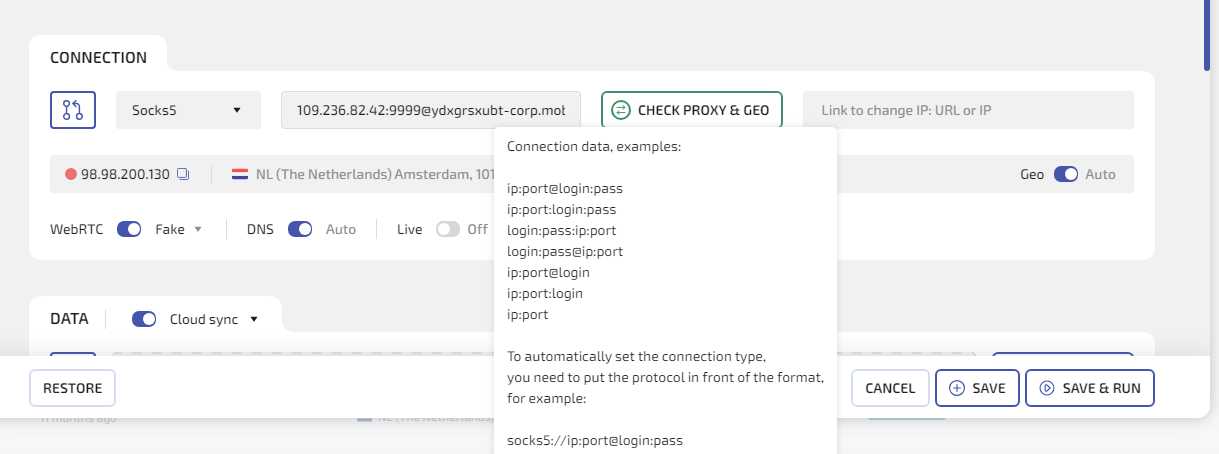
CyberYozh App may show credentials in different formats depending on the proxy product, generator, or dashboard view. Convert them into the WADE X format if needed.
The fields mean:
host — proxy server address;
port — proxy port;
login — CyberYozh App username;
password — CyberYozh password.
If CyberYozh App gives you a username with country, region, city, session, or proxy-type parameters, copy the username exactly as shown. Do not shorten it.
In some CyberYozh App residential generator flows, the username itself tells the proxy server which type of IP or session to assign.
Sign in with CyberYozh App for free.
Protocol choice: HTTP or SOCKS5
CyberYozh App proxy pages can support HTTP, HTTPS, and SOCKS5 depending on the product. In WADE X, the protocol is selected separately in CONNECTION.
Choose HTTP when your CyberYozh App proxy is HTTP; choose HTTPS when it is HTTPS.
Choose SOCKS5 when your CyberYozh App proxy is SOCKS5.
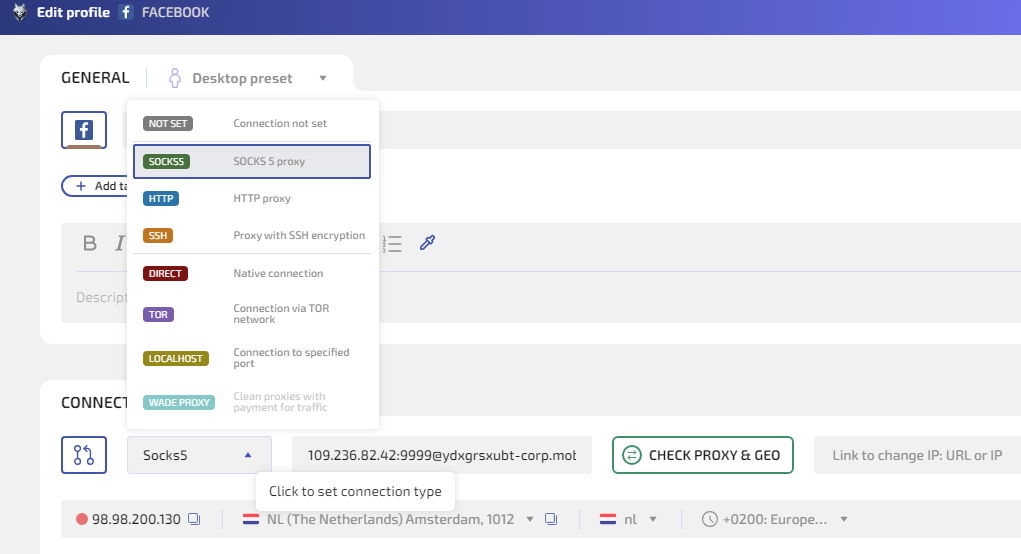
Do not guess. Use the protocol shown in CyberYozh App.
For some CyberYozh App rotating residential generator pages, HTTP/HTTPS and SOCKS5 use different ports. If the protocol and port do not match, the proxy may fail even if the login and password are correct.
Example: rotating residential credentials
CyberYozh App residential rotating pages can use a credentials generator. In that model, the IP is not always entered manually. The proxy server can assign the IP based on parameters inside the username.
That means the username may carry important routing information.
A simplified WADE X-ready format still looks like this:
host:port@login:password
But the login may be more complex than a normal username. Instead of a short username like:
user123
you may see a longer login that includes proxy type, session type, or location parameters. Keep it intact.
If CyberYozh App gives you a format like:
USERNAME:PASSWORD@IP:PORT
Convert it for WADE X as:
IP:PORT@USERNAME:PASSWORD
If CyberYozh App gives you:
IP:PORT:USERNAME:PASSWORD
Convert it as:
IP:PORT@USERNAME:PASSWORD
The order matters.
Setting it up in WADE X
Open WADE X and choose the profile you want to configure.
If this is a new profile, click NEW PROFILE.
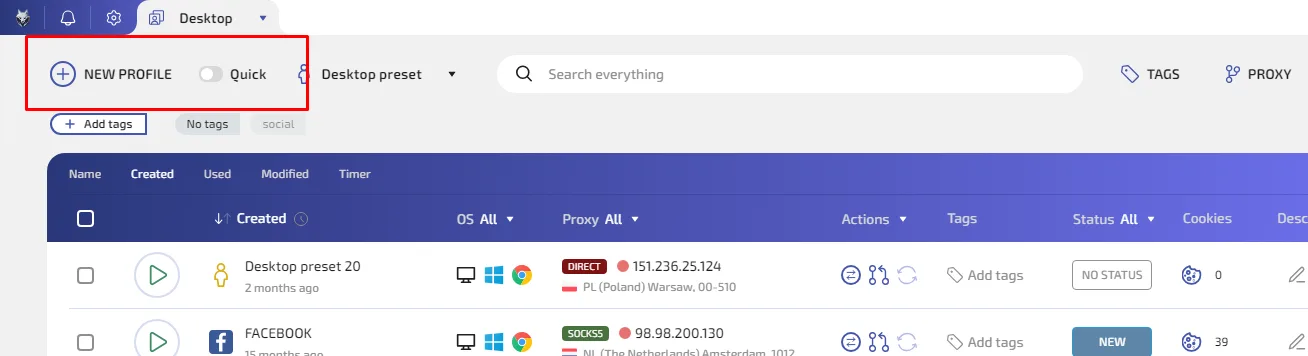
If this is an existing profile, pause for a moment. Ask whether changing the proxy makes sense for that profile’s history. For a profile that should stay consistent, proxy changes should be intentional.
Open the profile settings.
Go to CONNECTION.
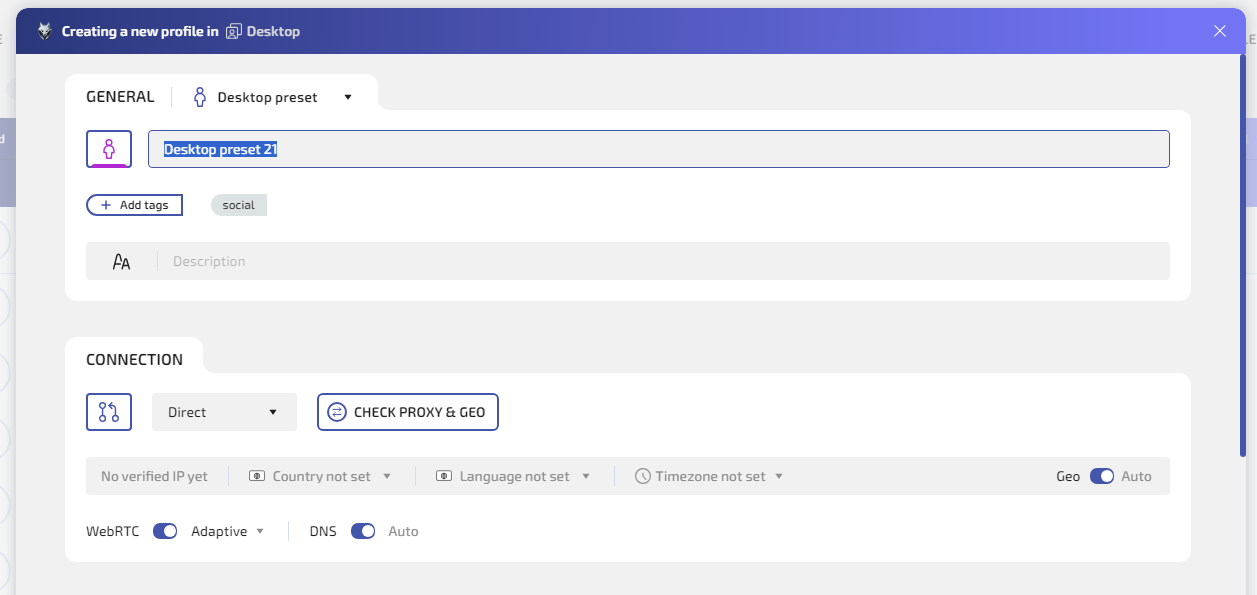
Select the connection type:
HTTP for CyberYozh HTTP / HTTPS proxies;
SOCKS5 for CyberYozh SOCKS5 proxies.
Paste the proxy string:
host:port@login:password
Then click CHECK PROXY & GEO.
If the check works, click SAVE or SAVE & RUN.
Use SAVE to store the profile and launch later. Use SAVE & RUN if you are ready to open the profile immediately.
For multi-account browser profiles, keep a record of the proxy assignment. It does not need to be complicated. A simple note with profile name, proxy type, country, and purpose is often enough.
How to read CHECK PROXY & GEO
Do not treat CHECK PROXY & GEO as a formality. It tells you whether the setup makes sense before the profile is launched.
Look at:
whether the proxy connects;
whether the IP is different from your normal IP;
whether the country is what you expected;
whether the city looks reasonable;
whether the timezone matches the profile plan.
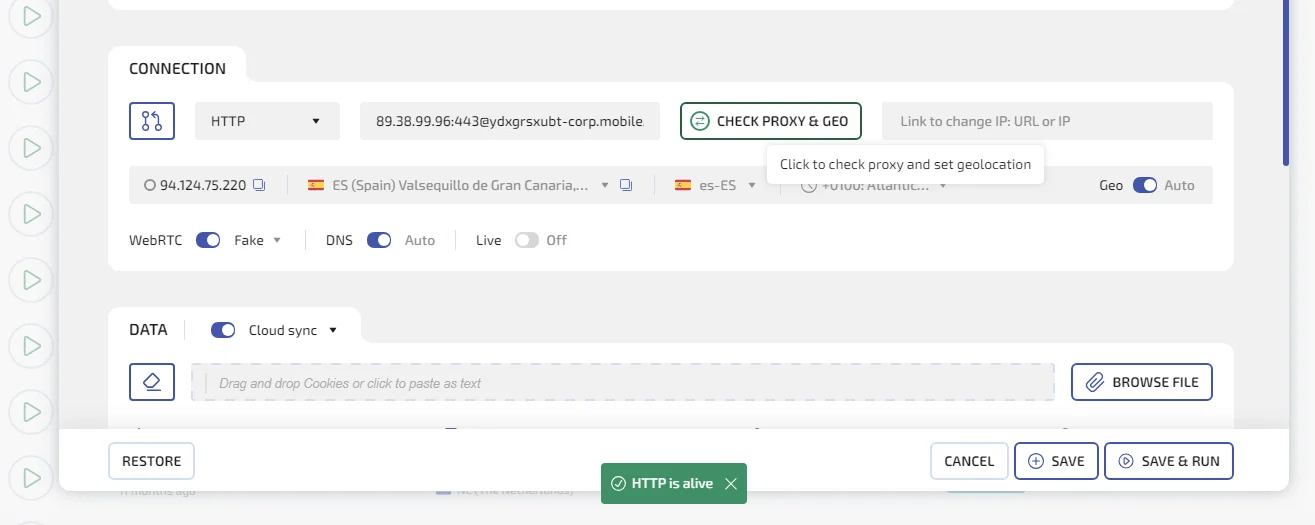
If the country is not what you expected, check the CyberYozh proxy type and generated credentials. For rotating residential proxies, the country may depend on the session type or username parameters. If no location is specified, the proxy server may assign a location automatically.
If the time zone appears incorrect for the proxy location, review the WADE X profile settings before using the profile for important work.
This is one reason WADE X is useful as an anti-detect browser for proxy-ready profiles: you can catch proxy/profile mismatches before launch.
A better workflow for beginners
Do not set up 20 proxies at once. Start with one CyberYozh proxy and one WADE X profile.
Use this order:
Choose the profile goal.
Pick the CyberYozh proxy type that fits the goal.
Copy one proxy credential set.
Add it to WADE X CONNECTION.
Run CHECK PROXY & GEO.
Launch the profile only after the check works.
Verify the IP inside the launched profile.
Save the working pattern.
Repeat for the next profile.
This is slower at first, but it prevents most beginner mistakes.
It is also better for multi-account teams because the team learns a clean pattern before scaling the setup.
When to use Proxy Manager
If you only manage one profile, CONNECTION is enough. If you manage several WADE X profiles, use Proxy Manager.
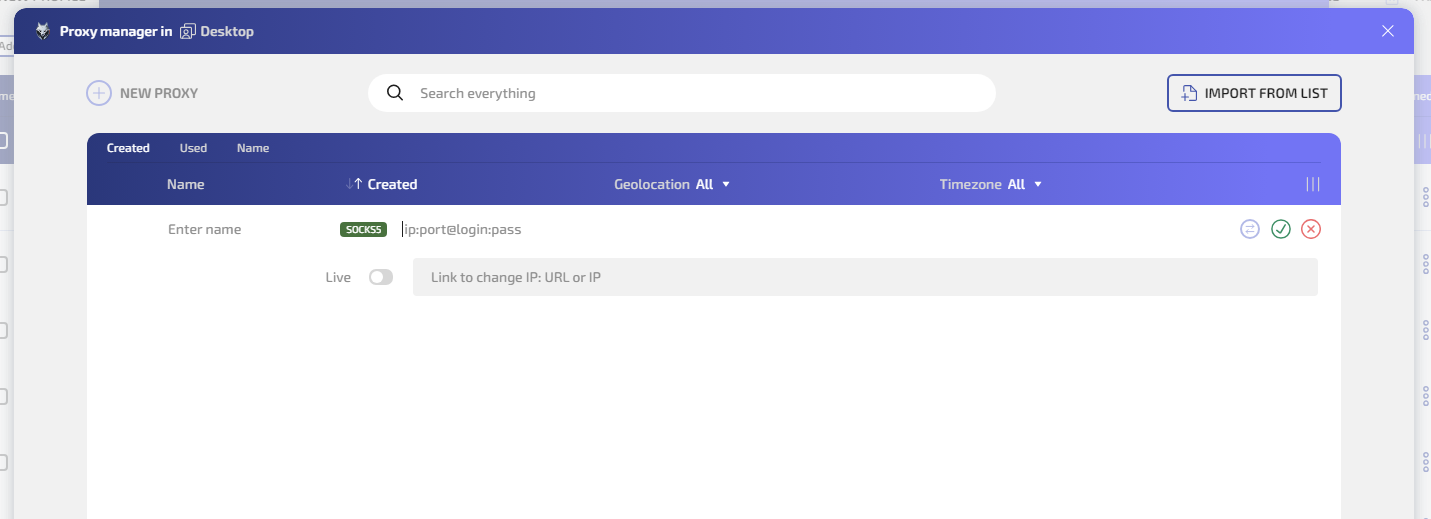
Open Desktop, click PROXY, then click NEW PROXY to add the proxy.
Name the proxy so you can understand it later:
CyberYozh mobile — Profile 01
CyberYozh ISP — long session — US
CyberYozh rotating — research group
CyberYozh datacenter — QA
Then enter the proxy as:
host:port@login:password
For multiple entries, use IMPORT FROM LIST.
Proxy Manager is not just a convenience feature. It is how you avoid mixing up profile assignments when you manage many proxies.
FULLACCESS note
If you are still testing which proxy type works best with WADE X, the promo code FULLACCESS can make the trial more useful. It gives access to all Starter plan features, including mobile profiles, and gives 20% off the first purchase.
That matters for CyberYozh because the choice of proxy depends on the profile type. If you want to test mobile profiles in WADE X, use a mobile proxy when CyberYozh supports the location and setup you need. If you are testing desktop-style profiles, choose the CyberYozh proxy type that better matches that environment.
What to do when something looks wrong
The proxy does not connect
Check the protocol first. HTTP and SOCKS5 are not interchangeable.
Then check:
host;
port;
login;
password;
whether the proxy is active;
whether the proxy rental period or traffic package is still valid;
whether the string has spaces or missing characters.
The proxy works, but the location is unexpected
Check the CyberYozh credential generator or proxy settings. For rotating residential proxies, location can depend on username parameters. Some session types may allow country, region, or city selection, while others may not. If you did not specify a country, the proxy server may choose one automatically.
The profile shows your real IP
Check whether WADE X is still set to DIRECT.
Then run CHECK PROXY & GEO again.
If the profile was already open, save the settings and relaunch it.
The IP changes when you expected it to stay stable
You may be using a rotating proxy or a session type that changes your IP address.
If the profile needs continuity, use a more stable CyberYozh option, such as mobile with controlled IP-change behavior or ISP/static residential, where appropriate for the workflow.
The profile passes the proxy check but still feels inconsistent
Look beyond the IP.
Check:
profile timezone;
profile language;
WebRTC result;
DNS result;
whether the profile type matches the proxy type.
A clean setup is not only “proxy works.” A clean setup is “proxy and browser profile tell the same story.”
Summary
Do not start with the proxy field. Start with the profile.
If the WADE X profile requires a mobile-style environment, consider mobile proxies. If it needs stability, consider ISP or static residential options. If it needs rotation, use rotating residential proxies deliberately. If it is only for simple testing, a datacenter proxy may be enough.
After that, the setup is simple: copy the CyberYozh App host, port, login, and password, add them to WADE X under CONNECTION, run CHECK PROXY & GEO, and launch only when the results look right.
The better the proxy type fits the profile, the fewer problems you will need to fix later.