
How to Set Up a Proxy in MultiLogin
Multilogin is a popular multi-profile browser used for managing isolated browser environments. It allows teams to run separate profiles with independent cookies, browser parameters, and sessions for testing, automation, and managing multiple accounts.
However, Multilogin only handles browser-level isolation. A clean IP address works only when paired with consistent browser fingerprint settings. Your external proxy connection directly determines session stability.
CyberYozh App proxies are widely used in multi-profile browser setups because they provide stable, session-consistent connections that maintain isolated profile environments without network drops or parameter mismatches.
This guide explains:
How to configure Multilogin proxy settings with CyberYozh App
How to choose the right proxy type for different workflows such as digital marketing, crypto operations, automation, and e-commerce
How to resolve common issues like proxy check failed errors or IP not changing inside profiles.
How to choose the right proxy type for Multilogin
The proxy type you use in Multilogin directly affects session stability, GEO consistency, and how target platforms interpret your traffic. Each network type fits a specific workload.
Residential proxies (Static ISP and Rotating): For account and data workflows
Static ISP residential proxies (starting from $5.29/month with unlimited traffic) use dedicated static IPs assigned by real internet service providers. They fit long-term account management on e-commerce platforms like Amazon, eBay, and Etsy where a permanent IP per profile is mandatory.
Rotating residential proxies connect Multilogin to an expanding pool of over 100M+ residential IPs across 195+ countries. Usage-based pricing starts at $4/GB (3 GB minimum package, scaling down to $2.5/GB at 100 GB), and unused bandwidth automatically rolls over to the next billing month. You can rotate IPs per request for data collection or lock sticky sessions for up to 24 hours to keep a consistent regional IP during extended onboarding and testing workflows.
Mobile proxies: For social media, Google workflows, and strict platforms
Mobile proxies (starting from $1.7/day with unlimited traffic) route traffic through real cellular carrier networks (LTE/4G/5G) using CGNAT technology. Because thousands of real smartphone users share a single carrier IP address, platforms treat these connections with high trust. They are the primary option for TikTok, Facebook accounts, Google accounts, and Multilogin Instagram workflows, as well as multi-threaded Google SERP scraping.
Datacenter proxies: For speed and low-risk tasks
Datacenter proxies (starting from $1.77/month) come from dedicated server infrastructure. They deliver high speed and low latency for open web scraping, API testing, or basic automation on sites without strict ASN filtering, rather than sensitive login sessions.
Which proxy type fits your use case
Match your network infrastructure directly to your workflow inside Multilogin:
Use case | Recommended proxy | Why |
|---|---|---|
Instagram, TikTok, Facebook | Mobile LTE/5G proxies | Real carrier CGNAT IPs with high platform trust |
Amazon, eBay, Etsy selling | Residential proxies (Static ISP) | Permanent static IP + real ISP ASN reputation |
Crypto operations | Residential (Static ISP) | Financial platforms flag commercial datacenter subnets |
Google SERP & SEO scraping | Mobile LTE/5G (for Google) or Rotating Residential ($4/GB) | Unlimited mobile traffic + CGNAT prevents Google blocks and bandwidth drain; rotating residential fits general SEO |
Managing multiple accounts | Static ISP or Rotating Residential (24h sticky) | Consistent session identity and 100M+ IP geo-diversity |
What are Multilogin cloud phones
Multilogin Cloud Phones are remote Android environments designed to behave like physical mobile devices. Teams use them for mobile app QA, automation, and social media management on platforms such as TikTok, Instagram, and Facebook.
Why CyberYozh App mobile proxies are a natural match for cloud phones
Cloud phones emulate the mobile hardware layer, while the proxy network layer determines how target servers evaluate the connection. CyberYozh App mobile proxies align with cloud phone environments by routing traffic through real LTE/4G/5G carrier IPs.
This keeps both layers of your setup consistent with a real mobile user profile:
IP ASN matches the device type (mobile carrier + Android OS alignment)
CGNAT carrier traffic provides strong platform trust signals
Compatible with Multilogin Cloud Phones and desktop browser profiles
Dedicated channels with unlimited bandwidth and API/timer rotation.
For Multilogin Cloud Phones, mobile proxies preserve consistency between the emulated device fingerprint and network behavior.
Sticky sessions vs rotating proxies in Multilogin
Sticky sessions (up to 24 hours): Use when you need session continuity for logging into accounts, completing multi-step checkouts, or running Multilogin profiles where mid-session IP changes would trigger verification prompts. CyberYozh rotating residential proxies let you hold the exact same IP for up to 24 hours.
Rotating proxies (100M+ IPs): Suited for high-volume tasks where each request or short session requires a fresh residential identity, such as price monitoring, ad verification, or public web data collection. Unused traffic rolls over to the next billing month.
Protocol choice: SOCKS5 vs HTTP in Multilogin
For most Multilogin workflows, SOCKS5 is recommended. It handles media-heavy tasks efficiently, supports UDP traffic, and routes raw packets at the transport layer without adding HTTP headers. Use HTTP/HTTPS when your specific automation tool or target workflow requires standard web proxying.
Step-by-step Multilogin proxy setup with CyberYozh
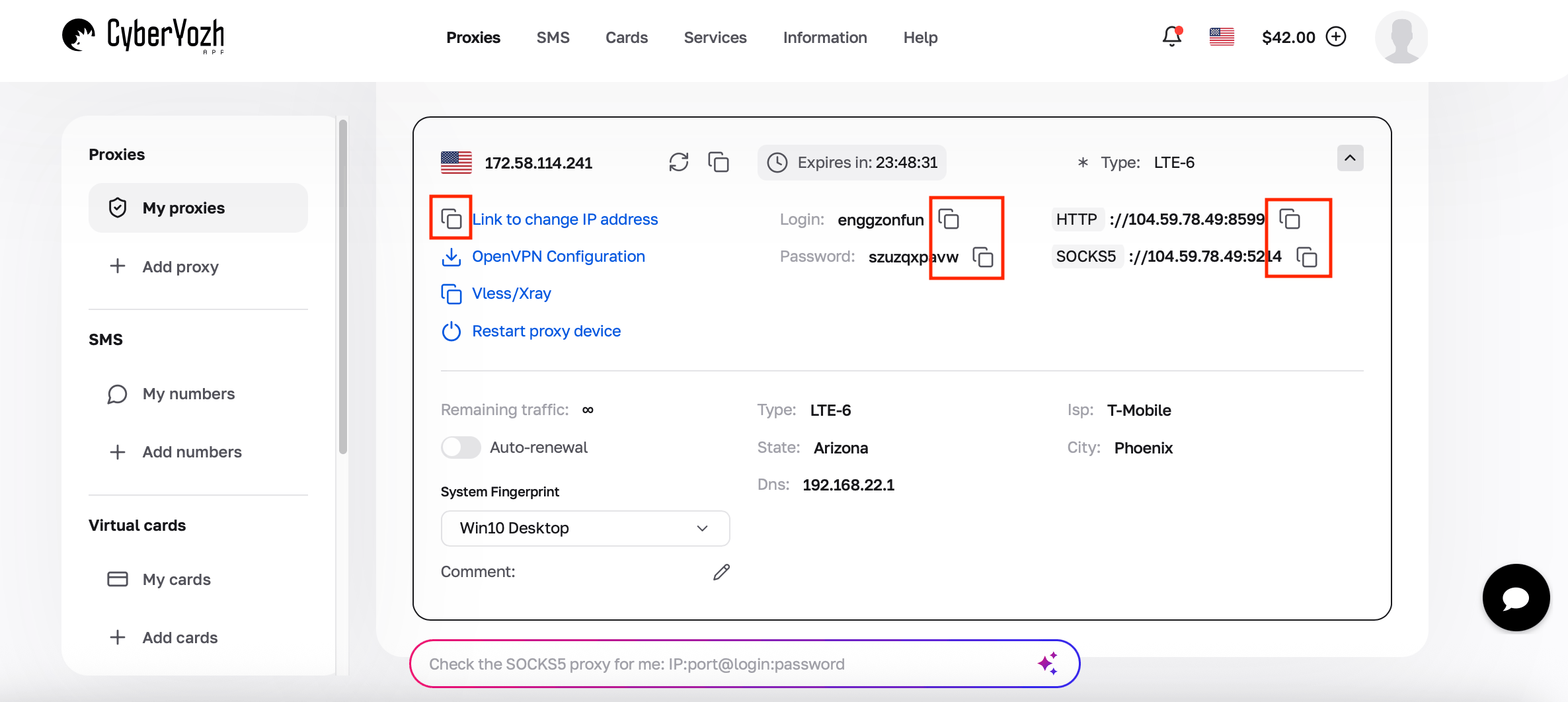
Step 1: Obtain and pre-validate proxy credentials from CyberYozh
Log in to your CyberYozh App account and select proxies for your workflow (mobile 5G proxies, static ISP, rotating residential, or datacenter). If you manage dozens of Multilogin profiles, use the dashboard’s Mass Credentials Generator to export bulk proxy lists with custom country/city targeting and 24-hour sticky session tokens in seconds.
After purchasing, you will see your connection parameters in your personal account:
Host: IP address (e.g., 172.98.60.180)
Port: Port number (e.g., 58763)
Username: Your login string
Password: Your password
Pre-flight risk check: Before binding an IP to an important Multilogin profile, run it through the CyberYozh Fraud Score checker. This Risk Evaluation Before Execution step verifies IP reputation against anti-fraud databases so you only attach clean nodes to your profiles.
Step 2. Create a new Multilogin profile
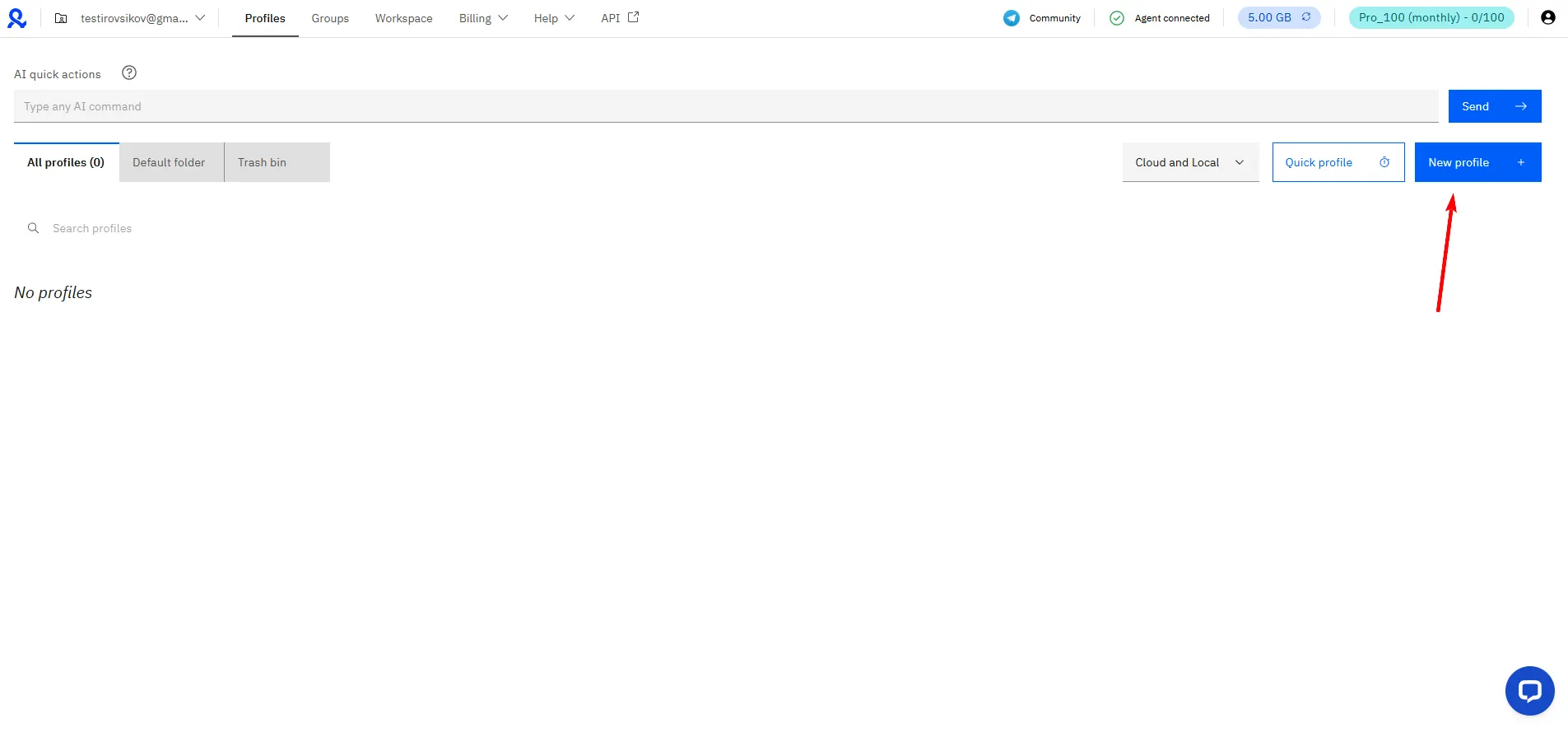
Launch Multilogin. Click the blue New profile button.
Step 3. Set up your profile
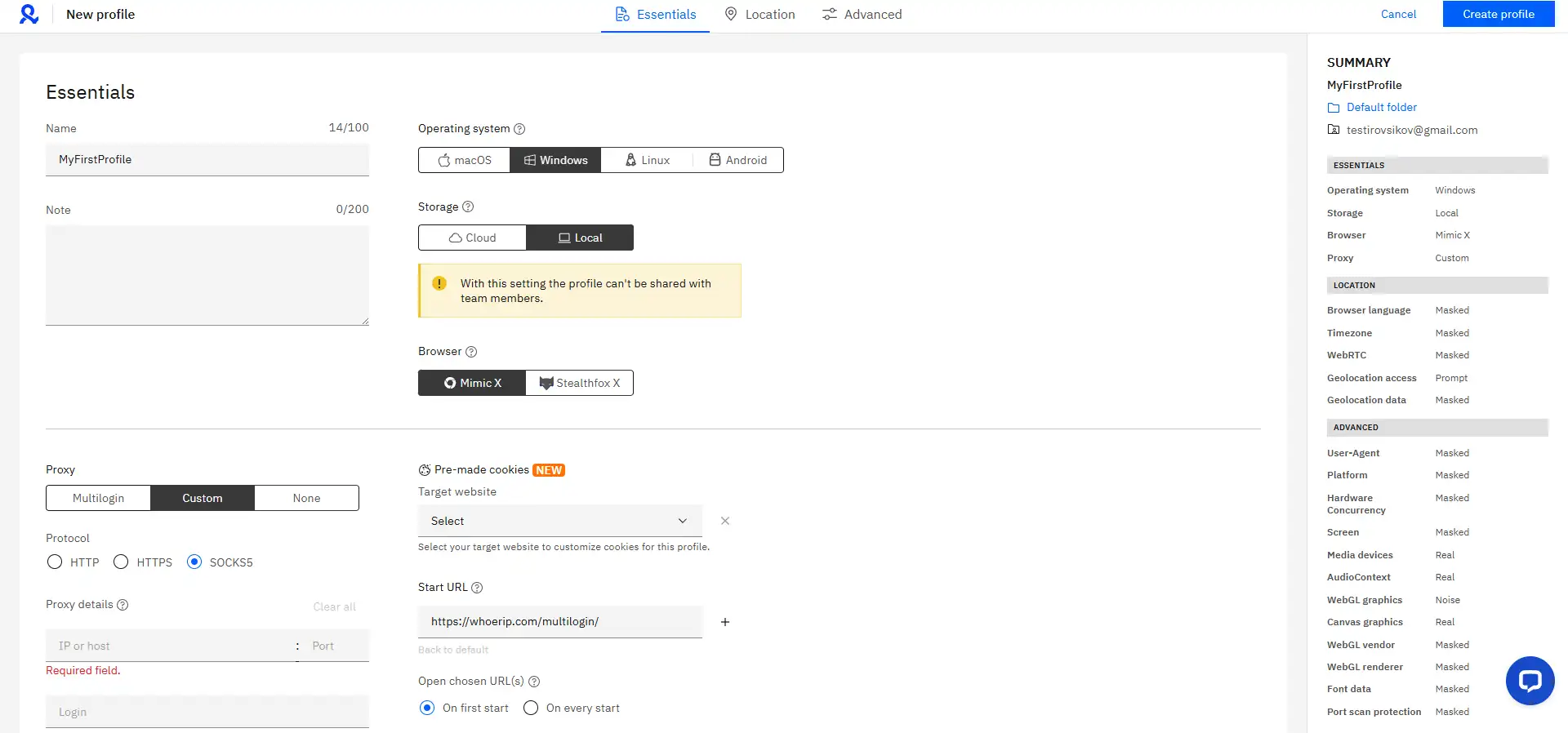
For your new profile, enter:
Name: Set a recognizable profile name
Browser: Choose your engine:
Mimic: Chrome-based engine for Google products and general web tasks
Stealthfox: Firefox-based alternative
OS: Match your host machine's operating system (Windows → Windows, macOS → macOS) to keep hardware and font rendering signatures consistent.
Step 4. Configure proxy settings
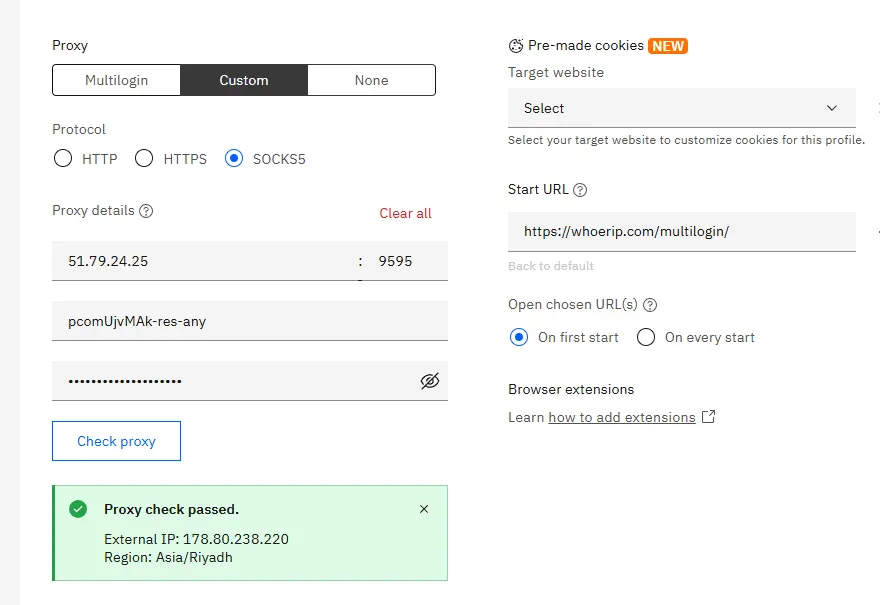
Click on the Edit proxy settings section.
Connection type: Select SOCKS5 (supports UDP and handles media-heavy scripts cleanly)
New address (Host): Enter your IP address
Port: Enter your port
Username: Enter your login
Password: Enter your password.
Step 5. Check proxy connection before saving
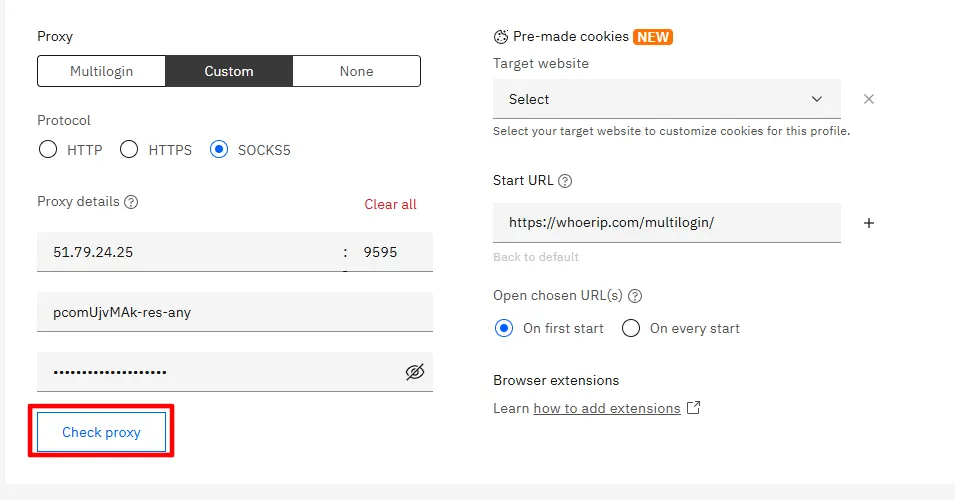
Never launch a profile without verifying the tunnel first. Click the Check Proxy button.
Multilogin will test server reachability and display:
✅ Proxy connected: shows resolved country, city, and time zone
❌ Proxy check failed: double-check your credentials and port
Important: Multilogin automatically syncs the profile's Timezone, WebRTC, and geolocation parameters to match your proxy IP.
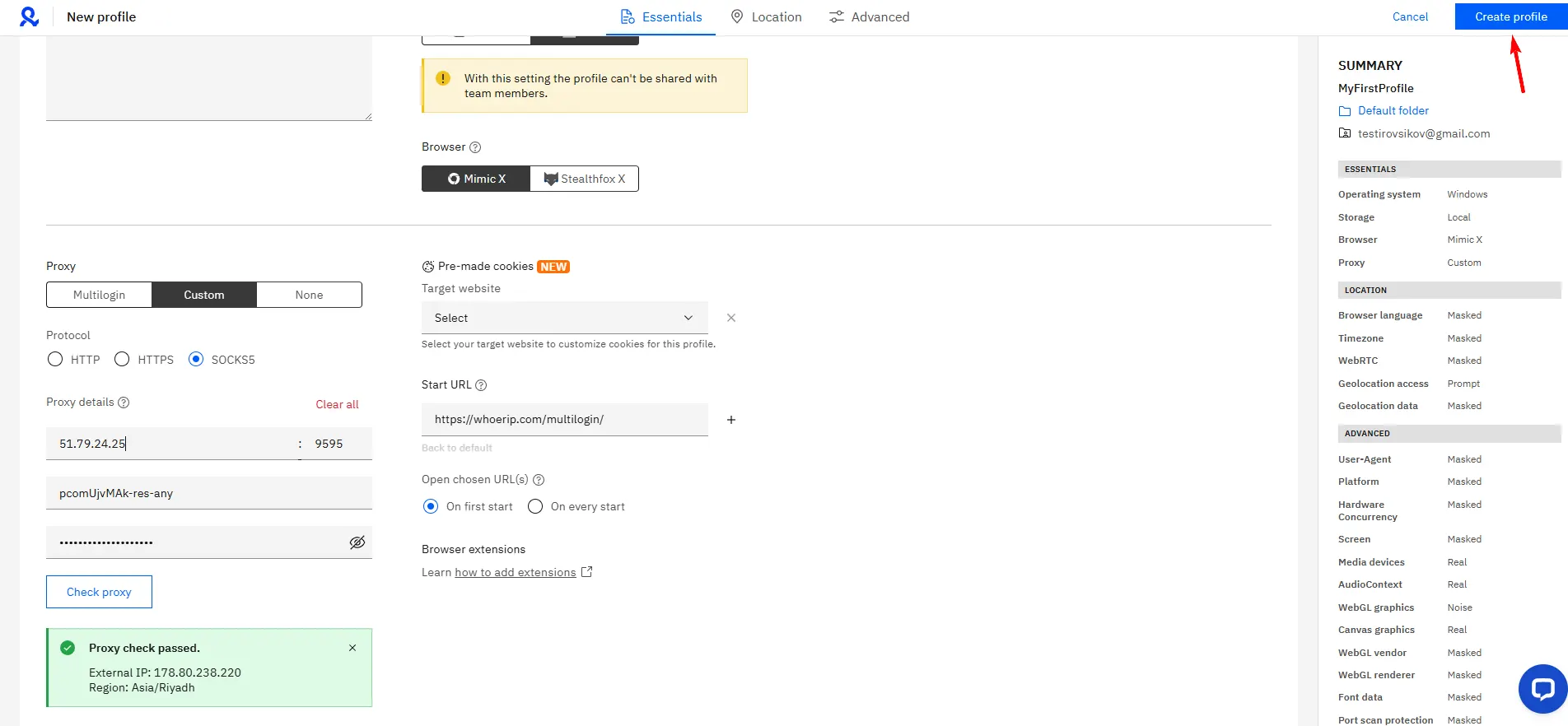
Click Create profile at the bottom of the screen.
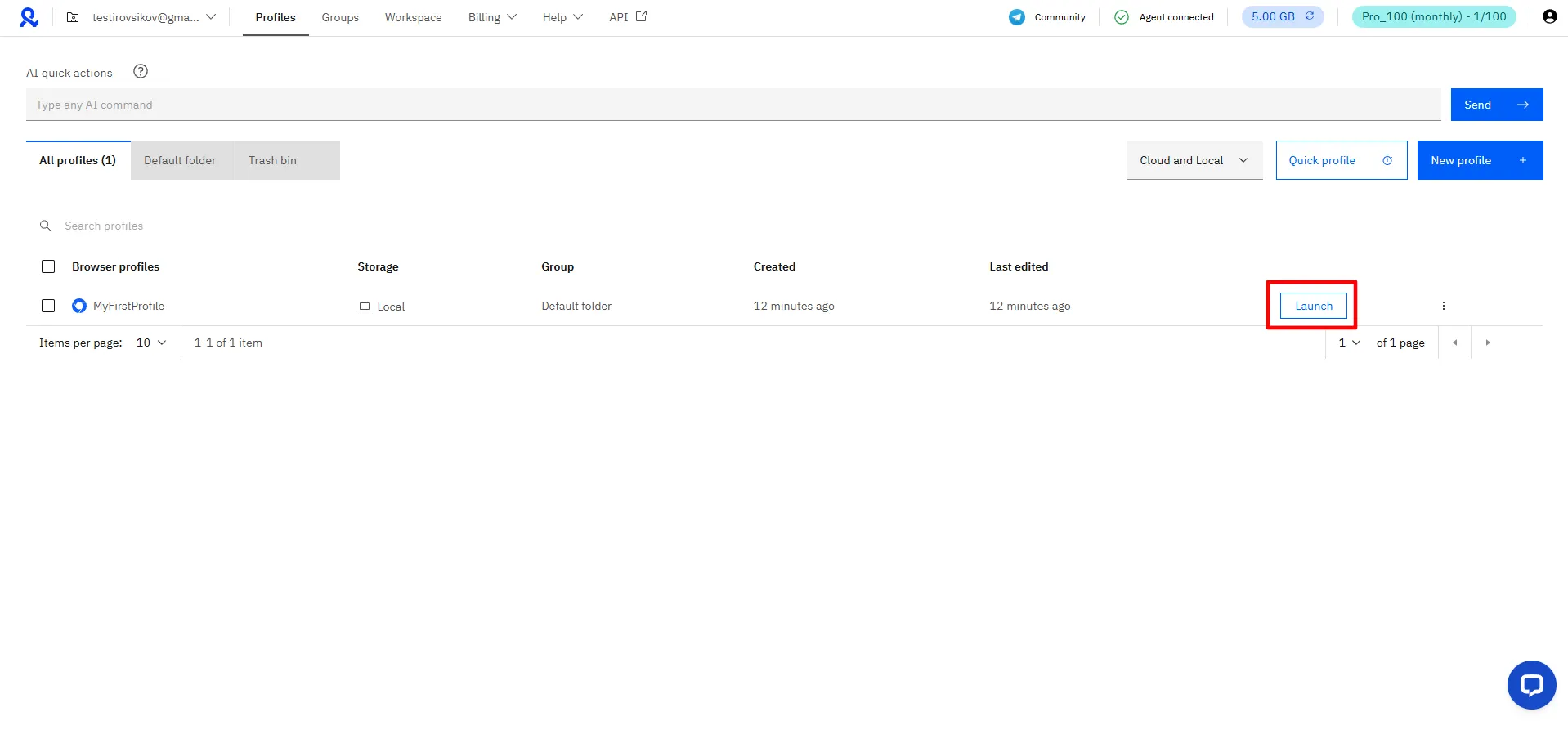
Step 6. Launch and test connection
Your profile is ready. Click the Start button next to its name.
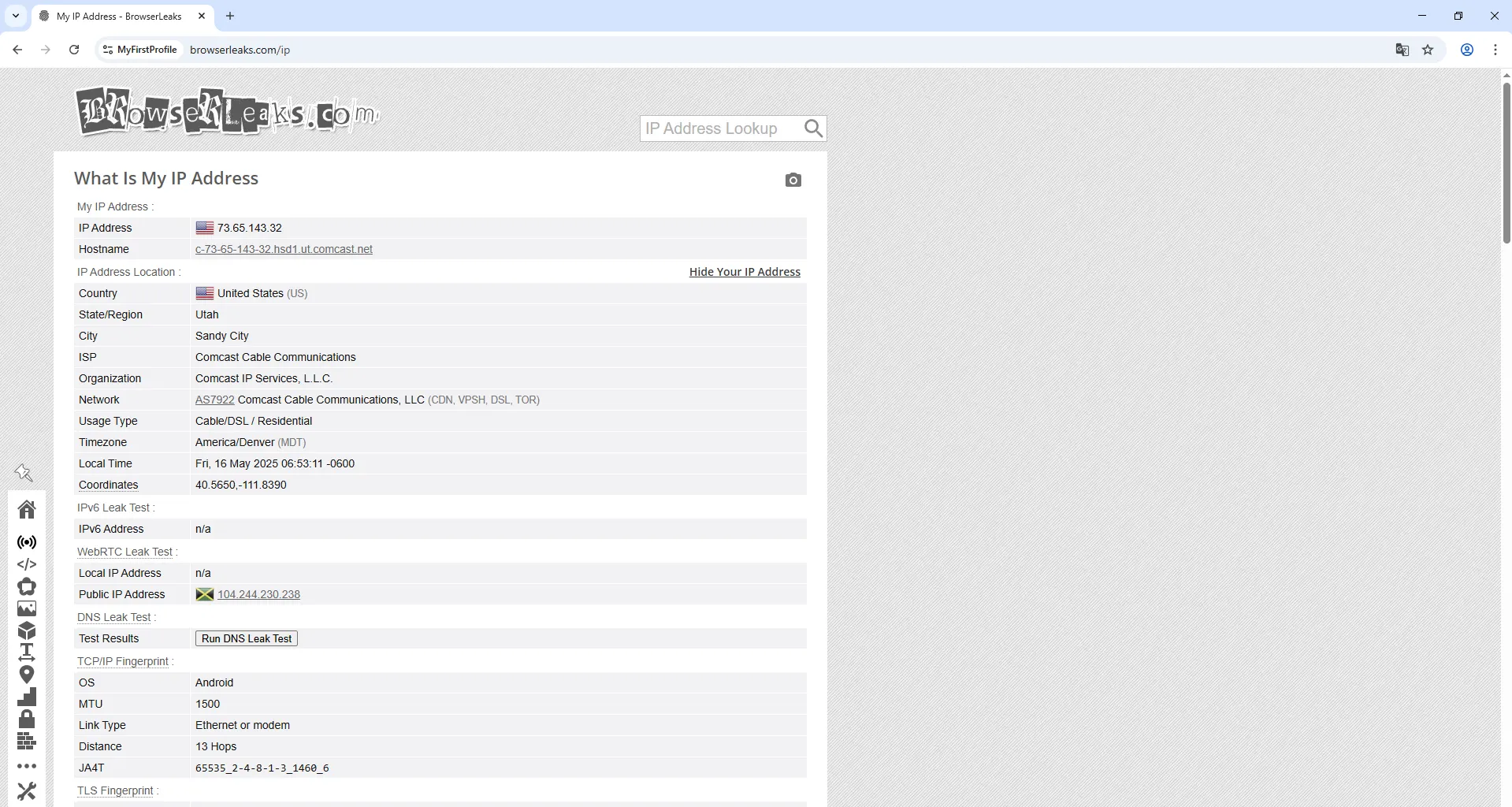
A browser window (Mimic or Stealthfox) will open. Before logging into target accounts, verify that your network parameters and browser fingerprint align.
How to test your Multilogin proxy connection
Open one of these diagnostic tools in your Multilogin browser window:
BrowserLeaks: Verify your outbound IP address and WebRTC status
Whoer: Check connection consistency across DNS, WebRTC, and browser headers.
Verification Checklist ✅
IP address: Does it match your assigned CyberYozh App proxy IP?
DNS: No local DNS leaks. The resolver should match your proxy country.
WebRTC: Must display the proxy IP rather than your local network address
Geolocation & Timezone: Must align with your proxy region so the clean IP works in tandem with your browser fingerprint
If any check shows a mismatch, return to Step 3, verify your proxy settings, or contact CyberYozh 24/7 support.
Multilogin proxy is not working: Causes and fixes
Here are the most common Multilogin proxy errors and how to resolve them quickly.
1. Authentication errors
What you see: Wrong proxy data or Authentication failed. Common causes:
Typo in username or password (extra spaces during copy-paste are frequent)
Missing or incorrect port number
Using IP whitelisting when login/password authentication is required.
How to fix:
Re-copy credentials from your CyberYozh personal account rather than typing manually
Verify the fields: enter Host and Port, then Username and Password in their dedicated boxes
Confirm your authentication mode inside the CyberYozh dashboard.
2. Connection timeout issues
What you see: Connection timeout or Proxy unreachable. This happens if a local firewall or antivirus blocks the outbound port, or your local ISP restricts proxy traffic.
How to fix:
Test the same proxy credentials via cURL or another client to isolate the issue
Add Multilogin to your firewall and antivirus allowlist
Switch between SOCKS5 and HTTP ports provided in your CyberYozh App proxy card.
3. IP not changing after launch
What you see: Your local IP appears on BrowserLeaks instead of the proxy IP. Common causes:
Proxy fields are filled inaccurately (wrong port or host format)
You skipped the "Check Proxy" step before saving the profile
WebRTC settings are disabled instead of routing through the proxy.
How to fix:
Return to Step 4 and verify every field
Always run the "Check Proxy" test before saving the profile
Test with BrowserLeaks and ensure WebRTC is set to altered/based on IP in Multilogin settings.
4. Proxy and fingerprint mismatch errors
What you see: The proxy connects, but target platforms trigger verification loops because geolocation, timezone, or ASN type conflicts with the profile. A clean IP address cannot protect a session in isolation; it only works when paired with matching browser fingerprint parameters.
How to fix:
Match your network type to the platform (mobile LTE/5G proxies for Instagram/TikTok and Google SERP, static ISP residential for Amazon/eBay and crypto platforms).
Ensure your Multilogin profile's timezone and language match the proxy country (Multilogin auto-syncs this when "Check Proxy" passes).
For long account sessions on rotating residential pools, lock a 24-hour sticky session in the CyberYozh credential generator so the IP does not rotate mid-session.
Firewall or provider restrictions
What you see: Connection refused or the proxy works on another machine but not in Multilogin. Common causes:
Corporate firewall blocks non-standard SOCKS5 ports
Local ISP filters outbound proxy ports
Antivirus software intercepts the local tunnel.
How to fix:
Switch from SOCKS5 to HTTP in Multilogin proxy settings if your local network restricts SOCKS traffic
Test on a different network connection to verify if your local ISP is filtering the port
Add Multilogin to your antivirus allowlist (programs like Kaspersky, Norton, and Bitdefender often intercept proxy connections by default).
Building a Complete Multilogin Workflow with CyberYozh App
Reliable operation in Multilogin requires both clean network access and accurate browser fingerprint isolation. By combining CyberYozh App proxies (100M+ rotating residential IPs from $4/GB with traffic rollover, static ISP IPs, and unlimited LTE/5G mobile channels) with pre-flight Fraud Score checks, SMS activation numbers for account verification, and virtual cards inside a single platform, you eliminate vendor fragmentation and keep your multi-profile workflows predictable.