
How to Set Up a Proxy in Linken Sphere: SOCKS5 Integration, UDP Support, and WebRTC Leak Prevention
Scaling workflows requires a reliable network perimeter. Linken Sphere dynamically adapts hardware environment parameters. But even a perfectly tuned profile remains vulnerable. An incorrect transport layer or WebRTC leak will cause errors. Modern algorithms analyze traffic before page rendering. They check JA4 cryptographic signatures and scan UDP ports. This guide explains how Linken Sphere proxy setup works, covering network infrastructure integration and Linken Sphere WebRTC leak prevention.
👉 Study tracking mechanisms via cryptographic TLS fingerprints
Which proxy do you need for Linken Sphere
Before creating a session, you must choose the correct network type. A mistake here causes frequent account bans. Server IP addresses often trigger cyclic CAPTCHA requests. Professional antidetect browser proxy configuration demands infrastructure with organic behavior. Linken Sphere proxy setup starts with selecting an address for your specific task.
👉 Learn reliable methods to reduce CAPTCHA requests
1. Residential Proxies (ISP)
What for: Sustained work with trusted accounts, e-commerce, and corporate tasks.
The Essence: Static dedicated IP addresses from home internet service providers.
Why in Linken Sphere: Platforms see natural traffic patterns. You must use static IPs. The address does not change during an active session. The connection maintains 99.9% uptime without bandwidth limits.
👉 Select static residential pools for corporate tasks
2. Residential Rotating Proxies
What for: Auto-registration, mass profile generation, data parsing, and aggregation.
The Essence: A pool of 100+ million IP addresses from 195 countries with dynamic rotation.
Why in Linken Sphere: The ideal solution for scaling. You can configure session duration flexibly. The system supports sticky sessions up to 24 hours with free geo-targeting. You pay exclusively for consumed traffic.
👉 Configure dynamic rotating pools for mass parsing
3. Mobile Proxies (4G/5G)
What for: Managing advertising campaigns, SMM, and social media operations.
The Essence: Private IP addresses of real smartphones within cellular operator networks.
Why in Linken Sphere: CGNAT technology provides the highest trust level. Platforms see legitimate mobile traffic. You can spoof OS fingerprints and change the IP address manually. Traffic is completely unlimited.
👉 Choose unlimited private mobile proxy networks CyberYozh
👉 Set up rapid IP change via API
4. Datacenter Proxies (Server)
Verdict: Premium dedicated servers with low ping suit only simple technical tasks. Saving money on IP addresses while operating expensive corporate software is illogical.
👉 Get affordable server proxies for rapid parsing
Preventive Fraud Score Audit
Never launch a profile on an unknown IP address. Check it first via the internal tool. The algorithm analyzes IPQualityScore, ThreatMetrix, and PerimeterX databases. It detects spam history and anomalies. Does your Fraud Score exceed 25 points? Replace the address immediately.
👉 Check address quality through CyberYozh antifraud tool
Data Preparation: Linken Sphere proxy setup
We recommend the CyberYozh App infrastructure for stable operation. The platform keeps zero traffic logs and provides 24/7 support. You receive clean network pools and a private payment system.
After purchase, the following data will appear in your dashboard:
IP (Host):
172.98.60.180Port:
58763Login / Password: Authorization data.
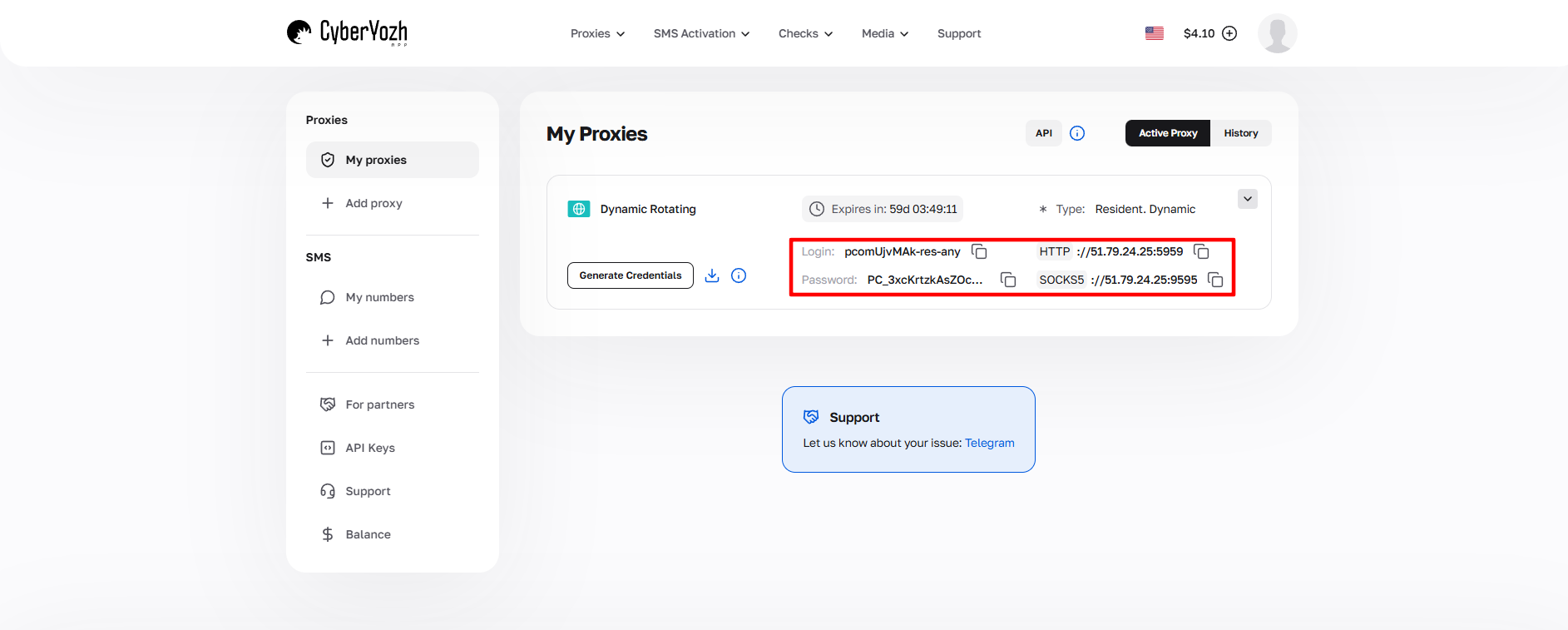
Fig. 1. Screenshot of the CyberYozh platform interface, demonstrating the location of data for connecting to the proxy server. The image shows fields for IP address (Host), port (Port), username (Proxy Username), and password (Proxy Password).
👉 Explore all available plans on CyberYozh platform
Linken Sphere proxy setup: Step-by-step process
Note: We use the English interface. It is the standard in the Linken Sphere community.
Step 1. Creating a New Session
Launch the browser.
Click the "Set up new session" button (or "New identity" in older versions).
The Session provider window opens.
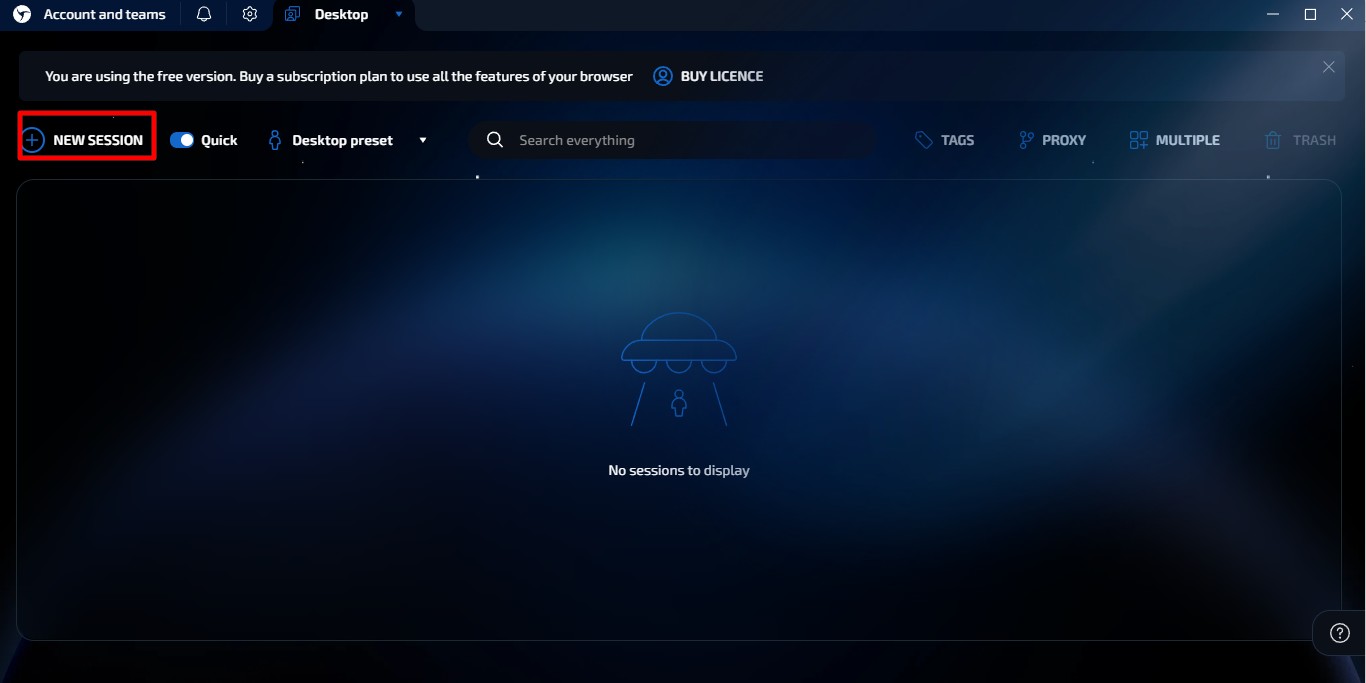
Fig. 2. Interface for setting up a new session in Linken Sphere.
Step 2. IP Selection and Configuration
Find the connection menu in the network parameters block. Linken Sphere supports HTTP, SOCKS5, and SSH.
Our choice is SOCKS5. This is a fast protocol. Linken Sphere SOCKS5 integration delivers the best result. The browser cannot send STUN requests correctly without the UDP protocol.
Click "Set proxy".
Enter your data in the new window:
Type: SOCKS5
IP / Host: Your address.
Port: Port.
Login / Password: Your credentials.
👉 Study important technical routing details regarding UDP
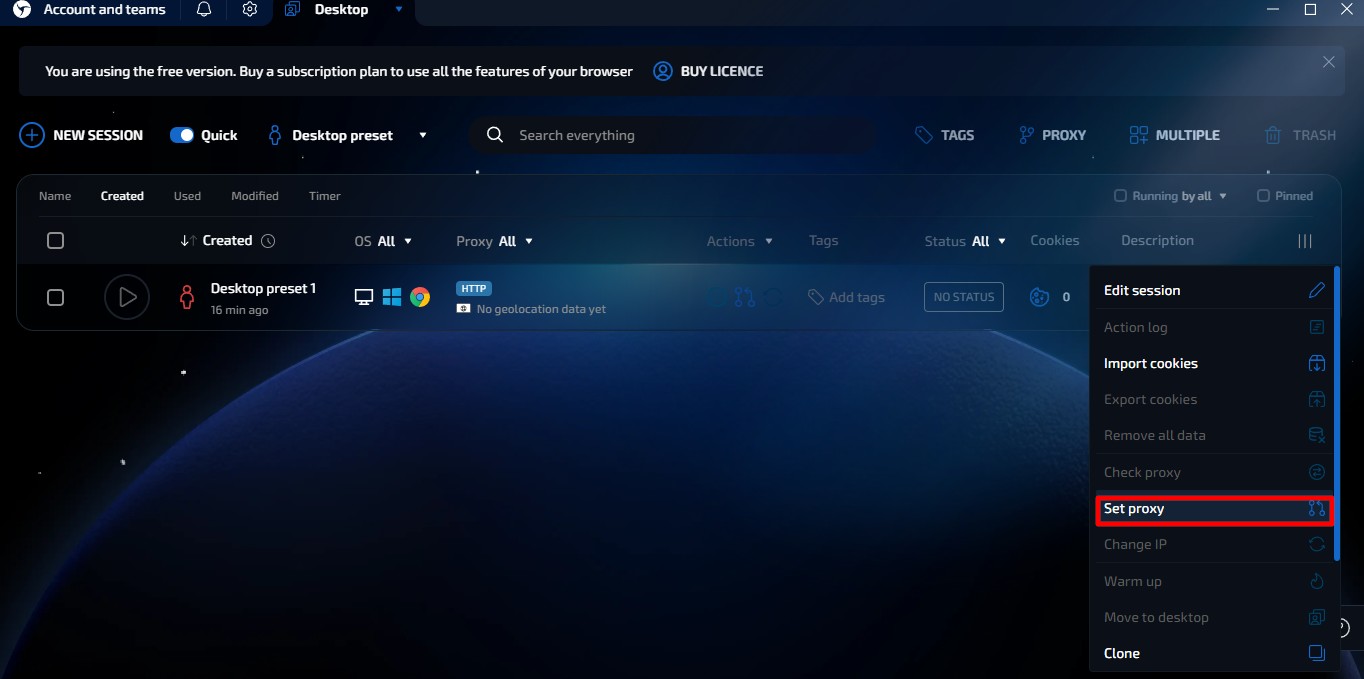
Fig. 3. New session creation window in Linken Sphere with main profile setting controls.
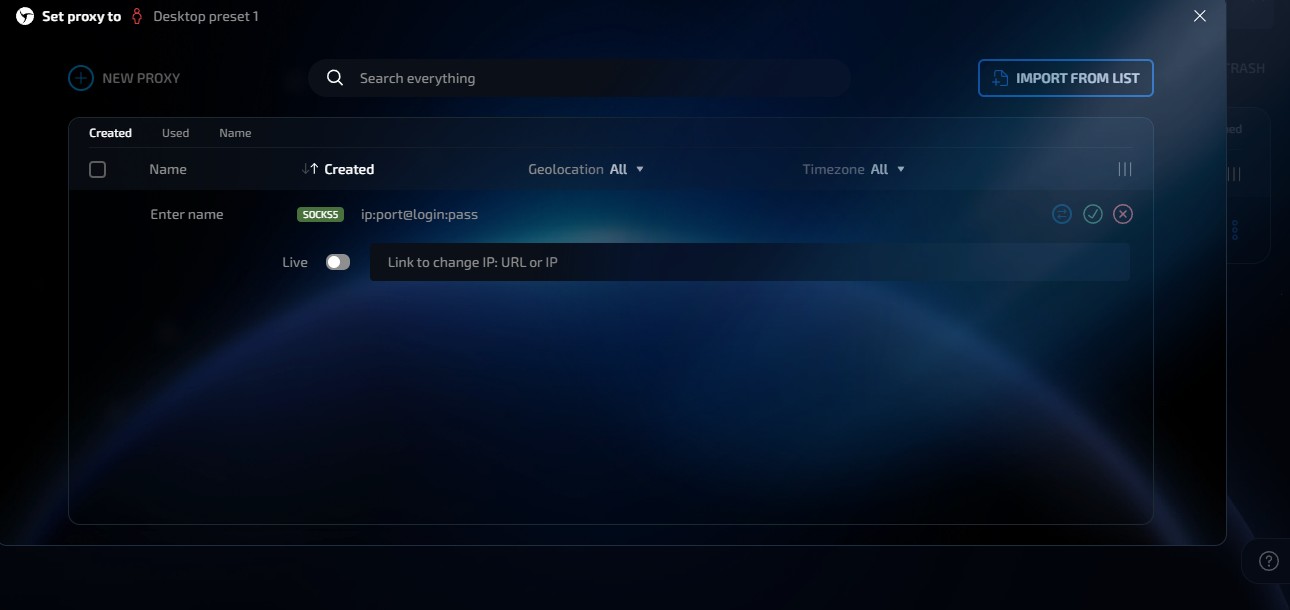
Fig. 4. Proxy server configuration dialog box in Linken Sphere, showing input fields for connection setup.
Pro Tip (Bulk Import):
Managing multiple profiles? Use the "Import from list" button. Linken Sphere understands ip:port:login:pass formats. This allows instant address loading.
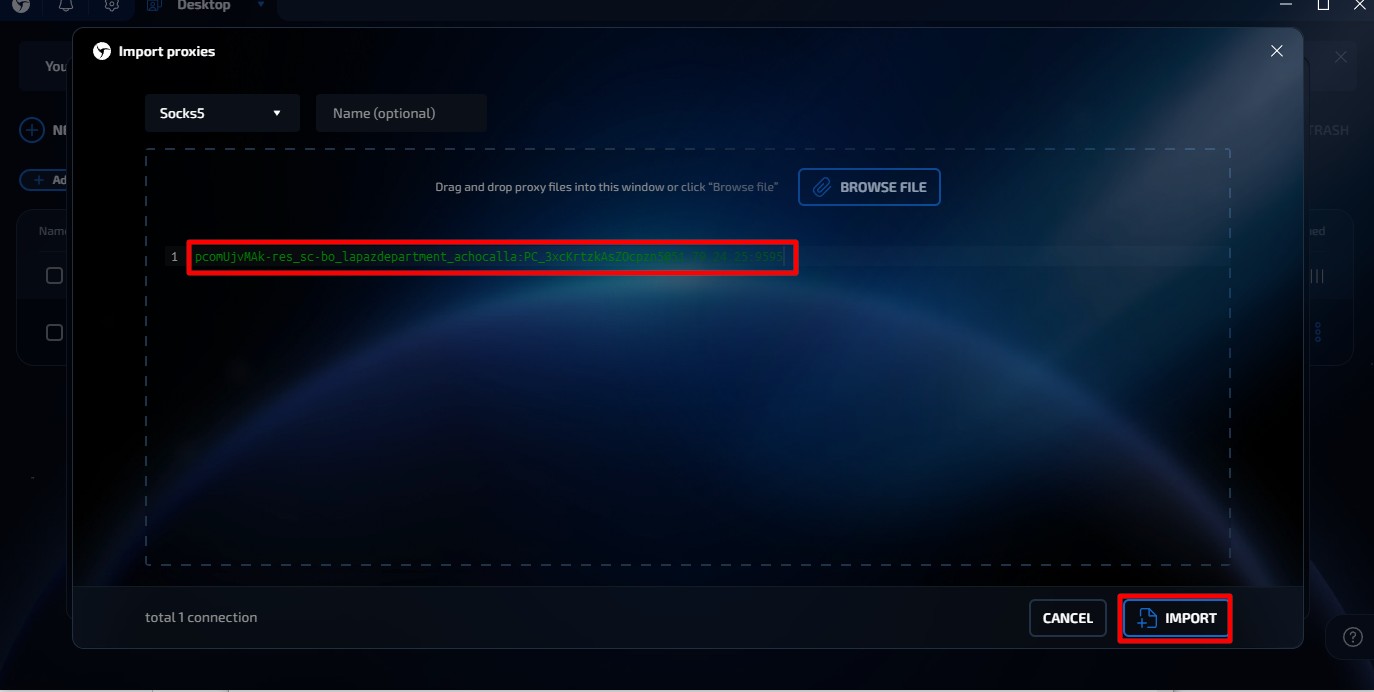
Fig. 5. Screenshot of the interface for adding proxies via Import from list in the Linken Sphere browser.
Step 3. Tunnel Isolation and WebRTC
Accurate Linken Sphere proxy setup requires strict connection testing. Never launch a session without testing. Configure parameters to isolate your local IP address.
Find the WebRTC section. Enable the "Adaptive" or "Fake" mode.
CyberYozh nodes process UDP traffic natively. Linken Sphere routes media requests through an isolated tunnel.
Click the "Check Proxy" button.
Is the tunnel active? You will see green text with GEO information. The system adjusts the timezone automatically.
Is the text red? Check your balance and input format. Change the IP if you use a rotating pool.
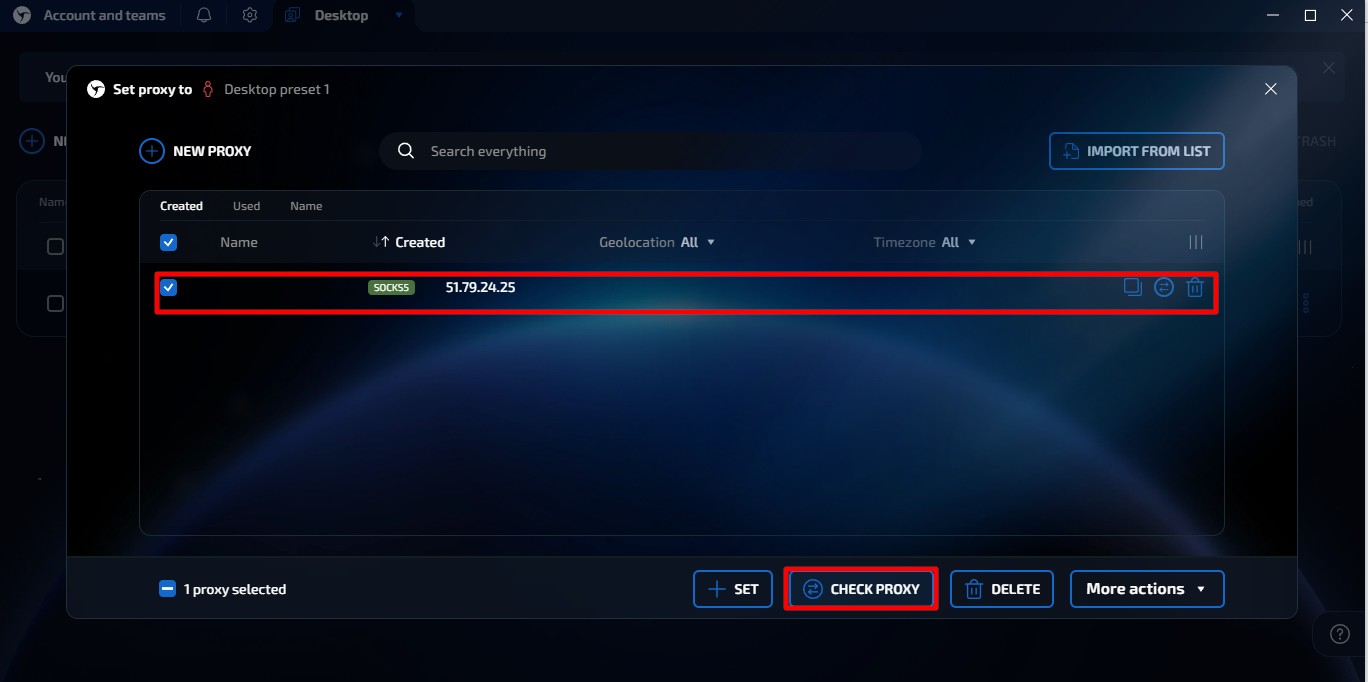
Fig. 6. Screenshot of the proxy settings interface in the Linken Sphere browser.
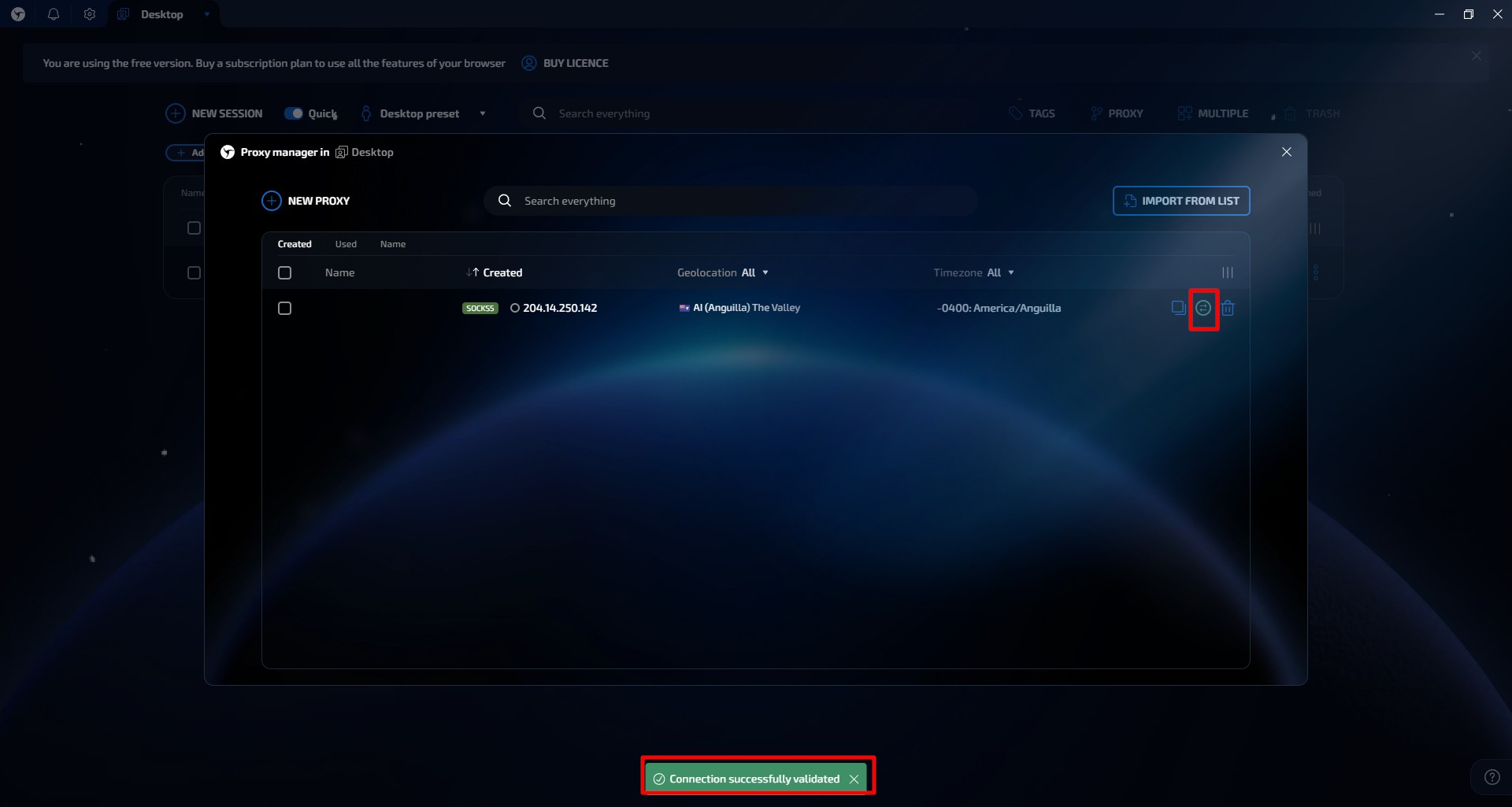
Fig. 7. Visual representation of the proxy connection check interface in the Linken Sphere browser.
Step 4. Finalizing Linken Sphere proxy setup
Specify the remaining session parameters after a successful check. Enter the User-Agent, screen resolution, and language. The browser adapts them automatically based on your address GEO. Click "Save" or "Launch".
Launching Linken Sphere and Final Verification
Select the protocol you configured during the Linken Sphere proxy setup.
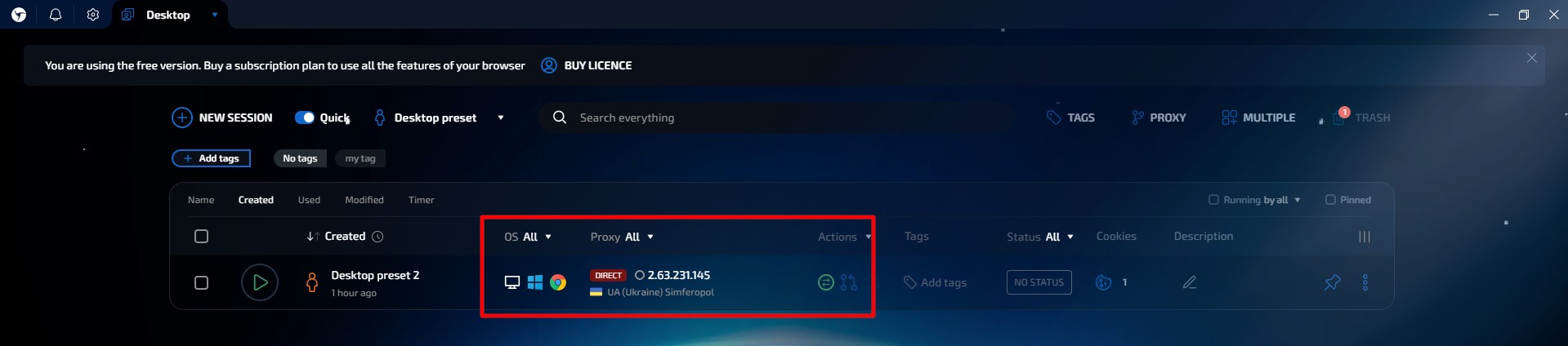
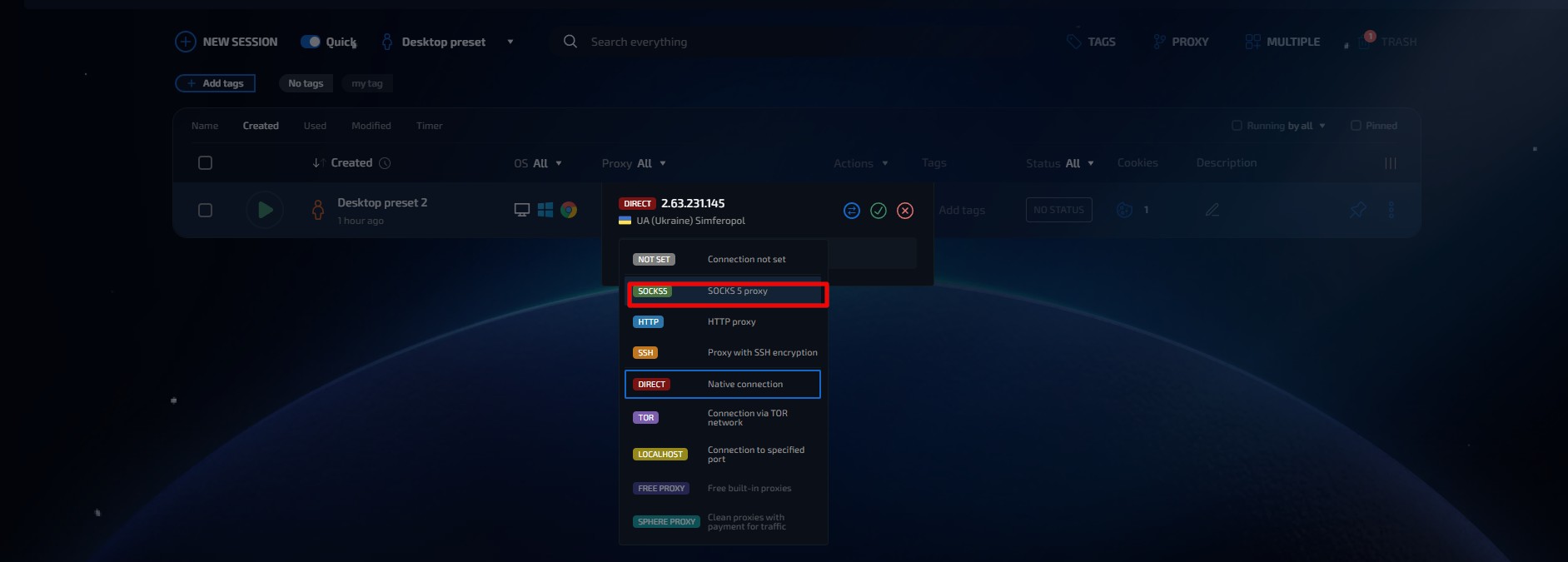
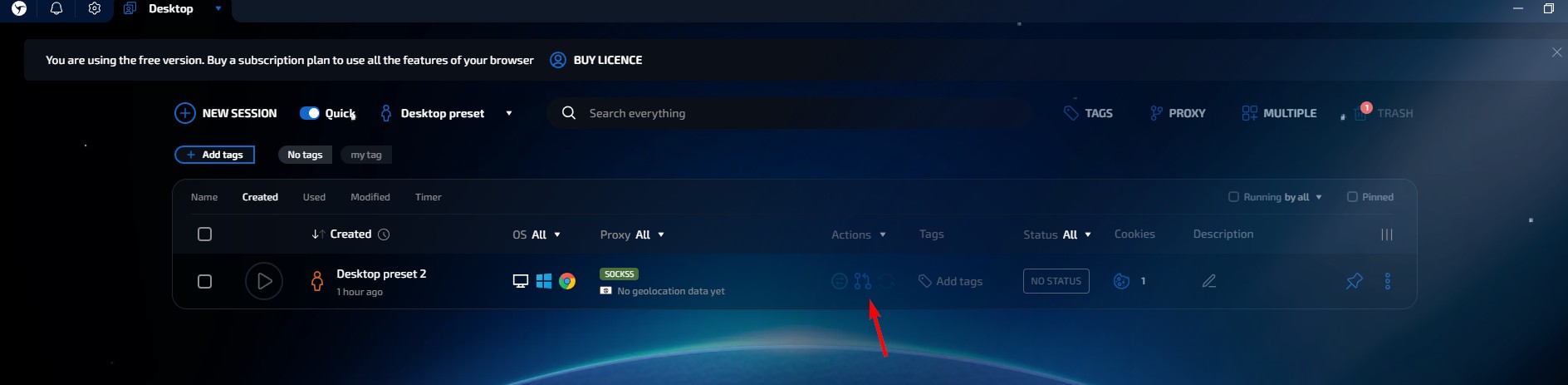
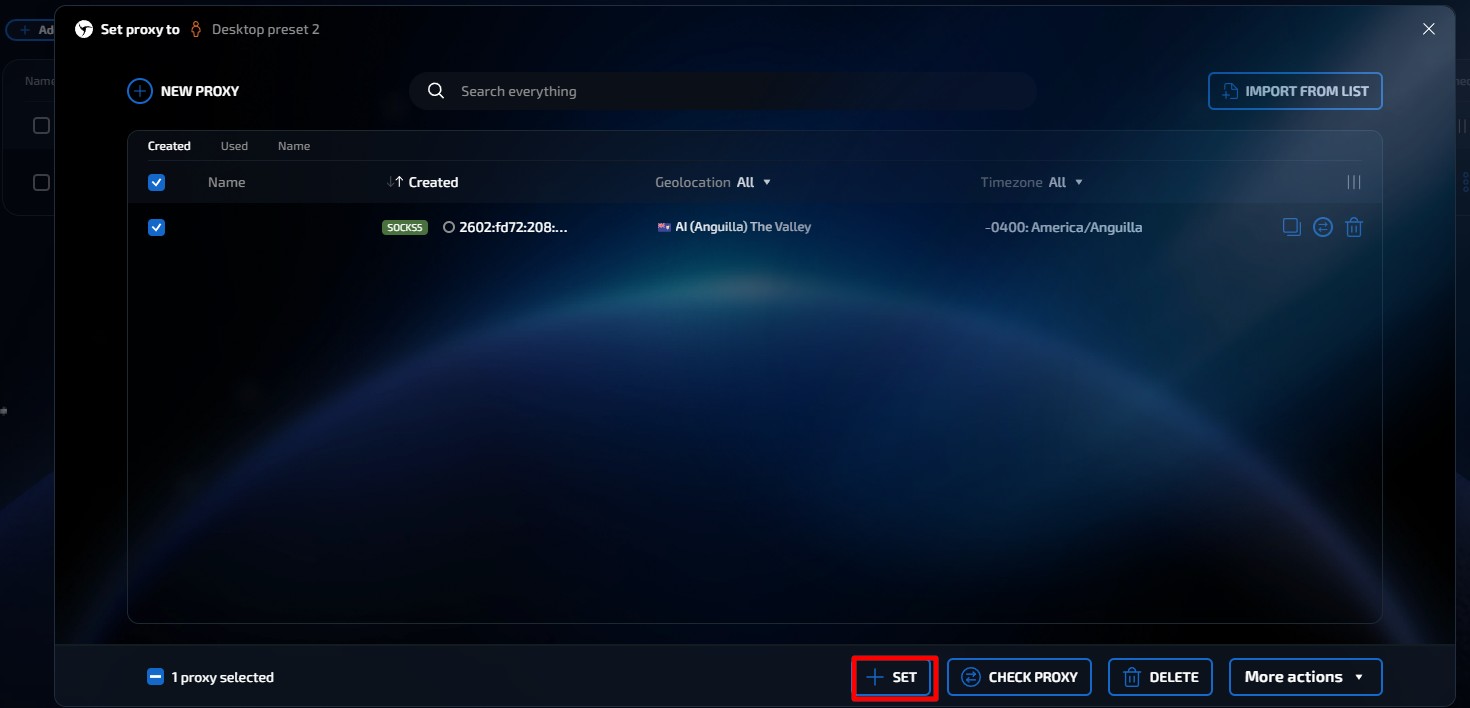
Fig. 8, 9, 10, 11. Interface for selecting the proxy connection protocol in Linken Sphere.
Ensure there are no leaks before starting work. Launch the configured profile. Go to browserleaks.com/ip or whoer.net.
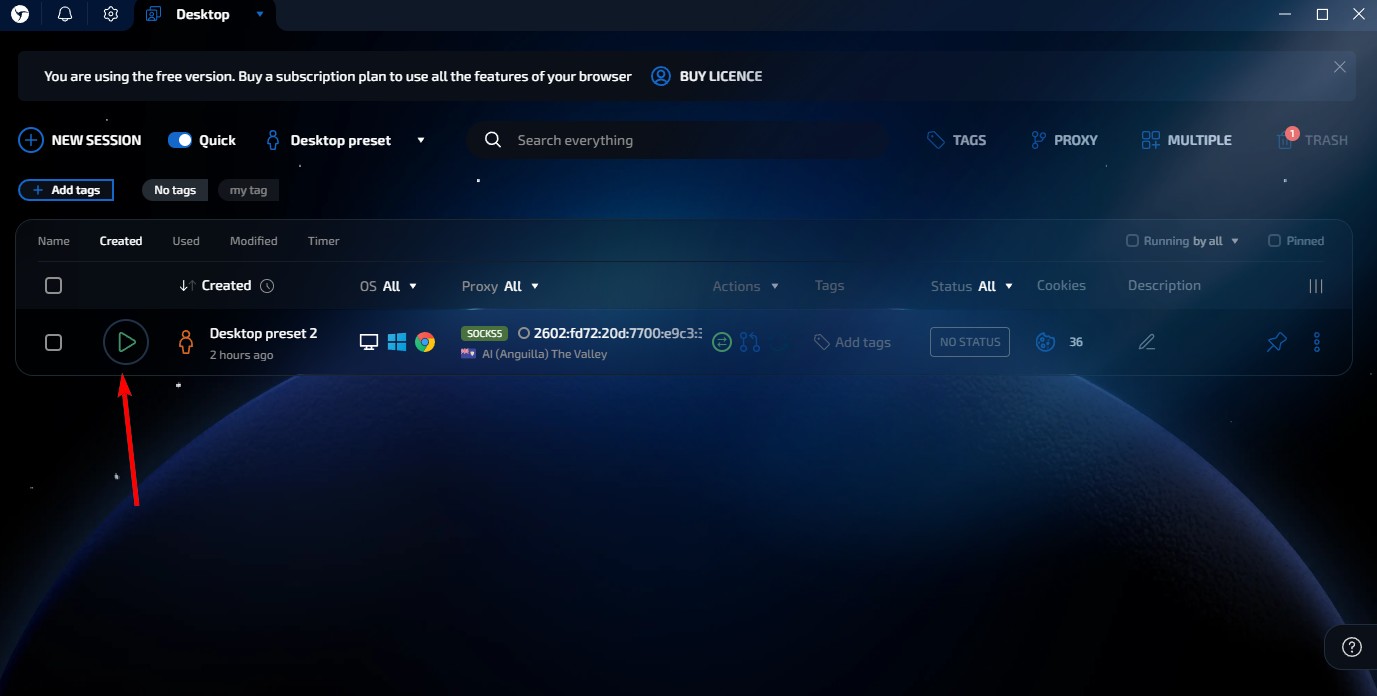
Fig. 12. Screenshot demonstrating the profile launch
The session is running. A browser window opens.
Pre-flight checklist:
IP Address: Must strictly match the purchased one.
DNS: Must not show your real provider. A reliable protocol shields these requests.
Geo: The system timezone must match the node timezone.
👉 Understand protection mechanics through the SOCKS5 protocol
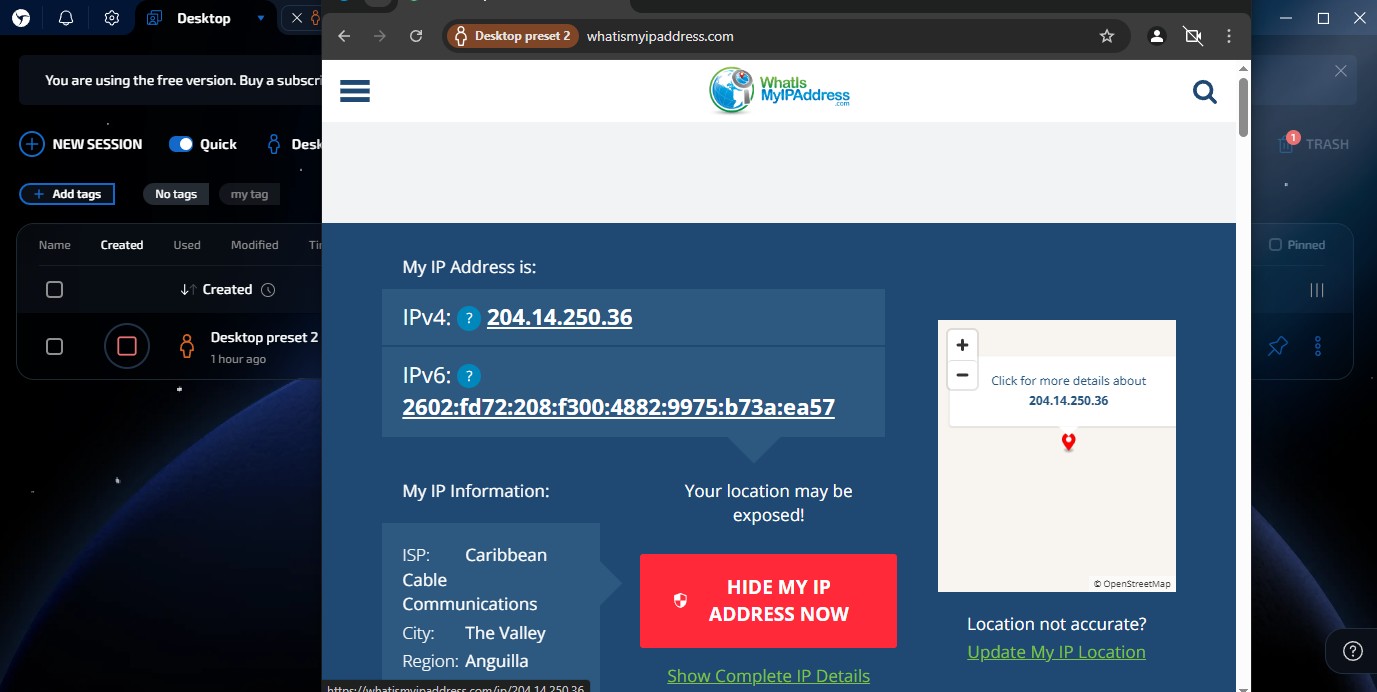
Fig. 13. Screenshot of the IP address verification dialog box in Linken Sphere, demonstrating the results of the current network connection check via the proxy server.
Are all checks passed? Your connection is completely isolated from external trackers.
Conclusion and Profile Legitimization
Proper network routing isolates your traffic. But your profile needs additional legitimization. Platforms analyze the match between billing data and network parameters.
Verification: Use residential virtual numbers from real local providers to receive SMS. Standard VoIP numbers lower your profile rating. We provide access to numbers from 140 countries.
Payment: Issue virtual advertising cards. Match the billing address to your node region. Cards work perfectly for linking advertising accounts (Facebook Ads, Google Ads) and paying for digital subscriptions.
👉 Use reliable residential numbers for receiving SMS