
How to set up a proxy in the Afina browser: Step-by-step configuration guide
Running multiple client storefronts, ad accounts, or automated testing scripts from a single machine creates an immediate network bottleneck. Even when browser profiles have separate cookies and hardware parameters, connecting them through one local router exposes a shared exit IP to external analytics engines. Setting up a dedicated proxy in the Afina browser isolates each workspace at the transport layer so every profile operates from its own independent regional network route.
Looking for a clear walkthrough on how to set up a proxy in the Afina browser without UDP packet drops or mid-session disconnects? Below, we break down the exact workflow using the live Afina v2.1.15 desktop interface and the CyberYozh App dashboard. This step by step guide to setting up residential proxies in Afina browser covers everything from pre-flight Fraud Score validation to UDP transport verification.
TL;DR: How to configure a proxy in the Afina browser
Open your CyberYozh App proxy dashboard and copy your proxy credentials (Host, Port, Username, Password) or generate a SOCKS5 endpoint string in the Proxy generator.
Launch the Afina desktop client, wait for the initial browser kernel check to finish, and open the Proxies/VPN tab in the top navigation bar.
Click Add proxy/VPN, keep the mode set to Proxies, and select the SOCKS5 protocol.
Paste your full proxy string into the top quick-input parser (
socks5://user:pass@host:portorhost:port:user:pass) or fill in the Host, Port, Login, Password, and optional Change IP URL fields manually.Click Check proxy to verify the outgoing IP address, country geolocation, and UDP routing, then click Add Proxy.
Switch to the Profiles tab, click Create profile, select your verified proxy in the Afina browser inside the New account modal, click Save, and press Start to launch the isolated session.
Why network routing matters when configuring a proxy in the Afina browser
Afina is a desktop multi-profile browser and automation workspace built on the Tauri framework for Windows and macOS. Each workspace runs in isolated browser profiles with separate cookies, localStorage, cache, device parameters (Canvas, WebGL, Audio, hardware concurrency), a built-in visual RPA editor, a Node.js scripting engine, and a Model Context Protocol (MCP) server for AI agent workflows.
However, local isolation only separates the software environment on your computer. If several profiles connect to target websites through the same office or home connection, platform telemetry links those sessions by their shared exit IP. When you route traffic through proxy in Afina browser using dedicated channels from CyberYozh App, each profile receives its own regional IP address, autonomous system number (ASN), and matching timezone. Proper Afina browser proxy configuration ensures your client environments remain completely separated at both the browser and network layers.
Which CyberYozh App proxy fits your Afina browser proxy setup
Before creating a profile, match the proxy infrastructure line in the CyberYozh App catalog to the session duration and platform requirements of your task.
Proxy Infrastructure | Starting Price & Billing Model | Session Behavior & Key Features | Primary Workflows in Afina Browser |
From $1.70/day (Shared) and $3.50/day (Private Dedicated) with unlimited traffic. | Real cellular carrier modems and SIM cards using CGNAT architecture; manual or API-triggered IP rotation via Change IP URL (plus 5/30-min timers on shared plans); native HTTP, SOCKS5, UDP, and TCP/IP OS fingerprint (p0f) switching. | Managing client social media profiles, advertising cabinets, high-demand ticketing, and multi-threaded Google SERP collection. | |
From $5.29/month per IP with unlimited traffic. | 1 dedicated static household IP leased from regional internet service providers (Comcast, Verizon, Orange, Liberty Global); 99.9% uptime; HTTP and SOCKS5 proxy with UDP support. | Long-running brand accounts, e-commerce seller panels (Amazon, eBay, Etsy, Shopify), financial portals, and persistent regional access following the 1 profile = 1 static IP rule. | |
Usage-based per GB: standard packages from $4.00/GB (3 GB min) scaling down to $2.50/GB at 100 GB with automatic monthly traffic rollover. | 100M+ residential IPs across 195+ countries; free country, region, city, ZIP, and ISP targeting; Max Speed + IP Quality Score pre-filtering; per-request rotation or sticky sessions up to 24 hours (1440 minutes). | Localized ad verification, regional QA testing, multi-step onboarding, and scalable web automation or RPA scripts in Afina. | |
From $1.77/month (Shared) and $2.18/month (Dedicated) with unlimited traffic on dedicated plans. | High-speed IPv4/IPv6 server channels across 60+ countries; 99.99% uptime; HTTP and SOCKS5 support; API status tracking. | High-speed public catalog scraping, price monitoring, API load testing, and non-restricted technical workflows. |
Choosing mobile proxy configuration Afina workflows gives your profiles real carrier network identities for trust-sensitive social and ad platforms. Meanwhile, configuring residential proxy in Afina with sticky sessions or static ISP leases provides consistent household routing for e-commerce and regional testing.
Step 1: Prepare credentials for configuring residential proxy in Afina and run a Fraud Score check
To start configuring a proxy in the Afina browser, prepare four basic connection parameters from your CyberYozh App account: Host (gateway domain or IP address), Port, Login (Username), and Password.
If you use Static ISP, Mobile LTE/5G, or Datacenter proxies, open My proxies in the left sidebar of your CyberYozh App dashboard and copy the credentials from your active proxy card. When configuring LTE 5G mobile proxy with Change IP URL in Afina browser, also copy the rotation link (Change IP URL) so you can trigger carrier IP resets directly inside the browser client.
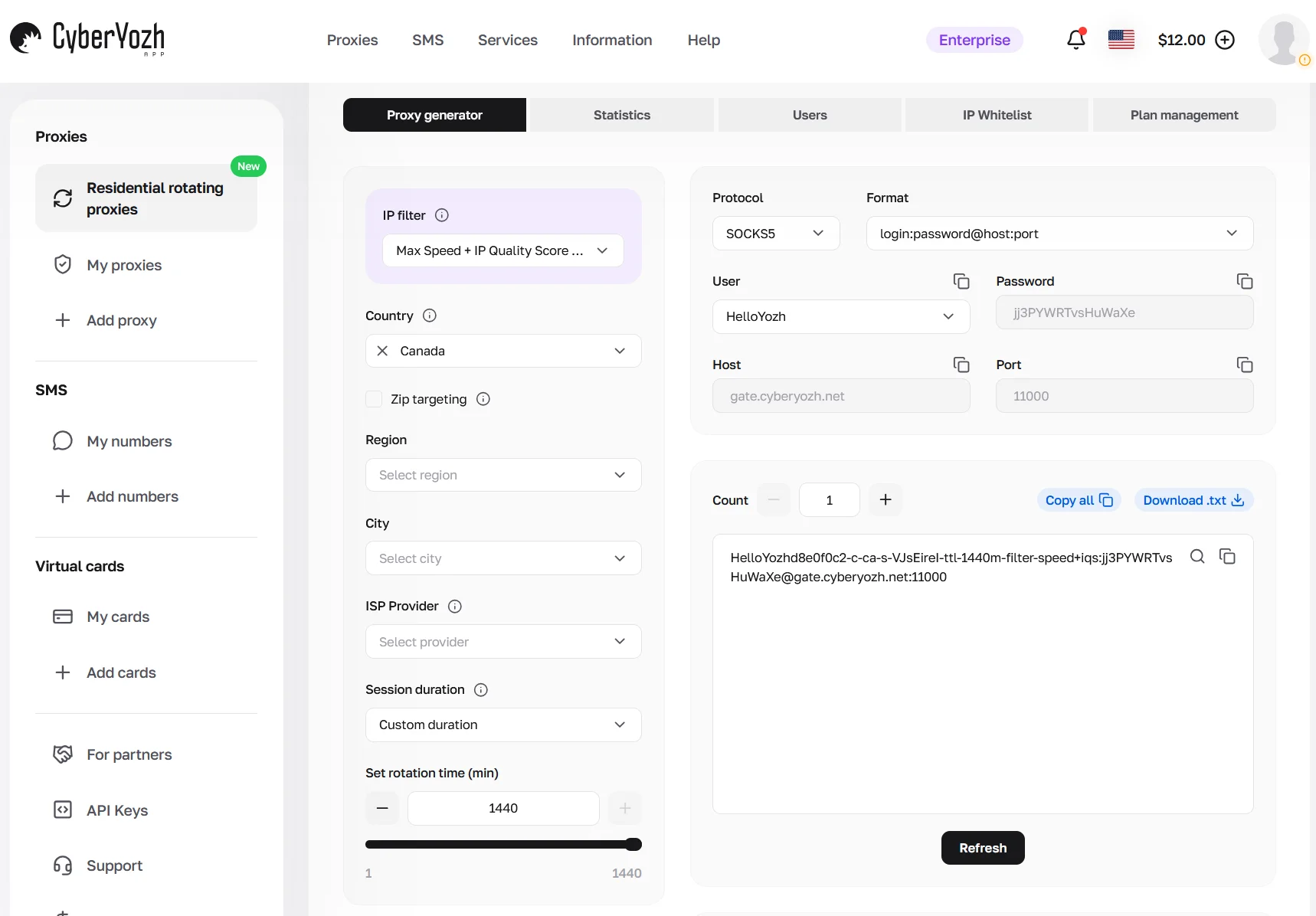
If you are setting up sticky session proxies in Afina browser dashboard via Rotating Residential Proxies, open Residential rotating proxies in the left menu and select the Proxy generator tab:
IP quality filtering (IP filter): select Max Speed + IP Quality Score to automatically filter out slow or flagged residential nodes before connection.
Location targeting: choose your target Country (for example, Canada), and optionally narrow down by Zip targeting, Region, City, or ISP Provider to set regional IP in Afina browser.
Session duration: for a persistent sticky session proxy setup Afina, select Custom duration and set Set rotation time (min) to 1440 (24 hours). This keeps the same residential IP across a full workday session. You can also select 5, 10, 15, or 30 minutes for shorter rotation cycles.
Protocol and Format: set Protocol to SOCKS5 for a complete SOCKS5 proxy setup Afina browser, and choose
login:password@host:port(orhost:port:login:password) under Format.Copy or export: copy the generated endpoint string (for example,
HelloYozhd8e0f0c2-c-ca-s-VJsEireI-ttl-1440m-filter-speed+iqs:jj3PYWRTvsHuWaXe@gate.cyberyozh.net:11000) using the copy icon, or enter a quantity in Count and click Download .txt to export bulk credentials.
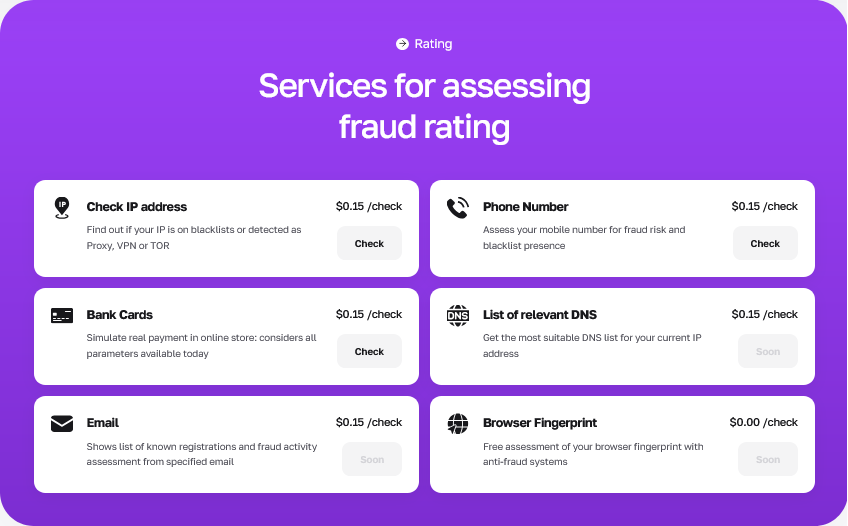
Pre-flight risk evaluation: Before binding an IP address to a client profile, click the magnifying glass icon next to your generated credential string or open the CyberYozh App IP Address Checker ($0.15 per check, or included in the $19/month checker plan with 1,500 IP checks, 1,500 phone checks, and 500 card checks). Knowing how to test proxy connection in Afina browser using IP checker tools before launching traffic lets you query corporate anti-fraud engines (IPQualityScore, ThreatMetrix, PerimeterX, Stripe Radar) and 118 OSINT blacklists to confirm clean IP reputation and low Abuse Velocity.
Step 2: How to add proxy in Afina Proxies/VPN manager and check UDP routing
Adding your proxy gateways to Afina's central Proxies/VPN table keeps your Afina browser proxy settings organized in one place, lets you run connectivity checks, and allows you to assign or swap endpoints across profiles without retyping credentials. Follow these steps for how to connect proxy to Afina browser via the central manager:
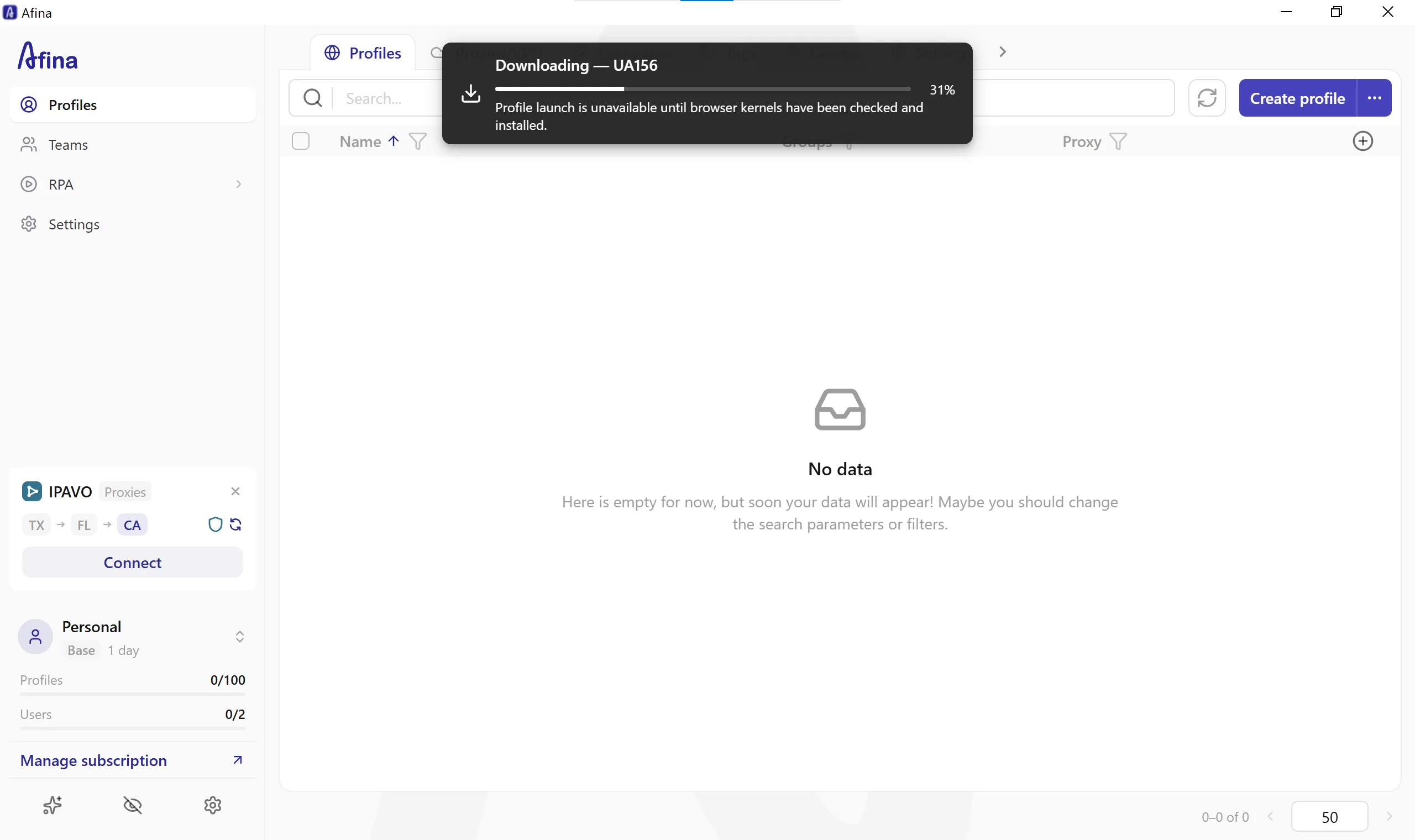
Wait for the browser kernel check on first launch: when you open the Afina desktop app for the first time, a top notification displays
Downloading - UA156 (Profile launch is unavailable until browser kernels have been checked and installed). Wait until the download reaches 100% and the main workspace unlocks.
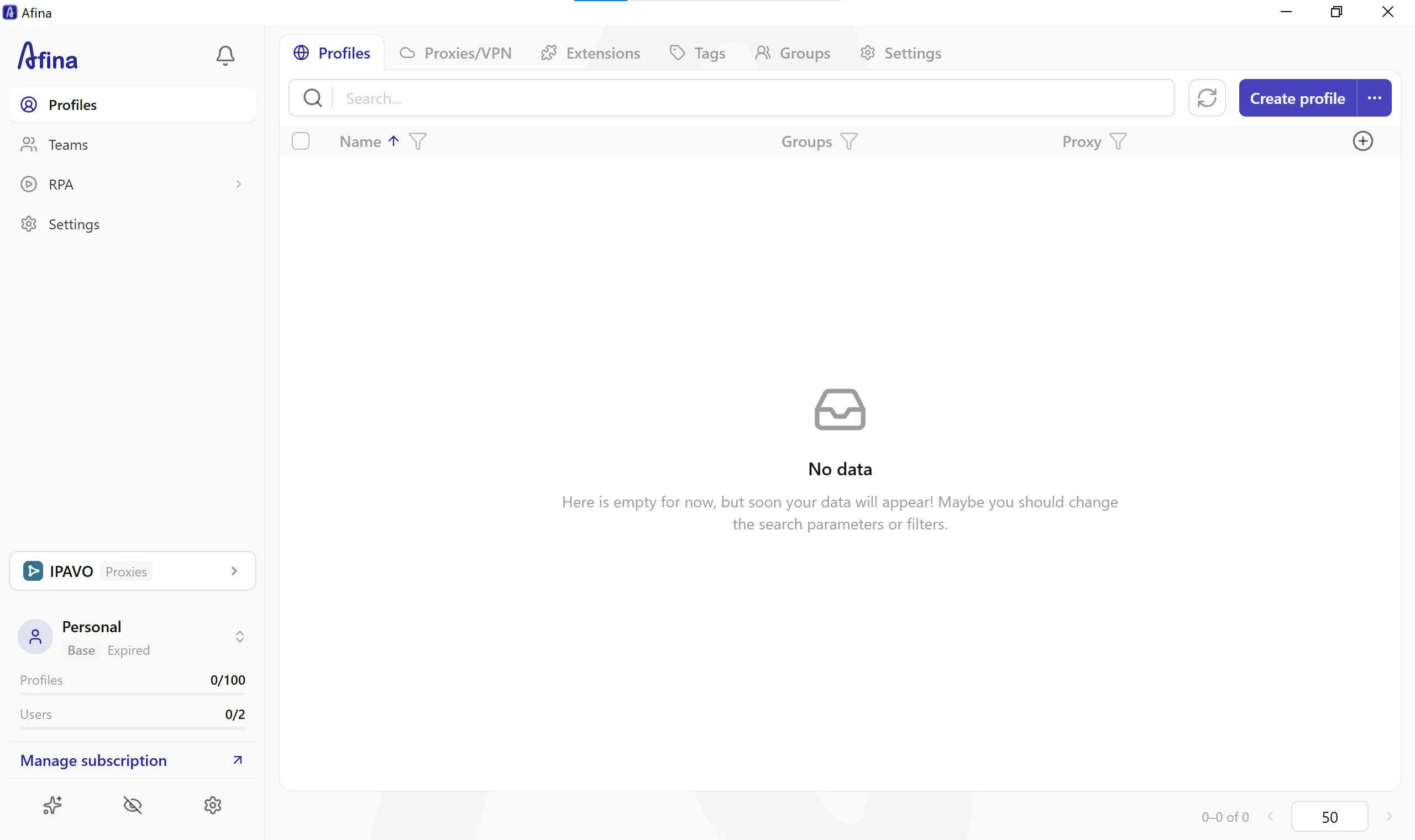
Open the Proxies/VPN section: in the top workspace navigation bar (next to Profiles), click Proxies/VPN.
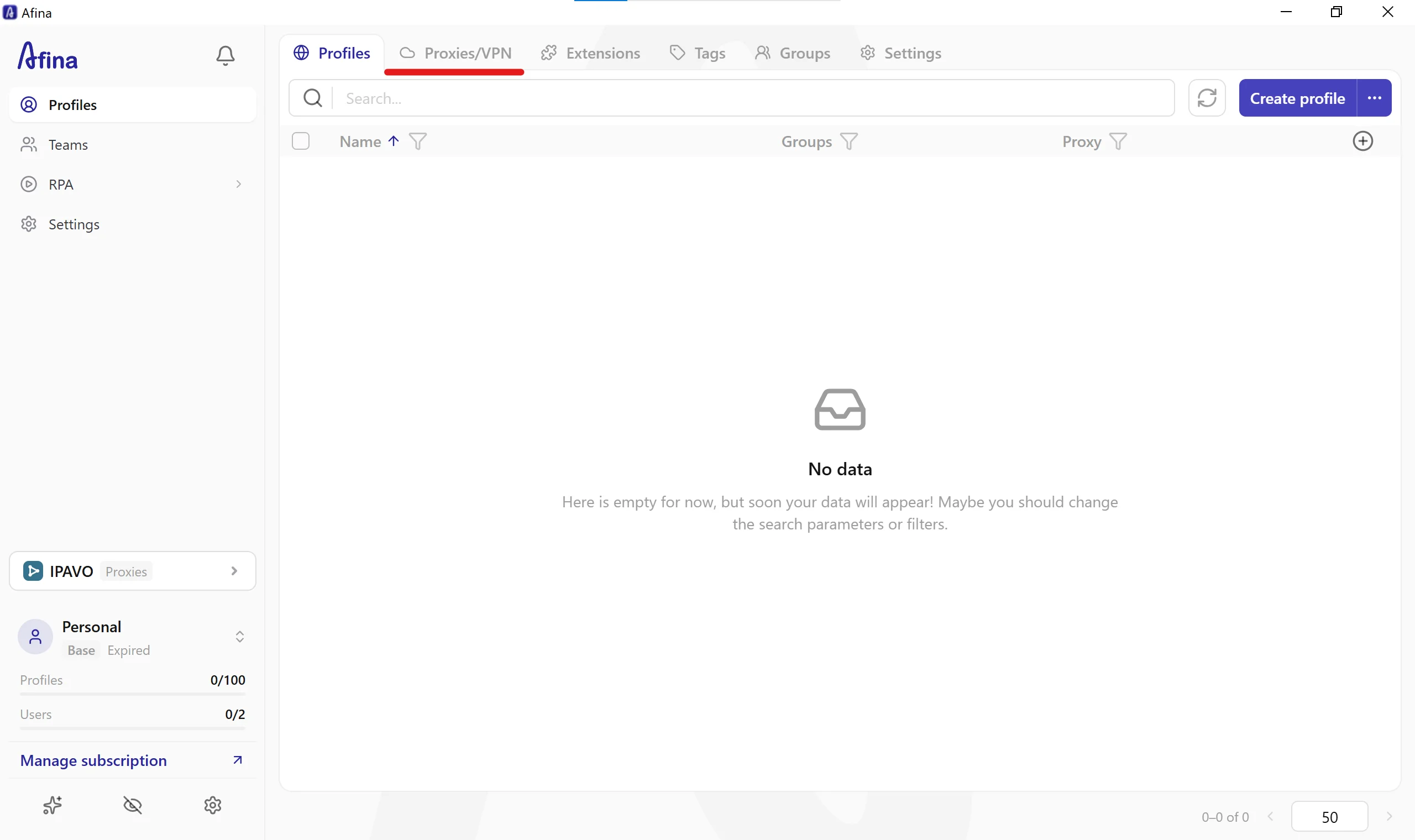
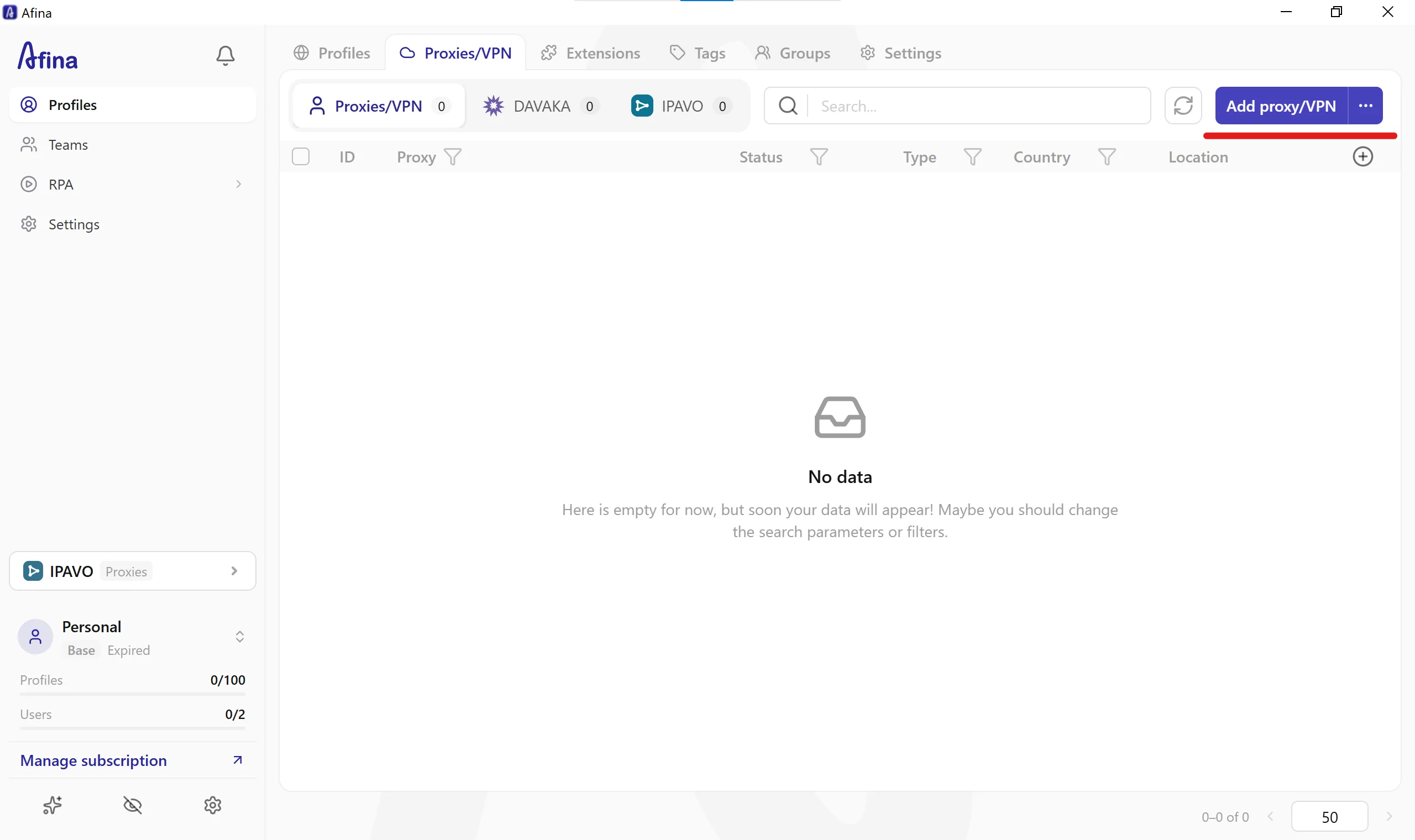
Open the configuration modal: click the blue Add proxy/VPN button in the top-right corner of the screen.
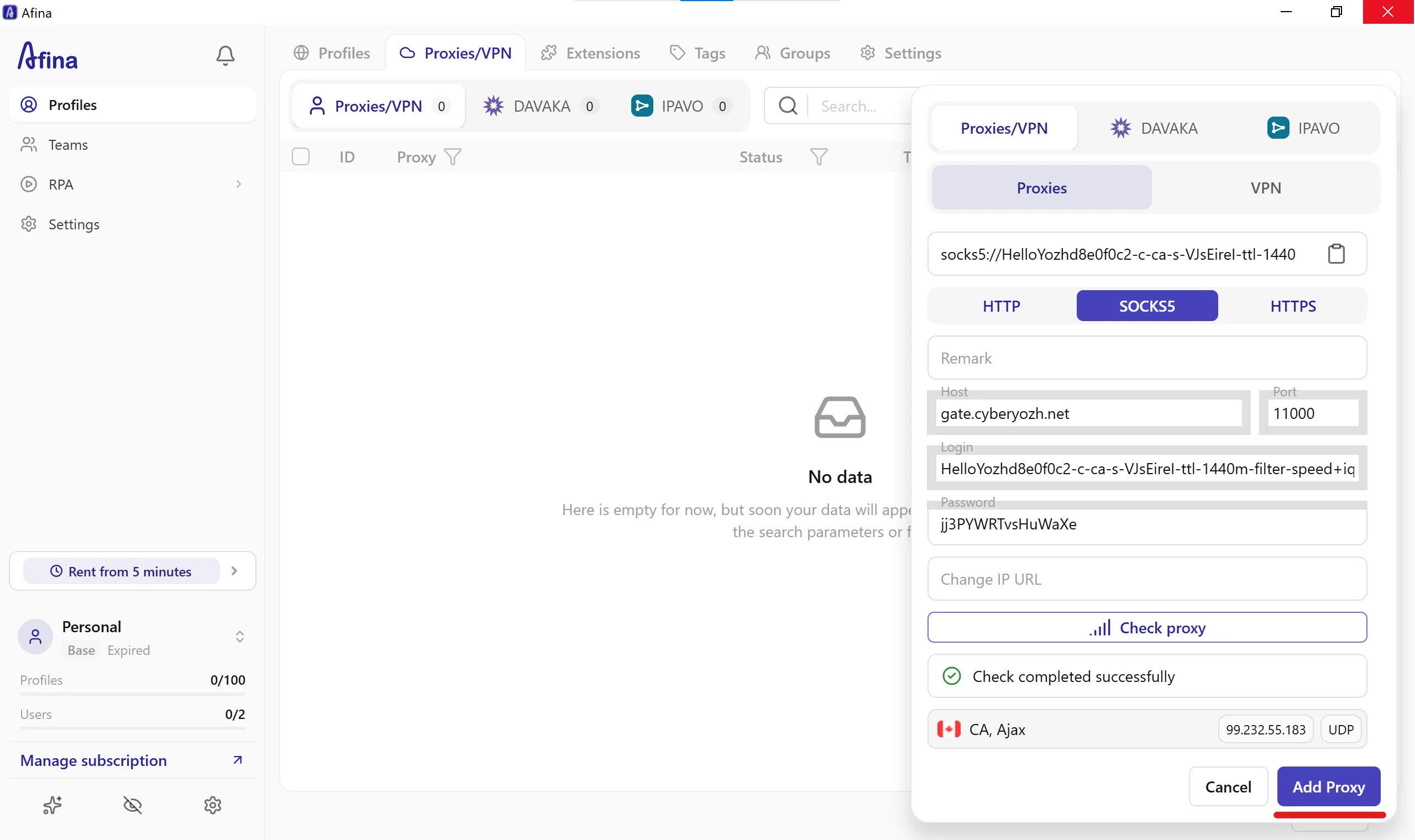
Select mode and protocol: in the modal window that opens on the right, ensure the top tab is set to Proxies/VPN, keep the mode switch below it set to Proxies, and click SOCKS5.
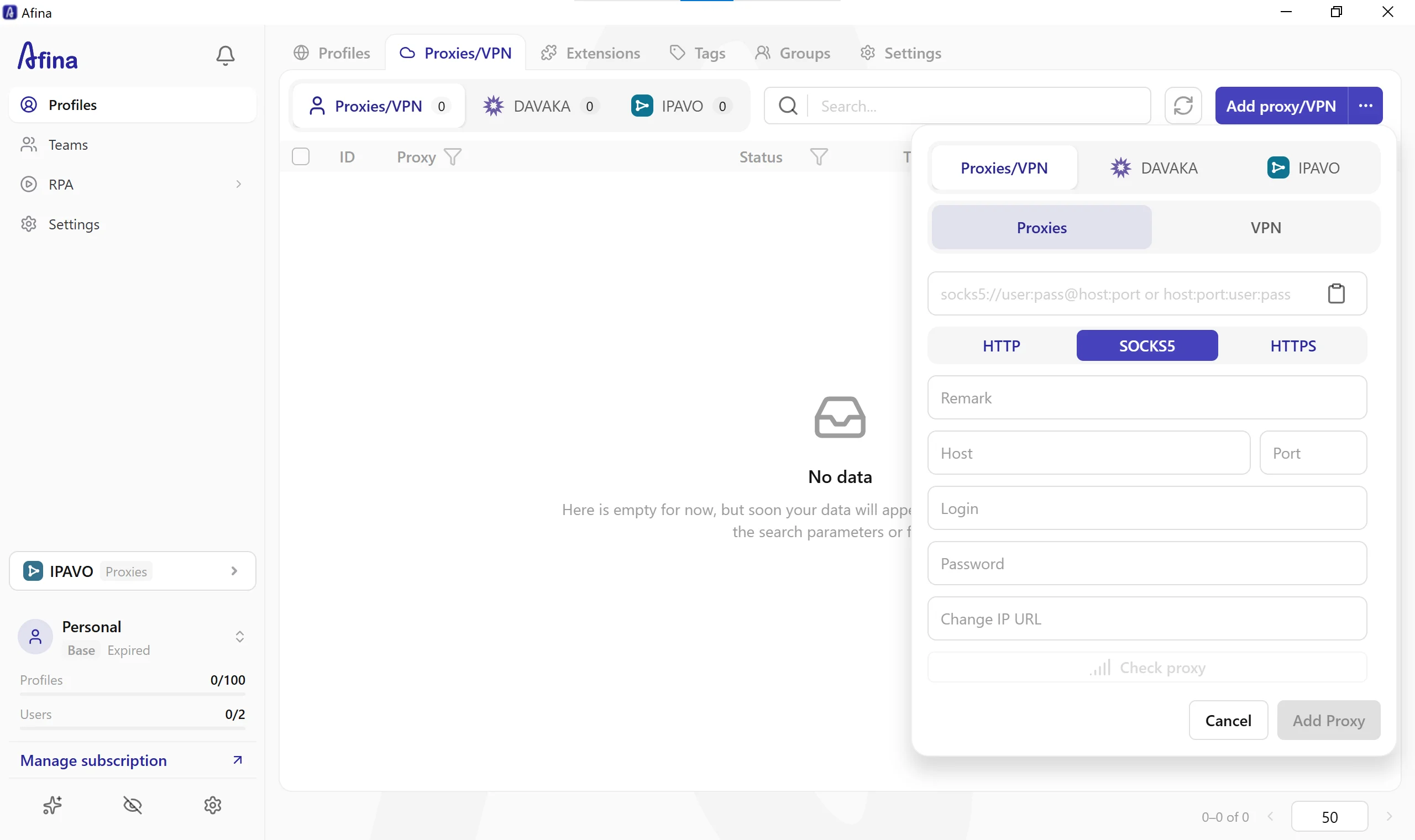
Enter your CyberYozh App credentials: populate the fields either by pasting your full proxy string (
socks5://HelloYozhd8e0f0c2...) into the top parser field and clicking the clipboard icon so Afina distributes the values automatically, or by filling in Remark, enteringgate.cyberyozh.net(or your static/mobile IP) in Host, entering11000in Port, and pasting your Login and Password without leading or trailing spaces. For mobile proxy configuration Afina setups, paste your rotation link from CyberYozh App into the Change IP URL field.
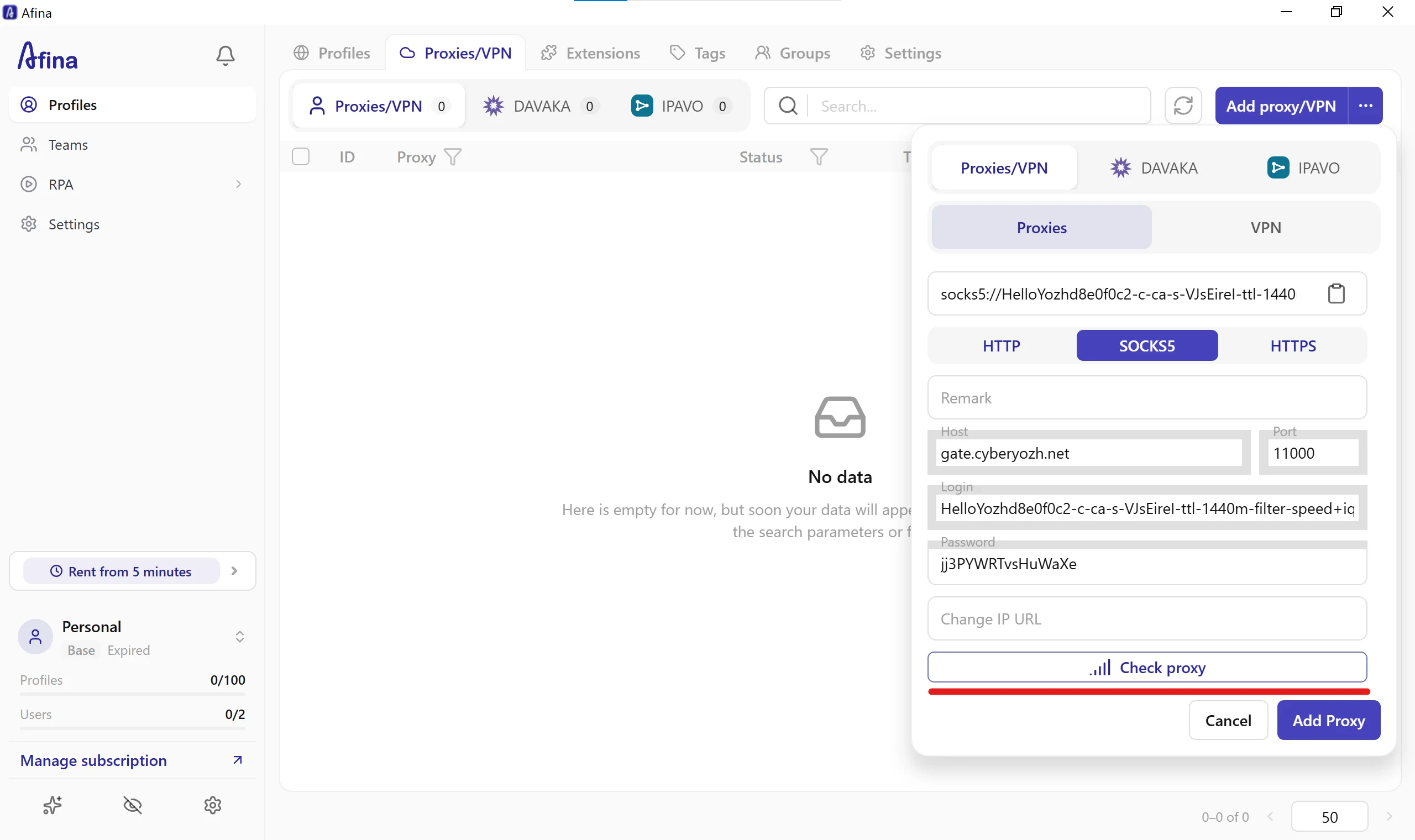
Run the built-in proxy check and save: click the Check proxy button at the bottom of the modal. Afina tests the gateway and displays a green
Check completed successfullybanner along with the detected location (CA, Ajax), outgoing IPv4 address (99.232.55.183), and a verifiedUDPbadge. Click the blue Add Proxy button in the bottom-right corner.
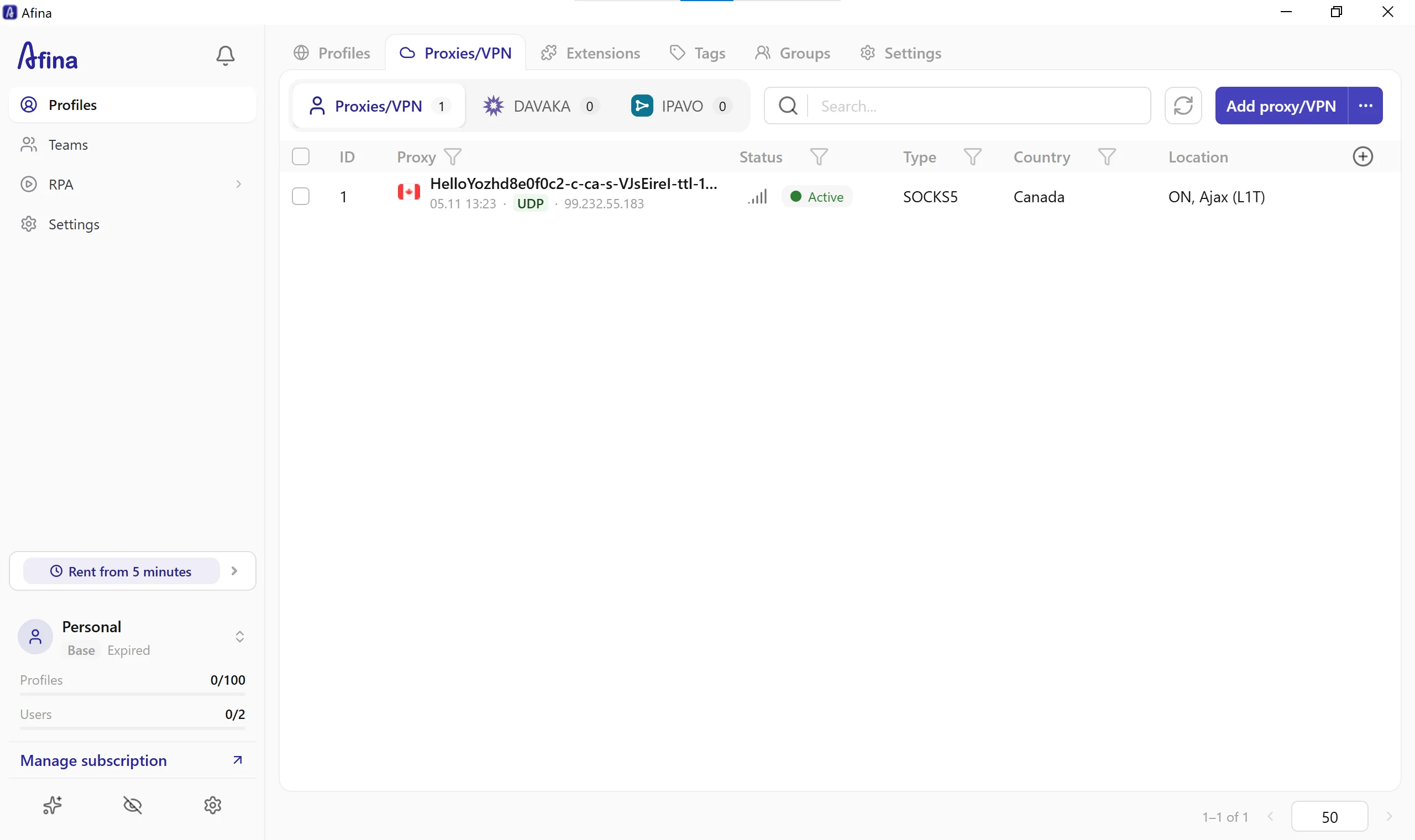
Verify the saved entry in the Proxies/VPN table: your verified proxy in the Afina browser now appears in the central table with a green
Activestatus badge,UDPtag,SOCKS5protocol type, Canada country label, andON, Ajax (L1T)location.
Step 3: How to assign proxy IP to Afina browser profile and launch a session
Once your gateway is verified in the central table, complete your Afina browser proxy setup by binding the endpoint to an isolated profile:
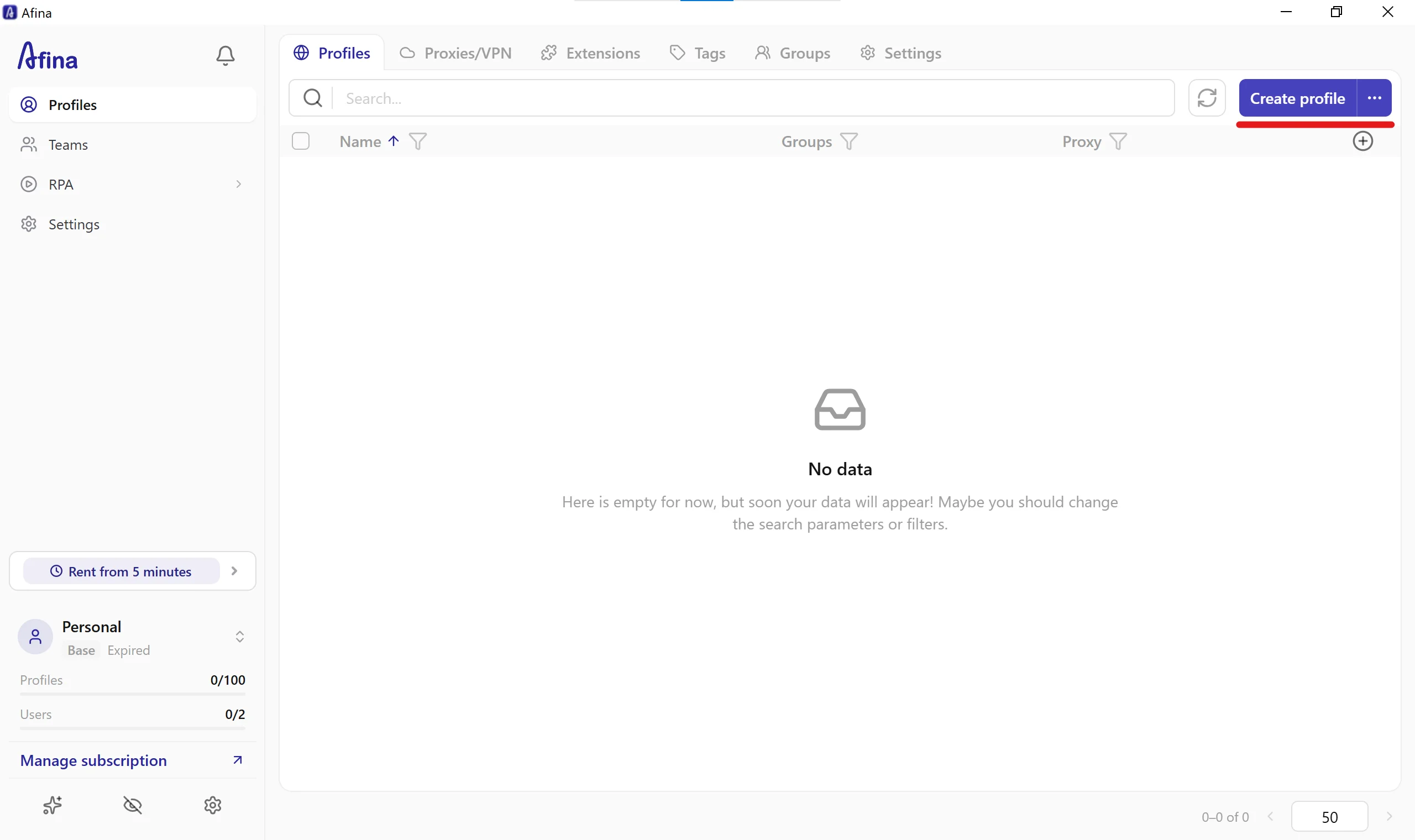
Start profile creation: click the Profiles tab in the top-left navigation bar and click the blue Create profile button in the top-right corner.
Configure device and OS parameters in New account: inside the New account modal (General tab), enter a descriptive profile name in Name (for example, CyberYozh App), assign Tags or Account Groups if needed, and under Browser and OS select the operating system icon that matches your physical machine (such as Windows 11 on a Windows PC) so font metrics and WebGL Renderer signals remain consistent. Directly below the OS selector is the Proxies/VPN input field.
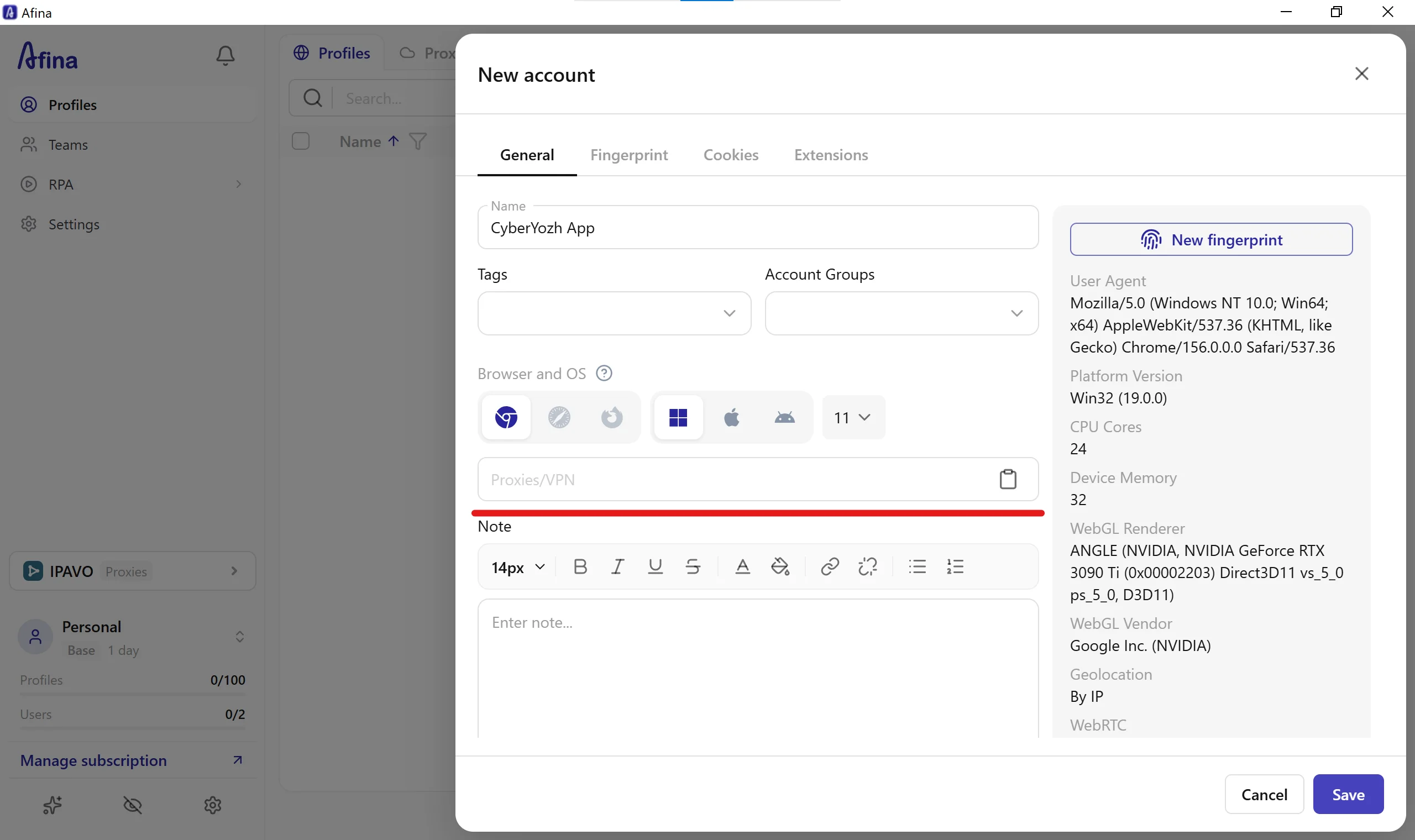
Select your verified proxy from the dropdown: click the Proxies/VPN field inside the profile editor. In the dropdown panel that opens, either paste a new single-profile string or click your verified CyberYozh App gateway (
SOCKS5 · UDP) from the saved list. This is the fastest way for how to assign proxy IP to Afina browser profile across multiple projects.
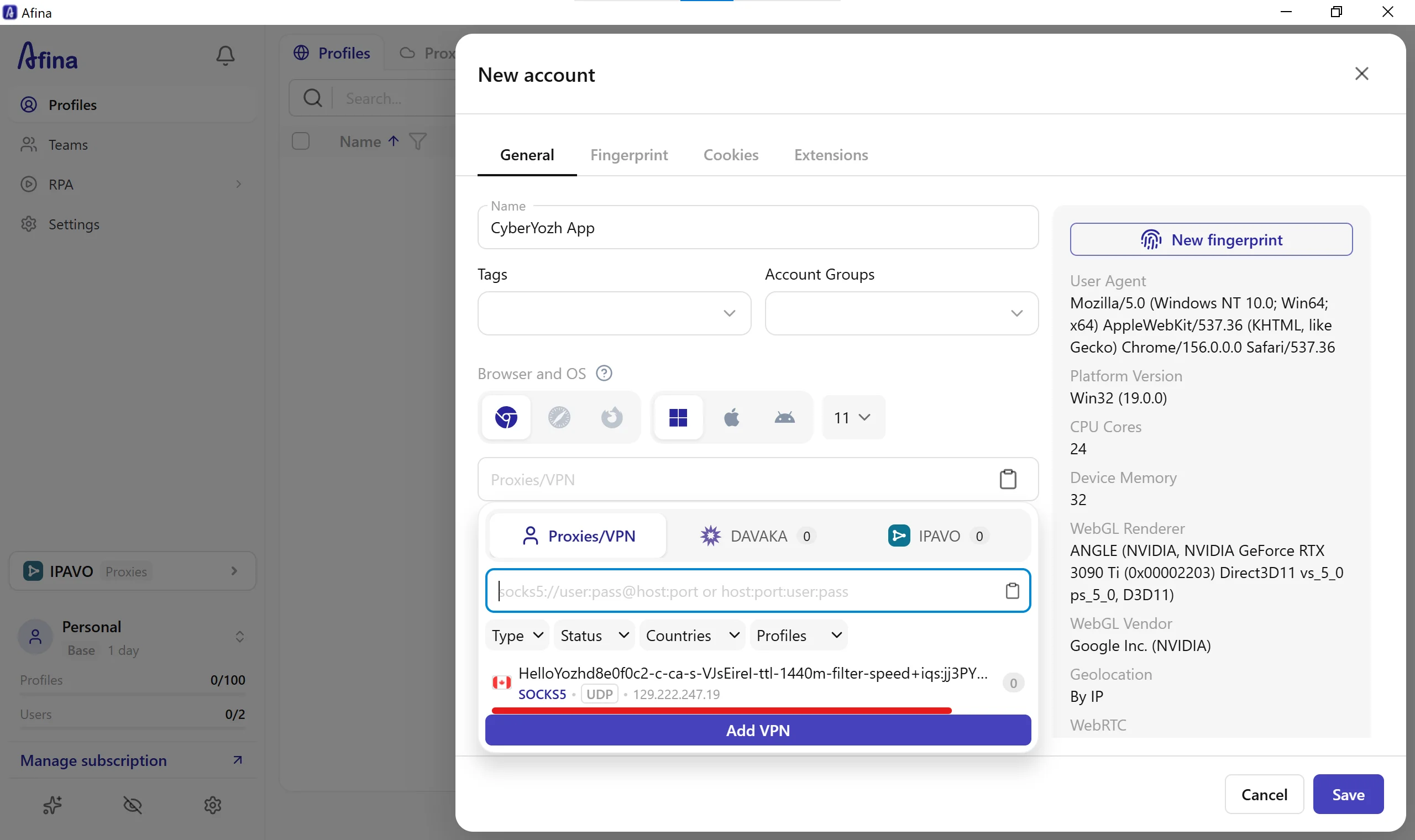
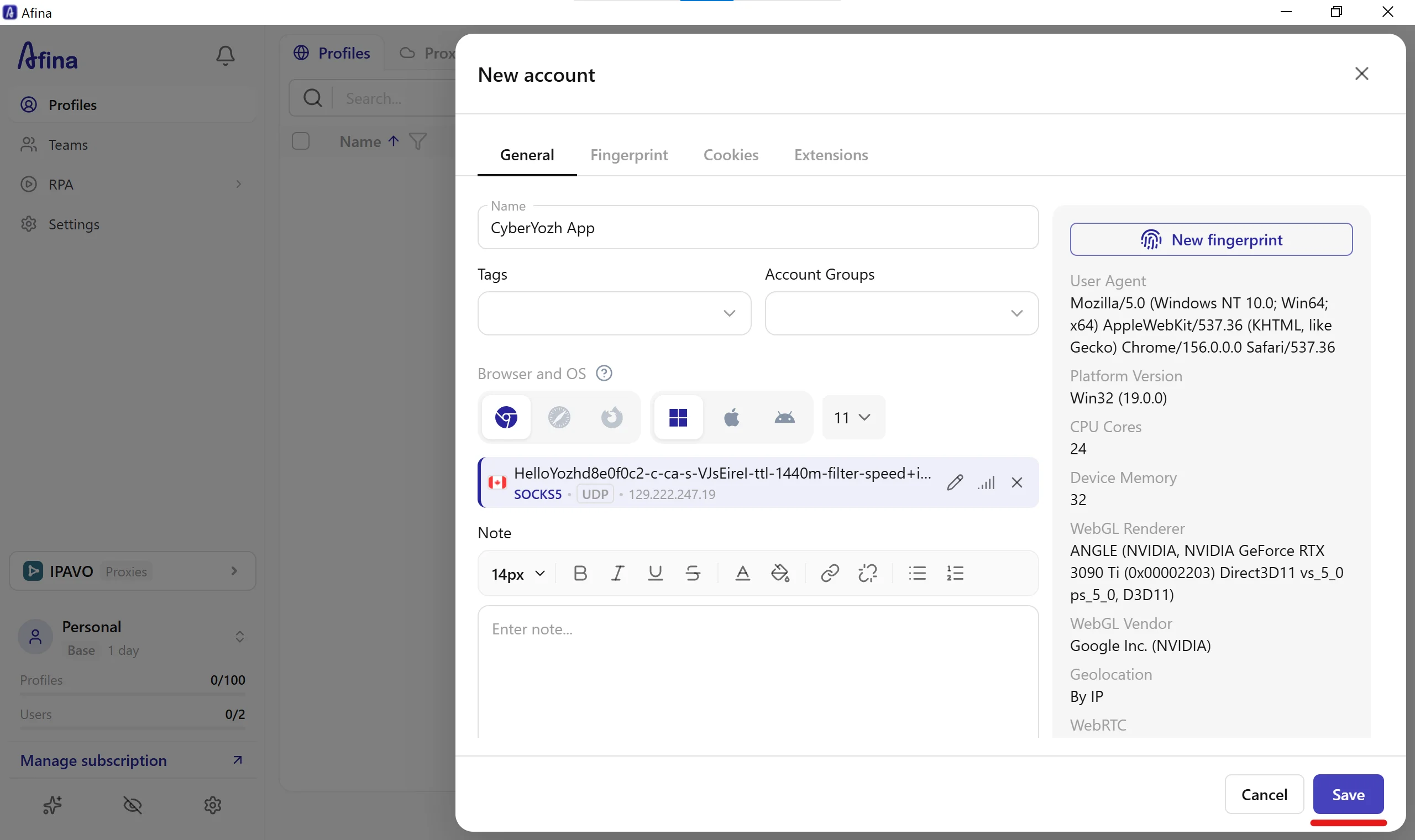
Verify geo-dependent synchronization and save: once selected, the attached endpoint appears in the profile box with quick edit and ping-check icons. In the right-hand fingerprint summary panel, confirm that Geolocation is set to
By IP. Afina automatically reads the geolocation of your CyberYozh App proxy to set regional IP in Afina browser parameters, aligning Accept-Language headers, system clock, geolocation coordinates, and WebRTC output with the proxy region. Click the blue Save button in the bottom-right corner.
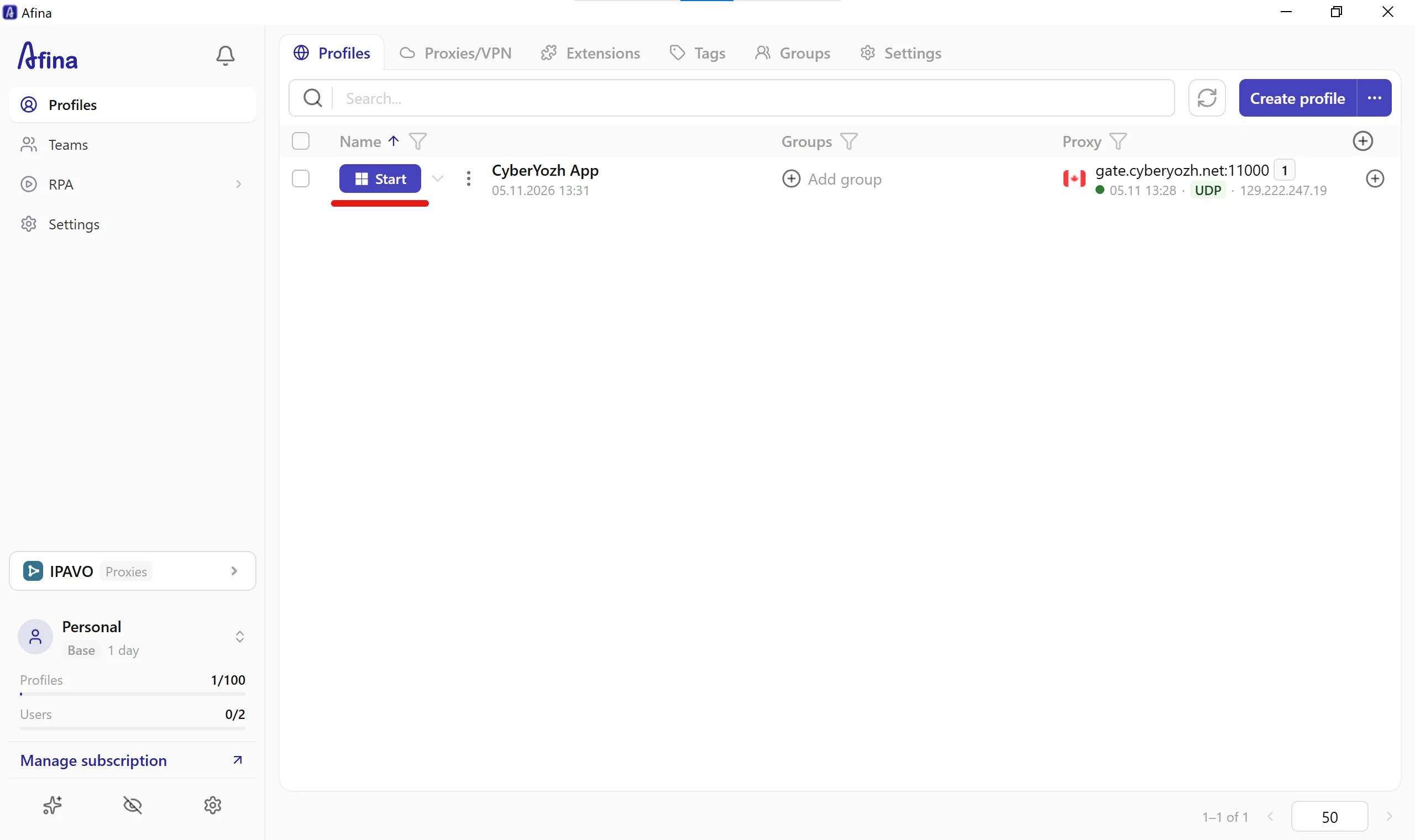
Launch the configured profile: locate your new CyberYozh App profile in the Profiles table, verify the green active proxy indicator (
gate.cyberyozh.net:11000 · UDP) in the Proxy column, and click the blue Start button.
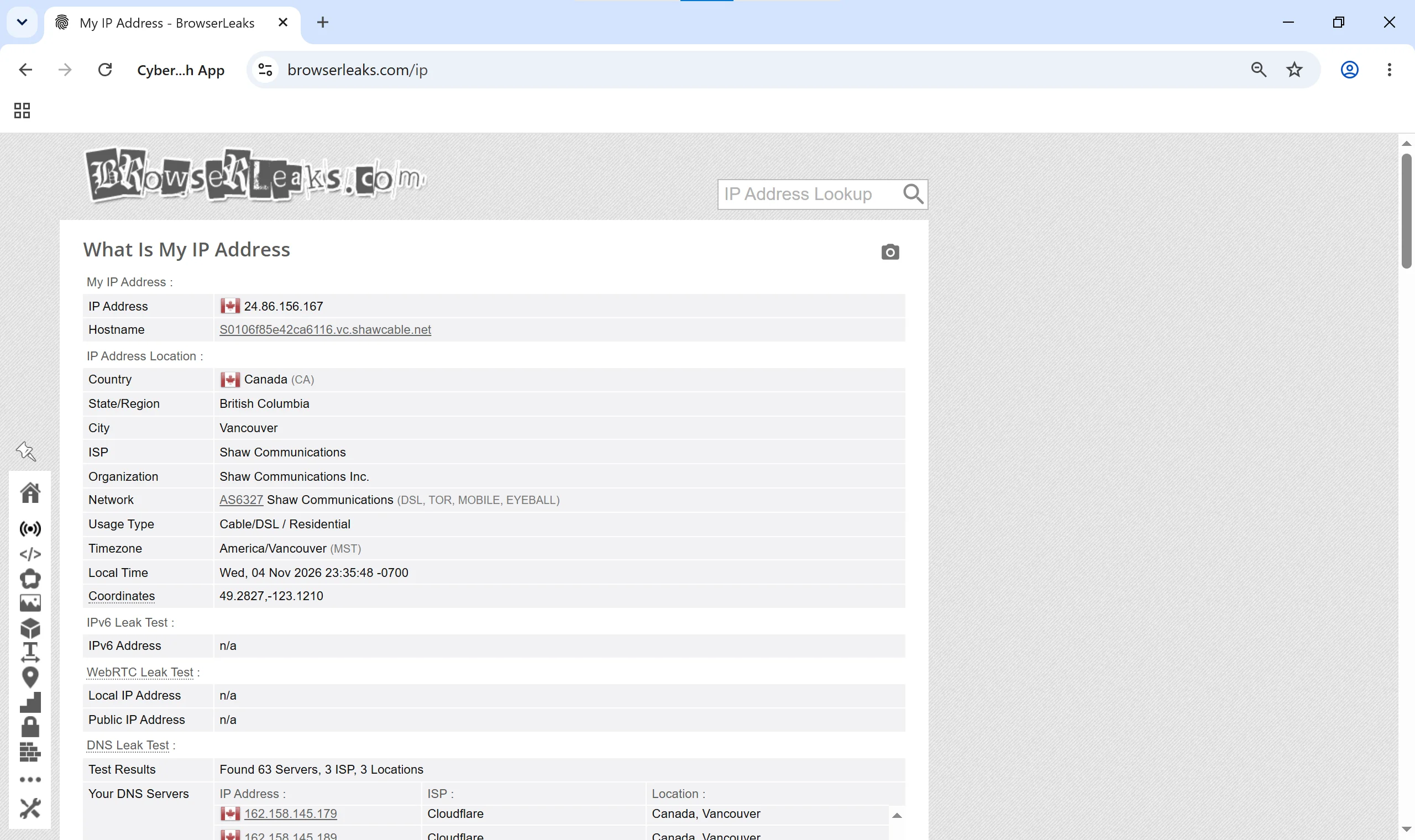
Run final verification inside the running session: when the isolated Chromium browser window opens, visit a diagnostic page such as
browserleaks.com/ip. Confirm that the visible exit IP (24.86.156.167), Country (Canada), ISP (Shaw Communications Inc., Usage Type: Residential), Timezone (America/Vancouver), and DNS servers match your target region with zero local leaks under WebRTC Leak Test.
Scaling team workflows, RPA automation, and account verification
When operating dozens of client profiles across a team, you can pair your Afina browser proxy configuration with CyberYozh App's broader operational infrastructure:
Bulk credential generation and team sub-accounts: use the Mass Credentials Generator in CyberYozh App to export .txt lists of geo-targeted sticky endpoints, and delegate traffic budgets using CyberYozh App sub-users alongside Afina's Teams and Groups permissions.
RPA, Node.js scripts, and MCP AI agents: Afina includes a visual no-code RPA builder, a Node.js scripting engine, a local API with 79 endpoints, and an official MCP server for connecting AI assistants like Claude or ChatGPT. Pair these automated pipelines with CyberYozh App AI proxy solutions or unlimited mobile channels so every automated thread routes through a clean carrier or household IP.
Regional SMS verification and virtual cards: if a workflow inside your Afina profile requires phone verification or localized payment methods, rent a regional number in the CyberYozh App SMS service (one-time virtual numbers across 140+ countries from $0.02/15 min, or US real-ISP residential numbers from $0.49/15 min) and issue a matching virtual bank card with Apple Pay and Google Pay support. Always validate phone numbers and cards via the CyberYozh App checkers before submitting them to target platforms.
Troubleshooting Afina browser proxy settings
Even after you configure proxy in Afina browser, local network conflicts or credential typos can occasionally interrupt connectivity. Use the table below to resolve common issues quickly.
Symptom in Afina Browser | Root Technical Cause | Actionable Fix |
Check proxy fails with Connection or Authentication Error | Extra whitespace pasted in Login or Password, expired traffic package, or mismatched port/protocol. | Re-copy the credentials from your CyberYozh App dashboard without trailing spaces; verify that your package is active and that the selected protocol (SOCKS5 vs HTTP) matches your port. |
UDP test fails during Check proxy | Protocol is set to HTTP or HTTPS instead of SOCKS5 in the configuration modal. | Switch the protocol selector in the Add proxy/VPN modal to SOCKS5 and re-run Check proxy to enable transport-layer UDP routing for QUIC and HTTP/3. |
Local IP appears instead of proxy IP | A system-wide VPN client or local firewall/proxifier on the host PC is intercepting traffic. | Disable active desktop VPN tunnels before launching the Afina profile so system routing does not conflict with the profile proxy. |
Profile stops mid-session or prompts for re-login | Per-request IP rotation was used on an account that expects a persistent session IP. | For rotating residential proxies, set Custom duration to 1440 minutes (24h sticky session) in the CyberYozh App generator, or switch the profile to a dedicated Static ISP Residential proxy. |
Profile launch button is disabled | Browser kernel is still downloading or updating on startup. | Wait for the |