
How to integrate CyberYozh proxy with Dolphin Anty
Dolphin Anty is a widely used multi-profile browser for managing internet profiles, allowing teams to work with multiple accounts while isolating each digital environment. Its configuration options support stable operation, browser parameter customization, and strict session separation for professional multi-account workflows.
However, profile isolation only works when paired with clean network infrastructure. In this guide, we walk through connecting proxies from CyberYozh App to maintain session consistency, separate network identities, and predictable account performance.
How to add CyberYozh proxies in Dolphin Anty
1. Getting proxy credentials from CyberYozh
Step 1. Go to Profile - My Proxies to see your active connections. If you don’t have proxies yet, open the catalog and choose the proxy type that fits your workflow (static ISP, rotating residential, mobile LTE/5G, or datacenter).
Once you click Buy, the proxy appears in your profile. For rotating residential proxies, you can lock sticky sessions for up to 24 hours to maintain a consistent IP across long multi-step sessions, or use the built-in Mass Credentials Generator to export bulk proxy lists for dozens of Dolphin Anty profiles in seconds.
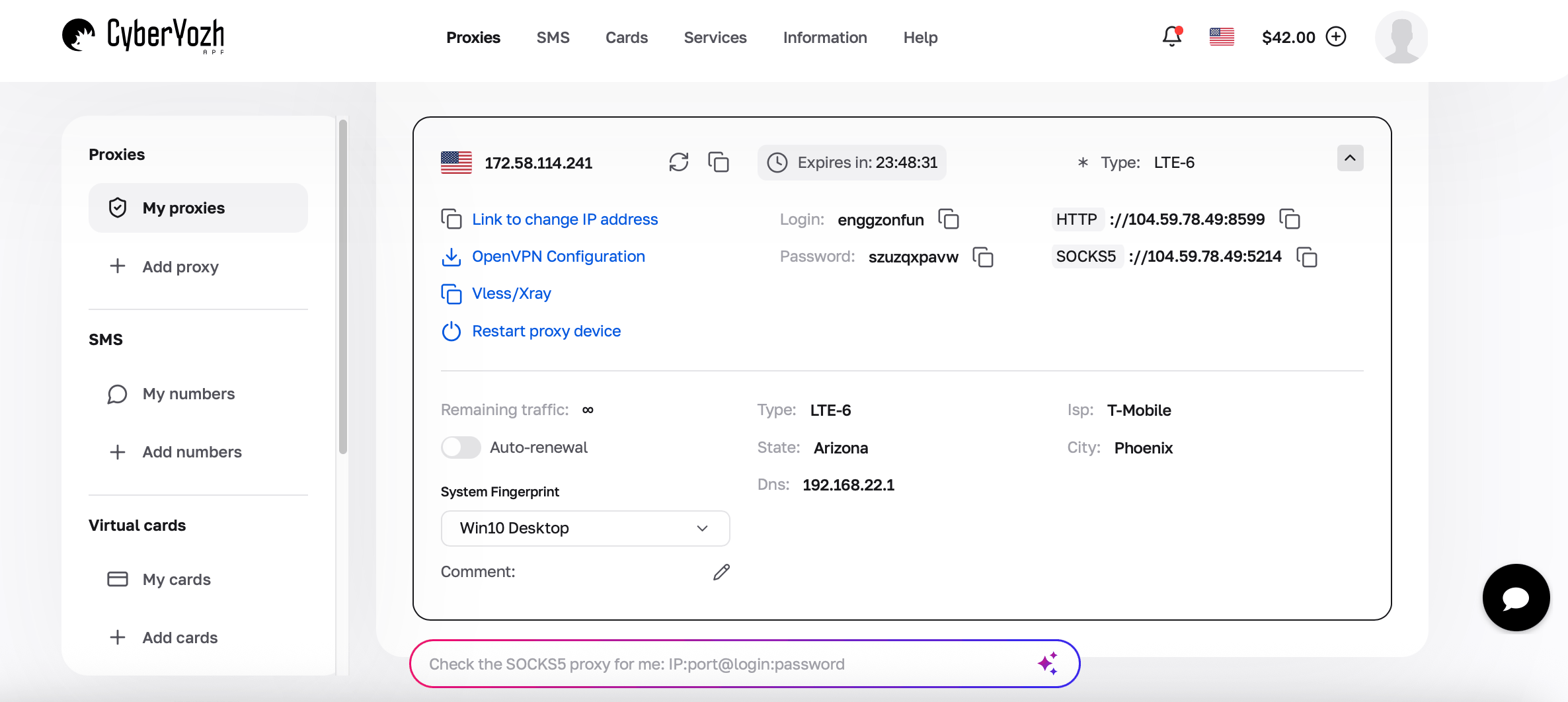
If you need more guidance, we have instructions explaining how to choose and buy proxies on CyberYozh.
2. Adding proxies in Dolphin Anty
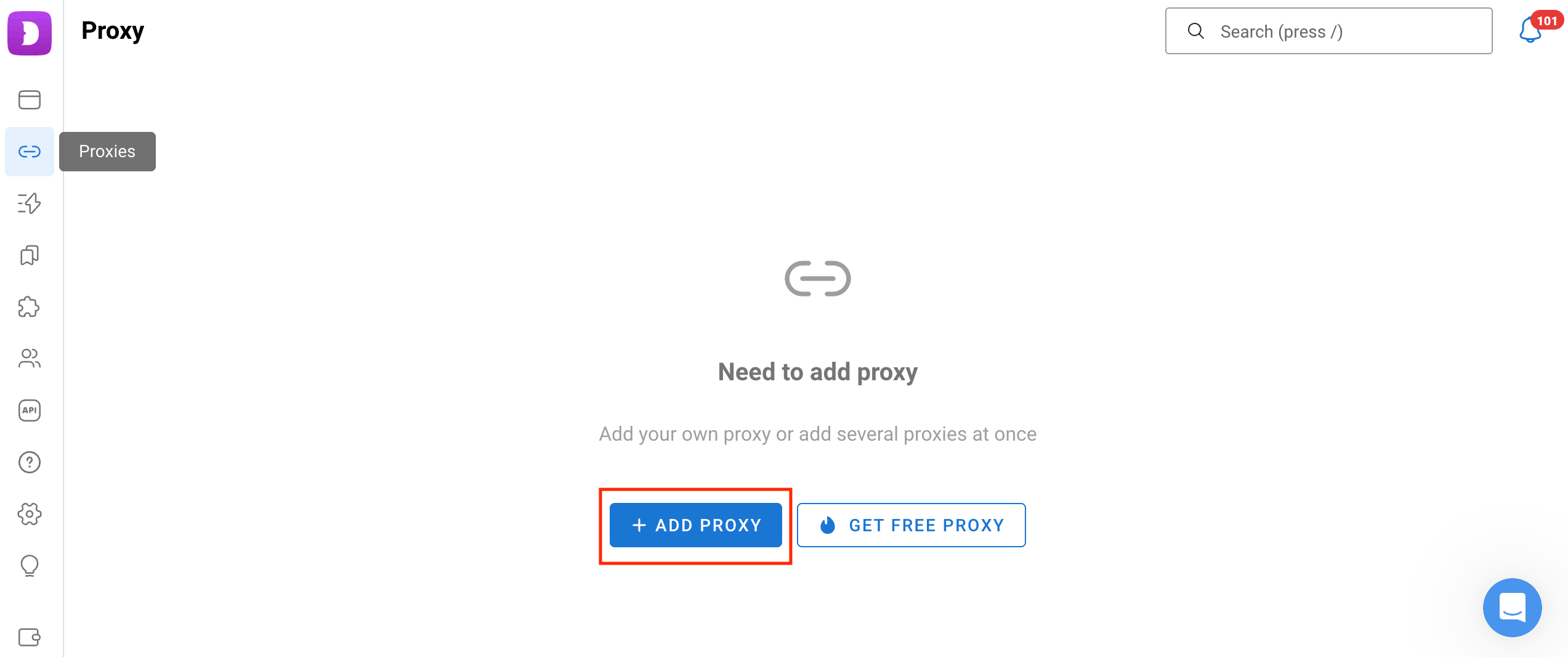
Step 1. Launch the Dolphin{anty} browser and click Proxies on the left, then click the Add Proxy button.
Step 2. Enter the profile name and status, and generate a new browser fingerprint.
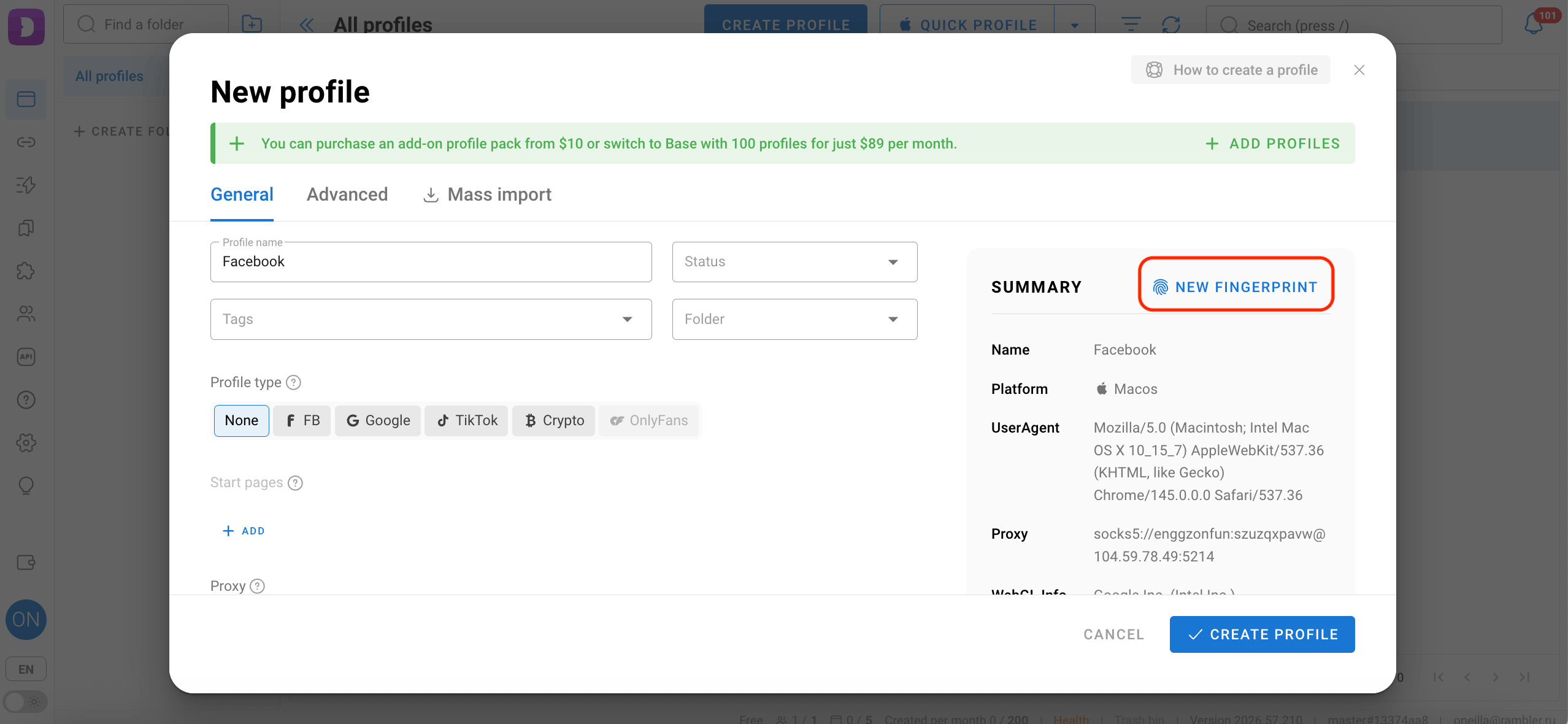
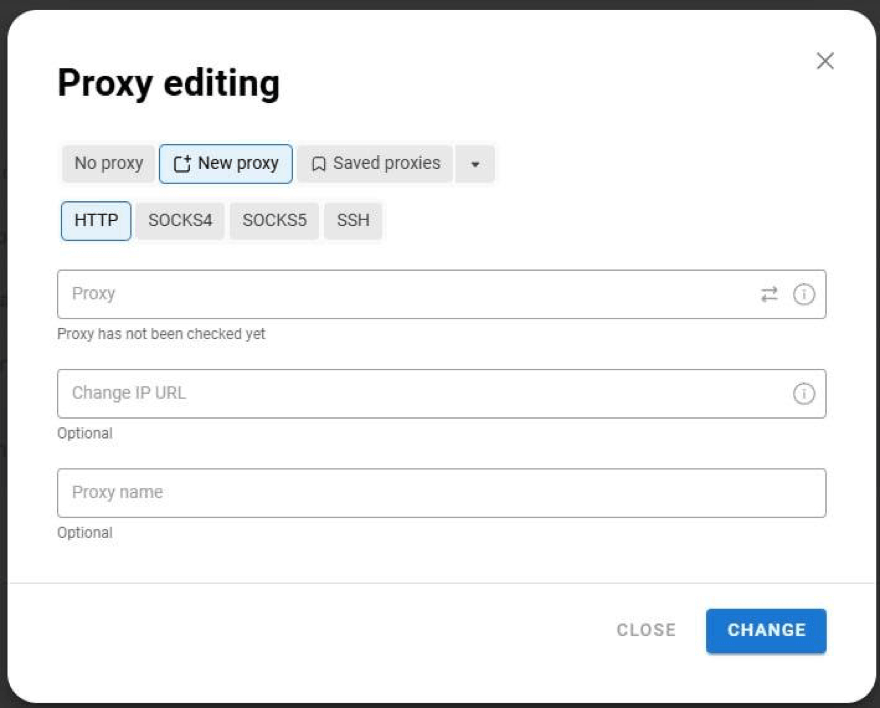
Step 3. Choose the proxy protocol (SOCKS5 in the example), then copy and paste the connection string from your proxy card in CyberYozh. Use the following format: protocol://login:password@host:port. Click on the arrows to test the connection.
Step 4. IP Rotation Link. Specify the API link for changing the IP if your mobile proxy supports on-demand rotation. Otherwise, leave this field blank.
You can copy the link to change the IP by clicking on the copy icon in your proxy card.
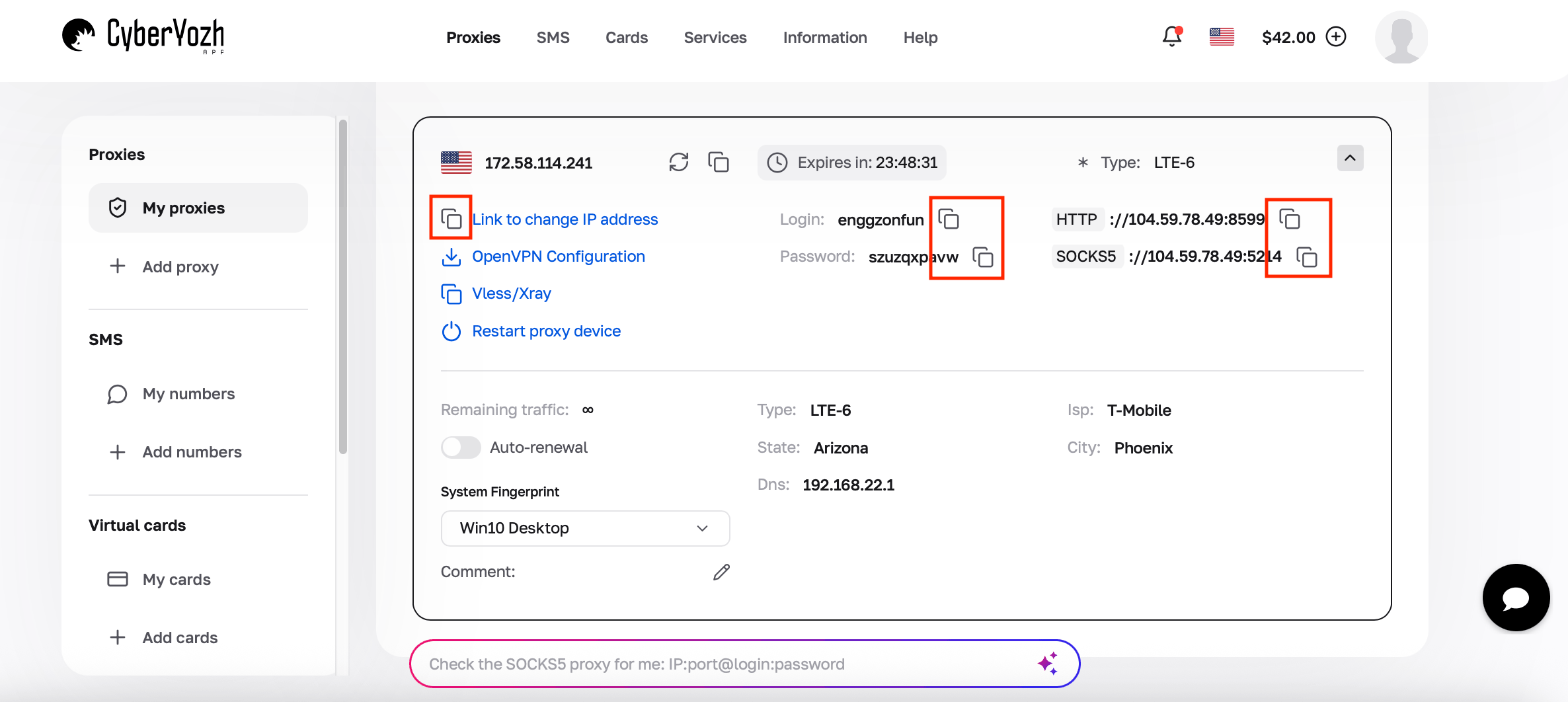
Step 5. Click Create Profile.
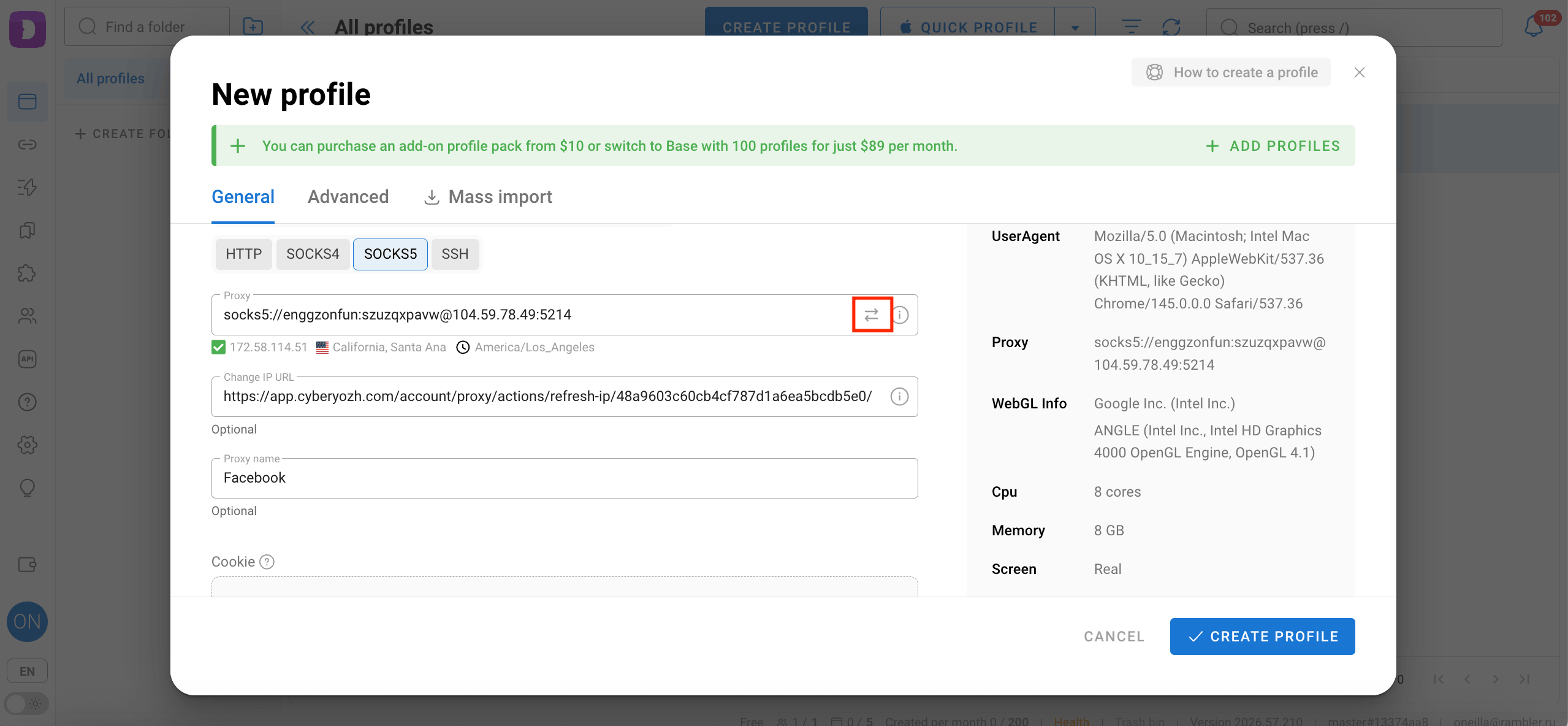
Step 6. After entering all parameters, verify the proxy connection status by clicking on the arrows. Confirm that the credentials are entered accurately and the connection responds cleanly.
How to configure the browser profile
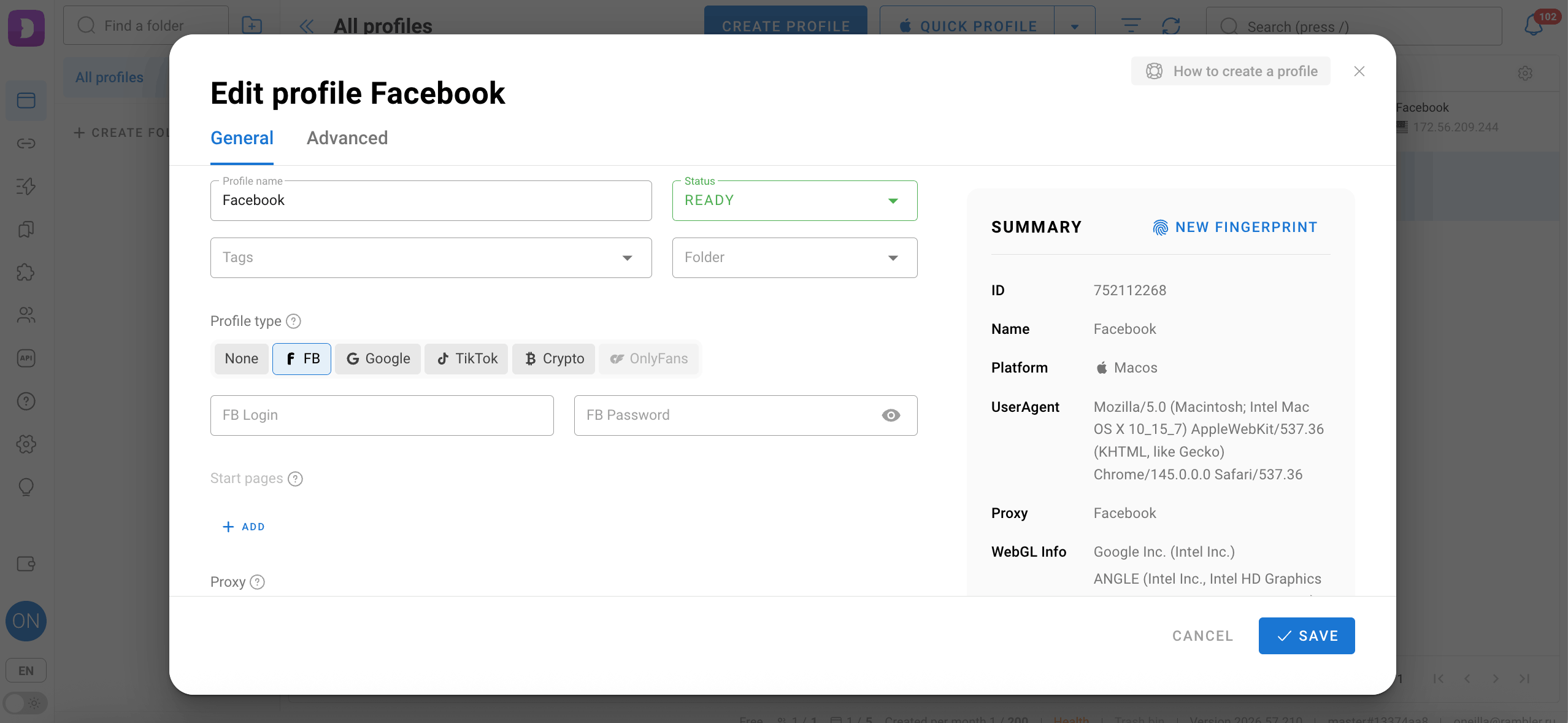
Step 1. Create a new profile. Create a fresh browser profile or assign the verified proxy to an existing one.
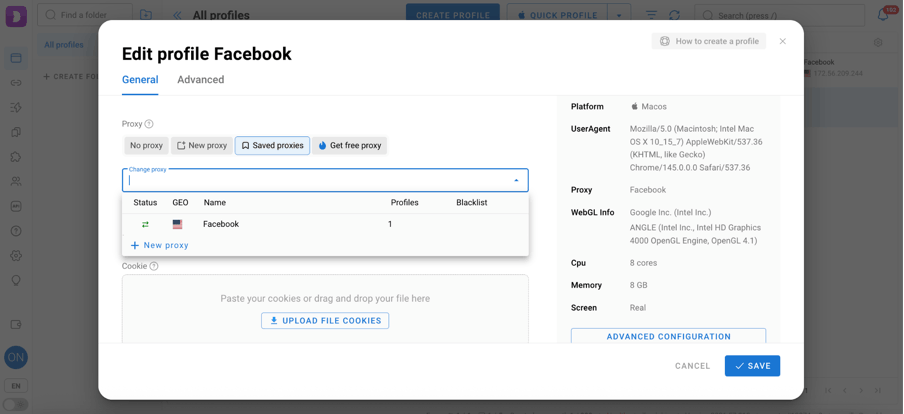
Step 2. Adjust profile settings. Configure your profile parameters to match your operational task. Set the status and target platform tag if applicable. You can customize user agents, WebRTC, timezone, and geolocation settings so the browser environment aligns with the physical region of your proxy IP.
Step 3. Pre-validate IP risk before execution. Adopt a Risk Evaluation Before Execution workflow: before binding a proxy to an important Dolphin Anty profile or logging into target accounts, verify the node with CyberYozh’s Fraud Score and IP checking tool. Pre-checking scans the IP against anti-fraud databases for prior complaints, Bogon routing, and abuse velocity so you only assign clean addresses to your profiles.
Step 4. Launch the profile and verify that the browser resolves the expected regional IP address and timezone.
Step 5. To edit the IP rotation link in an existing profile, click on the pencil icon next to the profile name.
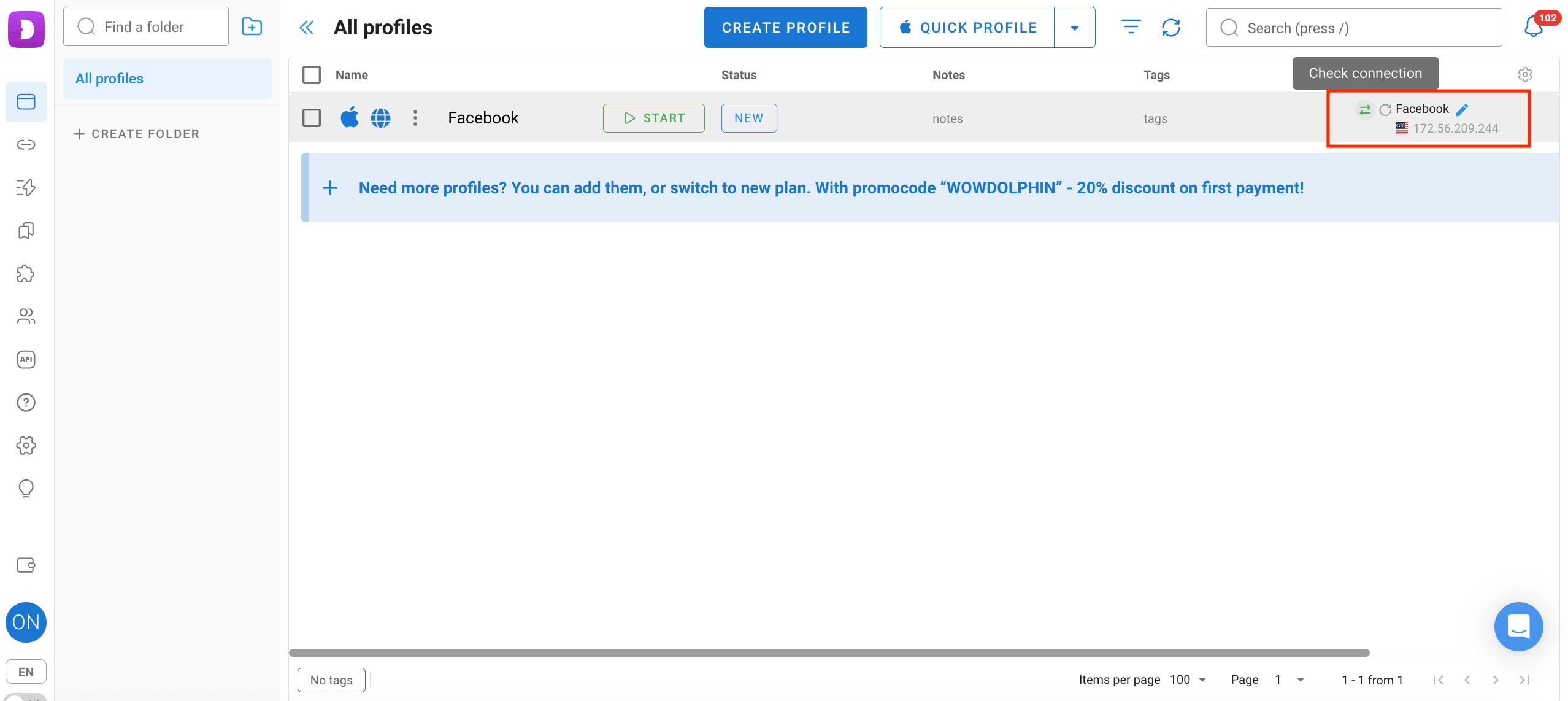
Paste the updated rotation link into the form.
Matching proxy types to Dolphin Anty workflows
When working in Dolphin Anty, both protocol selection and IP session behavior determine connection stability, profile isolation, and session integrity. Choosing the right infrastructure comes down to matching the network type to your exact task.
Proxy Protocols
HTTP/HTTPS: Suited for general browsing, public web data collection, and standard automation. Use HTTPS when routing traffic through encrypted web endpoints.
SOCKS5: Supports lower-level TCP and UDP traffic, making it the preferred protocol for long-running sessions, persistent account profiles, and real-time web applications.
IP Rotation and Infrastructure Specs
Static ISP Residential (from $5.29/month, unlimited traffic): A single dedicated residential IP from a real internet service provider remains assigned to you for the entire rental period. Ideal for long-term multi-account management, e-commerce seller dashboards, and workflows where a permanent IP (1 profile = 1 static IP) is mandatory.
Rotating Residential (100M+ IPs across 195+ countries): Usage-based residential pool starting at $4/GB (3 GB minimum package, scaling down to $2.5/GB at 100 GB) with automatic traffic rollover to the next billing month if unused. Supports both per-request rotation for high-volume data collection and sticky sessions up to 24 hours for extended account onboarding, QA testing, and multi-page workflows with free city-level geo-targeting.
Mobile LTE/5G (from $1.7/day, unlimited traffic): Operates through real cellular carrier networks using CGNAT technology, where thousands of real smartphone users share a single external IP address. Supports manual, timer, or API-link IP rotation. Because carrier IPs carry the highest trust across platforms and include unlimited bandwidth, mobile proxies are the optimal choice for strict social platforms, Google account workflows, and multi-threaded Google SERP scraping.
Datacenter (from $1.77/month): High-speed dedicated server IPs with low latency for open database scraping, API testing, and tasks without strict residential ASN checks.
Use-Case Mapping
Advertising & SMM: Use mobile LTE/5G or static ISP residential proxies with SOCKS5 to maintain consistent carrier or home ISP network identities across logged-in sessions.
Web Scraping & Data Collection: Use rotating residential proxies ($4/GB) for general public web data collection, or deploy unlimited mobile LTE/5G proxies for continuous multi-threaded Google search scraping.
Multi-Account Management: Pair static ISP proxies or 24-hour sticky residential sessions with SOCKS5 to keep each account’s network footprint consistent and reduce re-authentication prompts.
QA & Compliance Testing: Combine SOCKS5 or HTTPS with 24-hour sticky sessions or controlled rotation via the Mass Credentials Generator depending on your regional test scope.
Recommendation: Match your task to the network layer: static ISP or mobile LTE/5G + SOCKS5 for persistent accounts, and rotating residential + HTTP/S for scalable regional testing and data collection.
Troubleshooting Common Errors
1. Proxy authentication failed
Usually caused by an incorrect username/password or formatting typo in the connection string. Double-check your credentials in the CyberYozh dashboard and confirm the exact port for HTTP or SOCKS5.
2. Proxy connected but real IP is visible
This happens if the proxy is not properly attached to the profile or WebRTC is leaking locally. Re-check the profile proxy assignment and enable WebRTC protection inside Dolphin Anty settings.
3. Connection timeout or slow loading
Often related to incorrect protocol selection (HTTP vs SOCKS5) or geo-distance latency. Try switching the protocol or generating a node closer to your target server.
4. Frequent re-logins or verification prompts
Common when using per-request rotating IPs on accounts that require persistent sessions. Switch to static ISP proxies, mobile LTE/5G proxies, or lock a 24-hour sticky session on rotating residential proxies to maintain session continuity.
Building a Complete Workflow with CyberYozh App
Working with Dolphin Anty is about maintaining isolated, predictable browser environments. Pairing each profile with the right static ISP, rotating residential, or mobile proxy from CyberYozh App keeps your network identities separated and your sessions stable at scale.
Instead of juggling multiple vendors, you can manage your entire setup inside one platform. Combine pre-flight Fraud Score checks with CyberYozh App’s SMS activation service for account onboarding and verification. Renting separate virtual or residential phone numbers lets you isolate account registrations without reusing numbers across profiles.
EXCLUSIVE OFFER FOR CYBERYOZH CLIENTS! Get a 20% discount on your first Dolphin Anty browser payment with promo code CYBERYOZH20. Register now!