
How to set up a proxy in AdsPower: Complete 2026 guide
There's a moment most new AdsPower users hit: you've created your first profile, you're looking at the proxy fields, and you're not entirely sure what goes where, or whether getting it wrong might silently expose your real IP.
It can. And that's exactly why this guide exists. Below is a complete walkthrough: which proxy type to use, how to fill in every field correctly, how to confirm it's actually working, and what to do when it isn't, no assumed knowledge required.
Quick answer: How to add a proxy in AdsPower
To add a proxy in AdsPower:
Open New Profile → scroll to the Proxy section
Then select Custom → choose SOCKS5 → enter your Host, Port, Username, and Password
Click Check Proxy → confirm green status →
Save and launch the profile → verify your IP at BrowserLeaks.
That's the core process. The rest of this guide explains each step in detail, covers common errors, and walks through the fingerprint settings that make proxy isolation actually complete.
What AdsPower does and why proxies are non-negotiable
AdsPower is an antidetect browser. Its purpose is to let you run multiple browser profiles that each appear completely independent, with different fingerprints, different identities, and no visible connection between them.
The browser handles the fingerprint side:
Canvas data
WebRTC behavior
Fonts
Screen resolution
Audio API
Dozens of other browser-level signals.
But here's the part that surprises people: fingerprint isolation alone doesn't protect you if every profile connects from the same IP address.
Platforms don't just check fingerprints. They cross-reference IP addresses. Multiple accounts operating from a single IP address is one of the clearest signals of multi-accounting. Proxies are what give each profile its own IP address, and without them, the rest of AdsPower's fingerprinting work is only partially effective.
One proxy per profile. That's the foundational rule that everything else is built on.
Choosing the right proxy type before you start
This decision matters more than most guides acknowledge. Using the wrong proxy type for a platform creates problems that look random but are entirely predictable.
Mobile proxies (4G/5G)
Best for: Facebook Ads, TikTok, Instagram, Google Ads, Twitter/X, and general social media management.
Mobile proxies use IP addresses assigned by cellular carriers, the same type of IP your phone uses when connected to 4G.
To platforms, they're indistinguishable from real mobile users.
This makes them the most trustworthy proxy type for social and advertising platforms, where detection sensitivity is highest.
Buy for $1.7/day with unlimited traffic
One important note on rotation: if you're using a rotating mobile proxy port across multiple profiles, make sure each profile has its own unique IP at launch. Rotate the IP between sessions, not during them.
Residential proxies (Static/ISP)
Best for: Amazon, eBay, Etsy, financial platforms, banking portals, e-commerce accounts.
These are static IPs tied to real home internet connections.
The key characteristic is consistency; platforms associate your account with a specific IP over time, and an unexplained IP change is a flag.
Once a residential proxy is assigned to a profile, it stays with that profile.
Buy for $5.29/month
The rule here is absolute: 1 profile = 1 static IP. Never reassign a residential IP from one profile to another.
Datacenter proxies
Best for: technical testing, public data collection, non-sensitive scraping.
Fast, cheap, and very easily detected by major platforms.
Their IP ranges are well-documented, and Facebook, Google, TikTok, and
Amazon has long maintained detection systems for common datacenter providers.
For anything involving real accounts on these platforms, it is not recommended.
Buy for $1.9/month unlimited traffic
Use Case | Recommended Proxy Type |
Facebook / TikTok / Google Ads | Mobile (4G/5G) |
Amazon / eBay / E-commerce | Residential (Static/ISP) |
Financial/banking platforms | Residential (Static/ISP) |
Technical testing/scraping | Datacenter |
Step 1: Collect your proxy credentials
Before opening AdsPower, get your proxy credentials ready from your provider dashboard. You'll need exactly four values:
Host: the proxy server's IP address
Port: the connection port number
Username: your authentication login
Password: your authentication password
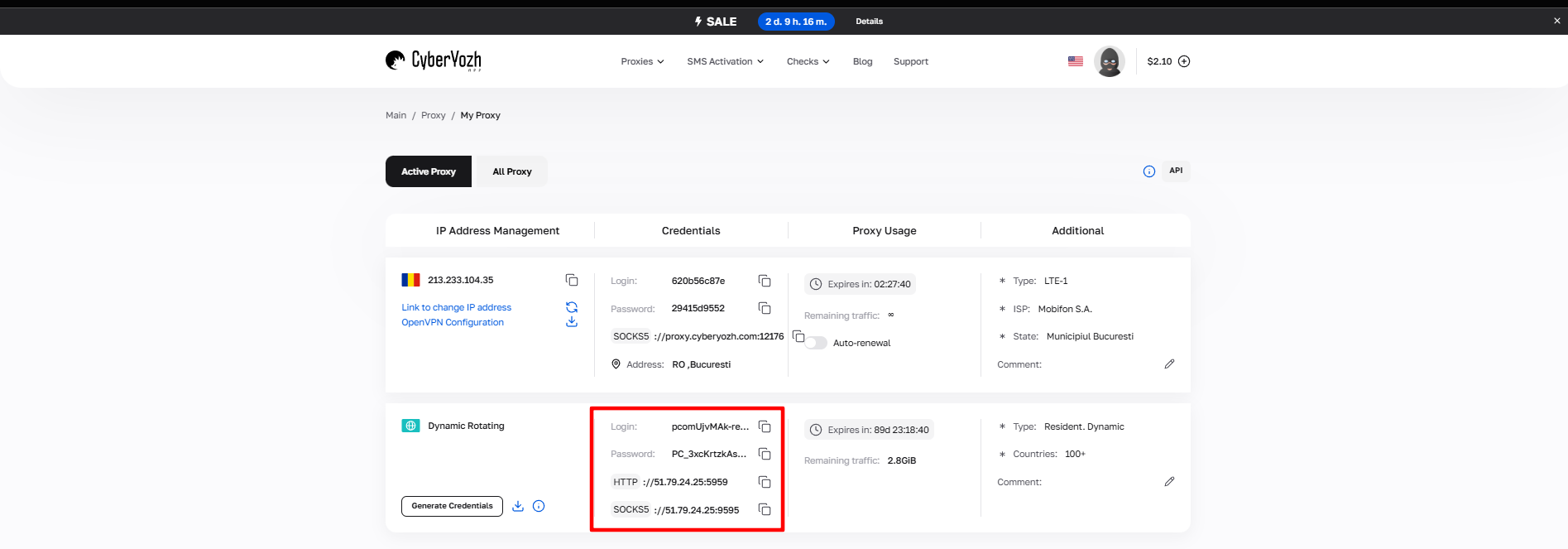
A proxy credential set looks like this:
Host: 172.98.60.180
Port: 58763
Username: 7XbvvWautzmOZMA
Password: xdtAof3xB7RSmUr
Keep this information open in a separate tab. You'll be copying these values directly into AdsPower; manual retyping introduces errors that are surprisingly easy to miss.
One proxy per profile. If you have three profiles, you need three separate proxies with three different IP addresses. This isn't a recommendation; it's the operational foundation of what AdsPower is for.
Step 2: Open a new profile in AdsPower
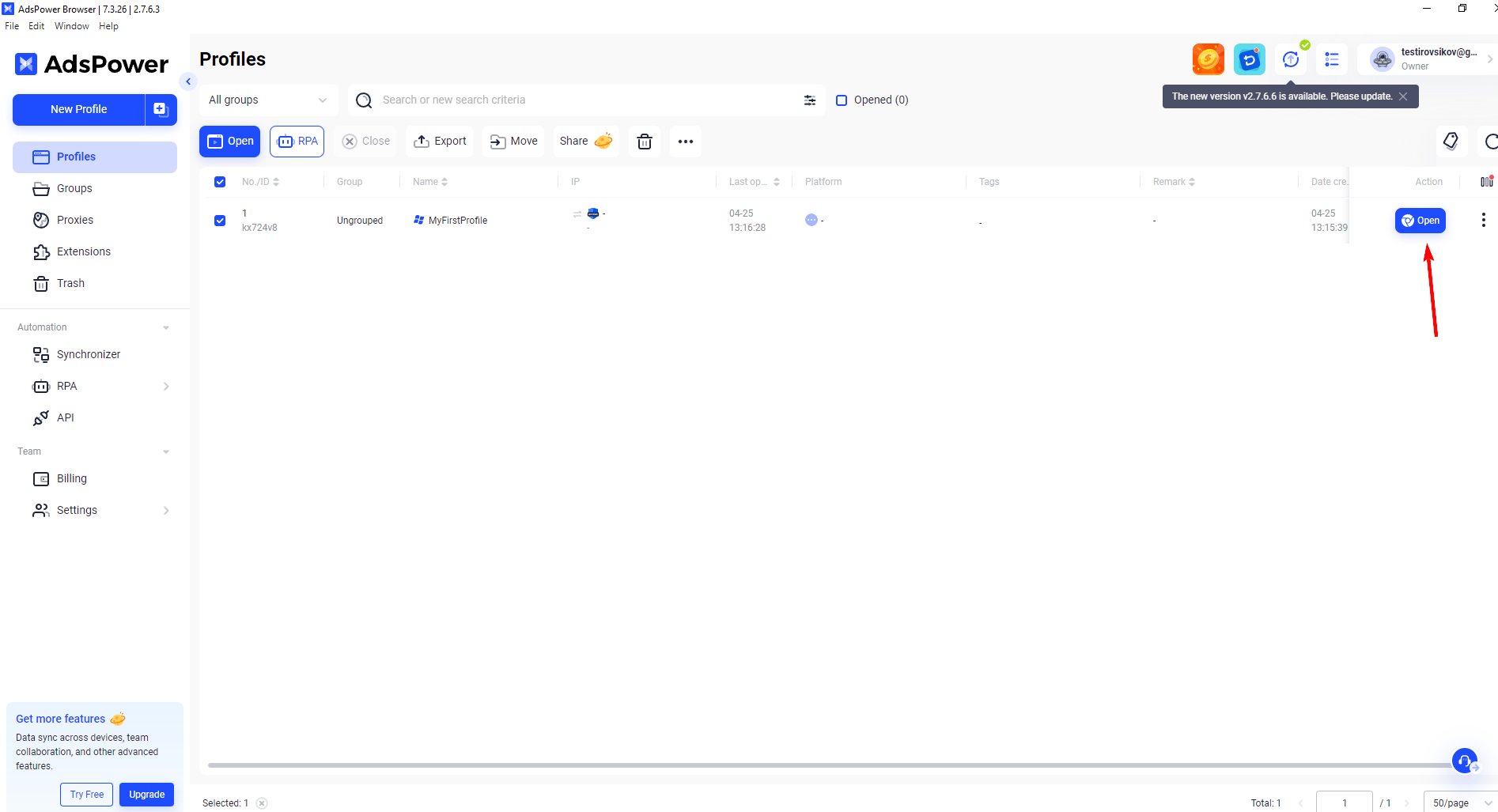
Launch AdsPower. In the left sidebar, click New Profile.
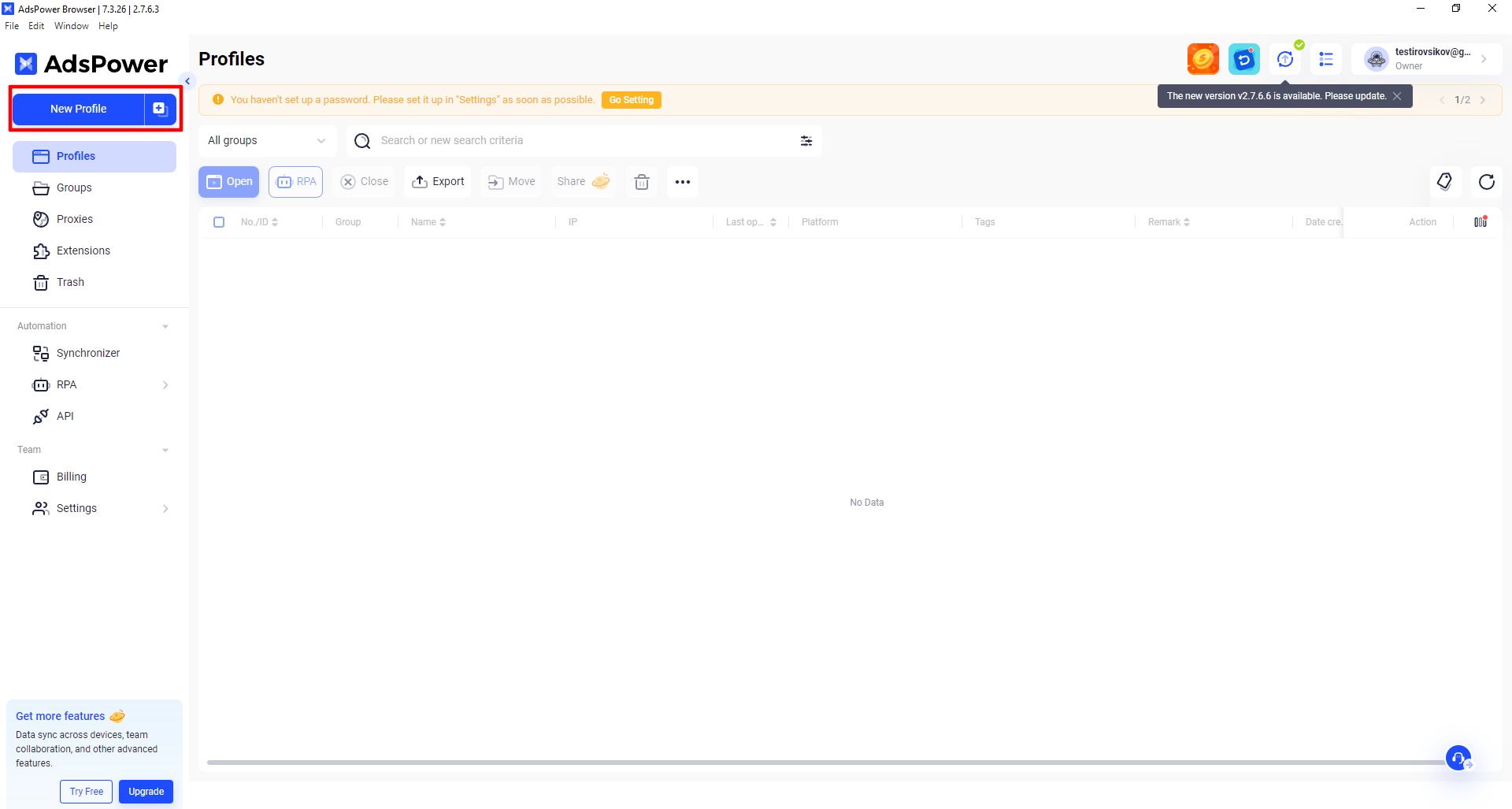
The profile creation form opens. Start with the basic settings:
Profile Name: Use something identifiable that clearly indicates what this profile is for. FB-US-Account-01 is useful. Profile 1 is not.
Browser: AdsPower offers SunBrowser and FlowerBrowser. Either works; choose based on your use case or platform requirements.
Operating System: Select the OS that matches the geographic and demographic profile you're building. A US residential proxy paired with a macOS profile is coherent. Inconsistencies here are worth avoiding.
User Agent: Leave on auto-generated unless you have a specific reason to override it. AdsPower generates realistic user agents by default.
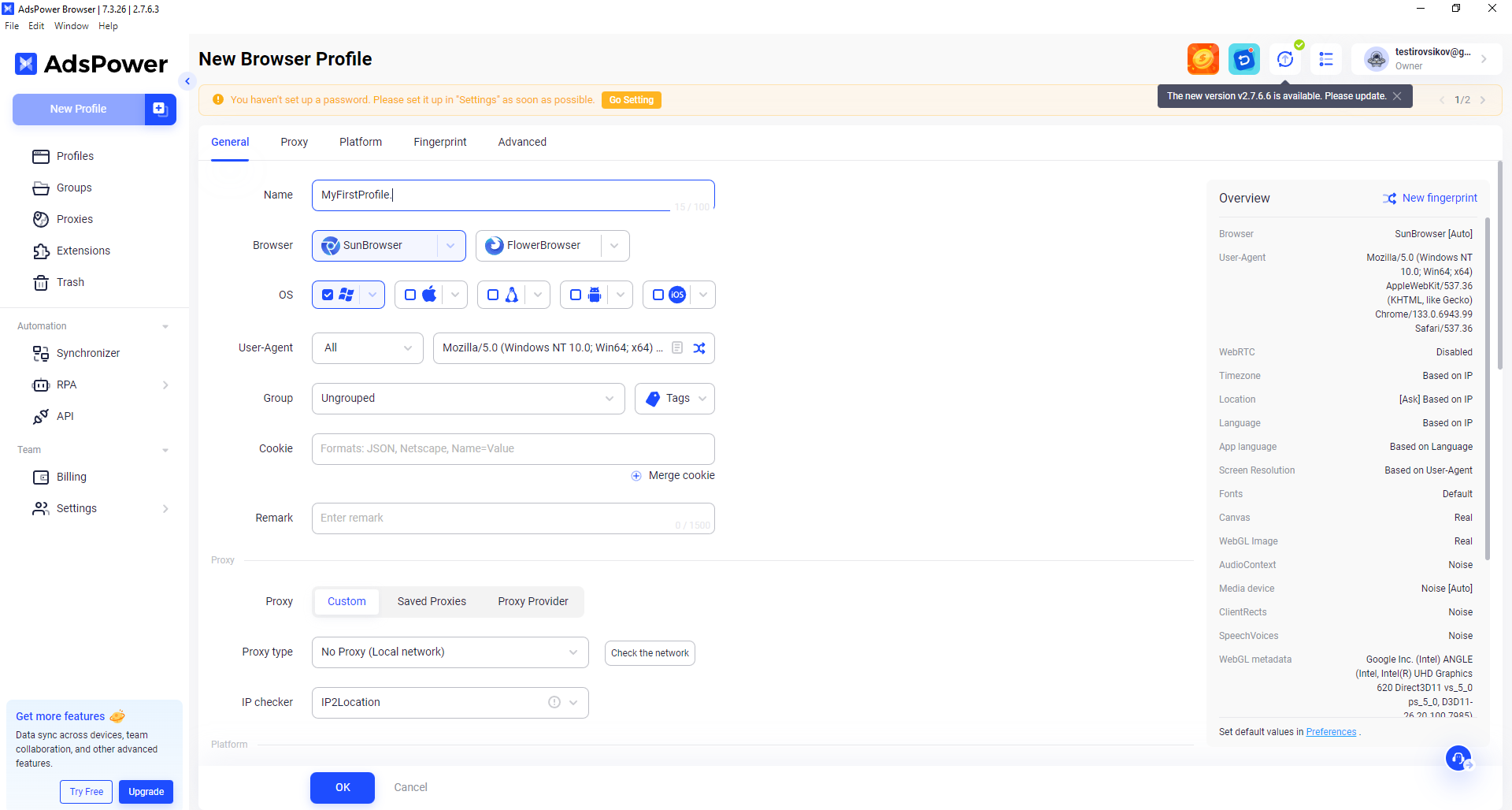
Optional settings worth using:
Groups: Useful if you're managing more than 10–15 profiles. Organize by platform, client, or campaign.
Tags: Faster filtering when you're working at scale.
Cookies: Import if you're restoring an existing session.
Remark: Add anything you'd want to know at a glance when scanning a profile list.
Step 3: Configure the proxy connection
Scroll down in the profile form to the Proxy section.
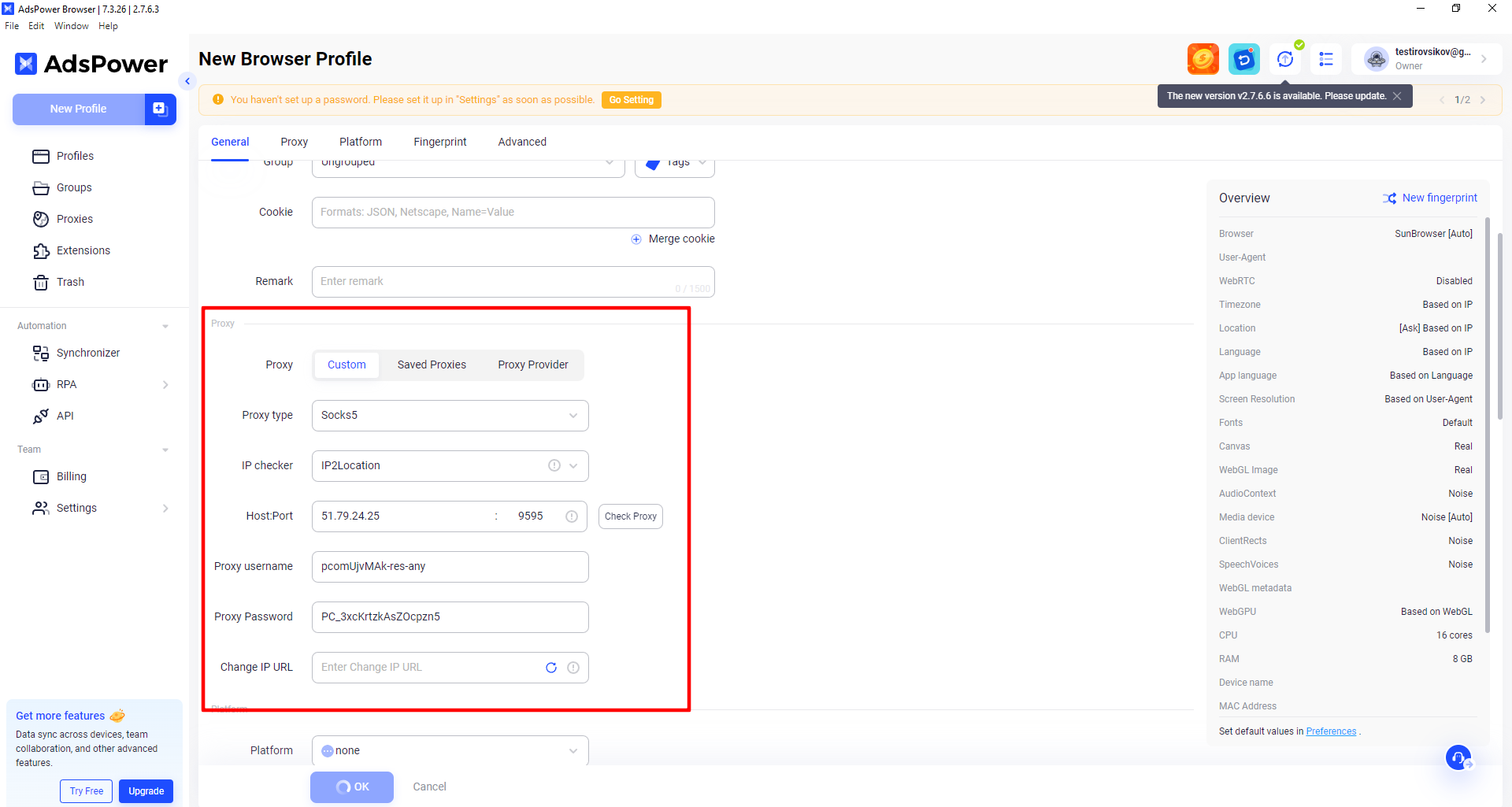
Step-by-step proxy configuration:
Ensure the mode is set to Custom (the default, don't change it)
Select your proxy protocol, SOCKS5, in most cases
Enter your four credential values:
AdsPower Field | What to Enter |
Host | Your proxy IP address |
Port | Your proxy port number |
Proxy Username | Your login |
Proxy Password | Your password |
SOCKS5 vs HTTP vs SSH: Which to choose
SOCKS5 is the right choice for the overwhelming majority of AdsPower users. It handles all traffic types, supports full authentication, maintains stable long sessions, and has no meaningful downsides for standard multi-profile management. If your proxy provider supports SOCKS5, use it.
HTTP works for basic browsing profiles but is less reliable for complex operations or platforms that heavily inspect connection behavior.
SSH is for specific enterprise routing scenarios. You won't need it for standard account management.
Step 4: Check the proxy status
After entering your credentials, click Check Proxy.
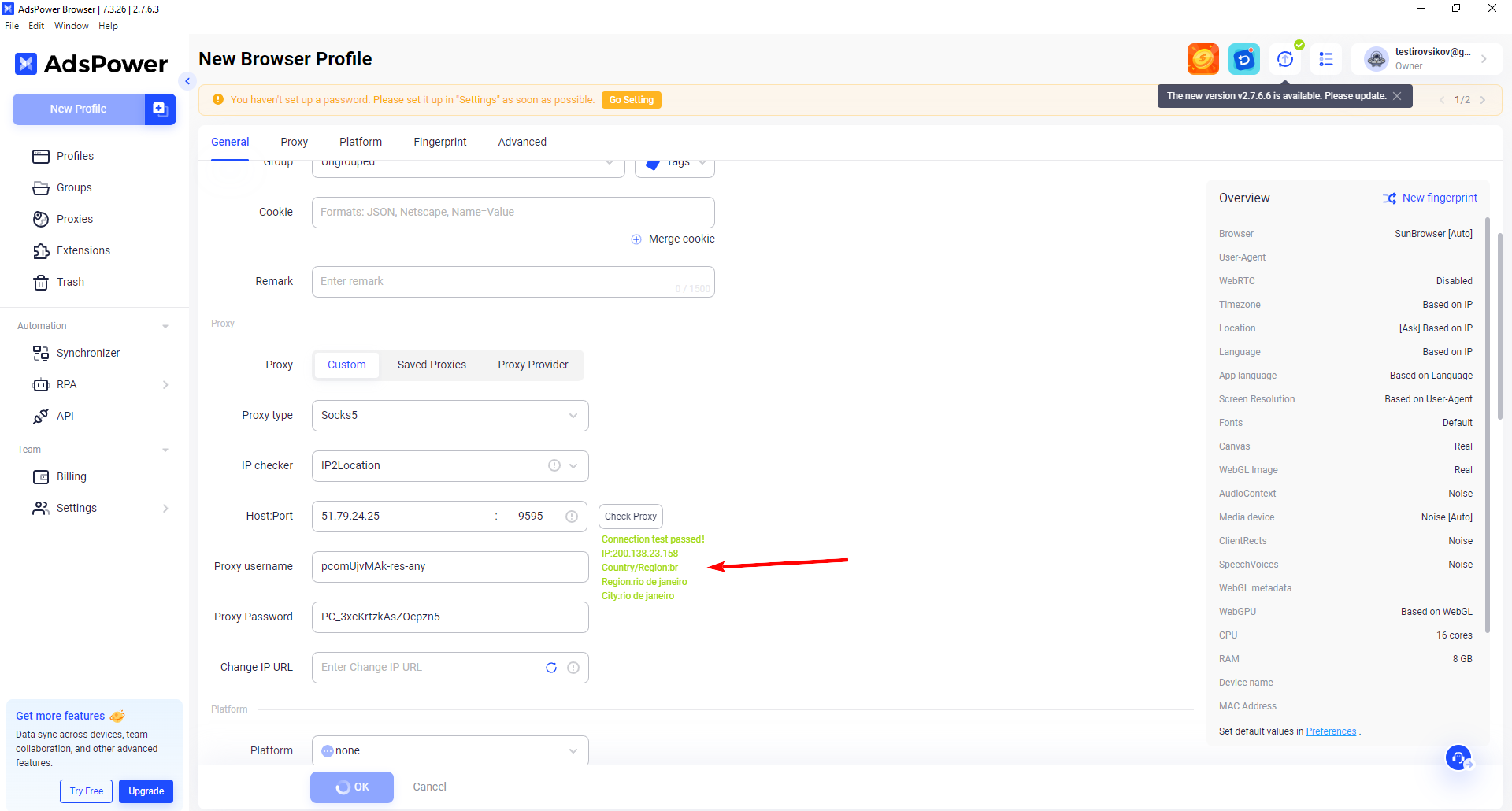
The result tells you immediately whether the connection is valid:
Green: The proxy is responding correctly. You're good to proceed.
Red: There's a connection issue. Do not save and launch the profile anyway. A red-status profile may launch and appear to function normally while actually using your real IP, which defeats everything. Fix the error first. See the Troubleshooting section below.
One thing worth knowing: AdsPower's built-in proxy checker confirms the connection is reachable, but it doesn't verify whether the IP is clean or whether it's been flagged on target platforms. For critical profiles, also verify the IP at scamalytics or your provider's own fraud score checker after launch.
Step 5: Align your fingerprint settings
This is the step that separates functional proxy setups from genuinely reliable ones. A proxy changes your IP, but your browser's timezone, language, and location settings are separate signals that platforms also read. If they don't match your proxy's geography, the inconsistency is detectable.
Scroll to Environment Settings (sometimes labeled Browser Fingerprint) in the same profile form.
Settings that must match your proxy geography:
Timezone: Set this to the timezone that corresponds to your proxy's location. A US proxy should be on Eastern, Central, Mountain, or Pacific time. A UK proxy on GMT/BST. Mismatched timezone is one of the more commonly overlooked detection signals.
WebRTC: Set to Disabled or Replace. This is non-negotiable. WebRTC is a browser communication protocol that, when left on default, can expose your device's real local IP address even while the proxy is active. It bypasses proxy routing entirely in some configurations.
Geolocation: Set to match your proxy's country and city. When a platform requests your browser's location, this is what gets reported.
Language: Match to the proxy region. A UK-based residential proxy with a Japanese interface language is incoherent. Platforms read Accept-Language headers.
Screen Resolution: Use a common resolution. 1920×1080 and 1366×768 cover the majority of real-world user setups. Unusual resolutions increase fingerprint uniqueness unnecessarily.
These settings don't need to be perfect down to the street level. They need to be consistent and plausible, a coherent picture that doesn't contain obvious contradictions.
Step 6: Save the profile and launch
Click OK to save the profile. Find it in your profile list and click Open.
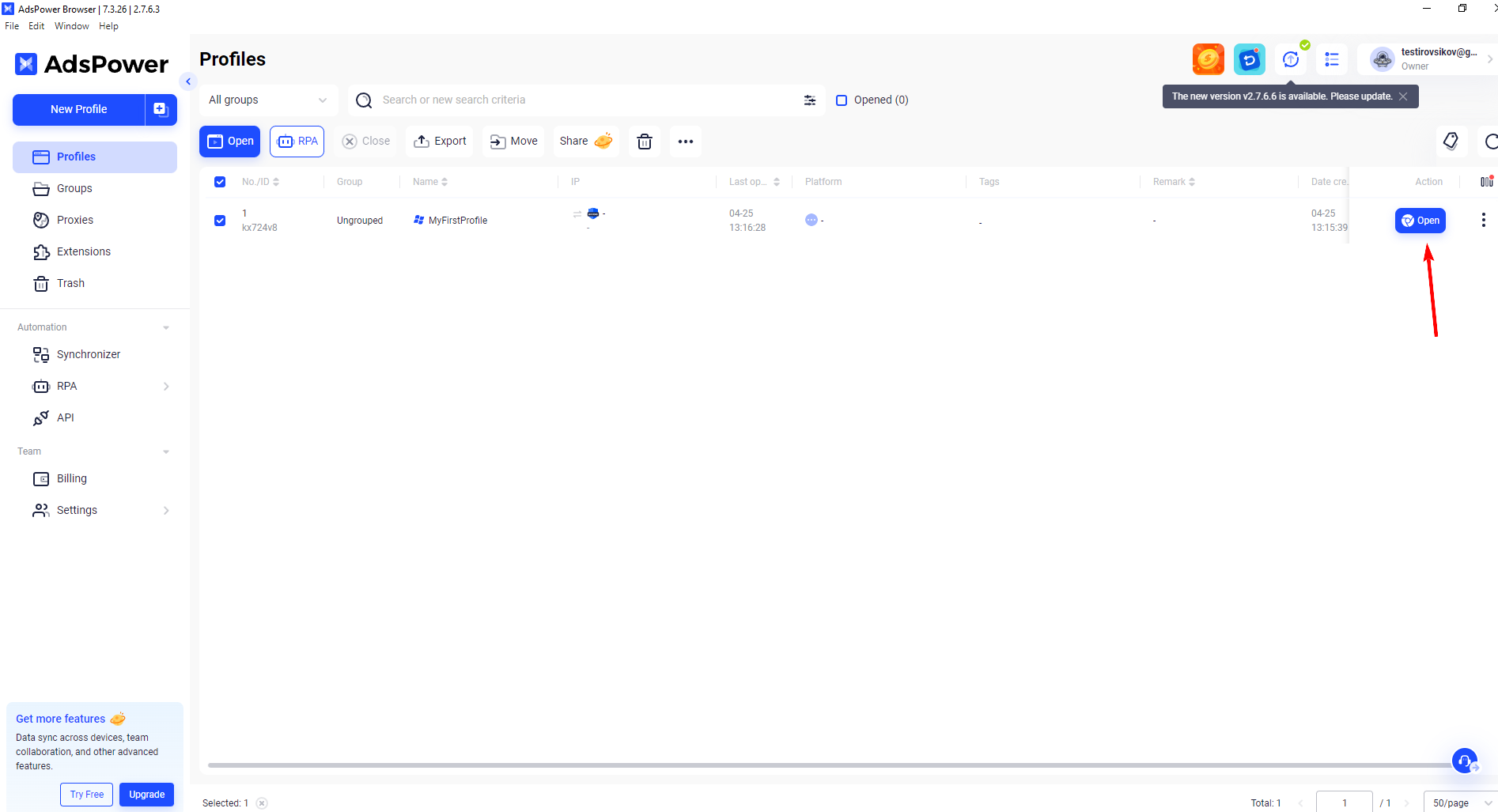
AdsPower opens the profile in an isolated browser window. Before doing anything else, verify the proxy is routing correctly:
Navigate to browserleaks or ip-api inside the profile
The IP address displayed should match your proxy's IP, not your real IP
The country and city should correspond to your proxy's location
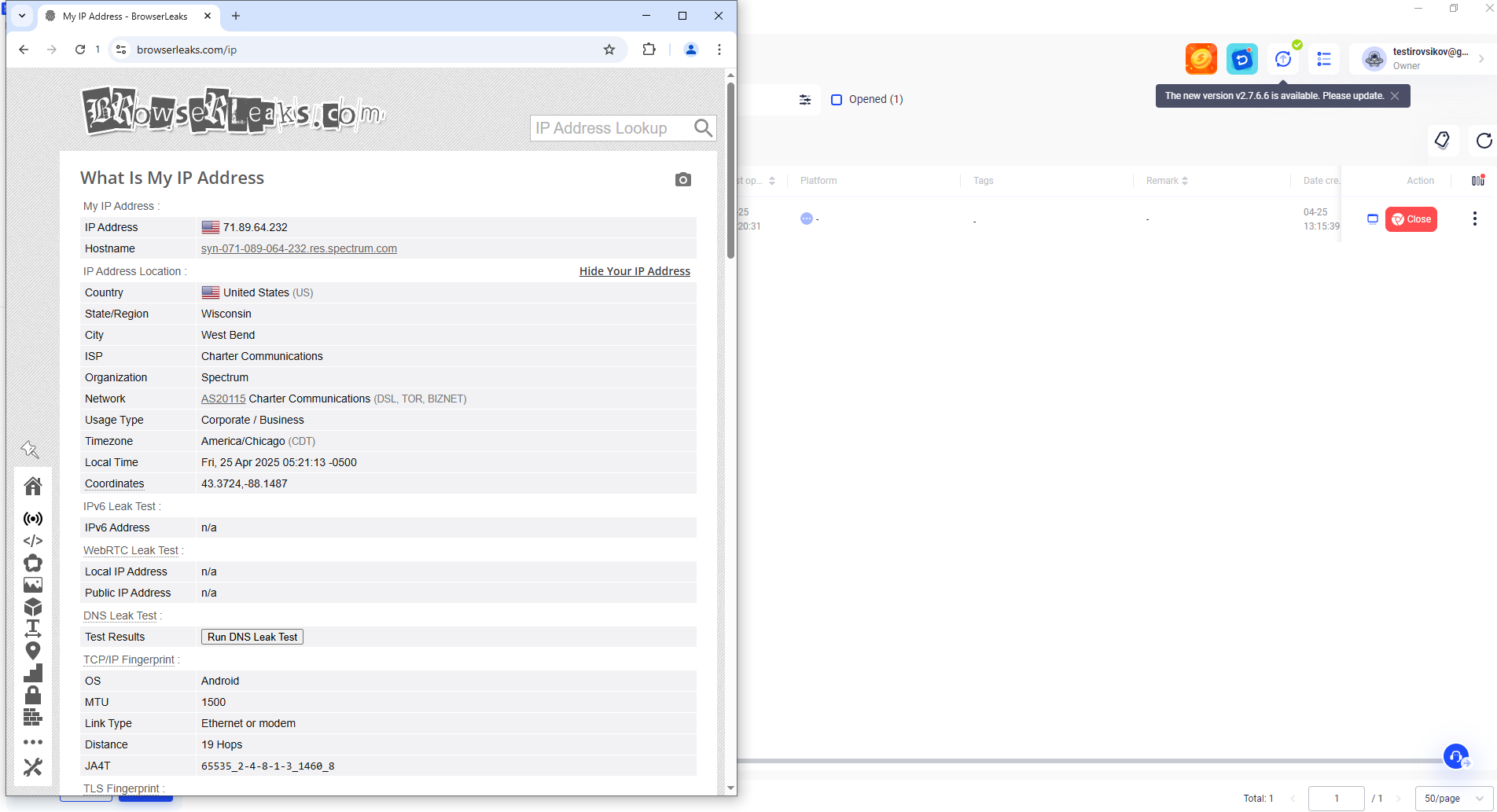
If the IP matches, the setup is complete and working correctly.
If you see your real IP instead of the proxy IP, the proxy is not routing. This happens most often when the profile was saved with a red-status proxy or when a credential was entered incorrectly. Go back to the profile settings, re-enter the proxy credentials, rerun the checker, and relaunch.
Common mistakes that silently break AdsPower proxy setups
Technical failures don't cause most AdsPower proxy problems; these specific, preventable mistakes cause them.
Reusing one proxy IP across multiple profiles. This is the most common error, and it completely undermines profile isolation. Two profiles on the same IP are associated regardless of how different their fingerprints look. Platforms see the network level before they see the browser level.
Leaving WebRTC enabled. WebRTC can leak your real IP through the proxy layer. Many users configure their proxy correctly and still expose their real IP because WebRTC was never disabled. Always turn it off in Environment Settings.
Timezone-proxy mismatch. A New York IP address with the Asia/Tokyo time zone is a red flag at the platform level. They're cheap, easy checks, and widely used.
Launching profiles with a red proxy status. AdsPower doesn't block you from launching a misconfigured profile. If the proxy fails silently after launch, your session may proceed on your real IP without any visible indication.
Using datacenter IPs on social or advertising platforms. The IP ranges for major datacenter providers are publicly documented. Using them on Facebook, TikTok, or Google Ads is likely to result in account flags regardless of fingerprint quality.
Rotating mobile IPs mid-session. Changing the IP while a profile is running causes the platform to detect a sudden IP change during an active session, which can appear as account takeover behavior. Rotate between sessions, not during them.
Troubleshooting: Fixing red proxy status in AdsPower
Work through these in order. Most issues are resolved within the first three checks.
1. Credential error: Copy your credentials directly from your provider dashboard rather than retyping them. A single incorrect character in the username or password results in a red status with no specific error message.
2. Wrong protocol selected: If your provider gave you HTTP proxy credentials and you've selected SOCKS5 in AdsPower, the check fails. Confirm which protocol your proxy uses, then select it from the dropdown.
3. Expired or deactivated proxy: Log into your provider dashboard and confirm the proxy is still active within its subscription period. This is an easy check that saves a lot of diagnostic time.
4. Firewall or ISP port blocking: Some corporate networks and ISPs block proxy ports. If you're on a restricted network, try switching to a different network temporarily to confirm whether the proxy itself is functional.
5. IP allowlist authentication: Some proxy services use whitelist-based authentication rather than username/password. If your proxy requires this, you'll need to add your current public IP to the allowlist in your provider's dashboard before it will accept connections.
6. Provider infrastructure issue: If your credentials are correct, the proxy is active, and the connection still fails, contact your proxy provider. Infrastructure-level issues do occur, though reliable providers resolve them quickly.
Best practices for stable long-term proxy management in AdsPower
One dedicated proxy per profile, always. This rule has no exceptions that don't create risk.
Verify the live IP every time you launch a profile. BrowserLeaks or ip-api.com takes ten seconds. The alternative is discovering a problem after a platform has already seen it.
Keep fingerprint settings aligned with proxy geography, timezone, language, geolocation, and WebRTC, all four, every profile.
Use static residential proxies for established, long-lived accounts. Platforms track behavioral patterns over time. Consistent IP history reduces friction on accounts that need to operate for weeks or months without disruption.
Choose proxy providers with verified, clean IP pools. This point matters more than most guides acknowledge. An IP address carries its history, flagging events, spam reports, and abuse blocks from every previous user who operated through it. When you connect with a recycled or shared IP that's already associated with policy violations, your new profile inherits that risk before it's done anything wrong.