
Instagram post scheduler: client workflows with cloud phones

Instagram post scheduler: client workflows with cloud phones
It’s Monday, and your agency is preparing a week of content for three clients. Two launches are set for 9 a.m. local time, one in New York and one in Los Angeles. Before you schedule Instagram posts, match each approved photo and caption to the right account and time zone.
We’ll compare Instagram post scheduler options, show how to confirm each post went live, and explain when separate cloud phones and assigned proxy connections fit into your workflow for Instagram automation for multiple client accounts.
Can you schedule Instagram posts?
Yes. You can schedule Instagram posts in the app, through Meta Business Suite, or with a connected third-party scheduler. Each route has different requirements.
Instagram app. Public accounts can schedule photos, carousels, and Reels up to 30 days ahead without a subscription. Some features, including product tags and collaborative posts, are unavailable for scheduled content under Meta’s scheduling rules.
Meta Business Suite. Use the desktop calendar when your team has publishing access to the client’s Instagram account. Confirm the destination account before choosing a time.
Third-party scheduler. Check which account types and post formats the service supports, then confirm how it publishes your chosen format.
Can you schedule posts on Instagram when nobody is on duty? With automatic publishing, the service publishes at the selected time. A reminder prompts a teammate to open Instagram and finish posting.
A separate cloud phone gives each client’s app session its own workspace. The same eligibility and publishing restrictions apply there.
Choose an Instagram post scheduler around your workflow
A search for “instagram schedule posts” turns up several ways to plan content. If one person prepares and approves a client’s posts, Instagram’s built-in queue may be enough. If a designer supplies the carousel and the client approves the caption, look for a tool that shows the publisher which version has sign-off.
Method | When to consider it | What to check |
Instagram’s scheduling feature | You prepare supported posts directly in the app. | Account eligibility, supported features, how far ahead you can schedule, and whether the post appears in the queue. |
Meta Business Suite | Your team manages client publishing from a desktop calendar. | Connected accounts, publishing permissions, available formats, and the calendar’s time zone. |
Third-party scheduler | You need client approvals, separate calendars, or additional publishing features. | Supported accounts, authorization, automatic publishing versus reminders, and which features the subscription includes. |
Before moving a client’s calendar, schedule one approved post and ask the teammate covering launch day to find it and confirm the account and time.
Teams that schedule posts on Instagram for several clients can open the app on each client’s assigned cloud phone. The phone keeps that client’s login and app data together, while Instagram handles the scheduling.
How to schedule Instagram posts
Schedule a post in the Instagram app
If you searched “how to schedule post on instagram,” start by opening the client’s profile and checking the username. If your team uses a cloud phone for that client, open Instagram there.
Tap Create and choose Post or Reel. Select the approved media, tap Next, and add the caption. For a carousel, check that the images appear in the approved order.
Check whether the campaign needs a product tag, collaborator, sponsorship, or fundraiser. These features are incompatible with native scheduling, as explained in Meta’s guide to scheduling posts and Reels.
Open More options, turn on Schedule this post or Schedule this reel, and choose the date and time. For a 9 a.m. launch in Los Angeles, confirm what that means in the time zone you’re using.
Tap Done, go back, and tap Schedule. Open Scheduled content to confirm the entry.
When showing a teammate how to schedule a post on Instagram, point out that final tap. Saving a draft keeps the media and caption available for editing. Confirming the schedule adds the post to the publishing queue.
Schedule posts through Meta Business Suite
If you searched “how to schedule post instagram” from a computer, open Meta Business Suite and select the client’s business portfolio. Check that the intended Instagram account is connected and that you have permission to publish to it.
Create a post, choose the client’s Instagram account as the destination, and upload the approved media and caption. Review the preview, choose the scheduling option, and confirm the date and time against the client’s calendar. After submitting, open Planner and check that the post appears on the intended date.
How to see scheduled posts on Instagram
Open the client’s Instagram profile, tap the menu, and choose Scheduled content under Your insights and tools. Select the queued post or Reel and open its options. Choose Edit post to change a supported detail, Reschedule to move the publishing time, Delete to cancel it, or Share now to publish immediately.
If the post is missing, check where your teammate scheduled it. Look in Planner for a Business Suite post or in the connected scheduler’s own queue. Before creating a replacement, check the original entry to avoid publishing the same post twice.
Pro tip: Once the scheduled time has passed, open the client’s profile and confirm the feed post is visible. If the client wants to know what customers can see before signing in, here’s how to check a public Instagram profile without logging in. Instagram may still show a login prompt.
For a client handoff, match the destination username, media, caption, date, and time against the approved brief. Mark the item as scheduled once those details match. After the publishing time, open the client’s profile and check the live post before marking it as published.
When cloud phones help with client publishing
Your agency’s shared calendar shows when each of its three clients expects a post. On Friday, the teammate covering the Los Angeles launch also needs to open the client’s Instagram draft and check that the first slide matches the approved carousel. If that draft is on a colleague’s phone, the handoff depends on that colleague being available.
For recurring work like this, give the client a named cloud phone and record its name in the calendar. The next authorized teammate can open the same workspace with the client’s apps, stored files, and Instagram session. For a closer look at how that workspace persists between sessions, see what a cloud phone is.
The Instagram post scheduler queues the approved post for publication. If the client also needs a consistent outgoing IP for work inside the app, assign the cloud phone a static proxy. That proxy controls traffic routed through its connection.
Ordinary account switching works well for occasional app checks, and Meta Business Suite may cover all three clients’ publishing needs. When teammates regularly hand off drafts and return to the same client sessions, it makes sense to manage multiple Instagram accounts with cloud phones.
Build a workflow to schedule and post to Instagram
Once your team knows how to schedule an Instagram post, the next challenge is handing it off. This week, the agency has a Wednesday Reel for a Chicago café and two Friday launches. A New York retailer wants a photo published at 9 a.m. Eastern, while a Los Angeles studio wants its carousel live at 9 a.m. Pacific. Give each post its own calendar entry so a teammate can follow it from approval to publication.
Assign the account and working environment
Record the client, authorized Instagram handle, responsible teammate, and publishing tool in each entry. Noah handles the café and retailer in Meta Business Suite. Maya prepares the studio’s carousel in the Instagram app, so her entry also includes the assigned cloud phone.
Maya names the phone LA Studio Publishing, adds it to the studio’s project group, and uses that exact name in the calendar. Whoever covers Friday can find the workspace and check the signed-in handle against the brief. For the dashboard steps, follow how to set up a cloud phone.
Attach and verify the intended connection
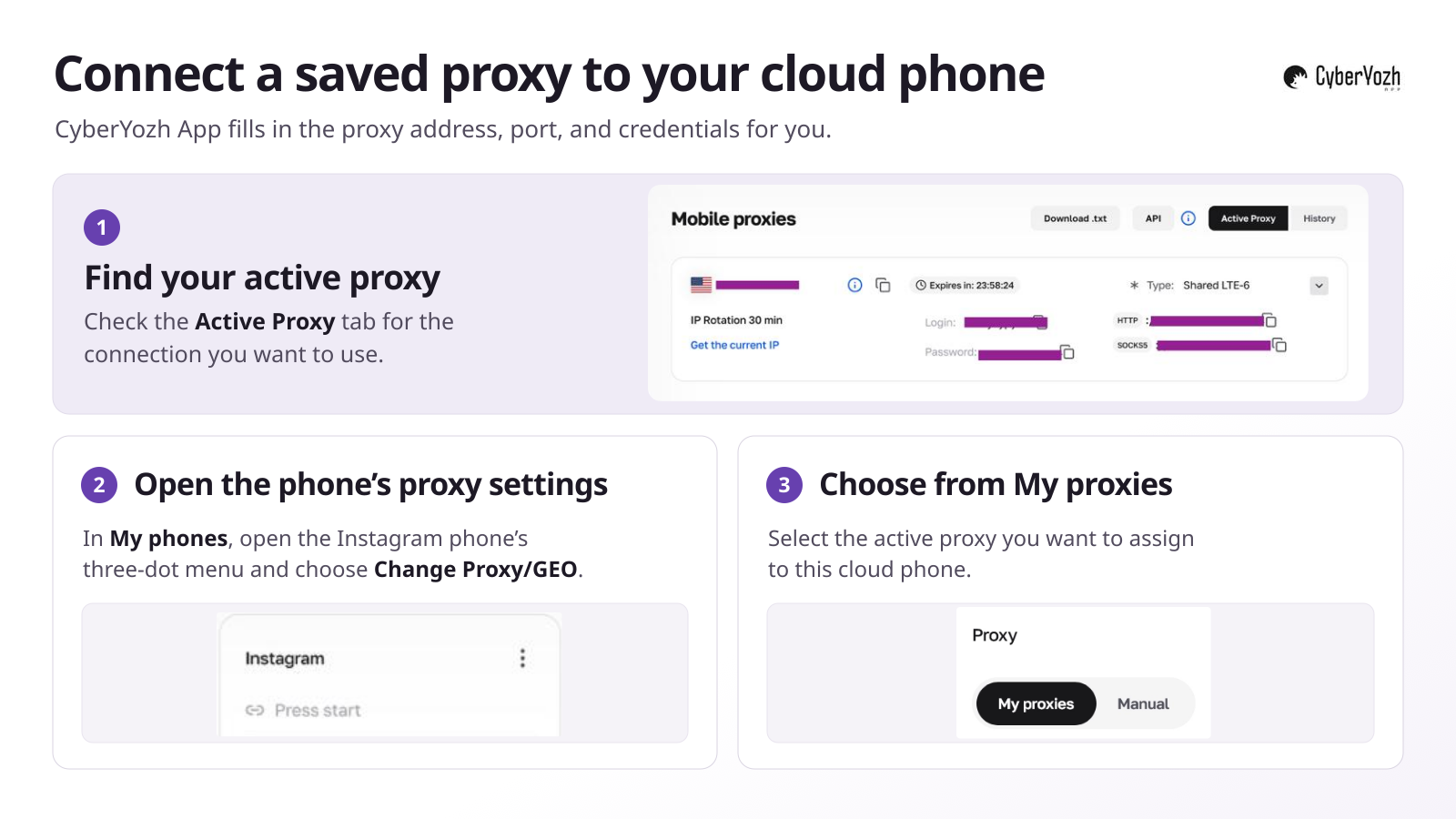
The studio uses an assigned proxy for recurring app work. Maya selects its active connection under My proxies in CyberYozh App. The platform fills in the connection details automatically. For an external SOCKS5 proxy, the manual option accepts the host, port, username, and password.
Maya runs Check IP, then opens an IP checker in the phone’s browser to see its exit IP. The gateway is the address the phone connects to, while the exit IP is the address the checker sees. That check covers the browser. Maya also opens Instagram and loads the studio’s profile and carousel draft to test the actual task. For configuration details, see how to connect a proxy and configure geolocation.
Pro tip: Assign the studio’s proxy once at the cloud phone level. Instagram, the browser, and other apps on that phone then use the assigned connection without any per-app setup. When Maya opens Instagram from her laptop, Instagram sees the proxy’s exit IP. For regional testing, she can also align the phone’s GPS and time zone with the proxy location.
Check the approved asset and publishing time
Noah attaches the final media and caption to each calendar entry. Maya compares the studio draft with its approved brief, including the slide order and first-image crop. She then checks the time zone in the Instagram post scheduler. If it displays Eastern time, the studio’s 9 a.m. Pacific launch belongs in the noon Eastern slot. The proxy’s exit location cannot set that publishing time for her.
Confirm the queue and the published result
Noah checks the café and retailer entries in Business Suite’s Planner. Maya reopens the studio’s carousel in Instagram’s scheduled content and confirms the handle, caption, and time. After each post goes live, its owner adds the live link to the calendar. If a post is missing, the teammate covering that account checks the original queue and status before trying again, reducing the chance of publishing it twice.
Choose a proxy connection for recurring client work
When Maya returns to the Los Angeles studio’s cloud phone on Friday, she needs to know which connection it uses and how long its IP address will stay the same. An address the team needs every week calls for a different plan than a one-hour regional check.
Static ISP proxies keep a fixed exit IP throughout the rental period and include unlimited traffic. This suits the studio if it wants the same address for weekly uploads. Instagram can still ask Maya to sign in again or verify the account. For more on address persistence, see static IP vs dynamic IP.
Mobile proxies offer unlimited traffic through a carrier network. Choose a shared or dedicated channel and check when the plan rotates its IP and who can trigger a change. Even with a dedicated channel, the carrier can assign several subscribers the same public IP through carrier-grade NAT (CGNAT).
Rotating residential proxies suit regional checks that need location targeting. They offer per-GB billing, traffic rollover, and sticky sessions up to 24 hours. Estimate the data needed for video uploads and choose a session long enough to finish the review.
Pro tip: Before renting, compare IP allocation, authentication compatibility, and the minimum purchase using what to check before choosing private proxies.
The publishing method also matters. Maya’s assigned proxy controls traffic routed from the cloud phone. If she opens a hosted scheduler’s dashboard there, the service still sends the eventual publishing request through its own connection.
Why an Instagram post did not publish as expected
If the studio’s Friday carousel appears late, check its Instagram profile before scheduling another copy. Then open the tool Maya used to queue the post and note its status or exact error message.
Symptom | What to check next |
Scheduling option is missing | Check account eligibility and the app version. Confirm that the format supports scheduling and look for incompatible features, such as a collaborator invitation. |
Post is missing from the queue | Verify the Instagram handle and open the original scheduler. Check whether the post stayed in drafts or the final scheduling step succeeded. |
Publishing time is wrong | Compare the queued date, time, and time zone with the client’s calendar. For a future post, check the daylight-saving offset on the publication date. |
Scheduler reports a publishing failure | Read the error. Check the file against the scheduler’s media requirements and confirm that the account still grants publishing access. |
App cannot connect | Check proxy credentials and routing. Verify the exit IP inside the cloud phone, then reopen Instagram and test the connection there. |
Content is removed or restricted | Open Instagram’s notice, identify the affected content, and check the reason and any review options. |
Changing the proxy IP cannot restore publishing permissions, fix unsupported media, or reverse a content restriction.
Pro tip: If Instagram sends a Story removal notice, save its wording before following the guide on your Instagram story banned.
Build a publishing setup your team can maintain
Choose an Instagram post scheduler that supports the client’s content format and confirm your team has publishing access.
If clients need separate app workspaces, configure cloud phones for client work. For a consistent IP, compare Instagram proxy options. Test the connection in the app, queue one approved post, and check the client’s profile after the scheduled time to verify publication.