Android proxy on your own phone or a cloud phone
Use a mobile proxy with unlimited traffic for video uploads or a static ISP proxy to keep the same IP across workdays. Pair it with a client’s cloud phone and reopen their apps and files from your laptop when it’s time to publish.
Upload client videos with unlimited proxy traffic
Choose a mobile Android proxy with unlimited bandwidth for your own phone or a client’s cloud phone. Upload the approved cut, review playback, and send a revision without paying per gigabyte.
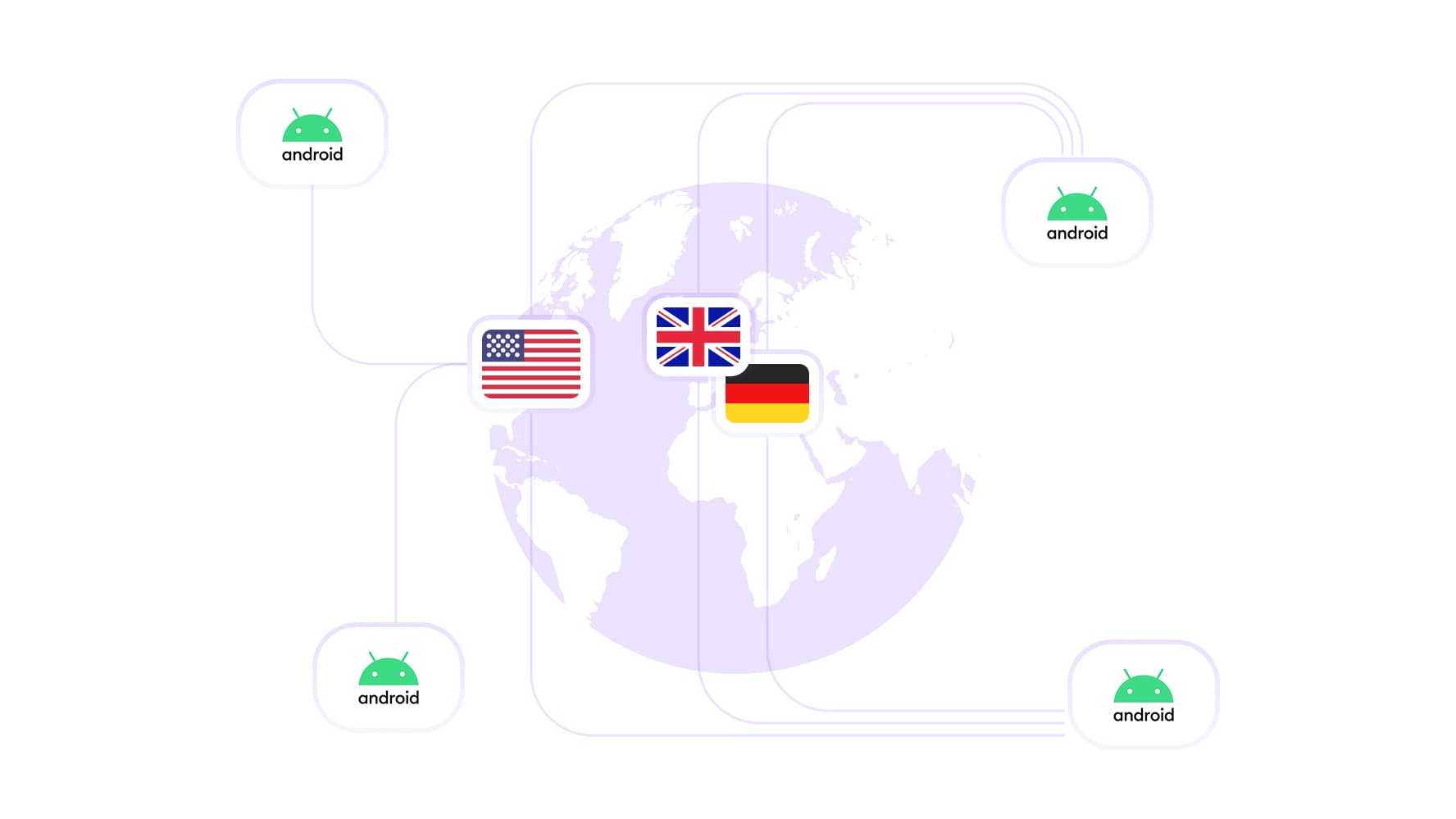
Check your client’s campaign in 195+ countries
Choose from 100M+ residential IPs across 195+ countries. For a Quebec campaign, select a Canadian exit IP, set the cloud phone to French, and check that the offer displays in French with prices in Canadian dollars.
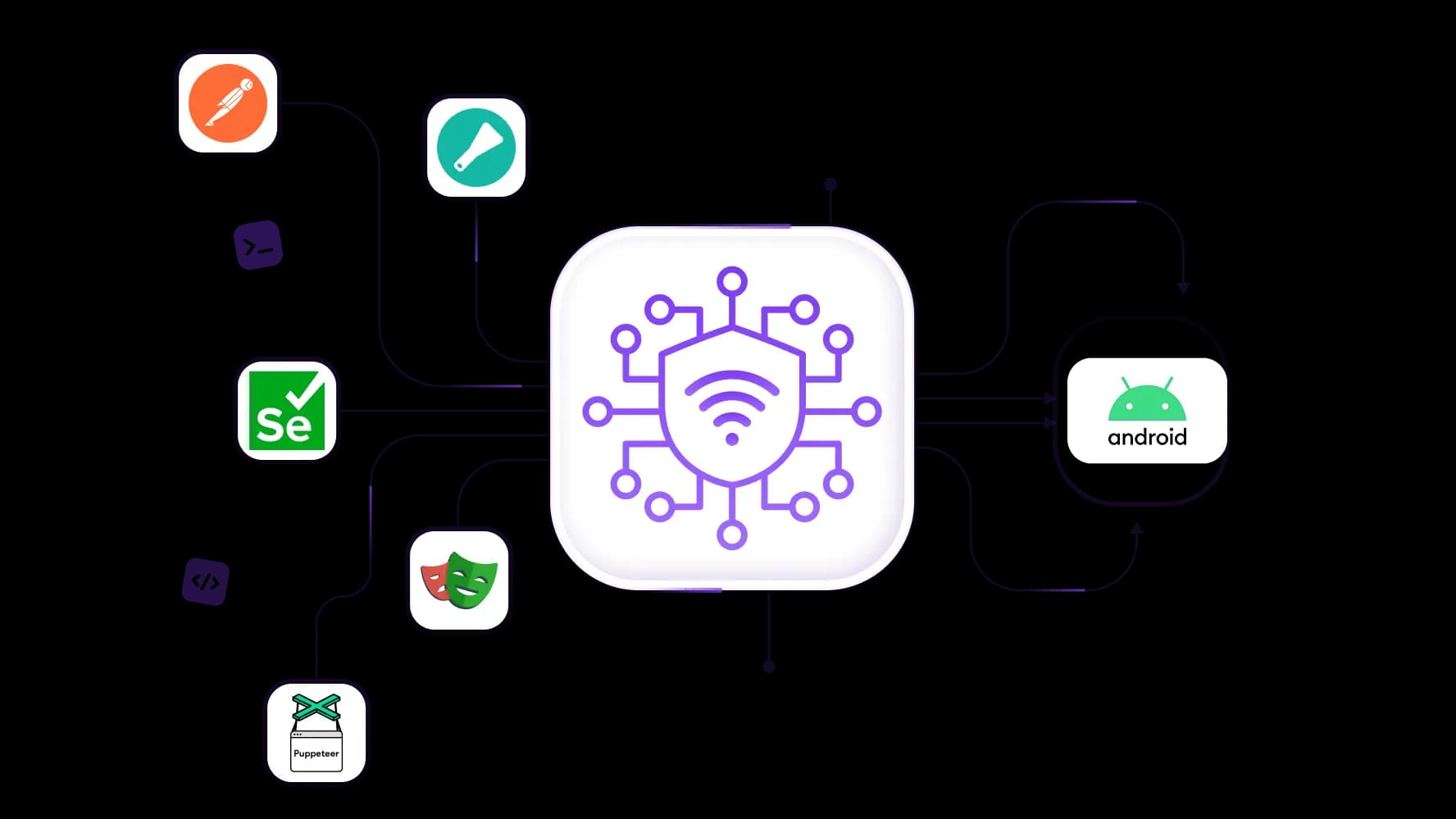
Automate campaign checks before you publish
Connect your proxy to Scrapy, Postman, Playwright, Puppeteer, or Selenium to check campaign links, prices, or API responses. Then open the offer in the client’s Android app for a final review.
Keep the same IP from product page to checkout
Use rotating residential proxies with sticky sessions up to 24 hours. Open a local offer on your Android cloud phone, add the item to your cart, and check the final price in one session.
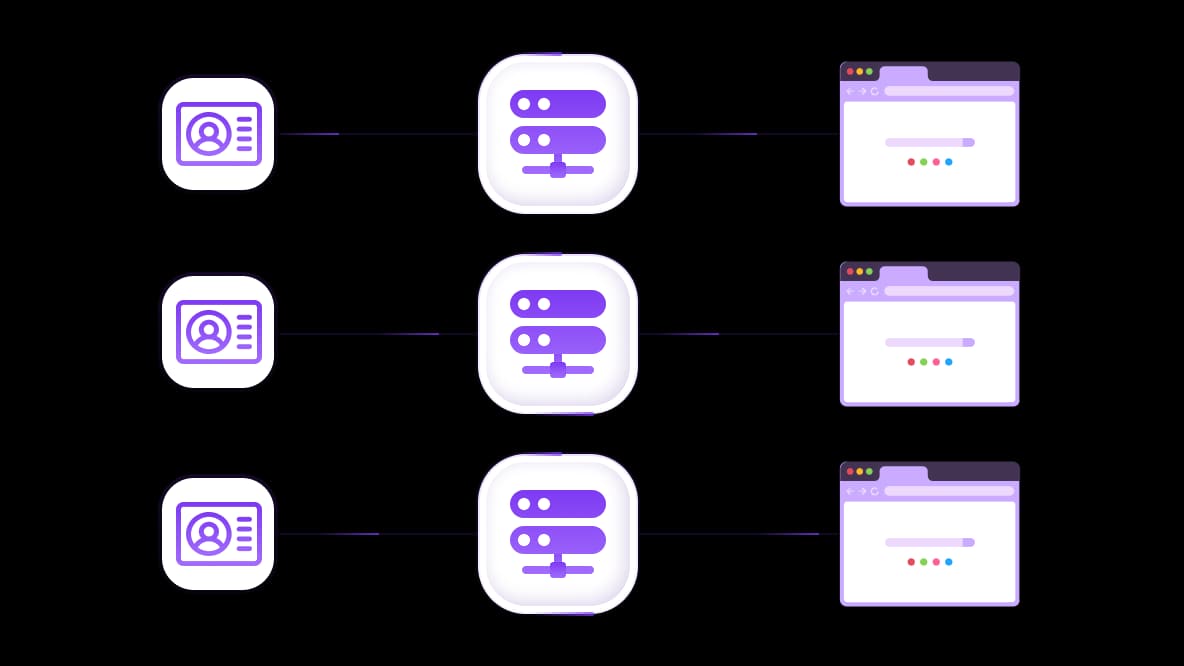
Give each client a cloud phone you can reopen tomorrow
Launch a ready-made Android preset, label the phone for the client, and assign a static ISP proxy if you need the same IP across workdays. Reopen the phone tomorrow with the client’s apps and approved files ready.
Specially for you
Best proxies by countries

Android - dedicated mobile unlimited
Dedicated 5G Router
SOCKS5/VPN with dedicated DNS
Manual IP Changing
Change p0f fingerprint (Windows, MacOS, Android)
High Trust Rate
Very High Speed + Low Ping
All network params 1:1 as provider's
Android - shared mobile
- Shared 5G Router
- Supports SOCKS5 with UDP
- Up to 5 users per port
- Socks5/HTTP
- IP Rotation: every 30 min
- Windows p0f fingerprint
- High Trust Rate
- Very High Speed + Low Ping
- All network params 1:1 as provider's
Android - rotating residential
- 24 hours Availability
- Real ISP
- Speed up to 10 mbps
- Full API Access
- HTTP Protocol
- 100M+ IPs in 100+ Countries
- Mass Credentials Generator
- Long session up to 6 hours
Android - private residential
- Unlimited Bandwith
- Real ISP
- Speed up to 150 mbps
- Low Ping
- Supports SOCKS5 with UDP
- 24 hours Availability
- 1 Dedicated IP
Android - dedicated datacenter
- Unlimited bandwidth
- Exclusive IP ownership
- High-speed connectivity
- 99.9 % uptime
- HTTP
Android - shared datacenter
- Lightning-fast speeds
- Global IP coverage
- 99.9 % uptime
- Cost-efficient plans
- 1 GB bandwidth
- HTTP
Why do they buy from us?
Advantages
Private card payment
It doesn't matter how you topped up your balance, linking the payment to the rental of a specific proxy is impossible.
We do not store data on servers
As a rule, services that rent out proxies retain all data about the traffic passing through their servers.
Dedicated device
We do NOT disguise Shared proxies as individual ones. A modem or router is transferred to ONLY one person.
Online technical support
We are always ready to solve your problems and questions. Even late at night and early in the morning.
Money-back guarantee
We have both returns and exchanges. The priority is quality service and satisfied customers.
API for Business
For business clients, our service is ready to provide a convenient API that allows you to purchase proxies, change IP addresses, and much more.
How to choose an Android proxy for video uploads, client logins, and app testing
When Proxy hostname appears in your Android proxy settings, enter your provider’s gateway address there and its port number in the next field. Use an Android proxy on your own phone to check a website. If you return to a client’s account every morning, a separate cloud phone keeps their apps and approved files ready.
Select the right proxy from the catalog for you Android setup.
What is an Android proxy, and when do you need a cloud phone?
An Android proxy forwards requests from apps that use it, so websites see the proxy’s exit IP. An editor can use a proxy server for Android on their own phone to check a client’s public campaign page before a video goes live.
A cloud phone gives the team a separate Android environment that retains the client’s apps, files, and saved sessions. The editor can upload the approved video today and confirm it appears on the right account. Tomorrow, a teammate can reopen that same phone from a laptop to review the post and answer comments.
How to use a proxy on Android over Wi-Fi or mobile data
Find your proxy address and port
Open your active plan in the provider’s dashboard. Copy the gateway hostname or IP address and the port listed for your protocol. Check whether the plan uses a username and password or an IP allowlist. The gateway is the address you enter in Android proxy settings. Websites see the exit IP, which can differ from the gateway.
Set an HTTP proxy for a Wi-Fi network
Select your connected Wi-Fi network in Settings and open Edit → Advanced options → Proxy → Manual. Menu names vary by phone. Enter the gateway hostname and HTTP port, then save. If the proxy requires a login, a browser that supports HTTP proxy authentication can prompt for credentials when you open a page. These Android proxy server settings apply to this Wi-Fi network, and some apps may ignore them.
Use SOCKS5 or connect over mobile data
Choose an Android routing client that supports your plan’s protocol and authentication method. For SOCKS5 with a username and password, enter both in the client and include the intended app in its routing rules. See the Android proxy setup guide for screenshots.
Check the exit IP in your browser, then test the actual app on the network you’ll use. For example, upload a private video and confirm it reaches the intended channel.
Which Android proxy is best for uploads, repeat logins, or regional checks?
For regular video uploads, choose a mobile proxy for Android when you need a carrier connection with unlimited traffic. Shared mobile starts at $1.70/day. Dedicated mobile starts at $3.50/day and gives you control over when the channel changes IP. Both let you upload a revised cut without extra per-GB charges.
For repeat logins, choose a static ISP proxy when the client needs the same IP tomorrow. Plans start at $5.29/month for one fixed IP with unlimited traffic. Assign it to the client’s cloud phone to keep that address throughout the rental.
For regional app checks, use rotating residential proxies starting from $2/GB to compare local prices or offers. Choose sticky sessions up to 24 hours to keep one IP while checking a market, then switch locations for the next test.
For testing your own Android app, a datacenter proxy is a lower-cost choice when your staging environment accepts datacenter traffic. Shared plans start at $1.77/month and dedicated plans at $2.18/month.
How to connect an Android proxy to a cloud phone
Buy a profile slot. Open My phones → Manage profiles. One Android cloud phone profile costs $0.52/month. Pair it with a static ISP proxy from $5.29/month for a starting total of $5.81/month before additional runtime. A new slot includes 10 bonus minutes. Extra runtime costs $0.0069 per minute.
See cloud phone setup and billing.
Create the client’s profile. Select Create profile and name it for the client and market. Server region sets where the phone is hosted. The Android proxy you attach determines its exit IP.
Attach and verify the proxy. Under My proxies, select an active connection or choose Buy proxy to rent one. Run Check IP and confirm the exit country matches the client’s market.
See connecting a proxy and configuring geolocation.
Test the client’s app. Start the phone and check its exit IP in the browser. Then open YouTube, upload a private test video, and confirm it appears on the intended channel.
Publish a client video today and reopen the same phone tomorrow
Suppose Maya edits YouTube Shorts for two clients with similar channel names. On Monday, she opens the Android cloud phone labeled Cedar Studio UK, checks its assigned Android proxy, and uses Upload to transfer the approved Short from her laptop. The guide to working with apps and files on a cloud phone shows where to find the file on Android.
Before uploading, Maya checks the channel handle against the client brief, a useful habit when managing multiple YouTube accounts. She sets visibility to Private, uploads the Short, and opens YouTube Studio. Once she sees the video on Cedar Studio’s channel with the correct visibility, she clicks Stop to pause the phone’s runtime charges.
On Tuesday’s review call, Maya starts the same phone. YouTube Studio is still installed, the approved file is in Downloads, and the client’s proxy is still assigned. She opens the private Short and reviews the final cut with the client.
Agencies can use the same approach for Instagram publishing and inbox work or regional TikTok accounts.
Evidence to add before publication: Maya’s walkthrough is illustrative. For a firsthand example, capture the private upload on day one and the reopened profile on day two. Caption the screenshots with the Android version, proxy type, and what you verified on each day. Keep proxy credentials and private client details hidden.
Why does my Android proxy work in Chrome but not in my app?
An IP check in Chrome confirms the browser’s exit IP. Another app may handle connections differently and ignore your Android proxy settings.
Check the active network. Manual Android proxy server settings apply to the Wi-Fi network you configured. Check whether your phone switched to cellular data or another network.
Check the routing client. If you use one, make sure its routing rules include the app.
Retry the task inside the app. If you own the app, check your server’s request log to see which source IP reached it.
Choose Android cloud phones when each client needs a separate device with saved apps, files, and an assigned connection.
Top up your balance in any convenient way!
Bank cards


Cryptocurrency


