
What to Do If Your Proxy Isn’t Working? A Troubleshooting Checklist
You set everything up according to the instructions, entered the data, and clicked «OK». But nothing works. Websites refuse to open. Programs throw a proxy connection error. Sound familiar? A proxy not working is one of the most common issues you will face. But solving it comes down to a methodical check of a few key points. There is no need to panic. Instead of chaotic attempts to click random buttons, let's go through a simple proxy troubleshooting checklist. This helps you quickly find and fix the malfunction. We move from the simplest problems to the more complex ones.
Proxy not working? Understand the connection chain
When you use a proxy, your connection turns into a strict chain of several links:
Your computer -> Your ISP network setup -> Proxy service -> Target website.
A break can happen at any of these stages.
Your checklist helps to consistently check each link:
Steps 1-3 check your account and data.
Steps 4-7 check proxy connection paths between your machine and the server.
Step 8 checks the link to the final website.
This logic helps you avoid panicking. You stop seeing one massive proxy not working issue and start seeing a logical sequence. Because of this, you can methodically rule out working links and pinpoint the failure fast. It saves time and nerves.
Stage 1: How to fix proxy connection failed - basic questions
When dealing with a proxy not working, 80% of cases lie right here. Start with the simplest things.
✅ 1. Check the status of the proxy itself
Is it active? Go to the personal account of your provider. Make sure the service has not expired and remains active.
Is the traffic exhausted? If you have a plan with a traffic limit, check if you hit that cap.
✅ 2. Double-check your IP address and port configuration
This is the champion of error quantity. One typo, and nothing works.
IP Address (host): Make sure you copied it in full. Avoid extra spaces.
Port configuration: This is a numerical value (e.g., 8000, 9595). Check every single digit.
Login and Password: The most vulnerable spot. Never type them manually. Always copy and paste directly from your dashboard to avoid case errors or mixing up similar characters (e.g., O and 0, l and I).
✅ 3. Check the primary internet connection
It sounds basic, but you must do it. Disable the proxy in the system settings. Try to visit google.com. If the internet fails without it, your ISP dropped the network. Your proxy not working issue is actually a dead local connection. The intermediary server is perfectly fine.
Stage 2: Technical diagnostics - looking deeper
If the first step looks good, the problem requires a deeper look.
✅ 4. Is antivirus blocking proxy connection?
Your security software might flag the connection as suspicious network activity and block it.
How to check: Temporarily disable your antivirus and built-in Windows/macOS firewall rules. Try connecting again.
What to do if it helped: Do not leave your protection turned off. Instead, add your browser or Proxifier to the exclusion list immediately.
✅ 5. Check browser network settings
Some applications use their own settings that override system defaults. A proxy server not working on Windows 11 often happens because of this exact conflict. If you face a proxy not working scenario inside a specific browser, check here first.
How to check: Open the network settings of your specific program. For example, in Firefox go to «Settings» -> «Network Settings». Make sure «No proxy» is not selected.
What to do: Select the option «Use system proxy settings.» This forces the app to obey the general OS rules. Or enter the data manually right there.
Tip: If you are using a specialized browser or profile software, study the Guide for the corresponding case/browser/program in the sections on the left. We have gathered step-by-step instructions for most popular tools there.
✅ 6. Ensure the correct protocol is selected
Specifying the wrong protocol prevents a connection completely.
HTTP/HTTPS protocol vs. SOCKS5: Ask your provider exactly what type of proxy you purchased. SOCKS5 is modern and handles all traffic. HTTP(s) handles only web requests. You must specify the exact one you bought. They are not interchangeable.
✅ 7. How to test proxy with curl command
To know for sure if the server responds, use a terminal. A terminal curl test eliminates browser interference entirely. Enter this command:
curl -x http://user:password@proxy_host:proxy_port -L http://google.comReplace user, password, proxy_host, and proxy_port with your data.
Example: curl -x http://pcQedolPkt-res-any:PC_7CJ2WQqdGBm42dHWj@51.77.190.247:5959 -L http://google.com
If you receive the HTML code of the Google page, the proxy works correctly. Your problem lives in the settings of your specific program.
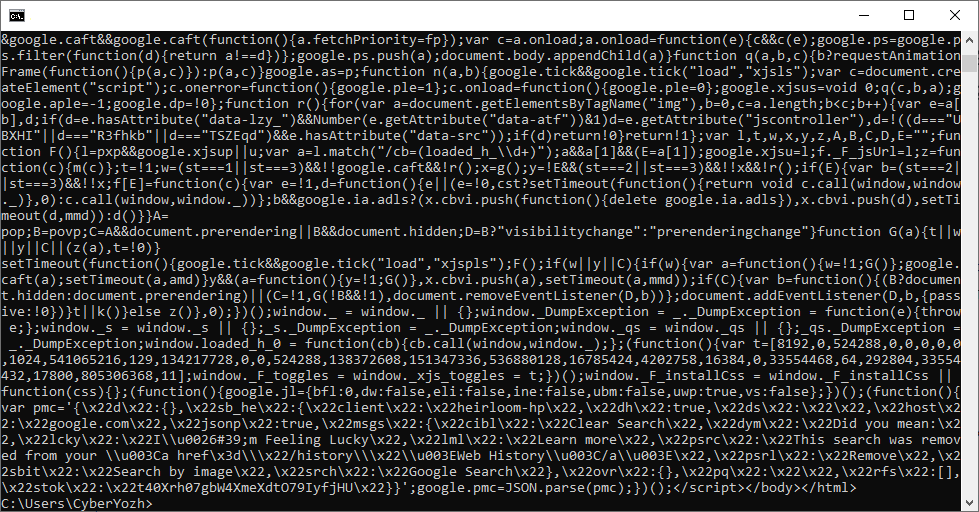
Fig. 1. Example of html code output after executing the curl command.
✅ 8. Problem on the target website side?
Sometimes the server works, but the target site restricts it.
How to check: Try accessing ipinfo.io. If it opens and shows your new IP, the server is active. The target site simply restricts that address. You need a different IP to access local content there.
Tired of a proxy not working? Switch to the CyberYozh App platform
Technical failures happen. But they should never stop your business. Cheap, unstable servers waste your time. We built the CyberYozh App ecosystem to eliminate this entire troubleshooting checklist.
CyberYozh App is a comprehensive platform for web automation and security. Stop fighting with bad connections. Get instant access to a massive infrastructure of premium Mobile, Residential ISP, and Datacenter proxies. You get a rotating pool of over 50 million IP addresses across 195+ countries. With 99.99% uptime and native SOCKS5 support, your setup simply works. Manage your network footprint, rent virtual phone numbers, and issue payment cards directly from one powerful dashboard.
Still need help with a custom setup? Our 24/7 support team is always ready. You can write to us in the chat or message us on Telegram: @CyberYozh_support_bot.
Stage 3: If nothing helped - contact support
We understand that downtime in work can be critical. Every problem of yours is important to us, and we are ready to help solve it as quickly as possible.
If you have gone through all the steps and the connection still hasn't been established, please contact our 24/7 support service. You can write to us in the chat in the bottom right corner of the screen or reach out via Telegram: @CyberYozh_support_bot.
To get a quick and helpful response, prepare in advance:
The connection data with which the problem occurred (IP and port). No need to provide the password.
Your real IP address. You can find it on the browserleaks.com/ip website with the proxy disabled.
A clear description of the problem: «Cannot connect,» «Low speed.»
A screenshot of the error, if there is one.
The result of the curl command execution (from point 7).
What steps you have already taken for self-diagnosis. This will save time and show the specialist that basic checks have already been performed.
Conclusion
Technical failures happen, but they shouldn't stop your business. The key to solving them is a consistent and methodical approach. By moving from simple to complex through this checklist, you are highly likely to find the cause yourself. And if not - our 24/7 CyberYozh team is always available to help you get back to work as soon as possible.
FAQ: How to fix a proxy not working
How do I fix ERR_PROXY_CONNECTION_FAILED in Chrome?
Chrome cannot reach the proxy server. Start by checking your proxy connection settings. Verify your IP address and port. Sometimes your antivirus blocks the connection. Turn it off briefly to test.
What is the difference between SOCKS5 and HTTP for stable access?
HTTP handles only website traffic. SOCKS5 transfers all types of data. It performs much better for proxy troubleshooting across multiple apps. Choose SOCKS5 to restore stable access to your streams.
Why does my proxy server keep refusing connections?
Your ISP network setup might drop the session. Or you simply hit your data limit. A proxy connection error often happens due to an IP mismatch. Log into your dashboard. Make sure your plan is active.
How do I fix PR_END_OF_FILE_ERROR in Firefox?
Firefox failed to build a secure connection. This usually points to a bad port configuration. Open your network settings. Force Firefox to use system proxy settings. That fixes the problem instantly.
How can I protect my network footprint without losing speed?
Avoid manual configuration. Free public proxies always drop speed. Buy a private proxy and use a dedicated app to align your network location. It secures your traffic and keeps your speed high.