如何为隔离配置文件配置干净的 Aurorium 代理设置

现代安全过滤器在读取您的 浏览器指纹之前,就会先分析原始网络传输层。如果您的应用程序数据广播的是 Windows 操作系统,但您的 TCP 数据包却携带 Linux 服务器的特征,目标平台会立即拒绝您的连接。

专业的 Aurorium 代理设置需要严格注意协议选择和操作系统匹配。本指南详细说明如何配置您的工作空间以实现稳定的数据操作。

TL;DR:保护您的网络指纹

  • AI 指纹生成: Aurorium 原生防止参数碰撞。它使用真实设备数据构建数学化的硬件配置文件。

  • 传输层不匹配: 目标服务器会立即捕获 被动操作系统指纹识别 (p0f)错误。您的网络节点必须修改 TCP 头以匹配您的浏览器配置文件。

  • UDP 路由: SOCKS5 和 UDP 支持 是安全处理 WebRTC 流量而不暴露本地接口的必要条件。

  • 风险评估: 在连接前通过 ThreatMetrix 或 IPQualityScore 数据库审计您分配的 IP。

Aurorium 如何隔离硬件指纹

Aurorium 采用与传统工具不同的身份隔离方法。它严重依赖人工智能来生成硬件指纹。标准浏览器通常从有限的数据库中回收相同的硬件组合,造成严重的碰撞风险。Aurorium 从真实用户设备的全球数据库中提取数据,构建数学上合理的配置。

该平台在团队操作方面表现出色。它具有原生的操作同步器。您可以同时在多个独立窗口中镜像您的键盘输入和鼠标点击。由柏林研究机构 Cure53 进行的 公开安全审计 验证了其核心代码的完整性。这正是测试全球主要 VPN 提供商和 Tor 网络组件的同一团队。

为 Aurorium 代理设置选择 IP 节点

一个干净的浏览器配置文件仍然需要一个干净的 IP 地址。CyberYozh App 提供专门为大规模管理隔离环境而设计的基础设施。如果您的工作流程涉及激进的数据提取或抓取,您需要一个动态路由层。

👉 使用轮换住宅代理扩展规模: 访问超过 1 亿个地址的动态池。您可以配置最长 24 小时的粘性会话,或在每个请求上轮换 IP,以完全避免速率限制。

Aurorium 代理设置分步指南

连接您的网络层需要精确操作。按照以下确切步骤全局添加您的节点并将它们直接绑定到您的配置文件。

1. 在代理管理器中集中管理您的连接

不要在每个配置文件中手动添加代理。打开左侧边栏的主 代理 选项卡,然后点击 添加代理 按钮。
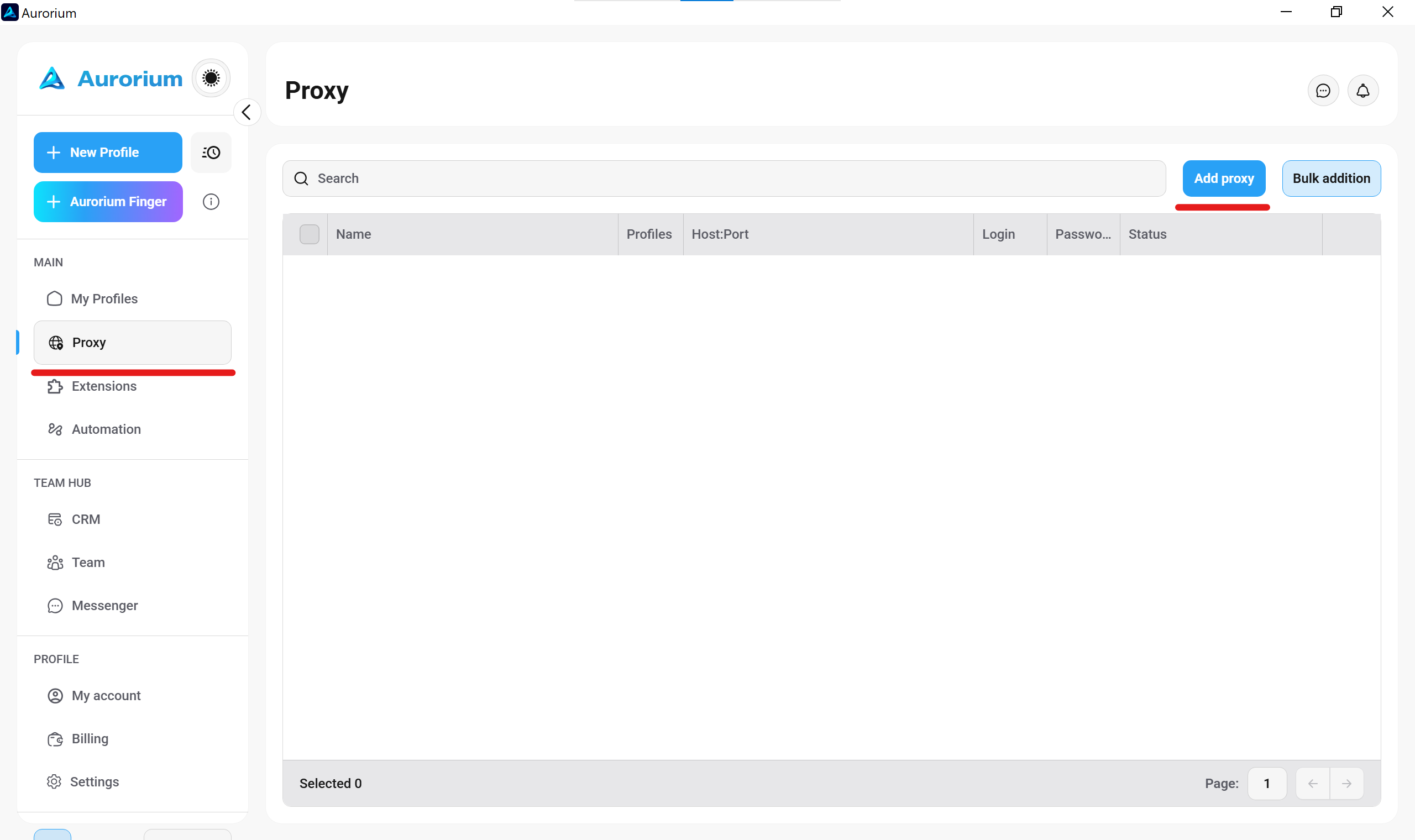
The main Proxy tab in Aurorium antidetect browser highlighting the Add proxy button for global node management.
Open the dedicated Proxy tab to centralize your nodes before binding them to individual profiles.

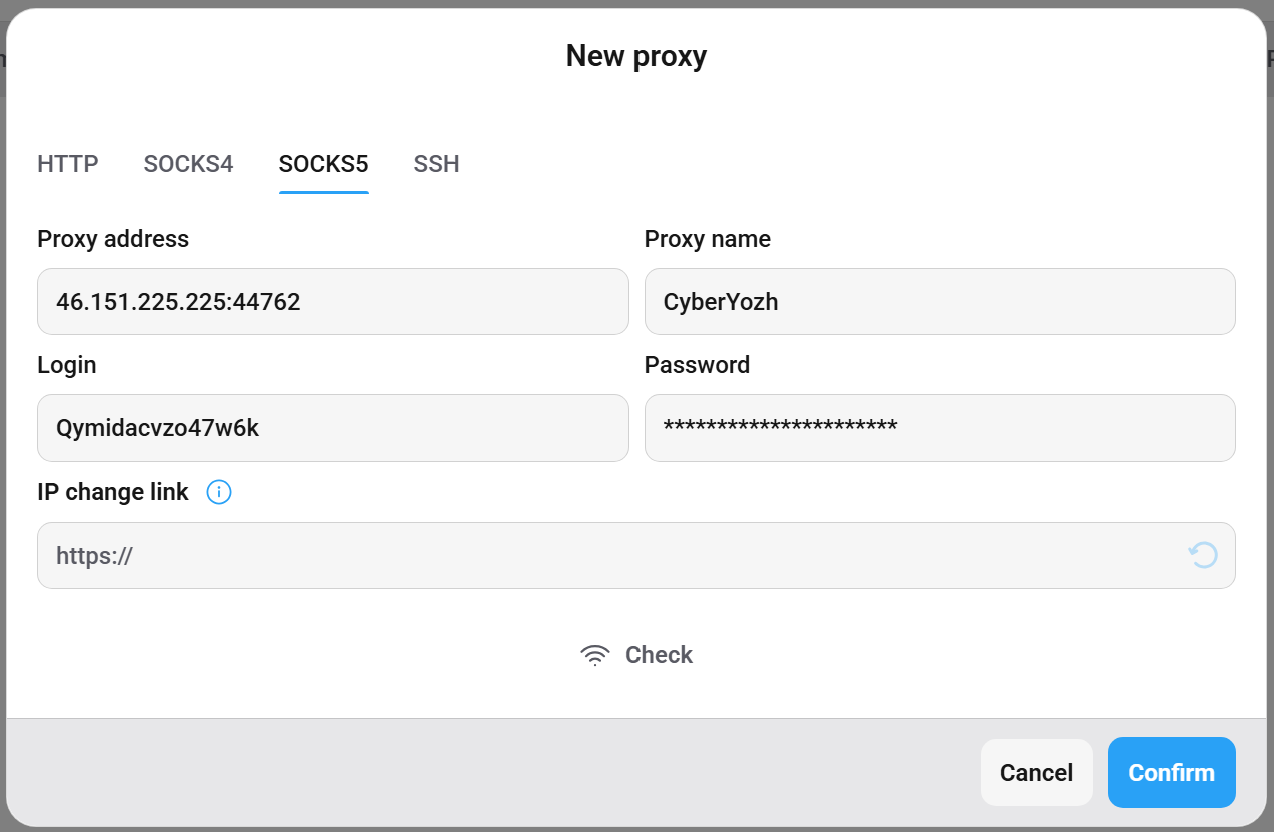
2. 强制使用 SOCKS5 并输入凭据

选择 SOCKS5 协议。SOCKS5 透明处理所有流量类型而不重写请求头,为隔离配置文件提供更干净的连接。粘贴您的 CyberYozh 连接字符串(IP、端口、登录名、密码)。如果您使用移动代理,请将 IP 更换 URL 粘贴到指定字段中,以通过 API 控制轮换。
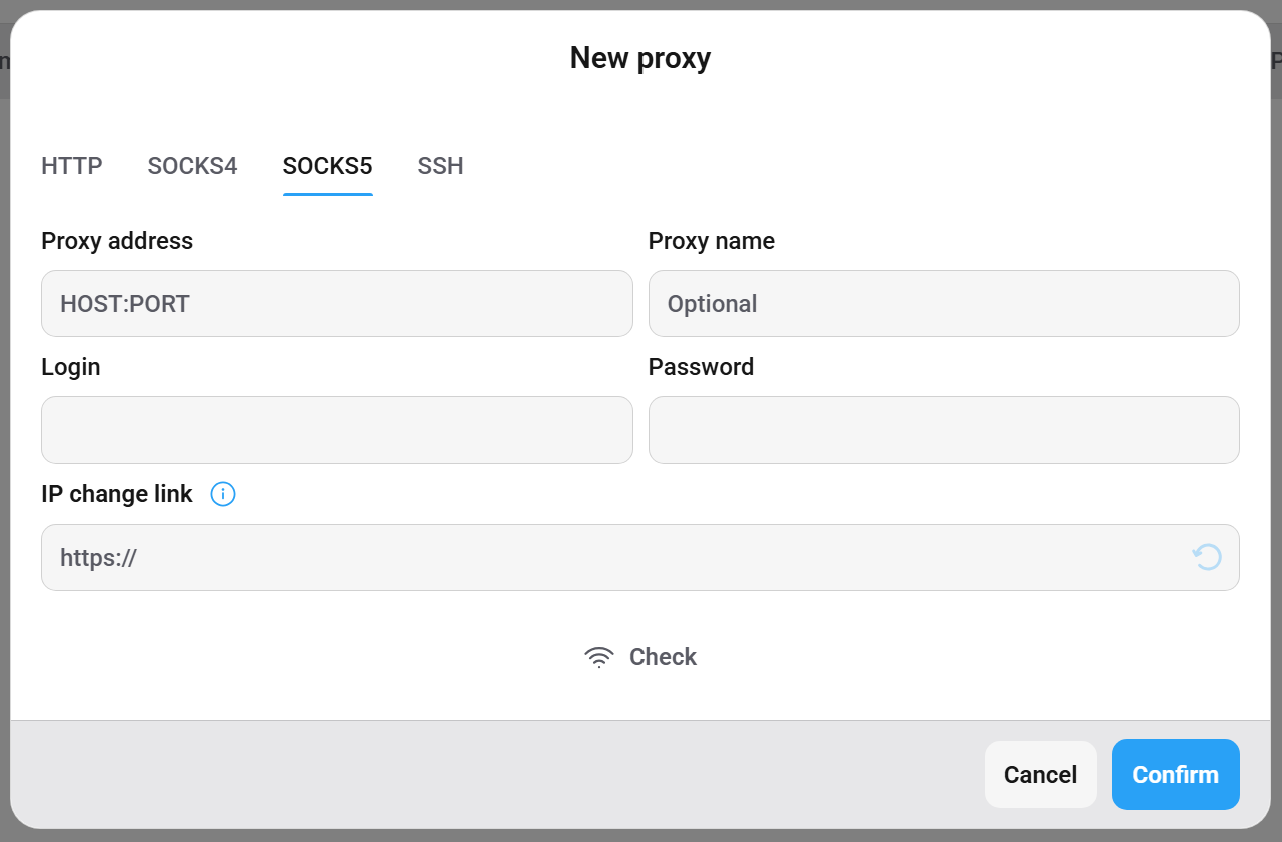
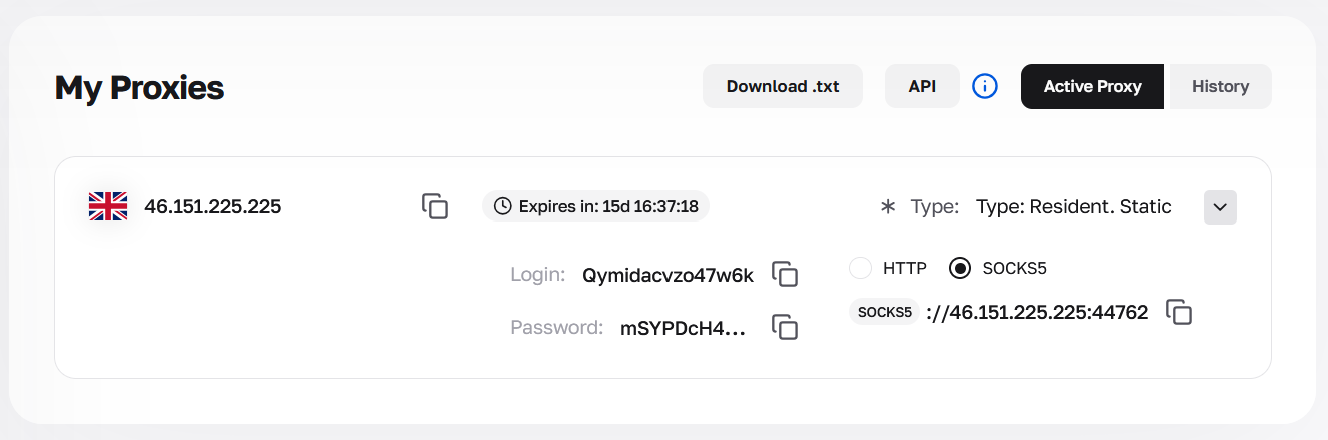
The New proxy configuration window in Aurorium with the SOCKS5 protocol tab selected.
Always select the SOCKS5 protocol to route non-web traffic and UDP packets cleanly.
CyberYozh App dashboard displaying active residential proxy credentials including IP, port, and SOCKS5 format.
Copy your assigned connection string directly from the CyberYozh control panel.
Aurorium proxy setup window filled with CyberYozh IP, port, login, password, and API change link.
Paste your connection details and the API rotation link into the corresponding fields.

3. 验证节点

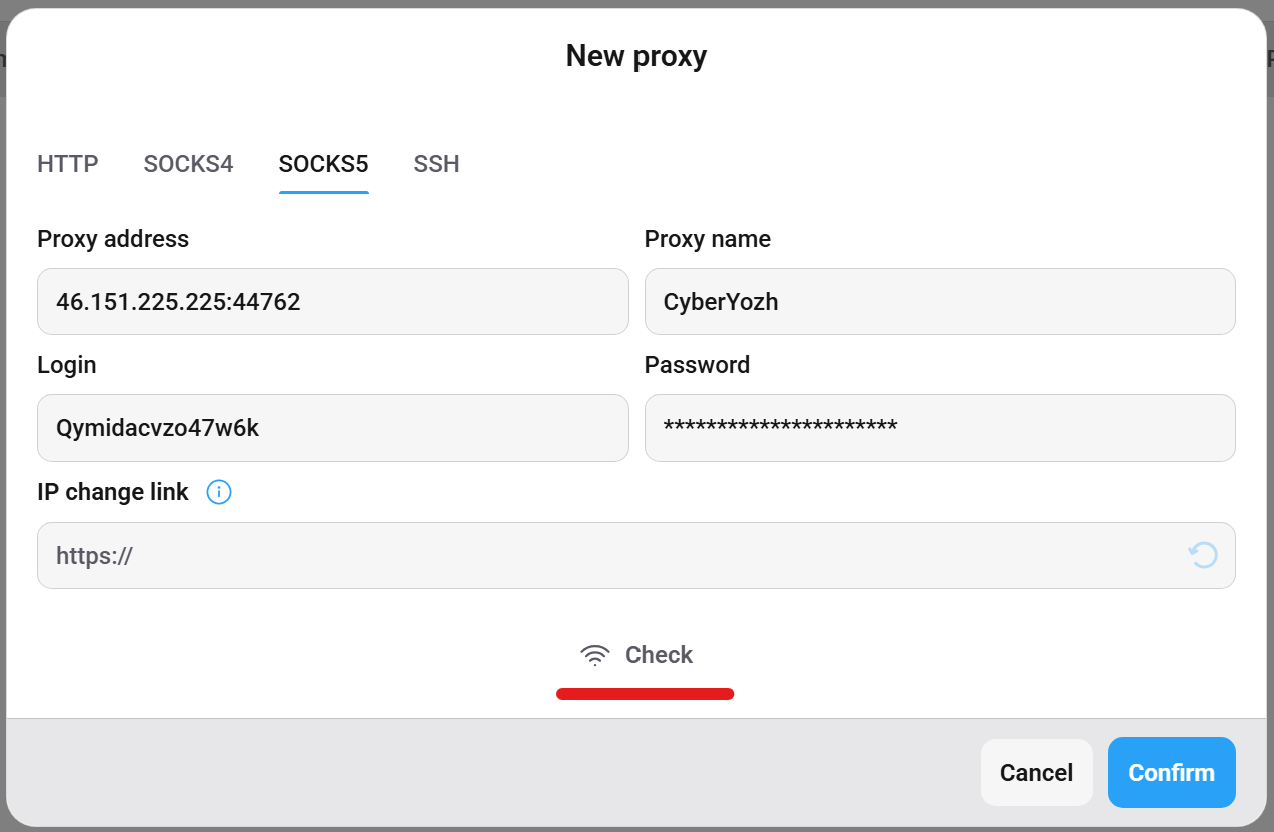
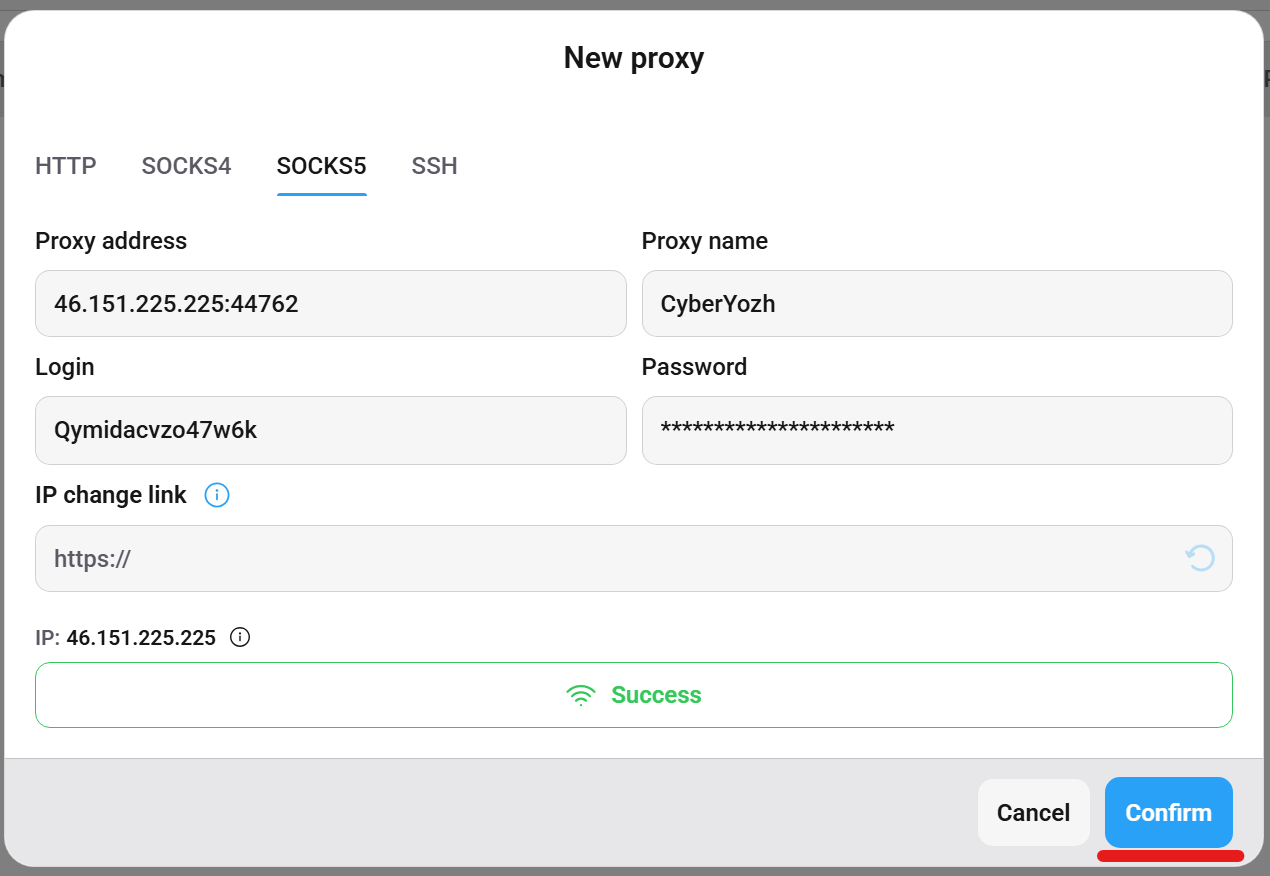
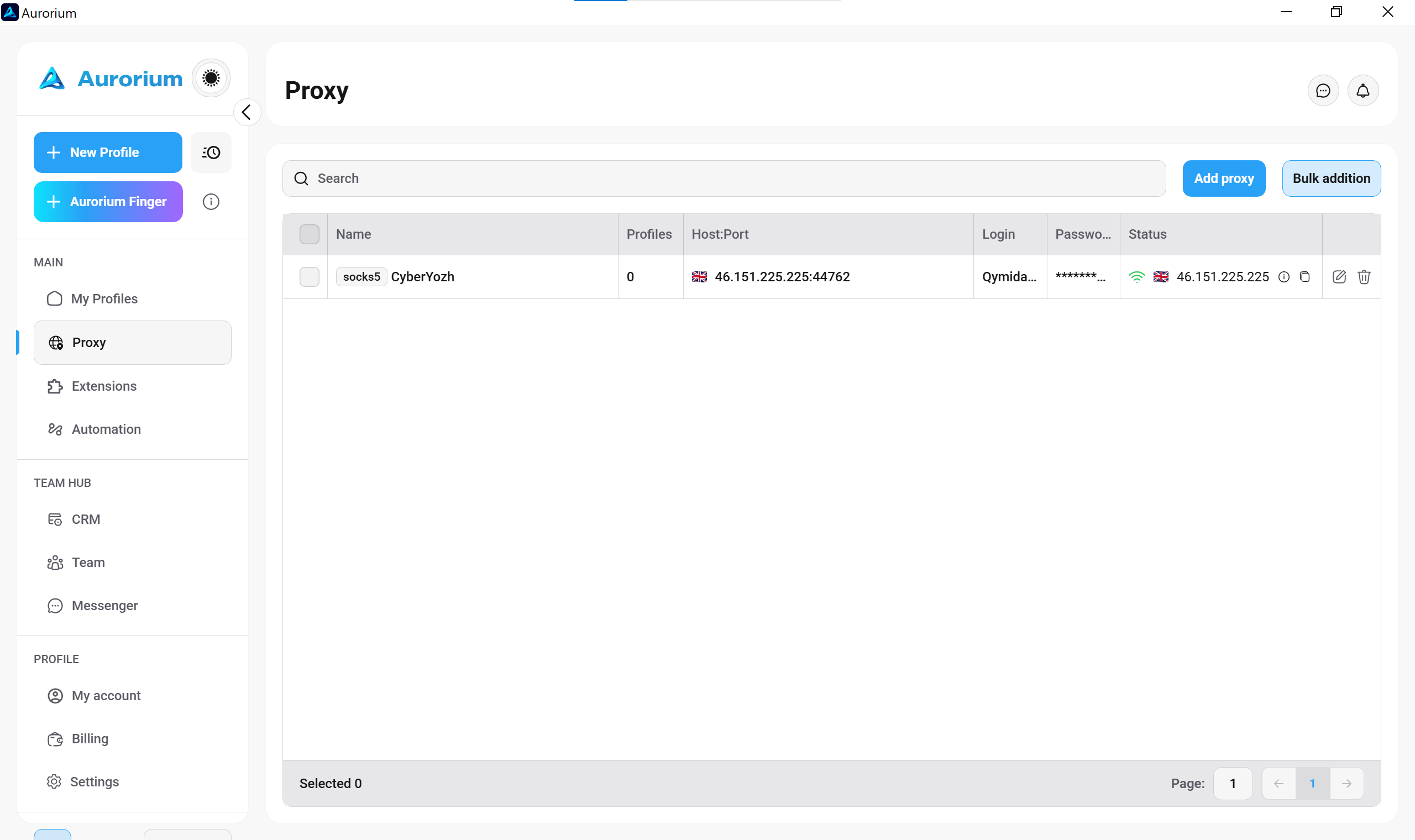
在保存前点击 检查。系统会验证代理的物理可达性并确认您的地理位置。看到绿色成功消息后,点击 确认。您的代理现已位于全局管理器中,随时可以部署。

Clicking the Check button inside the Aurorium proxy configuration window to verify node reachability.
Click Check to verify the physical reachability of your assigned IP address.
Green success message in the Aurorium browser confirming the proxy IP address is active and responding.
Wait for the green Success indicator to confirm your node is active before saving the configuration.
The CyberYozh SOCKS5 proxy successfully added and displayed in the Aurorium Proxy Manager list.
Your verified node now appears in the global manager, ready for profile deployment.

4. 将代理绑定到新配置文件

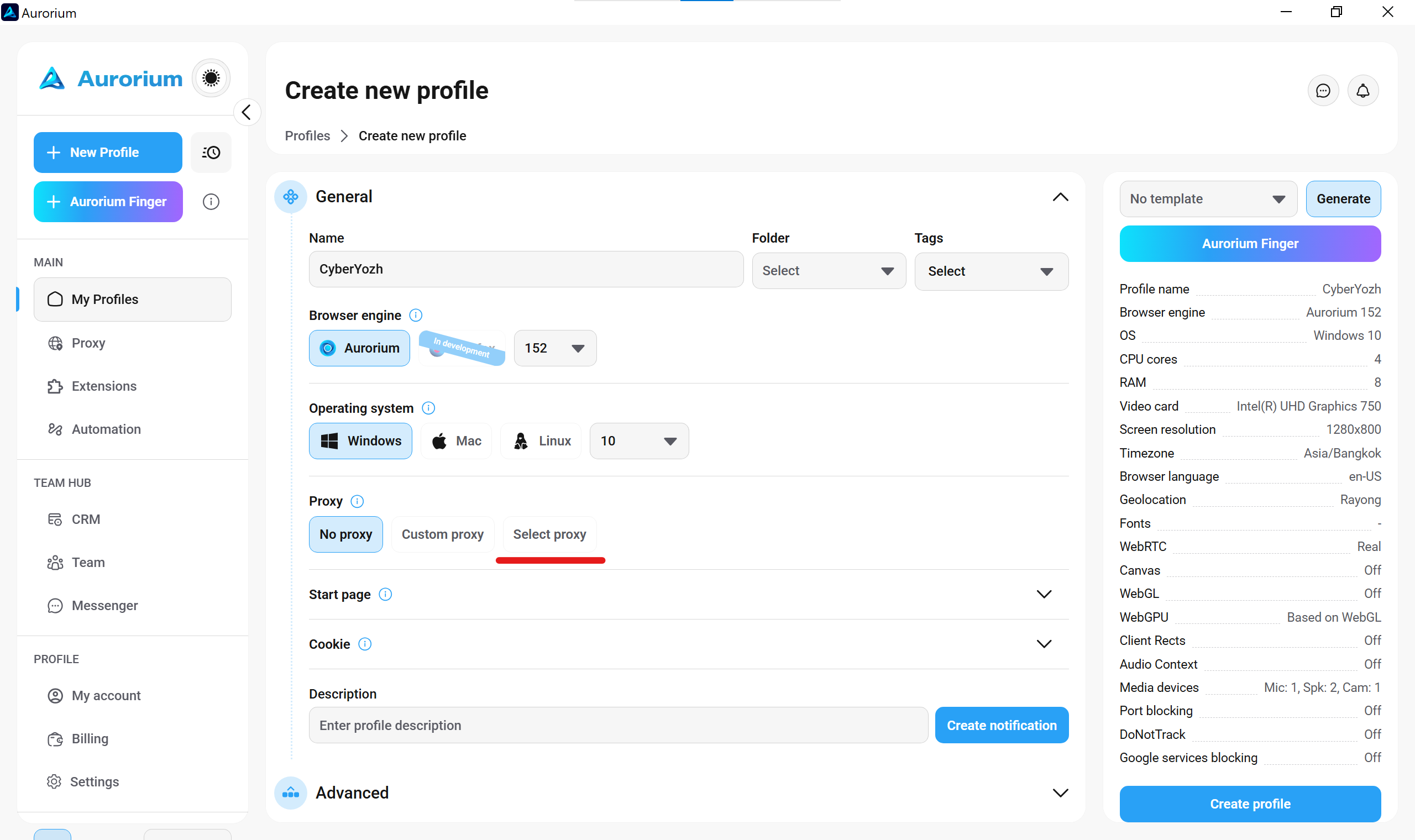
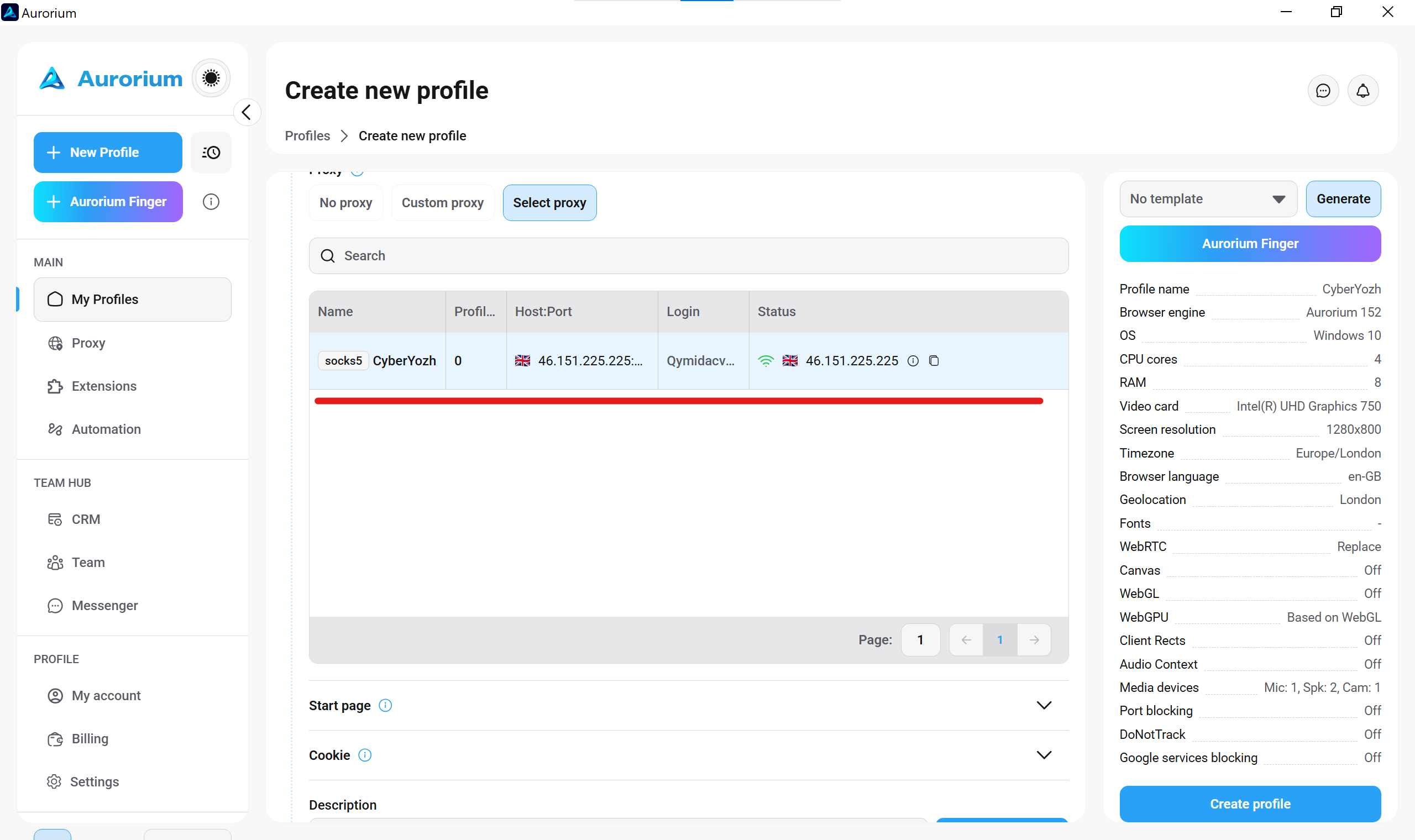
导航至 我的配置文件 选项卡并点击 新建配置文件。向下滚动到代理部分。点击 选择代理 而不是自定义代理。从下拉列表中选择您已验证的 CyberYozh 节点。
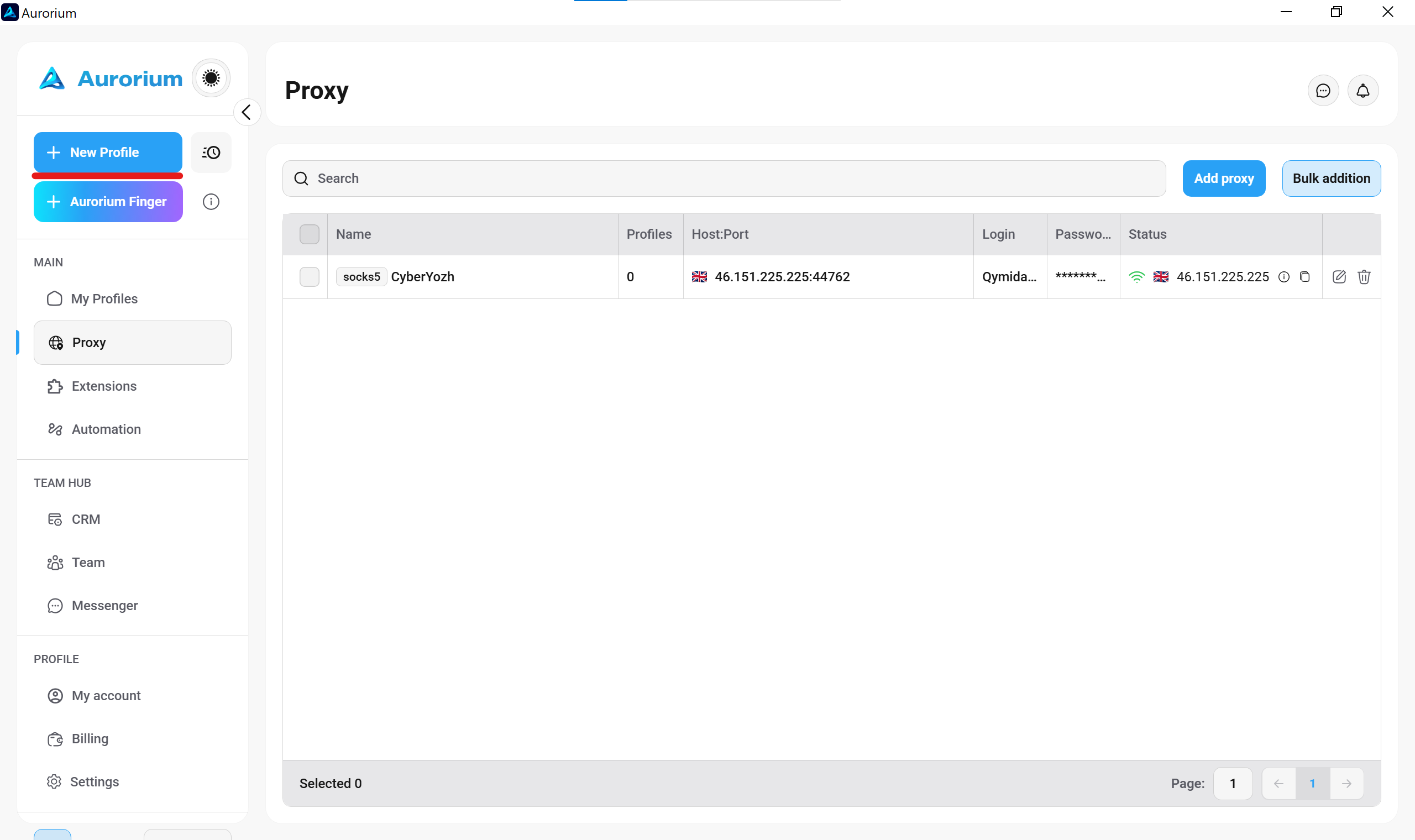
Aurorium sidebar highlighting the New Profile button to bind the configured proxy.
Click New Profile to start building an isolated environment with your verified proxy.
The proxy assignment section in the Aurorium profile creator with the Select proxy option highlighted.
Choose Select proxy to attach your globally saved CyberYozh node to this specific profile.
The proxy selection section inside the Aurorium profile creator showing a saved CyberYozh node.
Choose Select proxy to attach your globally saved CyberYozh node instead of entering credentials manually.

5. 对齐您的 TCP/IP 堆栈(p0f 防护)

查看代理设置正上方的 操作系统 选择器。这是最关键的步骤。如果您在此处选择 Windows,则必须物理对齐数据包头,以防止它们广播 Linux 内核。

👉 升级到高级移动代理: 只有 CyberYozh 上的专用高级端口才能访问原生指纹操作系统功能和 VLESS/Xray 协议支持。

激活它并将其设置为 Windows。提供商会物理重写您的 TCP 数据包头(TTL 和 MSS 值),有效中和被动操作系统指纹识别不匹配。
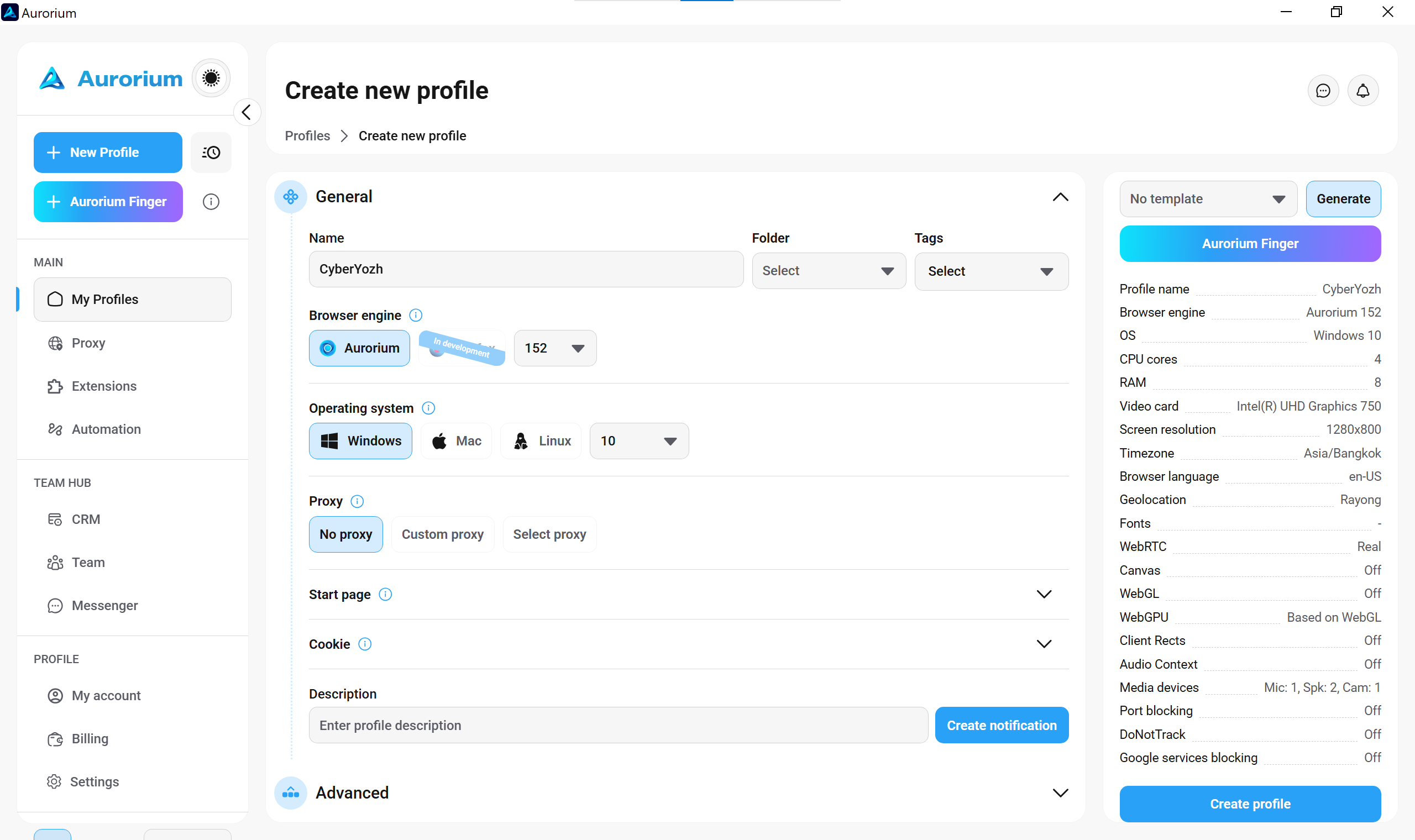
The general profile creation tab in Aurorium showing the Windows operating system selected for hardware fingerprinting.
Select your target operating system to match the exact Fingerprint OS setting in your CyberYozh dashboard.

6. 完成并启动环境

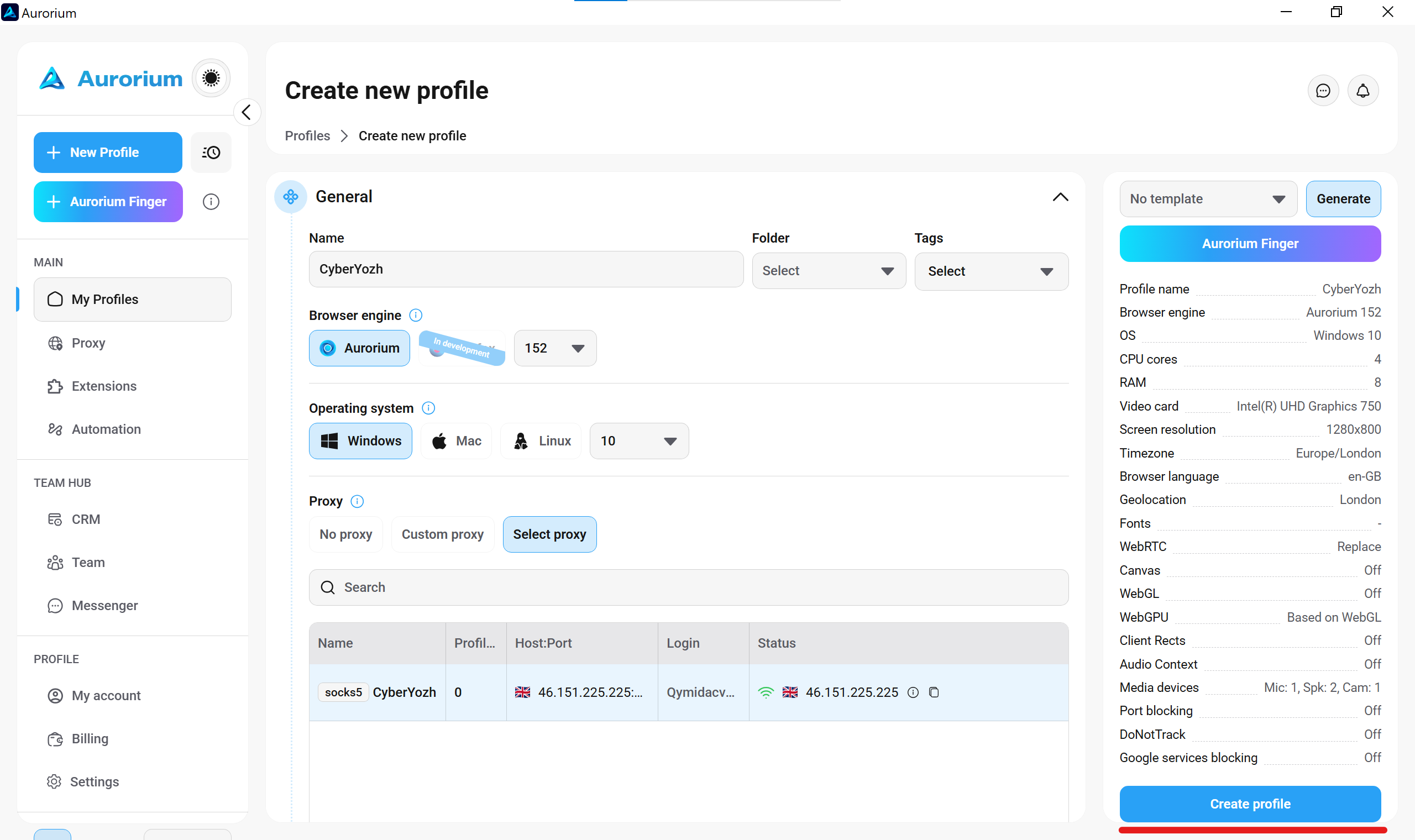
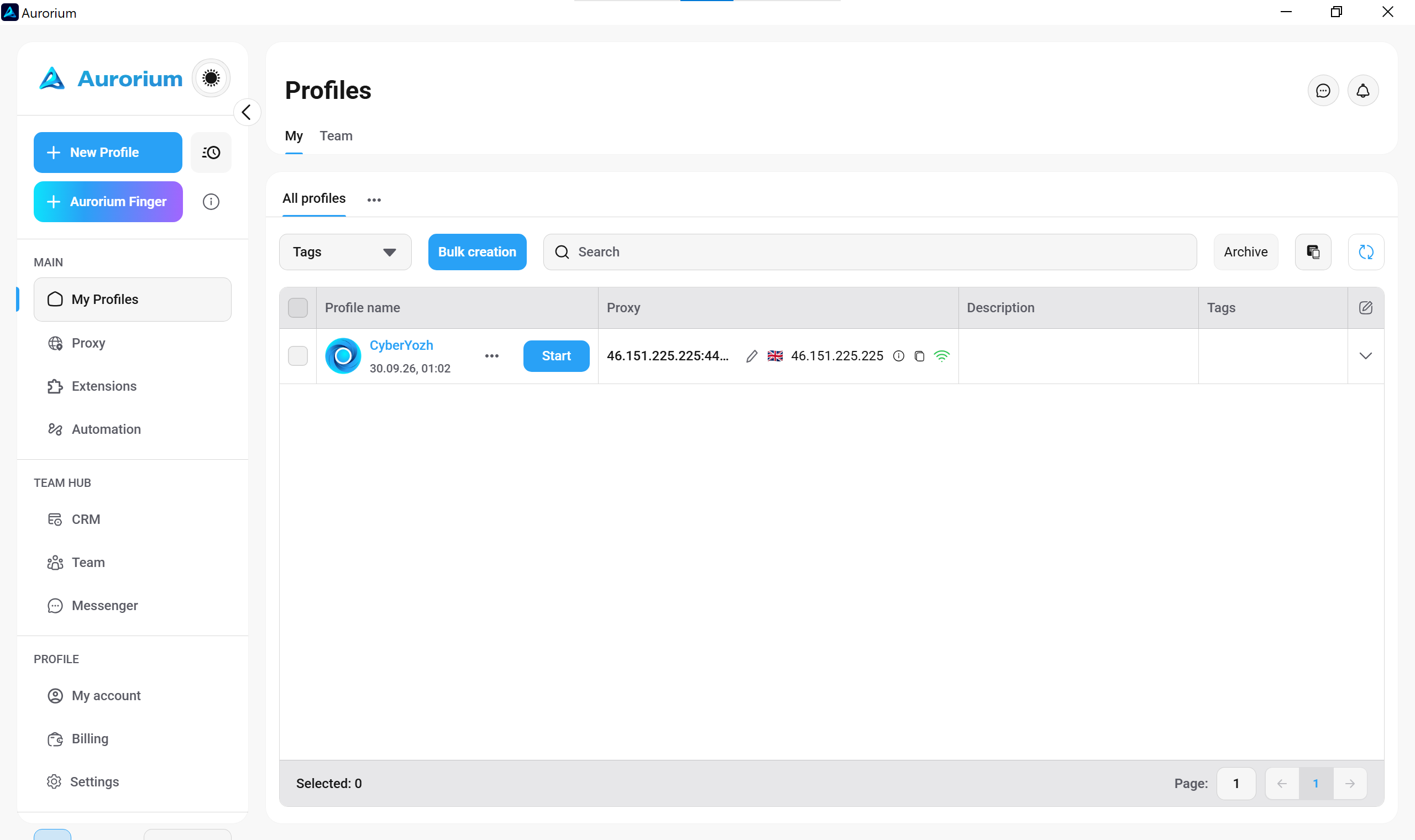
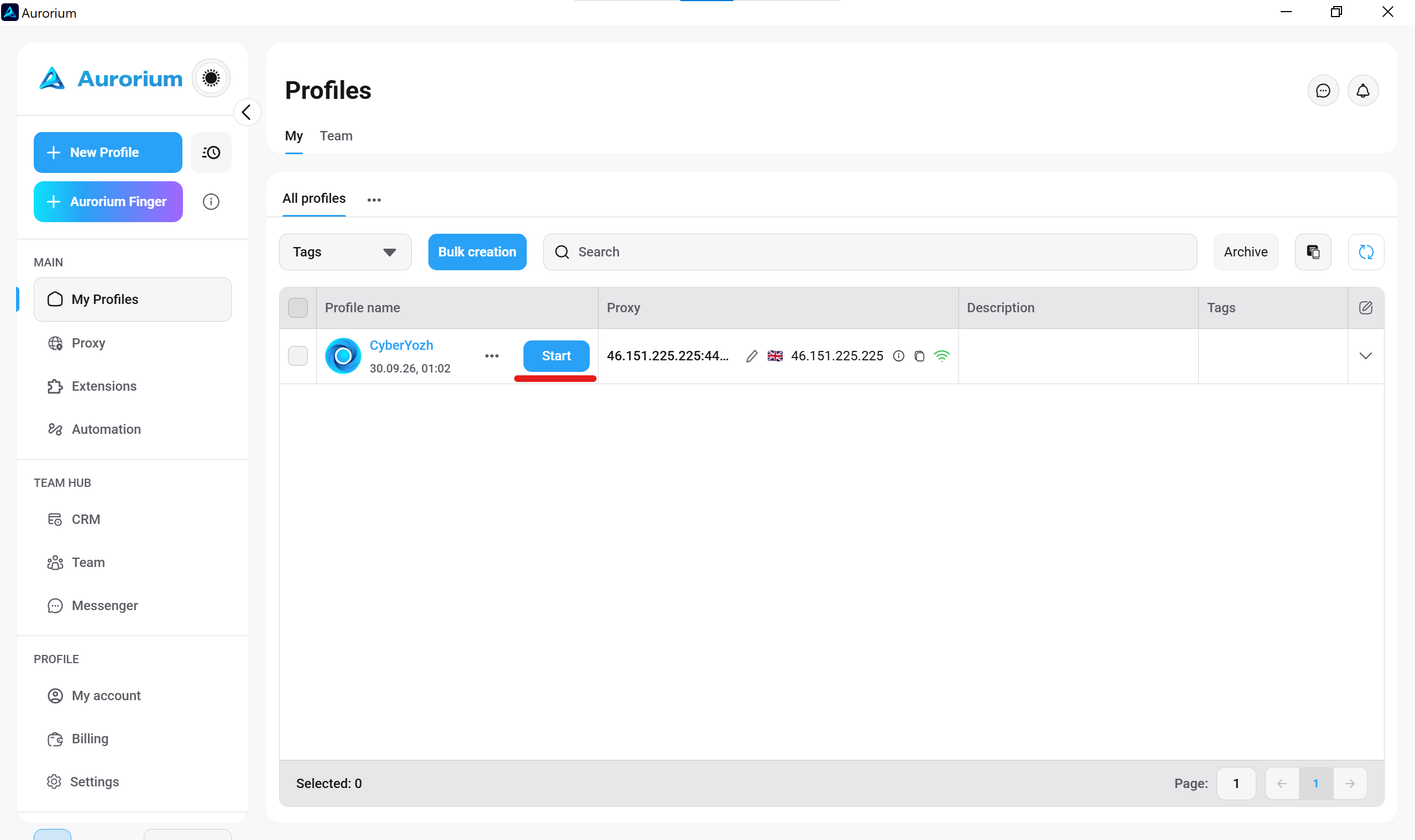
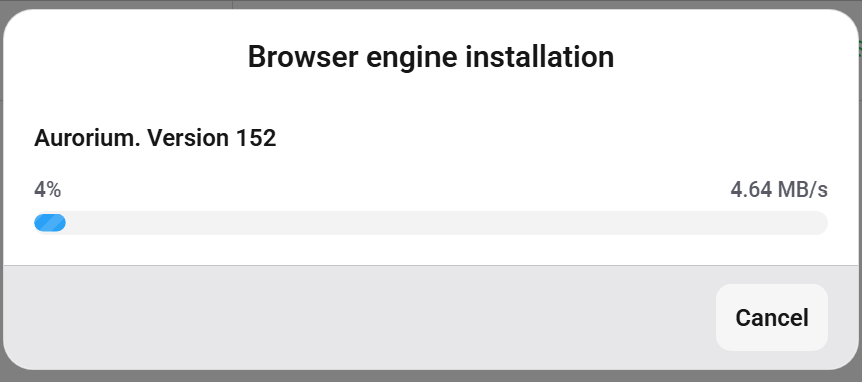
点击 创建配置文件 按钮。系统会将您的环境保存到主配置文件列表。点击 启动。应用程序会在初次启动时下载匹配的浏览器引擎版本。等待进度条完成。隔离窗口会自动打开。

The bottom right corner of the Aurorium profile creator highlighting the Create profile button.
Click Create profile to lock in your hardware footprint and network routing parameters.
The main interface in Aurorium displaying the newly created CyberYozh profile.
Your configured environment now appears in the main dashboard list.
The Aurorium profiles list highlighting the Start button next to the configured profile.
Click Start to initiate your isolated session through the attached network node.
A progress bar dialog showing the automated download of the Aurorium browser engine.
The application downloads the exact matching browser engine version during the initial launch.

7. 技术指纹审计

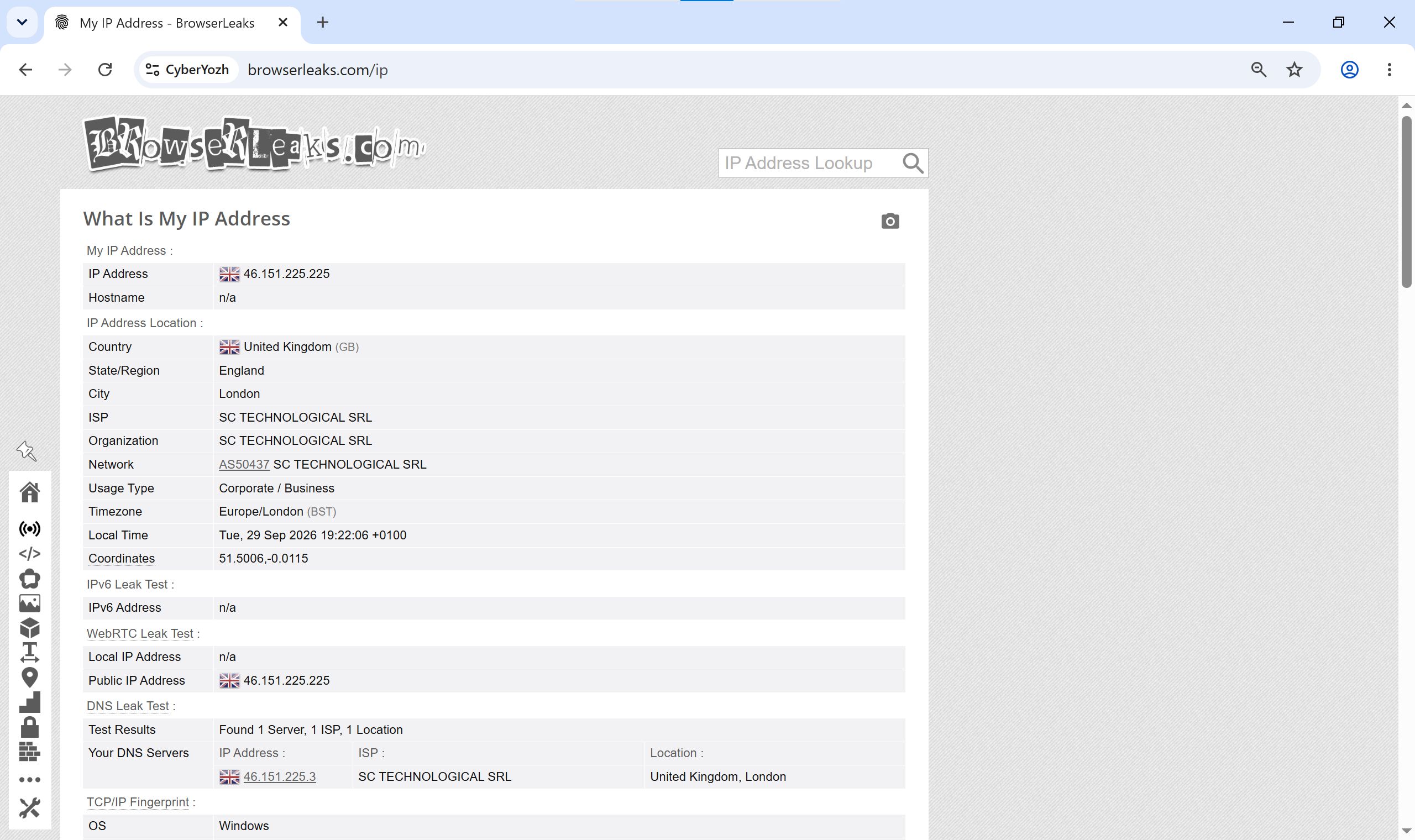
Aurorium 启动页面会立即显示您的基本连接状态。导航至 BrowserLeaks 进行深度技术审计。验证您的 WebRTC 参数广播准确的代理 IP 而不暴露本地接口。向下滚动到 TCP/IP 指纹部分。它必须显示我们在服务器上对齐的准确 Windows 操作系统。

👉 通过欺诈评分检查器审计您的节点: 在启动实际会话之前,使用 ThreatMetrix 和 IPQualityScore 数据库评估您的隐藏滥用速率和 IP 风险评级。
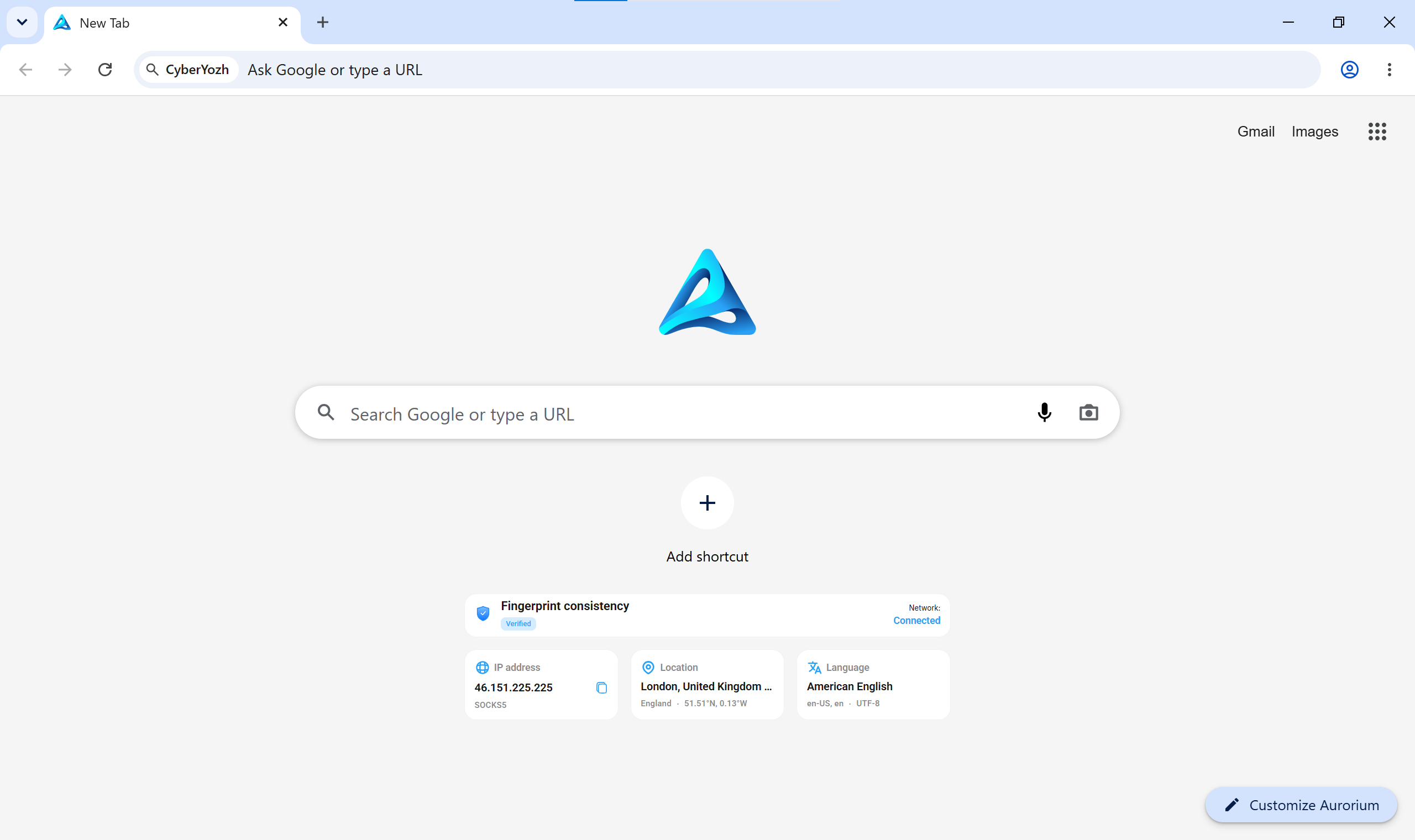
The default Aurorium start page displaying the active proxy IP, location, and verified fingerprint consistency.
The internal start page immediately confirms your active IP and evaluates basic fingerprint consistency.
BrowserLeaks test results showing the correct proxy IP, no WebRTC leaks, and an aligned Windows TCP/IP fingerprint.
Conduct a deep audit via BrowserLeaks to verify WebRTC encapsulation and exact TCP/IP (p0f) alignment.

地理同步您的配置文件:本地短信号码和虚拟卡

IP 对齐仅代表稳定环境的一个方面。严格的平台要求您的网络指纹与账单数据之间完全匹配。

👉 使用住宅 ISP 代理: 将您的配置文件绑定到与合法家庭互联网提供商关联的静态地址,该地址可保持连接数月。

部署 CyberYozh 短信服务以 租用住宅电话号码,这些号码来自真实的本地运营商。

接下来,直接从平台签发 虚拟代币化银行卡。配置该卡的账单地址(AVS 匹配),以精确反映您的 ISP 代理节点的地理位置。

这种统一的方法降低了自动安全触发的风险。

您的 Aurorium 代理设置现已完成。原生锁定您的传输层,不再让深度数据包检测干扰您的工作流程。

关于 Aurorium 代理设置的常见问题

为什么需要特定的 Aurorium 代理设置?

传统路由会留下传输层痕迹。专用配置可确保您的 TCP 数据包头与浏览器生成的硬件配置文件匹配,保护您的网络指纹免受深度数据包检测的影响。

Aurorium 代理设置如何防止 WebRTC 泄漏?

该配置利用 SOCKS5 并原生强制执行 UDP 路由。这将点对点 WebRTC 流量直接封装在隔离隧道内,确保您的本地接口永远不会向目标服务器广播。

我应该在 Aurorium 代理设置中使用 HTTP 吗?

部署 SOCKS5。HTTP 代理通常会修改请求头并破坏非 Web 流量。如果您的目标是需要超快数据传输的加密货币自动化。

👉 租用数据中心代理: 专为 SOCKS5 隧道提供超低延迟的高级专用服务器。

社交媒体的最佳 Aurorium 代理设置是什么?

严格的平台信任蜂窝网络。CGNAT 技术将您的请求原生地与来自真实智能手机的流量混合。

👉 部署移动 LTE/5G 代理: 账号养殖和广告套利的最佳解决方案,让您完全控制手动 IP 轮换。

如何在 Aurorium 代理设置期间更改 IP?

将您的特定 IP 更改 URL 从 CyberYozh 仪表板直接粘贴到代理配置窗口中。这允许您无缝触发物理调制解调器重置。

正确的 Aurorium 代理设置能修复 p0f 错误吗?

可以,前提是您对齐操作系统。您在 Aurorium 配置文件中选择目标操作系统,然后在 CyberYozh 网络级别激活指纹操作系统功能以精确匹配。

如何在连接前测试我的代理节点?

通过欺诈评分检查器运行您分配的IP地址。这将在您启动会话之前使用企业数据库分析您的滥用速度和风险评级。