
Proxy for WhatsApp
You open WhatsApp. The connecting wheel spins endlessly. Messages refuse to load. Whether you manage corporate communications or need to restore stable access to local content during a trip, network routing limits stop you cold.
Most users immediately head to the built-in proxy settings to paste their server details, but the connection fails instantly. The native app settings are a trap. WhatsApp developers designed that specific menu exclusively for free, open volunteer networks. It contains zero input fields for a username or password. Because high-quality private and dedicated proxies demand authentication, your server rejects the empty request. You are locked out.
TL;DR: Why your current WhatsApp proxy setup fails
If your connection drops calls or refuses to load, here is the exact technical breakdown.
The native settings trap: The built-in app settings block private servers. They simply cannot pass authentication headers.
The protocol gap: Simple text chats run on standard TCP. Voice and video calls rely entirely on UDP packets. HTTP proxies drop UDP traffic completely, severing your media connections.
The pro solution: Stop fighting the native app menu. Route your traffic through external network tunnels with native HTTP, HTTPS and SOCKS5 support.
Network authenticity: Always audit your infrastructure. Run your nodes through a real-time fraud-score and risk evaluation before you ever attach them to your business numbers.
The UDP proxy requirement for WhatsApp voice calls
Many marketing teams buy standard HTTP datacenter IPs. They send a text message. Everything looks fine. Then they initiate a voice call. It drops instantly.
The failure comes down to network protocols. Text messages travel over standard TCP. Basic HTTP nodes route these text packets without a hitch. Voice and video calls operate completely differently. They rely entirely on UDP packets to stream real-time data continuously without buffering. HTTP protocols simply do not handle UDP streams. They drop the packets dead.
WhatsApp requires UDP to transmit real-time voice and video data. To maintain stable WebSocket and streaming connections, your infrastructure must utilize SOCKS5 or direct network tunneling. SOCKS5 forwards UDP traffic natively. Your calls connect and stay active.
Managing WhatsApp multiple business profiles
You launch twenty corporate WhatsApp Web sessions. They all share a single office IP address. That is a massive red flag.
Security algorithms monitor traffic density constantly. And they hate anomalies. When they spot two dozen active business profiles funneling through one network node, the system reacts. It severs the connections instantly. You lose access to your clients.
You cannot scale a business network this way. You need full digital identity isolation per profile. Separated environments are mandatory to maintain these accounts safely. Assigning an independent, high-trust IP to each specific session keeps your corporate communications online and stable.
Auditing your network footprint
Professional operators never connect blind. You must validate your exact digital footprint before attaching any new network node to a business profile. Because basic connectivity does not equal safety. An IP address might load the messenger perfectly while sitting on active corporate blacklists.
Run your infrastructure through the CyberYozh App Fraud Score checker. This tool pulls raw data from enterprise security engines like IPQualityScore and ThreatMetrix to show you exactly what the platform algorithms see.
You need low fraud scores and clean IP history. The checker assigns a definitive risk rating from 0 to 100. Anything above a 75 Fraud Score puts your corporate accounts at immediate risk. The system also tracks Abuse Velocity to warn you if that specific IP handled heavy spam traffic recently. Operating on verified nodes immediately reduces CAPTCHAs and security checks. Never skip this audit.
Choosing the best proxy for WhatsApp
Network filters categorize IPs by trust tiers. Your infrastructure dictates your survival on the platform. CyberYozh App provides a mix of residential, mobile, and ISP proxy IPs. You must match the node architecture to your specific operational scale.
Datacenter proxies
These originate from commercial server farms. They are cheap. They are extremely fast. But network filters detect them instantly. They carry zero inherent network trust. Use datacenter nodes strictly for basic text routing on aged, established accounts. Do not use them to register new business profiles.
Residential ISP proxies
Static ISP nodes are tied directly to real home internet service providers. You hold a dedicated address. They mimic natural human browsing behavior perfectly. They provide high stability residential IP addresses. This makes them the absolute optimal choice for running continuous WhatsApp Web sessions on desktop. You maintain a clean footprint for months without triggering security sweeps.
Residential rotating proxies
If you handle bulk verification, static IPs will not suffice. You need access to a massive global residential IP pool. The CyberYozh App dashboard features a sophisticated Proxy Manager for rotation rules. You do not just connect blindly. You generate specific credentials to define your session state. You can pull a random IP for a quick check, or generate a custom login string to lock a sticky session for up to six hours. This provides massive scalability for heavy automation.
👉 Read our complete technical breakdown on configuring residential proxies to master session generation.
Mobile proxies
Mobile networks operate on CGNAT technology. A single operator IP routes traffic for thousands of regular people simultaneously. Because of this shared cellular architecture, web platforms view your traffic as a genuine human connection. Banning the IP means disconnecting massive numbers of innocent users. It rarely happens. Utilizing specialized true mobile carrier IP networks avoids IP blocking and account bans entirely. You retain full control over your footprint. Private dedicated ports give you complete API-driven rotation and session control via a simple HTTP link.
👉 Explore our deep dive on mobile proxies to configure dedicated port rotation and OS fingerprinting.
Desktop proxy setup for WhatsApp (Windows & macOS)
If you manage communications via the WhatsApp Desktop app, you need a dedicated proxy client. Historically, network operators rely on Proxifier. Do not use it for WhatsApp. Proxifier handles TCP traffic perfectly. But its UDP forwarding over SOCKS5 is notoriously unreliable. When you attempt to initiate a voice call, the client drops the UDP packets entirely. The call fails immediately.
Windows configuration (Win2Socks)
You need software that builds a virtual network adapter. Win2Socks creates a direct TUN interface to route your packets cleanly. This forces the application to transmit UDP data correctly.
Download and install Win2Socks.
Add your SOCKS5 server details.
Include your specific username and password.
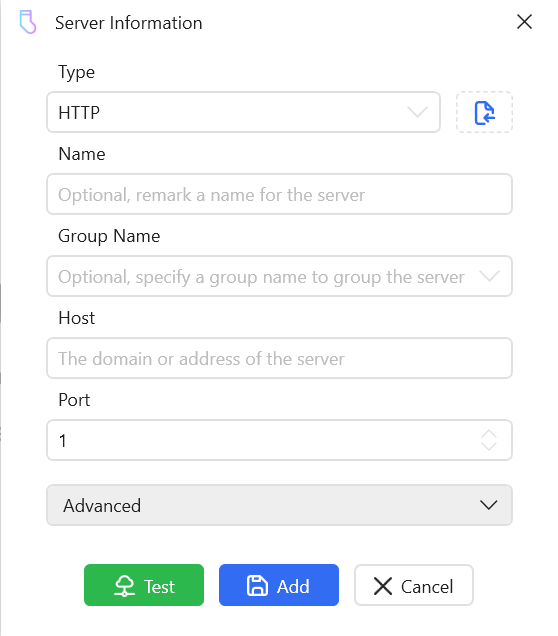
Screenshot of the "Server Information" settings window. Then build a fresh routing rule. Target WhatsApp.exe.
Click Start.
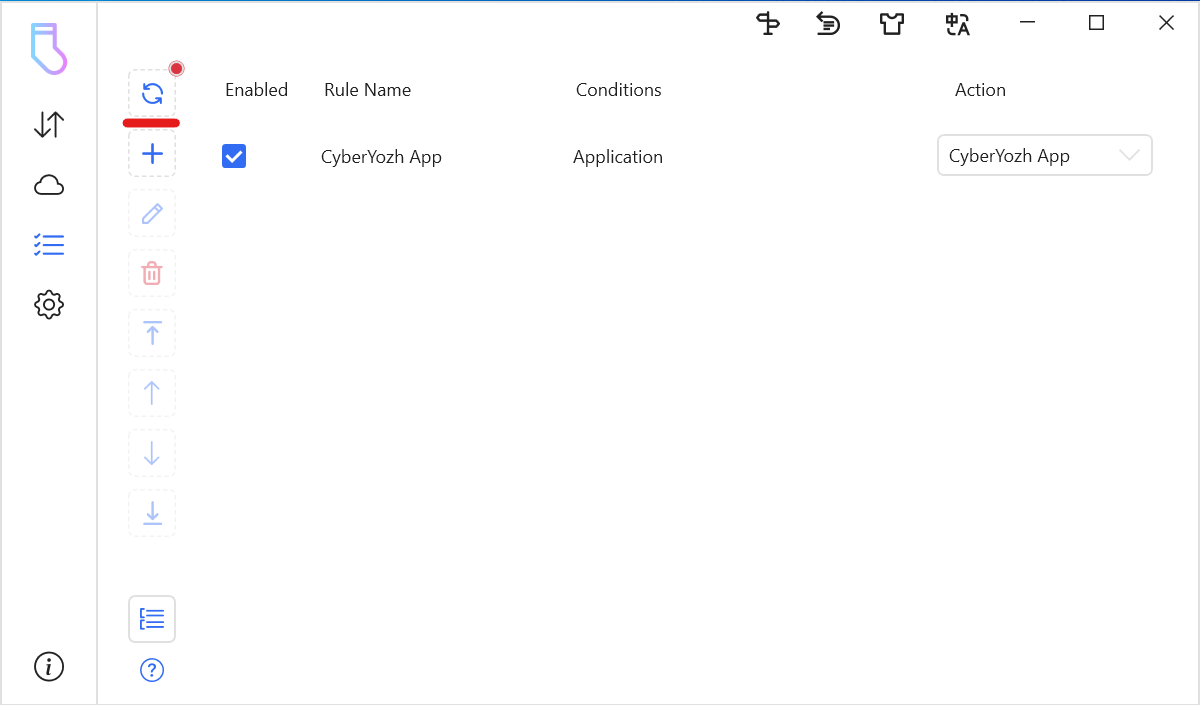
This screenshot shows the "Rules" section with a list, displaying the created and active rule for the WhatsApp application.
Your desktop application now has enterprise-grade performance for production pipelines and stable voice streams.
👉 Need to route your entire OS or configure other protocols? Read our complete Windows proxy configuration guide here.
macOS Configuration (native system method)
Apple handles routing differently. macOS features system-wide proxy settings. You configure the connection once in the native menu. The operating system then forces all application traffic through the secure node.
Click the Apple icon and navigate to System Settings.
Open the Network section. Select your active connection and click Advanced (or Details).
Navigate to the Proxies tab. Turn on the SOCKS Proxy switch.
Enter your Server IP and Port.
You must toggle the password requirement on.
Then type your login data straight in.
Click OK, and then Apply in the main settings window.
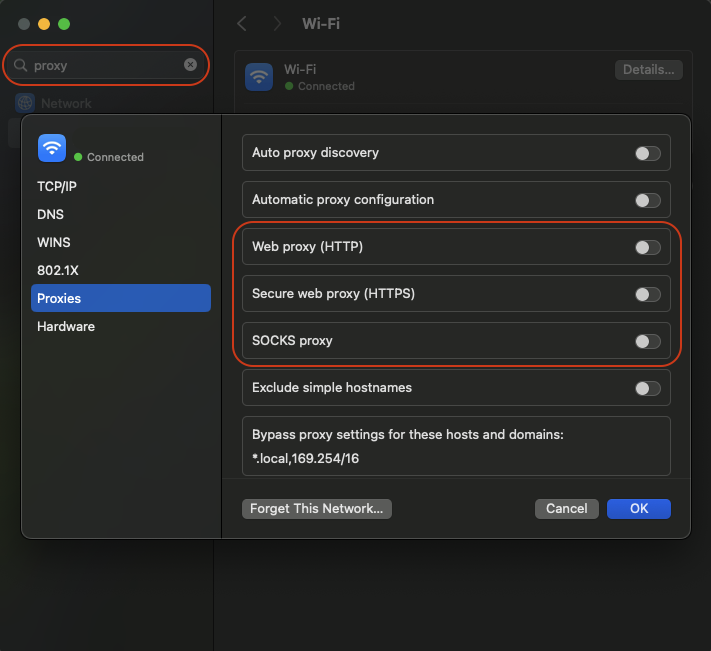
macOS network settings interface showing the network connection configuration panel where basic proxy setup is performed.
Your Mac now routes traffic securely without dropping media packets.
👉 Need the full breakdown for OpenVPN, Residential profiles, or data leak testing? Read our complete macOS proxy configuration guide here.
Mobile proxy setup for WhatsApp (Android & iOS)
Mobile operating systems present a major hurdle for traffic routing. Native Android and iOS configuration menus apply exclusively to local Wi-Fi networks. They cannot handle mobile data. Turn off your Wi-Fi, and the connection drops instantly. Your device immediately reverts to its original cellular IP. Native phone settings also lack deep SOCKS5 and UDP proxy protocol capabilities. To route voice streams on the move, you must deploy a dedicated application. These tools build a local VPN tunnel to force packet data through your chosen node across all cellular and wireless interfaces.
Android Configuration (v2rayNG)
Third-party clients force your packet data through your proxy across both Wi-Fi and LTE connections.
Download the v2rayNG application from official site.
Open the app.
Tap the plus icon in the top corner.
Select the SOCKS protocol type manually.
Input your specific parameters from your control panel:
Remarks: CyberYozh
Address (IP): Your assigned IP
Port: Your SOCKS5 port (9595 for SOCKS5)
User / Password: Your authorization credentials
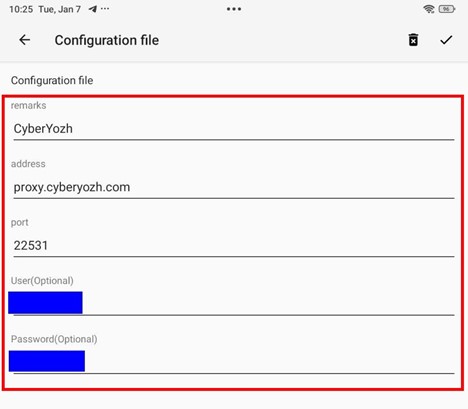
Profile parameter input screen.
Tap the checkmark to save.
Select your profile from the list.
Tap the round connect button at the bottom.
The icon turns orange.
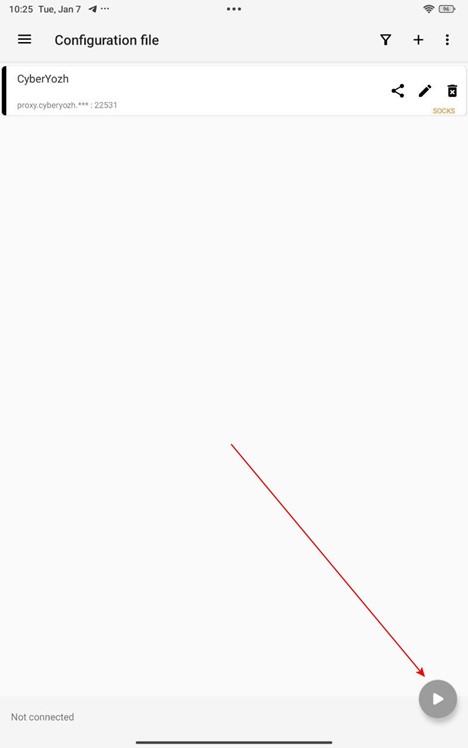
Starting the proxy.
On the first run, confirm the Android system request to create a VPN connection. Your phone now forces all application traffic through the authenticated proxy securely.
👉 Need native Wi-Fi setups or detailed battery optimization troubleshooting? Read our complete Android proxy configuration guide.
iOS Configuration (Shadowrocket)
Apple maintains a highly closed architecture. Built-in iOS options do not let you set a system-wide proxy for mobile networks (cellular data). They natively restrict connections to basic HTTP over Wi-Fi. To restore stable access to your streams using SOCKS5 over LTE, you must install a third-party application.
Shadowrocket is your best bet here. It handles the routing perfectly. But Potatso Lite and v2rayTun are solid fallbacks.
Launch Shadowrocket.
Tap Add Server.
Select SOCKS5 as your protocol type.
Input your Server IP, Port, Username, and Password.
Open the advanced settings block.
Ensure you toggle the UDP Forwarding option to active. This step is non-negotiable. Without active UDP routing, your WhatsApp voice calls will fail instantly.
Toggle the global connection switch on. The application launches a local VPN interface.
Your phone now wraps all cellular and wireless data into your private authenticated tunnel, protecting your network footprint on the go.
👉 See our step-by-step iOS proxy configuration guide for exact native interface settings and advanced PAC deployment rules.
Proxy for WhatsApp Web & browser integration
You manage customer support through web interfaces. Opening twenty tabs in a standard browser shares the exact same hardware fingerprint across every session. The platform detects the anomaly immediately. It drops your connections.
You need integrated anti-detect browsers for proxies. Tools like Octo Browser, AdsPower or Multilogin isolate your digital fingerprint. They separate cookies and storage between profiles entirely. Pair each isolated profile with a dedicated ISP or mobile proxy. This creates an all-in-one ecosystem for multi-accounting. Your support teams maintain stable WebSocket and streaming connections without triggering automated security filters.
For mobile nodes, activate passive OS fingerprinting. If you run a Windows desktop but your browser profile emulates an iPhone, the network detects the TCP/IP mismatch. Enabling the passive iOS fingerprint perfectly aligns your network signature with your browser profile. Avoids multi-dimensional fingerprint mismatches.
Some networks operate under extreme routing restrictions. Standard protocols fail. Deploy the VLESS-Reality (Xray) protocol. It encrypts your traffic to look exactly like standard web browsing. This restores stable access to your streams even in heavily monitored environments.
Building new support profiles requires phone verification. Do not attach personal mobile lines to corporate setups. Leverage integrated SMS and virtual-number services through the CyberYozh App platform. You rent residential numbers from real local operators. They hold the high Trust Rate required to receive registration texts safely.
Conclusion: Control your network routing
Stop relying on free volunteer servers or free datacenter IPs. They drop your voice calls. They trigger automated security sweeps. Using these generic shortcuts to manage your business communications guarantees unpredictable connection failures.
Take control of your network routing. Transition to ethically sourced residential and mobile IPs. You need a professional, controlled infrastructure to manage multiple support profiles safely. When you route your traffic through specialized true mobile carrier IP networks, you stop reacting to sudden network drops. You operate with absolute predictability.
When you align your network location using highly stable, authenticated infrastructure, your text, voice, and video communications work flawlessly. Build your communication stack on a foundation that enterprise algorithms actually trust.
👉 Check your IP Fraud Score - See your digital footprint exactly how major corporate platforms see it before you connect.
👉 Start with $1.70 now - Deploy high-trust mobile and residential proxies today and secure your corporate WhatsApp operations.
FAQs about setting up a proxy for WhatsApp
Why does my proxy for WhatsApp fail to connect in the native app settings?
The built-in menu targets public volunteer servers, meaning it completely lacks fields for a username or password. Since private nodes demand authentication, your server simply drops the empty request. To pass your login data securely, you need a third-party tunnel.
Can I use an HTTP proxy for WhatsApp voice calls?
No. HTTP protocols only handle standard TCP text chats. Voice and video streams rely entirely on UDP packets, which basic HTTP connections drop dead. If you want to keep your calls active, you must configure a SOCKS5 proxy for WhatsApp to route that UDP traffic properly.
What is the best proxy for WhatsApp Business multi-accounting?
Mobile proxies hold the top spot. They route your traffic through cellular networks using CGNAT technology, where thousands of people share the exact same IP simultaneously. Banning that address means disconnecting innocent users. That specific shared architecture keeps your corporate accounts online.
How do I set up a proxy server for WhatsApp on an iPhone?
Apple restricts native configurations strictly to Wi-Fi, leaving you unable to route cellular data natively. Grab an app like Shadowrocket instead. It builds a local VPN tunnel to force all traffic through your secure node. Just make sure you toggle UDP forwarding on to keep your calls working.
Why shouldn't I use a free datacenter proxy for WhatsApp?
Free IPs are heavily abused by spammers. Security algorithms flag these datacenter nodes instantly because they carry zero inherent network trust. If you connect through one, you will trigger automated security sweeps. Stick to ethically sourced residential or mobile IPs to actually protect your footprint.
How do I manage WhatsApp Web proxies safely?
Browsers handle text routing fine. But running twenty support tabs shares your exact hardware footprint across every session, which anti-fraud systems catch immediately. You need an anti-detect browser like AdsPower to isolate your cookies entirely. Pair each profile with a dedicated ISP IP to manage clients securely.
Can mobile proxies for WhatsApp really save your accounts from getting banned?
Mobile carriers pool IPs natively. Web platforms view the traffic as genuine because you blend in with millions of regular smartphone users. We also support passive OS fingerprinting on our private ports, aligning your network signature directly with your device to hide the proxy entirely.
Does Proxifier work to configure a proxy server for WhatsApp Desktop?
No. Proxifier drops UDP packets over SOCKS5. Your text chats might work, but voice calls fail immediately. Use Win2Socks instead. It builds a TUN interface that forces the desktop application to transmit UDP data correctly.
How can I perform an IP Fraud Score audit before connecting?
Never connect blindly. Run your node through the CyberYozh App Fraud Score checker first. This tool pulls raw data directly from enterprise databases like ThreatMetrix. Keep your score below 75, and you avoid instant blocks.
Will a proxy for WhatsApp work on cellular data without Wi-Fi?
Native phone settings drop the connection the second you step away from a wireless router. To maintain your proxy on LTE or 5G, you need a dedicated application. Clients like v2rayNG for Android or Shadowrocket for iOS force your packet data through the secure node across all network interfaces.