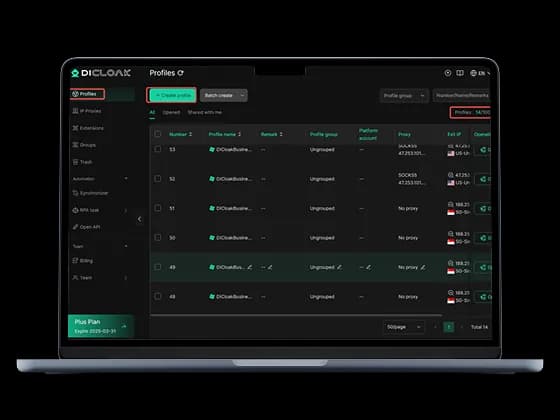
What are the distinctive features of DICloak and why is it useful
DICloak separates cookies, local storage, and browser fingerprints into independent profiles on Windows and macOS using a Chromium browser. Its fingerprint controls, no-code automation, and shared profile access help teams manage advertising, storefronts, and research from one device.
CyberYozh App supplies the proxy connection for each profile, keeping network configuration separate from browser identity management.
The DICloak browser brings several practical controls into one interface:
Separate cookies and local storage for each account environment.
Configurable Canvas, WebGL, hardware, timezone, and geolocation signals.
HTTP and SOCKS5 proxy settings with connection checking.
No-code RPA templates for repetitive browser tasks.
Profile sharing, permissions, and cloud synchronization for team handoffs.
Use CyberYozh App infrastructure with DICloak
When working with DICloak, CyberYozh App connects isolated profiles to mobile, residential, or datacenter networks. Choose stable addresses for recurring logins and controlled rotation for regional checks or public-data collection.
Manage ad accounts for different campaigns
Client campaigns need separate login environments and clear team access. Pair each authorized advertising account with an isolated profile and a consistent mobile or static residential connection. Use permissions to organize access and regional proxies to inspect localized landing pages.
Organize several e-commerce storefronts at once
Switching between e-commerce storefronts can mix sessions and increase operational mistakes. DICloak keeps each store’s browser data separate, while CyberYozh App static ISP proxies maintain a fixed connection for catalog updates, order administration, and routine logins. Follow each marketplace’s multiple-store policies.
Create social media accounts from a single device
Give each permitted social media brand account its own profile, cookies, and assigned connection. CyberYozh App mobile proxies provide carrier-network routing, while browser automation can handle supported repetitive tasks. Account registration and posting must still follow the platform’s identity and automation rules.
Run affiliate profiles and get paid easily
Keep affiliate dashboards separate and test regional offers without carrying cookies between campaigns. CyberYozh App proxies support localized landing-page checks; virtual cards help separate eligible advertising and subscription expenses. Affiliate payouts remain subject to the network’s supported payment methods.
Select the right proxy for DICloak operations
For most antidetect use cases, mobile and static residential proxies are what you need, but other types can help, too. Explore that in detail and select the proxy type you need in CyberYozh App.
Mobile proxies: preferred for any sensitive operation
CyberYozh App mobile proxies use real carrier-connected devices, with dedicated offers from $3.50/day and unlimited traffic on selected plans. Speed varies by carrier and location. Carrier-origin IPs suit social accounts and ad checks, but reputation and account behavior still matter.
Residential proxies: long-term geo-targeted sessions
CyberYozh App static residential proxies provide dedicated ISP addresses, with listed offers at $5.39 per IP for 30 days. Plans advertise unlimited bandwidth and speeds up to 150 Mbps. Fixed addresses suit storefront administration and recurring logins; check reputation before assigning important accounts.
Rotating residential proxies: automation and data collection
CyberYozh App sources residential connections through an opt-in network, with 100M+ IPs coverage across 195+ countries. Pricing starts from $2 per GB. Quality-score and speed filters help you select exits for price monitoring and localized research; rotation and sticky modes serve different session needs.
Datacenter proxies: only for testing and monitoring sessions
CyberYozh App datacenter proxies use hosting-provider infrastructure, with listed dedicated offers from $1.75 per IP for 30 days. High-speed connections and unlimited traffic suit QA, monitoring, and permitted public-data collection. Their hosting origin is easier to identify, making them less suitable for trust-sensitive accounts.
Additional infrastructure features for antidetects
CyberYozh App combines connectivity, verification, payments, and risk checks. These services complement DICloak profile management rather than replacing account security or platform requirements.
Authenticate local accounts with virtual numbers
CyberYozh App virtual numbers receive verification messages for supported services. Check country availability and platform acceptance before registering an account that depends on future recovery access.
Pay everywhere with virtual cards
CyberYozh App virtual cards separate advertising and subscription expenses by project. Set spending limits and review merchant compatibility before using a card inside an account profile.
Check IP, card, and number for quality assurance
CyberYozh App checkers assess IP reputation, phone numbers, and payment data. Review available risk indicators before deployment; a favorable result does not guarantee platform acceptance.
Automate antidetect operations with CyberYozh API
CyberYozh App API supports infrastructure management, including IP changes on supported mobile plans. Combine it with the browser’s automation interfaces while keeping proxy control and profile control separate.
🦔
Visit CyberYozh Data to get advanced open-source scraping and automation infrastructure for your proxies
How to set up CyberYozh App in DICloak: Step-by-step
Here is how to set up a proxy in your DICloak profile. Download the antidetect browser first.
Complete your DICloak download from the official website. Install the Windows or macOS application, create an account, and sign in.
Select a CyberYozh App proxy. Copy its host, protocol-specific port, username, and password from your dashboard.
In DICloak, open Profiles → Create Profile. Name the profile and review its generated fingerprint settings.
Open Proxy settings → Custom Proxy. Select the protocol supplied with your plan and enter the credentials. Quick Input also accepts HOST:PORT:USERNAME:PASSWORD.
Click Checking Proxy. Confirm the detected IP and location, then review timezone, geolocation, and WebRTC settings for consistency.
Save and open the profile. Check its public IP inside the browser. For recurring logins, avoid unnecessary IP changes during an active session.