
Setting up a proxy server at the home router level is the ultimate solution for those looking to enhance network security and optimize traffic routes.
The main advantage of this method: you do not need to install third-party programs on every single device. This is critical for hardware that doesn't support VPN or proxy client installation at all: Smart TVs (Samsung Tizen, LG WebOS), gaming consoles (PlayStation, Xbox), or Apple TV boxes.
In this guide, we will show you how to set up a proxy on the popular KeeneticOS operating system using smart access policies. We will route only selected devices through a dedicated proxy channel, while leaving the rest of the home network to operate directly.
⚡ Choosing a Proxy: Quality Fuel for Your Router
A Keenetic router is the powerful engine of your home network, and a proxy is its fuel. Choosing the wrong IP address type can lead to video lag or the inability to connect to gaming servers.
Important rule: A router handles huge volumes of data. When choosing a plan, always consider traffic limits, especially if you plan to watch streaming video or download games.
Here are the 3 main options from the CyberYozh App catalog:
1. Residential Proxies (Static ISP and Rotating)
Best for: Streaming (Netflix, YouTube 4K), online console gaming (PS5, Xbox Series), Smart Home systems.
The Core: You get IP addresses from real residential internet service providers. They fully support the SOCKS5 protocol, which is necessary for transmitting multimedia and gaming UDP traffic.
In combination with Keenetic: An ideal solution. Streaming platforms and game servers see you as a regular home user from another country, ensuring maximum stability. Nuance: For TVs and consoles, choose Static (ISP) proxies so that the IP address doesn't change during a movie or match. Closely monitor the traffic consumption in your plan.
👉 You can read more about residential proxies here
2. Mobile Proxies (4G/LTE/5G)
Best for: Private surfing, routing traffic for work laptops and family smartphones.
The Core: IP addresses from real mobile operators with SOCKS5 support. Thanks to CGNAT technology, these IPs provide the highest level of privacy.
In combination with Keenetic: Virtually, your router turns into a mobile hotspot. This guarantees a reliable connection for web surfing and work.
Nuance: Due to mobile traffic billing, this isn't the most optimal choice for 24/7 downloading of heavy files or games, but it is the best tool for protecting work devices.
👉 You can read more about mobile proxies here
3. Datacenter Proxies (Server)
Best for: Basic web surfing, reading text-based websites, downloading files via browser.
Verdict: Require caution when configuring on a router.
In combination with Keenetic: Important technical limitation. Server proxies most often work only via the HTTP protocol. This means that in the router settings, you will have to select the "HTTP" connection type instead of "SOCKS5". They handle site loading on a tablet perfectly (and usually have unlimited traffic), but they will not work for online console gaming and may be blocked by strict streaming services.
⚙️ Step 1. Installing the "Proxy Client" Component
"Out of the box," Keenetic routers may not have the necessary module to work with proxies. It needs to be added to the system.
Open your router's web interface (usually the address
192.168.1.1ormy.keenetic.net).In the left menu, go to "Management" -> "System settings".
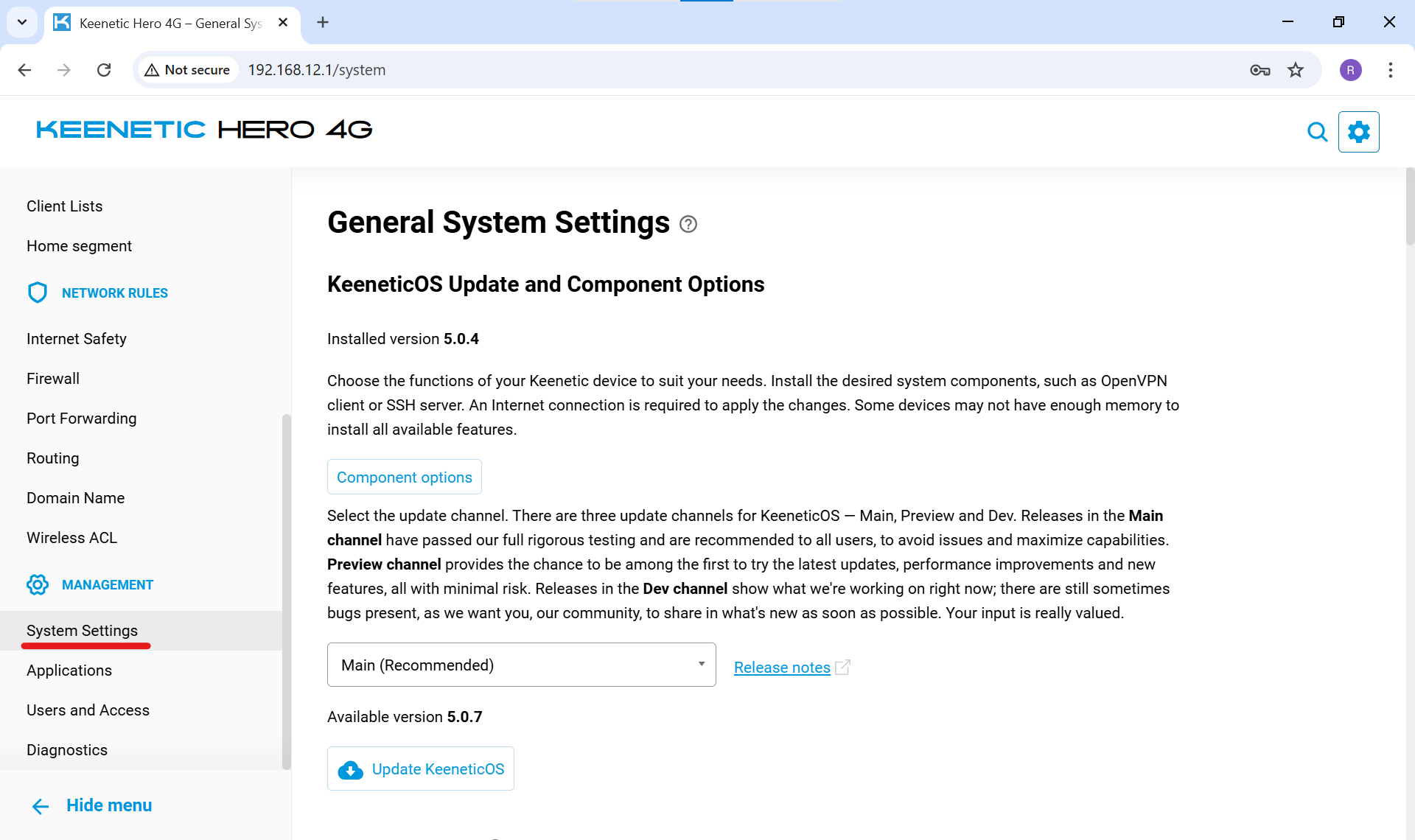
Fig. 1. KeeneticOS System Settings menuIn the "KeeneticOS update and component options" block, click the "Component options" button.
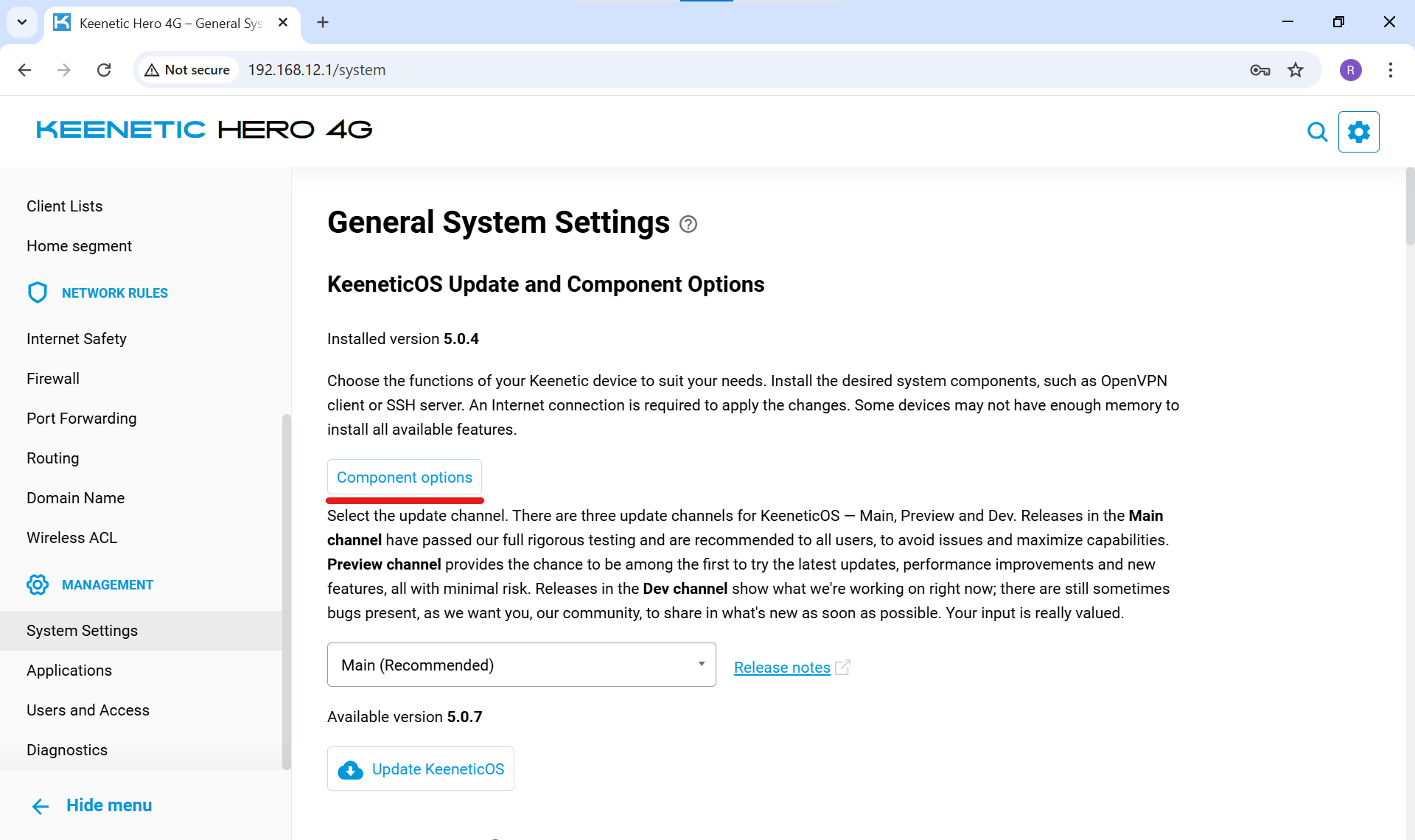
Fig. 2. System component options buttonA search box will appear. Type the word
proxy.Find the "Proxy client" item (under the "Network functions" section) and check the box next to it.
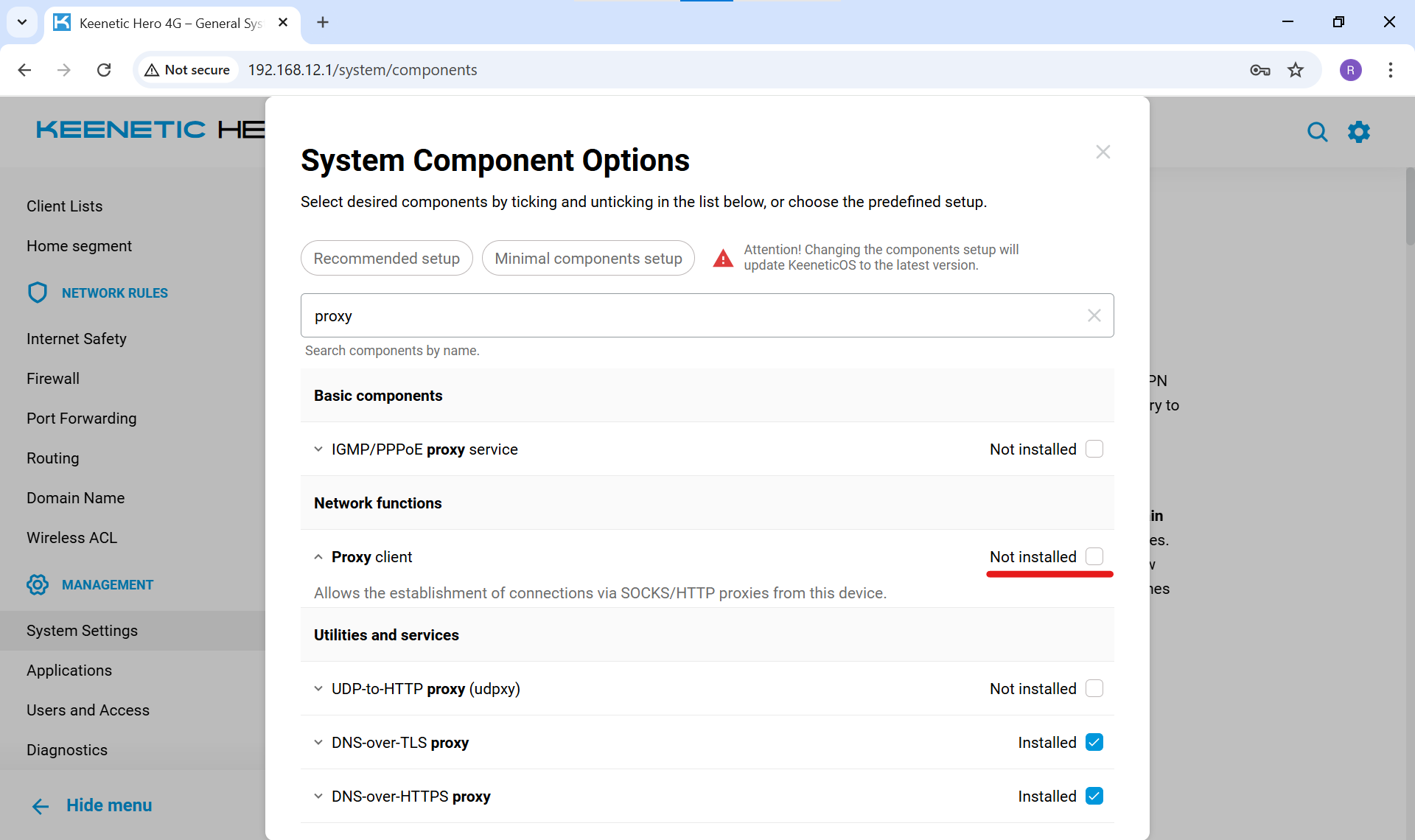
Fig. 3. Activating the "Proxy client" componentClick the "Update KeeneticOS" button at the bottom of the screen. The router will download the required module and reboot.
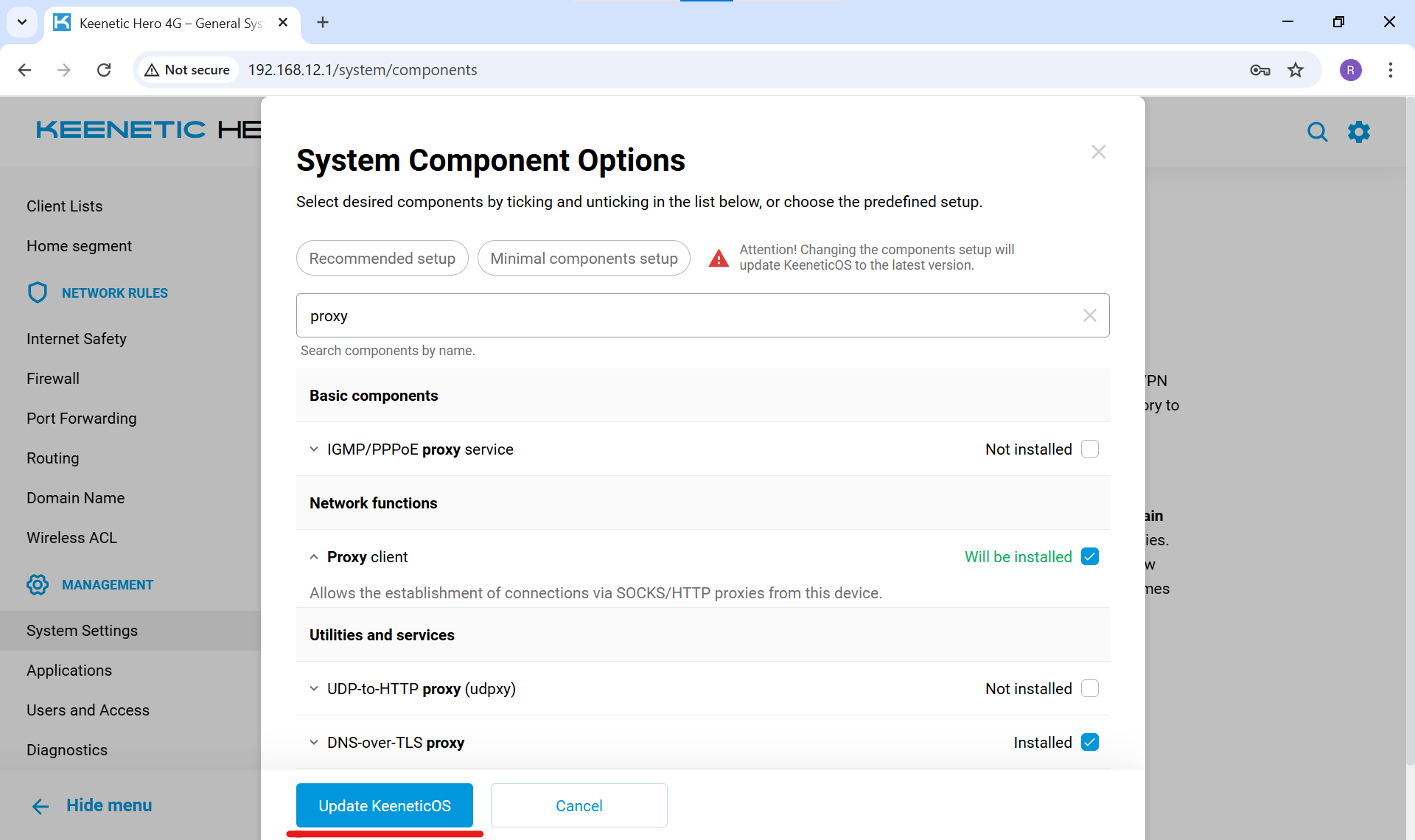
Fig. 4. System update confirmation
🌐 Step 2. Creating a Proxy Connection
Now we need to enter your CyberYozh App proxy data into the router settings.
In the left menu, go to "Internet" -> "Other connections".
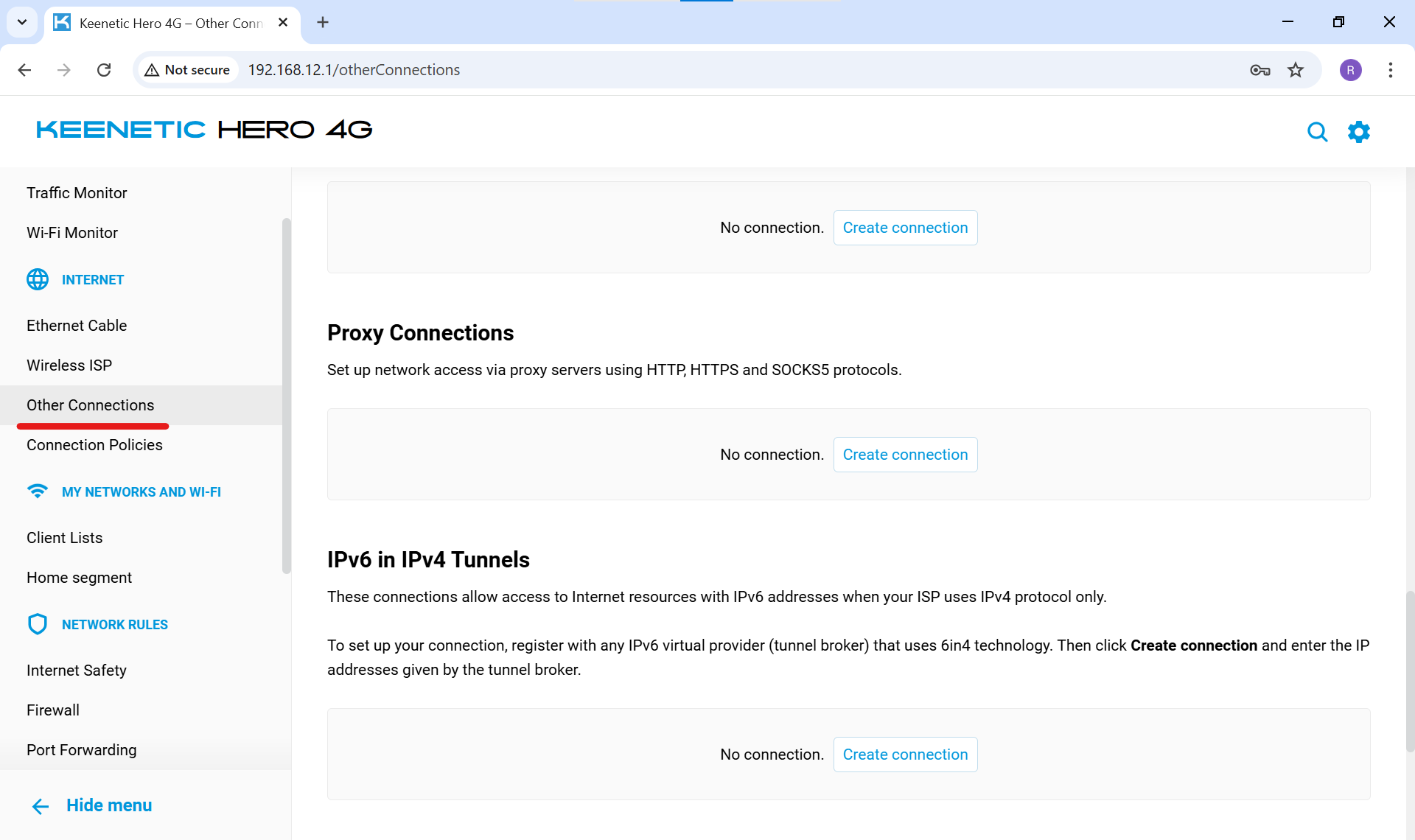
Fig. 5. "Other connections" section in the router menuFind the "Proxy connections" block and click "Add connection".
Fill in the parameters:
Connection name: Give it a clear name (e.g.,
CyberYozh App).Use for accessing the Internet: Be sure to check this box.
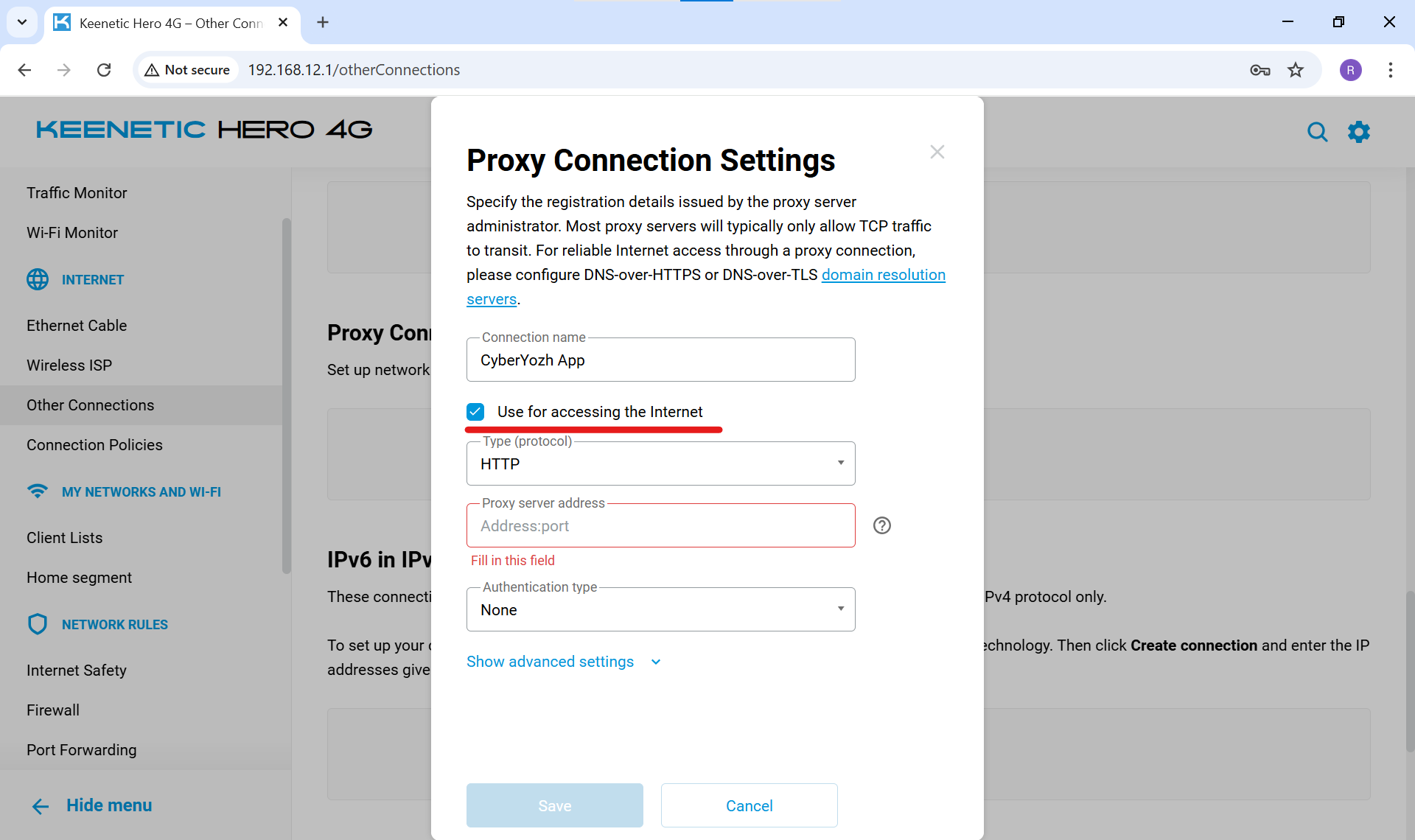
Fig. 6. Basic parameters for the new connectionType (protocol): Select SOCKS v5 (this is the best protocol for media streaming and online games as it supports all types of data transfer).
Proxy server address: Enter the IP address and port separated by a colon (e.g.,
51.77.190.247:9595). In CyberYozh, the SOCKS5 port is 9595.Authentication type: Select Auto (or specify Login/Password if the router prompts for it).
Enter your Username and Password.
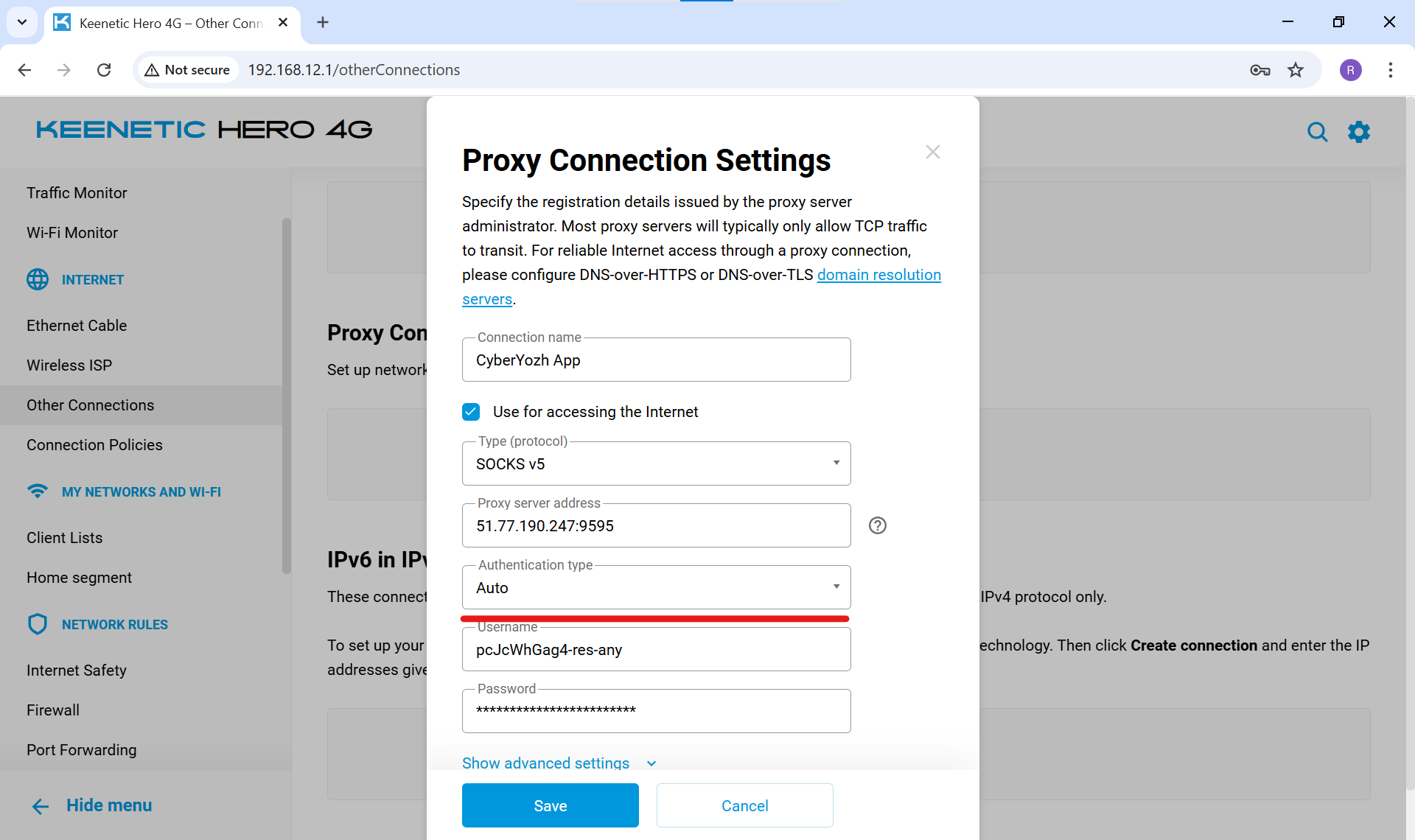
Fig. 7. Entering IP, port, login, and password for the proxy
Click "Save".
On the main "Other connections" page, toggle the switch of the created profile to the active (green) position. The router will connect to the server.
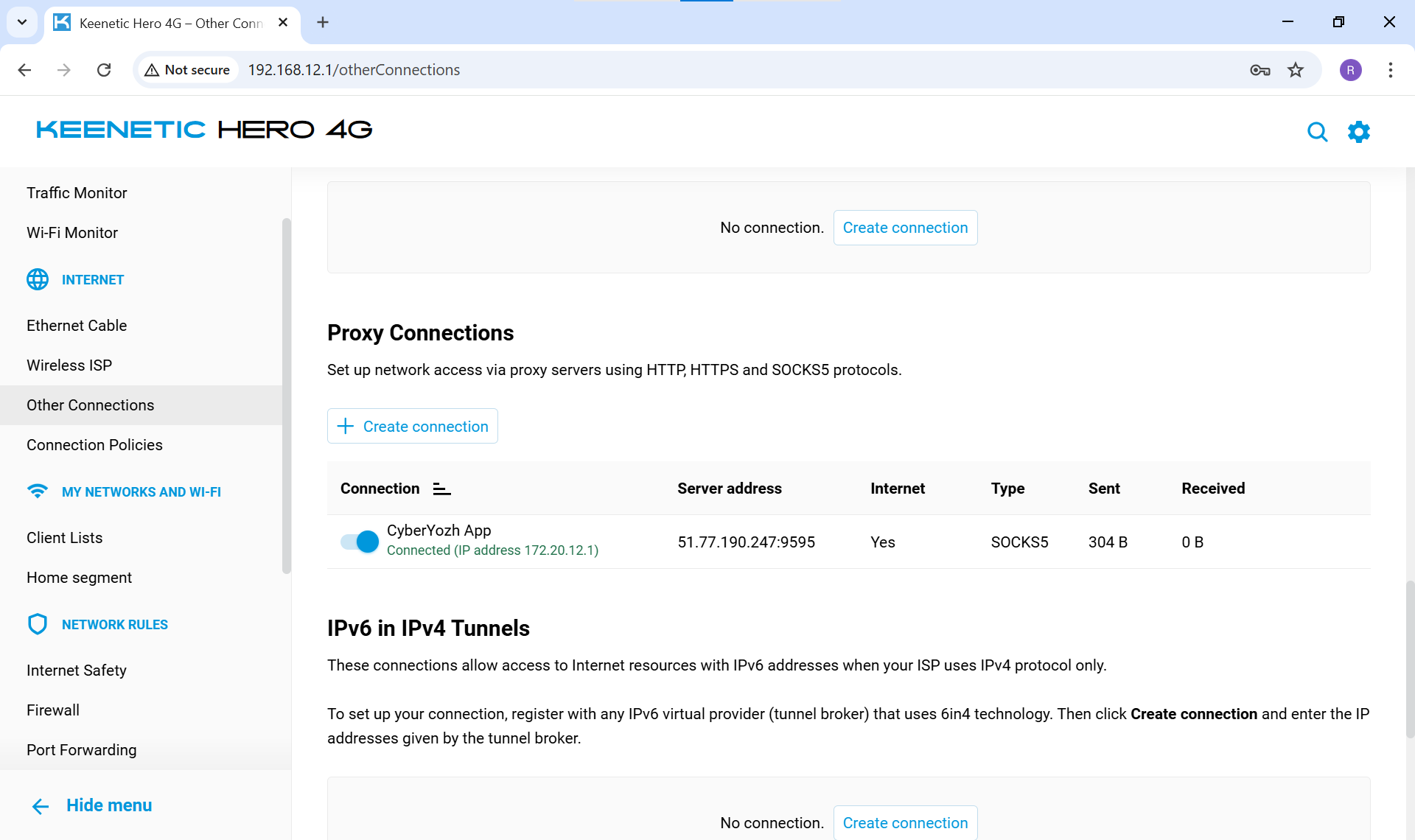
Fig. 8. Activating the proxy connection profile
🛡️ Step 3. Routing Setup (Two Options)
Now we need to decide exactly how the router will use this proxy. You have two paths: route absolutely all devices in the house through it or set up smart routing for selected gadgets only.
Option A: Proxy for the entire home network
Use this method if you want every smartphone, TV, and smart kettle in your network to access the internet via the new IP address.
In the left menu, go to "Internet" -> "Connection Policies".
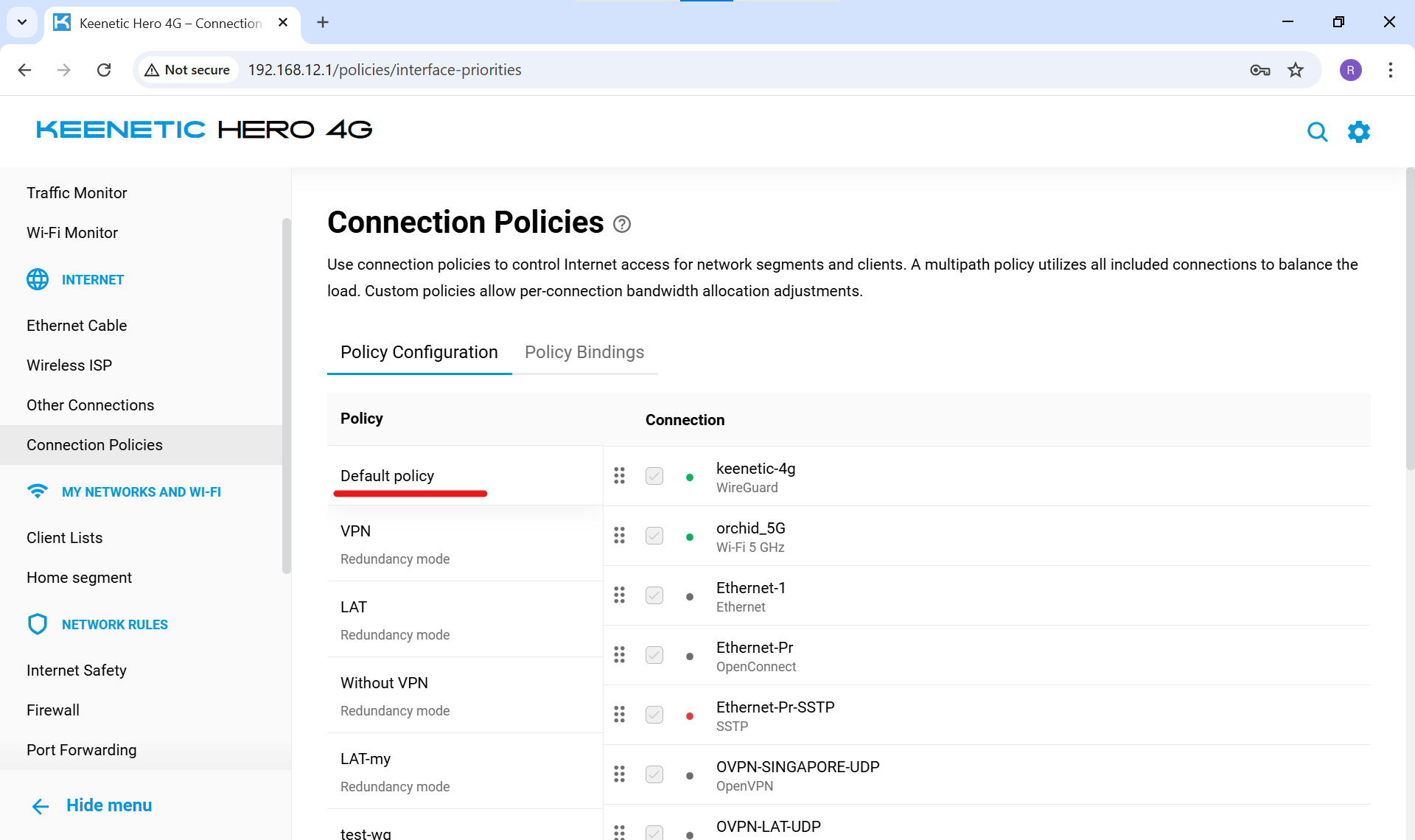
Fig. 9. "Connection Policies" menuIn the left column, click on "Default policy" (it applies to all devices in the house).
In the right column (Connection), find your proxy profile (
CyberYozh App) and check the box next to it.To ensure all traffic goes through the proxy, uncheck your main provider (or drag the proxy to the very top of the list).
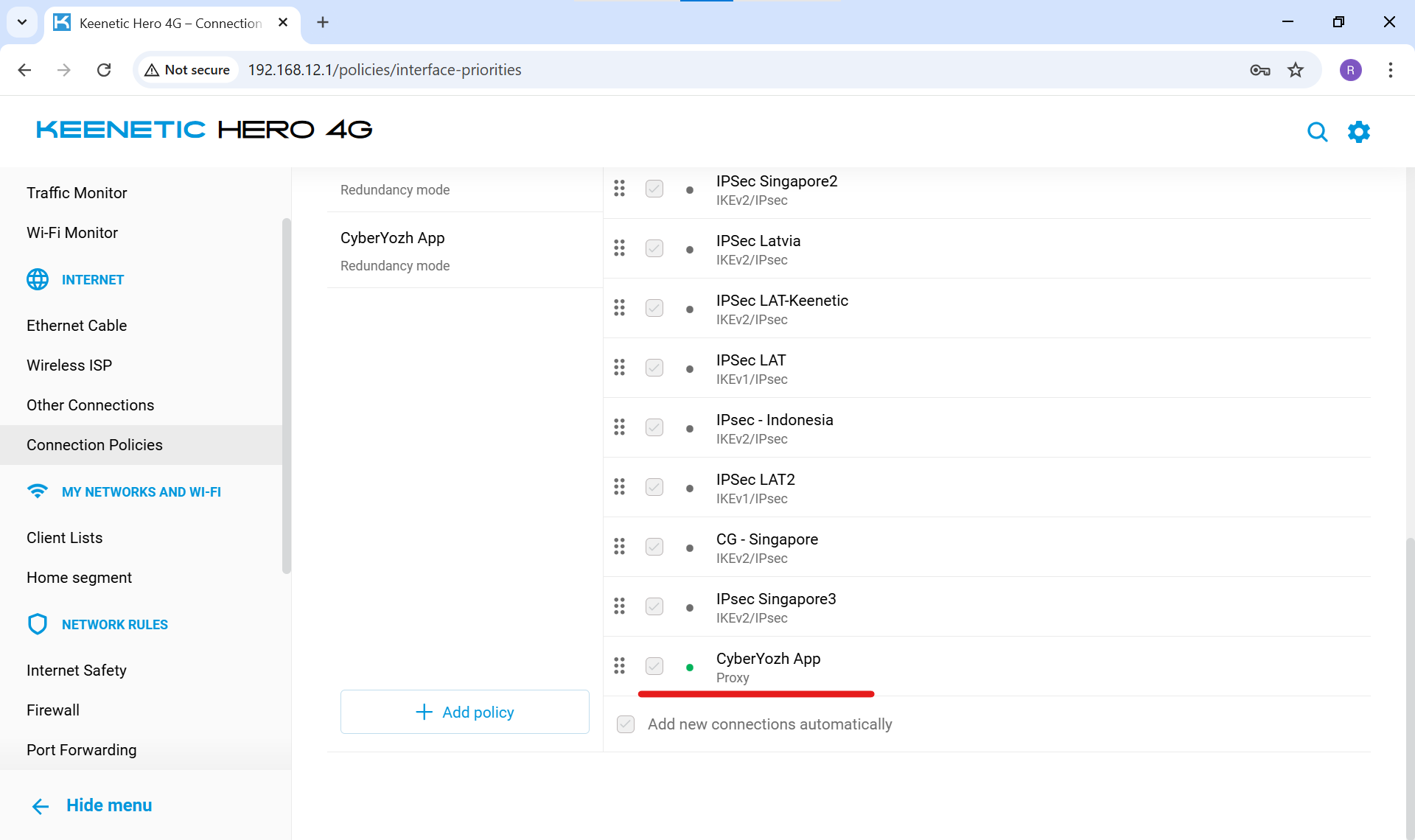
Fig. 10. Setting the proxy as the main connection in the default policy - drag the policy to the top of the list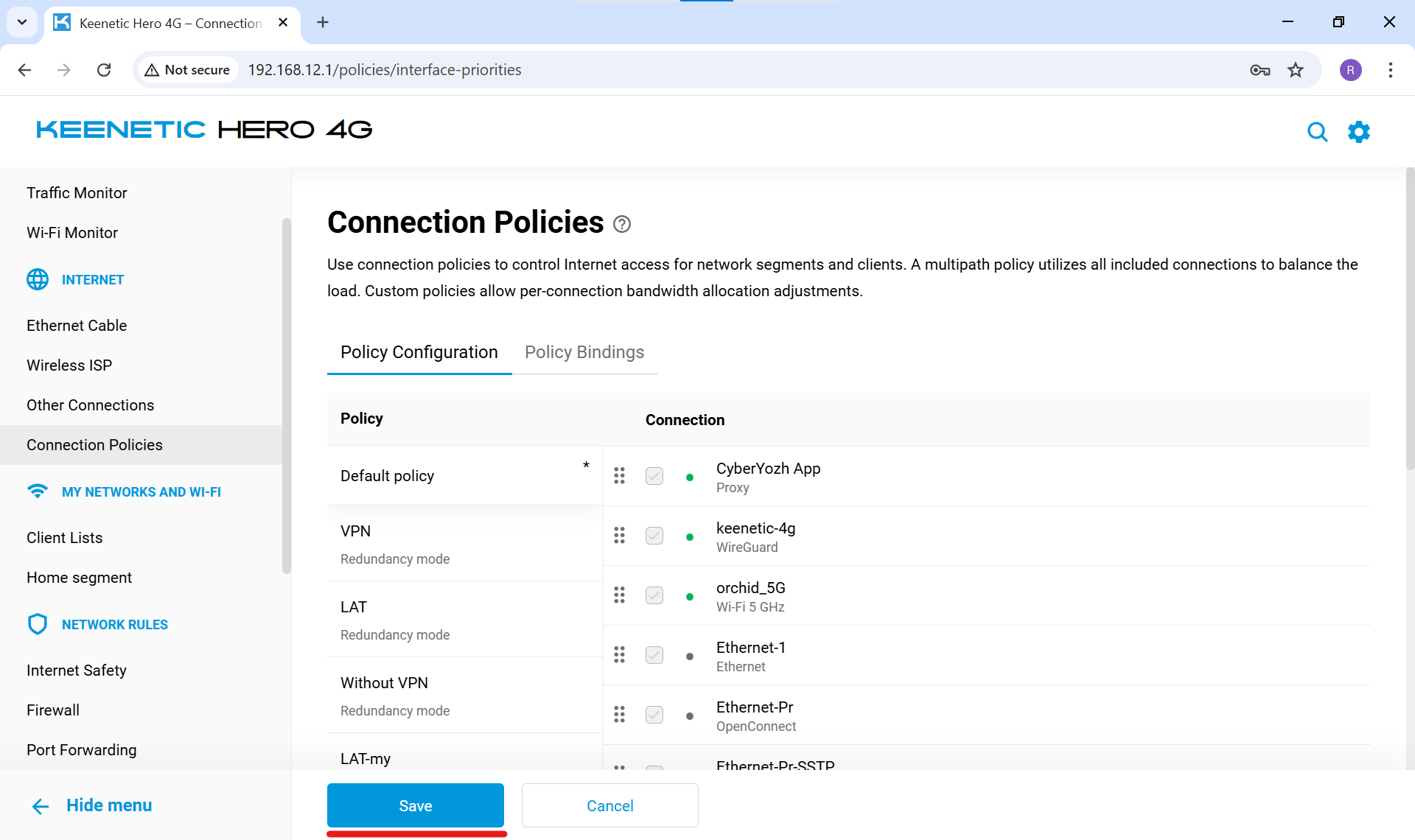
Fig. 11. Setting the proxy as the main connection in the default policy - saving settings
(If you chose Option A, the setup is complete! You don't need to perform Step 4).
Option B: Proxy for selected devices only (Smart Routing)
Use this method to avoid slowing down your regular home internet and only route specific hardware (e.g., a work laptop or PlayStation) through the proxy.
In the left menu, go to "Internet" -> "Connection Policies".
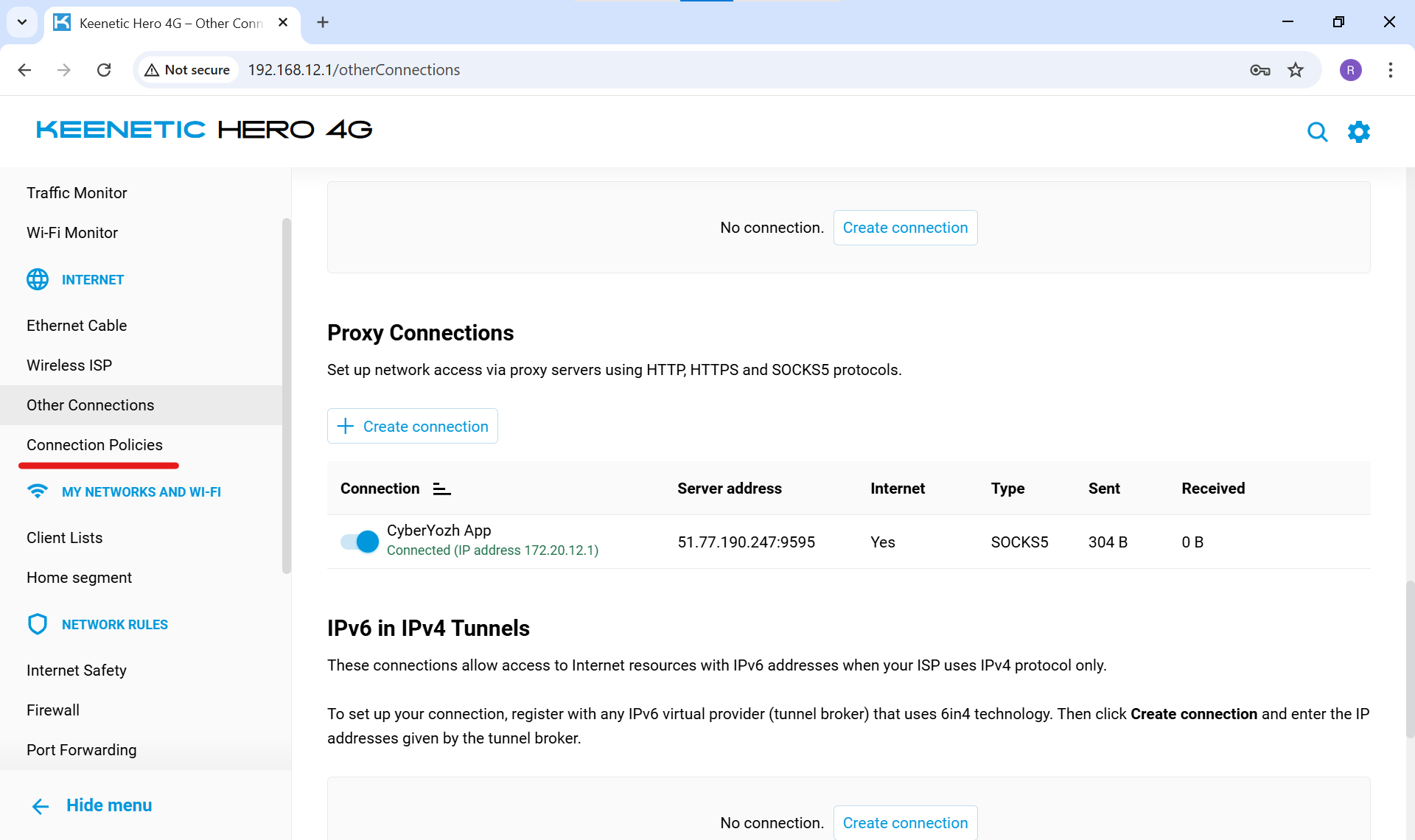
Fig. 12. Navigating to the "Connection Policies" menuIn the left column (below the list of existing policies), click "+ Add policy".
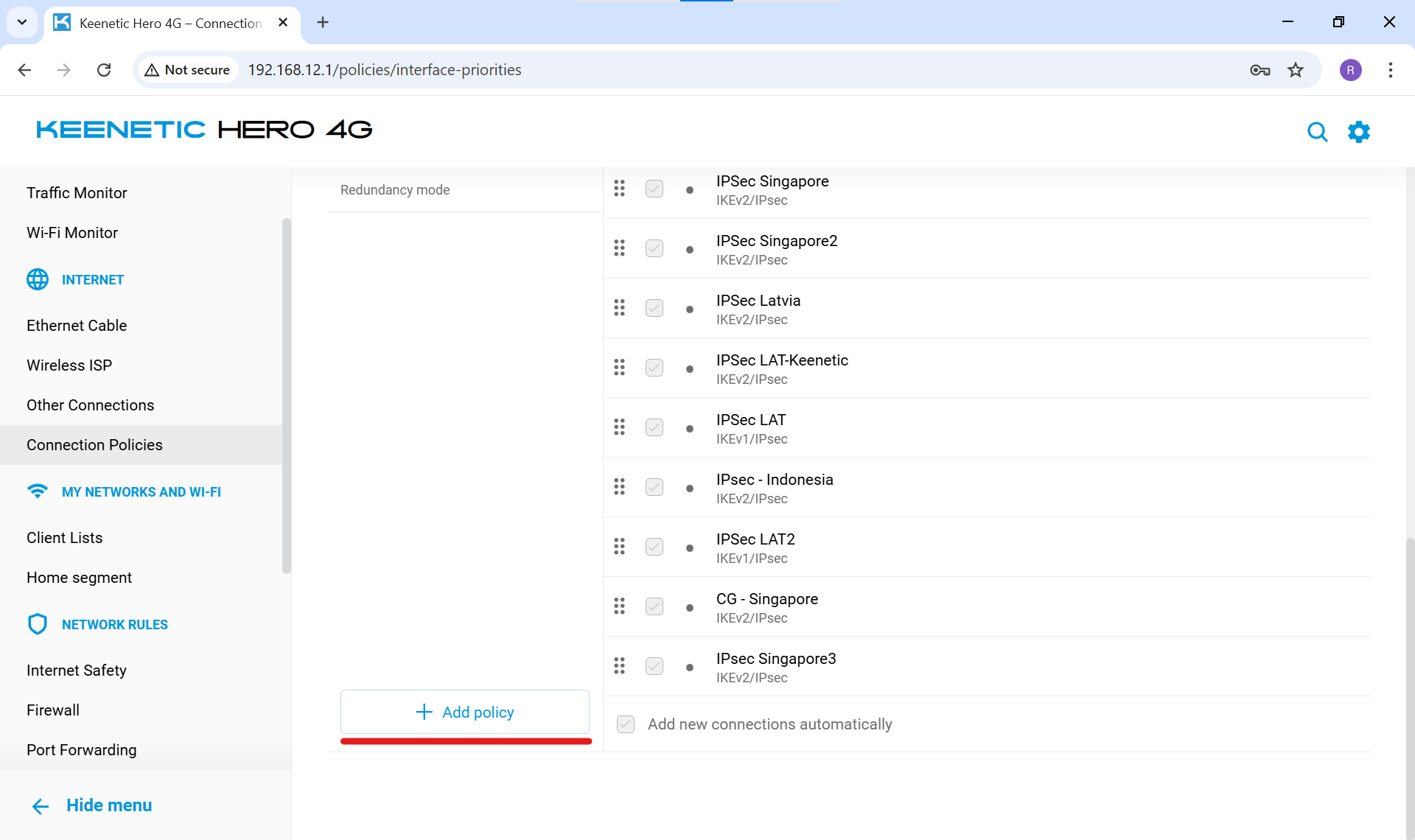
Fig. 13. Creating a new routing policy
Name it the same:
CyberYozh Appand click "Save".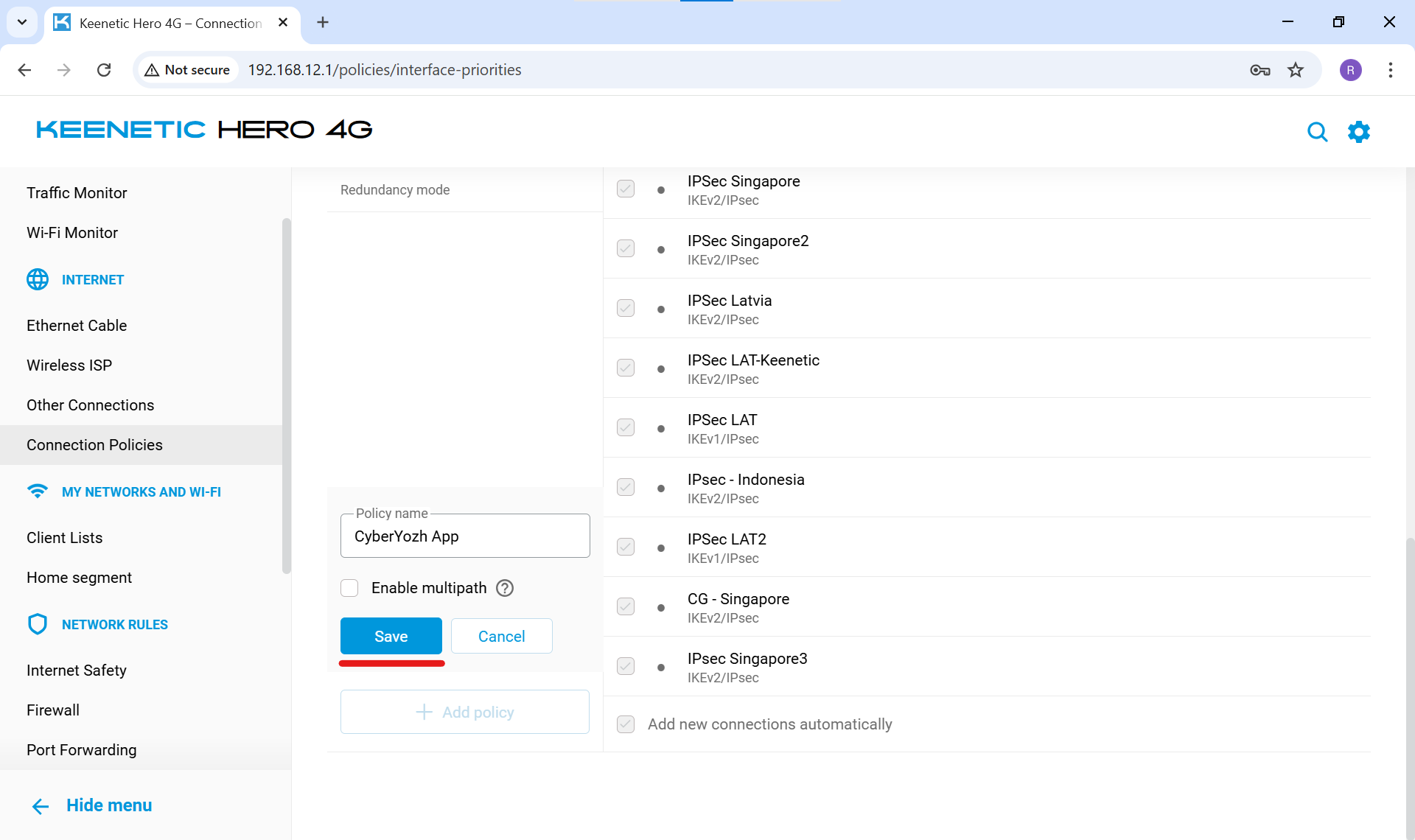
Fig. 14. Saving the new policy name
Select this new policy by clicking it. In the right column (Connection), find the proxy profile you created earlier (
CyberYozh App) and check the box only for it (the main provider checkbox should be unchecked).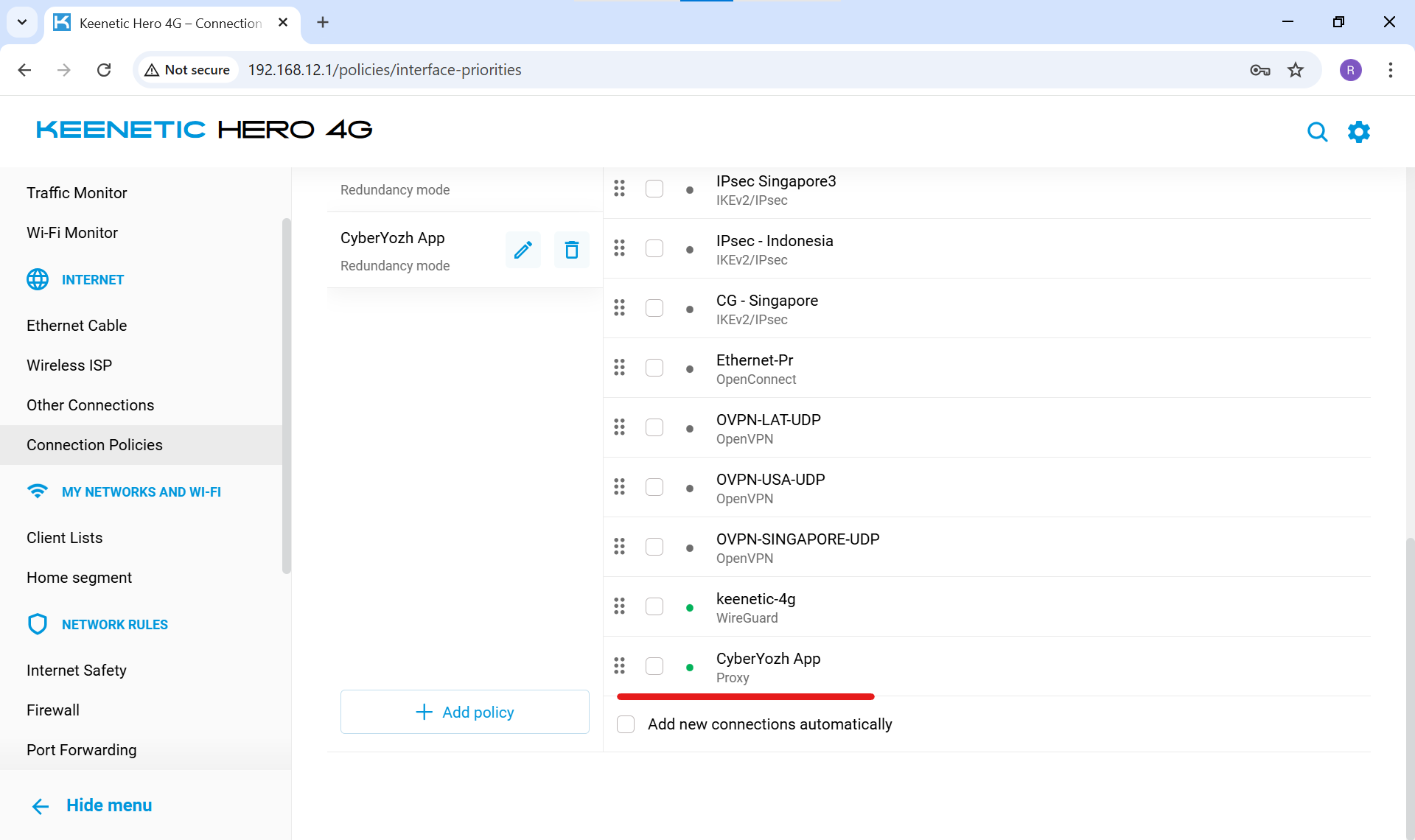
Fig. 15. Linking the proxy connection to the new policy
(If you chose Option B, proceed to Step 4).
📺 Step 4. Linking Devices to the Proxy Channel
The final stage. We need to tell the router exactly which gadgets should access the internet through our new private gateway.
Go to the "My networks and Wi-Fi" -> "Client lists" menu.
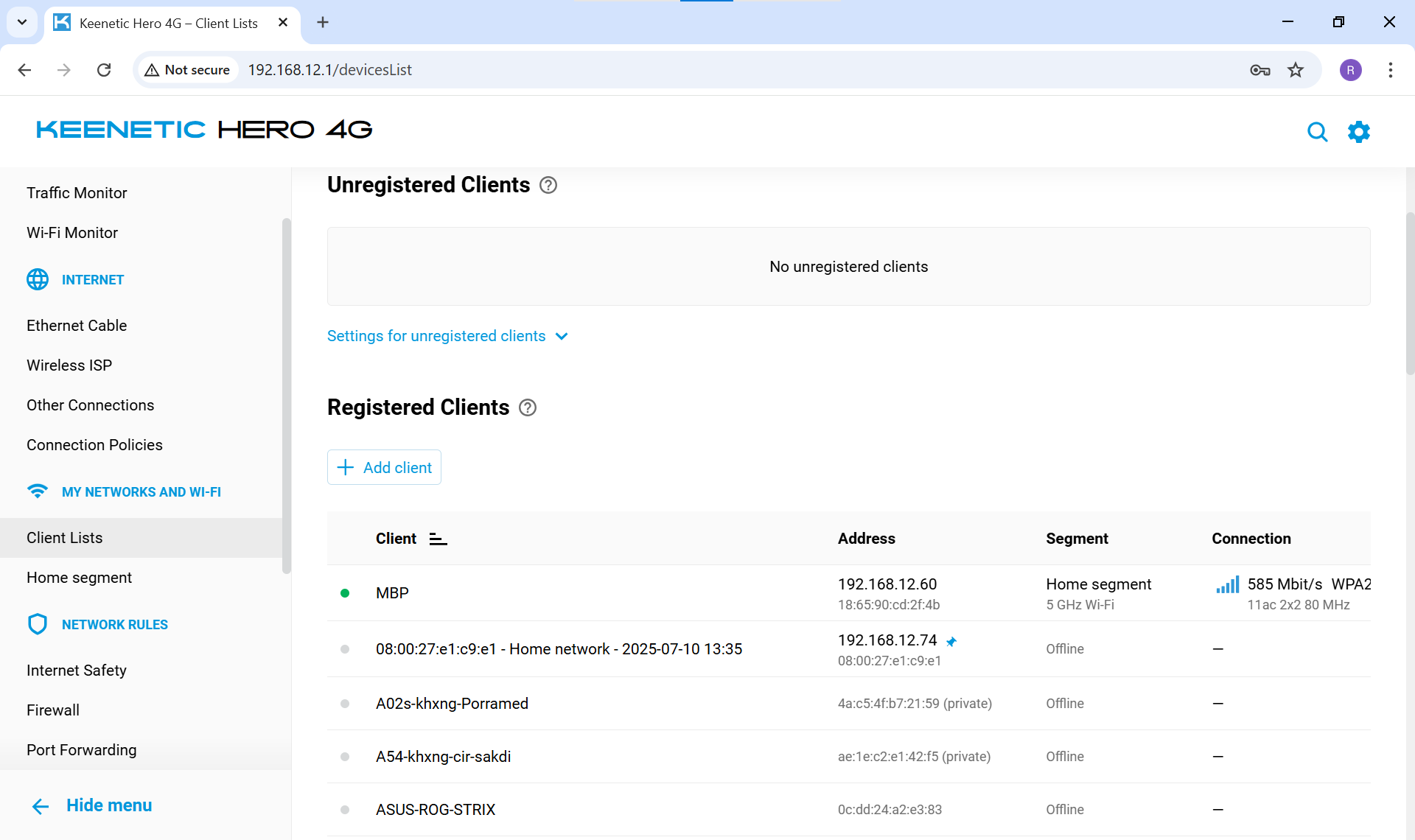
Fig. 16. List of devices connected to the home networkIn the "Registered Clients" list, find the device you want to route through the proxy (e.g., your Smart TV, MacBook, or PlayStation). Click on it.
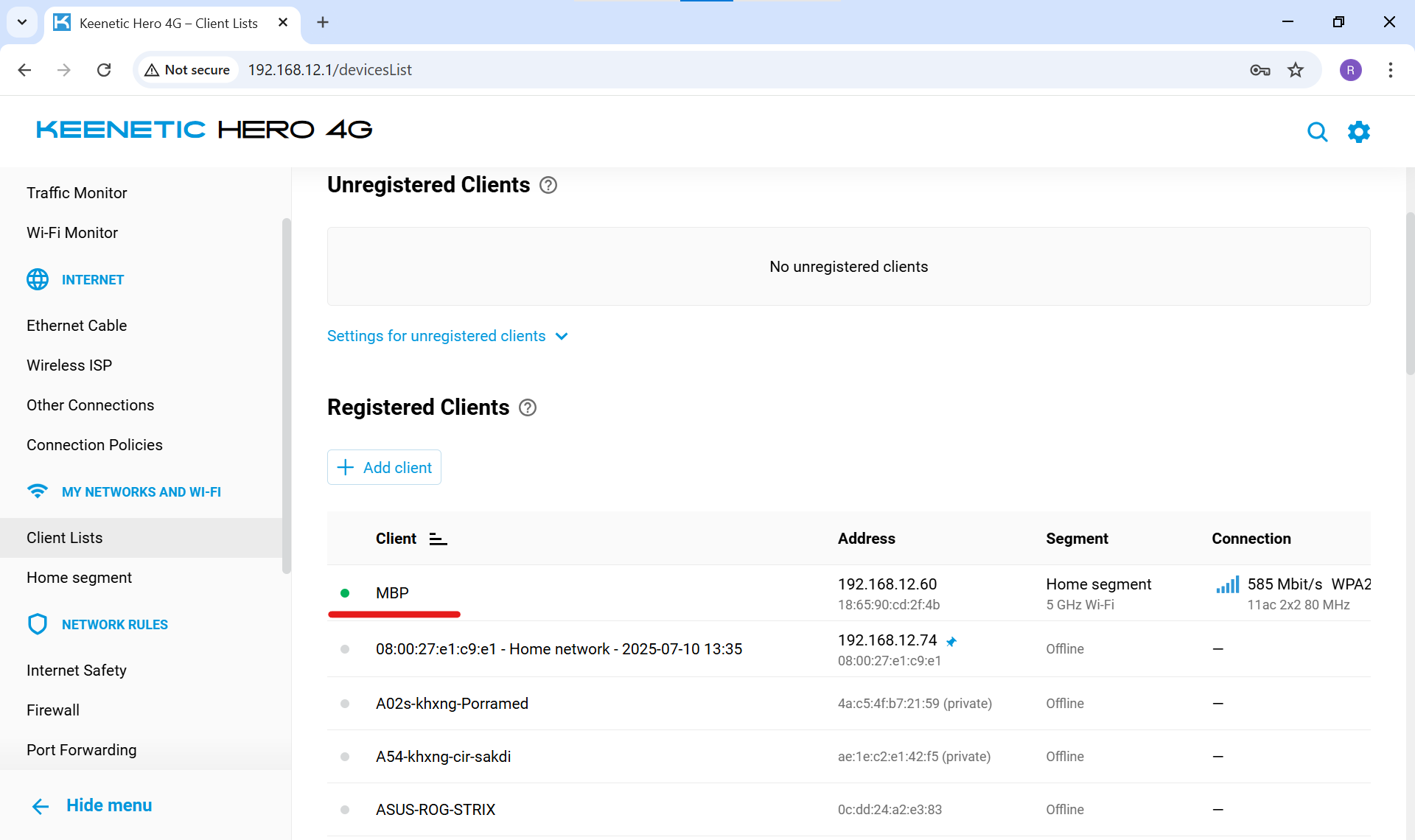
Fig. 17. Selecting a device for settings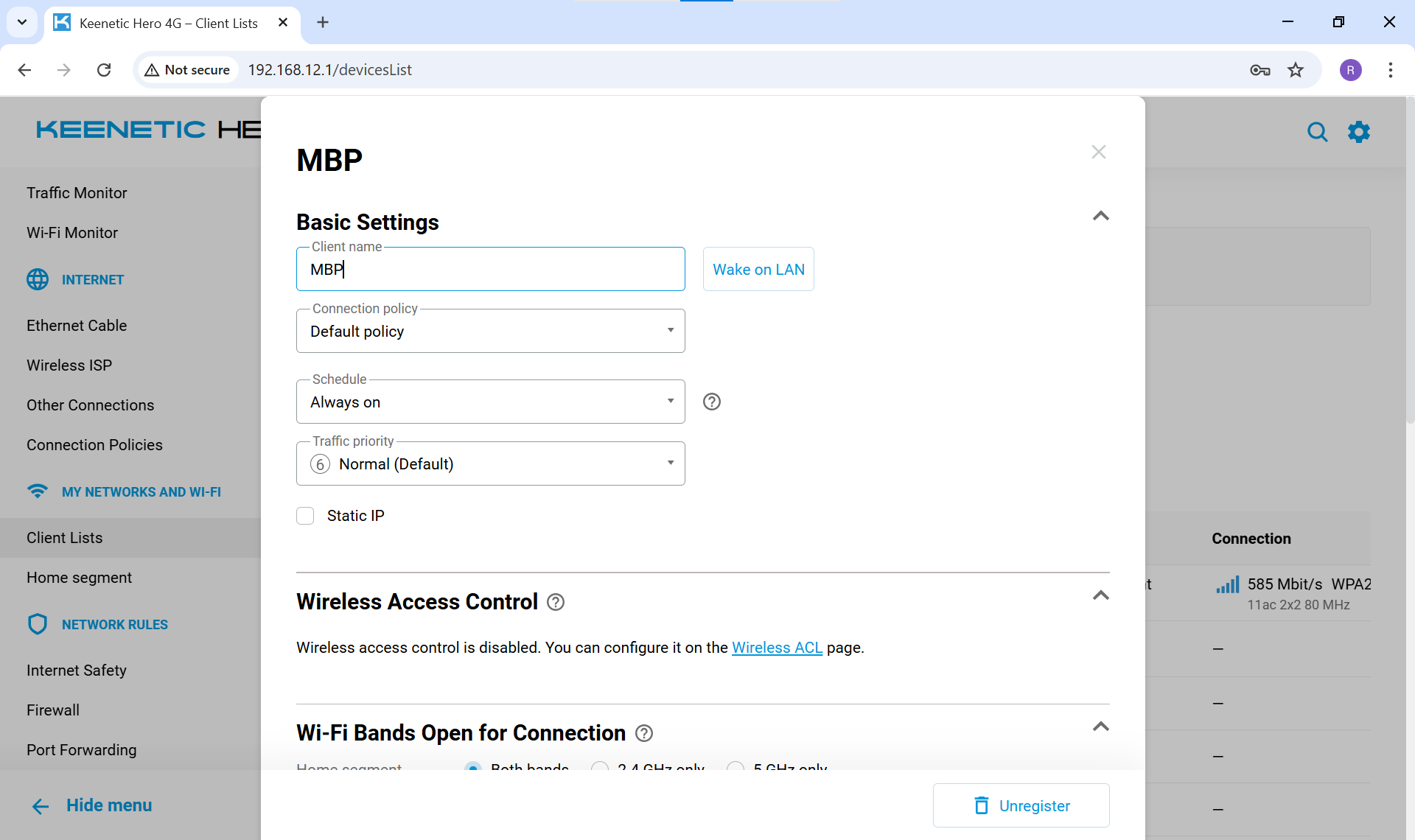
Fig. 18. Main settings of the selected clientThe device settings window will open. Find the "Connection policy" item.
In the drop-down menu, change "Default policy" to your new policy —
CyberYozh App.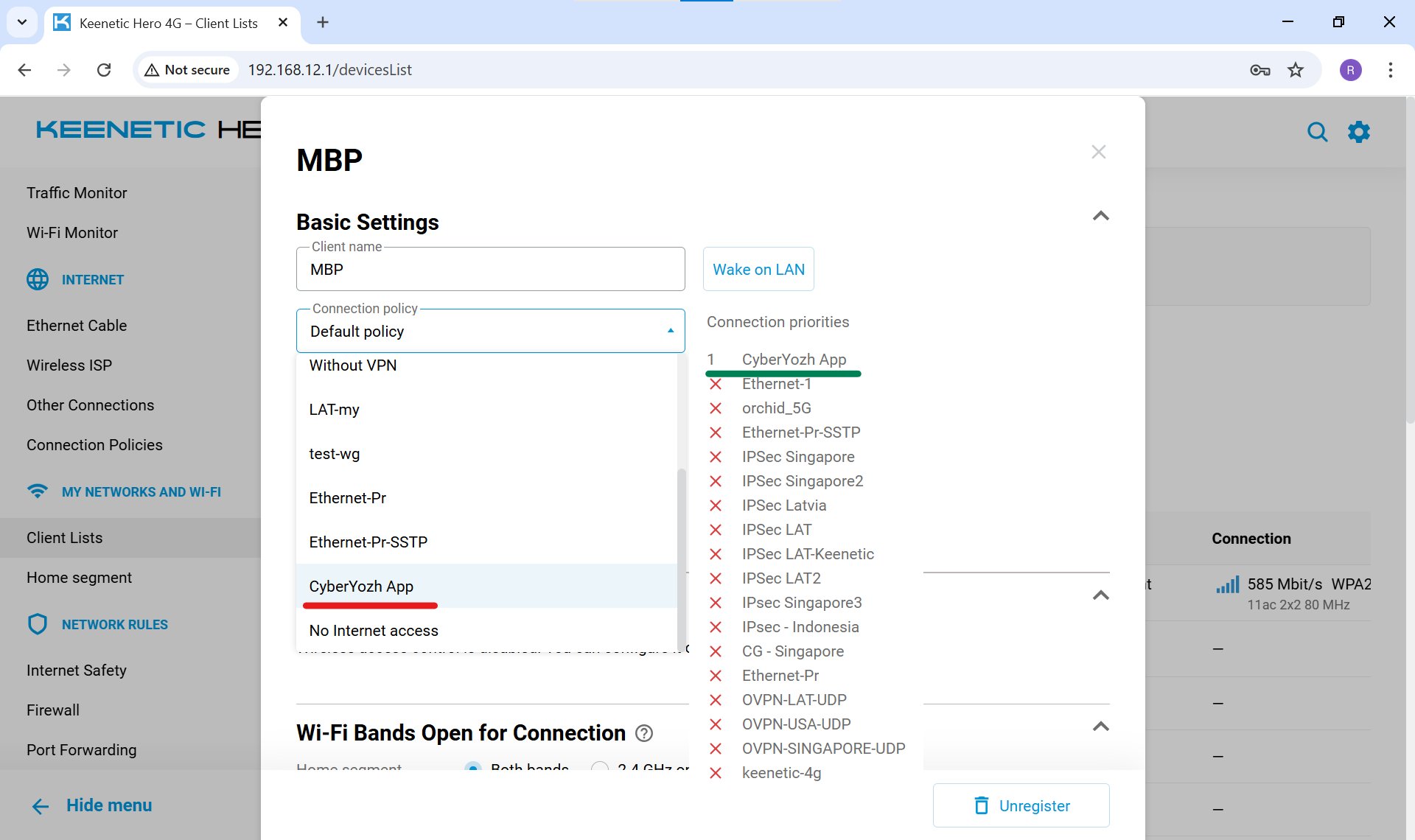
Fig. 19. Changing the access policy for a deviceClick "Save".
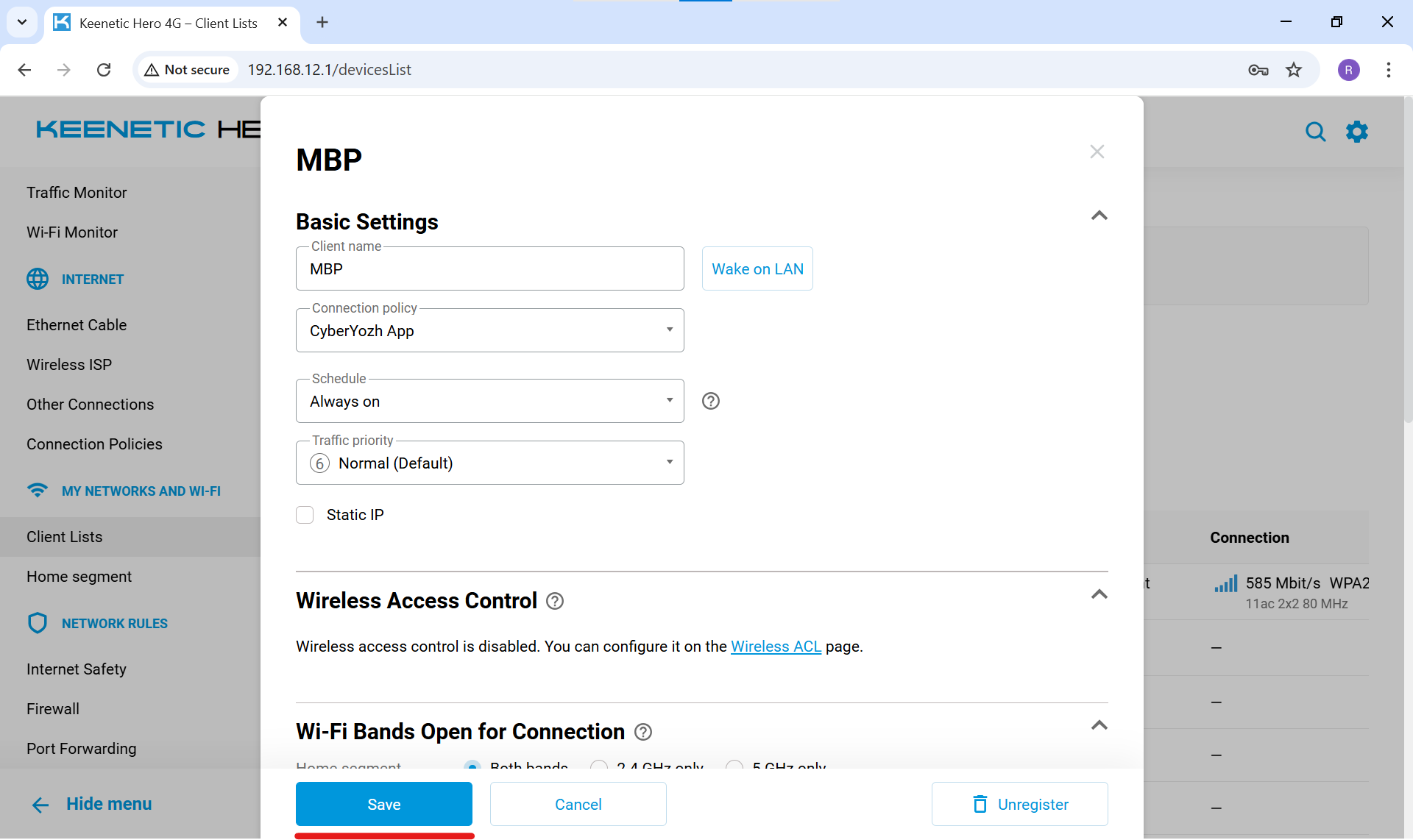
Fig. 20. Saving the final settings
🎉 Done! To verify the setup is correct, open a browser on that device and go to browserleaks.com/ip (or any IP address checker).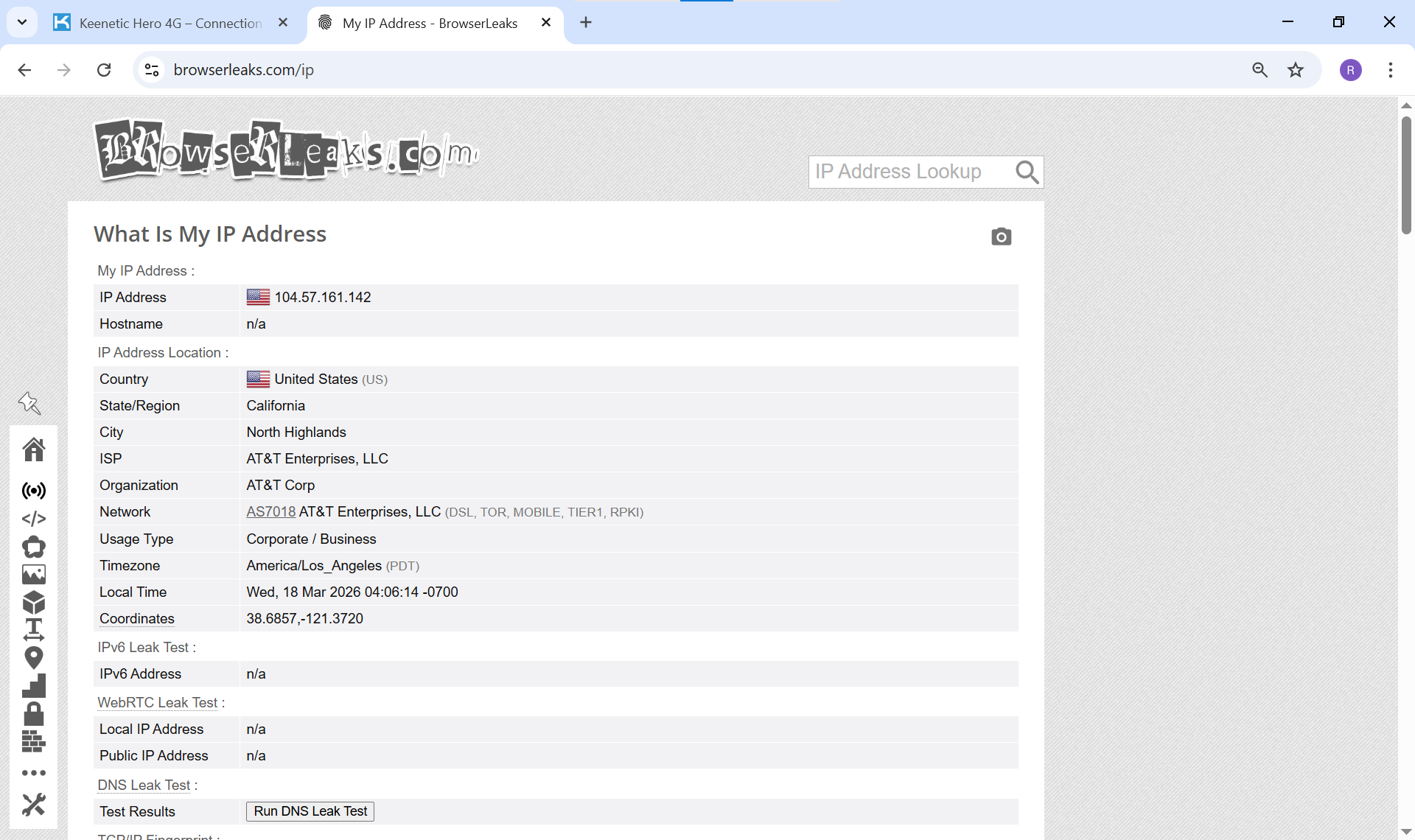
Fig. 21. Successful IP address change on Browserleaks
If you see the country and provider of your proxy server, everything is configured perfectly.
Conclusion
Setting up a proxy at the Keenetic router level takes no more than 5 minutes but gives you full control over your home network. You can at any time go to the "Device lists" and with two clicks switch devices between the regular internet and the remote proxy server.
👉 Need a stable IP for your TV or console? For 4K streaming and online gaming, we recommend using Static Residential Proxies (ISP) or fast Datacenter IPv4 from the CyberYozh App catalog. They will provide a high bitrate, low ping, and protect your connection from failures.
