
Residential Proxies — are IP addresses issued by real Internet Service Providers (ISPs) to home users. This ensures a high degree of trust and connection authenticity from the perspective of target resources.
In CyberYozh App, we divide them into two types. Before starting the configuration, decide what you want to purchase for your specific tasks:
Rotating (Dynamic): Access to a pool of millions of IPs. Change the IP address whenever needed, choosing from over 120 countries. Ideal for data scraping, market research, and temporary tasks.
Static: One dedicated home IP address assigned to you for the entire rental period. Ideal for working with social media profiles and accessing protected resources.
Target Audience: For those who prioritize the reputation of real Internet Service Providers.
Main Choice:
If you need one IP for a long time (unchanged) — choose 👉 Static Residential Proxies.
If you need many IPs for different tasks — choose 👉 Rotating Residential Proxies.
Below, we will analyze the setup specifically for Rotating proxies, as they involve the most nuances.
Step 1. Generating Access Credentials (Creds)
In CyberYozh App, we've made sure you don't have to enter complex settings manually.
Go to the "My Proxies" section -> card of the purchased package.
Click the "Generate Credentials" button.
Here you will see your connection constructor.
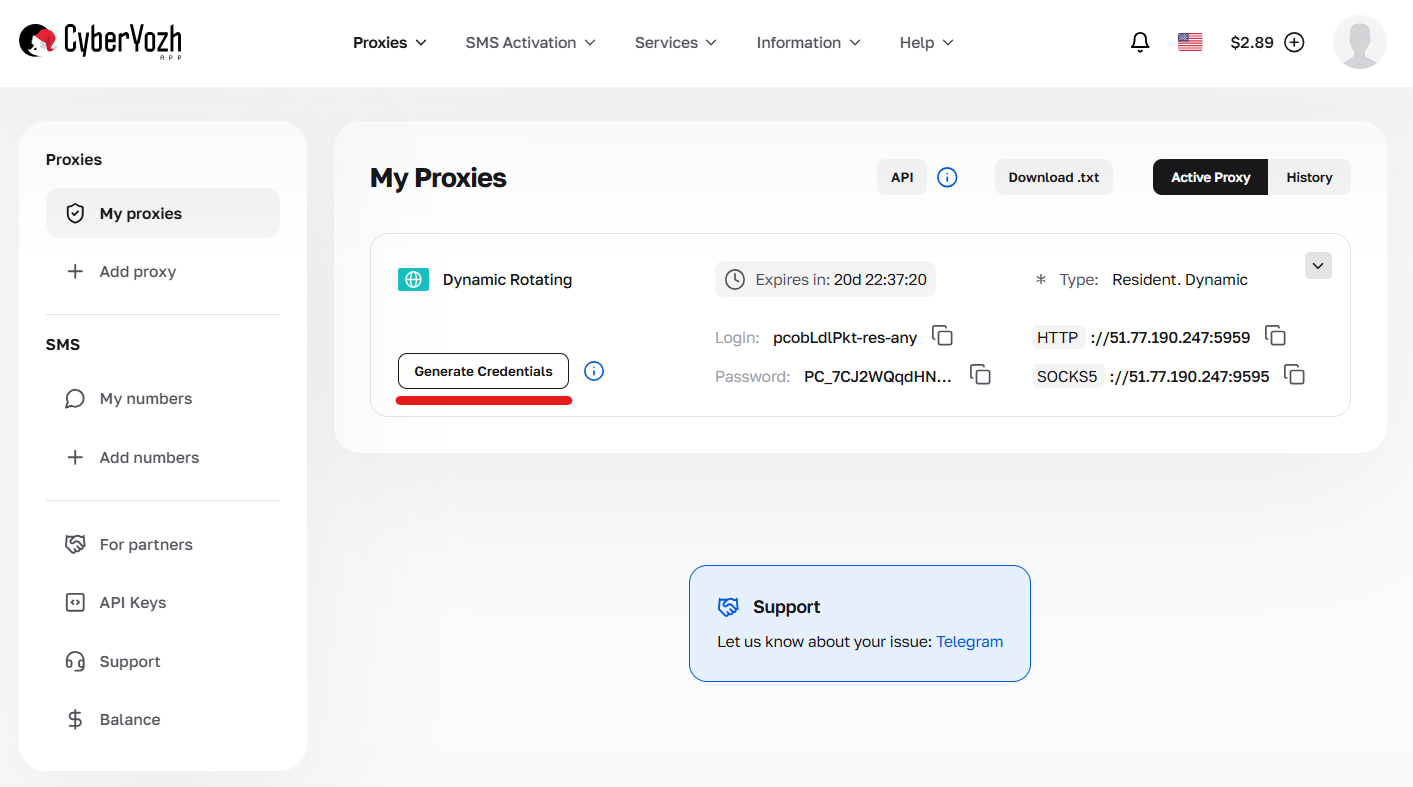
Fig. 1. "Generate Credentials" button in the dashboard.
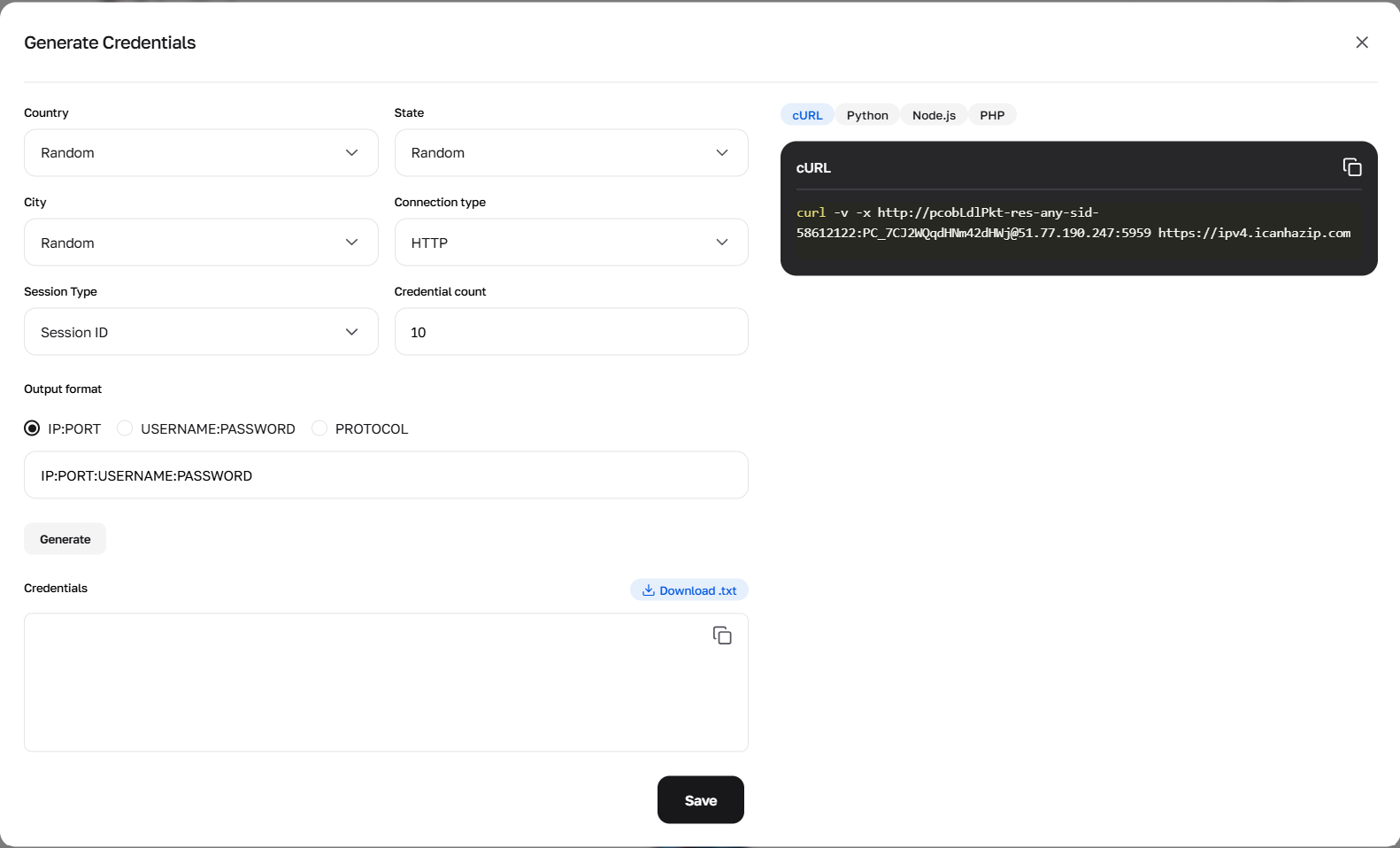
Fig. 2. Generator window open.
Step 2. Choosing Session Type (Most Important Nuance) ⚠️
Our rotating proxies have three operating modes. Choose according to your task:
Random IP:
How it works: You get a random IP from the pool. Session prefix:
-res-any.Purpose: Ideal for public data collection and tasks where maintaining history is not required.
Short Session (up to 1 minute):
How it works: IP stays for up to 60 seconds. The most precise targeting is available here: Country + State + City.
Purpose: Quick actions in a specific location.
Long Session (up to 6 hours):
How it works: We assign an IP to you for up to 6 hours (Sticky).
Feature: You don't need to manually catch session tokens — our generator will provide a ready-made login with a pre-written token (
-resfix...).Purpose: Working with profiles, long forms, and tasks requiring a stable IP.
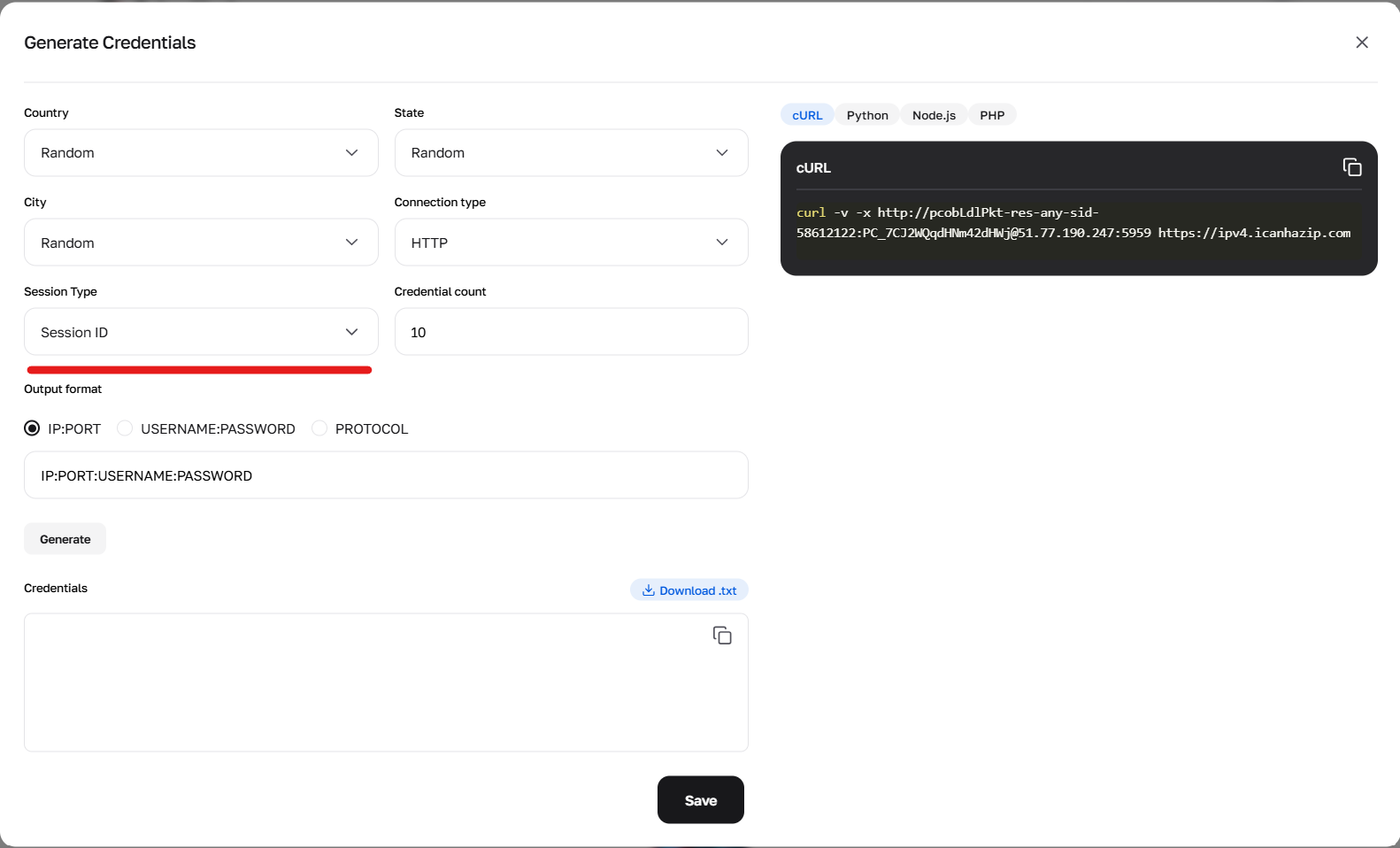
Fig. 3. Session type selection in the generator: Random, Short, Long
Step 3. Ports and Protocols
No need to guess the ports; we've separated them for stability:
HTTP: Port
5959SOCKS5: Port
9595
Choose the desired list format (e.g., IP:PORT:LOGIN:PASS) and click Copy, or you can download the list as a .txt file.
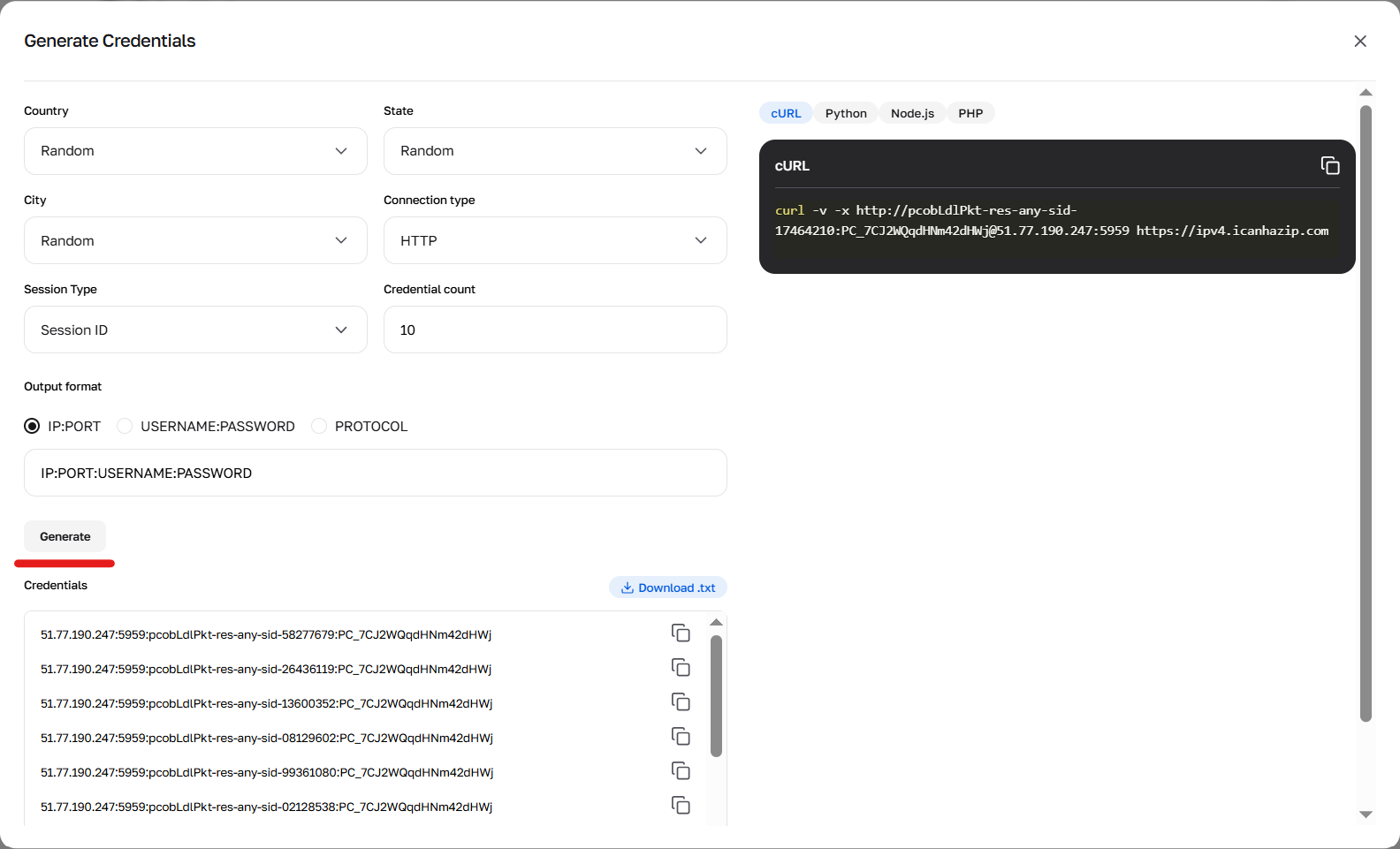
Fig. 4. Connection data generation button.
Step 4. Connection Test (Curl)
Let's check how it works via the terminal.
Example for Random IP:
curl -v -x http://LOGIN-res-any:PASSWORD@51.77.190.247:5959 https://ipv4.icanhazip.com
Where LOGIN and PASSWORD — are your credentials from the dashboard.
Example for Long Session:
Insert the string provided by the generator (it will contain a long token, e.g., nnid-9d016...).
curl -v -x http://51.77.190.247:5959:LOGIN-resfix-us-nnid-TOKEN:PASSWORD https://ipv4.icanhazip.com
If an IP is returned — the connection is successfully established!
Step 5. Where to paste the received data?
You received a string in the format IP:PORT:LOGIN:PASS. Now it needs to be added to your work software.
Anti-detect Browsers (Dolphin, AdsPower, GoLogin):
Create a new profile.
Find the "Proxy" section.
Paste the entire copied string — the browser will automatically distribute the data into the fields.
Proxy Clients (Proxifier, ProxyCap):
Used if you need to configure the network for a program that doesn't have its own settings (specific software), or to route all computer traffic through the proxy.
Add the proxy to
Proxy Servers, entering the IP, Port, Login, and Password.Configure
Proxification Rulesto specify exactly which applications should work through this proxy.
Regular Browsers (Chrome/Firefox):
Use extensions like FoxyProxy or Proxy SwitchyOmega.
There, you need to manually enter the IP, Port, Login, and Password into the corresponding fields.
❓ If something isn't working (Common Errors)
Connection Error / Incorrect Password:
Check the package expiration date in your dashboard.
Check Login and Password: Very often, an extra space is accidentally captured when copying (at the beginning or end of the string). Ensure you pasted the data without errors or extra spaces.
Wrong outgoing IP (or protocol error): Ensure you selected the correct port when connecting:
5959— for HTTP9595— for SOCKS5
IP changes too quickly: You likely chose the Random session (
-res-any). For stable operation within a session (so the IP holds for up to 6 hours), use the Long Session (-resfix...) in the generator.- 👉 Proxy troubleshooting checklist.
🆘 Still can't get it to work?
Don't waste time trying to figure it out alone.
Message our Technical Support (chat widget in the corner of the screen or via Telegram). When contacting us, send a screenshot of your settings or the curl command you entered — this will help us solve the problem much faster.
Useful links:
