
You’ve set everything up according to the instructions, entered the data, clicked «OK»... but nothing works. Websites won't open, programs throw errors, and a secure connection remains a distant dream. Sound familiar? A lack of connection through a proxy is one of the most common issues, but solving it almost always comes down to a methodical check of a few key points. There’s no need to panic. Instead of chaotic attempts to «click something,» let’s go through a simple but effective checklist that will help you quickly find and fix the cause of the malfunction. We will move from the simplest and most obvious problems to the more complex ones.
Understand the Nature of the Error: A Proxy is a Chain
It is important to understand that when you use a proxy, your connection turns into a chain of several links:
Your computer -> Your ISP -> Proxy service -> Target website.
A problem can arise at any of these stages.
Your checklist helps to consistently check each link:
- Steps 1-3 check your "hardware" and data.
- Steps 4-7 check the connection between your computer and the proxy server.
- Step 8 checks the connection between the proxy server and the final website.
This understanding helps you avoid panicking and instead approach diagnostics systematically. You stop seeing one big problem («the proxy doesn't work») and start seeing a logical chain. This allows you to methodically, step by step, rule out working links and quickly find the source of the failure, saving time and nerves.
Stage 1: Checking «on the Surface» — Basic Questions
In 80% of cases, the problem lies right here. Start with the simplest things.
✅ 1. Check the Status of the Proxy Itself
- Is it active? Go to the personal account of your proxy provider. Make sure the service has not expired and is in an active status.
- Is the traffic exhausted? If you have a plan with a traffic limit, check if you have reached that limit.
✅ 2. Double-check the Connection Data
This is the champion of error quantity. One typo — and nothing will work.
- IP Address (host): Make sure you copied it in full, without extra spaces.
- Port: This is a numerical value (e.g., 8000, 9595). Check every digit.
- Login and Password: The most vulnerable spot. Never enter them manually. Always copy and paste directly from your personal account to avoid errors with case (capital/small letters) or similar characters (e.g., O and 0, l and I).
✅ 3. Check the Primary Internet Connection
It sounds cliché, but it is necessary. Disable the proxy in the program or system settings and try to visit any website (e.g., google.com). If the internet doesn't work without the proxy either, then the problem is with your ISP, not the intermediary server.
Stage 2: Technical Diagnostics — Looking Deeper
If everything is fine in the first step, it means the problem is more technical in nature.
✅ 4. Check Firewall and Antivirus
Your security software may perceive the proxy connection as suspicious network activity and block it.
- How to check: Temporarily disable your antivirus and/or the built-in Windows/macOS Firewall and try connecting again.
- What to do if it helped: Do not leave the protection turned off. Instead, add the program you use to work with the proxy (e.g., your browser or Proxifier) to the exclusion list of your antivirus and firewall.
✅ 5. Check the Settings of the Program Itself
Some applications, especially browsers, may have their own proxy settings that take priority over system settings.
- How to check: Go to the network settings of the program you are trying to use. For example, in Firefox it’s «Settings» -> «Network Settings» -> «Settings...». Make sure that «No proxy» is not selected or that old, incorrect data is not entered.
- What to do: In the program settings, select the option «Use system proxy settings.» This will force the application to obey the general rules you set for the entire OS. Alternatively, if you want to use the proxy only for this program, enter the data manually directly here.
💡 Tip: If you are using a specialized browser or profile software, study the Guide for the corresponding case/browser/program in the sections on the left. We have gathered step-by-step instructions for most popular tools there.
✅ 6. Ensure the Correct Protocol is Selected
Proxies come in different types. Specifying the wrong protocol in the settings will prevent you from establishing a connection.
- HTTP/HTTPS vs. SOCKS5: Clarify with your provider exactly which type of proxy you purchased. SOCKS5 is more modern and universal, but if you bought HTTP(S), you must specify exactly that in the settings. These are not interchangeable.
✅ 7. Technical Connection Check (curl)
To accurately understand if the proxy is working, it is best to use a terminal (command line). This eliminates the influence of browser settings. Enter the following command:
curl -x http://user:password@proxy_host:proxy_port -L http://google.comReplace user, password, proxy_host, and proxy_port with your data.
Example: curl -x http://pcQedolPkt-res-any:PC_7CJ2WQqdGBm42dHWj@51.77.190.247:5959 -L http://google.com
If you receive the HTML code of the Google page in response, it means your proxy is working correctly, and the problem should be sought in the settings of the specific program.
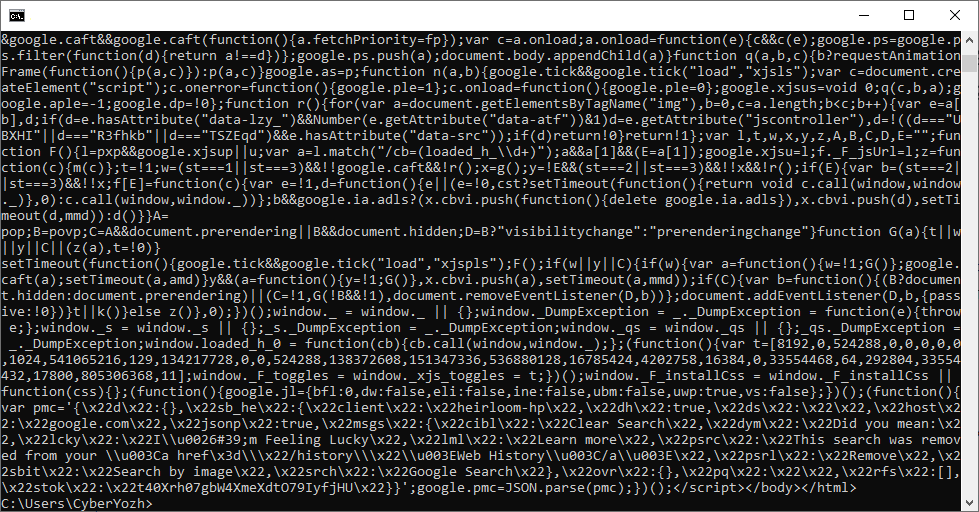 Fig. 1. Example of html code output after executing the curl command.
✅ 8. Problem on the Target Website Side?
Sometimes the proxy itself works, but the site you are trying to access is blocking it.
- How to check: Try accessing another neutral site through the proxy (e.g., ipinfo.io or browserleaks.com/ip). If it opens and shows the IP of your proxy, it means the server is working, and the problem lies specifically in the security policy of the target resource. Access for your proxy's IP may be restricted by that site's settings.
Stage 3: If Nothing Helped — Contact Support
We understand that downtime in work can be critical. Every problem of yours is important to us, and we are ready to help solve it as quickly as possible.
If you have gone through all the steps and the connection still hasn't been established, please contact our support service. You can write to us in the chat in the bottom right corner of the screen or reach out via Telegram: @CyberYozh_support_bot.
To get a quick and helpful response, prepare in advance:
- The proxy data with which the problem occurred (IP and port). No need to provide the password.
- Your real IP address. You can find it on the browserleaks.com/ip website with the proxy disabled.
- A clear description of the problem: «Cannot connect,» «Low speed,» «Site X shows an error.»
- A screenshot of the error, if there is one.
- The result of the curl command execution (from point 7).
- What steps you have already taken for self-diagnosis. This will save time and show the specialist that basic checks have already been performed.
Conclusion
Technical failures happen, but they shouldn't stop your business. The key to solving them is a consistent and methodical approach. By moving from simple to complex through this checklist, you are highly likely to find the cause yourself. And if not — our CyberYozh App support team is always available to help you get back to work as soon as possible.
