
Proxifier — is a program that works magic. It allows you to force any application to work through a proxy, even if the application itself does not support it.
Want to run Opera through a German proxy, your browser through the US, and leave your online game direct for low ping? Proxifier makes it possible. It is an indispensable tool for gamers, SMM specialists, and those who want total control over their traffic.
In this guide, we will break down which type of proxy to choose for different tasks and how to configure Proxifier for precise routing.
Part 1. Strategy: Which proxy is needed for Proxifier?
Proxifier — is a "combine harvester" that can work with any proxies. But the choice depends on the goal.
1. Datacenter Proxies —For your own projects and technical audits
- What they are: IP addresses from data centers.
- What for: Auditing your own websites (where you can whitelist the IP), checking client sites, working with resources that lack protection.
- Pro: These are the fastest proxies. Low price.
2. Residential Proxies (ISP) — For work and shopping
- What they are: IPs from home internet service providers.
- What for: If you are setting up a proxy for a browser or messenger for the purpose of working with finances, stores, or crypto.
- Why: High reliability and uninterrupted access for corporate platforms, financial management, and e-commerce.
3. Mobile Proxies (4G/5G) — For software and bots
- What they are: IPs from cellular operators.
- What for: If you are running automation software through Proxifier (automated software testing, marketing research, and complex data analytics).
- Why: Mobile IPs provide a stable and legitimate connection for continuous automated workflows.
- 👉 You can read more about mobile proxies here
Part 2. Data Preparation
For Proxifier, we recommend using private channels from CyberYozh App. We guarantee support for UDP (which is critical for Proxifier) and SOCKS5.
After purchase, you will receive:
- IP (Host):
172.98.60.180 - Port:
58763 - Login / Password: Authorization data.
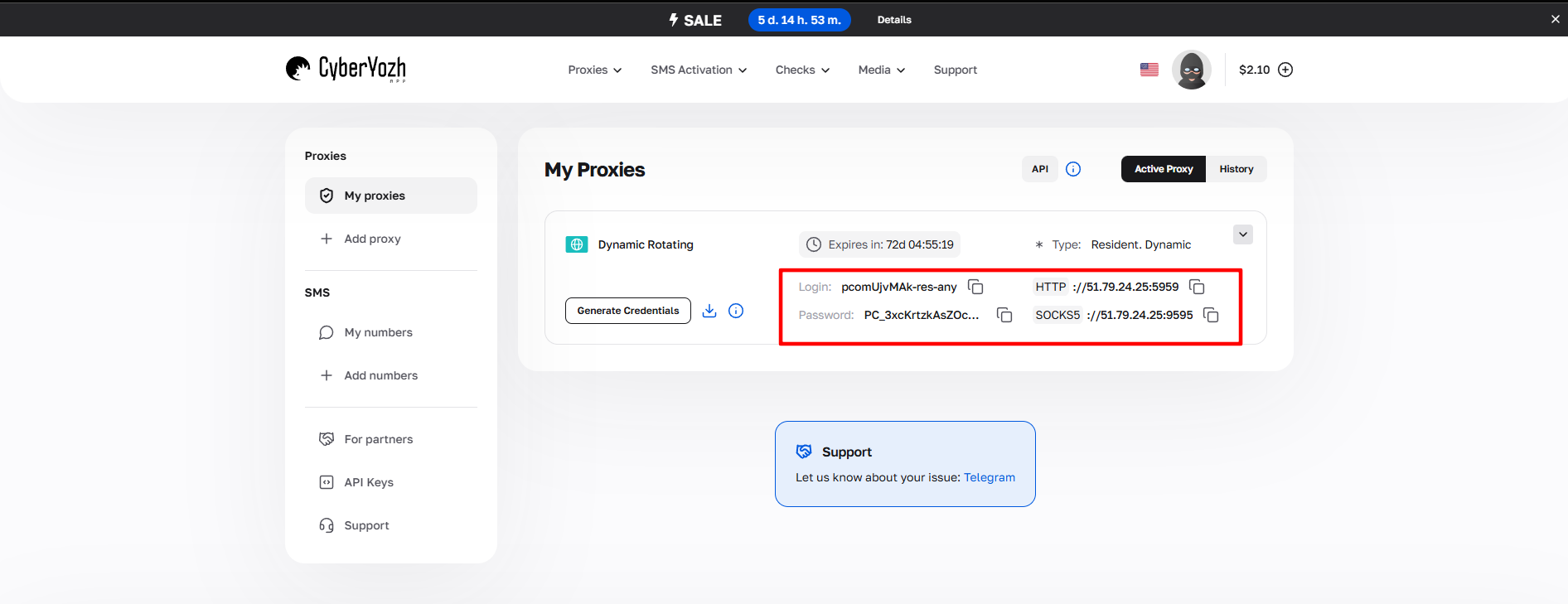 Fig. 1. Screenshot of the CyberYozh App platform interface, showing the location of data for connecting to the proxy server. The image displays fields for IP address (Host), port (Port), username (Proxy Username), and password (Proxy Password).
Part 3. Configuring Proxifier (Step-by-Step)
Step 1. Installation and Launch
Download and install Proxifier (Standard Edition). Launch the program. You will see the main window with the connection log.
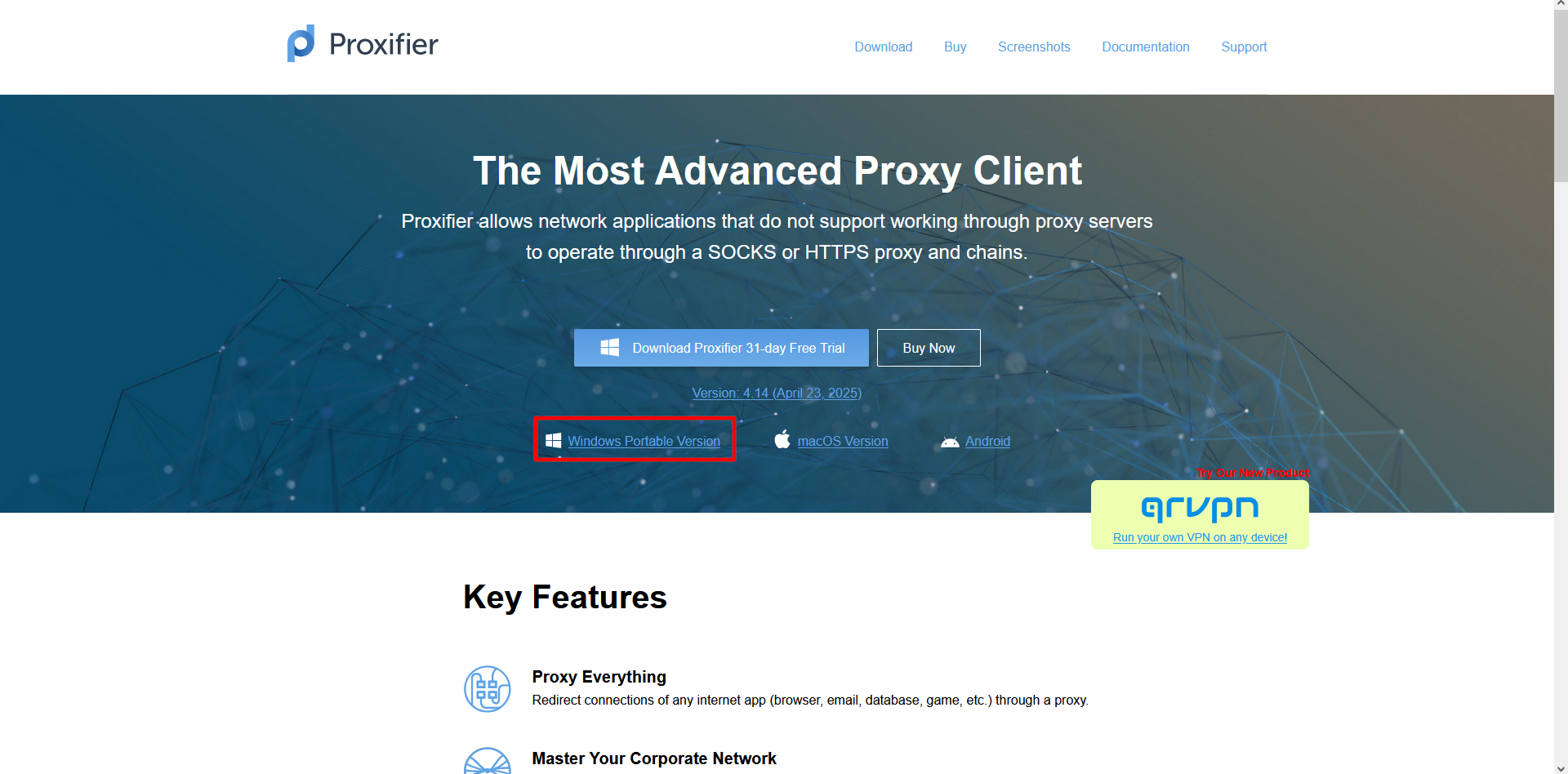 Fig. 2. The main page of the official Proxifier website, showing the primary interface for downloading the program, including download buttons and information about various product versions.
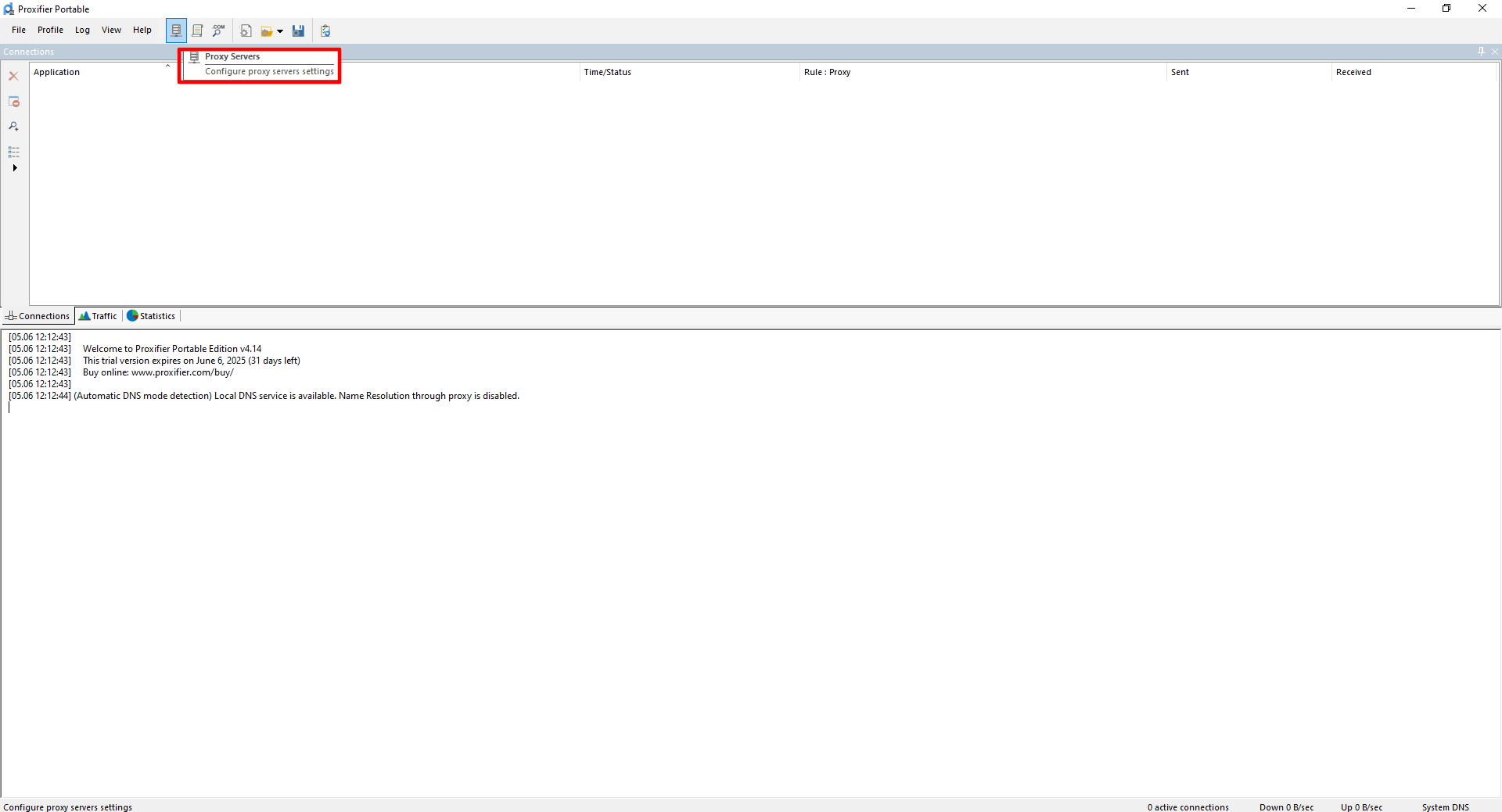 Fig. 3. The Proxifier program interface, displaying the main navigation menu and toolbar for managing proxy servers. This screenshot shows the location of the "Proxy Servers" section in the main application window.
Step 2. Adding a Proxy (Proxy Servers)
- Click the Proxy Servers button on the toolbar (server icon).
In the window that opens, click Add.
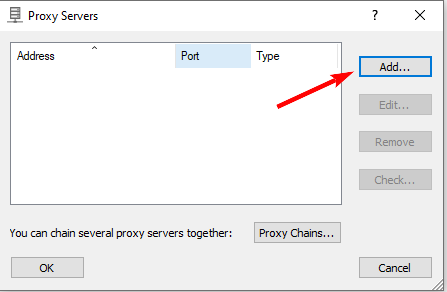 Fig. 4. Dialog box for adding a proxy server in the Proxifier program.
Fill in the data:
- Address: Your IP.
- Port: Your port.
- Protocol: Select SOCKS Version 5. This is important for authorization and UDP support.
Authentication: Check the "Enable" box and enter Login/Password.
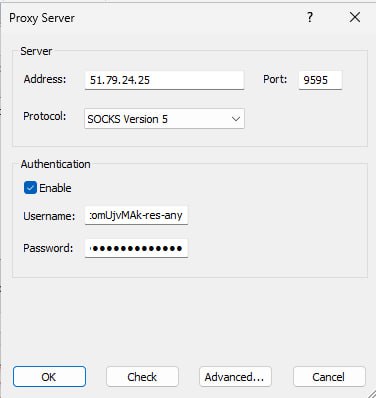 Fig. 5. Proxy server settings dialog box in the Proxifier program.
Click Check. If the test passes (green text), click OK.
- The program will ask: "Do you want to use this proxy by default?".
- Click NO if you want to configure the proxy only for specific programs.
- Click YES if you want to route the entire computer through it.
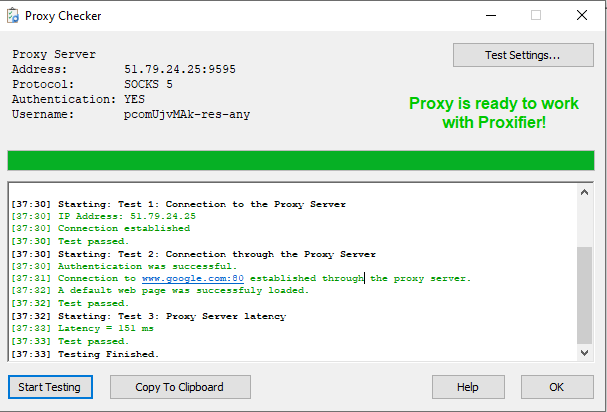 Fig. 6. Proxy server connection check dialog box in Proxifier, showing successful connection status with a green indicator and the text "Proxy is Ready to Work".
Step 3. Setting Rules (Proxification Rules)
This is the heart of the program. Here we decide who goes through the proxy.
Click the Proxification Rules button (list icon).
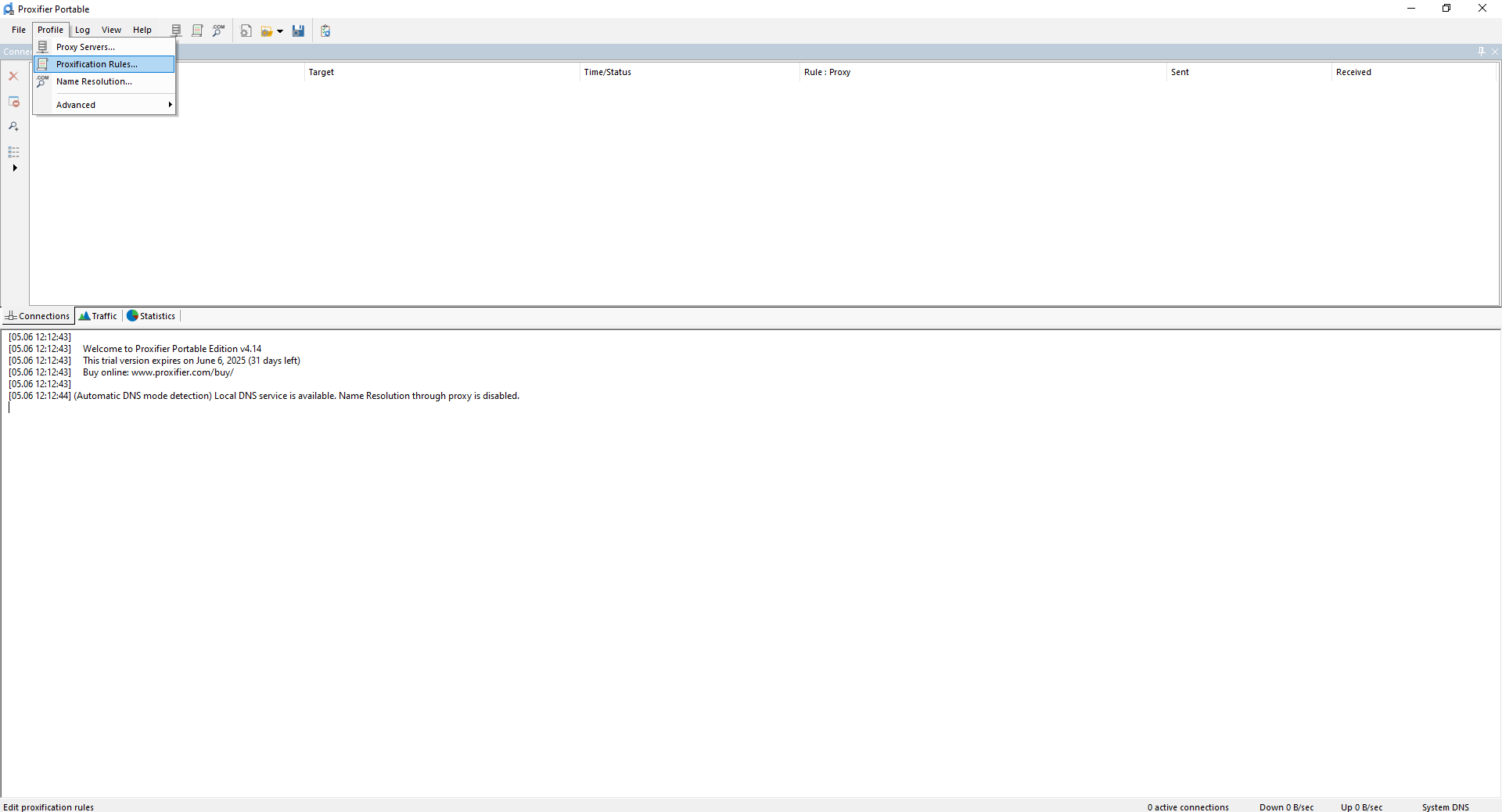 Fig. 7. The Proxifier program interface, showing the "Proxification Rules" section used for configuring traffic routing rules through proxy servers for individual applications.
Click Add.
 Fig. 8. Dialog box for adding a new routing rule in Proxifier, allowing you to set a rule name and configure basic parameters for redirecting a specific application's traffic.
Configure the rule:
- Name: Name (e.g.,
Opera). - Applications: Enter the process name (e.g.,
opera.exe) or click Browse and select the file. - Action: In the dropdown list, select your proxy (e.g.,
Proxy SOCKS5 172...). - Click OK.
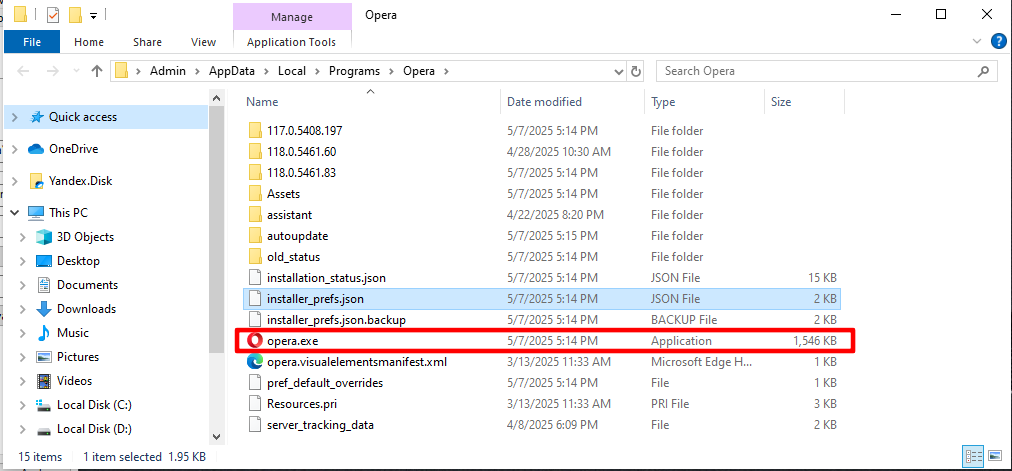 Fig. 9. Dialog box in Proxifier for configuring traffic routing rules, where the user can select a specific application by specifying its executable file via the "Browse" function or from the list of active processes.
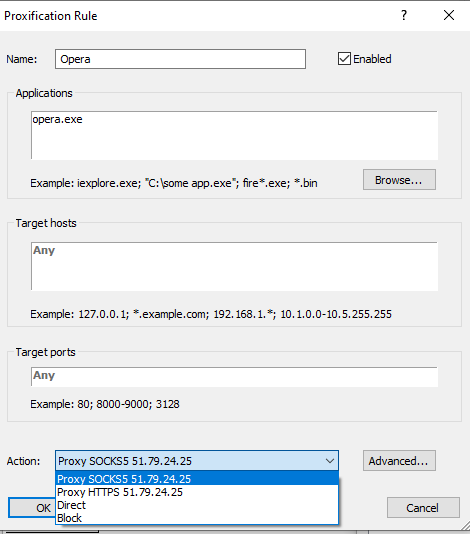 Fig. 10. Proxifier application selection dialog box, demonstrating the interface for setting network traffic routing rules. The window displays controls for specifying the target application and associated proxification parameters.
Now, when you launch Opera, Proxifier will intercept its traffic and direct it through the proxy. Other programs (browser, games) will follow the Default rule (usually Direct).
Part 4. Verification and DNS
Launch the program for which you configured the rule (e.g., a browser).
- Go to
browserleaks.com/iporwhoer.net. - Ensure the IP has changed.
Important nuance about DNS: To ensure maximum privacy and protect your connection from unauthorized tracking, go to the Name Resolution menu (in Proxifier settings) and select Resolve hostnames through proxy. This will prevent DNS leak requests.
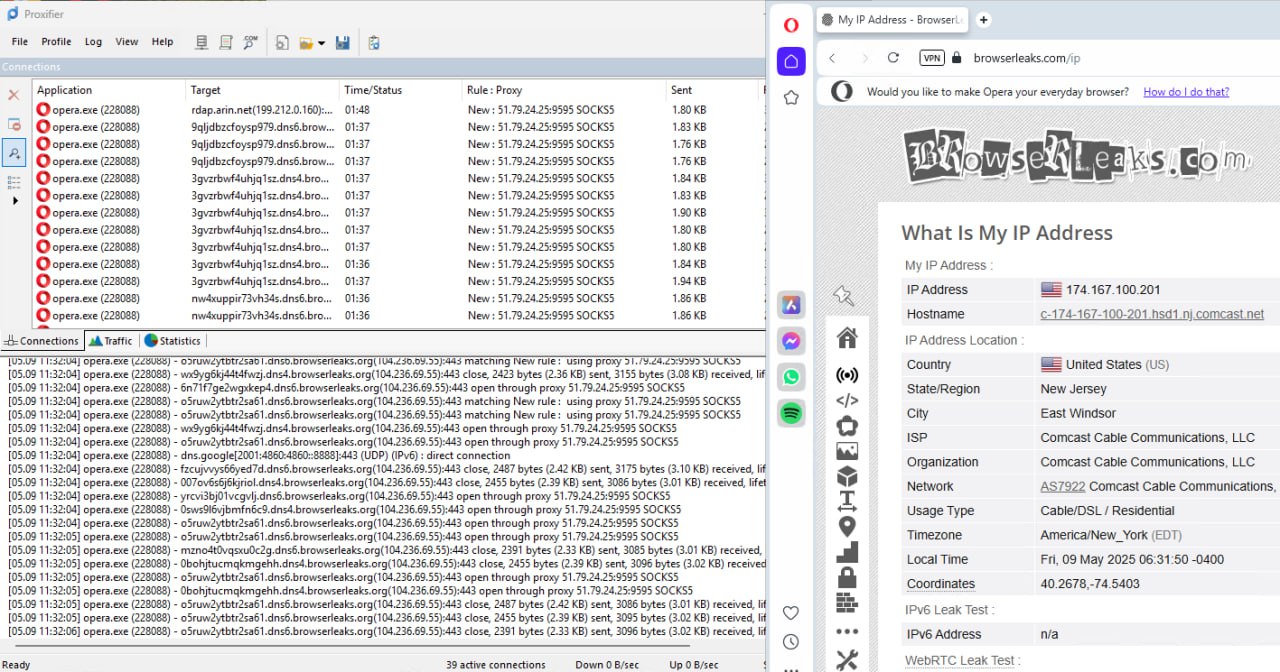 Fig. 11. Interface of a website for checking IP addresses, demonstrating the result of a successful connection via a proxy server.
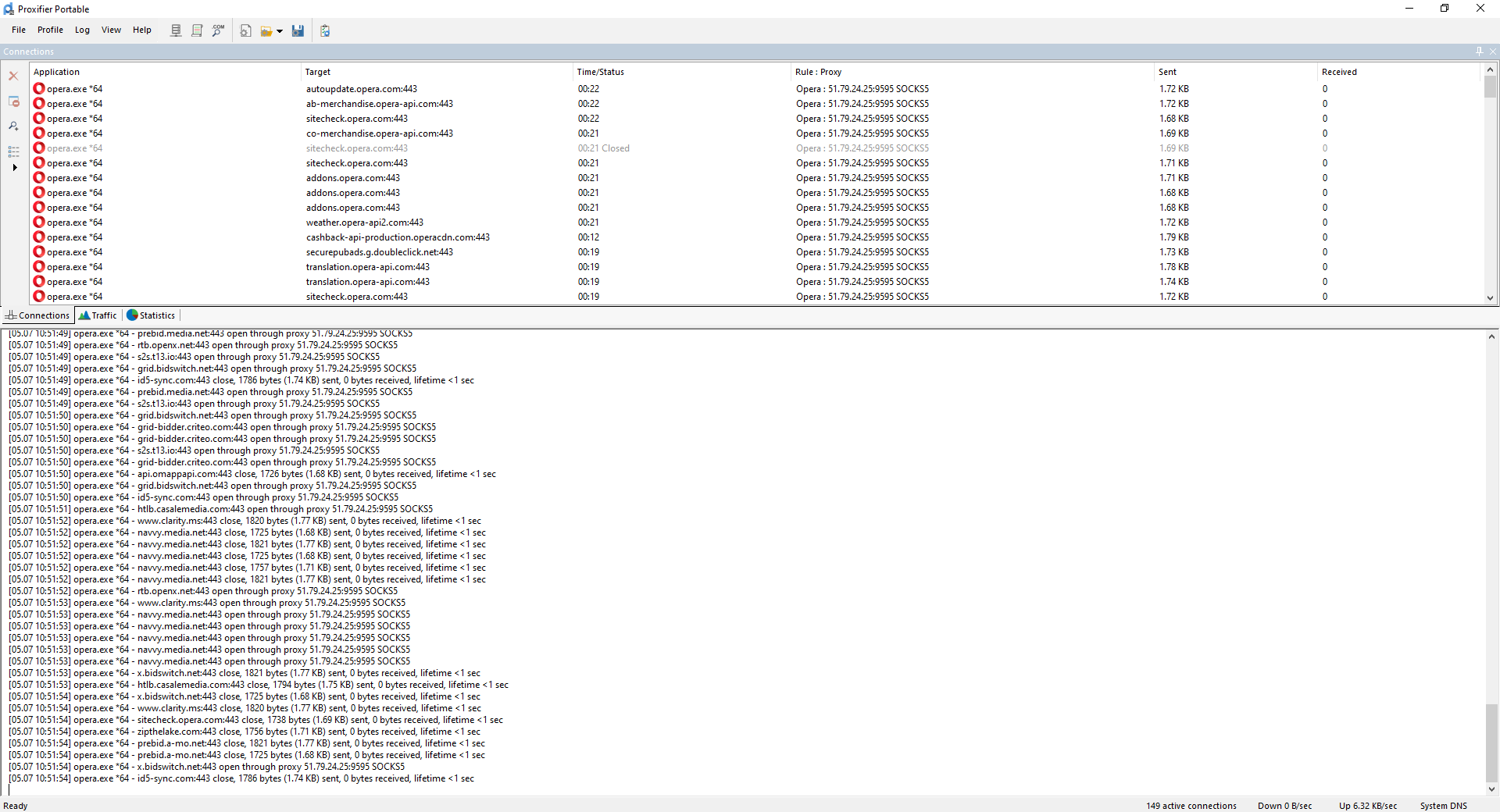 Fig. 12. The window displays a list of running processes and their corresponding routing through configured proxy servers, allowing the user to monitor and verify the correctness of the configured proxification rules.
Conclusion
Proxifier — is a Swiss army knife for traffic management.
- For games, we recommend using Residential Static SOCKS5 and setting the rule only for
game.exe. - For work, use Residential or Mobile proxies.
Reliable SOCKS5 proxies with UDP support can be found in the CyberYozh App catalog.
