
Which proxy is the best for your specific purpose? Let’s decide that.
Mobile proxies: Best for social network management
Private mobile proxies operate on behalf of the local mobile service providers and offer the highest possible level of trust. They should be used for large-scale social media management, such as multiple account creation and social data scraping, as
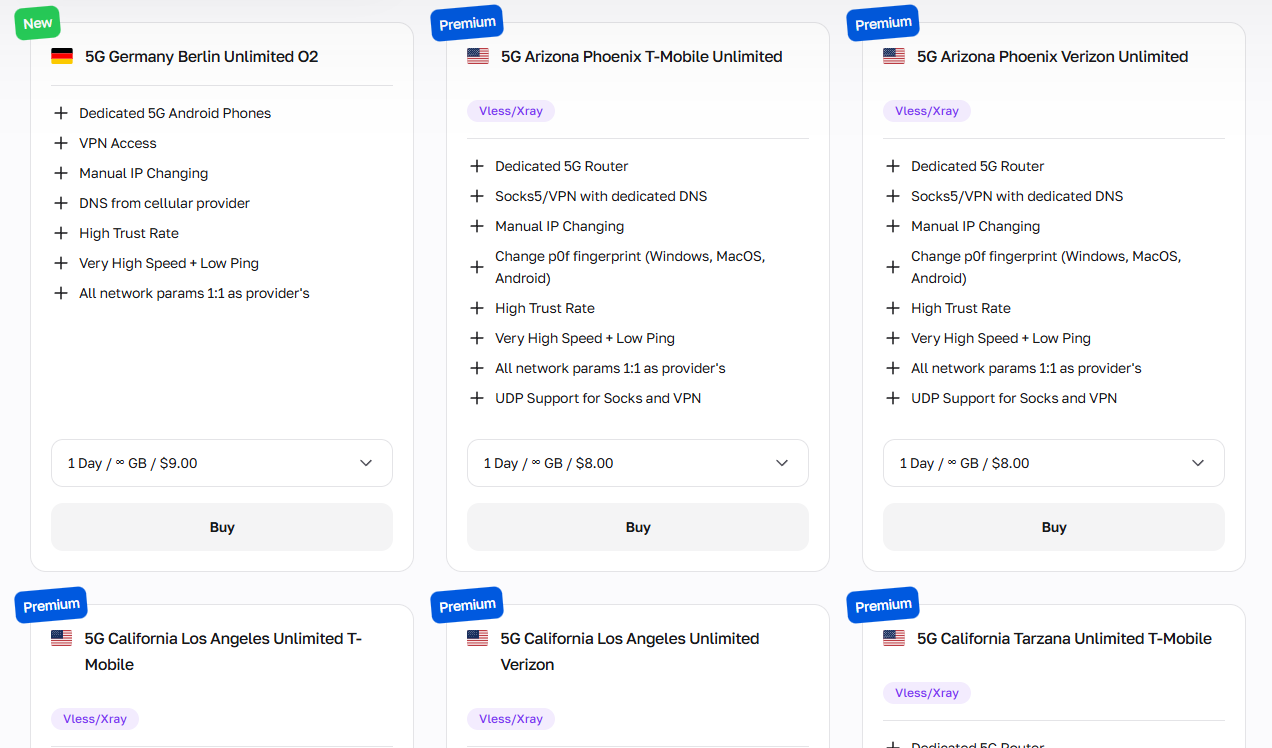
CyberYozh mobile proxies also offer digital fingerprint management. They should be used for:
Social network multi-account management
Influencer campaign automation and scheduling
Bypassing platform bot detection systems
Mobile ad verification across regions
App testing with real cellular network behavior
Residential static: 1 IP = 1 profile
Residential static proxies provide a fixed, high-trust IP address for a variety of operations without georestrictions or security concerns. It’s very affordable and high-speed, making it the best option for managing long-term social media profiles or general Web interactions. Make sure that you don’t perform actions that are unusual for ordinary Internet users, such as bulk account creation or high-scale data scraping, so your IP reputation isn’t damaged.
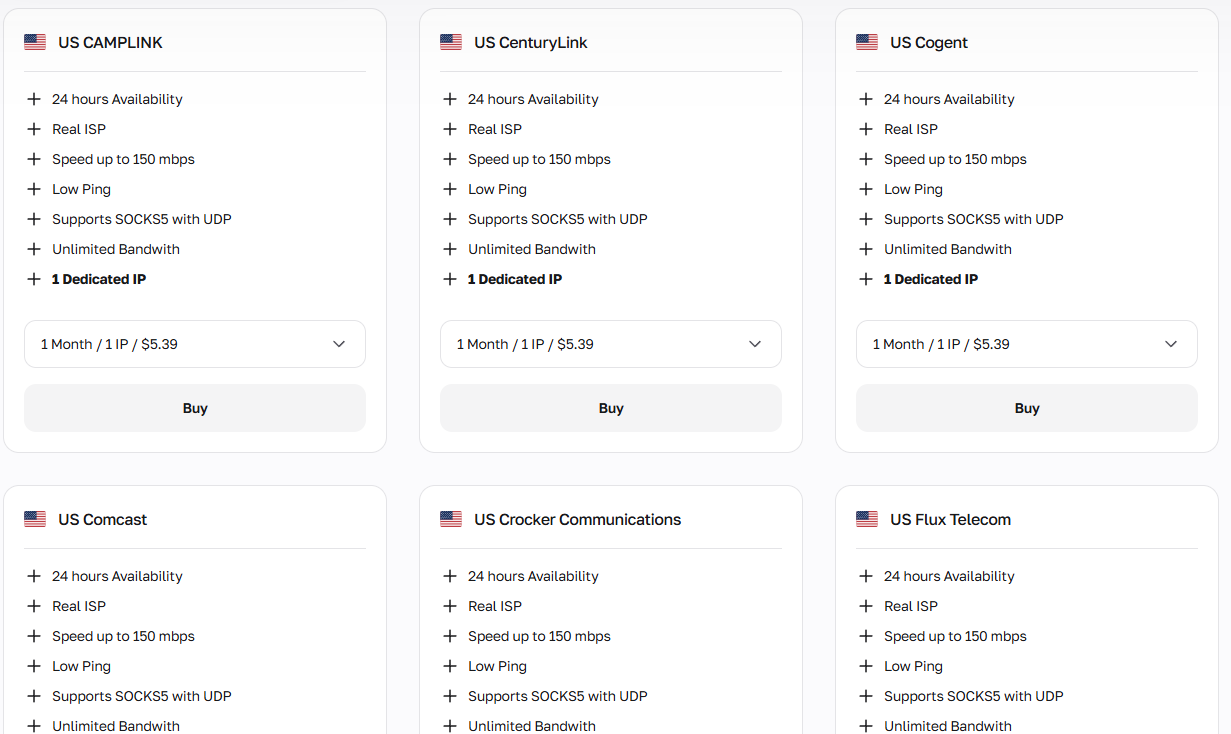
Static residential IPs should be used for:
Long-term brand identity maintenance
Persistent authenticated sessions on platforms
E-commerce account management and loyalty programs
Stable SEO rank tracking from fixed locations
B2B LinkedIn profile management and outreach
For additional verification, check CyberYozh’s SMS service, with virtual numbers for just $0.15.
Residential rotating: Bulk online activities
Residential rotating proxies work differently, providing a pool of residential IP addresses that can be rotated with different periodicity and triggers. It can be defined during the proxy setup or customized using Python scripts and tools such as Puppeteer and Playwright. Their price depends on the amount of data they need to process, so rotating proxies’ best practices include traffic optimization to ensure that only the required data is processed.
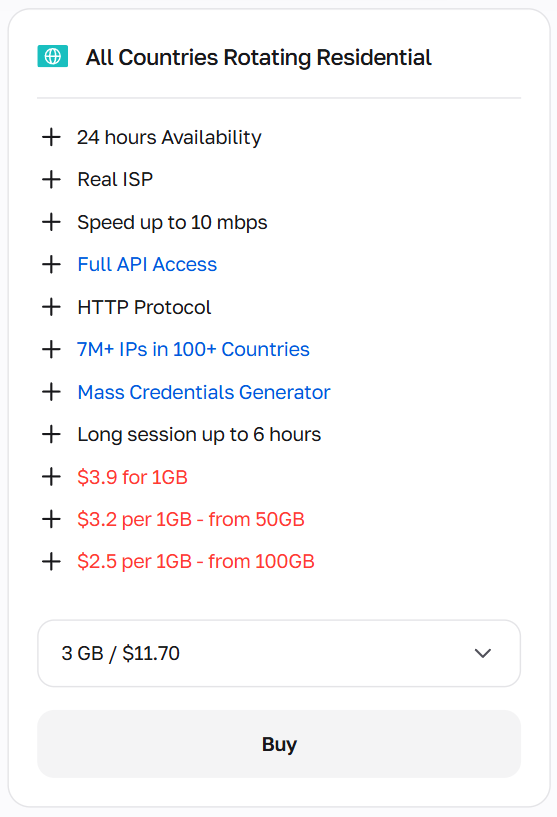
Residential IP rotation is indispensable for:
Bulk keyword tracking and SERP monitoring
Large-scale product catalog and price scraping
Mass lead generation and contact collection
Ad verification across multiple geos simultaneously
High-volume social media audience research
Datacenter proxies: Open database interactions
Datacenter proxies can be used for mass-scale operations because they offer the largest available IP ranges, the fastest speeds, and the lowest prices. Still, they’re mostly used by bots and not real users, so many websites mark them as untrustworthy and challenge their users with additional verification requests or bans.
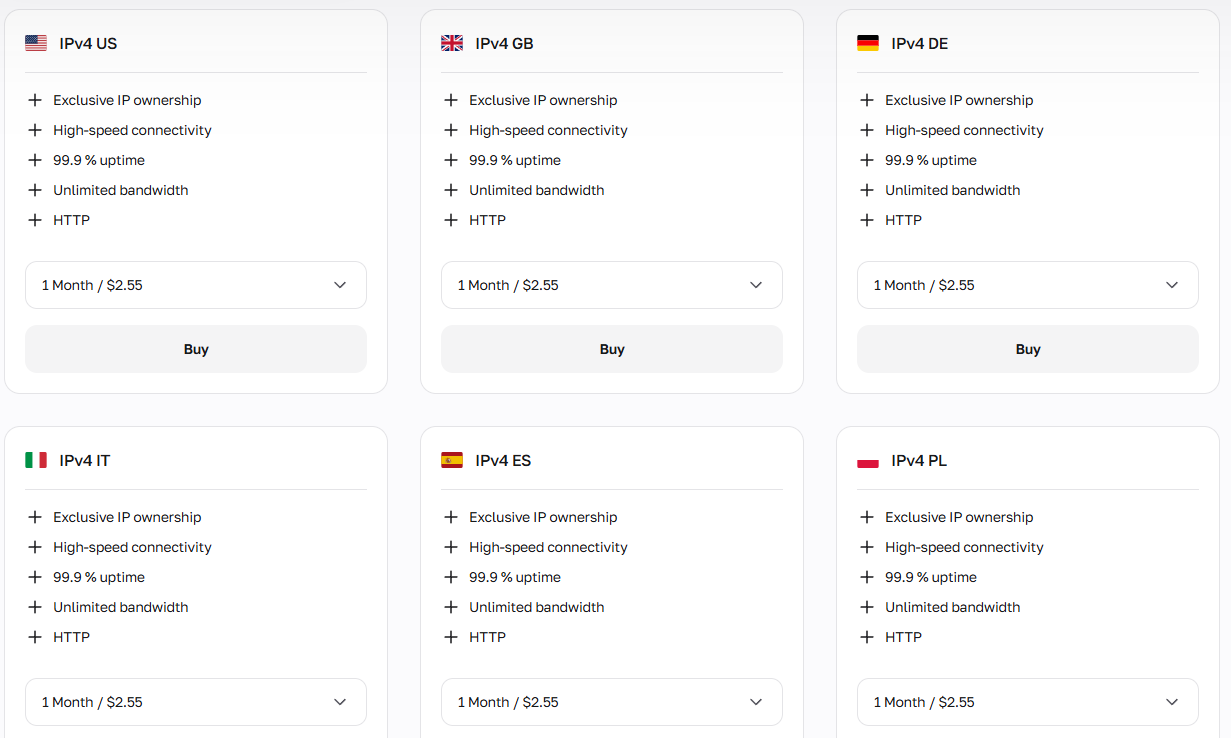
Datacenter proxies can be deployed for:
Scraping open databases and public directories
API endpoint testing and load simulation
Large-scale news and content aggregation
Speed-critical automated data pipelines
Development environment testing and QA automation
All proxies’ reputation can be checked before work using CyberYozh’s IP Checker. Make sure your chosen IP address is trustworthy.
Before getting started with Vision: What to remember
Antidetect browsers are specialized tools that modify how your browser and device appear to websites, so your real identity and multiple accounts cannot be linked together. They allow:
Profile isolation with separate cookies, localStorage, cache, and extensions, so logs and sessions cannot leak between accounts.
Fingerprint spoofing by changing the data sent to the server to create a consistent but different fingerprint per profile:
Proxy integration with a different IP for each profile, so requests appear to come from separate locations.
Together with CyberYozh proxies, antidetects like Vision ensure that your web actions won’t be detected, revealed, or traced back to you. They’re recommended if you launch large-scale or privacy-sensitive business tasks.
Setting the Vision browser with a proxy
After obtaining your proxy configurations and understanding how to use them, you’re ready to power your antidetect browser with CyberYozh proxies. Let’s create your first Vision profile, after which you’ll be able to scale profiles according to your needs.
1. Set up the Vision account
Sign up for the Vision browser.
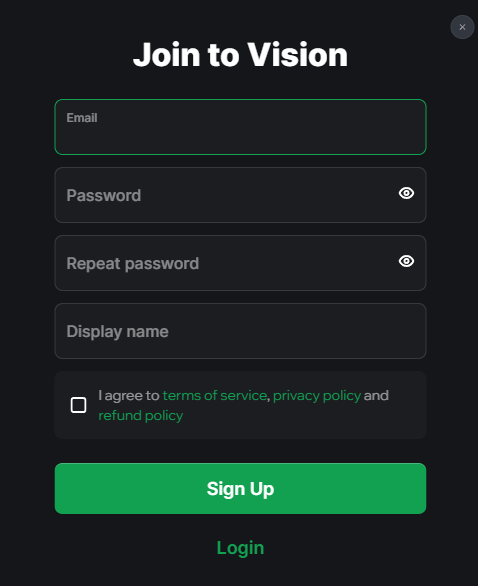
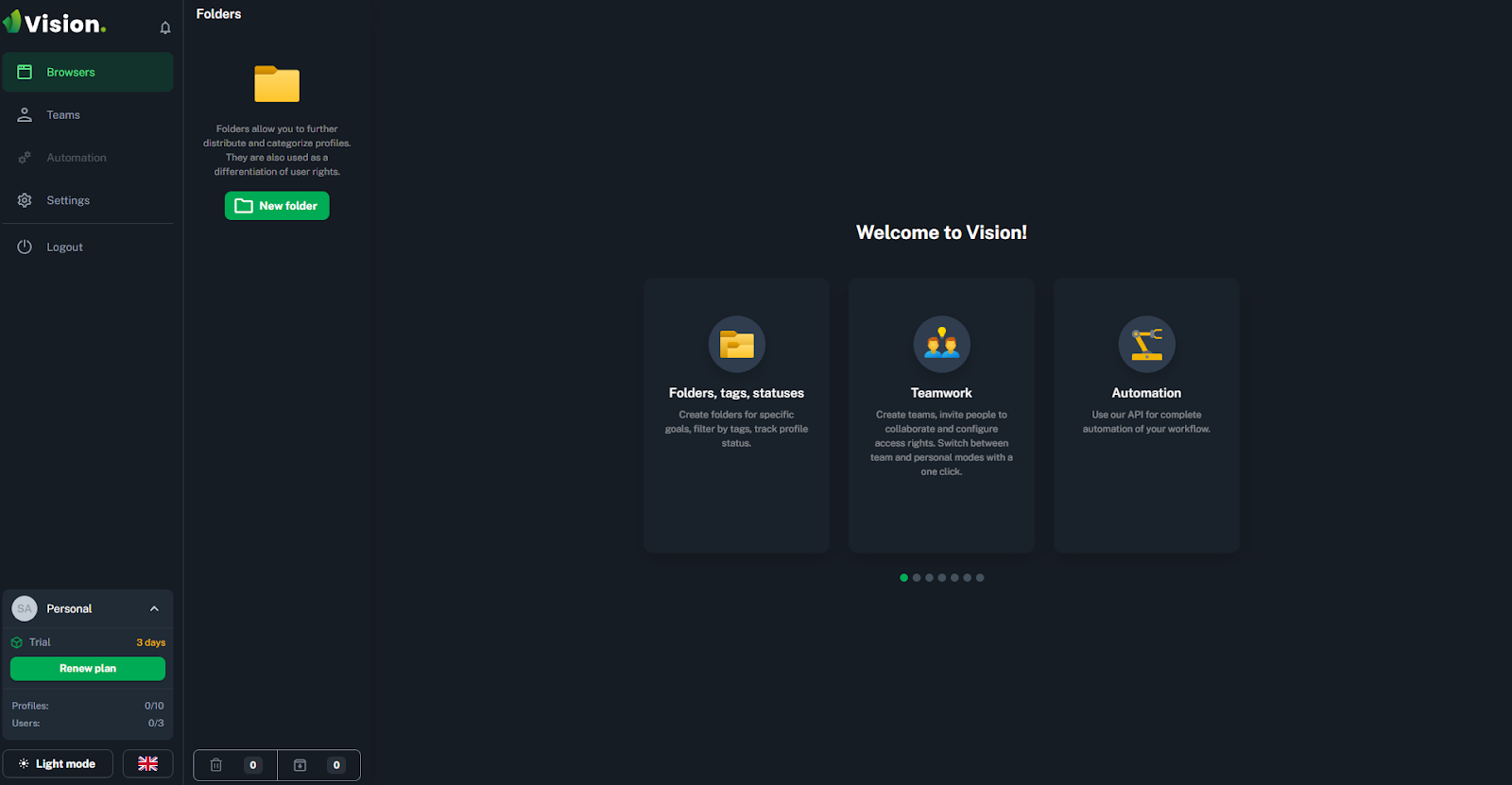
You can manage your account via its web dashboard on my.browser.vision. For account setup, however, you should download the browser on your PC with Windows, Mac, or Linux. After that, you’ll see its welcome panel.
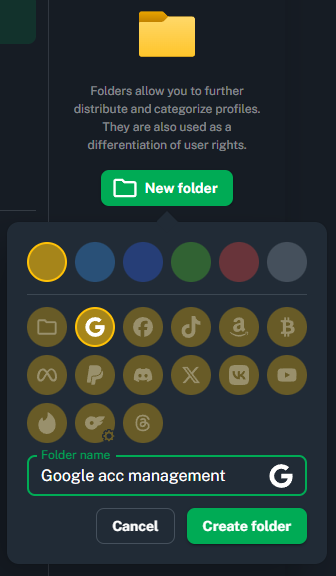
To begin, create a new folder and customize it by clicking on New folder. Each Vision folder contains the profiles related to a specific workflow, and you can customize each profile and assign separate proxies to them.
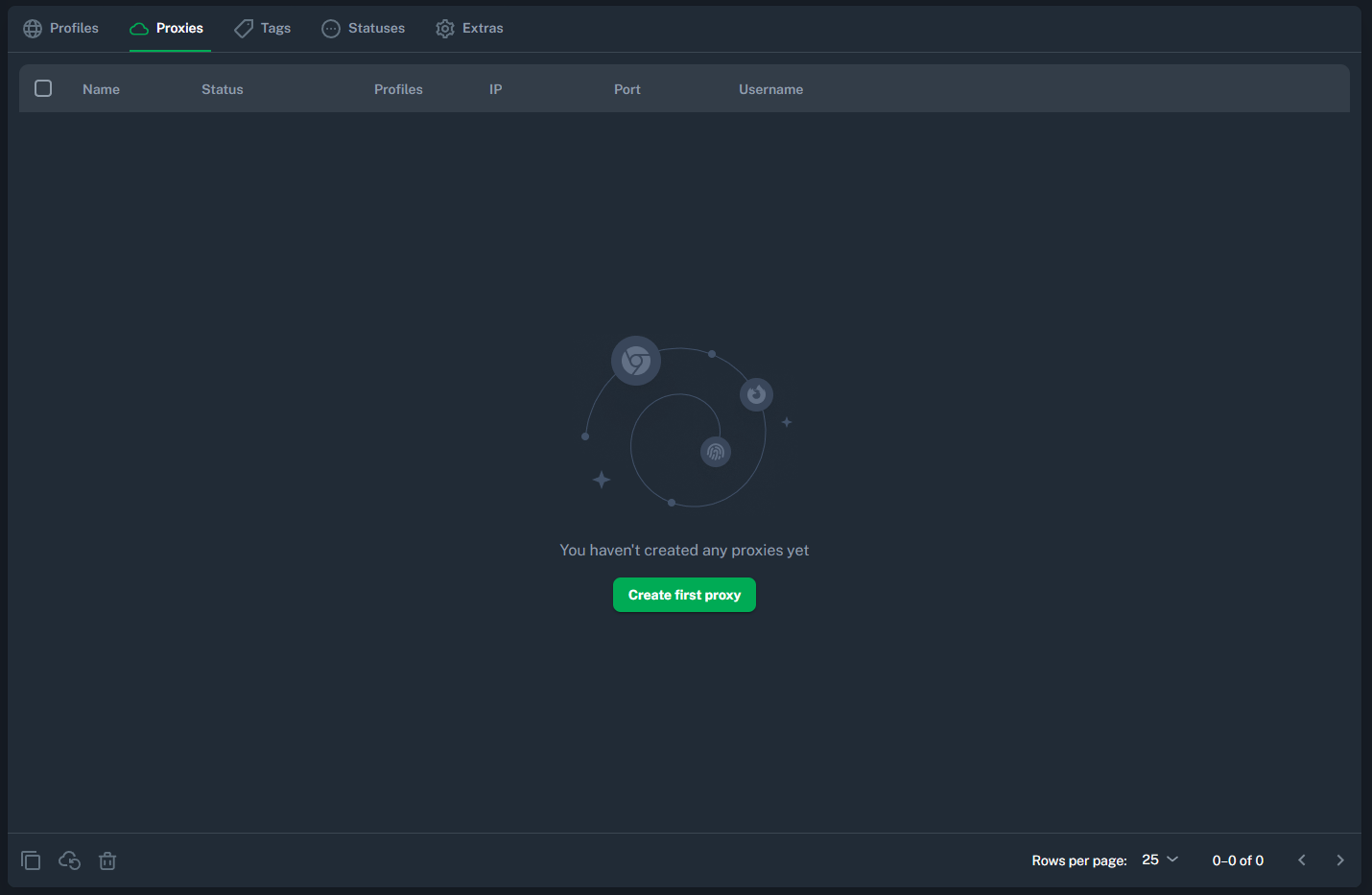
Then, go to the Proxies menu to add your proxy.
Here, you’ll provide the proxy credentials from CyberYozh, so let’s obtain them.
2. Get the CyberYozh proxy
Go to your CyberYozh account, click on Add proxy, and select the proxy type you need (mobile, residential, or datacenter).
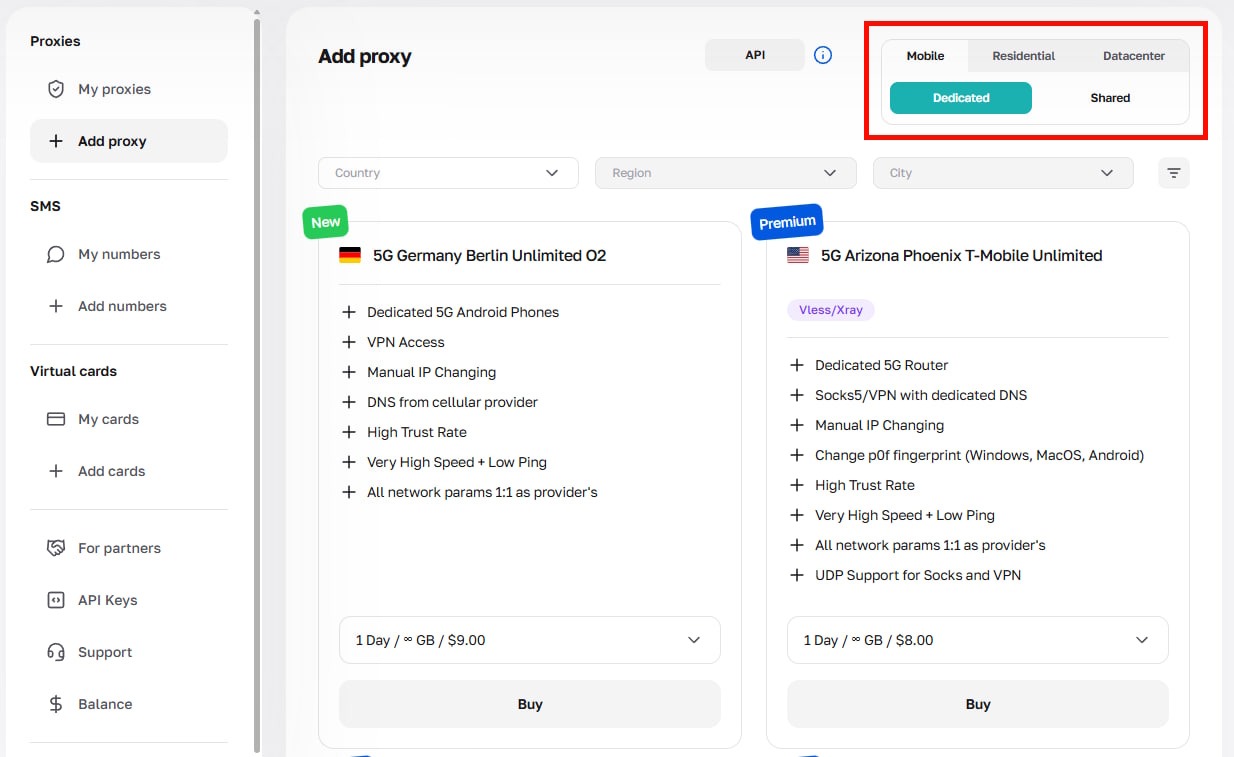
After the purchase, you will see the proxy configurations:
Host: The proxy IP address (example is 51.79.24.25)
Type: Mobile, residential (static/dynamic), datacenter
Port and type: HTTP/SOCKS5 with connection ports (looks like 5959)
Username: Your proxy login
Password: Your proxy password
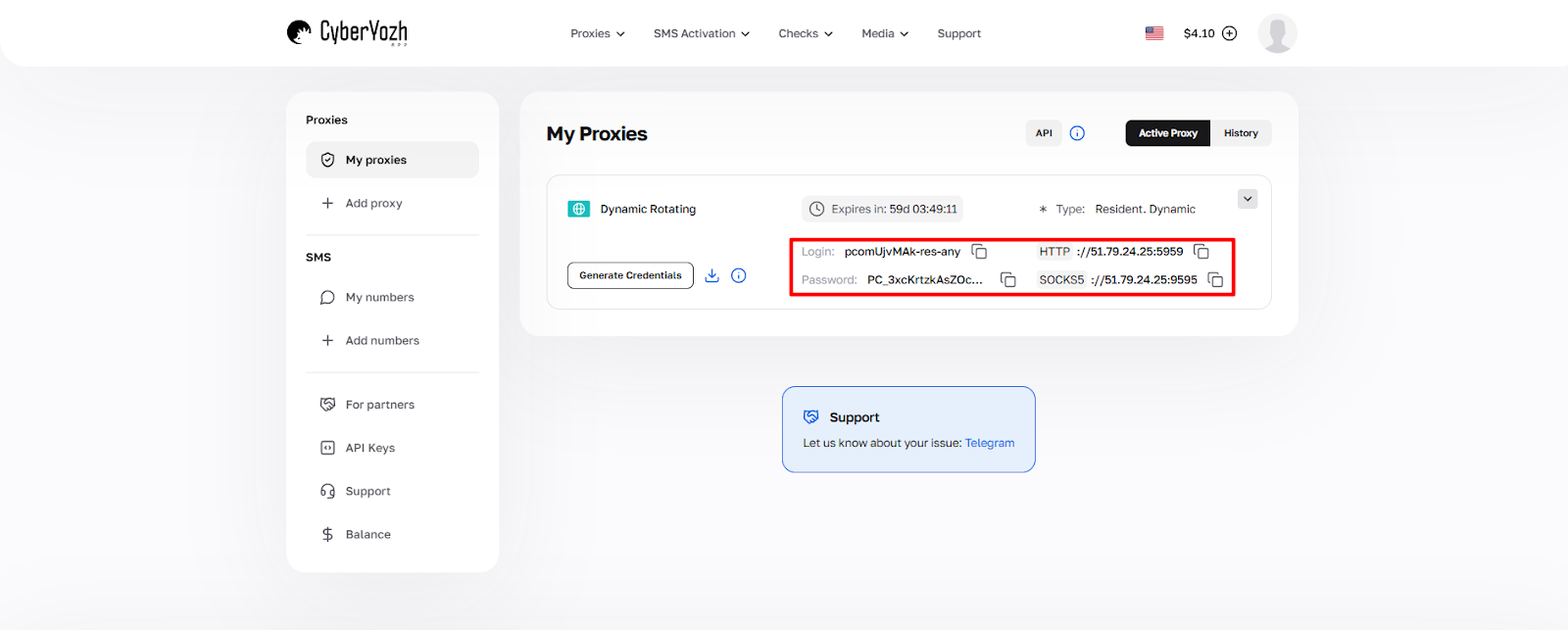
Click Generate Credentials to get the proxy credentials in a required format.
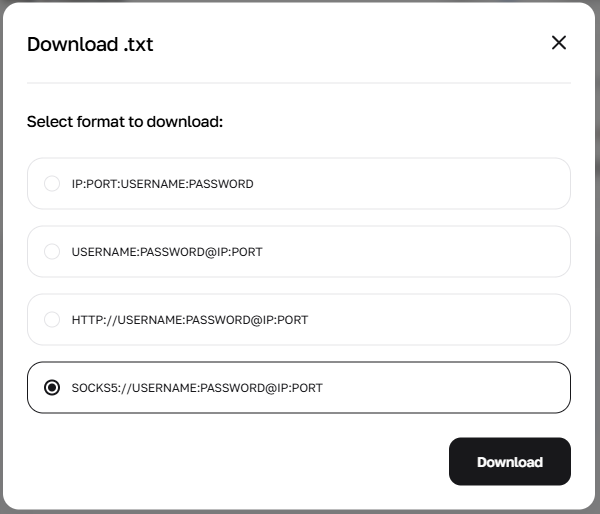
For Vision, each of these formats works well, but it’s recommended to download either the third or fourth option (with HTTP or SOCKS5 configurations) for clearer results. After getting a .txt file with the proxy credentials, you’ll need to copy them into your Vision account.
3. Provide the proxy configurations
Go back to Vision. After clicking Create first proxy, you’ll see the menu to provide proxy credentials and configurations.
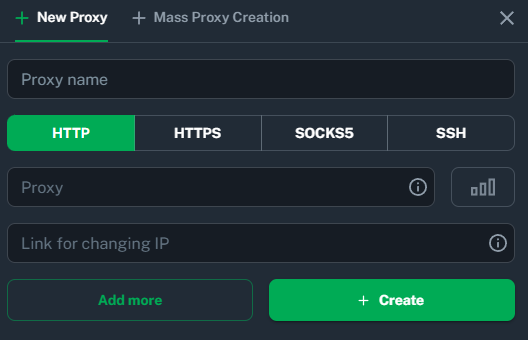
When you hover your mouse over the information icon, you’ll see which formats are supported. Copy and paste the proxy credentials obtained from CyberYozh and specify a proxy name you want.
4. Create a Vision profile and assign a proxy
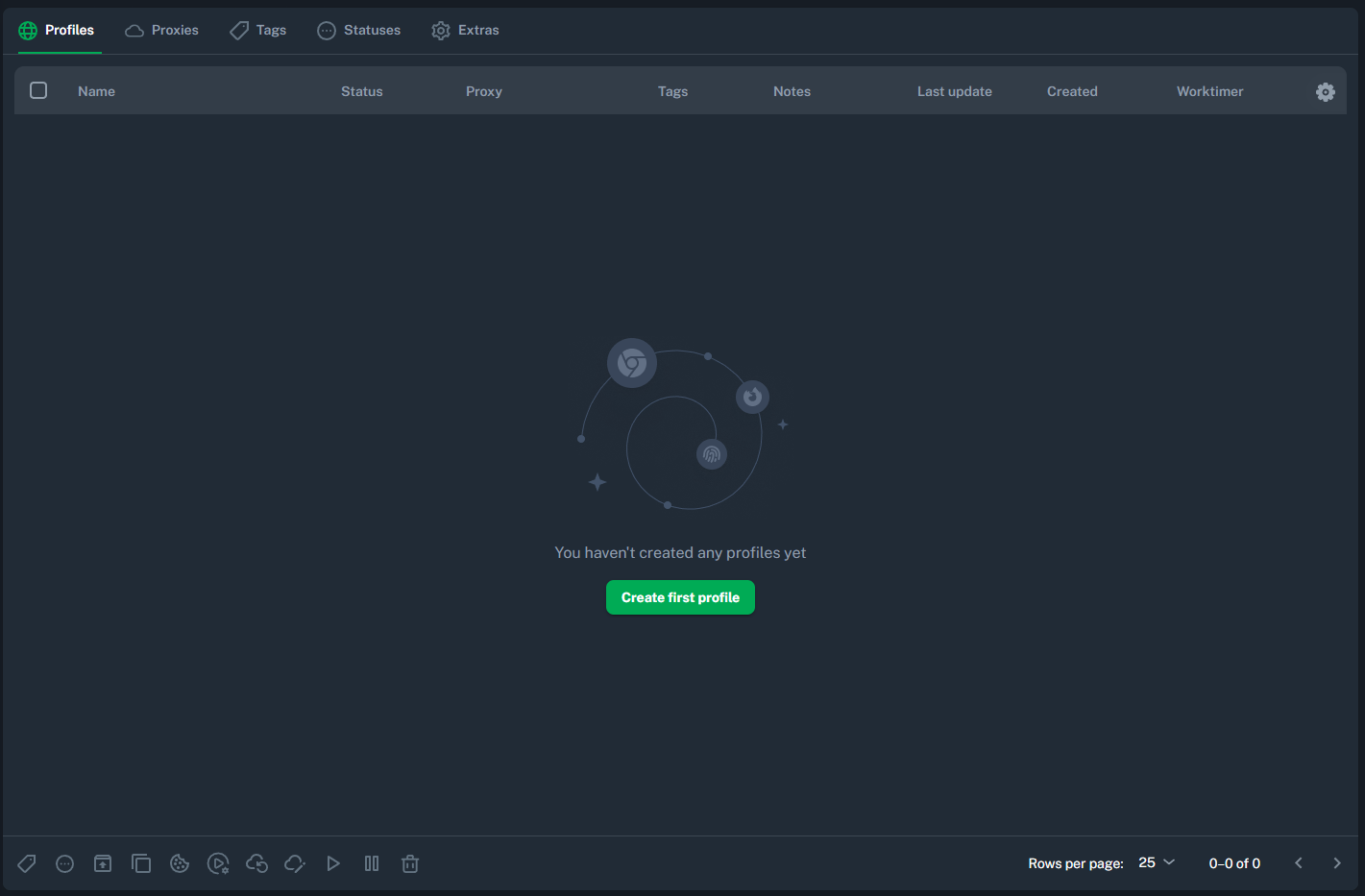
To start using Vision, you have to create a profile and assign a proxy to it. Proceed to the Profiles menu and click Create first profile.
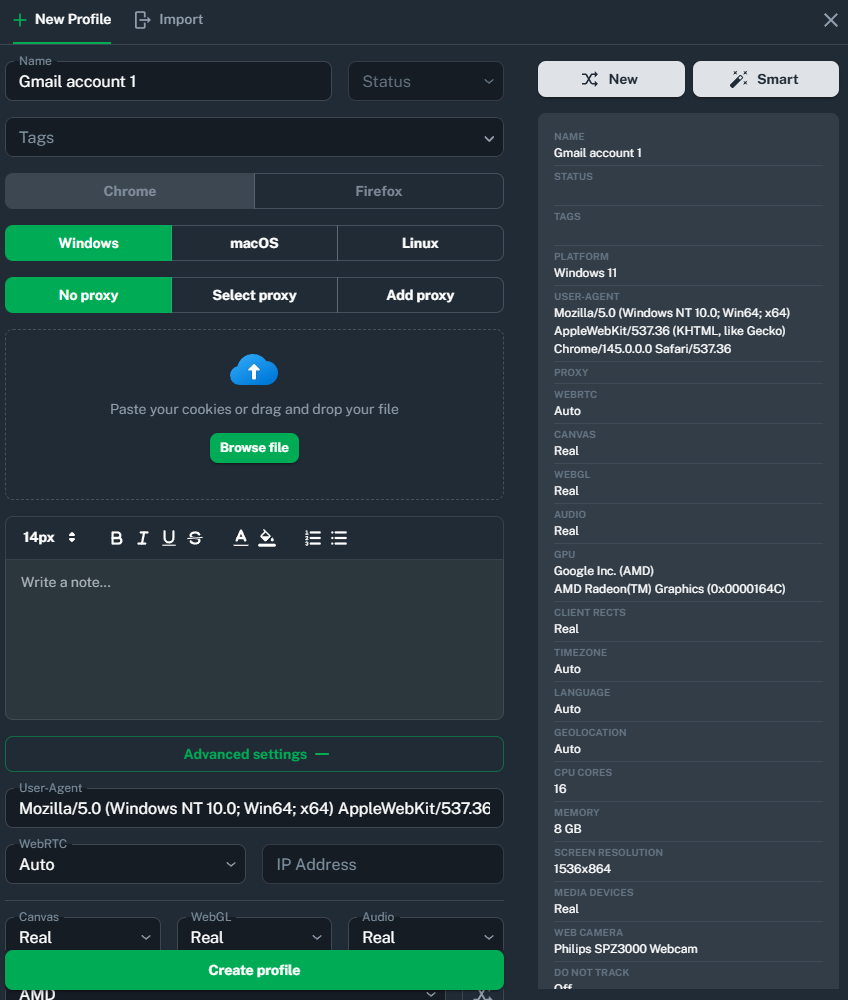
The profile can be highly customized to ensure that platforms see only the necessary fingerprints (including operating system, cookies, and even hardware configurations). And, of course, each profile can use a proxy to customize its IP address.
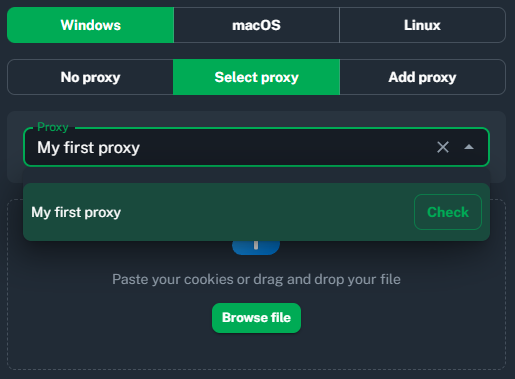
To add a proxy, click either Select proxy to select the one you’ve added in the previous step, or Add proxy to paste the credentials again. Select the proxy name you’ve created before (My first proxy in this example)
Add the proxy, customize the profile, and save it. If you don’t specify the profile name, Vision will generate it randomly. When adding multiple profiles, you can also specify the tags for each of them in the Tag menu, so it’ll be easier to manage them.
5. Verify the proxy and test the connection
To start a profile browsing session, click Start in the profiles menu (Winston Lopez in this example).
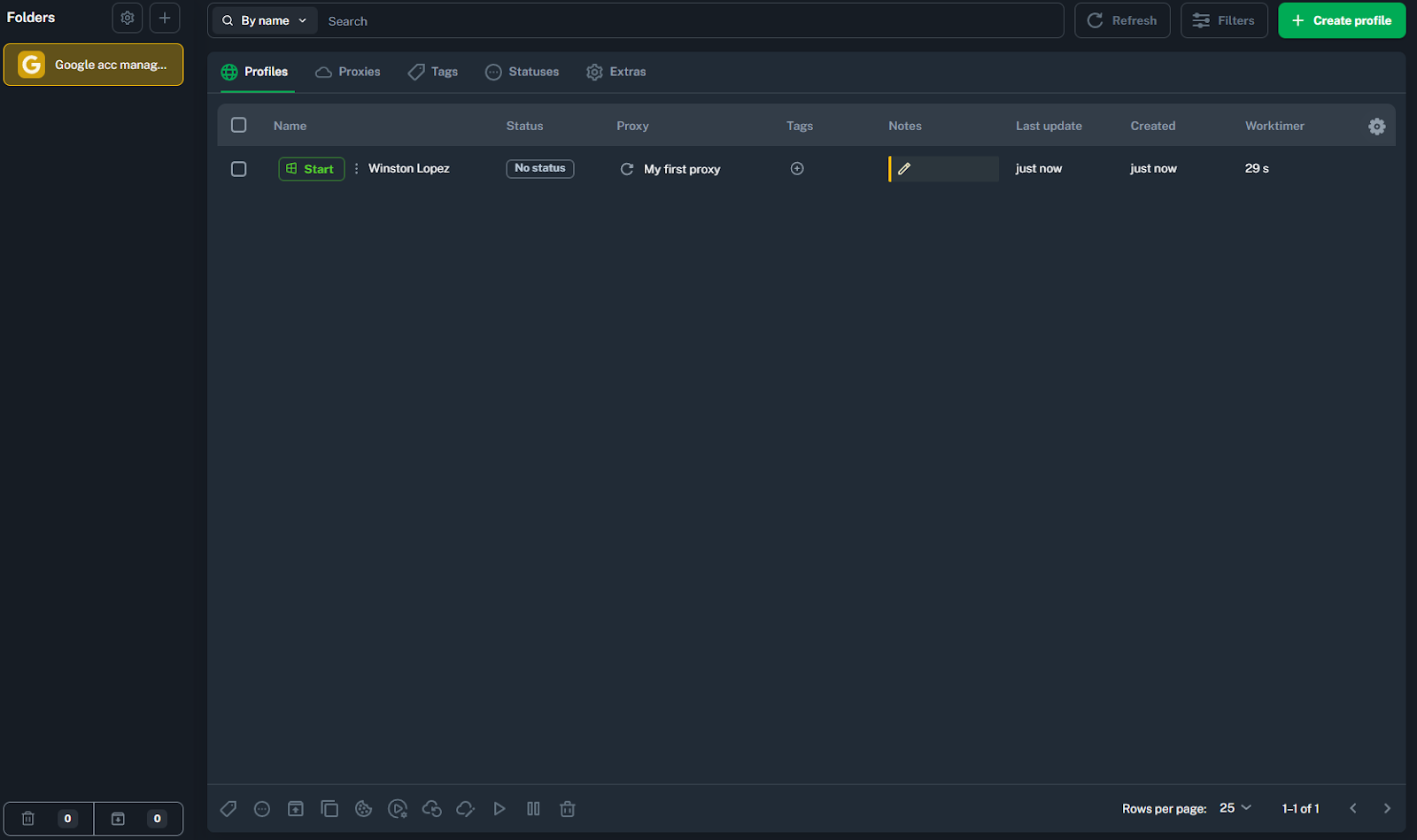
After that, it will open a Chrome session with the specified configurations and proxy.
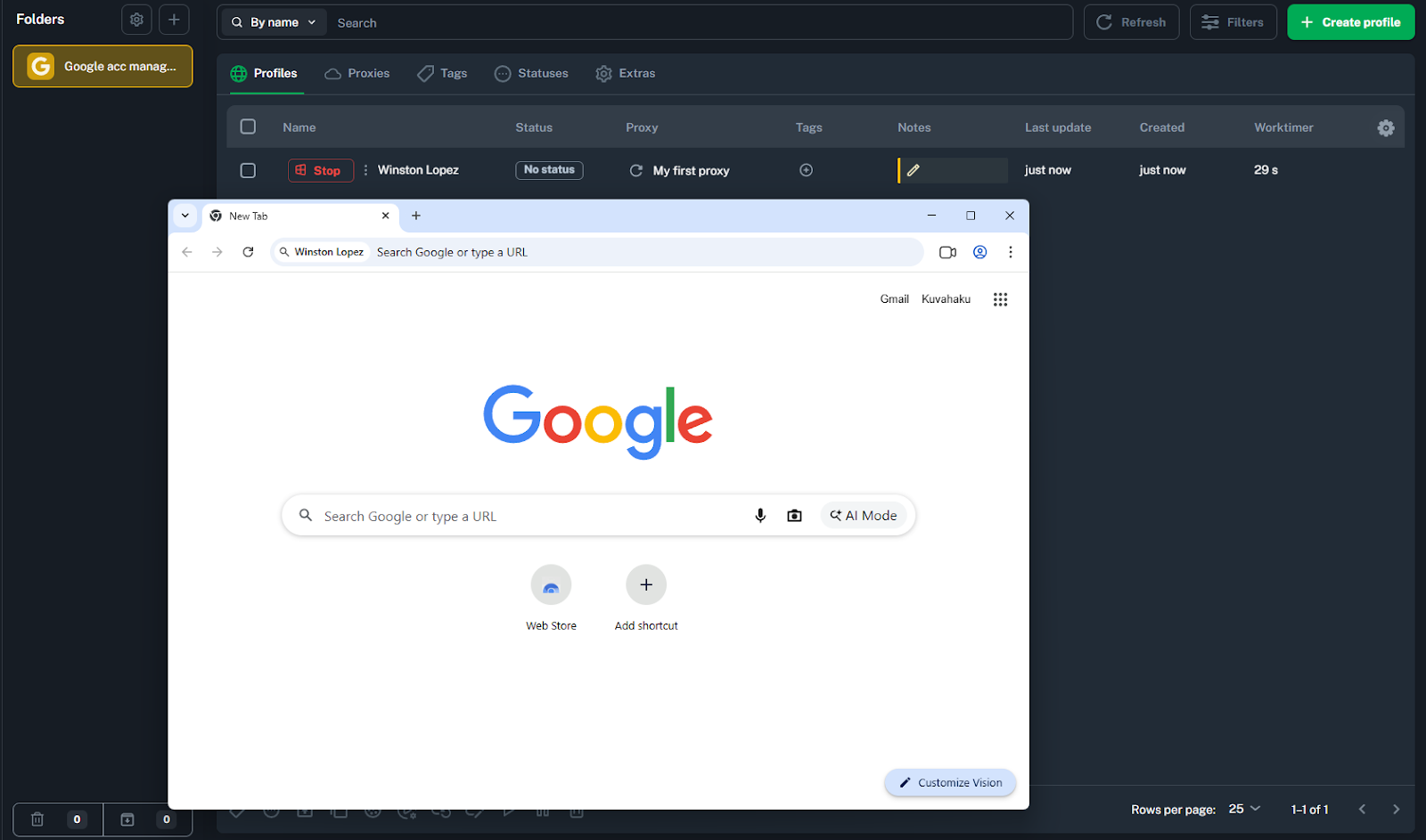
Here you are - start your secure browsing for personal or business purposes!
Vision proxy management and troubleshooting: Best practices
When paired with CyberYozh proxies, Vision can assign each profile a unique IP address and fingerprint, making every session appear to anti-fraud systems as a distinct real user.
Here are the best practices for managing Vision profiles.
Use mobile or residential static proxies for social media multi-accounting
Assign one unique proxy per profile to prevent cross-account linking
Use Vision's Smart Fingerprint system so each profile blends into real user traffic
Enable proxy traffic caching in Vision to cut bandwidth usage by up to 80% on rotating residential proxies
Verify each proxy's reputation with CyberYozh's IP Checker before assigning it to a profile
Prefer HTTP or SOCKS5 credential formats when importing proxies from CyberYozh for cleaner configuration
Troubleshooting Common Issues
Proxy connection failure: Confirm credentials (host, port, username, password) are entered correctly, and test the proxy outside the antidetect browser web interface first
Fingerprint detection: If a platform flags your profile, switch fingerprint presets using Smart Fingerprint rather than reusing the same profile parameters
IP reputation issues: Run CyberYozh's IP Checker before use; if flagged, switch to a fresh IP rather than attempting to rehabilitate a burned one
The Vision antidetect browser supports full UDP over SOCKS5, making it especially reliable for tasks that require stable, latency-sensitive connections. Check the CyberYozh proxy catalog and use promo code CYBERYOZHAPP for 20% off your first Vision subscription purchase.
FAQ about CyberYozh proxy in Vision
What is an antidetect browser and how does it work?
An antidetect browser replaces your real browser fingerprint — OS, fonts, hardware, screen size — with a spoofed identity per profile, while keeping sessions fully isolated with separate cookies, cache, and proxy-assigned IPs.
What is Vision and which specialized features does it have?
Vision is an antidetect browser available on Windows, macOS, Linux, and as a web dashboard. It offers profile isolation, Smart Fingerprint spoofing, built-in proxy management, team collaboration, and full UDP over SOCKS5 support.
What is browser fingerprinting and why does it matter?
Browser fingerprinting uses JavaScript to collect dozens of device signals, including screen resolution, fonts, GPU, time zone, and plugins, creating a unique identifier per user that persists even when cookies are cleared.
How many fingerprint settings does Vision provide?
Vision's Smart Fingerprint system manages over 1,000 fingerprint parameters, dynamically adjusting values to behave consistently with each profile rather than presenting static, easily detectable spoofed values.
Is using an antidetect browser legal?
Antidetect browsers are legal tools used for legitimate purposes such as social media management, web scraping, testing, and cybersecurity. Legality depends on how they are used and the platform's Terms of Service.
Can websites still detect antidetect browsers?
Advanced anti-fraud systems may flag profiles if fingerprint presets are reused or proxies have poor reputations. Vision recommends switching Smart Fingerprint presets and verifying IPs with CyberYozh's IP Checker before use.
How do I add a proxy to an antidetect browser?
In Vision, go to the Proxies menu, click Create first proxy, and paste your CyberYozh credentials (host, port, username, password). Then assign that proxy when creating or editing a profile.
What is the difference between residential and mobile proxies for antidetection?
Mobile proxies offer the highest trust level for social media multi-accounting since they operate via real cellular networks. Residential static proxies provide a fixed IP ideal for long-term profile maintenance at a lower cost.