
Kameleo — is a specialized privacy tool developed by a team of experts from the Romanian company Outis Nemo Ltd. They have carved out a unique niche in the cybersecurity market by offering users advanced privacy management capabilities, including the emulation of full-fledged mobile devices (Android and iOS) directly on a PC.
This makes Kameleo an indispensable solution for working with TikTok, Instagram, and any platforms that require "mobile" traffic.
But the magic of emulation breaks down if you use the wrong IP address. If your virtual "iPhone 15" goes online from a data center IP address, it can lead to unstable operation or immediate access restrictions.
In this guide, we will analyze how to choose the perfect proxy for your profile type (mobile or desktop) and how to correctly configure it in Kameleo.
Part 1. Strategy: Which proxy is needed for Kameleo?
Kameleo offers flexibility, and your proxies must match it. The choice depends on which profile you are creating.
1. Mobile Proxies (4G/5G) — Ideal for mobile profiles
If you are creating an Android or iOS profile in Kameleo:
- Your choice: Only Mobile Proxies.
- Why: Target platforms expect a mobile device to access the network via a cellular operator. The "iPhone Profile + Mobile Proxy" combination provides authentic routing and optimal compatibility for mobile environments.
- Application: Social media management (TikTok, Instagram, Facebook), digital marketing, and app testing.
2. Residential Proxies (ISP) — Ideal for PC profiles
If you are creating a Windows, macOS, or Linux profile:
- Your choice: Residential Proxies.
- Why: These are IP addresses from home internet service providers. They are perfect for emulating a regular user sitting at a computer at home.
- Application: E-commerce (Amazon, eBay), crypto exchanges, payment systems, Google Ads.
3. Datacenter Proxies (Server)
- Verdict: Use only for simple tasks where a high level of privacy is not critical (technical scraping, tests). For serious work in Kameleo, they are not recommended, as they significantly reduce the overall effectiveness of your profile configuration.
Part 2. Data Preparation
For working with Kameleo, we recommend using high-quality proxies from CyberYozh App.
After purchasing, you will receive data in your personal account. You will need:
- Host: IP address (e.g.,
172.98.60.180) - Port: Port (e.g.,
58763) - Username: User login
- Password: Password
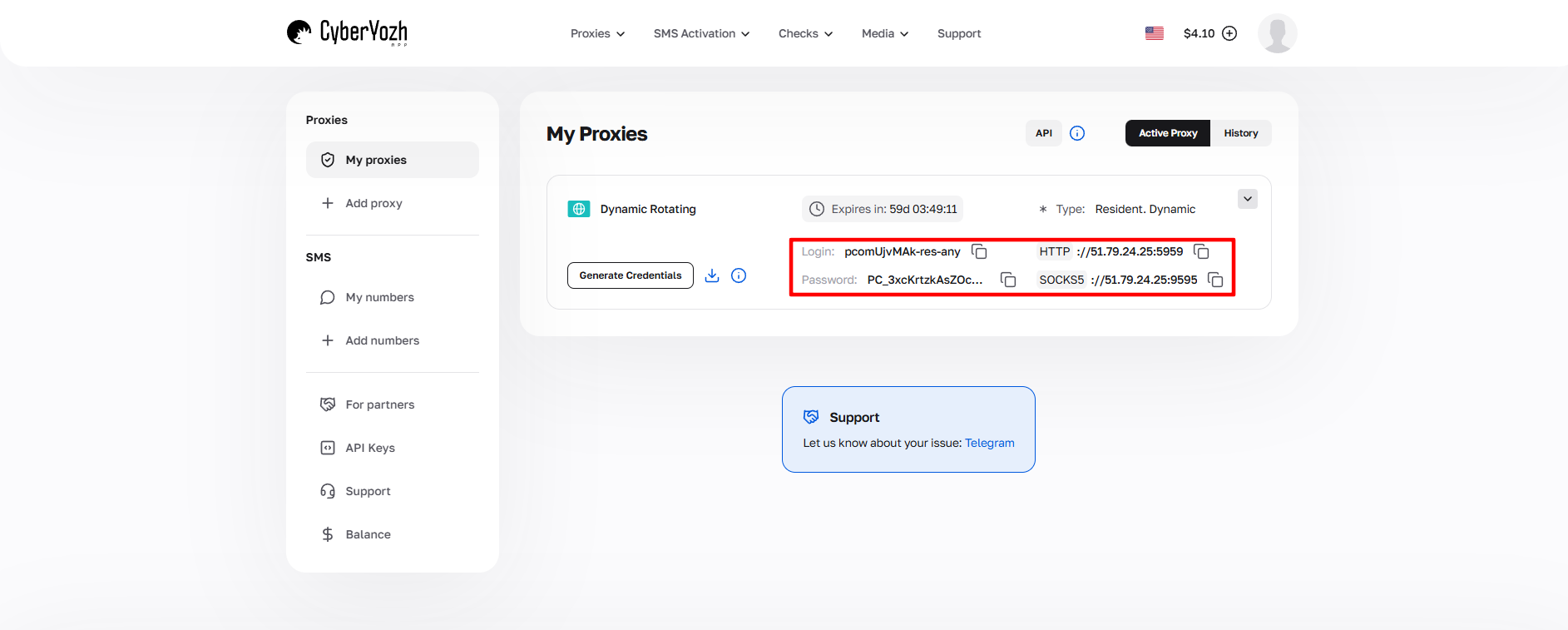 Fig. 1. Screenshot of the CyberYozh platform interface, demonstrating the location of connection data for the proxy server. The image shows fields for IP address (Host), port (Port), username (Proxy Username), and password (Proxy Password).
Part 3. Creating a Profile and Connecting a Proxy
Step 1. Launch and Base Selection
Open Kameleo. On the main screen, click the "New Profile" button.
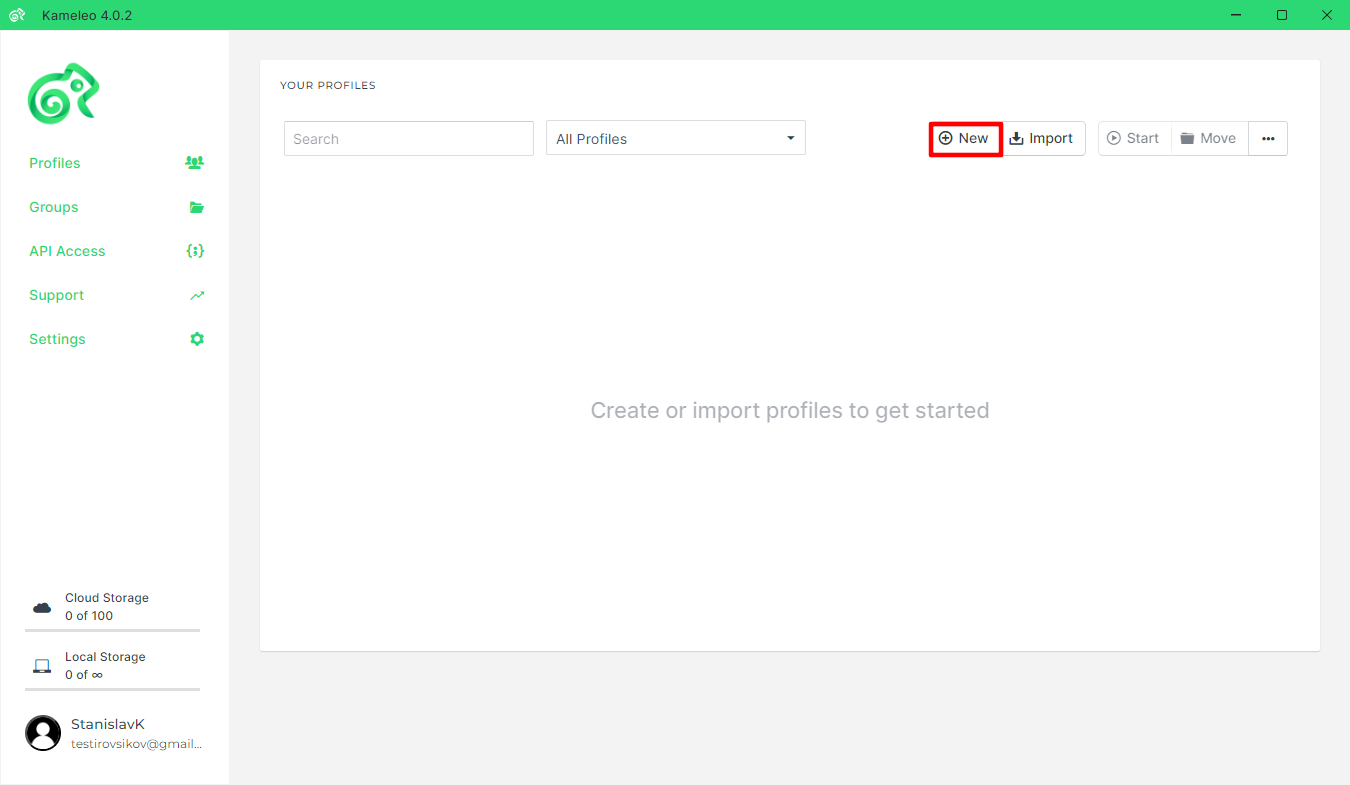 Fig. 2. Kameleo program interface.
You will be asked to choose a Base Profile. This is a template based on which your digital identity will be created.
- Tip: Choose a profile with browser and OS versions that are as recent as possible, but not "beta".
Step 2. Device Settings
In the window that opens, configure the basic parameters:
- Profile Name: Set a name.
- Device Type: Desktop or Mobile.
- OS / Browser: Select the required combination (e.g., Chrome on Windows or Safari on iOS).
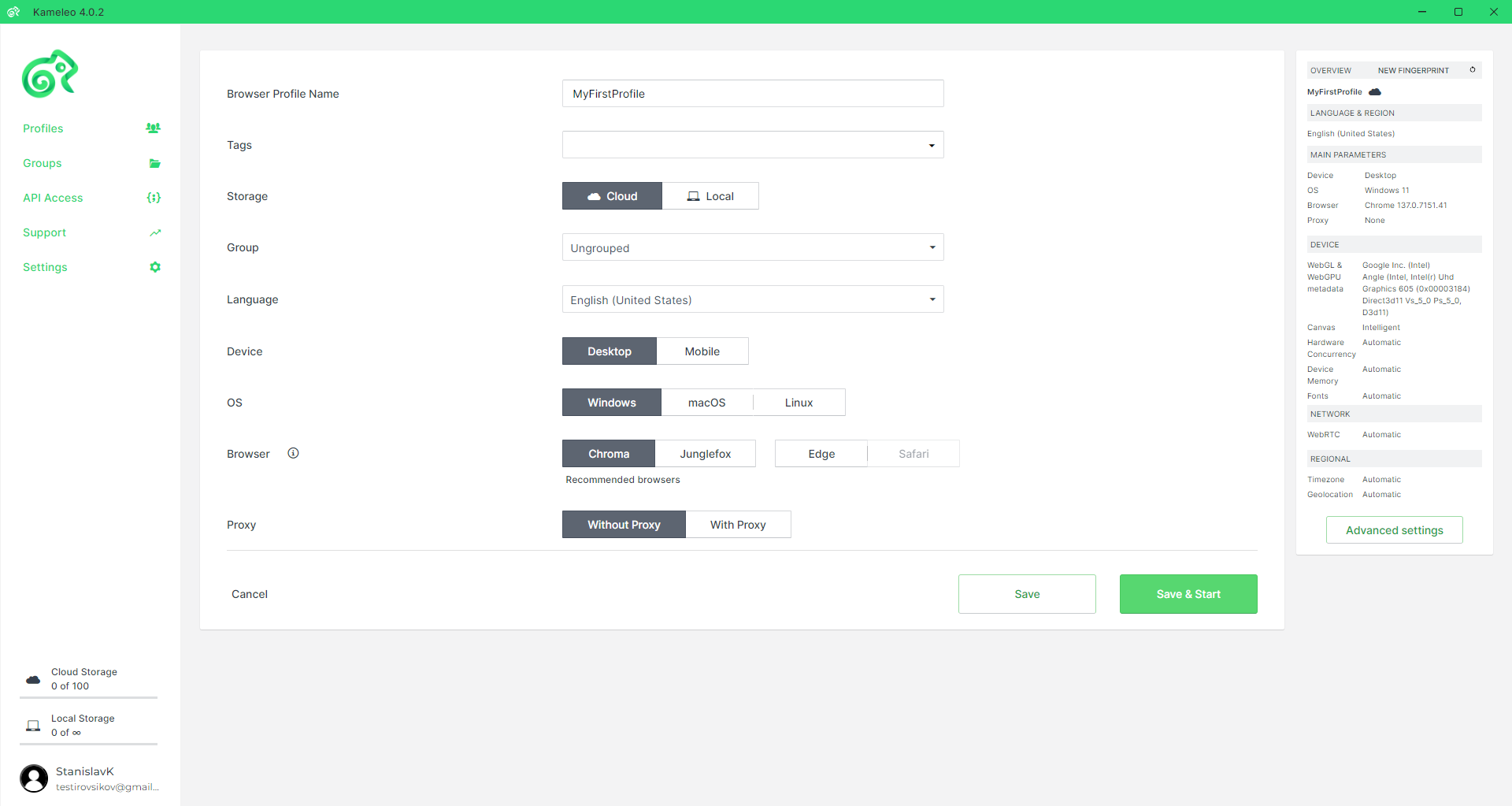 Fig. 3. Profile setup interface in Kameleo. The image shows the configuration dialog box with fields for entering basic parameters, including profile name, browser selection, operating system, and User Agent settings.
Step 3. Connection Settings
Scroll down to the network settings section.
- In the Connection Mode drop-down list, select the protocol. We strongly recommend SOCKS5. It supports UDP, works faster, and provides better privacy protection than HTTP.
- Enter your proxy data:
- Server: IP address or host.
- Port: Port.
- Username / Password: Your authorization credentials.
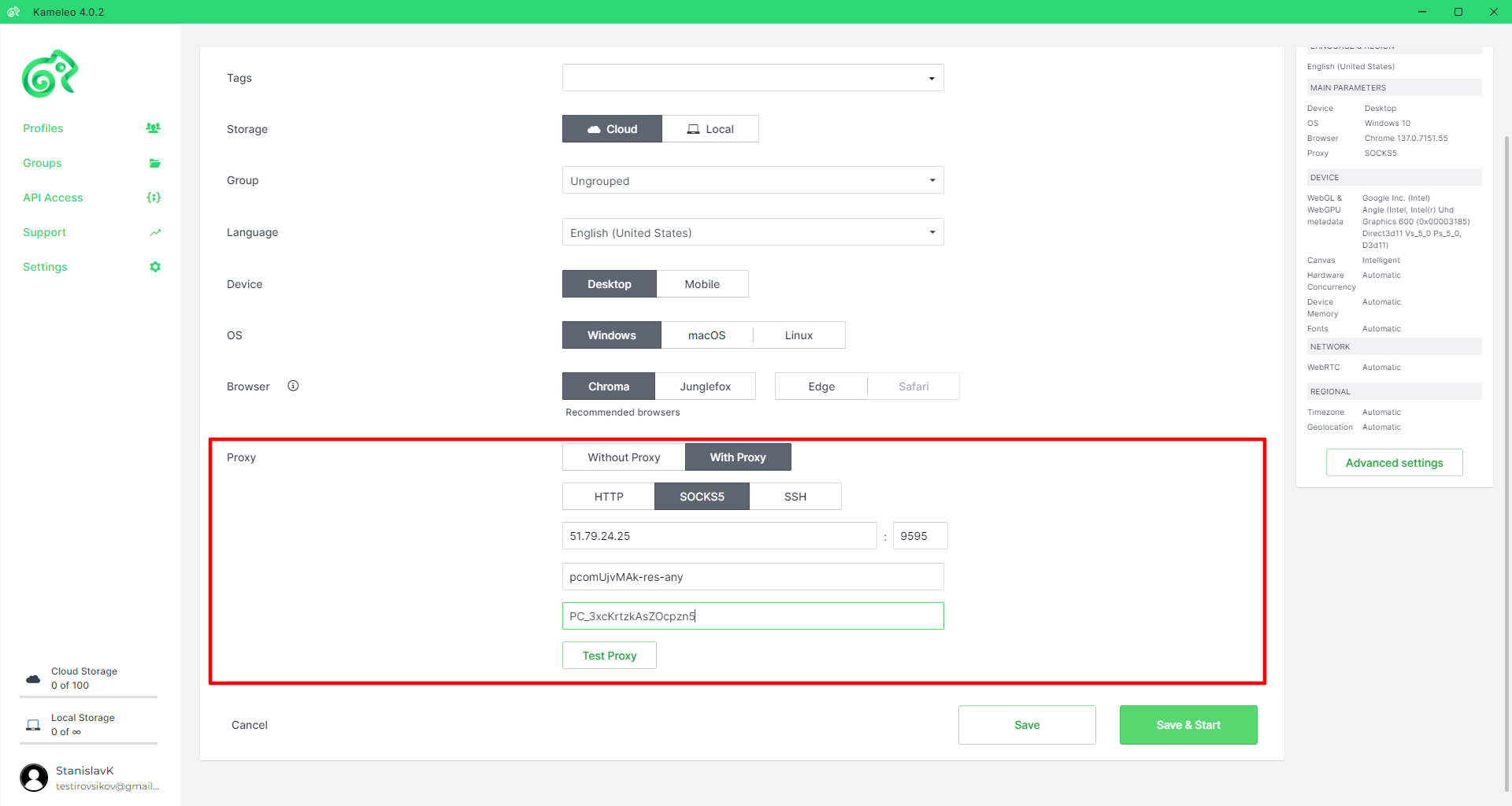 Fig. 4. Proxy setup interface in Kameleo. The image shows the proxy server configuration dialog box with fields for data entry: IP address/host, port, proxy connection type (SOCKS5/HTTPS), and authentication fields (username and password). At the bottom of the window is a connection test button to verify the accuracy of the entered data.
Step 4. Testing (Test Proxy)
Never launch a profile without checking it first. Click the "Test Proxy" button.
Kameleo will check the connection and show:
- Status: Live (Working) or Dead (Not working).
- Geolocation: The country and region of the proxy.
- Important: Ensure that the detected country matches the one you planned to use.
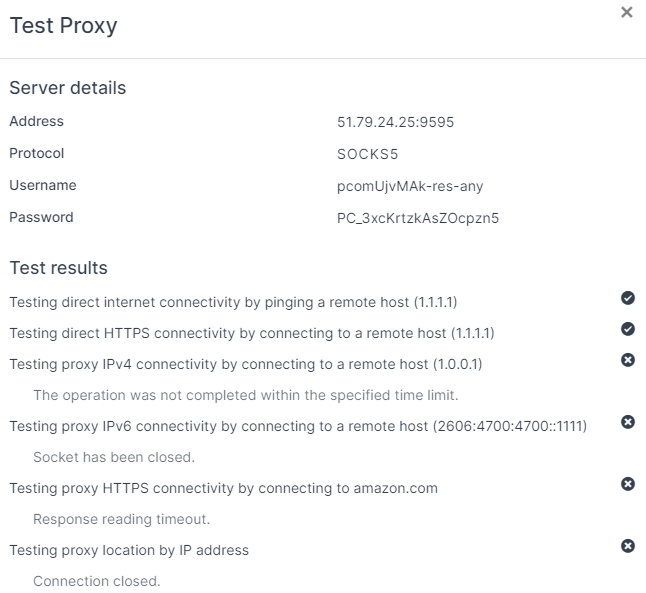 Fig. 5. Proxy connection check dialog box in Kameleo.
If the test is successful (green checkmark), click "Save" or "Start" immediately.
 Fig. 6. Profile saving interface in Kameleo. The image demonstrates the launch of a configured profile with set proxy connection parameters.
Part 4. Launch and Final Check
After launching, a browser window will open. Kameleo will automatically adjust the time zone, language, and browser geolocation to match your proxy's IP.
However, for full confidence, go to browserleaks.com/ip or whoer.net.
Verification Checklist:
- IP Address: Must match the one provided by the provider.
- DNS: Must not point to your real country.
- WebRTC: Should be either disabled or spoofed (Kameleo does this automatically, but checking doesn't hurt).
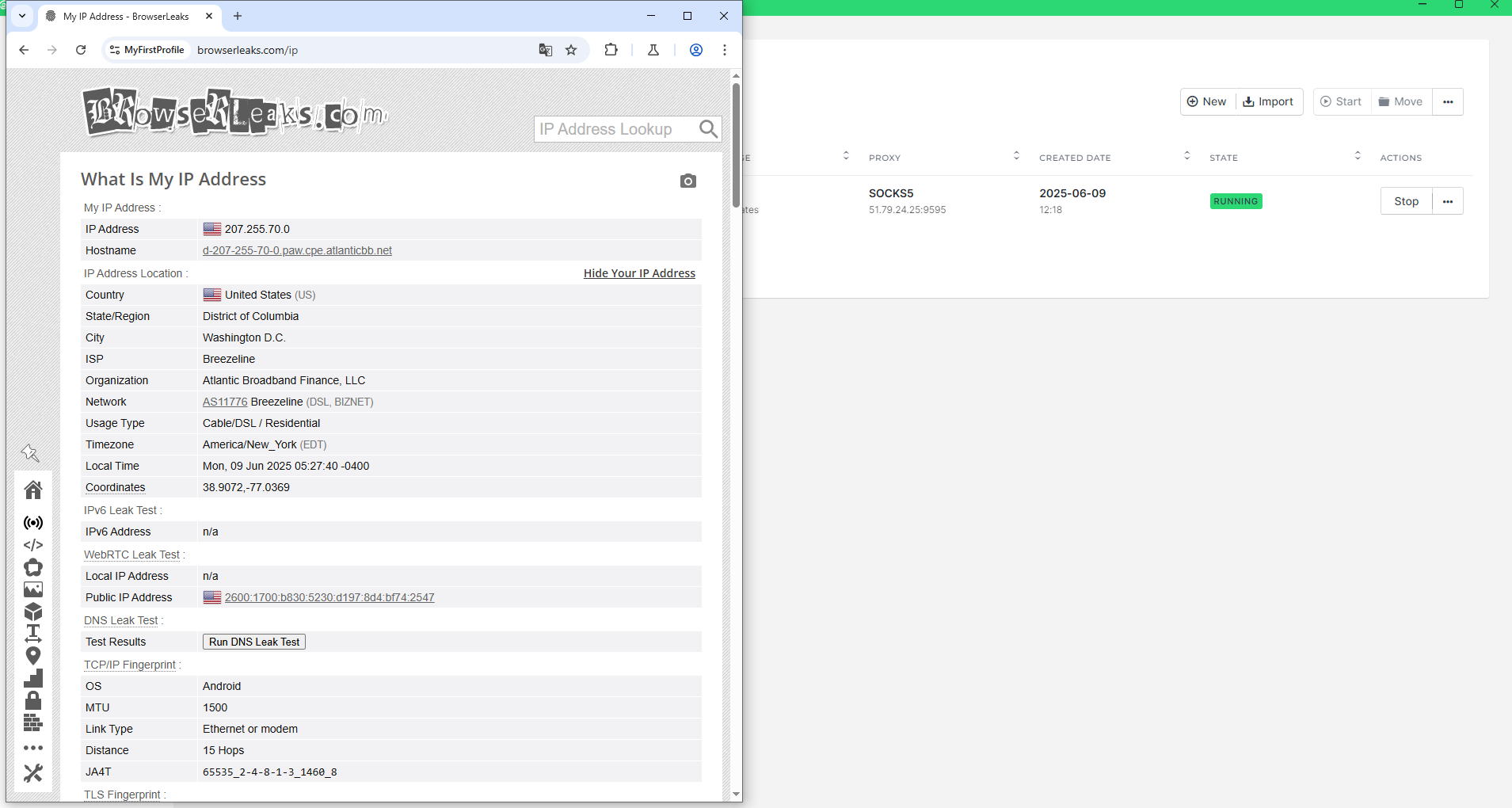 Fig. 7. IP address verification interface in the Kameleo browser via the Browserleaks service. The image shows the result of a successful proxy connection setup, demonstrating the correct display of the changed IP address and associated network parameters.
If all parameters are normal — your virtual profile is ready for work.
Conclusion
Kameleo from Outis Nemo Ltd is a powerful emulation tool, but it requires a competent approach to choosing an IP.
- Emulating a smartphone? Use Mobile Proxies.
- Emulating a PC? Use Residential Proxies.
You can always find high-quality proxies for any device type in the CyberYozh App catalog. Good luck with your work!
